
Activity Log
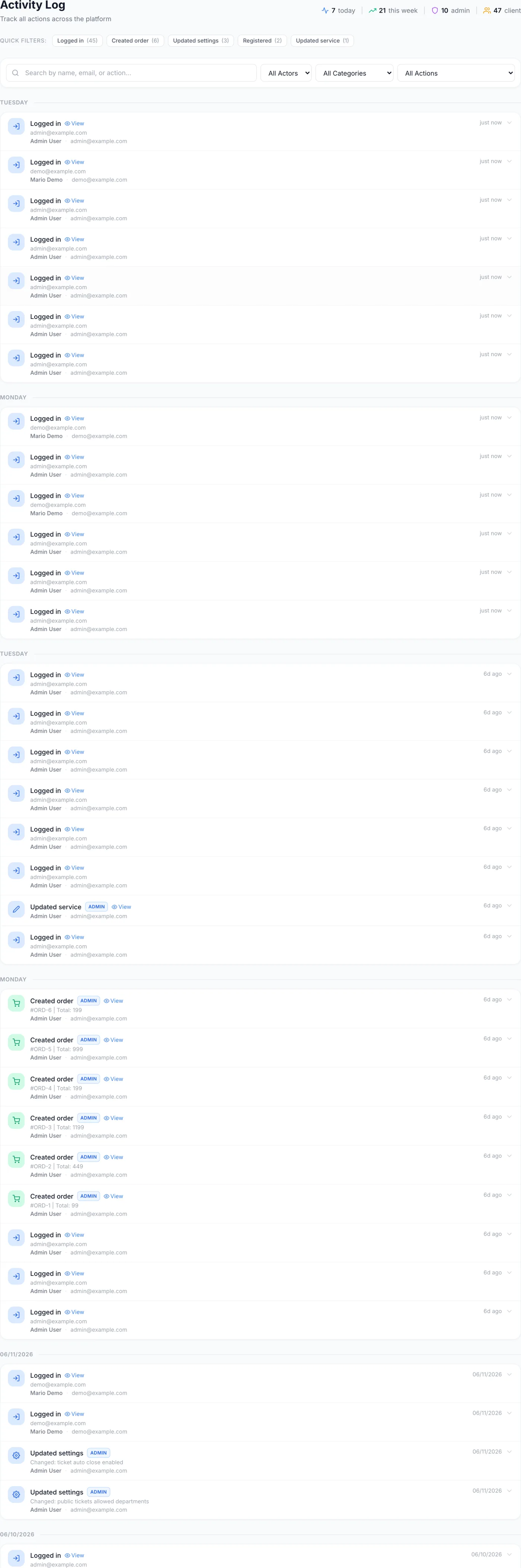
Read the Activity Log audit trail: header counts, quick filters, actor and category dropdowns, search, and time-grouped entries with before/after detail.
What the Activity Log is for
The Activity Log is your platform-wide audit trail. Every recorded action — staff logins, billing changes, service operations, ticket activity, settings edits and more — appears here with the person it is attributed to, the record it affected, and a summary of what changed. Use it for compliance, dispute resolution, and spotting unusual behaviour.
How to open it
The Activity Log is reached from the top header bar of the admin panel, not from the left sidebar. Look for the clipboard/list icon that sits between the Monitoring icon and the Settings gear; hovering it shows the tooltip Activity Log. Click it to open the page. On narrow screens the same item lives under the header's More (three-dots) menu instead.
The icon only appears for administrators whose role includes settings access — see Staff & Permissions. The page header reads Activity Log with the subtitle Track all actions across the platform, and it loads the most recent activity first.
Reading the page
The page has four parts, top to bottom: the header counters, a row of quick-filter pills, the search and filter bar, and the date-grouped activity feed.
Header counters
Four inline stats sit in the top-right of the page header, each with its own icon. They are read-only — clicking them does not filter anything.
| Counter | What it counts |
|---|---|
| today | Recorded actions since midnight today. |
| this week | Recorded actions over the last seven days. |
| admin | Actions attributed to staff over the last 30 days. |
| client | Actions attributed to customers over the last 30 days. |
Quick-filter pills
Below the header, a Quick filters: row shows pill buttons for the ten most frequent action types over the last 30 days, each with a count in parentheses — for example Logged in (7) or Updated settings (3). Click a pill to filter the feed to just that action; the pill turns blue to show it is active. Click it again to clear it. The pills and the All Actions dropdown control the same filter, so picking one clears the other.
Searching and filtering
The filter bar gives you a search box plus three dropdowns. They combine, so you can narrow the feed by several criteria at once.
- Search — the box is labelled
Search by name, email, or action.... It matches the actor's first name, last name or email address. Typing pauses for a moment after you stop before the feed updates. - All Actors — restrict the feed to Admin (staff) actions or Client (customer) actions.
- All Categories — pick a topic such as Billing & Payments or Services. This dropdown narrows the All Actions list beneath it so you can find the action you want; on its own it does not change the feed. Pick an action from the shortened list to actually filter.
- All Actions — pick one specific action type. With no category selected this lists every tracked action; with a category selected it lists only that category's actions.
Whenever any filter or search is active, a Clear button appears at the end of the bar. Click it to reset every control and return to the full feed.
Note: The search box matches an entry's action on the internal action name rather than the friendly label shown in the feed, so typing
Invoice paidwill not find invoice-payment entries. Search by person, and use the All Actions dropdown to filter by what happened.
Filter reference
| Control | What it does |
|---|---|
| Search box | Matches the actor's first name, last name or email address. |
| All Actors | All actors, or only Admin (staff) or Client (customer) actions. |
| All Categories | Authentication, User Management, Services, Orders, Billing & Payments, Tickets, Settings, Account & Team, or Resellers. Narrows the Actions list only. |
| All Actions | A single action type. Limited to the chosen category when one is set. |
| Clear | Resets search and all three dropdowns (shown only when a filter is active). |
The activity feed
Entries are grouped under date headings: Today, Yesterday, a weekday name for earlier days this week, and a full date for older entries.
Each entry row shows:
- A colour-coded action icon and a plain-language label — for example Logged in, Invoice paid, Suspended service.
- An ADMIN badge when the action is attributed to staff.
- A View link (with an eye icon) when the entry is tied to a record you can open directly — a client, service, order, invoice, proforma or ticket.
- A short summary line drawn from the entry's details (such as an invoice number, an email address, a new status, a reason, or which settings changed), shown while the row is collapsed.
- The person the entry is attributed to: name followed by email address. The name links to that account's record. Automated actions with nobody attached show as System.
- A relative time on the right: just now under a minute, then 5m ago, 2h ago and 3d ago up to a week, and a plain date beyond that. Hover it to see the exact date and time down to the second.
When there is nothing to show, the feed displays No activity found, with the hint Try adjusting your filters if a filter is active.
Expanding an entry
Rows that carry recorded detail show a chevron on the right. Click anywhere on the row to expand it. The expanded panel lists the fields involved. Where a value was modified, it is shown as a before → after pair — the old value struck through, the new value in bold; an empty original reads (empty). When more than one field changed, a small N fields changed note appears at the top. Values that look like passwords, secrets, API keys or tokens are never revealed; they display as ••• changed instead. If the action recorded one, the actor's IP address appears at the bottom of the panel. Click the row again to collapse it.
Tip: Settings changes record only the keys that actually changed — if you press Save without editing anything, no entry is written at all.
Paging through the log
The feed loads up to 50 entries per page. When there is more, controls appear at the bottom showing the range and total (for example 1–50 of 312) alongside numbered page buttons and previous/next arrows. Narrow the feed with search and filters before paging through large volumes.
What gets tracked
The log captures actions across all major areas of the platform. The categories you can filter by are:
| Category | Examples |
|---|---|
| Authentication | Logged in, logged out, registered, requested password reset, reset password, enabled or disabled 2FA. |
| User Management | Created, updated, deleted or bulk-deleted a user; suspended, activated or terminated a user; reset a user's password; changed a user's currency. |
| Services | Created, updated, suspended, unsuspended or terminated a service; scheduled a service cancellation; rebooted, shut down or powered on a server. |
| Orders | Created, approved, completed, cancelled or updated an order. |
| Billing & Payments | Invoices created, paid, cancelled, status-changed, deleted or bulk-deleted; payments initiated, completed, captured, refunded, confirmed or failed; credit adjustments, deleted credit transactions, manual payments and invoice exports. |
| Tickets | Ticket created, replied to, closed, reopened, assigned, priority changed, status changed. |
| Settings | Updated settings. |
| Account & Team | Account settings updated; team members invited, updated, removed or left; invitations accepted or revoked. |
| Resellers | Reseller created, approved, suspended or reactivated. |
Note: An action the panel does not have a friendly name for still appears in the feed — it shows a tidied-up version of its own name, a grey icon, and files itself under Settings. It is a real recorded action, not an error.
How long entries are kept
Activity entries are not aged out on a schedule — the log keeps growing, which is what makes it usable as a long-term audit trail.
The exception is a customer data-erasure request. When you erase a customer's account, their activity entries stay in the log — they are the record of what happened — but the personal details captured inside them (email address, name, phone number) are stripped out at the same time. Once the retention window that the addresses were being kept for expires, the IP address and browser details on those entries are cleared as well.
Common tasks
- Audit one staff member or customer — set All Actors to Admin or Client, then type their name or email in the search box.
- Focus on a topic — choose a category in All Categories (for example Billing & Payments), then pick the specific action in the All Actions dropdown.
- Jump to the affected record — click the View link on any row that has one to open the related client, service, order, invoice, proforma or ticket.
- Investigate a change — expand the row, read the before/after detail, and note the IP address if one is shown.
- Review one customer only — open that customer's record and use its own Activity timeline, which shows both what they did and what was done to their account. See Client Details.
Tips and notes
Tip: Automated, system-initiated actions (such as scheduled billing runs) appear with System in place of a person, so you can tell apart what someone did from what the platform did on its own.
Note: Sensitive field changes are masked as ••• changed and never display the underlying value, so the log is safe to review without exposing secrets.
Warning: The Activity Log records administrative and account actions. It is not a record of network traffic or of emails that were sent — for delivery outcomes use Email Logs, and for blocked or banned addresses use IP Ban.
Related
Settings, Staff & Permissions, Client Details, IP Ban, Email Logs, Notifications, Account.