
Notifications
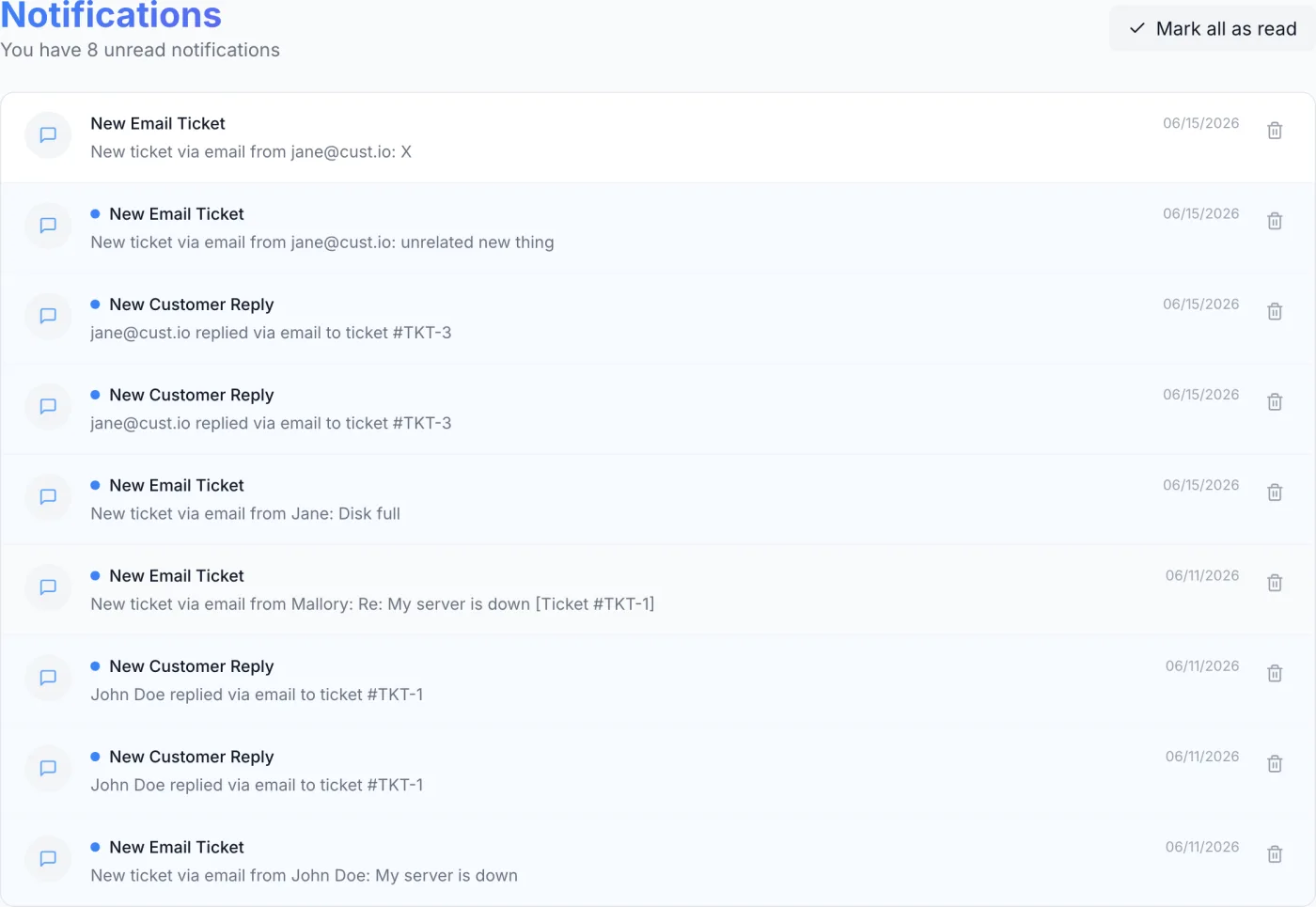
Your personal in-app inbox: read, open, mark-all-read, and delete notifications, plus the header bell preview with its unread badge.
What the Notifications page is for
The Notifications page is your personal in-app inbox. When the platform has something it thinks you should know about — a customer replying on a ticket, a monitoring alert, a reseller application — it drops an entry here so it does not get lost between emails. Each staff member has their own queue: the items you see are yours alone, and reading or deleting one does not affect anyone else's inbox.
How to open it
There are two ways in:
- Bell icon (quick preview) — the bell in the top header opens a dropdown of your most recent notifications. A small red badge on the bell shows your unread count, and it reads
9+once you pass nine unread. - Full page — from the bell dropdown, click View all notifications at the bottom. That link is present only when you have at least one notification.
Note: the bell dropdown loads your notifications only when you open it, and shows up to the 10 most recent. The full page shows up to the 20 most recent. There is no older-items pager on either — act on notifications as they arrive rather than treating the inbox as a long-term archive. For a durable record of what happened and who did it, use the Activity Log.
What arrives here
Notifications are raised by the platform itself; there is no screen where you compose one. Everything that lands in a staff inbox falls into one of these groups, and each entry links to the record it is about.
| Kind | What triggers it | Where clicking it takes you |
|---|---|---|
| New Customer Reply | A signed-in customer replies to one of your tickets. | The ticket |
| New Public Ticket / Guest Ticket Reply | Someone who is not signed in opens a ticket through your public form, or replies to one. | The ticket |
| New Email Ticket / New Customer Reply | A ticket or reply arrives by email into a mailbox you have connected. | The ticket |
| New live chat | A visitor starts a live chat on your website. | The ticket the chat created |
| Monitoring alerts | A monitored device raises an alert. The title carries the severity in brackets, for example [CRITICAL], followed by the device name and the message. | The monitored device |
| Provisioning follow-ups | The automatic recovery sweep finds a service whose provisioning needs attention. | The service |
| New reseller application | Someone applies to your reseller programme and is waiting to be approved or declined. | The reseller |
| Reseller Payment Failed | A reseller's order could not be charged. | The reseller |
| Reseller charged but service not created | A reseller was charged for an order whose service could not be created. | The reseller |
| Supplier warnings | An upstream supplier you buy from rejected an order, did not accept a suspend/terminate you made locally, or raised a document that must be settled before a package change applies. | Your supplier connection settings |
| Game hosting notices | Events raised by the game hosting module, such as a title awaiting review. | The relevant game hosting page |
Note: monitoring alerts are staff-only — they are never shown in a customer's inbox. Customers have their own notification list inside the client portal, which carries their own events (a ticket closed for inactivity, or a scheduled event coming up on a server they rent) and never sees yours.
Delivery channels
This inbox is one channel among several, and they are configured independently:
- In-app — the bell and this page. Always on; nothing to configure.
- Live pop-up — while you have the panel open, a new notification also slides in as a card in the top-right corner. It shows the title and message, carries a View button and a ×, and closes itself after about five seconds. Clicking the card or View opens the record it refers to.
- Email — many of the same events also send mail. That is a separate system with its own wording and on/off switches; see Email Templates.
- Outside channels — chat and messaging destinations are delivered by notification integrations rather than by this inbox; see Notification Plugins.
Reading and acting on a notification
Each row carries four things: a round event icon, a title, a short message (trimmed to two lines), and a relative timestamp such as Just now, 5 min ago, 2 hours ago or 3 days ago. Anything older than a week shows a plain date. Unread rows stand out with a light blue background and a small blue dot next to the title.
- Click a notification — if it was unread, clicking marks it as read and the blue tint and dot disappear. If it points at a related record you are taken straight there; a handful of entries are informational and stay put.
- Mark everything as read — when you have unread items, a Mark all as read button appears in the page header (and in the bell dropdown). It clears the unread highlighting and resets the bell badge without deleting anything.
- Delete a single notification — click the bin icon at the right end of a row on the full page to remove that item permanently. There is no undo, and no bulk delete.
Warning: marking as read and deleting are different actions. Mark all as read keeps the items in your inbox, just no longer highlighted; the bin icon removes one item for good.
The header and its status line
At the top of the page the title Notifications sits above a status line that reflects your unread state:
- With unread items it reads “You have N unread notification” (or “notifications” for more than one).
- With nothing unread it reads “All caught up!”
The Mark all as read button is present only while at least one item is unread — once you are caught up, it disappears.
Field and control reference
| Element | Where | What it does |
|---|---|---|
| Bell icon | Top header | Opens the dropdown preview of your most recent notifications. |
| Red unread badge | On the bell | Shows your unread count; caps at 9+. |
| Mark all as read | Dropdown header & page header | Clears all unread highlighting; appears only when unread items exist. |
| View all notifications | Bottom of dropdown | Opens the full Notifications page. Shown only when you have at least one notification. |
| Status line | Page header | Your unread count, or “All caught up!” when none are unread. |
| Event icon | Each row | A message icon for ticket replies, a bell for everything else. |
| Blue dot | Each unread row | Marks a row as still unread. |
| Title & message | Each row | A short headline and a one- or two-line description of the event. |
| Timestamp | Each row | How long ago the notification arrived, in relative form. |
| Bin icon | Each row on the full page | Permanently deletes that single notification. |
| Pop-up card | Top-right corner | Announces a notification that arrived while you were working. View opens the record; × dismisses it; it closes itself after a few seconds either way. |
The empty state
With no notifications, the list area shows a bell illustration, the message “No notifications yet” and the hint “We'll notify you when something important happens”. That is expected on a fresh inbox or right after you have cleared everything out — new items appear on their own.
Practical tips
- The bell badge is your at-a-glance signal. If it is clear you have nothing unread, and the page status line says “All caught up!”
- Use the row click as a shortcut. Clicking a ticket-reply notification jumps you into the conversation rather than making you hunt for it.
- Switching accounts switches inboxes. If you keep more than one login signed in, the bell always shows the notifications of the account you are currently using.
- Mark all as read for a clean slate when you have reviewed everything but want to keep the records; reach for the bin only when you want an item gone entirely.
Related
Tickets · Monitoring · Email Templates · Notification Plugins · Top Header & Global Search · Account · Activity Log