
Client Details
The per-customer cockpit: services, billing, orders, tickets, emails, credits, payment methods, notes, and SSH keys, plus status and currency controls.
What the Client Details page is for
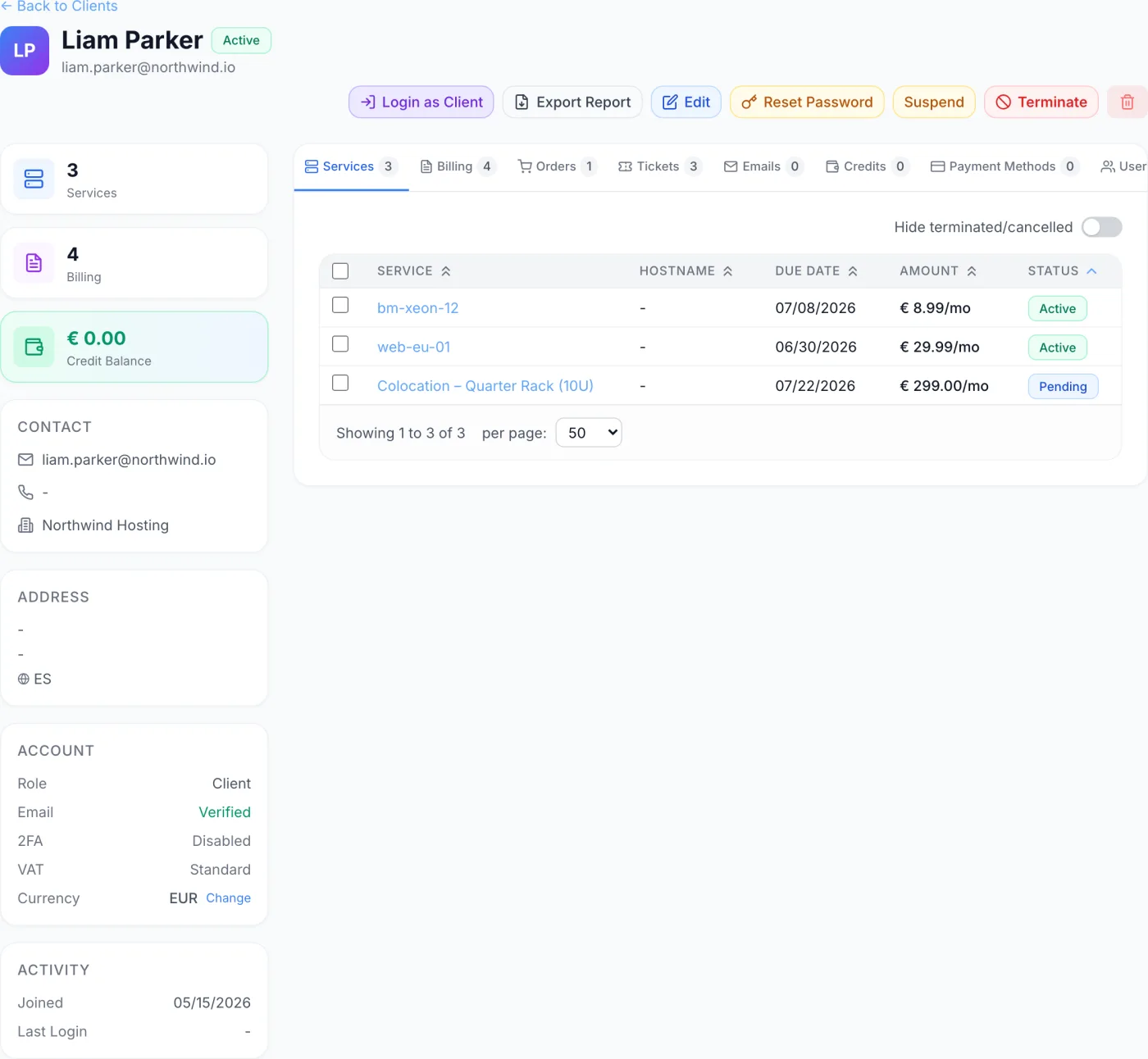
The Client Details page is the per-customer cockpit. It pulls everything tied to a single account — services, billing documents, orders, tickets, email history, credits, saved payment methods, team members, notes, SSH keys, customer API keys and an activity trail — into one screen so support and billing staff can answer a customer's questions without jumping between pages. The header carries the status and account controls, a left sidebar shows the key facts at a glance, and a tab strip on the right segments the heavier data.
How to open it
Go to Clients in the sidebar and click any row in the list. You land on that customer's detail page. The ← Back to Clients link at the top left returns you to the list.
The header and account actions
The header shows the customer's avatar (or their initials), full name, email, and a coloured status badge. To the right is a row of action buttons:
- Login as Client — opens the customer portal signed in as this user, which is useful for reproducing an issue they reported. The button is greyed out on an account whose role is Admin; staff, super-admin and erased accounts are refused if you try. Every impersonation is written to the customer's Activity trail with the staff member's identity, and the impersonated session lasts one hour.
- Export Report — opens a dialog to generate a single PDF of the account's data (see below).
- Edit — switches the name field and the sidebar Contact, Address, and Account sections into inline edit mode. Save and Cancel buttons replace the action row while editing.
- Reset Password — sets a new password for the account directly.
- Reset 2FA — clears the customer's second factor. A small label beside the button reads 2FA on or 2FA off so you can see the current state without opening a tab.
- Set Inactive — shown only while the account is in Pending status.
- Suspend / Unsuspend / Activate — this button changes with the current status. Active accounts show Suspend; suspended accounts show Unsuspend; inactive accounts show Activate.
- Terminate — permanently closes the account and its services.
- Delete (trash icon) — starts the close-and-erase flow described at the end of this article. It is hidden for the primary owner account and for accounts that are already erased.
A terminated account replaces the status controls with an Account Terminated label, and an erased account replaces them with a Data erased label. Both are end states from this screen.
The client status values
| Status | What it means |
|---|---|
| Pending | The account exists but has not been activated — typically a signup that has not completed. Only in this state does the Set Inactive button appear. |
| Active | The account is in good standing. A customer account is set to Active when it holds at least one active service. |
| Inactive | The account can still sign in but holds no active service. Activating a customer with no active services lands them here rather than on Active. |
| Suspended | The account and its active services have been suspended. |
| Terminated | The account and its services are permanently closed, every session has been destroyed and sign-in is blocked. |
| Erased | The account was closed on an erasure request. It holds no personal data, cannot sign in and cannot be charged. Only the legally required retention record remains. |
Editing the profile
Click Edit, then update any of these fields and click Save:
| Field | What it does |
|---|---|
| First name / Last name | Edited inline next to the avatar in the header. |
| Email, Phone, Company, VAT Number | The Contact section of the sidebar becomes editable text fields. |
| Street, City, State / Province, Postal, Country | The Address section becomes editable; Country is a dropdown. A filled-in address line is checked for plausibility — the street must include a number and the postal code must match the selected country — because these values print on invoices. |
| Role | Client, Staff or Admin. Setting the role to Admin unlocks the Departments controls for super admins (see below). |
| Email Verified | A checkbox that marks the email as confirmed without the customer clicking a verification link. |
| VAT Exempt | A checkbox that removes tax from this customer's billing documents. |
Resetting the password
Click Reset Password, type the new password and confirm it, then click Reset Password in the dialog. The password must be at least 8 characters and the two fields must match; the dialog warns inline if either rule fails. The change takes effect immediately.
Resetting two-factor authentication
Click Reset 2FA. The dialog names the customer, explains that the reset removes their second factor and invalidates every recovery code they hold, and warns that you should only do this after verifying who you are speaking to out of band — a callback or a channel that is not their email. You can type an optional reason, which is kept in the audit log. Confirm with Reset 2FA. Afterwards the customer signs in with their password alone until they enrol again.
Note: The button stays available even when the label reads 2FA off, because a half-finished enrolment is cleared the same way. It is blocked on your own account, and only a super admin can reset the second factor of a staff, admin or super-admin account.
Suspending, activating, and terminating
- Suspend asks for confirmation and also suspends every active service on the account. The success message reports how many services were suspended, and how many could not be.
- Unsuspend / Activate restores the account only. It does not unsuspend the services — reactivate those from the service itself. A customer with at least one active service is set to Active; one with none is set to Inactive.
- Terminate is destructive. The dialog lists exactly what it does: terminates all active services, destroys every active session (force logout), and blocks the client from logging in permanently. You must type
TERMINATEin capitals into the confirmation field for it to proceed. The result message lists how many services were terminated.
The left sidebar
The sidebar summarises the account in stacked cards:
- Summary cards — a count of Services, a combined Billing count (invoices plus proformas), and the current Credit Balance in the customer's own currency.
- Contact — email, phone, company, and VAT number.
- Address — street, city, state, postal code, and country.
- Account — Role, Email (Verified / Unverified), 2FA (Enabled / Disabled), VAT (Exempt / Standard), and the billing Currency. A Change link next to the currency opens the currency dialog. If the currency is locked, a small Locked tag appears.
- Activity — the Joined date and Last Login date.
- Departments — shown only when the account's role is Admin and you are a super admin. It carries a Super Admin toggle (which bypasses all restrictions) and, when that is off, checkboxes to assign the staff member to specific support departments.
Changing the billing currency
Click Change next to the currency, pick a new currency from the dropdown, and — when the target differs from the current one — choose which existing records to convert. Three groups of checkboxes appear, one status at a time:
- Invoices — unpaid, pending, paid, cancelled, refunded, collections.
- Proformas — unpaid, pending, paid, cancelled, expired.
- Services — pending, pending payment, active, suspended, cancelled, terminated, fraud.
Conversions use the current exchange rates from your billing settings. Click Update Currency to apply; the confirmation summarises how many invoices, proformas, and services were converted.
Warning: Converting records rewrites their stored amounts at today's rate. If you only want the customer's future documents in the new currency, leave all the conversion checkboxes empty.
The tabs
The content area on the right is split into twelve tabs, each with a count badge. The active tab is kept in the page address, so you can bookmark or share a link straight to one.
| Tab | What it shows |
|---|---|
| Services | Service, Hostname, Due Date, Amount and Status columns. Hourly services show Credit-based instead of a due date. |
| Billing | A combined list of proformas and invoices with Document, Type, Date, Due Date, Total and Status columns. |
| Orders | Order, Date, Product, Total and Status. |
| Tickets | Ticket #, Subject, Department, Date, Priority and Status, plus an Open Ticket button. |
| Emails | Every message the platform sent this customer — Date, Subject, Event and Status — with a View button that opens the rendered message. |
| Credits | The current balance, the credit actions, and the full transaction history. |
| Payment Methods | The customer's saved cards and other methods, with gateway, type, status, last-used and added dates. |
| Users | Team members attached to the account, and pending invitations. |
| Notes | Internal staff notes, which the customer never sees. |
| SSH Keys | SSH public keys on the account. |
| API Keys | Keys this customer created for the customer API, with a Beta tag. |
| Activity | An audit timeline scoped to this customer, with a Login History button. |
Services tab
Each row links to the full service detail. A Hide terminated/cancelled toggle filters out closed services. Tick the checkboxes in the first column to act on several at once:
- Generate Invoice (n) appears when at least one selected service is active, and creates renewal invoices for them.
- Terminate (n) appears when at least one selected service is not already terminated or cancelled.
- Delete (n) removes the selected services after confirmation.
Billing tab
The New Document button opens a dialog to create an invoice or proforma for this customer. Tick rows to reveal bulk actions: Mark as Cancelled cancels the selected documents, and Delete Selected removes them. Proformas and invoices are tagged with different colours so you can tell them apart at a glance. See Invoice Details and Proforma Details.
Emails tab
Click View on a row to open the message that was sent, with the recipient, event and delivery status along the top and the failure reason if it did not arrive. The message body itself is restricted to super admins, because sent mail can contain password-reset links and provisioned credentials.
Credits tab
The balance is shown large at the top with three actions:
- Add Credit — manually increases the balance. Enter an amount and a reason, then confirm.
- Remove Credit — manually decreases it. A warning appears if the amount exceeds the current balance.
- Generate Deposit Proforma — creates a proforma the customer pays to top up their balance. You set the amount, an optional due date (7 days out if you leave it blank), and optional notes. When it is fully paid an invoice is generated and the funds are credited automatically.
Below the actions is the full transaction history (Date, Type, Description, Amount, Balance) with an Export PDF button. Positive amounts show in green with a plus sign; deductions show in red. Types are colour-coded, including Deposit, Deduction and Refund. Rows that reference an invoice, service or payment carry a link straight to it. Hourly billing charges for a month are grouped into one row with a View n charges button that expands the per-hour breakdown, and a View service link. Each transaction has a trash icon; deleting a grouped row returns the credit to the balance and recalculates every later balance.
The Credit Balance card in the sidebar and the balance at the top of the Credits tab are the source of truth for a customer's prepaid funds. See Credit Balance for what that balance settles on its own and when it will not go through.
Payment Methods tab
Lists the methods the customer has saved, including a Default badge, card expiry (highlighted red when expired), the gateway name, an Active / Inactive status, when each was last used, and when it was added. The trash icon removes a saved method after confirmation.
These are the methods the platform charges when automatic payment of renewals is switched on. That behaviour, including how many days before the due date the charge is attempted and how often it is retried, is a company-wide setting rather than a per-customer one — see Billing for the fields and Billing Automation for the sequence they drive.
Users, Notes, SSH Keys and API Keys tabs
- Users lists the account's team members with their status, permission count and last login, plus any pending invitations. You can invite a member, edit a member's permissions, remove a member and revoke an invitation. The account owner is marked with an Owner badge and always holds all permissions. See Team Members.
- Notes is for internal staff comments that the customer never sees. You can write, edit, pin and delete notes; edited notes are marked as such and show their author.
- SSH Keys lets you add a named public key or remove one. Keys added here are installed on this customer's dedicated servers when their operating system is reinstalled. Paste the contents of a public key file — never a private key.
- API Keys lists the keys this customer created for the customer REST API: label, key prefix, scopes, expiry, allowed addresses and when the key was last used and from where. Only the prefix is stored, so no key can be shown again. You can Revoke a key — requests using it are rejected immediately — and open the eye icon to see that key's recent requests with method, endpoint, response code and source address.
Activity tab
A timeline of everything recorded against this customer, including actions staff took on their behalf. The Login History button opens the sign-in record. For the platform-wide view, see Activity Log.
Exporting an account report
Click Export Report in the header to open the Export Client Data Report dialog. It is built for law-enforcement and data-access requests, and the dialog says so: everything exported is written to the activity trail. Tick which sections to include — Personal Information, Address, Login History, Saved Payment Methods, Invoices, Payment Transactions, Credits & Credit History, Services, Orders, Support Tickets and Activity Log — or use Select All. At least one section is required. Click Export PDF to download a single document.
Closing an account on an erasure request
When a customer asks you to delete their account, use the Delete (trash) button in the header. It opens a dialog titled Close and erase client that sets out three things before you confirm with Erase account.
Warning: This cannot be undone, and it acts on real infrastructure. An erased account cannot be edited, reset, impersonated or erased again. The primary owner account cannot be erased at all.
What happens next depends on whether the customer has any billing history. If they have — an invoice, proforma, payment, order, service or credit transaction — the account is erased: their personal data is destroyed now, their services are terminated, their money stops, every route back in is cut, and only the records the law obliges you to keep are retained under two dated holds that expire on their own. If they have none at all, the record is deleted outright.
Closing a Client Account is the full account of the control: what to settle before you press it, exactly what is destroyed and exactly what is kept, the two retention clocks and the dates they produce, how to read the retention record left on the client page, how to find an erased account afterwards, and what the customer receives.
Warning: The default retention periods and the legal basis text reflect accounting and identification duties under Romanian and EU law. Confirm the retention rules that apply to your own company and jurisdiction before you rely on the defaults, and have the wording reviewed by your own advisers.
Note: If any step of the erasure reported a problem, the result dialog says how many, so you can check before you confirm completion to the customer.
Tips and gotchas
Tab state is shareable. The active tab is stored in the page address, so you can bookmark or send a link straight to, say, a customer's Billing or Credits tab.
Login as Client is logged. Impersonation is recorded on the Activity tab with your identity, so it is never silent.
Suspend cascades, Unsuspend does not. Suspending an account suspends its active services; unsuspending it does not bring them back. Reactivate services individually.
Terminate and erase are different. Terminate closes the account and its services but leaves the customer's record intact. Erase removes the personal data and leaves only a dated retention record.
Related
Clients, Closing a Client Account, Credit Balance, Resellers, Referrals, Service Details, Team Members, Activity Log