
Services
Monitor every active subscription and provisioned resource: filter by status, search, view summary tiles, sort by renewal date, delete, and track cancellations.
What the Services page is for
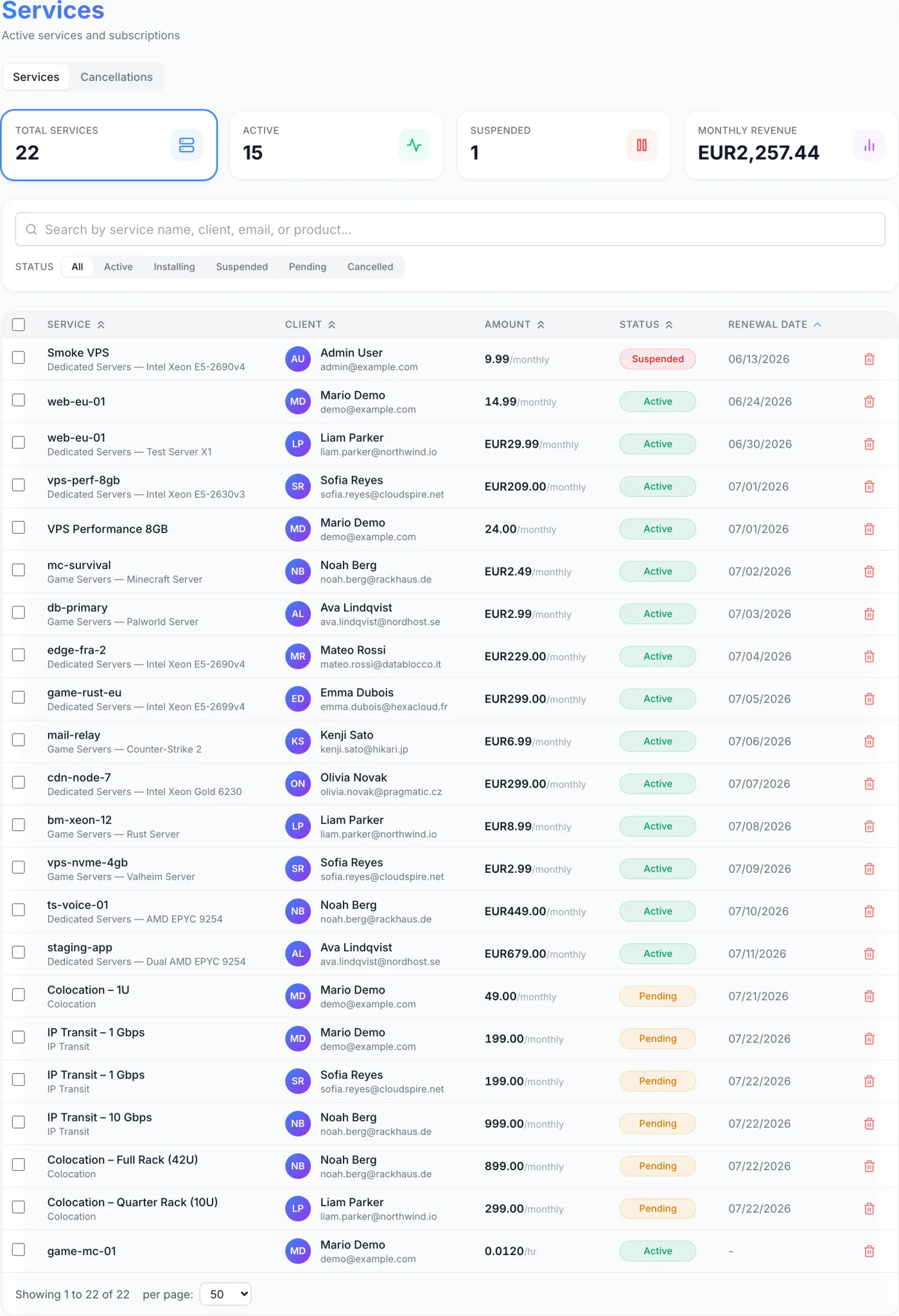
The Services page lists every subscription and provisioned resource you are billing for. Where Orders records the buying event and Invoices & Proformas tracks the money, Services tracks the thing the customer actually uses — a virtual server, a dedicated server, a game server, colocation, IP transit, or anything else you sell on a cycle. Each service carries a renewal date that drives its renewal billing, so this is the single place to see what is live, what is suspended, and what is about to renew.
How to reach it
Click Services in the left sidebar. The page opens on the Services view. A second view, Cancellations, is reached from the small tab pair just under the page title; a badge on that tab counts the cancellation requests currently open.
The summary tiles
- Total Services — the full count. Click it to clear the status filter and show everything.
- Active — services running and billing normally. Click to filter to them.
- Suspended — services whose access is disabled. Click to filter to them.
- Monthly Revenue — the combined monthly value of your services in your default currency. This tile is a figure only; it does not filter.
Tip: the tile matching the filter currently applied is outlined, so you can always see which view you are in. Clicking Total Services resets it.
Finding a service
- Search. Type into the box labelled “Search by service name, client, email, or product…”. The list refreshes a moment after you stop typing; there is no search button.
- Filter by status. On a wide screen a row of tabs appears beside the Status label: All, Active, Installing, Suspended, Pending and Cancelled. On a narrow screen the same choices become a dropdown.
- Sort. Click a sortable column header to reorder. The list opens sorted by Renewal Date, soonest first — the quickest way to see what is about to renew.
- Page through. Use the controls under the table to move between pages or to change how many rows are shown: 25, 50 (the default), 100, 200, or All.
Table columns
| Column | What it shows |
|---|---|
| Service | The service name, then a smaller line with its category and product (for example “VPS — Cloud 2GB”), then the hostname when the service has one. |
| Client | The owner’s initials, name and email. The name links to their record. Hidden on narrow screens. |
| Amount | The recurring price and cycle, for example “$12.00/monthly”. Hourly services show four decimal places and a “/hr” suffix. |
| Status | A coloured badge showing the lifecycle state. |
| Renewal Date | The next due date that drives renewal billing, or a dash when none is set. Hidden on narrow screens. |
A checkbox column on the far left selects services for bulk deletion, and a trash icon on the far right deletes a single service.
Opening a service
Click anywhere on a row except the checkbox, the client link or the trash icon to open Service Details, where you manage credentials, provider controls, add-ons, upgrades and downgrades, suspension, cancellation and the rest of the lifecycle.
Service statuses
| Status | Meaning |
|---|---|
| Pending | Created but not yet provisioned — waiting for a deploy to start, or for something you must do first. |
| Pending Payment | Waiting for the order to be paid before anything is provisioned. |
| Installing | The deploy is running. Normal and temporary, not an error. |
| Active | Running and billing normally. This is the only state that generates renewal documents. |
| Suspended | Access is disabled. The reason is recorded and shown to the customer. |
| Provisioning Failed | The deploy did not complete. The error is shown on the service so you can retry. |
| Cancelled | The service has been cancelled. |
| Terminated | The service has been permanently ended and its resources released. |
| Fraud | Marked as fraudulent. Set by hand on the service. |
The status tabs cover the five you filter on most; Pending Payment, Provisioning Failed, Terminated and Fraud still show on the badge and are found through search or by sorting the Status column.
The path a service takes between Pending and Active — what starts a delivery, how long each product type takes, what retries on its own and what to do when one fails — is set out in Provisioning & Delivery.
How suspension and termination happen on their own
Two automatic routines act on services, both configured on the Billing settings page and both part of the nightly pass described in Billing Automation:
- Auto Suspension suspends an active service whose renewal document is still unpaid a set number of days past its due date (Suspension Grace; zero means suspend on the due date itself).
- Auto Termination terminates a service that has been suspended for longer than the Termination Grace period.
Both skip a service that is marked billing-exempt or that carries a Do Not Suspend Until date in the future. Hourly services follow their own rules, set out in Hourly Billing: credit is deducted every hour, the service is suspended once the balance runs out and the hourly grace period passes, and it is restored automatically if the customer tops up.
Note: suspending a service stops its renewal billing. Renewal documents are only raised for services that are Active, are not marked billing-exempt and have no cancellation pending — so a suspended service will not accumulate new charges. Hourly services are the exception: they stop being charged when they are suspended too, because the hourly deduction only runs against active services.
Deleting services
Deleting removes the service record permanently and cannot be undone. You can delete one or several.
Delete a single service
- Click the trash icon at the end of the row.
- A dialog confirms that the record will be permanently removed.
- If the service was provisioned through a provider integration and is not already terminated, a checkbox labelled Also terminate on provider appears, ticked by default. Leave it ticked to destroy the external resource as well; untick it to remove only the billing record and leave the resource running.
- Click Delete, or Delete & Terminate when the provider option is ticked.
Delete several services
- Tick each service, or use the header checkbox to select every row on the page.
- A blue bar appears with the count and a Delete Selected button.
- Confirm in the same dialog, choosing whether to terminate provider-side resources.
Warning: deleting is not cancelling. Deleting wipes the record and its history from your system. To stop billing a customer properly — at the end of their period or immediately — open the service and use Schedule Cancel or Terminate Service in Service Details instead.
The Cancellations view
Switch to the Cancellations tab to review every cancellation in one place. Four cards sit at the top:
- Pending — open cancellation requests. Clicking it shows the pending list.
- Ending ≤ 7 Days — how many of those end within a week. It turns red when there are any.
- Value at Risk — the combined recurring value of the pending services.
- Past — services already cancelled or terminated. Clicking it shows the history list.
Below the cards, two sub-tabs — Pending Cancellations and History, each with its own count — show one list at a time, alongside a search box that matches client, service, product, hostname and reason.
Pending Cancellations
| Column | What it shows |
|---|---|
| Client | Name and email, linking to the client record. |
| Service | Service name and product, linking to the service. |
| Reason | What the requester wrote, or “No reason given”. |
| Requested by | Who asked, with a Customer or Staff badge. |
| Requested | When the request was made. |
| Scheduled | The end date, with a chip reading in 5d, Today or Overdue. |
| Value | The recurring price and cycle. |
Each row carries two actions:
- Keep — revokes the request. The service stays active and continues to bill normally.
- Terminate Now — processes the cancellation immediately instead of waiting for the scheduled date. External resources are destroyed and this cannot be undone.
Both ask you to confirm, and the confirmation repeats the reason the requester gave.
History
The history list shows client, service, reason, who requested it, the value, the final status, and the date it was cancelled.
Tips and gotchas
Tip: a service sitting in Installing far longer than usual, or one in Provisioning Failed, is best diagnosed from the service itself — the deploy error is printed on the Service Information card, with buttons to retry or stop the deploy. See Service Details.
Tip: to stop renewal billing without suspending or terminating anything — a service you host at no charge, or one you are settling separately — use the Exempt? toggle on the service. It also takes the service out of the automatic suspension and termination routines.
Related articles
Service Details · Provisioning & Delivery · Orders · Invoices & Proformas · Products · Clients · Billing Settings