
Discounts
Create and manage promotional and referral discount codes: percentage or fixed amounts, usage limits, validity windows, and product restrictions.
What discount codes are for
Discount codes are the coupon codes customers type at checkout to reduce an order total. A code takes off either a percentage or a fixed amount, and you can limit how many times it may be used, by whom, when it is valid, the minimum order it requires and which products or categories it covers. The same screen also lists the referral reward vouchers the referral program issues automatically, so you can manage hand-built promotions and earned rewards side by side.
How to reach it
Open Settings in the admin panel, and under the Promotions group choose the Discounts & Referrals tab. The top of the tab holds four summary tiles and a settings card — the discount system on one side, the referral program on the other; the lower half is the Discount Codes list where every code is created and managed.
Turning the discount system on
The settings card is split in two. On the left, under Discount System, there is a single switch:
- Enable Discount Codes — described as Allow discount codes at checkout. When it is off, the discount-code box does not appear on the checkout at all and no code can be redeemed.
Note: Codes do not stack. A checkout accepts one code per order, and there is no setting that changes this. If your team remembers a “code stacking” switch here, it is gone.
On the right, Referral Program has its own Enable Referral Program switch and, beneath it, the Commission percentage, the reward Lifetime in days, the referral code Prefix and a First Payment Only switch. Those fields are greyed out until the referral program is enabled. See Referrals for the full walkthrough.
After changing anything in this card, click Save Settings at the top right of the tab.
Tip: The settings card and the code list are independent of each other. Creating, editing, switching or deleting a code takes effect the moment you do it and does not need Save Settings.
Reading the code list
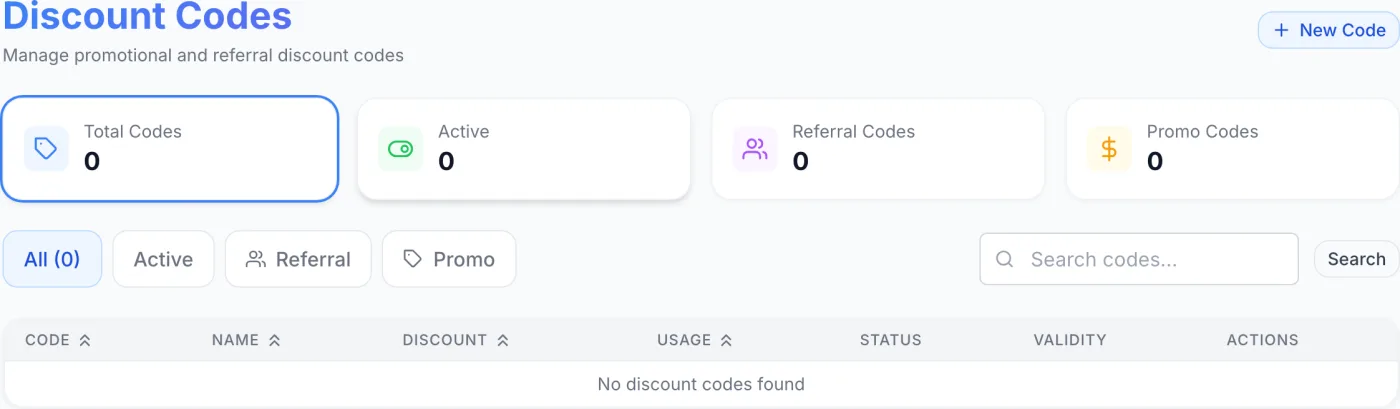
Summary tiles
Four tiles sit above the settings card:
- Total Codes — every code, promotional and referral.
- Active — codes whose Active switch is on.
- Referrals — the number of referral relationships the referral program has recorded, in every state.
- Discounted — the total amount taken off orders by all codes, converted into your base currency.
Filters and search
Above the table sit four filter buttons — All (with a running count), Active, Referral and Promo. To their right, type into the Search… box and press Search or Enter to match a code by its code text or its name; the small clear button inside the box resets it.
The code table
| Column | What it shows |
|---|---|
| Code | The code text customers type, with a copy-to-clipboard button beside it. A small purple badge marks a voucher issued by the referral program. The code's internal name appears in small type underneath. |
| Discount | The value — a percentage, or a fixed amount shown in the code's currency. |
| Usage | How many times the code has been redeemed, shown as a plain count or as used / limit when a total limit is set. |
| Status | Active, Inactive, Expired or Upcoming (see below). |
| Validity | Permanent for a code with no expiry, otherwise the From and Until dates. |
| Actions | A switch that turns the code on or off, and a delete button. |
The list shows ten codes per page with Previous and Next buttons and a “showing X to Y of Z” count underneath. Until you create your first code the table reads No discount codes found with a Create your first code shortcut.
What each status means
- Active
- Switched on and inside its validity window — it will apply at checkout.
- Inactive
- Switched off. It will not apply, whatever the dates say.
- Expired
- Switched on, but its end date has passed.
- Upcoming
- Switched on, but its start date is still in the future.
Creating a discount code
- Click New Code at the top right of the Discount Codes card. The New Discount Code dialog opens.
- Enter a Code — the text customers type. It is forced to uppercase as you type, must be 3 to 50 characters, and may contain only letters, numbers, hyphens and underscores. It must not match an existing code.
- Enter a Name — an internal label. Both Code and Name are required.
- Choose the type, Percentage or Fixed Amount, then enter the Discount Value. It must be greater than zero, and a percentage may not exceed 100.
- Optionally fill in the two Usage Limits boxes beside the value: Total and Per user.
- Leave the Active switch on so the code works immediately, or turn it off to save it as a draft.
- Open Advanced Options for validity dates, renewal behaviour, minimums, a cap, product targeting and an internal description.
- Click Create Code. The dialog closes and the code appears in the list.
Every field in that dialog is documented in Discount Editor.
Editing a code
Click anywhere on a code's row to reopen it. Two tabs appear at the top of the dialog:
- Details — every setting. The Code text itself is locked once the code exists; everything else can be changed.
- Usage History — one entry per redemption, showing the customer's email address, the amount taken off and the date. If the code has never been redeemed it reads This code hasn't been used yet.
Make your changes on Details and click Update Code.
How the limits actually behave
The total limit
The Total limit is the number of redemptions allowed across all customers. It is counted at the moment an order is placed with the code, not when the code is typed into the checkout box and checked. The count and the check happen together, so two customers finishing checkout at the same instant cannot both take the last remaining use — the second one is turned away with a message saying the code has reached its usage limit. Leave the field empty for unlimited use.
The per-user limit
The Per user limit counts how many times one customer has already redeemed the code, and defaults to 1. It can only be enforced against a signed-in customer.
Switching a code off and on again
The switch in the Actions column changes the on/off state and nothing else. The end date, both usage limits and the maximum-discount cap all survive the round trip, so turning a single-use voucher off for a week and back on again leaves it single-use.
When an order is cancelled or refunded
- An order that was never paid hands its use of the code back when it is cancelled, so the code can be redeemed again. This happens when the customer cancels their own pending order, when you cancel orders with Cancel Selected on the Orders list, and automatically when an order sits unpaid for 30 days.
- An order that was paid never hands the use back. Refunding the payment afterwards does not restore it either — the redemption stays on the code's usage history and against its limits.
Tip: The Cancel Order button on a single order's detail page changes the order's status but does not return its use of the code. To cancel an unpaid order and free the code, select it on the Orders list and use Cancel Selected. To free a use by hand, raise the code's Total limit by one.
Referral vouchers belong to one account
A referral reward voucher is earned by a specific customer, and only that customer's account can redeem it. If anyone else enters the code — including someone who was told the code by the person who earned it — checkout refuses it with This voucher belongs to another account. These vouchers are created as fixed-amount, permanent, single-use codes and carry the purple badge in the list.
Note: The sharing code a customer gives to friends is not one of these rows. It lives on the customer's own profile and in their portal; only the reward vouchers the program issues appear in this list.
Currency
A code's monetary settings — the fixed amount, the minimum order amount and the maximum-discount cap — are stored in one currency, set from your base currency when the code is created. When a customer's order is priced in a different currency, all three are converted to the order's currency at your configured exchange rate before the code is checked and applied. A percentage needs no conversion and behaves identically in every currency.
Warning: If you have no exchange rate configured between the code's currency and the order's currency, the code is refused at checkout with a message naming the order currency. Check your currency settings before running a fixed-amount promotion across currencies.
Validity dates
While Permanent (no expiration) is ticked, the code never expires. Untick it to set a Start Date and an End Date.
The end date is inclusive: a code with an end date of 30 September keeps working for the whole of the 30th and stops at the end of that day. Before the start date the list shows the code as Upcoming and checkout says the code is not yet active; after the end date the list shows Expired.
Restricting a code to certain products or categories
- In the editor, open Advanced Options.
- Set Applies To to Specific Products or Specific Categories.
- A scrollable checklist appears. Tick each product or category the code should cover.
- Save. The code is then accepted only when the order contains at least one matching item.
Turning a code off, and deleting it
- Quick switch — use the switch in the Actions column to make a code active or inactive without opening the editor.
- Delete — the trash button removes the code permanently after a confirmation. Its usage history goes with it, so turn a code off rather than deleting it if you may need the record.
How a customer uses a code
When the discount system is enabled, a Discount Code box appears in the checkout summary as soon as the order has a value above zero. The customer types the code and clicks Apply. If it is accepted the code is shown on a green panel with the saving it produced, and the totals update; if it is rejected the reason appears underneath the box. The customer can remove an applied code and the totals return to normal.
The checkout summary builds the total in this order, and the resulting proforma or invoice matches it line for line:
- Each line item's recurring price, multiplied by its quantity.
- Any one-time fees.
- Setup fees for the products being ordered, including any setup surcharge attached to the chosen location. Hourly items carry no setup fee.
- Those three added together are the Subtotal.
- The discount is subtracted from that subtotal — setup fees included, so a percentage code discounts them too. A discount can never exceed the subtotal.
- VAT is calculated on the discounted amount, so tax always follows the discount.
- Total is the discounted subtotal plus VAT. Any account credit the customer chooses to use is applied against that total afterwards.
Note: A code is accepted only when the discount system is on, the code is Active, it belongs to this customer if it is a referral voucher, it is inside its validity window, it is under both usage limits, the order meets its minimum amount, and the order contains an item the code covers. A code that still shows Active in the list can still be refused at checkout for any of the other reasons.
Discounts that repeat on every renewal
Ticking Apply to every renewal in Advanced Options makes the code a recurring discount. The reduction is recorded on each qualifying service when the order is placed and re-applied automatically to every renewal document for as long as that service lives.
- It reduces the base product price only. Add-ons and other recurring extras on the service are charged in full.
- It reduces the taxable amount, so VAT on each renewal is calculated after the discount, exactly as at checkout.
- The renewals do not count against the code's usage limits — only the original order does. A single-use code can therefore keep discounting one customer's renewals forever.
- If the code is restricted to specific products or categories, only the services matching that restriction carry the recurring discount.
Promotional codes and referral vouchers
Note: Promotional codes are the ones you build here by hand; they stay valid until you give them a validity period, exhaust their limits or switch them off. Referral vouchers are issued automatically by the referral program when a customer earns a reward, and appear in the same list with a purple badge so you can see both together.
Related
Discount Editor · Referrals · Orders · Products · Billing