
Performance
Tune page prefetching and API response caching from Settings so the admin and client panels navigate instantly and reload data less often.
What the Performance page does
The Performance page gives you two front-end speed controls that apply to the admin panel and the client portal at once. Page Prefetching quietly downloads the rest of the interface in the background so later navigations feel instant, and API Response Caching briefly reuses recently loaded data so revisiting a page does not always wait on a fresh request. Both are on by default and are safe to leave as they are.
How to reach it
- Open the Settings page from the admin sidebar.
- In the settings menu, scroll to the Performance group.
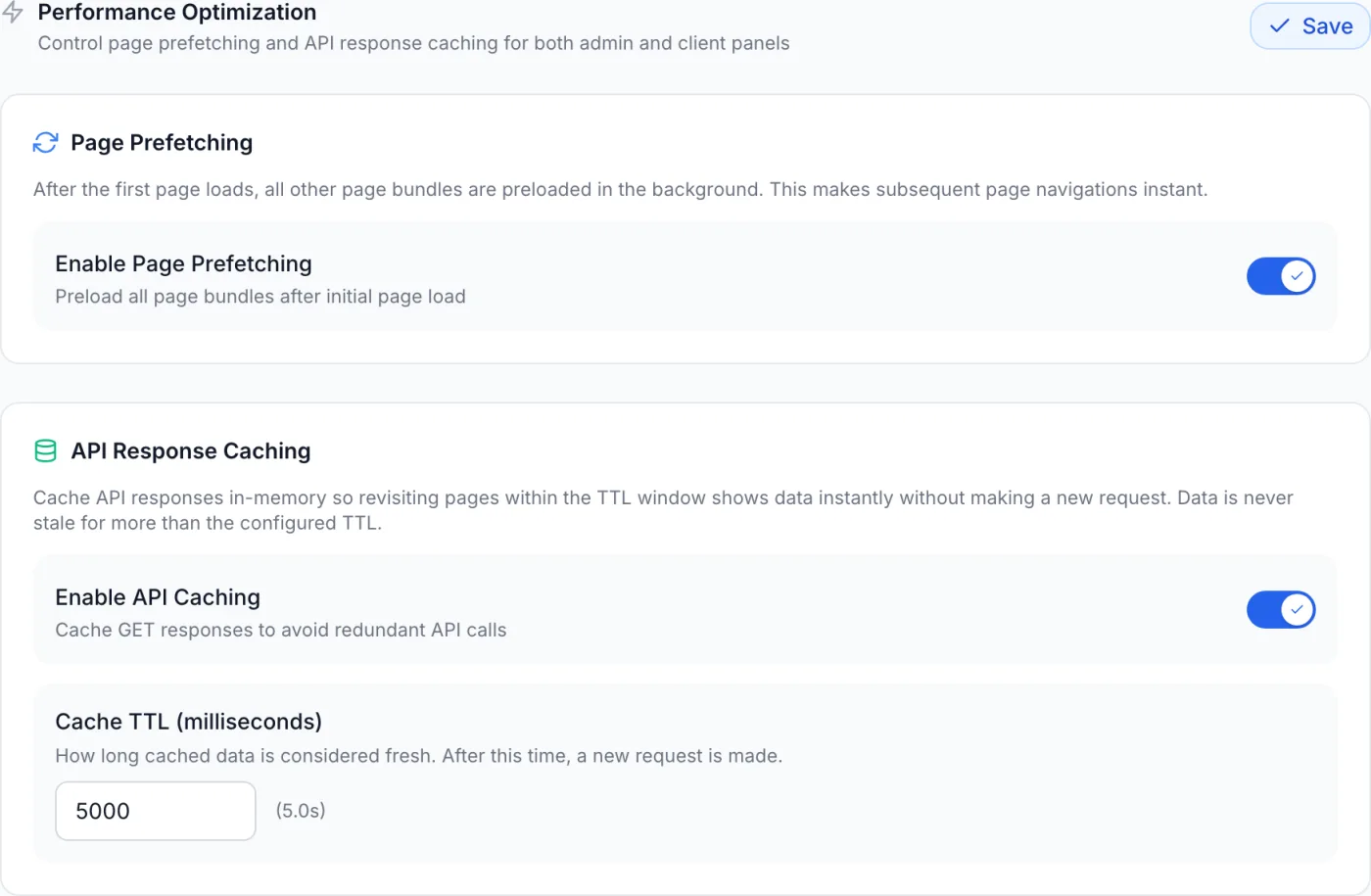
- Select Performance (the lightning-bolt item). The panel opens with a Performance Optimization heading, the subtitle Control page prefetching and API response caching for both admin and client panels, and its own Save button on the right of that heading row.
Note: these settings live in the admin panel, but they govern the experience in both panels. There is no separate Performance page inside the client portal — whatever you set here is what your customers get too.
Note: this tab saves itself. The Save button here belongs to the Performance panel, not to the Settings page as a whole, and it stores only the three controls below.
Page Prefetching
The first card controls how the interface loads its own screens. With Enable Page Prefetching switched on, the panel waits until the first page has finished loading, then downloads every other screen's code in the background. Because the screens are already in the browser by the time someone clicks a menu item, the next page appears immediately instead of pausing to fetch its code.
- Toggle Enable Page Prefetching on or off.
- Click Save.
- Reload the panel for the change to take effect.
Tip: prefetching only preloads the interface's own screens — it never preloads or alters your live billing data, and it has no effect on how fresh that data is. Leave it on for fast office or data-centre connections. Consider turning it off only for very slow or metered links, where downloading everything up front would waste bandwidth a visitor may never use.
API Response Caching
The second card controls how often the panel re-fetches data it has already loaded. With Enable API Caching switched on, recently loaded read-only data (the kind shown on list and detail screens) is kept in memory for a short window. If someone returns to a page within that window, it renders instantly from the stored copy instead of waiting on a new request. Once the window passes, the next visit fetches fresh data, so information is never older than the window you set.
- Toggle Enable API Caching on or off.
- When caching is on, a Cache TTL (milliseconds) field appears beneath the toggle.
- Type how long, in milliseconds, cached data should stay fresh. The equivalent in seconds is shown beside the field as you type —
5000shows as(5.0s). - Click Save.
The Cache TTL field accepts whole-thousand steps between 1,000 ms (1 second) and 60,000 ms (60 seconds). The default is 5,000 ms (5 seconds). If you switch Enable API Caching off, the field is hidden and every page load fetches data on demand.
Field reference
| Control | What it does | Default |
|---|---|---|
| Enable Page Prefetching | Preloads every screen's code in the background after the first page loads, so later navigations are instant. | On |
| Enable API Caching | Keeps recently loaded read-only data in memory so returning to a page within the window is instant. | On |
| Cache TTL (milliseconds) | How long cached data is treated as fresh before the next visit fetches it again. Range 1,000–60,000 ms in steps of 1,000. Shown only while API caching is enabled; the value in seconds appears beside the field. | 5,000 ms (5 s) |
| Save | Commits both toggles and the TTL value. A confirmation appears when the settings are stored. | — |
Choosing the right values
- Want the snappiest experience — leave both toggles on with the default 5-second window. This is the recommended setup for most installations.
- Need near-real-time numbers — lower the Cache TTL toward 1,000–2,000 ms so figures refresh almost every time, at the cost of a few more background requests.
- Running a very busy installation — raise the Cache TTL toward 15,000–30,000 ms to cut repeat requests when many staff are working at once. Use the higher end only for data that does not change second to second.
- On a slow or metered connection — turn Page Prefetching off so the browser only downloads screens that are actually opened.
Tip: the two controls do different jobs. Prefetching is about loading the interface faster; caching is about loading data less often. Turning both off reverts to plain on-demand loading, which adds a small but noticeable pause on each navigation. After saving, refresh or reopen the panel to see the new behaviour take effect.