
New Order
Build orders for customers by hand: pick a client, add and configure products, override pricing, then create the order and its proforma invoice.
What New Order is for
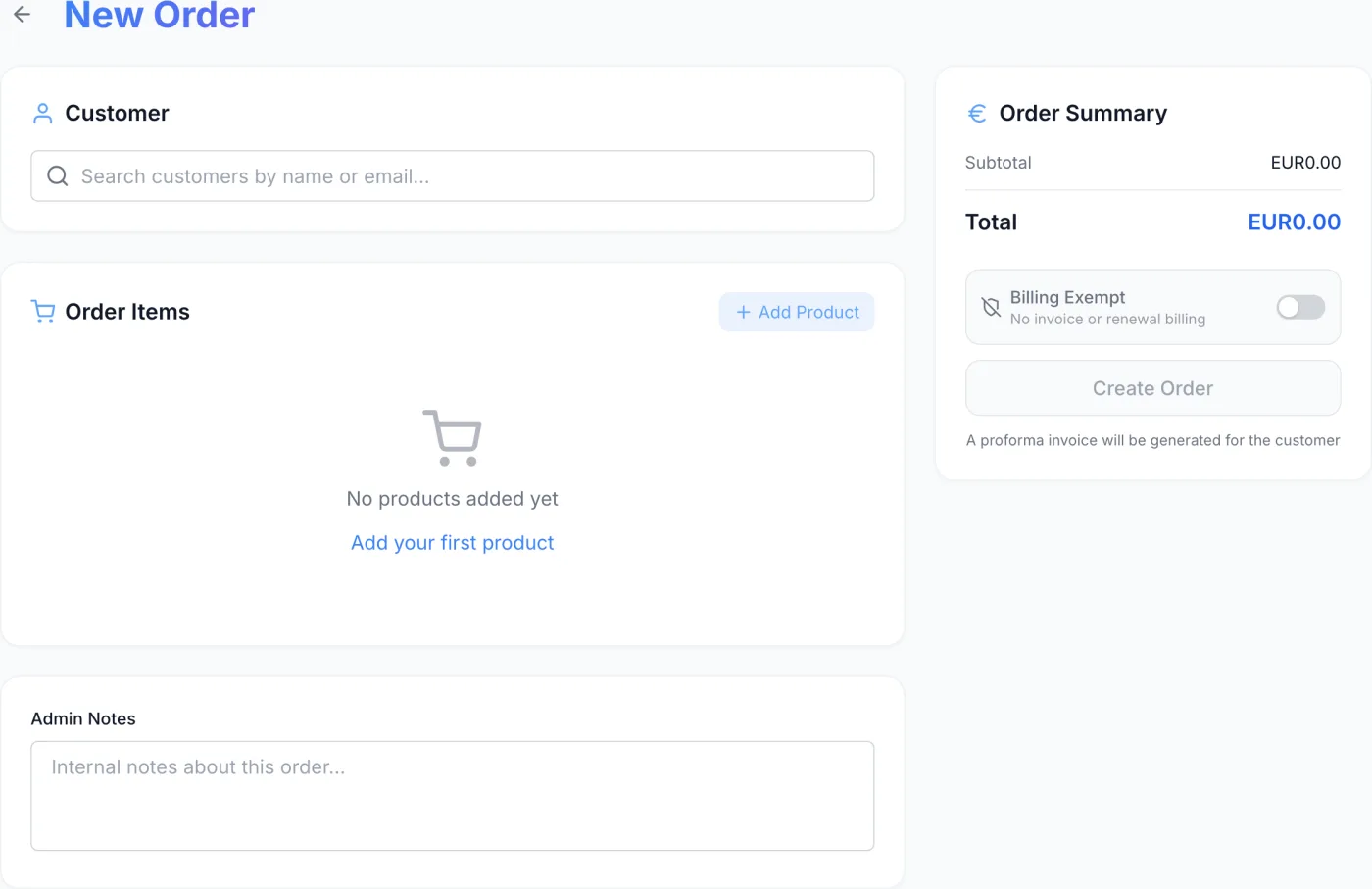
New Order is the staff-side order builder. Use it whenever a customer cannot or will not go through the customer-facing checkout: phone sales, manual contracts, internal demo accounts, or bespoke builds you price by hand. You pick the customer, add one or more products, configure each line and submit. FluxBilling then raises the billing document for the customer, and the services are delivered once that document is paid.
How to reach it
Open Orders from the sidebar, then click Create Order at the top right of the list. The back arrow beside the New Order heading returns you to the Orders list without saving.
Tip: If you arrive here from the Create menu inside the VPS module, the product picker opens on its own and is already narrowed to that kind of product. It stays narrowed even when you type in the search box, so you cannot accidentally sell a different product type from that entry point.
Step by step: building an order
- Select the customer. In the Customer card, start typing in the Search customers by name or email… box. After two characters a dropdown lists matching accounts (Searching… while it looks, No customers found if nothing matches). Click one to attach it. The card then shows the customer's name — a link to their client profile — their email address and, if set, their company. Use Change to swap to a different customer.
- Add a product. In the Order Items card, click Add Product. (When the card is still empty it reads No products added yet with an Add your first product link that does the same thing.) The Select Product dialog opens. Type in Search products… to filter by product name or category, then click a product to add it as a line item. Repeat for as many products as the order needs.
- Configure each line item. Every added product expands into its own panel with a header showing the product name, its category, a short specification summary and the line's calculated total, plus a trash button to remove the line. Set the Billing Cycle and Quantity, then complete the product-specific fields described below.
- Review the Order Summary. The sidebar on the right updates as you configure lines — subtotal, upgrades, options, setup fees, VAT and the total.
- Choose how it bills. Leave Billing Exempt off to raise a billing document for the customer, or turn it on to deliver the service immediately with no document at all.
- Add internal notes if you need them, then click Create Order. You land on the new order's Order Details page.
Currency
An order placed here bills the customer, so it is priced in the customer's currency, not yours. Every figure in the line items and in the Order Summary carries that customer's currency symbol, and it only appears once you have selected a customer.
Note: If one of the products on the order has no price defined in the customer's currency, the order is refused when you submit and the message names the product and the currency. Add the missing price point to the product first — see Products.
Per-item configuration reference
Which fields appear on a line depends on the product's category and how it is delivered. Standard hosting products show the full set below. Colocation, IP transit and plugin-driven products show a tailored set instead — a plugin-driven product renders exactly the fields its own configuration form defines.
| Field / section | What it does |
|---|---|
| Billing Cycle | Monthly, Quarterly, Semi-Annually or Annually. Changing the cycle re-prices the line to the matching term price. Hourly billing is not offered on staff-placed orders. |
| Quantity | Number of units of this product. The line subtotal and the setup fee are both multiplied by it, and each unit becomes its own service that is delivered and tracked separately. |
| Hostname | Optional hostname for the service (placeholder server.example.com). It must be a valid hostname — no spaces or special characters — or the order is refused on submit. |
| Location | Where the service should be deployed. Appears when the product has one or more locations configured. A location that carries a price premium adds it to the line automatically. |
| Operating System | Marked *Required. Templates are grouped by family; pick one. When a product has no OS image list but does offer OS choices as product options, those appear here instead. |
| Root Password | Initial administrator password for the service. Use the eye button to reveal what you typed, or the sparkle button to generate a random 16-character password (which is then revealed so you can copy it). |
| Hardware Upgrades | RAM, Storage and Bandwidth choices defined on the product. Each option shows the amount it adds to the line. |
| RAID Configuration | RAID options for products that expose them, chosen as cards. |
| Additional Options | Any other add-ons configured on the product, one-time or recurring, shown as selectable cards. |
| Inventory Check | Appears only for products that are allocated from physical stock, such as dedicated servers. It lists in-stock machines matching the chosen specification, with a count and an estimated delivery date; click one to see its full details. If nothing matches you see No matching servers in stock (Order will be queued) — the order is still placed and waits for stock. |
| Colocation Specifications | For colocation products: a read-only summary of rack units, power, bandwidth, cross-connects, BGP sessions, subnets and VLANs taken from the product. |
| BGP Configuration | For IP transit products: Customer ASN, Route Type (Full Table, Default Route Only, Partial Table or Custom) and IRR / AS-SET. |
| Custom Fields | Extra fields defined on the product's category. Required fields must be filled in before the order can be submitted; fields that only staff can see are marked (admin only). |
| Custom Pricing Override | An expander that reveals the two price overrides described below. |
Overriding the price for a line
Click Custom Pricing Override on a line to reveal two inputs. Each shows the automatic figure in brackets for reference, and leaving a field blank keeps that automatic figure.
- Custom Total — replaces the whole calculated line subtotal. The helper text says it plainly: it overrides base + upgrades + options, so once you type a figure here the location premium, upgrade prices and option prices are no longer added on top. Type the final recurring figure you want the customer to pay per cycle for that line.
- Custom Setup Fee — replaces the product's setup fee for this line, including any location setup surcharge.
Order Summary, VAT and the total
The sticky Order Summary sidebar itemises the order in the customer's currency, in this order:
- Subtotal
- The sum of every line's base price (including any location premium) multiplied by its quantity.
- Upgrades
- Hardware upgrade charges. Shown only when an upgrade is selected somewhere on the order.
- Options
- Add-on charges. Shown only when an option is selected somewhere on the order.
- Setup Fees
- The combined one-time setup charges. Shown only when there is one.
- VAT
- Calculated from the selected customer's country on the sum of everything above — setup fees included. The row shows the rate and the country code, reads Exempt for a VAT-exempt customer, and shows a zero amount where no VAT applies. The row itself only appears once a customer is selected.
- Total
- Everything above plus VAT — the amount the customer will be billed.
Note: There is no discount-code box on this form. A staff-placed order is priced directly, so use Custom Pricing Override on a line to reduce it. Discount codes are entered by the customer at checkout — see Discounts. If the VAT figure looks wrong, check the customer's country and VAT settings on their profile; the rate is derived from there.
Billing Exempt
The Billing Exempt toggle sits between the summary and the Create Order button, described as No invoice or renewal billing. The line of text under the Create Order button always tells you which way it is set.
- Off (the default): the note reads A proforma invoice will be generated for the customer. A billing document is raised and the services wait for it to be paid.
- On: the note reads Service will be provisioned immediately with no invoice. No document is created, the order's payment is marked Completed straight away, delivery starts immediately, and the service is never billed or renewed.
Warning: Billing Exempt is for internal use — staff accounts, demo instances or contractually free services. Because it delivers immediately and never bills or renews, do not use it for a paying customer, or you will hand over a service that is never invoiced.
Admin Notes
The Admin Notes box at the bottom of the left column holds internal context about the order (placeholder Internal notes about this order…). These notes are for your team only, are never shown to the customer, and can be edited later from Order Details.
Creating the order, and what it produces
The Create Order button stays disabled until you have selected a customer and added at least one product. On submit the form checks the order before sending it and stops with a message naming the product if an operating system has not been chosen where one is required, if a required custom field or plugin field is empty, or if a hostname is malformed. While it works, the button reads Creating Order….
What arrives on the customer's side depends on the total and on the Billing Exempt toggle:
| Situation | Document created | Is it paid? |
|---|---|---|
| Billing Exempt is on | None. | The order's payment is marked Completed and the services are delivered immediately. |
| Total is zero | An invoice. | It is created already marked Paid, and delivery starts right away. |
| Total is above zero, and your company issues proformas | A proforma. | No — it is unpaid. The services stay pending until the customer pays it. |
| Total is above zero, and your company issues invoices directly | An invoice. | No — it is unpaid. The services stay pending until the customer pays it. |
Which of the last two you get is set by the Billing Document Type choice on the Billing settings tab. Either way the customer also receives your order-confirmation email.
With consolidated monthly invoicing switched on
If your company runs Consolidated Monthly Invoicing (which requires the proforma document type) and the Include new orders and upgrades switch is on, the order still produces its own proforma and the customer still pays that proforma exactly as described above. What changes is what happens afterwards: instead of that proforma converting into its own invoice, it is marked settled and its value is rolled into the single monthly invoice that customer receives after the month closes. Delivery is unaffected — the services are provisioned the moment the proforma is paid. Turn Include new orders and upgrades off if a customer needs a fiscal invoice in hand at the moment of purchase. See Billing for both switches.
Related articles
Orders · Order Details · Products · Clients · Invoices · Billing · Discounts