
Invoice Details
Walk through the Invoice Details page: header actions, line items with service snapshots, recording payments, refunds, and the activity feed.
What the Invoice Details page is for
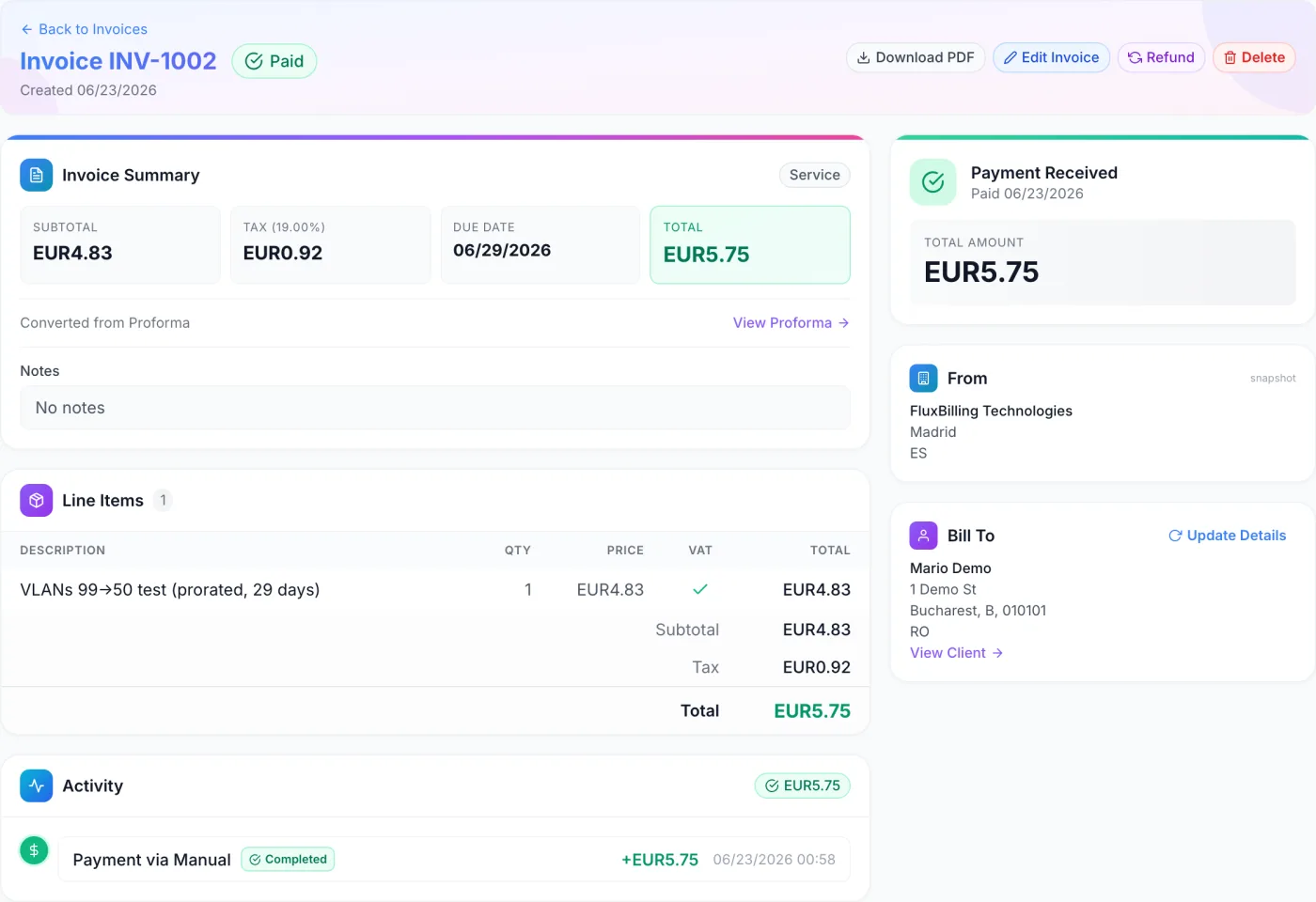
The Invoice Details page is the whole of one invoice in one screen: the header and status, the summary tiles, the line items with the service context frozen at billing time, every payment and credit movement recorded against it, and the company and client addresses as they stood when the document was issued. Every action you can take on an invoice starts here.
How to reach it
Open Invoices & Proformas from the sidebar and click any invoice row. You can also open an invoice from a client’s record, in which case the back link at the top reads Back to Client and returns you there.
Header and actions
The header shows the invoice number (for example INV-4), a coloured status badge, and the creation date. The buttons on the right change with the invoice’s status.
Throughout this article, payable means an invoice in one of the states that can still receive money: Unpaid, Pending, Overdue or Collections.
| Button | What it does | When it appears |
|---|---|---|
| Download PDF | Builds and downloads the customer-facing PDF. | Always |
| Edit Invoice | Puts the page into edit mode. | Always |
| Convert to Proforma | Turns the invoice back into a proforma and opens it. Line items are copied across. | Not paid, not cancelled, not already converted |
| Collect Payment | Charges a payment method the client has saved on file. | Payable |
| Pay with Credit | Settles the invoice, in whole or in part, from the client’s account credit balance. | Payable, except on a credit top-up invoice |
| Confirm Payment | Records a payment you received outside the platform. | Payable |
| Cancel | Sets the invoice to Cancelled. | Payable |
| Refund | Refunds the invoice in full or in part. | Paid |
| Delete | Removes the invoice permanently. | Always |
Note: Cancel, Delete, Convert to Proforma and removing a line item each ask you to confirm. Collect Payment, Pay with Credit, Confirm Payment and Refund open their own dialog.
Status badge
The badge shows the invoice’s current state: Unpaid, Pending, Paid, On Hold, Cancelled, Refunded, Collections or Converted. In edit mode the badge becomes a dropdown offering Unpaid, Paid, Cancelled and Refunded. Setting the status by hand only changes the label — it records no payment and moves no money, so use it to correct a record, not to settle one.
Editing an invoice
Click Edit Invoice. In edit mode you can change:
- The invoice number, in the header field.
- The status, from the badge dropdown.
- The due date, in the summary card.
- The notes shown to the customer.
- Each line’s description, quantity, price and VAT checkbox, and you can remove a line with its trash icon.
- New lines, using the Add button in the Line Items header. It appears in edit mode only.
Click Save to apply everything or Cancel to discard. Subtotal, tax and total are recalculated from the lines when you save; you never type them yourself.
Outside edit mode, an unpaid invoice still shows a trash icon on each line so you can remove a line quickly.
Invoice Summary
A strip of four tiles shows Subtotal, Tax (with the VAT rate in brackets when one applies, and an Exempt note when the invoice is VAT-exempt), Due Date and Total. A type badge sits in the top right:
- Service — the ordinary case: an order, a renewal, an upgrade or an add-on.
- Credit Deposit — a top-up of the client’s account credit balance.
- Monthly Invoice — a consolidated invoice covering a whole month of a client’s settled proformas.
Underneath the tiles you may also see a Converted from Proforma or Converted to Proforma row with a link to the related document, and the customer-facing Notes field (a renewal document, for example, reads “Service Renewal”).
Line Items
The table lists everything billed. Columns are Description, Qty, Price, VAT (a green tick when the line is taxable, a grey cross when it is not) and Total. A counter beside the heading shows how many lines there are.
Under a description you may see the service snapshot — the context frozen when the invoice was generated, so the document always shows what was actually billed even if the service changes later:
| Snapshot line | What it shows |
|---|---|
| Hostname / IP / Location | The network identity of the service at billing time, including the port when one is set. |
| Asset | The physical hardware: manufacturer and model, serial number, asset tag and rack position. Blade hardware also shows chassis and bay. |
| Period / Cycle / Renews | The billing window the line covers, the billing cycle, and the next renewal date. |
| Options | Add-ons attached to the service, with the values chosen for them. |
How the totals are worked out
- Each line total is its quantity multiplied by its unit price. A line total can be negative — that is how a discount is shown.
- Subtotal is the sum of every line total, discounts included.
- Tax is worked out from the lines marked taxable only, at the invoice’s own VAT rate, and is added on top of the subtotal. Prices on the document are always tax-exclusive; VAT is never treated as included in a line price.
- Total is subtotal plus tax.
- When account credit has been put toward the invoice, a Credit Applied row shows it as a negative amount and the grand total at the foot of the table is reduced by it.
The VAT rate and any exemption are fixed when the invoice is created, from the client’s country and their exempt setting. Editing lines recalculates the tax at that same rate; it does not re-evaluate which rate applies. VAT & Tax explains how that rate is chosen in the first place and which lines count as taxable.
How a discount appears
A discount is not a percentage written into the header. It is its own line with a negative amount, described as Discount: <name> (<code>), and it is marked non-taxable. It therefore reduces the subtotal and the total directly, and you can see exactly what was taken off.
How an upgrade appears
An upgrade produces one net line, not a charge line plus a credit line. It reads like Service upgrade from “Plan A” to “Plan B” (hostname) — prorated for 14 days, and the credit for the unused part of the old plan has already been subtracted from it. A separate Upgrade fee line is added when the upgrade path charges one, and each add-on the client picked up in the same upgrade gets its own line. An upgrade never produces a negative total; if the credit would exceed the charge, the document is not raised at all. Upgrades & Downgrades shows how that net figure is arrived at.
What a Monthly Invoice looks like
A consolidated Monthly Invoice copies every line of every proforma the client settled that month. Each line is prefixed with the proforma it came from and the date it was paid, so a line reads like [PRO-118 · 2026-08-14] Cloud 2GB - web01 Renewal. The summary also carries the period it covers, and the paid date shown is the date of the last collection inside that month, not the day the invoice was raised. VAT-free lines — credit top-ups, typically — are carried onto the same document marked non-taxable, so the invoice still reconciles line by line. See Consolidated Monthly Invoicing for how the month is assembled and closed out.
Recording a payment
A payable invoice offers three ways to settle it, and all three can be used partially: record several payments and the invoice flips to Paid on its own once the total is covered. The Activity card heading shows a green chip for the amount paid and an amber chip for what is still owed.
Confirm Payment — money received elsewhere
| Field | What it does |
|---|---|
| Payment Gateway | Choose Manual / Cash, Bank Transfer, Account Credit, or any payment gateway you have enabled. Picking Account Credit shows a reminder that it draws on the client’s balance, together with the balance available. |
| Amount | Optional. Leave it blank to record the full total, or enter less for a part payment. |
| Transaction ID | Optional reference, such as a bank reference. |
| Notes | Optional note for your own records. |
The dialog shows the amount that will be recorded before you press Confirm.
Collect Payment — charge a saved method
Opens a list of the methods the client has stored, each with its label, its gateway, the card expiry where known, and a Default badge on the preferred one. The default is preselected. The dialog states the amount to charge, which is the remaining balance — the total less anything already paid — not the full total. If the client has no saved methods, the dialog says so and there is nothing to charge.
Pay with Credit — draw on the account balance
Opens a small dialog showing Available credit and Amount due side by side, then an Amount to apply box pre-filled with the smaller of the two. Warnings appear when the client has no balance at all, or when the balance covers only part of the invoice. Click Apply Credit to record it. The button is offered on every payable invoice except a credit top-up, which cannot be paid from the balance it is topping up. Credit Balance covers where the balance comes from, what it settles on its own, and how to adjust it.
Issuing a refund
On a paid invoice, Refund opens a dialog where you pick a method:
- Via Gateway — sends the refund back through the gateway that took the money. The dialog names the gateway it will use, or warns you that there is no completed gateway payment to refund, in which case the confirm button stays disabled.
- Manual — records the refund without contacting any gateway, for money you returned by other means.
Enter an Amount (leave it blank for a full refund; a smaller figure is flagged as a Partial refund) and an optional Reason, then confirm.
Activity feed
The Activity card is a timeline, newest first, of everything tied to the invoice:
- Payments — the gateway used, a status badge (Completed, Pending, Failed, Refunded or Disputed), the transaction reference if there is one, the amount, and a timestamp. Failed payments are struck through.
- Credit movements — whether credit was added or deducted, the description, and who did it.
- Administrative actions — what happened, the gateway involved where relevant, and the staff member who performed it.
Hover over an entry to reveal a trash icon that removes it. Each kind warns you differently before it does:
- Deleting a payment returns the invoice to Unpaid if it is no longer covered.
- Deleting a credit payment also returns the money to the client’s credit balance and removes the matching ledger entry.
- Deleting a credit ledger entry adjusts the client’s balance accordingly.
None of these can be undone.
Right sidebar
- Payment status card — the state at a glance and the total. It reads Payment Received with the paid date, Awaiting Payment with the due date, Invoice Cancelled, Payment Refunded or Converted to Proforma, and its colour follows the status.
- From — your company name, address and VAT number. A small snapshot label appears when these were frozen at issue time, so an old invoice keeps the address you used then.
- Bill To — the client’s company or name, address, and a View Client link. The Update Details button re-reads both the From and Bill To details from your current company settings and the client’s current profile, replacing the frozen ones.
Tip: because the line context and both addresses are frozen when the invoice is created, re-downloading the PDF months later still shows exactly what was billed and to whom. Use Update Details only when you deliberately want the document to carry the client’s current address.
The PDF
Download PDF produces an A4 document containing:
- Your company logo and name, address and VAT number, the word INVOICE, the document number, and a coloured status stamp.
- Issue Date, Due Date, the covered Period when the invoice states one, and the Paid Date when it has been paid.
- The Billed To block, taken from the frozen customer details.
- The item table — description, quantity, price and amount — with the service snapshot lines printed in small grey type under each description.
- Subtotal, VAT (or Exempt), any Credit Applied, and the total.
- A Transaction History table listing every recorded payment with its date, gateway, transaction reference, amount and status.
- Your notes, and a closing line.
Long documents paginate properly: the item table repeats its header on every new page, the totals block is kept together on one page, and the transaction history repeats its own header and breaks between rows rather than splitting one. When a document runs to more than one page, each page is stamped Page N of M in the bottom right — and the count is the number of pages in that invoice, so it stays correct in a bulk export that concatenates many documents into one file. Single-page documents carry no page number.
Deleting an invoice
Warning: deleting an invoice also deletes every payment recorded against it. No money is returned, no refund is sent to the gateway, and credit that was spent on the invoice is not put back on the client’s balance. If you want to undo a payment and give the credit back, delete the payment from the Activity feed instead — that reopens the invoice and reverses the credit. To stop collecting on a document while keeping it on the record, use Cancel.
Two invoices cannot be deleted outright:
- An invoice tied to an upgrade that is still in progress. Cancel the upgrade first, from the service.
- A Monthly Invoice behaves differently rather than refusing: deleting it hands its proformas back to the month-end close-out and detaches their payments instead of destroying them, so the month is re-issued under a new invoice number on the next run.
Related articles
Invoices & Proformas · Proforma Details · VAT & Tax · Credit Balance · Consolidated Monthly Invoicing · Billing Settings · Payment Gateways · Service Details