
Service Details
The per-service cockpit: billing terms, server credentials and live status, add-ons, upgrade paths, and lifecycle actions like suspend and terminate.
What the Service Details page is for
Service Details is the per-subscription cockpit. It shows the billing identity of one service, where the resource physically sits, the add-ons attached to it, the credentials recorded for it, and every lifecycle action you can take — suspend, unsuspend, cancel, terminate, upgrade, move to another client, retry or stop a deploy. Which panels appear depends on how the service is delivered; the section Which panels appear for which service lists them.
How to get there
Open Services from the sidebar and click any row. You can also open a service from a client’s record, in which case the back link reads Back to Client. Services shown on IP Transit open the same page and return you there.
Reading the page
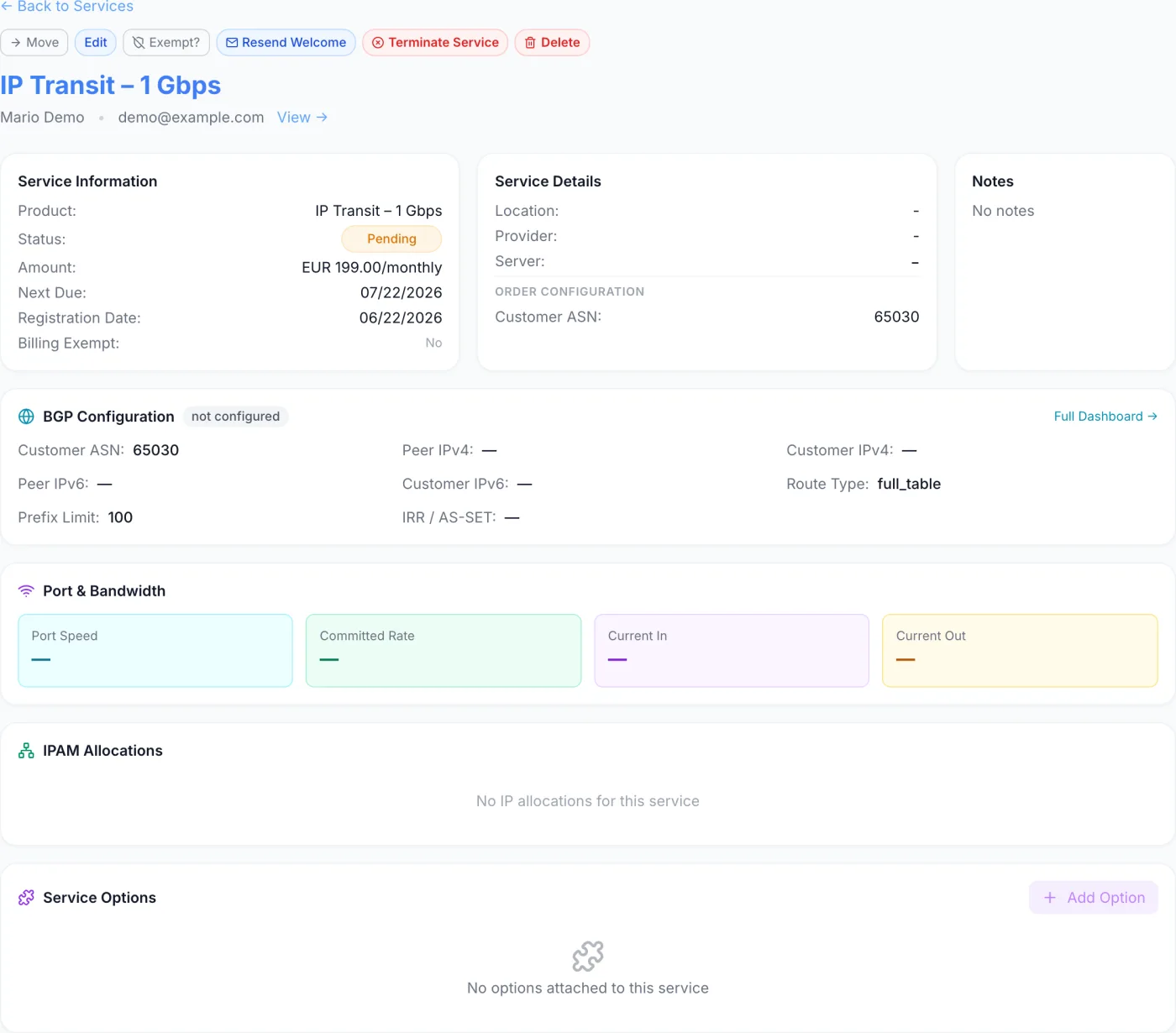
The action buttons run across the top. Beneath them the page title gives the service name, the owning client (linked), their email, and a View → link to the client record. The body is a set of cards.
Service Information
The billing identity of the subscription.
| Field | What it shows |
|---|---|
| Product | The product the service was sold from. In edit mode this is a dropdown of your products. |
| Status | A coloured badge. In edit mode it becomes a dropdown offering Pending, Pending Payment, Active, Suspended, Cancelled, Terminated and Fraud. |
| Deploy error | A red box carrying the message the provider returned, shown when provisioning failed. |
| Suspension reason | A red box with the reason recorded when the service was suspended. The customer sees this reason too. |
| Amount | The recurring price and cycle. In edit mode you get a price box and a cycle dropdown: hourly, monthly, quarterly, semi-annually, annually. Changing the cycle converts the price for you and offers a Revert link if that is not what you wanted. |
| Next Due | The next renewal date. Hourly services show Billing: Credit-based here instead, because they have no renewal date. |
| Registration Date | When the service was created. |
| Terminated | The termination date, shown in red once the service has been terminated. |
| Do Not Suspend Until | A protection date. Automatic suspension and termination skip this service until it passes; manual actions still work. Leave it empty to remove the protection. |
| Billing Exempt | Whether the service is excluded from renewal billing. Exempt services are also skipped by automatic suspension and termination. |
| Delivery Date | The estimated delivery date, or your own override, marked (override). Shown for dedicated servers and for any service that has an estimate. |
| Cancellation Scheduled | An amber banner with the end date and a Keep Service button that revokes the request. |
Service Details
Where the resource sits. Depending on the product it shows Hostname, Location, Provider, the Server it is assigned to, the Primary IP and any Additional IPs (each with a copy button), and the configuration captured at checkout — operating system, plan, product options and custom fields. Dedicated-server services also show Hardware, Serial, Location, Rack and the management (IPMI) address when those are known; clicking through opens the hardware record. Colocation services replace this card with Colocation Details.
Virtual Server
Services running on your own virtualisation get a compact Virtual Server card showing the plan, the hostname and the allocated IP addresses, plus a Manage VM button that opens the full machine page — console, graphs, storage and network all live there rather than being duplicated here, and are described in Virtual Machines. If provisioning never completed, the card says so plainly instead of showing an empty panel. A note appears when the machine runs on hardware another operator owns, and whether that limits the actions available.
Root credentials
A card with a single Show root password button. The password is not part of the page until you ask for it, every reveal is recorded against your account, the value is masked with a copy button that copies without displaying it, and it hides itself again after a minute. When there is nothing to show, the card says which of the ordinary reasons applies — a service adopted from elsewhere keeps a password this platform has never seen, a machine on another operator’s hardware has its credential recorded there, or a password reset that did not finish leaves the stored value uncertain. In each case the card tells you what to do next.
Notes
Free text for your own staff. Customers never see it. Click Edit in the header, type, then Save Changes.
Custom Fields
Shows the custom fields captured for this service, with their labels and values. Fields configured as staff-only carry an Admin only tag. The card only appears when the product defines custom fields and values were captured.
Provider Controls
Appears only when the service is delivered by a provisioning plugin that publishes a control panel for staff. It pulls live data from the provider every thirty seconds and shows the server’s identity (server ID, IP address, hostname, username, location, operating system, virtualisation type, plan, cluster, and whether the provider considers it suspended), the server action buttons, the login credentials and the resource usage. See Server controls.
Service Options
The add-ons attached to this service. See Service options.
Colocation Details
For colocation services, in place of Service Details. It shows the Location, the Rack Position (with a View rack link), the contracted Power and Bandwidth, the device details, internal notes, a cross-connect table with the number included, the BGP Sessions configured (customer ASN, peer and customer IPs, BGP password, announced subnets, and a status of Pending, Active or Disabled) and the VLANs assigned, each with its ID, name, purpose, subnet and whether it came from IPAM or was added by hand. Power, bandwidth, cross-connects, BGP sessions and manual VLANs are all editable; location and rack position are managed from the rack diagram. A Deallocate action releases the rack space, and there is a Request Remote Hands action for on-site work.
IP Transit panels
IP transit services get two cards in place of Service Details:
- BGP Configuration — customer ASN, peer and customer IPv4 and IPv6 addresses, route type, prefix limit, IRR AS-SET, and a session status of Not configured, Configured, Active, Down or Idle. In edit mode you can also set an MD5 password and BGP communities.
- Port & Bandwidth — port speed, committed rate, and the current incoming and outgoing traffic, with Assign Port / Unassign Port and the switch, port and VLAN currently assigned.
Below them sit the billing periods showing the billable 95th-percentile figure per period, and the IPAM allocations for the service. The IPAM panel only appears when the IPAM module is enabled.
Service Specifications
Shown for colocation and IP transit services: the effective resource figures for the service, with a count of how many options have been applied on top of the product’s own specification.
Which panels appear for which service
| Service type | What you get |
|---|---|
| Dedicated server from your own inventory | Service Information, Service Details (with hardware, serial, rack and IPMI), Root credentials, Notes, Service Options. No Provider Controls — the machine is deployed from your own inventory, and Retry deployment and Stop deployment are the deploy controls. |
| Virtual server on your own virtualisation | Service Information, the Virtual Server card with Manage VM, Root credentials, Notes, Service Options. Power, console and graphs live on the machine page, not here. |
| Anything delivered by a provisioning plugin | Service Information, Service Details, Root credentials, Notes, Service Options, and Provider Controls when that plugin publishes a control panel. |
| Game server | Service Information, Service Details, Root credentials, Notes, Service Options. Day-to-day management of the game server itself — console, files, backups, schedules — lives in the Game Hosting area of the panel, not on this page; see Game Servers. |
| Colocation | Service Information, Colocation Details, Service Specifications, Notes, Service Options. No credentials card and no Provider Controls: colocation is a contract, not a machine. |
| IP transit | Service Information, BGP Configuration, Port & Bandwidth, billing periods, IPAM allocations, Service Specifications, Notes, Service Options. No credentials card and no Provider Controls. |
| Manual products (nothing provisions them) | Service Information, Service Details, Root credentials, Notes, Service Options. There are no server controls to show. |
Note: a panel you do not see is a panel that does not apply to that service. Nothing is hidden behind a permission on this page beyond the modules your company has switched on — the IPAM allocations panel, for example, only appears when the IPAM module is enabled.
Action buttons
The buttons across the top change with the service’s status. Edit switches the information cards into editable form; while editing, the row becomes Cancel and Save Changes, and you can change the product, status, amount and billing cycle, next due date, registration and termination dates, hostname, location, provider, assigned server, the billing-exempt toggle, the do-not-suspend date, the delivery-date override, the captured order configuration, and the notes.
| Button | What it does | When it appears |
|---|---|---|
| Move | Transfers the service to a different client. | Always |
| Edit | Switches the cards into edit mode. | Always |
| Exempt? / Exempt | One click toggles billing exemption on or off. | Always |
| Upgrade | Opens the upgrade window. | Active |
| Suspend | Asks for a reason, then disables the service. | Active |
| Schedule Cancel | Opens the cancellation window. | Active, with no cancellation already pending |
| Unsuspend | Re-enables a suspended service and clears the reason. | Suspended |
| Recreate / Retry Provisioning | Re-runs the plugin deploy. Labelled Retry Provisioning while the service is Pending, Recreate otherwise. | Services delivered by a provisioning plugin |
| Retry deployment | Re-runs the deploy. | Provisioning Failed, or a Pending service bound to your own hardware |
| Stop deployment | Aborts a deploy in flight and releases everything it had taken — the server, the subnet, the IP addresses, the VLAN and the switch port. A later retry allocates afresh. | Pending, Installing or Provisioning Failed on your own hardware |
| Resend Welcome | Sends the welcome and credentials email to the customer again. | Active, Suspended, Pending |
| Terminate Service | Opens the termination window. | Active, Suspended, Pending |
| Delete | Removes the service record after a confirmation. | Always |
Suspending
Suspend asks you why before it does anything, and the reason is required. It is stored on the service, shown on the Service Information card, and shown to the customer — so write something they can act on, such as an overdue payment or an abuse report. Unsuspend restores the service and clears the reason.
A suspended service stops generating renewal documents. If you only want to stop billing, use Exempt? rather than suspension.
Scheduling a cancellation
Schedule Cancel opens a window asking when the service should end:
- At end of billing period — the service stays active until its next due date, then cancels. This is the default.
- Terminate immediately — the service is terminated at once and its data is destroyed.
Hourly services can only be terminated immediately, since they have no billing period to run out. A Reason box is offered and is optional for staff. The window states plainly which of the two outcomes you are about to cause.
Once a cancellation is scheduled, the Service Information card shows an amber banner with the end date and a Keep Service button that revokes it. The same request appears in the Cancellations view on Services, where Keep and Terminate Now do the same two things.
Who can cancel
Customers can request a cancellation themselves from the client portal. They must give a reason of at least two words, and they choose end-of-period or immediate the same way you do. Their request appears in the Cancellations view marked Customer; requests you raise are marked Staff. A customer can also revoke their own pending request. See Managing Your Services.
Terminating
Terminate Service opens a window that first lists exactly what it is about to do, which depends on the service:
- Power the server off through its management interface, disable its switch ports, and release the server back into inventory — for a dedicated server.
- Terminate on the provider and delete the external resource — for a plugin-delivered service.
- Cancel unpaid invoices and proformas for the service.
- Terminate the associated order.
- Set the service to Terminated and stamp the termination date.
A Reason box is offered, and you must type TERMINATE into the confirmation field before the button becomes available. The action cannot be undone.
Recreating or retrying a deploy
Recreate opens a window offering an Operating System and a Location from the plugin’s own catalogue, and a Root Password you can leave empty to have one generated. It warns that the existing server will be terminated and new infrastructure provisioned, and that billing is not affected. Some providers have no operating-system concept, in which case that field is not offered.
Retry deployment and Stop deployment are for hardware you deploy yourself. Stop releases every allocation the deploy had made; a retry after that starts from scratch.
For the whole delivery path behind these buttons — what triggers it, the states it passes through for each product type, what the platform retries on its own, and how to read the error it leaves behind — see Provisioning & Delivery.
Moving a service to another client
Move opens a window where you search for the new owner by name or email, with an optional internal reason. It states clearly that ownership transfers immediately, that existing invoices, payments and order history stay with the current owner, and that all future billing goes to the new one. If the service has unpaid invoices or proformas attached, the window lists them and tells you they will be cancelled when the move completes.
Server controls
Where the Provider Controls panel is shown, a Server Controls row gives the actions the provider supports. Unless the plugin defines its own set, they are:
- Start — power the server on.
- Stop — power the server off.
- Restart — reboot it.
- Reinstall — opens a window listing the operating systems available for this product and a new root password of at least eight characters. It warns that all data on the server will be wiped.
- Reset Password — sets a new root password, entered twice.
A plugin can replace these with its own buttons — for example one that opens a console in a new tab — and can hide a button unless the server is in a particular state.
Login Credentials below the buttons shows the IP address, username and password with copy buttons. Resource Usage reports CPU with its core count, RAM total and used, storage total and used, and bandwidth used out of the total, plus separate Incoming and Outgoing figures where the provider supplies them. Refresh Stats re-reads everything immediately.
Service options (add-ons)
The Service Options card lists every add-on on the service. Each row shows the option name, the value chosen where it has choices, a × N badge when more than one was bought, the resource it grants (for example +4 GB), the billing type and price (as N × unit = total when the quantity is above one) plus any setup fee, the next due date for recurring options, and a status badge.
Click Add Option to attach one:
| Field | What it does |
|---|---|
| Select Option | Choose from your active options. Its configured price pre-fills the amount. |
| Billing Type | Recurring or One-time. |
| Billing Cycle | For recurring options: monthly, quarterly, semi-annually or annually. |
| Amount | What is charged for the option. This is the total charged and is not multiplied by the quantity. |
| Setup Fee | A one-off charge on top. |
| Quantity | How many of the add-on the service holds, from 1 to 100. For an option that grants a resource this multiplies what is granted — “+1 GB RAM” at 4 grants 4 GB. |
| Initial Status | Active, Pending or Pending Payment. |
On an existing row, outside edit mode, a pending option shows a tick button that activates it and an active option shows a cross button that cancels it. In edit mode you can instead change the option’s chosen value and its quantity from two small dropdowns.
Recurring options are billed with the service: each renewal document carries the base service line plus a line per active recurring option whose own due date falls in that cycle.
Upgrading a service
Upgrade is available while the service is Active. The window has tabs:
- Upgrade Paths
- The upgrade paths configured on the product. Pick a target and confirm. Each shows the current price, the new price, the days left in the cycle and what the client pays to upgrade.
- Any Product
- Switch to any other product, with a price preview before you commit. Colocation and IP transit services are restricted to products in their own category.
- Options Only
- Add or remove add-ons without changing the base product, with a proration preview. Hourly services get no proration preview, because they are not billed by cycle.
- Resources
- Colocation services only, and opened first for them. Raise power, bandwidth, cross-connects, BGP sessions or VLANs and bill the difference. The recurring change is prorated over the days left in the cycle; a one-time fee is charged in full.
An upgrade produces a billing document of whichever type your company issues — invoice or proforma — prorated for the days remaining, and the toast tells you which document was raised and for how much. When there is nothing to charge, the change is applied immediately with no document. Upgrades & Downgrades works through the proration arithmetic, how the change is worded on the document, when it actually takes effect, and what the customer sees while it is pending.
Only one upgrade can be in progress per service. If one already is, a banner at the top of the window shows its target, status, amount and date, with Force Execute to push it through and Cancel to drop it. While an upgrade is pending, the service’s unpaid renewal document is put On Hold so it cannot be paid in the meantime; completing or cancelling the upgrade releases it.
Renewal and hourly billing
Cycle-based services
A renewal document is raised a set number of days before the next due date — the Renewal Invoice setting on the Billing settings page. It is raised only for services that are Active, are not billing-exempt, and have no cancellation pending. The document carries the base service line, a line for each active recurring option due in that cycle, any cross-connect lines, and a negative discount line when a recurring discount applies. Raising a new renewal cancels any earlier unpaid or on-hold document for the same service, unless your company has continuous invoice generation switched on, in which case each cycle’s document accumulates instead. The nightly sequence that raises, chases, suspends and terminates is set out in Billing Automation.
If the client has a credit balance and automatic credit application is enabled, renewal documents are paid from that balance without anyone doing anything. New orders, upgrades and add-on purchases are never swept in this way — the client has to choose credit at checkout for those.
Hourly services
An hourly service has no renewal date. Credit is deducted from the client’s balance every hour for as long as the service is active, at the hourly rate plus any tax that applies; when the balance runs out the service suspends itself, and topping up restores it. Hourly Billing sets out the grace periods, the low-balance warnings and the monthly summary document in full. Hourly figures are shown to four decimal places throughout.
Tips and warnings
Suspend, Terminate and Delete are three different things. Suspend disables access and stops renewal billing, and can be undone. Terminate destroys the resource and releases the hardware, and cannot. Delete removes the record from your system entirely — use it only for records that should never have existed.
Tip: if a deploy failed, read the red Deploy error box on the Service Information card before retrying — it carries the exact message the provider returned. For hardware you deploy yourself, use Stop deployment first when a deploy is wedged, so the allocations are released before you retry.
Tip: set Do Not Suspend Until to protect a service through a dispute or a payment arrangement. Automatic suspension and termination skip it; you can still suspend it by hand.
Note: Move only changes who is billed. It does not migrate the underlying resource, and it does not move existing invoices or payments.
Note: Reinstall and Reset Password both take effect on the live server and replace the existing password. Tell the customer afterwards, or use Resend Welcome.
Related articles
Services · Provisioning & Delivery · Upgrades & Downgrades · Products · Product Options · Clients · Invoice Details · Billing Settings · Managing Your Services