
Resellers
The Resellers directory lists every wholesale partner: summary tiles, search, status filters, per-row approve, suspend, reactivate, and API key actions.
What the Resellers page is for
The Resellers page is the central directory of every wholesale partner in your reseller program. Resellers buy your services at wholesale prices and resell them to their own end customers. From this one screen you can see how each partner is performing, approve, suspend or reactivate them, and open any partner to manage their pricing, keys and orders in detail.
How to reach it
Open the admin panel and select Resellers from the sidebar. If you do not see it, the reseller program is switched off — turn it on under Settings > Reseller Program. Staff members also need the client-view permission, and the client-edit permission to change anything.
Reading the page
Summary tiles
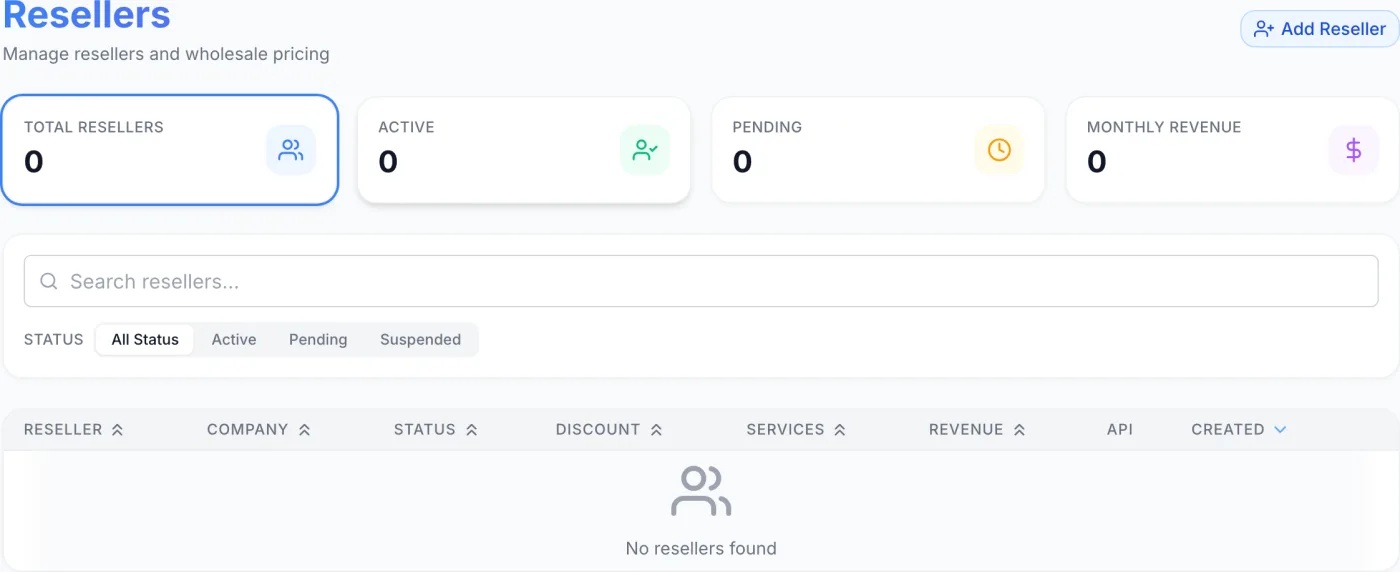
Four summary tiles sit at the top of the page. Three of them double as a quick filter:
- Total Resellers — every partner in the program. Click it to clear the status filter and show all.
- Active — approved partners who can place wholesale orders. Click to filter to Active only.
- Pending — applications awaiting your approval. Click to filter to Pending only.
- Monthly Revenue — the wholesale value of reseller orders paid since the start of the current month. This tile is informational and is not a filter.
The currently selected tile is highlighted with a ring so you always know which view you are looking at.
Search and status filter
The Search resellers… box matches a partner's name, email, or company as you type. Next to it, a Status filter narrows the table to All Status, Active, Pending, or Suspended. On a wide screen these appear as a row of tabs; on small screens they collapse into a dropdown. Choosing a status clears the current search term.
Table columns
Each row is one reseller. Most columns are sortable — click a header to sort by it.
| Column | What it shows |
|---|---|
| Reseller | An initials avatar with the partner's full name and email. |
| Company | The reseller's business name, or a dash if none was provided. |
| Status | A coloured badge: Active, Pending, Suspended or Terminated. |
| Discount | The partner's own default discount, as a percentage. It is the floor of their pricing, not the whole of it — see the note below. |
| Services | How many services are recorded for this partner, including closed ones. |
| Revenue | The wholesale value of every reseller order this partner has paid for, to date. |
| API | On with a green dot when the partner holds at least one API key that has not been revoked, otherwise Off. |
| Created | The date the reseller profile was created. The table is sorted newest-first by default. |
When there are no partners (or a search returns nothing), the table shows a No resellers found empty state. Results are paginated, with the page size selectable at the bottom of the table.
Inline actions (per row)
The buttons at the end of each row change with the partner's status, so you can act without opening the detail view:
- Approve (Pending rows) — a one-click check icon that approves the application and moves the partner to Active. The summary tiles refresh immediately.
- Generate API Key (Active rows) — the key icon opens that partner's API Settings tab, where you choose the label, scopes and expiry for the key and copy the secret from a proper copy box. No key is minted by clicking the icon itself.
- Suspend (Active rows) — the cross icon freezes the partner's access. You are asked to confirm before it takes effect.
- Reactivate (Suspended rows) — a Reactivate button that restores a suspended partner to Active.
Opening a reseller
Click anywhere on a row to open Reseller Details. That view is organised into eight tabs — Overview, Profile, API Settings, Products, Orders, Services, Customers and Activity. The Products tab is where wholesale prices are set, per tier and per partner.
How partners join the program
There is no Add Reseller button on this page. Partners join by applying from their own customer portal: once the program is enabled, a customer opens the reseller area of their account, fills in their company name, business registration, tax number and any notes, and submits the application. They then appear here as Pending for you to approve. If you turn on auto-approval in the program settings, new applicants become Active automatically and skip the Pending queue.
Tip: If you require a company name or a VAT number in the program settings, those fields are marked mandatory on the application form, so incomplete partners never reach your queue.
How a partner's price is worked out
The Discount column shows only the partner's own default rate. The price a reseller actually pays is resolved in this order:
- A per-partner wholesale price set for that product and billing cycle, if one exists.
- Otherwise, the tier price set for that product on the tier the partner currently sits in.
- Otherwise, retail minus a percentage: a per-product discount override if one is set, and if not, whichever is larger of the tier's discount and the partner's own default discount.
All of that is edited on the Reseller Details Products tab.
Configuring the program
The program-wide rules that govern this page live under Settings > Reseller Program, covered in Reseller Program. Turning the main toggle off hides the Resellers page entirely. In outline, the settings there cover:
| Setting | Effect |
|---|---|
| Enable Reseller Program | The main switch. When off, the program and this page are unavailable. |
| Reseller Tiers | Named tiers, each with a colour, a minimum monthly-sales threshold and a discount percentage. Partners move between tiers as their monthly run-rate changes. |
| Auto-Approve Applications | New applicants become Active automatically instead of waiting in Pending. |
| Require Company Name / Require VAT Number | Make a company name or tax number mandatory on applications. |
| Default discount | The discount a newly approved partner starts on. You can change it per partner afterwards. |
| Minimum order amount | The smallest wholesale order a reseller may place. |
| Payment mode | How resellers pay: a saved payment method, a prepaid credit balance, or an invoice with net terms (where you also set the due-days value). |
| API and webhook settings | The default request-per-hour rate limit, and how many times a failed webhook delivery is retried and how long it waits first. See Reseller API and Webhooks. |
Related
Reseller Details · Reseller Program · Reseller API · The Reseller Area · Clients · Referrals