
Admin Signatures
Manage per-admin ticket signatures from Settings: live preview, per-person enable toggle, and an HTML editor. Super Admin only.
What Admin Signatures are for
Admin Signatures let you manage the personal signature block that each staff member’s outgoing ticket replies end with. An enabled signature is appended automatically to customer-facing ticket replies, so customers see a consistent sign-off — name, role, contact details, or a small logo — on every answer. Signatures are empty to begin with and are controlled per administrator, so you can turn them on for some staff and leave others off.
How to reach this page
Open Settings from the sidebar, then under the Organization group choose Admin Signatures. This tab is visible to Super Admins only — other staff do not see it and cannot manage anyone else’s signature.
Note: Every administrator can still edit their own signature without Super Admin rights, from Account → Ticket Signature. That editor offers visual, source and preview modes and its own Save Signature button. The Admin Signatures page is the central place to review and adjust signatures for the whole team at once.
What is on the page
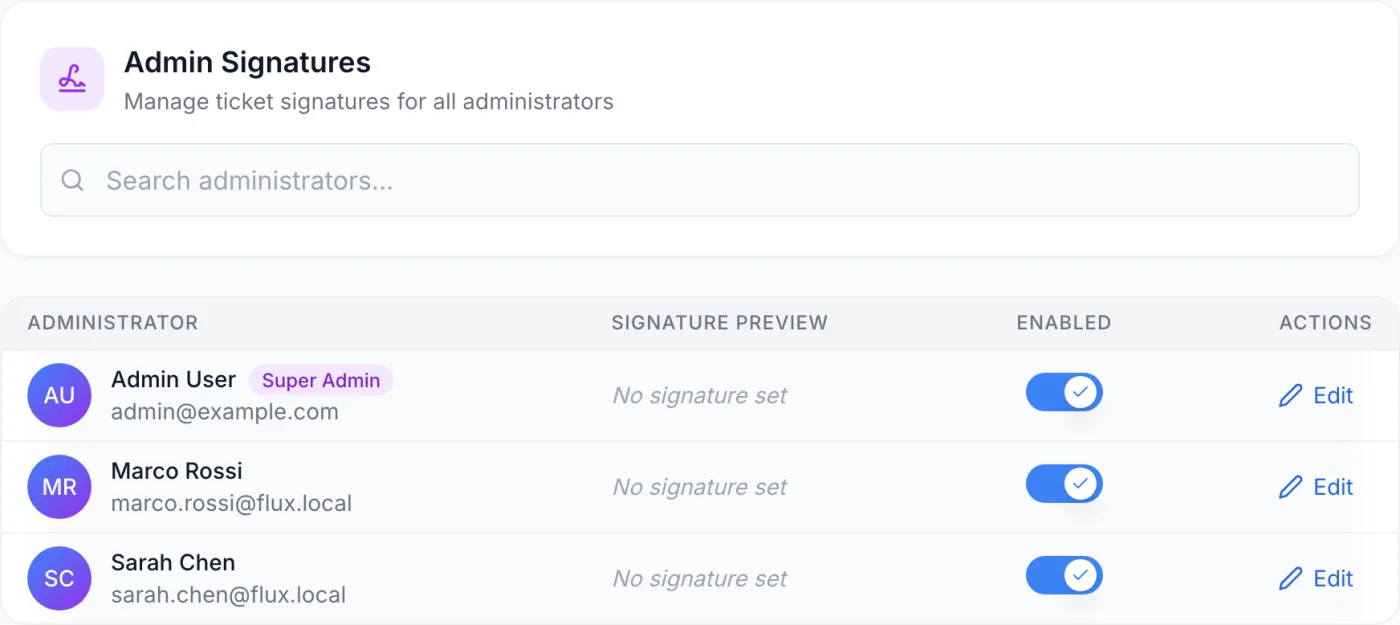
The top card carries the heading Manage ticket signatures for all administrators and a search box. Type a name or email address to filter the list — the search matches first name, last name and email. Below it is a table of all administrators with four columns:
| Column | What it shows |
|---|---|
| Administrator | The staff member’s avatar (or their initials if no avatar is set), full name, a Super Admin badge where applicable, and their email address. |
| Signature Preview | A rendered preview of the saved signature. If nothing is set yet it reads No signature set. Long signatures are truncated to fit the row. |
| Enabled | A toggle switch controlling whether this person’s signature is appended to their outgoing ticket replies. |
| Actions | An Edit button that opens the signature editor for that administrator. |
If the search matches nobody, the table says so instead of showing rows.
Editing an administrator’s signature
- Find the administrator in the list, using the search box if you have many staff.
- Click Edit on their row. A window opens headed Edit Signature, with their avatar and name beneath it.
- Use the Enable Signature toggle inside the window to control whether the signature is automatically appended to their ticket replies.
- Type or paste the signature into the Signature Content box. It is labelled (HTML supported), so you can include formatting, links and a small inline image.
- As soon as the box has content, a Preview panel appears below it and renders the signature the way it will look on a reply.
- Click Save Changes. The window closes and the row’s preview updates immediately. Cancel, or the X in the corner, discards your edits.
Turning a signature on or off quickly
You do not have to open the editor just to enable or disable a signature. Click the Enabled toggle directly in the table row; the change is saved as you click it and a short confirmation appears. The content is preserved, so turning a signature off and on again does not lose anything.
Note: Everything on this tab saves as you act — both the Edit window’s Save Changes button and the row toggles. There is no page-level save step for signatures.
Signature content and formatting reference
Signatures are written as HTML and rendered with a few built-in display rules so they stay tidy inside a ticket:
| Element | How it renders |
|---|---|
| Links | Shown in blue with an underline. |
| Inline images | Capped at 100 px wide, with the height scaled to match, so a logo stays readable without dominating the reply. |
| Paragraphs | Rendered with tight line spacing so a multi-line block stays compact. |
A typical signature is a few lines — name, role, department, and perhaps a support link or phone number. Keep it short; it sits at the bottom of every reply.
Where signatures appear
An enabled signature is appended to customer-facing ticket replies sent from the admin panel, and to the notification email the customer receives, where it is separated from the reply by a divider. Two rules always apply:
- If a staff member’s signature is disabled, or empty, their replies go out without one.
- Internal notes never carry a signature, even when it is enabled — only replies the customer can see.
When a staff member whose signature is enabled and non-empty writes a customer-facing reply, a small Show Signature / Hide Signature button appears above the reply box. It reveals a read-only preview of what will be added; it does not change whether the signature is sent. The button is not offered while the internal-note option is selected.
Note: The signature is stored with the reply it was sent on. Changing or clearing someone’s signature later does not rewrite the replies they have already sent — each message in the ticket history keeps the sign-off it went out with.
Tip: Keep department-level contact details (support address, hotline) consistent across everyone in the same department, but personalise the name and role line per person. Customers then get a uniform sign-off no matter which agent answers.
Related
See Departments for organising staff and routing, Tickets settings for how the desk behaves, and Ticket Details for the reply box itself.