
Referrals
Monitor your referral program: summary tiles, a Top Referrers leaderboard, status filters, a searchable table, and how to expire referrals or set program rules.
What the Referrals page is for
The Referrals page is your monitoring view for the customer-to-customer referral program. Each customer can create a personal referral code; when a new person signs up with that code, a referral relationship is recorded here, and every qualifying payment the new customer makes earns the referrer a reward. The page gives you program-wide totals, a leaderboard of your most active referrers, a searchable list of every referral relationship, and a single action — expiring a referral — that stops it earning.
The program's rules — whether it is switched on, the commission rate, the code prefix and the earning window — are configured separately under Settings > Discounts & Referrals, covered at the end of this article and in Discounts & Referrals.
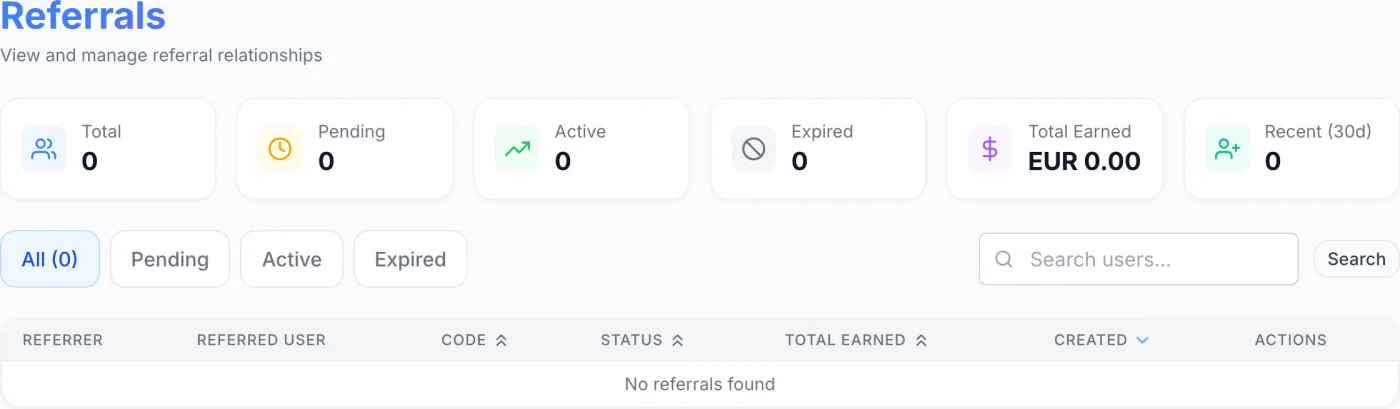
How to open the Referrals page
Referrals has no entry in the admin sidebar. Open it by putting /referrals at the end of your admin panel address — it is worth bookmarking. The page header reads Referrals with the subtitle View and manage referral relationships. If nothing has happened in the program yet — or your filters match no rows — the table shows No referrals found.
Tip: If the table is empty even though you expect activity, check that the referral program is actually enabled in Settings > Discounts & Referrals. Customers cannot create a code, and no commission is earned, while it is off.
How the reward actually works
This is the part most operators need to get right before switching the program on.
- A customer creates their referral code from the referral area of their own account. It is generated once, on request, and takes the form of your configured prefix followed by a short random string. They also get a ready-made share link — your sign-up page with the code already attached.
- Someone signs up using that code. A referral relationship is recorded with the status Pending. A person can only ever be referred once; an unrecognised code is ignored and the sign-up goes ahead as normal.
- When the referred customer makes a payment that completes, the referrer earns the configured percentage of that payment, and the relationship moves to Active.
- The reward is issued as a voucher, not as cash. Each earning creates a discount code made out to the referrer: a fixed amount off, in the referrer's own currency, usable once, and with no expiry date. If the payment was taken in a different currency, the amount is converted at the current rate first.
- The voucher appears on the Vouchers tab of the referrer's own referral area in the customer portal, where they copy the code and apply it at checkout. It is not emailed to them.
Note: There is no cash payout, no withdrawal and no automatic account credit — the reward is always a discount code the referrer spends with you.
Two rules decide whether a given payment earns anything:
- Only a completed payment counts. Pending, failed and refunded payments earn nothing.
- A payment settled from the customer's own account credit balance earns nothing, because no new money changed hands. A top-up the customer paid for does count when it is paid.
Warning: Refunding a payment does not withdraw a voucher that has already been issued for it. If you refund a payment that produced a reward, delete that voucher from the code list under Settings > Discounts & Referrals — see Discounts.
The summary tiles
A row of six tiles across the top gives you an at-a-glance picture of the whole program. They refresh as activity comes in and as you expire referrals.
| Tile | What it shows |
|---|---|
| Total | The total number of referral relationships ever recorded. |
| Pending | Referrals whose referred customer has signed up but has not yet made a qualifying payment. |
| Active | Referrals that have produced at least one reward. |
| Expired | Referrals that were expired by hand so they no longer earn. |
| Total Earned | Program-wide lifetime rewards across every referrer, converted to your base currency. |
| Recent (30d) | The number of new referrals recorded in the last 30 days. |
The Top Referrers leaderboard
Below the tiles, the Top Referrers panel ranks your five biggest referrers by lifetime rewards, converted to your base currency so partners on different currencies are compared fairly. Each entry is numbered — the top three in gold, silver and bronze — and shows how many referrals that person has brought and how much they have earned.
The leaderboard only appears when there is at least one referrer to rank. On a brand-new program it stays hidden until referrals start coming in.
Filtering and searching
Use the controls between the leaderboard and the table to narrow the list:
- Status buttons — All (with a live count), Pending, Active and Expired. Click one to show only referrals in that state. The selected button is highlighted.
- Search — type into the Search users… box and click Search (or press Enter). The search matches email addresses only, on either side of the relationship — the referrer's or the referred customer's. Searching for a person's name returns nothing. Clear the box with the small x inside it to return to the full list.
A common review routine is to filter to Pending to see who has signed up but not yet converted, then to Active to confirm which referrals have produced rewards.
The referral table
The table lists one row per referral relationship, newest first. Its columns are:
| Column | What it shows |
|---|---|
| Referrer | The customer who shared the code, with their email beneath the name. |
| Referred User | The person who signed up using the code, with their email. Their name is a link to their Client Details page. |
| Code | The referral code that was used, shown in a monospace badge. |
| Status | A coloured badge: Pending (amber), Active (green) or Expired (grey). |
| Total Earned | A currency column. It is not filled in per relationship on this table, so use the Total Earned tile and the Top Referrers panel for earnings figures, and open a referrer to see the reward vouchers they hold. |
| Created | The date the referral was first recorded. |
| Actions | An Expire Referral button (only on rows that are not already expired) and a View Referrer link. |
Clicking anywhere else on a row opens the referrer's profile. By default the table shows 50 rows per page; you can change the page size and move between pages using the controls at the bottom of the table.
What the statuses mean
- Pending
- The referred person signed up with a referral code but has not yet made a qualifying payment, so no reward has been issued.
- Active
- The referred person has made at least one qualifying payment. Further qualifying payments keep producing vouchers while the earning window lasts, unless First Payment Only is on.
- Expired
- You expired the referral by hand. No further rewards are issued on this relationship.
Note: The earning window (the Lifetime setting) is counted in days from the date the referral was created — the sign-up — not from the first payment. Reaching the end of that window silently stops the rewards, but it does not change the badge: a row can still read Pending or Active long after it has stopped earning. The Expired status and tile reflect only the referrals you expired by hand.
Expiring a referral
Expiring a referral permanently stops the referrer from earning anything further on it. To do this:
- Find the referral in the table (filter to Active or Pending to narrow it down).
- In the Actions column, click the Expire Referral button (the circular "ban" icon). It appears only on rows that are not already expired.
- A confirmation dialog warns that this will stop the referrer earning commissions on future payments. Confirm to proceed.
Once confirmed, the status changes to Expired and the summary tiles update. Vouchers already issued on that relationship are unaffected and remain usable.
Warning: Expiring a referral cannot be undone from this page. If you only want to investigate, click View Referrer to open the customer instead.
Where referral codes come from
Customers create and share their own codes from the referral area of their client account, where they can copy the code, copy the ready-made share link, watch their referrals and rewards build up, and collect their vouchers. You do not hand out codes by hand, and a customer can only hold one. See Referrals & Rewards for the customer's side of the same program.
Configuring the program: Settings > Discounts & Referrals
The Referrals page holds no program settings. To turn the program on or change how it behaves, go to Settings > Discounts & Referrals and find the Referral Program section. The fields there are:
| Setting | What it controls |
|---|---|
| Enable Referral Program | The on/off switch for the whole program (“Users earn rewards for referrals”). The fields below are dimmed until this is on. |
| Commission | The percentage of each qualifying payment turned into a voucher for the referrer. The default is 10. |
| Lifetime | The earning window in days, counted from the date the referral was created. The default is 365. |
| Prefix | The text put in front of generated referral codes, and in front of the reward voucher codes. The default is REF-. |
| First Payment Only | When on, only the referred customer's first qualifying payment produces a voucher, instead of every payment inside the lifetime window. |
After adjusting these, click Save Settings. The program must be enabled here before any customer can create a code and before any reward is issued.
Tips and gotchas
- The Total Earned tile and the leaderboard are converted to your base currency; the vouchers themselves are issued in each referrer's own currency. Expect small differences when you compare them.
- The earning window only limits when a reward can be issued. Because it does not flip a row to Expired on its own, the Expired filter and tile reflect only the referrals you have expired by hand.
- Turning First Payment Only on or off changes future rewards, not vouchers already issued.
- Changing the Prefix affects codes generated from that point on. Codes already in circulation keep working.
- Reward vouchers are ordinary discount codes underneath, so they appear in the code list under Settings > Discounts & Referrals alongside your promotional codes, where they can be filtered, inspected and deleted.
Related
Clients, Client Details, Discounts, Discounts & Referrals, Referrals & Rewards, Resellers