
Invoice Export
Build a single combined PDF of invoices and proformas, filtered by document type, date range, status, and payment method, for accounting and audits.
What Invoice Export does
Invoice Export turns a filtered set of your invoices and proformas into a file you can hand to an accountant. You pick one or more export formats, a date range, the statuses to include and (optionally) the payment methods, and the file is built on the server and downloaded to your computer. It is designed for monthly bookkeeping handover, audit requests and year-end submissions.
How to reach it
Open the admin Settings page from the sidebar, then under the Financial group choose Invoice Export. The page is a series of cards you work through from top to bottom, finishing with the export button.
Step by step
- Choose the export formats. The first card, Export Formats, lists the formats available to your company. Tick one or more — the description of each one you tick appears underneath. If you pick more than one, the download is a single ZIP containing all of them.
- Set any format options. If a format you ticked has options (CSV and SAGA do), a grey panel appears under the format list with a control for each.
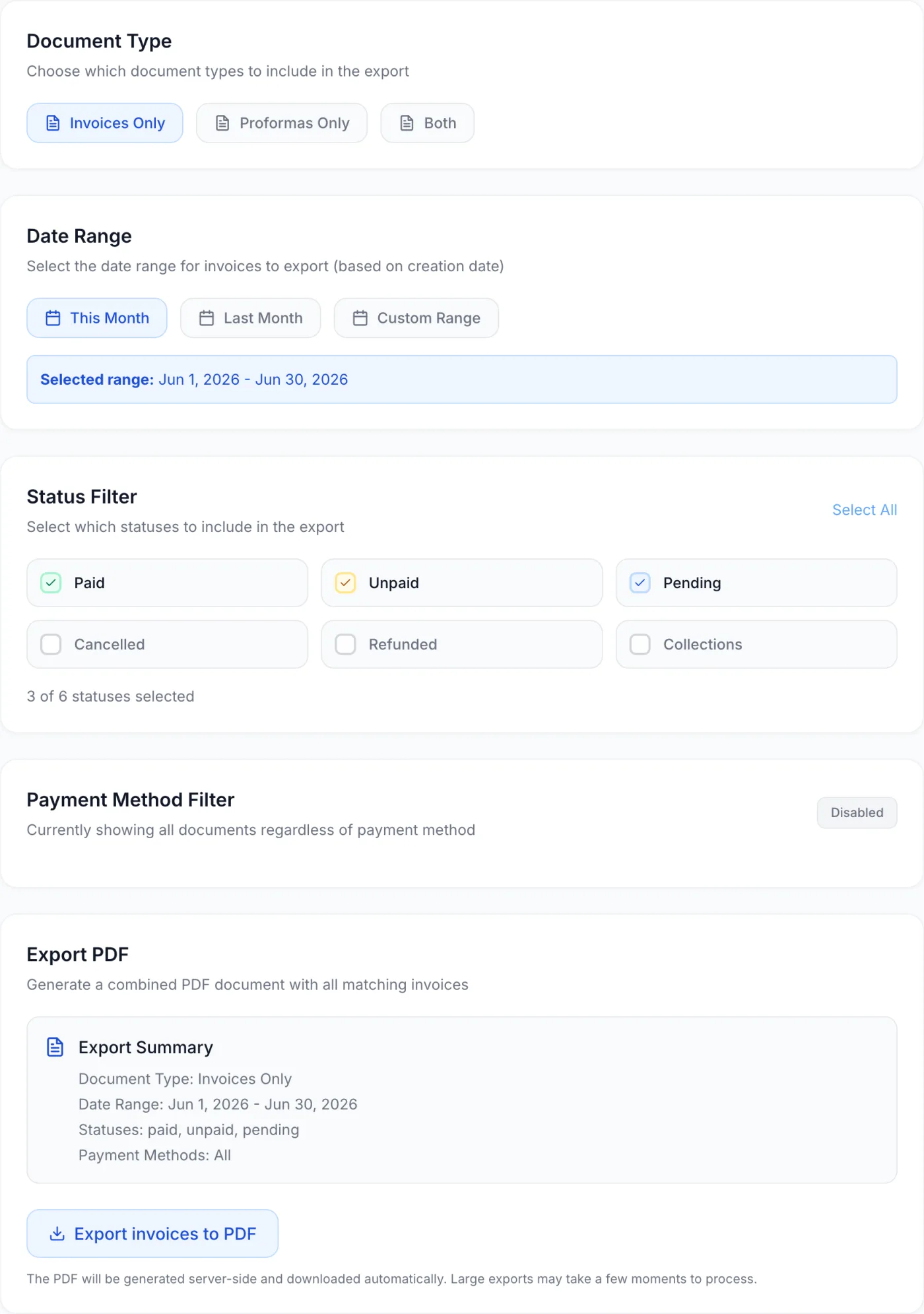
- Pick the document type. Click Invoices Only, Proformas Only, or Both. This controls which status options appear below.
- Choose a date range. Click This Month, Last Month, or Custom Range. Documents are filtered by their creation date. Once a valid range is set, a blue line shows the resolved dates, for example Selected range: May 1, 2026 - May 31, 2026.
- Set custom dates (optional). Choosing Custom Range reveals Start Date and End Date pickers.
- Filter by status. In the Status Filter card, tick the statuses to include. Select All / Deselect All in the card's top-right toggles them together. A counter reads, for example, 3 of 6 statuses selected.
- Filter by payment method (optional). If your platform has recorded payments through any gateways, a Payment Method Filter card appears. Click Enabled / Disabled on the right to switch it on, then tick the methods to include. While it is off, documents are included regardless of how they were paid.
- Review the Export Summary. The final card recaps Format, Document Type, Date Range, Statuses and Payment Methods.
- Export. Click the export button. While the file builds, the button names the formats it is generating. When it finishes the file downloads and a green PDF exported successfully! confirmation appears.
Export formats
Four formats ship with the platform. Which of them you see depends on your company — SAGA is only offered to companies registered in Romania.
| Format | What you get | Documents per export |
|---|---|---|
| Excel (XLSX) | A four-sheet workbook: one row per document, one row per invoice line, all payments, and a summary sheet. Numbers and dates are stored without a locale, so they read correctly on any machine. The best all-round choice for review and for importing into a general accounting package. | 5,000 |
| CSV | One row per invoice line with the invoice header repeated — the layout most accounting importers expect. Choose the spreadsheet locale so the numbers read correctly. | 5,000 |
| SAGA (XML) | SAGA's own invoice XML, for Romanian companies only. Carries a Verify badge: check the first file against a SAGA-generated sample before relying on it. | 2,000 |
| One page per document, for archiving or sending. Not machine-readable by an accounting system. | 1,000 |
When the page loads, Excel (XLSX) is selected. If a wider date range would exceed a format's document limit, the export is refused with a message naming the limit — narrow the range or the filters and try again.
CSV option
Spreadsheet locale — International (comma, 2026-07-31) or Romanian (semicolon, 31.07.2026). A CSV number cannot be right for both at once: Romanian Excel expects semicolons and a decimal comma, while most importers expect commas and a decimal point. If in doubt, use Excel (XLSX) instead, which has no locale problem.
SAGA options
| Option | What it does | Default |
|---|---|---|
| Revenue account (<Cont>) | The accounting account hosting services post to. Left blank, the tag is omitted — and the export warns you, because some SAGA configurations need it. | 704 |
| Unit of measure (<UM>) | The unit written on each line. | BUC |
| Document type for non-EU customers (Tip) | Written to the Tip column for customers outside the EU. EU and Romanian customers are left blank. | N |
| Date format | 31.07.2026 or 2026-07-31. | 31.07.2026 |
| Replace Romanian diacritics with plain letters | Turn on only if your SAGA install shows ș/ț/ă garbled after import. | Off |
Warning: before importing, back up the SAGA database. For EUR or USD invoices, make sure Cu operații în valută is enabled in Configurare societăți — without it the Ieșiri valută screen does not exist. After importing, press Validare: imported documents are not validated automatically. This note is printed on the page whenever SAGA is selected.
County codes for the SAGA export
SAGA stores a Romanian county (județ) as a mnemonic out of its own list — SV, not Suceava; B for București. Feeding it a county name refuses the whole file with a message that names neither the row nor the value, so the export maps what it can and leaves the county out of any line it cannot map, rather than shipping a value that would be rejected.
That means two things for you:
- Set State / Province on the Billing settings page to a real Romanian county — either its name or its mnemonic (
GiurgiuorGR). If it is anything else, the export warns you and leaves your own county out of the file. - Romanian customers whose county cannot be matched are listed by document number in the warnings after the export, so you can fix them on the client record if your accountant needs the field filled in. Customers outside Romania never carry a county.
Set the county before your first SAGA export — see Settings: Billing and Client Details.
Where SAGA files go
The export splits invoices by currency: RON invoices land in Ieșiri and any other currency in Ieșiri valută. If your selection contains both, the download is a ZIP with one file per destination and a note telling you which is which. Both files import through the same screen — Diverse → Import date → Import date din fișiere XML — and route themselves by currency. Each file name carries the period and the moment it was generated, so re-exporting the same month never produces a name SAGA has already ticked off.
Note: the SAGA export handles fiscal documents only. If your selection includes proformas, they are skipped and the warnings tell you how many.
Field and option reference
| Control | Options | What it does |
|---|---|---|
| Export Formats | Excel (XLSX), CSV, SAGA (XML), PDF | Pick one or more. Several formats come back together in a single ZIP. At least one must be selected. |
| Format options | Varies by format | Shown only for formats that declare options. Values are remembered per format, so switching formats and back does not lose what you typed. |
| Document Type | Invoices Only, Proformas Only, Both | Selects which kinds of documents are eligible and which status options appear below. |
| Date Range preset | This Month, Last Month, Custom Range | Filters documents by creation date. Presets resolve automatically; Custom Range reveals manual date pickers. |
| Start Date / End Date | Date pickers (Custom Range only) | Define an exact window. The start date cannot be after the end date. |
| Status Filter | See the status table below | Includes only documents in the ticked statuses. At least one must be selected. |
| Select All / Deselect All | Toggle link | Ticks or clears every status (or every payment method, in that card) at once. |
| Payment Method Filter | Enabled / Disabled, plus a method list | When enabled, restricts the export to documents paid through the ticked methods. Only shown when payment methods exist. |
| Export Summary | Read-only | Recaps Format, Document Type, Date Range, Statuses and Payment Methods before you commit. |
| Export button | Button | Builds the file on the server and downloads it. Disabled until a valid range, at least one status and at least one format are set. |
Available statuses
The statuses offered depend on the Document Type you selected. Choosing Both shows the combined set.
| Document type | Statuses you can include |
|---|---|
| Invoices Only | Paid, Unpaid, Pending, Cancelled, Refunded, Collections |
| Proformas Only | Paid, Unpaid, Pending, Cancelled, Expired, Converted, On Hold |
| Both | The combined list of all invoice and proforma statuses |
Each status has a colour-coded checkbox — Paid green, Unpaid amber, Pending blue, Cancelled grey, and so on — so your selection is readable at a glance. Whenever you change the document type, the selection resets to Paid, Unpaid and Pending.
Reading the warnings
After a successful export, an amber panel headed The file downloaded — a few things to check may appear above the summary. These are data-quality notes about what is inside the file, not errors. Typical ones:
- Almost every document carries a 0% VAT rate — usually a sign that no VAT rates have been entered on the Billing settings page.
- Some documents are in a non-base currency with no stored exchange rate, so their base-currency total is blank rather than converted at today's rate.
- Some documents predate the fiscal-identity snapshot, so their registration number and bank details come from your current settings rather than from the document.
- Your company registration number is not set in Billing settings — legally required on a Romanian invoice and mandatory for a SAGA import.
- For SAGA specifically: how many proformas were skipped, which invoices carry VAT and how their amounts are written, which customers have no VAT number, which counties could not be matched, and which SAGA screen each file belongs in.
Read them before handing the file over. They are the difference between an import that works first time and one your accountant has to unpick.
Tips and notes
Defaults speed up routine runs. On load the format starts on Excel (XLSX), the document type on Invoices Only, the range on This Month, and the statuses on Paid, Unpaid and Pending — a sensible starting point for a current-month review.
For revenue reporting, narrow the statuses. Tick only Paid to produce a clean file of settled documents. For VAT filings it is usually best to leave out Cancelled and Refunded, since those do not represent recognised revenue — but follow your own accountant's guidance.
The export button stays disabled until your filters are valid. You need at least one format, a valid date range and at least one status. If you enabled the Payment Method Filter you must also tick at least one method (or switch the filter back to Disabled), otherwise an inline red message appears instead of the export starting. The same red message warns you if the start date is later than the end date.
Large exports take a moment. The file is built on the server, so a wide date range covering many documents may take a few seconds before the download begins. The button names what it is generating while it works — wait for the download rather than clicking again.
The final card and its button are labelled for PDF. The card is headed Export PDF and the button reads Export invoices to PDF whatever you ticked at the top. What you actually receive is the format or formats selected in Export Formats — the Export Summary line above the button is the accurate one to check.
Related
Invoices for managing individual documents, Invoice Details for a single document, and Settings: Billing for numbering, VAT rates, the accounting series and your company address.