
Themes
Manage your panel themes: browse the catalogue, activate or switch a custom CSS theme, duplicate, edit, delete, or reset all panels to the default styling.
What Themes are for
Themes let you restyle your panels with custom CSS without changing anything else. A theme is a block of CSS that loads after the built-in styling, so it can override colours, surfaces, card and button shapes, corner radius, fonts and spacing. Each theme is scoped to your staff (admin) panel, your customer (client) panel, or both; you can keep as many as you like in a catalogue and switch the active one at any time.
How to reach it
Open Settings from the sidebar, then under the Appearance group choose Themes. The catalogue is headed “Themes” with the subtitle “Create and manage custom CSS themes for your panels”, and a Create Theme button sits at the top-right.
What you start with
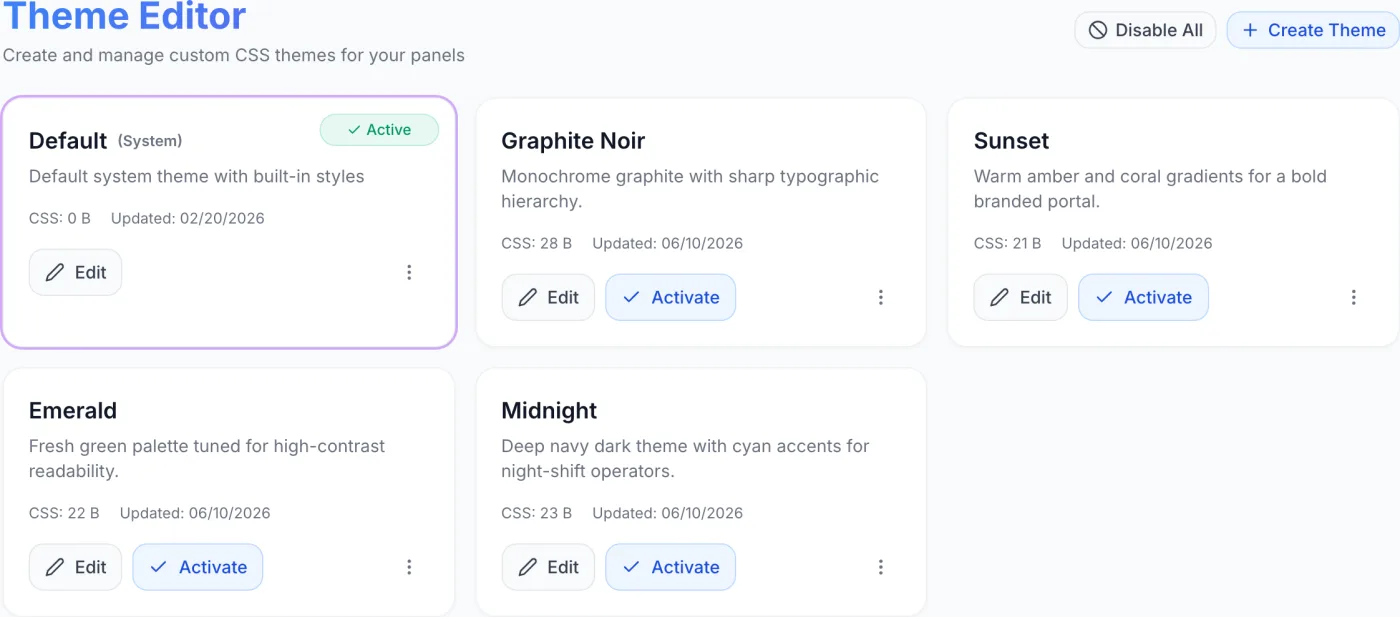
A new installation carries a single theme named Default, marked (System), scoped to Both Panels and already active. It has no CSS of its own — its card reads CSS: 0 B — because it means “use the built-in styling”. Nothing you do to your own themes affects it, and it cannot be deleted.
Reading a theme card
Each theme appears as a card showing:
- Name — the theme’s title. The built-in theme is marked (System) next to its name.
- Description — a short note about the theme, or No description. The editor has no description field, so themes you create yourself read No description; a duplicate carries over the description of the theme it was copied from.
- Panel-type badge — Admin Panel, Client Panel or Both Panels, telling you where the theme applies.
- CSS — the size of the theme’s stylesheet, in bytes or kilobytes.
- Updated — the date the theme was last saved or activated.
- Active badge — a green badge in the top-right corner of a theme that is currently applied. The card also gets a coloured ring so it stands out at a glance.
Filter chips
Above the cards are four filter chips: All Themes, Admin Panel, Client Panel and Both Panels. Click one to narrow the list to themes scoped to that panel. The chips only change what you see — they do not change any theme.
Activating a theme
- Find the theme card you want to use.
- Click Activate. The button only appears on themes that are not already active.
- A confirmation message appears at the top of the page and the card gains the Active badge.
- Reload the panel to see the new styling. The page you are standing on keeps the styling it loaded with.
What activating switches off
Activation always clears whichever themes would conflict with the one you picked:
- Activating a Both Panels theme deactivates every other theme.
- Activating an Admin Panel theme deactivates any active Admin Panel theme and any active Both Panels theme — so the client panel falls back to the built-in styling unless a Client Panel theme is also active.
- Activating a Client Panel theme behaves the same way in reverse.
Note: One Admin Panel theme and one Client Panel theme can be active at the same time — that is how you give staff and customers a different look. What you cannot have is two themes competing for the same panel.
Tip: The active theme is cached for about five minutes, so a browser that already has a panel open may keep the previous styling for a few minutes after you activate or edit a theme. Reload the page; if the old look persists, wait a moment and reload again.
Creating a theme
- Click Create Theme. This opens the Theme Editor with a blank theme and the Quick Create sidebar already open.
- Type a name in the title field at the top of the editor. A name is required — Save stays disabled until you enter one, and two themes cannot share a name.
- Pick where it applies with the panel dropdown next to the name: Both Panels (the default), Admin Panel or Client Panel.
- Generate a complete look from the Presets tab, build one from the guided form on the Custom tab, or write CSS directly in the editor.
- Click Save. Saving does not activate the theme — return to this page and click Activate on its card when you are ready to apply it.
See Theme Editor for a full walkthrough of the presets, colour controls and preview.
Editing, duplicating and deleting
Each card has Edit and Activate buttons and a three-dot menu:
| Action | Where | What it does |
|---|---|---|
| Edit | Button on the card | Opens the Theme Editor for that theme so you can change its name, panel scope or CSS. |
| Activate | Button on the card (only when it is not active) | Applies the theme to the panel or panels it is scoped for. |
| Duplicate | Three-dot menu | Creates a copy named <original name> (Copy), carrying the same CSS, description and panel scope. The copy is not active, so you can experiment on it safely. |
| Delete | Three-dot menu | Removes the theme permanently. The option only appears for themes that are neither the built-in one nor currently active. You are asked to confirm by name first. |
Warning: Because theme names must be unique, duplicating the same theme twice fails — the second copy would want the same name as the first. Rename or delete the first copy before duplicating that theme again.
Note: You cannot delete the built-in theme, and you cannot delete a theme while it is active. To remove an active theme, activate a different one first, then delete it.
Turning every theme off
The Theme Editor’s back arrow leads to a full-page theme list (its heading reads Theme Editor) that carries one extra control: a Disable All button at the top-right, shown whenever any theme is active. Clicking it asks “Disable all themes? The panels will use the default styling.” and, once confirmed, deactivates every theme and drops the panels back to the built-in look straight away — the page you are on updates without a reload.
Tip: If something looks wrong after applying a custom theme, use Disable All to rule your CSS in or out. If the problem disappears under the built-in styling, it comes from the theme; if it persists, theming is not the cause. Your themes are not deleted — activate one again to bring it back.
Practical notes
- The CSS size on a card is a quick sanity check: a theme generated from a preset runs to tens of kilobytes, while a hand-written override may be only a few hundred bytes.
- Themes scoped to Both Panels apply the same styling to staff and customers. Use separate Admin-only and Client-only themes when you want a different look for each audience.
- Duplicating before a large change gives you an instant rollback: if the edit goes wrong, activate the copy instead.
- Themes only restyle the panels. For custom header and footer HTML on the client panel, see Custom Code; for the icon set the panels draw from, see Icons.
Related
Theme Editor · Custom Code · Icons · Settings