
Allocation & Equivalences
Configure how FluxBilling matches dedicated-server orders to real machines: matching modules, storage/CPU/RAM equivalences, delivery rules, and timing.
What the Allocation engine does
The Allocation engine decides which real machine in your Inventory should fulfil a dedicated-server order. When a paid order needs a physical machine, the engine scores every available server against the product's specifications, picks the best match, reserves it, and works out an estimated delivery time. Everything on this page is configuration: the matching modules that run, the equivalence tables that let near-matches count as matches, the delivery rules that add lead time when extra work is needed, and the global delivery configuration.
How to open it
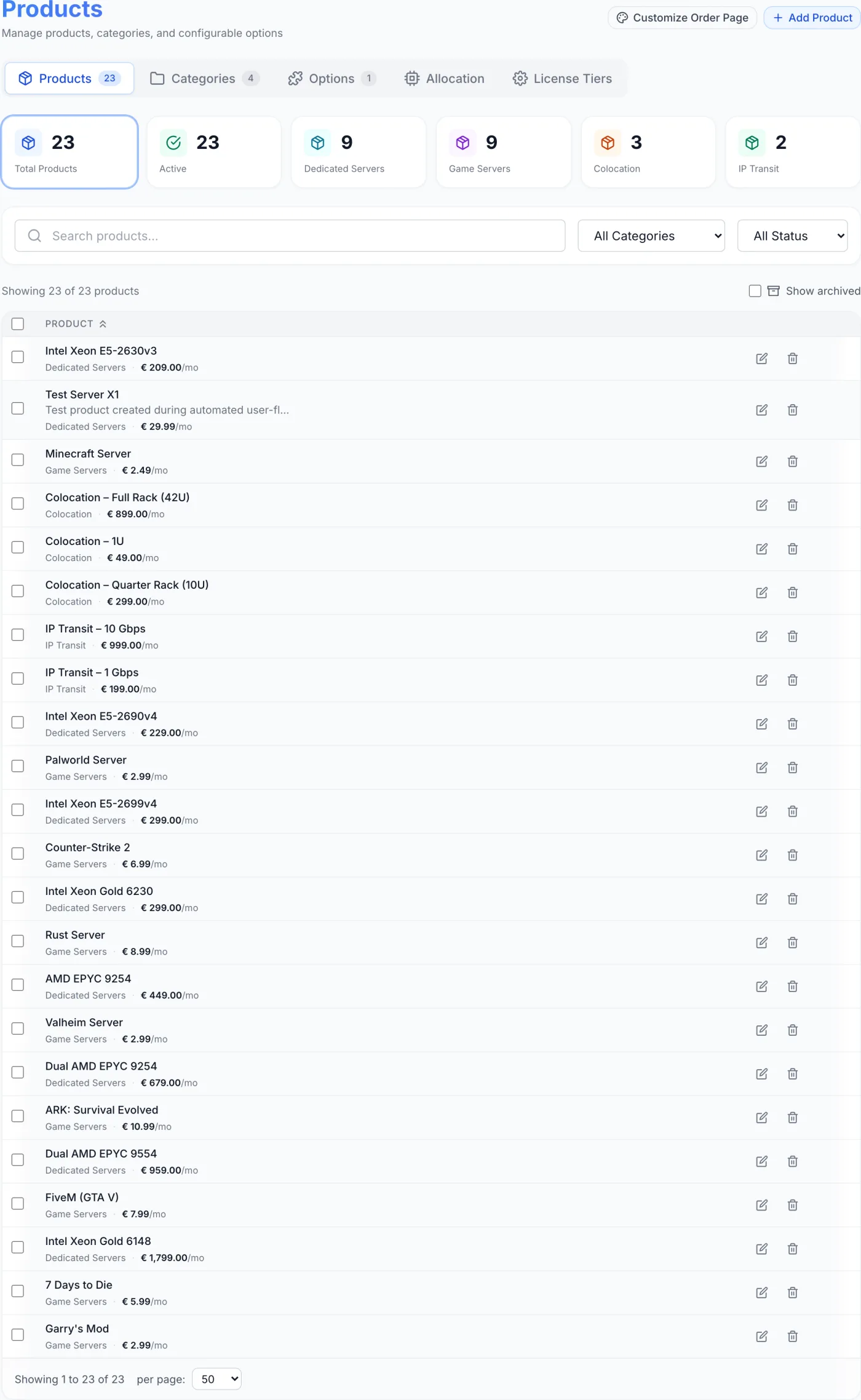
Open Products from the sidebar, then click the Allocation tab in the row of tabs at the top of the page. This tab only appears when the Inventory module is enabled for your company. Inside Allocation there are five sub-tabs:
- Modules — the checks that run during matching.
- Equivalences — the mappings that let a near match count as a match, split into RAM, Storage and CPU.
- Delivery Rules — adjustments to the delivery estimate.
- Configuration — base delivery time and business hours.
- History — a log of past allocation decisions.
Note: Allocation only runs for a dedicated-server product with Reserve a server from inventory when this is ordered switched on in its Delivery section. The hardware it matches against is the product's own hardware specifications from its Configuration section. See Products.
How matching works
When an order requiring a machine is processed, the engine reads the product's hardware specification (CPU, RAM, storage, network) and runs every enabled module against each candidate server in priority order. Each module returns one of three results:
- Compatible
- The server fully satisfies that check.
- Partial
- The server can satisfy the requirement, but only after extra work (for example installing a network card or adding storage). It stays in the running and may trigger a delivery rule that adds lead time.
- Incompatible
- The server fails the check.
A module marked Required removes any candidate it rates Incompatible. A module marked Optional keeps the candidate even on a partial result, so you can compensate with lead time instead of rejecting the machine.
Every surviving server carries a score. Its score is the lowest score any module gave it — the weakest link, not an average — and the engine works down the list from the highest-scoring server, reserving the first one it can take. The delivery estimate is then the base time plus any delivery-rule effects.
Modules tab
The Modules sub-tab lists every matching module in a sortable table. Columns: Module (its name and identifier), Category (hardware, storage, network, or custom), Priority (lower numbers run first), Required (Required or Optional), Status (Enabled or Disabled), and Actions. A Refresh button at the top of this sub-tab reloads the list.
Five modules ship built in:
| Module | What it checks | Ships as |
|---|---|---|
| Location Filter | Keeps only servers in the location the order asked for. | Required, priority 5 |
| CPU Compatibility | Cores, threads and the CPU model pattern against the server's specs. | Required, priority 10 |
| RAM Compatibility | Memory capacity against the server's specs. | Required, priority 20 |
| Storage Availability | Disk capacity and, optionally, media type. Adds a delivery penalty when an upgrade is needed. | Optional, priority 30 |
| Network/NIC | Network interface requirements and, optionally, port speed. Adds a penalty when a card must be installed. | Optional, priority 40 |
Configuring a module
Click Configure on a module row to open its settings dialog. Every module shares three Basic Settings:
| Setting | What it does |
|---|---|
| Enabled | Runs this module during allocation. A disabled module is skipped entirely. |
| Required | When on, allocation fails for any server this module does not pass. When off, the module is advisory and can only influence delivery time. |
| Priority | Determines the order modules run in. Lower numbers run earlier. |
Under Module Configuration, some modules add their own options. Modules without any say so plainly.
| Module | Extra options |
|---|---|
| CPU Compatibility | Strict Mode — require an exact CPU model pattern match instead of allowing equivalences. |
| RAM Compatibility | Allow Upgrade — let a server that can be upgraded qualify; Upgrade Penalty (days) — lead time added when an upgrade is needed (2 by default). |
| Storage Availability | Upgrade Penalty (days) — lead time when disks must be added (3 by default); Check Storage Type — also validate media type (SSD vs HDD), not just capacity. |
| Network/NIC | NIC Installation Penalty (days) — lead time when a network card must be installed (2 by default); Check Port Speed — also validate port-speed requirements. |
Click Save Configuration in the dialog to apply your changes.
Tip: Keep checks you can never relax (location, CPU, RAM) set to Required, and leave checks you can satisfy with a little extra work (storage, network) Optional with a delivery penalty. That way a near-perfect machine is still offered, just with a longer ETA, instead of being rejected outright.
Equivalences tab
All three equivalence tables live on this one sub-tab. Three buttons across the top — RAM, Storage and CPU, each with a count — switch between them, and an explainer card under the buttons restates what the selected kind does with a worked example.
Each table has the same shape: Server reports, Counts as, Type (RAM and Storage only), Description, Status, and Actions — edit (pencil), enable or disable, and delete (trash). Deleting asks for confirmation. Inactive rows are kept but ignored during matching.
Add Equivalence opens the editor for whichever kind is selected. Every editor ends with a Description (an optional note) and an Active checkbox, and shows a plain-language preview of the mapping as you type it. Two warnings can appear: one when a mapping for the same reported value and type already exists (the first match wins, so edit the existing row instead), and one when both CPU spellings are identical, which would have no effect.
RAM
Servers often report slightly less memory than the size you sell, because firmware reserves some of it. A mapping makes the reported size count as the plan size.
| Field | What it does |
|---|---|
| Server reports | The memory figure exactly as it appears in the server inventory. Required. |
| Counts as | The plan size it should count as. Required. |
| Unit | GB (the default) or MB — applies to both numbers above. |
| RAM type | Any type, DDR3, DDR4, or DDR5. Restricts the mapping to one memory generation, or applies it to all. |
Example: a server reporting 122 GB counts as 128 GB.
Storage
Drives report their real capacity, which rarely matches the marketed size — a “480 GB” SSD commonly reports 447 GB.
| Field | What it does |
|---|---|
| Server reports | The size per disk exactly as it appears in the server inventory, in GB. Required. |
| Counts as | The marketed size it should count as, in GB. Required. |
| Storage type | Any type, HDD, SSD, or NVMe. |
The Storage table has an extra Add common sizes button beside Add Equivalence. It adds the usual firmware-reported SSD sizes in one go — 224 → 240, 447 → 480, 894 → 960, 1788 → 1920, 3576 → 3840 and 7153 → 7680 GB — skipping any that already exist, and tells you when they are all present already.
CPU
The same processor is often written differently in a product spec and in an inventory record. Linking two spellings makes them the same CPU model as far as matching is concerned. Matching is case-insensitive, and the link works in both directions.
| Field | What it does |
|---|---|
| First spelling | One way the CPU is written, for example E5 v2699v4. Required. |
| Second spelling | The other way the same CPU is written, for example Intel Xeon E5-2699 v4. Required. |
Tip: Add your equivalences before importing a batch of unfamiliar machines. Without a matching row, a legitimate server can be rated incompatible purely because its reported numbers or naming do not literally equal the product spec. Each list starts empty and says so.
Delivery Rules tab
Delivery rules adjust the estimated delivery time based on how a module rated a server — typically to add lead time when a partial match means extra work. Four rules are seeded out of the box, adding two or three days for storage upgrades, network-card installation, an extra port connection, and memory upgrades. Click Add Rule to open the editor:
| Field | What it does |
|---|---|
| Rule Name | A label for the rule. Required. |
| Description | Optional internal note. |
| Module | Which module's result triggers the rule. Pick from your modules. Required. |
| Status | The result that fires the rule: Compatible, Partial (needs upgrade), or Incompatible. |
| Type | Add (+), Set (=), or Multiply (x) the delivery time. |
| Value | The number applied by the effect. |
| Unit | Minutes, Hours, or Days. |
| Customer Message | Optional text shown to customers explaining the delivery time. |
| Priority | Order in which rules are evaluated. Lower is evaluated first. |
| Active | Whether the rule is in effect. |
A live preview in the editor reads the rule back in plain language (for example, +3 days when storage-availability is partial) so you can confirm it before saving. The rules table shows each rule's name, condition, effect, priority, and status, with edit and delete actions; deleting asks for confirmation.
Configuration tab
The Configuration sub-tab (“Delivery Configuration”) holds the global timing settings that apply to every allocation:
| Setting | What it does |
|---|---|
| Base Delivery Time (minutes) | The default estimate used when every spec matches exactly, before any delivery-rule effects. 30 by default. |
| Skip Weekends | Excludes Saturday and Sunday from delivery-time calculations. |
| Working Hours Only | Counts only business hours. Turning this on reveals Start Time and End Time fields. |
| Timezone | The reference timezone for weekend and working-hour rules: UTC, America/New_York (EST), America/Los_Angeles (PST), Europe/London (GMT), Europe/Amsterdam (CET), or Asia/Tokyo (JST). |
Click Save Configuration to apply.
History tab
The History sub-tab is a record of past allocation decisions. The table lists Date, Order, Product, Server, Status, and the calculated Delivery time, and is paginated with Previous and Next buttons once there is more than one page. Click View on a row to open a detail panel showing the order, product, chosen server and estimated delivery, a compatibility score, each module's result with its own score, a delivery breakdown table (source, reason, time, and a total), the requested versus matched specifications, and any notes — useful for understanding why a particular machine was, or was not, picked.
Putting it together: a sample order
- A customer orders a dedicated server (for example a Xeon E5-2630 v3 with 128 GB and 2 × 240 GB SSD) in a chosen location.
- The Location Filter narrows the pool to machines in that location.
- CPU Compatibility normalises the product's processor text through your CPU equivalences and matches a host whose name is written differently.
- RAM Compatibility sees the host reporting 122 GB, finds your RAM equivalence to 128 GB, and rates it compatible.
- Storage Availability sees the reported drive size, applies your storage equivalence, and rates it compatible — no penalty.
- Network/NIC confirms the required port — compatible.
- The host scores highest of the surviving candidates, the engine reserves it, and the order moves to provisioning with the base delivery time as its ETA.