
Referrals & Rewards
Find your referral code, copy your share link, track who signed up, and redeem the reward vouchers you earn as commission in your portal.
What the Referral Program does
The Referral Program lets you earn rewards by inviting friends and colleagues to sign up. When someone creates an account through your referral code or share link and makes a payment, you earn a commission, paid to you as a reward voucher you can apply to your own orders. This page is where you find your code, copy your share link, track who you have referred, and see the vouchers you have earned.
Opening the page
The Referral Program does not have a sidebar entry. Add /referrals to the end of your portal's web address (for example https://your-portal.example.com/referrals) and open it while signed in.
Note: The referral programme is optional and your provider can switch it off. When it is not active the page reads Referral Program Unavailable — “The referral program is currently not active. Please check back later.” There is nothing to set up in that case.
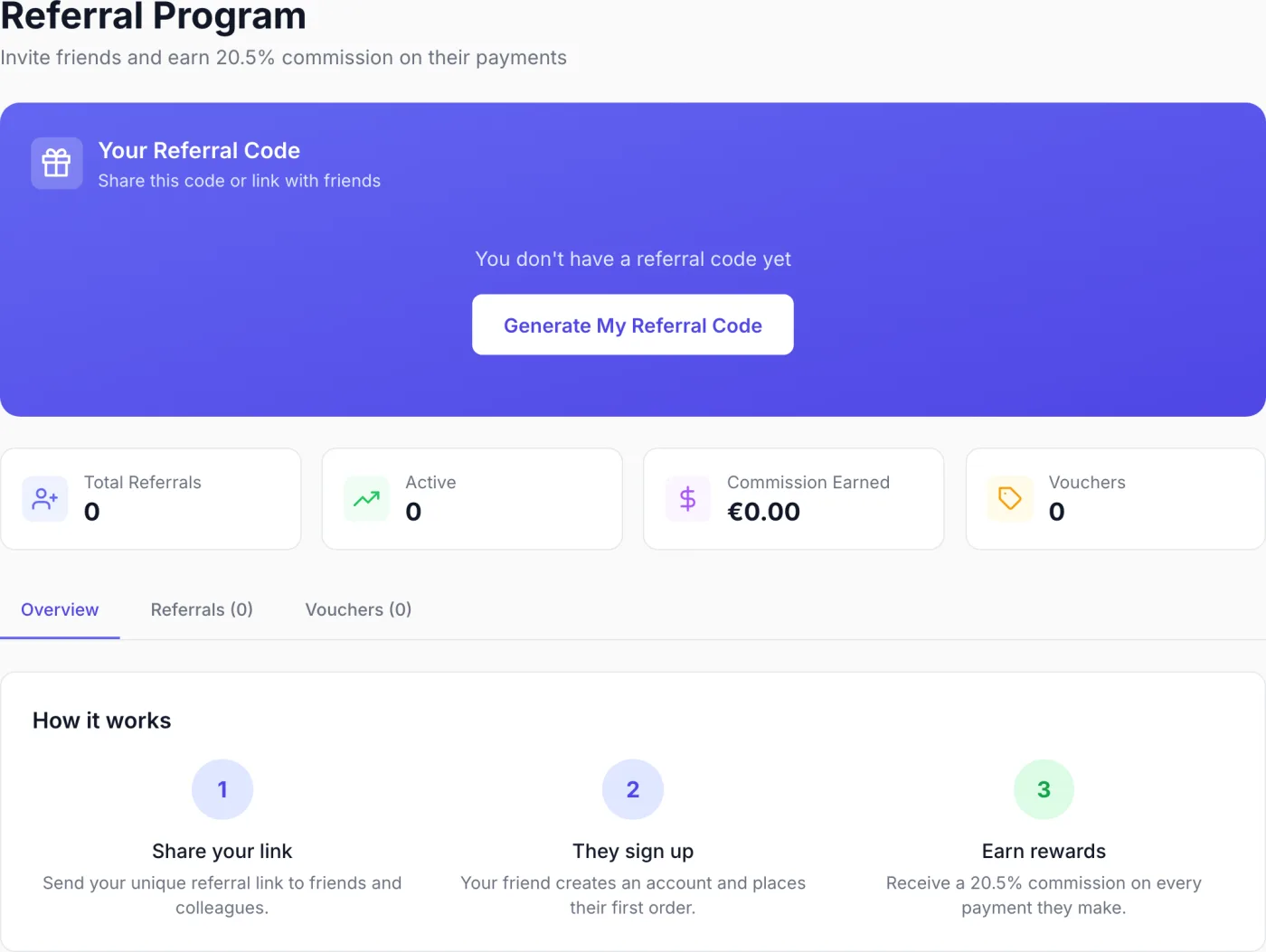
When the programme is active, the page is headed Referral Program with the subtitle Invite friends and earn X% commission on their payments, where X is the rate your provider has set.
Your referral code and share link
The blue Your Referral Code card near the top — subtitled Share this code or link with friends — holds everything you need to invite people.
- Generate your code (first time only). Until you have a code, the card reads You don't have a referral code yet with a Generate My Referral Code button. Select it; the button briefly reads Generating... and your code appears with the confirmation Referral code generated! You only do this once.
- Copy your code. Once a code exists, the Code section shows it in large type. Select the copy button beside it — the button shows a tick and Code copied to clipboard! appears.
- Copy your share link. Where a ready-made link is available, the Share Link section shows the full address. Select the copy button next to it (Link copied to clipboard! confirms). Anyone who opens that link lands on the sign-up page with your referral already applied — no code to type.
Tip: Prefer the Share Link over the bare code where you can. It takes your contact straight to sign-up with the referral attached, removing the manual step where mistakes happen. Paste it into an email, a chat message or a post.
The summary stats
Once you have a code, four cards summarise the programme at a glance:
| Stat | What it shows |
|---|---|
| Total Referrals | How many people have signed up through your code or link. |
| Active | How many of those referrals currently count as active. |
| Commission Earned | Your cumulative earnings so far, in your account currency. |
| Vouchers | How many reward vouchers you hold. |
The three tabs
Below the stats are Overview, Referrals and Vouchers. The Referrals and Vouchers labels carry a live count in brackets.
Overview tab
A How it works panel with three numbered steps:
- Share your link — Send your unique referral link to friends and colleagues.
- They sign up — Your friend creates an account and places their first order.
- Earn rewards — Receive a commission on every payment they make, at the rate your provider has set.
Referrals tab
A sortable table of everyone you have referred, newest first by default. Select a column heading to sort by it. The columns are:
| Column | Meaning |
|---|---|
| User | The referred person's first name and the initial of their surname (for example “Alex M.”). |
| Status | A coloured badge: Active (green) once they qualify, Pending (amber) while waiting, or another state in grey. |
| Joined | The date the referral was created. |
| Earned | The commission this person's payments have generated for you. |
Before you have referred anyone, the tab shows No referrals yet. The table lists your most recent referrals rather than your entire history.
Vouchers tab
Every reward voucher issued to you. Each row shows:
- The voucher code in monospaced text.
- A copy button next to the code — shown only on vouchers you have not used yet, so you can grab the code ready for checkout.
- The discount it gives: either a fixed amount off (shown with your currency, for example “EUR 5.00 off”) or a percentage off (for example “10% off”), depending on how your provider set it up. Where the voucher came from a specific referral, that person's name follows the discount.
- A status badge on the right — Available (green) while it is still usable, or Used (grey) once redeemed.
- The date the voucher was issued.
With no vouchers yet the tab shows No vouchers yet and the note that vouchers you earn from referrals will appear there.
How referrals turn into rewards
- You share your code or link.
- Someone signs up through it — they appear in your Referrals tab, usually starting as Pending.
- Once they place a qualifying order and pay, the referral becomes Active, your Commission Earned total rises, and a reward voucher is added to your Vouchers tab.
- You redeem the voucher by entering its code in the Discount Code field at checkout on one of your own orders, which reduces the amount due. See Placing an Order.
Note: The commission rate, and whether you earn on every payment or only the first, are set by your provider and reflected in the subtitle at the top of the page. If you are unsure of the exact terms, your provider's terms or support team is the source of truth.
Tips
- Generate your code once, then keep reusing the same share link — it does not change.
- Check the Vouchers tab for anything marked Available before you place an order; applying one reduces what you owe.
- The copy button disappears once a voucher is used, which is a quick way to see at a glance which ones you can still spend.
- A voucher is applied at checkout, not to an already-issued document — use it on your next order.
Related
Placing an Order, Invoices & Payments, Client Portal Overview.