
2328.io crypto payments
Accept crypto payments with the 2328.io plugin: install it, enter your Project ID and API key, and how signed notifications settle invoices.
The 2328.io plugin lets your customers pay FluxBilling invoices in cryptocurrency on 2328.io's hosted payment page. When a customer chooses 2328.io, FluxBilling creates a 2328.io invoice for the amount due and sends the customer to 2328.io to pay. The customer picks a coin and network there (for example USDT, BTC or ETH) and sends the funds from their own wallet. 2328.io then sends a signed notification back to FluxBilling, FluxBilling checks the signature, and the invoice is marked paid. The plugin is free and is listed in the plugin marketplace of every FluxBilling panel.
This guide covers plugin version 2.6. It walks through the setup in the order you do it, then explains how payments move through their states and what to check when something does not work.
Who supports this integration. The plugin is built and maintained by FluxBilling. If something does not work, contact FluxBilling support at contact@fluxbilling.app or through fluxbilling.app/contact. Questions about your 2328.io account, its verification, the coins and networks it offers, payouts, conversion or fees go to 2328.io support.
What you need before you start
- A 2328.io merchant account with a project. You sign up in the 2328.io dashboard at my.2328.io. 2328.io describes the start in General Information.
- Two values from your project settings in 2328.io: the project's Project ID (2328.io also calls it the project UUID) and its API key. Step 1 explains them.
- A FluxBilling panel that 2328.io can reach over HTTPS. Payments complete through 2328.io's notifications to your panel's public address. 2328.io refuses notification addresses that are private or not reachable from the internet.
- Invoices in a currency 2328.io prices in. FluxBilling asks 2328.io for the invoice in its own currency when that currency is USD, EUR or your base currency. Any other invoice currency is converted to your base currency first. 2328.io lists the fiat currencies it accepts in its Payment API reference.
2328.io has no separate test environment for payments. The plugin always works against your live 2328.io project.
Step 1: Find your Project ID and API key in 2328.io
- Sign in to the 2328.io dashboard and open the project you want to receive payments in.
- Open the project settings.
- Copy the project's Project ID (UUID) and its API key.
Use the regular API key, not the Payout API key. 2328.io issues the two separately: the API key covers payments and the notifications about them, and a request signed with the payout key is refused. 2328.io explains both keys and how requests are signed in Authentication & Request Signing. Keep the API key private: anyone who has it can create invoices in your project.
You do not need to register a notification address in 2328.io. FluxBilling sends its own address with every invoice it creates (see step 4).
Step 2: Install the plugin
- In the FluxBilling admin panel, open Settings (the gear icon in the top bar).
- Under Integrations, open Marketplace. Stay on the Browse tab.
- Search for 2328, open the 2328.io card and click Get for Free.
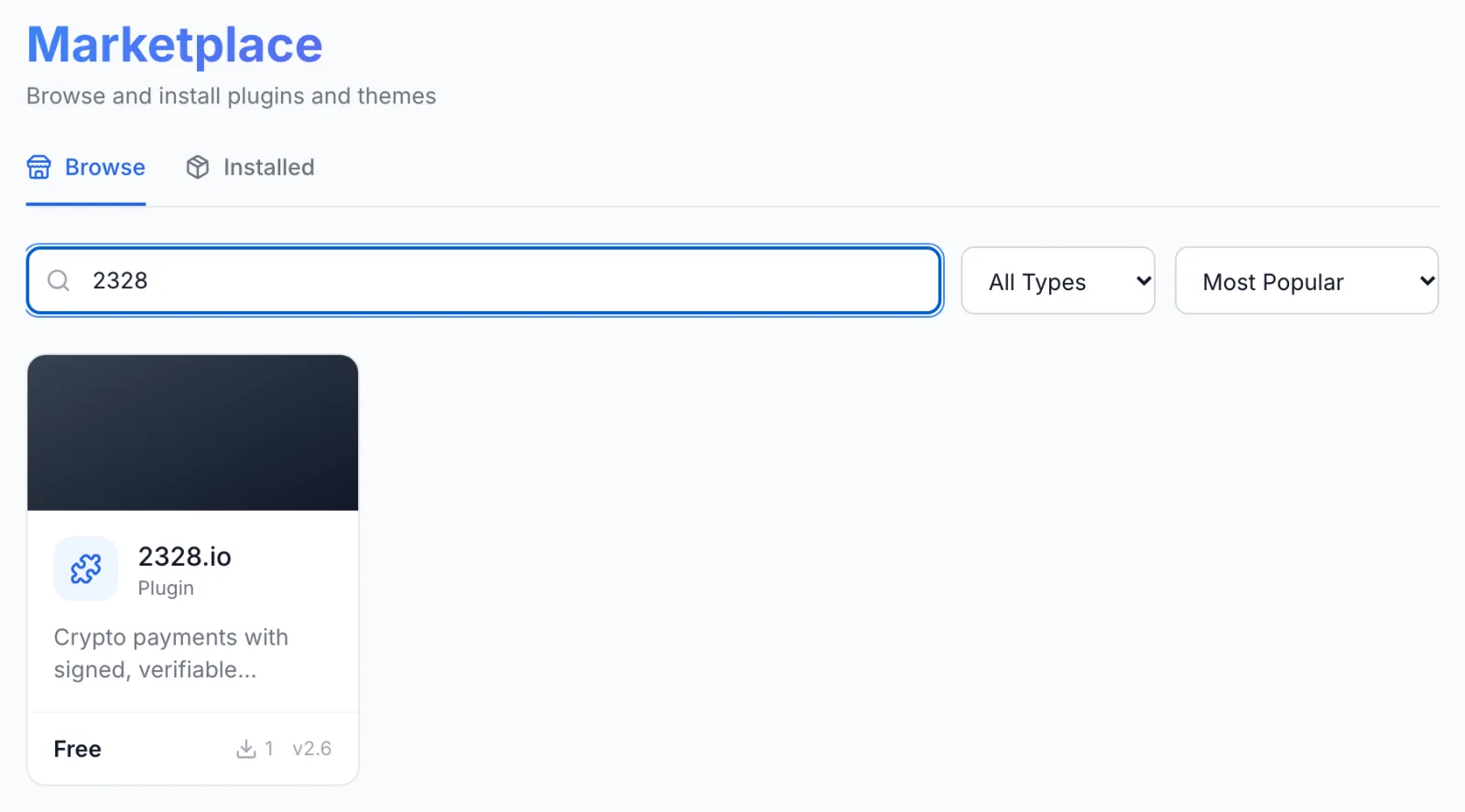
FluxBilling confirms with Plugin "2328.io" installed and ready to use. The plugin is switched on straight away and appears under Settings → Integrations → Plugins, marked Active. Customers do not see 2328.io at checkout yet: a gateway is offered only once its required settings are saved.
Step 3: Enter your Project ID and API key
- Open Settings → Integrations → Plugins.
- On the 2328.io card, click Configure. The dialog opens on the Settings tab.
- Fill in the fields below.
- Click Save Configuration. FluxBilling shows Configuration saved successfully.
| Field | Required | What it does |
|---|---|---|
| Enabled | Yes, to take payments | Offers 2328.io at checkout. Untick it to hide the gateway without removing its settings. |
| Project ID | Yes | The Project ID (UUID) of your 2328.io project. FluxBilling sends it with every request so 2328.io knows which project the invoice belongs to. |
| API Key | Yes | The project's API key. FluxBilling signs every request to 2328.io with it, and uses it to check the signature on every notification 2328.io sends back. |
| Button Text | No | Starts as Pay with Crypto. Leave it as it is. The name and description customers see in the list of payment methods are set on the Checkout Display tab (step 5). |
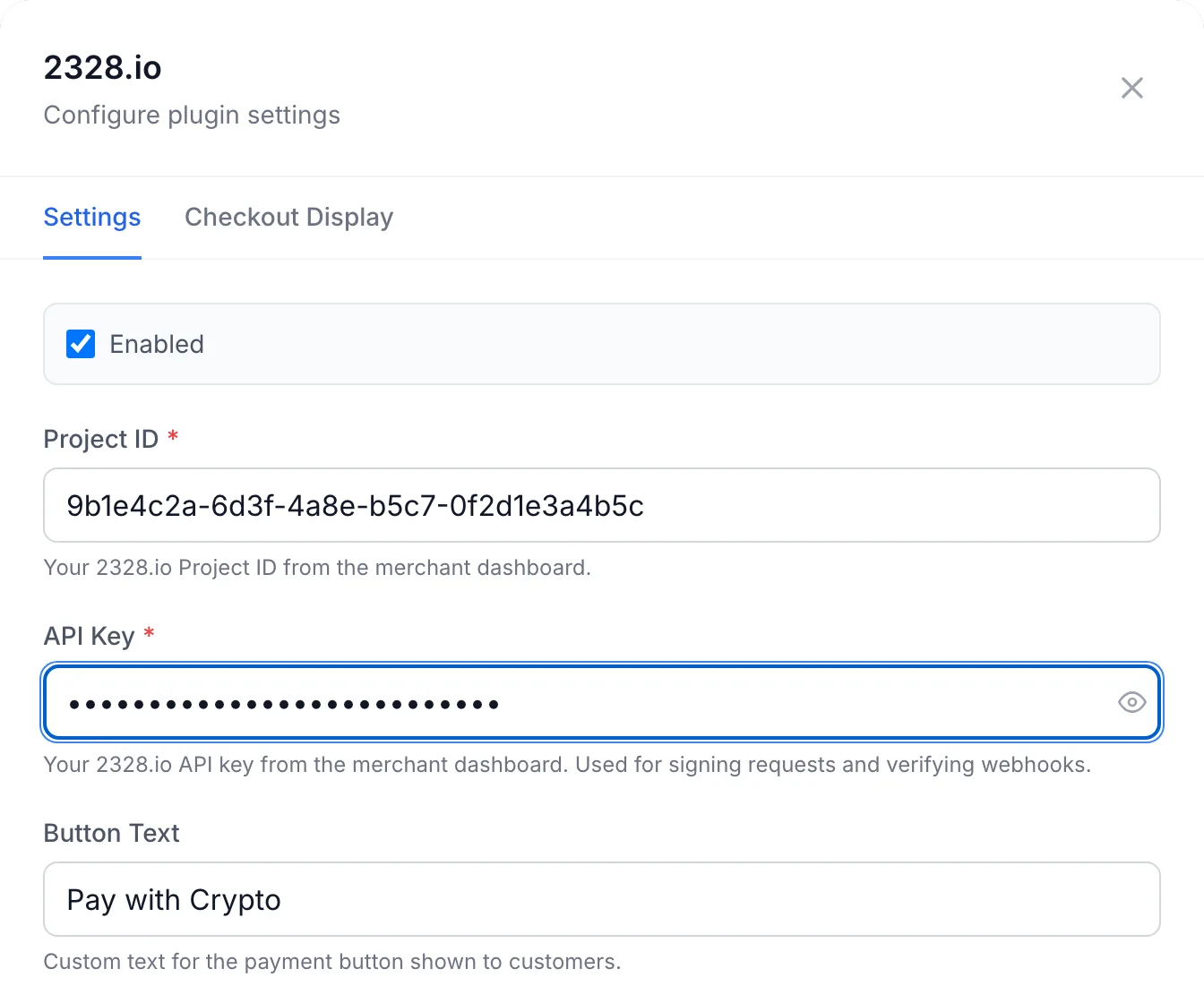
The API key is stored encrypted, and the dialog shows it masked. To change it, type the new value; leaving the field empty keeps the stored key. If a required field is missing, FluxBilling saves the form but shows Saved, but the plugin is not configured until these are fixed: followed by the missing field, for example API Key is required.
The dialog has no connection test button. The quickest check is a small real payment: see step 6.
Step 4: The notification address
Below the fields, the Configure dialog shows a box titled Webhook configuration required with the notification address of your panel, a Copy URL button and the delivery status.
For 2328.io there is nothing to paste anywhere. 2328.io has no account-wide notification setting: FluxBilling hands its notification address to 2328.io with each invoice it creates, and 2328.io sends that invoice's status changes there. 2328.io describes this in Webhook Notifications.
The box is still useful: it shows what FluxBilling has received, for example No deliveries received yet, Receiving deliveries with a count, or Deliveries failing, and the time of the last delivery.
FluxBilling checks every notification before it acts on it. 2328.io signs each one with your API key, and FluxBilling recomputes the signature with the key you saved. A notification with a missing or wrong signature is refused and changes nothing.
Step 5: Check how 2328.io appears at checkout
Open Settings → Financial → Payment Gateways. Every installed gateway has a card there with an Enabled or Disabled badge and a switch. The switch turns the 2328.io plugin itself on or off.
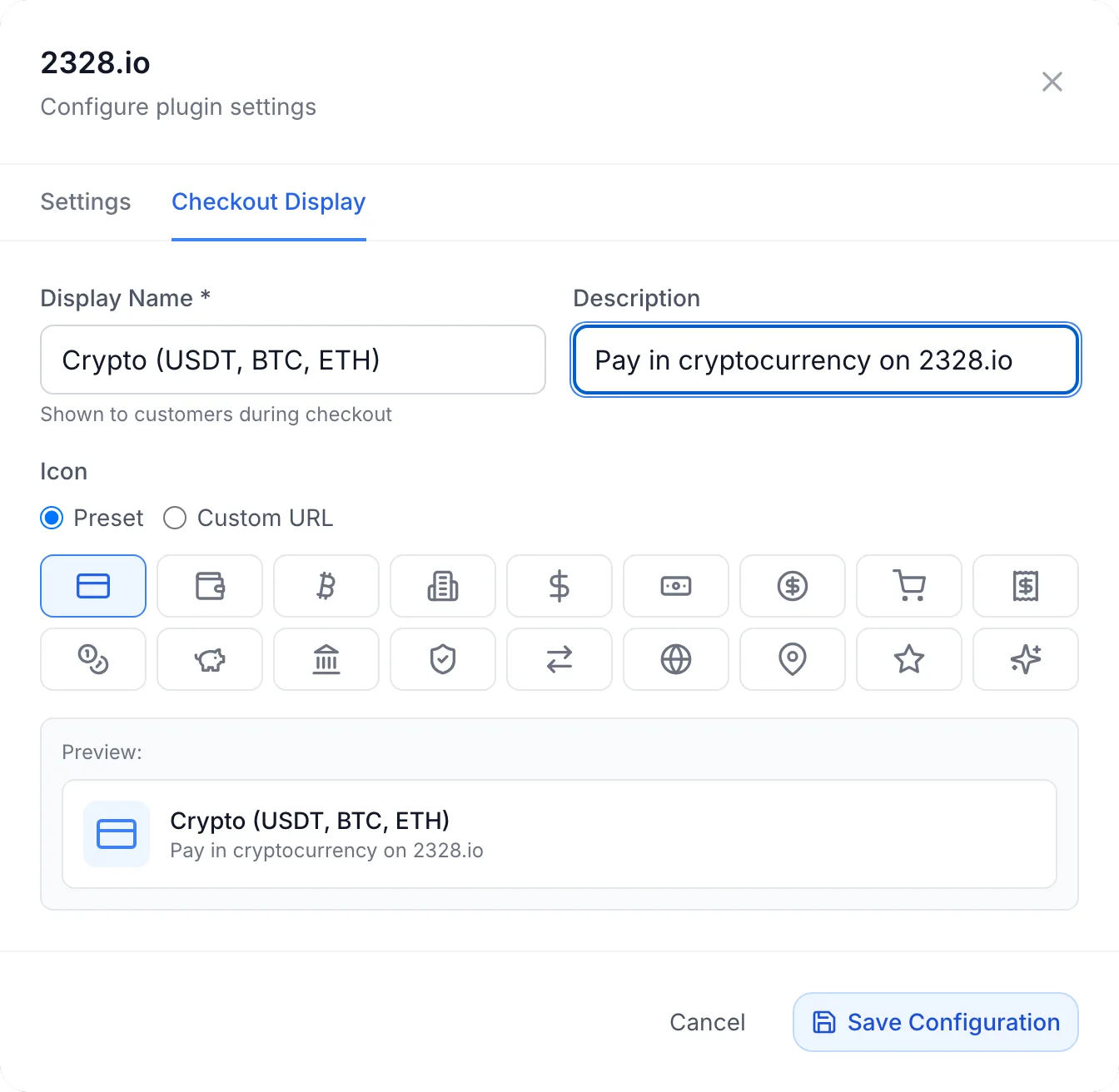
To change what customers see, open the plugin's Configure dialog again and switch to the Checkout Display tab:
- Display Name: the name in the list of payment methods, for example Crypto (USDT, BTC, ETH).
- Description: an optional line under the name.
- Icon: a preset icon or the address of your own image.
The Preview shows the result. Click Save Configuration to keep your changes.
2328.io is not tied to products or categories. Once it is configured and enabled, it is offered for every invoice, order and credit top-up, next to your other gateways.
Step 6: Place a test payment
There is no test mode, so check the whole path with a small real payment: pay a low-value invoice from a test client account in a coin you hold. Check that:
- the customer is sent to the 2328.io payment page and back to the client area;
- the notification box in the Configure dialog changes to Receiving deliveries;
- the invoice turns paid once the transaction is confirmed on the network.
A single payment must be at least 0.50 in the charge currency. 2328.io can set its own minimums per coin and network.
What your customers see
- The customer chooses 2328.io (under the display name you set) on the checkout page and clicks Checkout.
- FluxBilling creates a 2328.io invoice for the amount due and sends the customer to the 2328.io payment page. The 2328.io invoice carries a reference to the FluxBilling invoice, so you can match it in your 2328.io history.
- On the 2328.io page the customer chooses a coin and network, and sends the amount shown to the address shown before the 2328.io invoice expires. 2328.io's default invoice lifetime is one hour; the plugin does not change it.
- 2328.io sends the customer back to the FluxBilling client area. If the payment is not confirmed yet, the customer sees Payment is being processed. This may take a moment... and then Payment is still processing. Please check back shortly.
- When 2328.io reports the payment as paid, the invoice is marked paid, the usual paid-invoice emails go out and any service on the order is set up.
Crypto payments are pushed from the customer's wallet, so there is nothing to save: 2328.io cannot store a payment method in FluxBilling, and it cannot be used for automatic payment of renewal invoices. Each invoice is paid at checkout.
Payment lifecycle
FluxBilling learns about a 2328.io payment in two ways: from the signed notifications 2328.io sends when the status changes, and by asking 2328.io for the status itself, when the customer returns to the client area and later on a schedule.
| 2328.io status | In FluxBilling |
|---|---|
paid | The payment is completed and the invoice is marked paid. |
overpaid | The payment is completed for the invoice amount and the invoice is marked paid. The excess stays in your 2328.io balance. |
pending, check, awaiting_confirmation, underpaid_check | The payment stays pending. The invoice stays unpaid. |
underpaid | When the 2328.io notification reports it, the payment is marked Disputed and the invoice is put On Hold for you to review. See Underpaid invoices. |
cancel, aml_lock | The payment is marked failed. The invoice stays unpaid. |
refund_process, refund_paid, refund_fail | No change in FluxBilling. |
2328.io explains each status in References. A payment can take a while to confirm, depending on the network. FluxBilling keeps a 2328.io payment pending for up to 30 hours. From half an hour after the customer started it, FluxBilling asks 2328.io for its status at intervals, so a payment whose notification was lost is still picked up. If the payment is still not paid after 30 hours, FluxBilling gives up on it.
Notifications can arrive more than once. FluxBilling settles each payment once: repeated notifications for the same payment change nothing.
Underpaid invoices
When a customer sends less than the invoice asked for, and 2328.io closes the invoice as underpaid, FluxBilling does not mark the invoice paid. It puts the invoice On Hold, so no reminders or suspensions run against the customer, and marks the payment Disputed. This happens when 2328.io's notification reports the underpayment. If that notification never reaches FluxBilling, the payment stays pending and is later marked failed when its payment window ends, and the invoice stays unpaid; look the order up in your 2328.io history in that case. An invoice in a month you have already closed (Settings → Billing → Closed months) keeps its status. Check the amount received in your 2328.io history, then settle the invoice yourself, for example with Record Payment on the invoice once the customer has sent the rest by another route.
Refunds
The plugin cannot refund. To return money to a customer, make the refund in the 2328.io dashboard, then record it on the invoice in FluxBilling yourself. To give the customer account credit instead, use the To balance refund option on the invoice.
Updating the plugin
Open Settings → Integrations → Marketplace, switch to Installed and click Check for Updates. When a new version is available, click Update to v…. Your settings are kept.
Troubleshooting
| Message or symptom | What to check |
|---|---|
| 2328.io is not offered at checkout | Project ID or API Key is missing, Enabled is unticked in the Configure dialog, or the plugin is switched off under Settings → Financial → Payment Gateways. |
| Saved, but the plugin is not configured until these are fixed: … | Enter the field it names and save again. |
| Failed to create 2328.io payment, or a message from 2328.io when the customer clicks Checkout | 2328.io refused to create the invoice. When 2328.io gives a reason, FluxBilling shows it. Check that Project ID and API Key belong to the same project and that the key is the regular API key, not the payout key. Check that the charge currency is one 2328.io accepts, and that your panel's public address is reachable over HTTPS. |
| Minimum payment amount is 0.5 … | The amount to pay is below the plugin's minimum of 0.50 in the charge currency. |
| A payment for this invoice is already in progress with this gateway. Please complete the existing payment window or wait a few minutes before trying again. | The customer started a 2328.io payment for this invoice less than 30 minutes ago. They should finish paying in the 2328.io page they already opened. |
| The customer paid, but the invoice stays unpaid | Check the payment's status in your 2328.io history. A transaction still waiting for network confirmations stays pending in FluxBilling too. Then check the notification box in the Configure dialog: No deliveries received yet means 2328.io could not reach your panel, and Deliveries failing usually means the API Key saved in FluxBilling is not the key of the project that signed the notification. FluxBilling also asks 2328.io for the status on its own at intervals, so a confirmed payment is still picked up without notifications, only later. |
| The invoice is On Hold and the payment Disputed | 2328.io reported the invoice as underpaid. See Underpaid invoices. |
Limits
- No refunds from FluxBilling. Refund in the 2328.io dashboard and record it on the invoice yourself.
- No saved payment methods and no automatic payment of renewal invoices. Every invoice, including a renewal, is paid by the customer at checkout.
- No test mode. The plugin always works against your live 2328.io project.
- Each FluxBilling panel connects to one 2328.io project.
- Customers choose the coin and network on the 2328.io page. The plugin does not preselect them.
- An underpaid invoice is put on hold for you to review; it is never settled for less automatically.
- Invoices in a currency other than USD, EUR or your base currency are charged in your base currency.
- Conversion to stablecoins, fees and payouts are set in your 2328.io project, not in FluxBilling.
2328.io is a trademark of its respective owner. FluxBilling is not affiliated with 2328.io.