
Sharing dedicated servers with linked panels
Let another FluxBilling panel sell your rack servers and blades, or sell theirs: pair with a link key, pick servers, and how sales, power and release work.
What inventory sharing is
Inventory sharing lets one FluxBilling panel sell dedicated servers that another FluxBilling panel owns and runs. The panel that owns the hardware picks which of its rack servers and blades a linked panel may sell. The linked panel offers them through its own dedicated server products, bills its own customer, and asks the owner to install, power and release the server.
Typical uses: a company running separate panels for separate brands or markets on one set of racks, or two hosting companies that agree to resell each other's spare dedicated servers.
Two rules explain how it behaves:
- The hardware stays with its owner. The selling panel never receives management credentials, rack positions, serial numbers or asset tags. It sees the server's name, make and model, specs, network ports, location and datacenter. Every power, console and install action is sent to the owner, which carries it out with its own tools.
- Nothing is sold twice. A shared server stays in the owner's own stock. Whichever panel sells it first gets it; the owner takes it atomically, so two panels can never both win the same server.
Dedicated servers are shared here, on the Inventory page. VPS clusters and game nodes are shared separately, under VPS → Panel Links (see Panel Links). The two are separate links: a panel already linked to yours for VPS has to be paired again from Inventory before you can share servers with it.
What you need
- Two FluxBilling panels. Both operators take part: the owner generates a key, the other panel pastes it.
- The Inventory feature switched on, under Settings → General → Feature Toggles → Inventory, on both panels.
- Permissions. Staff need View Inventory or Edit Inventory to open Inventory. The Link view with the list of linked panels needs View Settings or Edit Settings. The buttons in that list (generating or pasting a key, Sharing, the row's Sync now and removing a link) need Edit Settings. The Sync now above the Shared with this panel table, and the Power and Release actions, need only Inventory access. See Staff & Permissions.
- Your panel's identity. Each panel gets an identity certificate with its licence, and the other panel checks it during pairing. Until your panel has one, Add panel and Generate link key are greyed out with the hint “No identity yet — use Refresh identity first”. Refresh identity is on VPS → Panel Links.
Where to find it
Open Inventory and click Link, at the right end of the tab strip after Export. Click it again to go back to the device list. The search box and filters are hidden in this view.
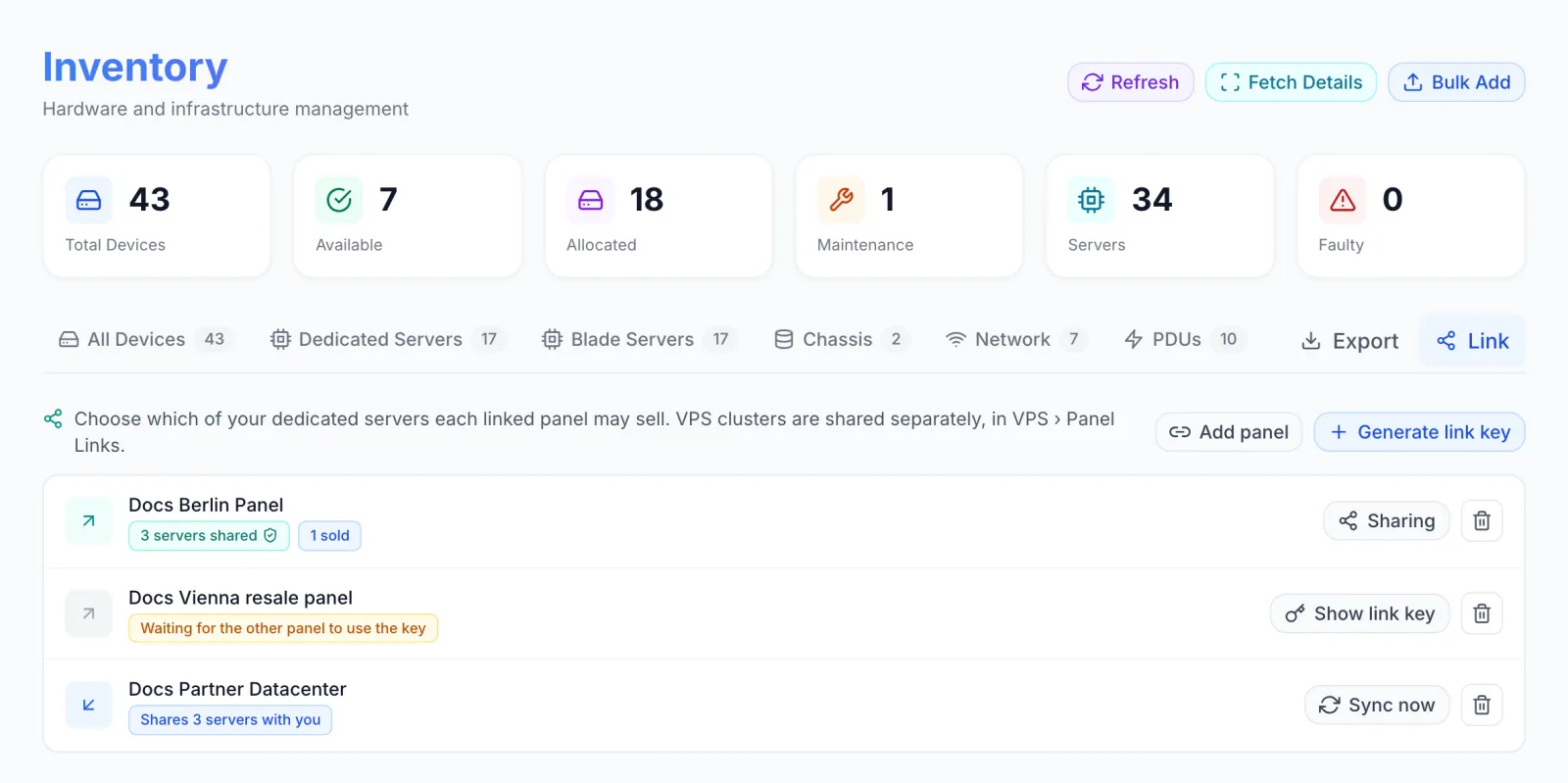
The list shows every Inventory link in both directions:
| Row | What its badges say | Buttons |
|---|---|---|
| A panel you share your servers with (arrow pointing up and out) | Not shared, or N servers shared with a shield icon when Staff power control is on, plus N sold once the other panel has sold some | Sharing, and the bin icon to remove the link |
| A key you generated that nobody has used yet | Waiting for the other panel to use the key | Show link key, and the bin icon to discard the key |
| A panel that shares its servers with you (arrow pointing down and in) | Shares N servers with you | Sync now, and the bin icon to remove the link |
Each row is titled with the note you gave the key, or with the name the other panel is known by. When other panels share servers with yours, a Shared with this panel table follows the list (see Selling servers another panel shares with you).
Staff who can open Inventory but lack the settings permissions still see the Link button once another panel shares servers with yours. For them the view shows only the Shared with this panel table, not the list of links.
Pair two panels
The panel that owns the servers starts:
- On Inventory → Link, click Generate link key.
- Optionally fill in Note (optional), for example the other company or brand, up to 80 characters. Only your panel sees the note. It tells unused keys apart and stays under the other panel's name after pairing.
- Click Generate link key. The Link key dialog opens (titled Link key for followed by your note, if you gave one) with the key hidden. Use Copy, or Reveal to read it, then Done.
- Send the key to the other panel's operator over a channel you trust.
A row titled with your note (or Unused link key) appears with the badge Waiting for the other panel to use the key. Show link key displays the same key again.
Treat the key like a password. Anyone holding it can pair with your panel, although they reach no server until you tick servers for them under Sharing. A key nobody uses expires after 7 days.
The panel that will sell the servers then:
- Opens Inventory → Link and clicks Add panel.
- Pastes the key into Link key. Keys start with
flxlink_and carry the owner's address, so there is nothing else to fill in. - Clicks Link panel. On success it shows “Linked to” followed by the owner's name, and a row with Shares 0 servers with you appears.
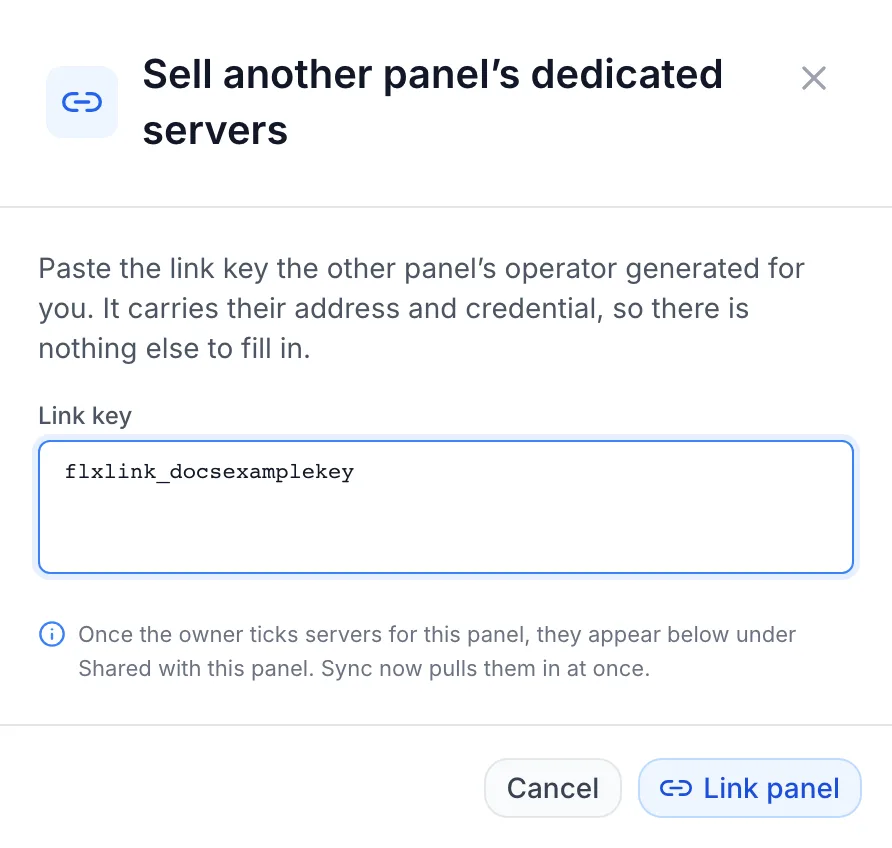
On the owner's panel, the waiting row turns into a link to the other panel, with the badge Not shared. Nothing is shared yet.
Choose which servers to share
On the owner's panel:
- Click Sharing on the other panel's row. The Share dedicated servers dialog opens with the other panel's name under the title.
- Turn on Share dedicated servers.
- Tick the servers the other panel may sell. The list holds every rack server and blade in your Inventory, as name and location, with a counter such as “3 of 35 selected”. Select all ticks everything; once all are ticked it turns into Clear, which unticks them. Servers the other panel has already sold read Sold to their customer.
- Decide on Staff power control (below).
- Click Save sharing. “Sharing saved” confirms it and the row badge changes to, for example, 3 servers shared.
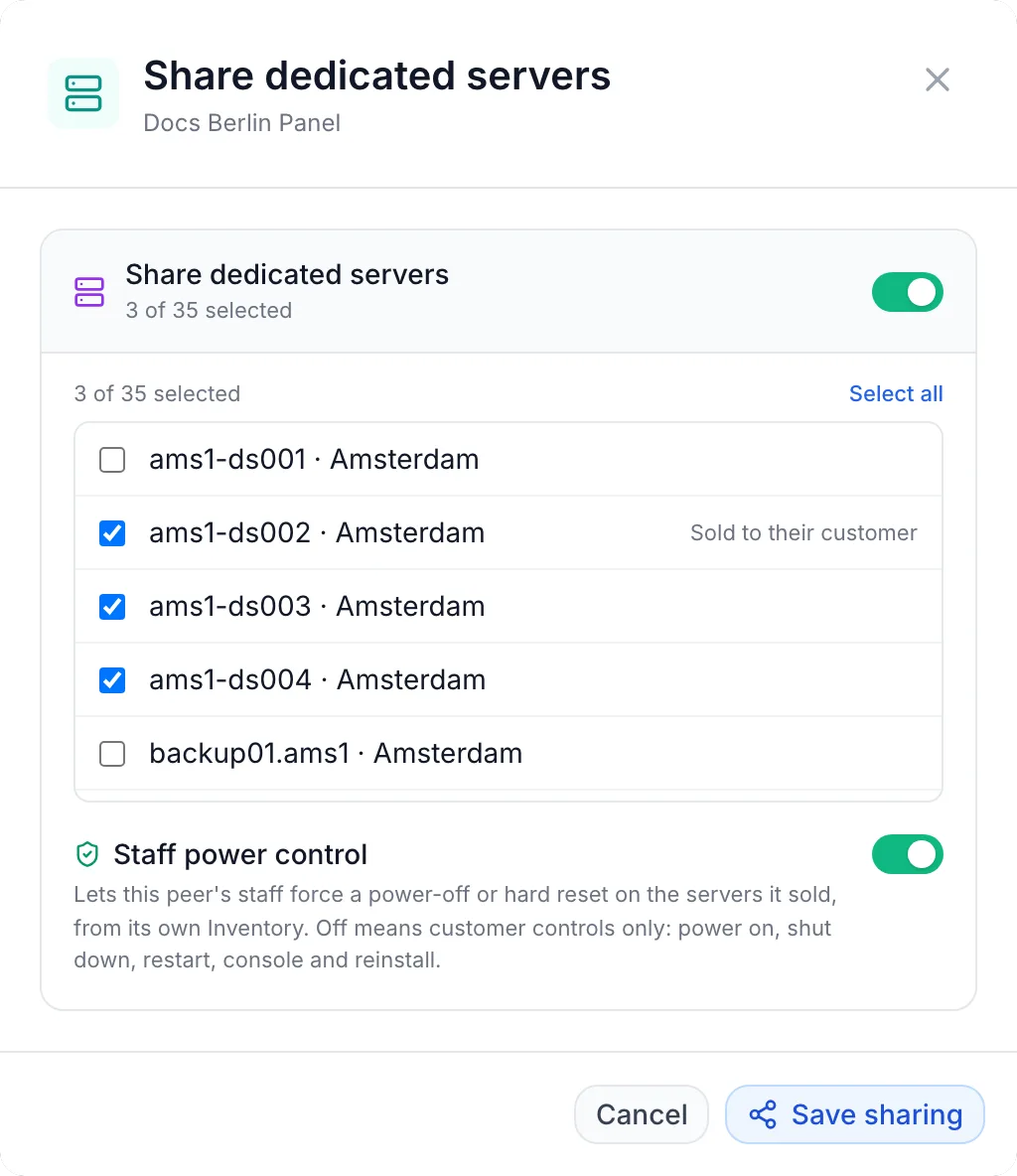
| Option | What it does |
|---|---|
| Share dedicated servers | The main switch. Off shares nothing with this panel, whatever is ticked, and the other panel can no longer reach any server over this link. |
| Server list | The servers this panel may sell. Only rack servers and blades are listed; chassis, switches and PDUs never are. Servers another panel shares with you are not in the list, so they cannot be passed on. |
| Staff power control | Lets the other panel's staff force a power-off or a hard reset on the servers it sold, from its own Inventory. Off means the customer controls only: power on, shut down, restart, console and reinstall. |
Servers you add later
While Share dedicated servers is on for a link, every rack server or blade you add to Inventory afterwards is added to that link's list automatically. This covers single adds and Bulk Add. To keep a new server for yourself, untick it under Sharing. A link with sharing switched off gets nothing added. Servers you delete are taken out of every link.
Sharing does not reserve a server
A shared server that nobody has sold stays available to your own orders as well. Whichever panel sells it first gets it. Once the other panel holds it, your own orders skip it until that panel releases it, and it is offered to nobody else. A shared server you have already sold yourself shows as Unavailable on the other panel.
Taking servers back
If you untick a server the other panel has sold, or switch sharing off while it holds sold servers, Save sharing first asks Take this hardware away from the peer? and lists those servers. Click Remove anyway to save, or cancel and tick them again.
- Unticking a sold server stops it being offered again. The other panel's customer keeps it until that service ends, and it then comes back to your stock.
- Switching sharing off cuts the other panel off from every server on this link, including the ones it sold. Its customers keep running servers, but the other panel can no longer power, open a console or reinstall them.
Selling servers another panel shares with you
On the selling panel, shared servers appear under Inventory → Link → Shared with this panel. Your panel checks every owner whose servers already appear in Shared with this panel every 5 minutes. A newly paired owner is checked within the hour. Sync now on the owner's row, or above the table, checks at once and confirms with, for example, “3 shared servers synced”.
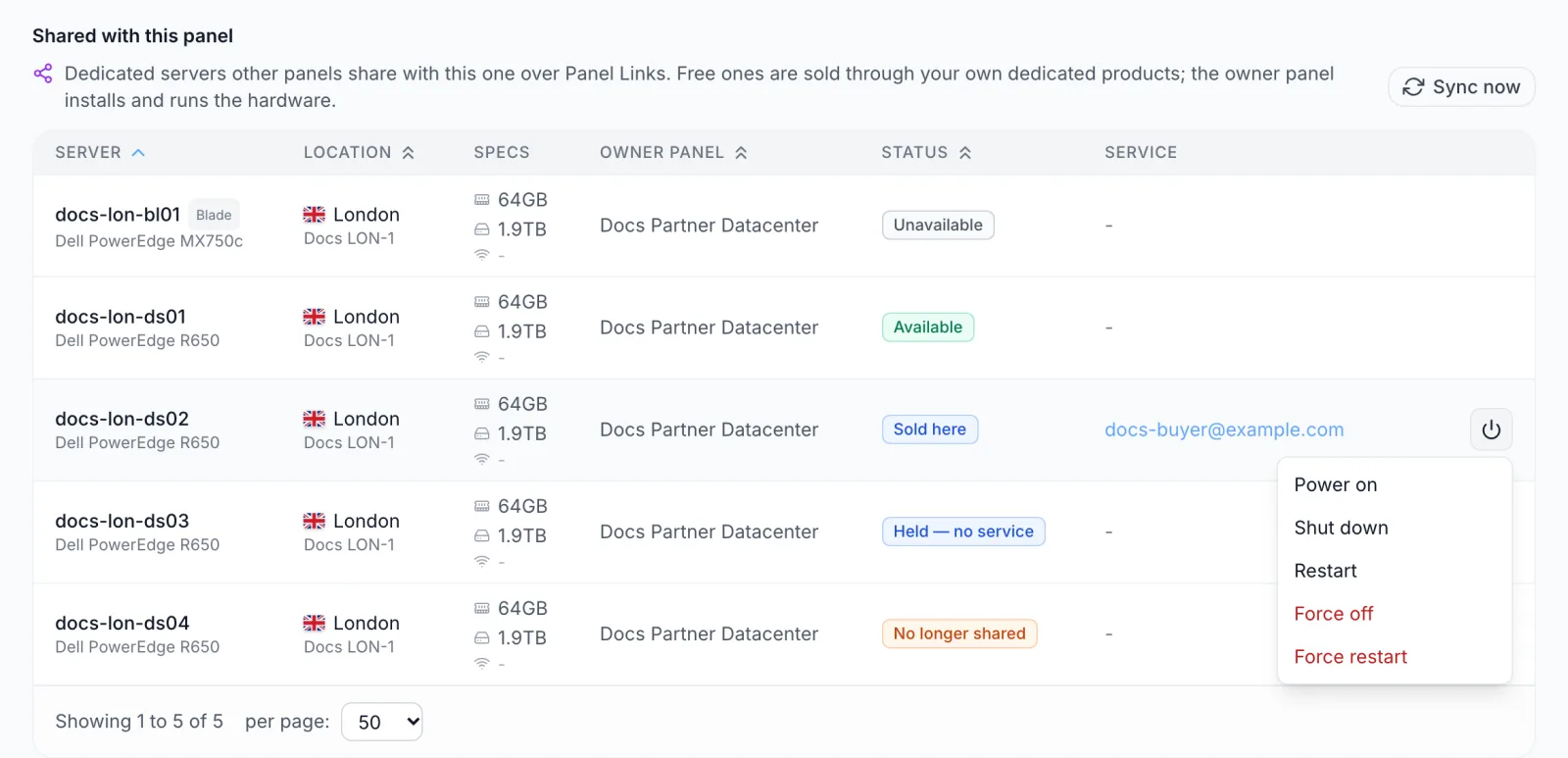
| Column | Shows |
|---|---|
| Server | Name, a Blade tag for blades, and make and model |
| Location | Country flag, location and datacenter as the owner reports them |
| Specs | RAM, storage and port speed |
| Owner panel | The panel the server belongs to |
| Status | See the next table |
| Service | For a server sold here, a link to the service, labelled with the customer's email |
| Status | Meaning |
|---|---|
| Available | Free stock you can sell. |
| Sold here | Your panel holds it for one of your services. |
| Held — no service | Your panel still holds it but no service uses it, usually because the hand-back at termination did not reach the owner. Use Release. |
| Unavailable | Sold by someone else or not free on the owner's side. The owner does not say which. |
| No longer shared | The owner stopped sharing it. The row stays for reference. |
How shared servers are sold
There is no separate product type. Shared servers that are Available join your own servers as stock for your dedicated server products. New orders are matched against them with the same rules as your own hardware: the product's minimum specs, the options the customer picked and the location (see Allocation equivalences). Shared stock also counts toward availability shown on the order page.
- Location. Shared servers are matched by the owner's location code or name, and a product's location restrictions by location code. Use the same location codes as the owner. See Locations.
- IP addresses. A shared server comes with the owner's addresses. When a new order is paid and your own IP pools cannot cover it in that location, a matching shared server can still fill it.
- Upgrades. Only new orders and their provisioning retries use shared servers. An upgrade that needs different hardware picks only from your own servers.
After payment your panel claims the server from the owner and asks it to install the operating system the customer chose. The owner installs it and creates the root password, and your panel stores that password on the service. When the owner reports the install as finished, the service turns active and the customer gets the usual delivery email. See Provisioning and delivery.
The operating system must also exist in the owner's OS catalogue. Images from the standard catalogue match on both panels. See OS images.
Suspension and termination
Suspending the service asks the owner to power the server off, and unsuspending powers it back on. Terminating or cancelling the service hands the server back: the owner powers it off and returns it to its own stock.
Power and Release
Servers your panel holds have a Power button. Its menu offers Power on, Shut down, Restart, Force off and Force restart. The force actions only work when the owner turned on Staff power control; otherwise the owner refuses them. A sent command is confirmed with a message such as “Restart” command sent.
A server with the status Held — no service also has Release. It asks Give this server back? and explains that the owner will power it off and return it to its own stock. Confirm with Release; “Released back to its owner” confirms it.
Nothing else about the hardware can be changed from the selling panel. Specs, location and management settings stay with the owner.
What the customer sees
The customer sees an ordinary dedicated server in the client panel. The service page offers power (on, shut down, restart), console, reinstall, the root password, SSH keys and traffic. Your product's own settings still decide which of those controls the customer gets, power and console also depend on what the owner's hardware supports, and a suspended service refuses them as usual. Rescue mode, password reset, reverse DNS and hardware health are not offered on servers from a linked panel. The customer is not told which panel owns the hardware. See Managing your services.
What the owner sees
A server held by a linked panel shows in the Service column of the owner's Inventory as Linked: followed by the other panel's name and the service's hostname (or a short service reference). Hovering it reads “Sold by a linked panel — released when that panel ends the service”. On a narrow window the Service column is hidden. No service or invoice is created for them on the owner's panel; any charge between the two companies is arranged outside this feature.
Removing a link
Click the bin icon on the row and confirm Remove this link? with Remove.
- For an unused key, the key is deleted and can no longer be redeemed.
- For a paired panel, the link stops working from your side. If servers were sold over it, the dialog says how many lose their power, console and reinstall controls. The servers keep running.
Removing a paired link is final for that pair of panels in that direction: the same two panels cannot be paired again for sharing in the same direction.
Troubleshooting
| Message | Cause and fix |
|---|---|
| No identity yet — use Refresh identity first | Your panel has no identity certificate yet. Check your licence, then use Refresh identity on VPS → Panel Links. |
| This panel has not received its identity certificate from the platform yet. Check the licence status, then try again. | Same cause, shown when generating or pasting a key. |
| This is a VPS link key. Paste it in VPS › Panel Links. | The key was made for VPS sharing. Ask the owner for a key generated under Inventory → Link. |
| This is an Inventory link key (dedicated servers). Paste it in Inventory › Link. | The opposite case, on VPS → Panel Links. |
| That is not a valid panel link key | The key is incomplete or mistyped. Copy it again with Copy. |
| That link key was not accepted. It may have been rotated or revoked. | The key expired, was discarded or was replaced. Ask for a new one. |
| That panel is already linked to this one for this. Revoke the existing link first. | Your panel already has, or once had, an Inventory link with that owner in this direction. Use the existing link; a removed link cannot be paired again. |
| Could not reach that panel: … | The owner's panel did not answer. Check it is online and reachable, then try again. |
| This server is still bound to a service — terminate the service to release it | Release only works for a server with no service. Terminate the service; that hands the server back. |
| Only a server allocated to this panel can be managed from here | Power only works on servers your panel holds (Sold here or Held — no service). |
| Sync failed | Sync now did not get an answer from the owner (the owner's own error text may be shown instead). The table keeps the last known state. Try again later. |
| Service failed with “The OS installation failed on the server owner's side” | The install failed on the owner's panel. Ask the owner to check the server, then retry provisioning. |
| Service failed with “No OS image was chosen for this server” | The order carries no operating system. Make sure the product offers one. |
If an Available shared server is never picked for orders, check that its location code matches the order's location and that its specs meet the product's minimums.
Limits
- Only rack servers and blades can be shared, not chassis, switches or PDUs.
- A server shared with you cannot be shared on to a third panel.
- Unused keys expire after 7 days.
- Each panel can share its servers with a given panel over one Inventory link, so two panels can have one Inventory link in each direction. They can also have separate VPS links.
- The selling panel cannot see or change the server's management settings, rack position or credentials.
Related
- Inventory
- Panel Links (sharing VPS clusters and game nodes)
- Allocation equivalences
- Provisioning and delivery