
Paddle
Take payments through Paddle Billing as merchant of record: setup, Connect Paddle, webhooks, tax settings, subscriptions, refunds and troubleshooting.
The Paddle plugin lets your customers pay FluxBilling invoices through Paddle Billing. Paddle is a merchant of record: it sells to your customer on your behalf, works out and collects sales tax and VAT, and hosts the checkout. FluxBilling sends the invoice, hands the customer over to Paddle to pay, and marks the invoice paid when Paddle reports the payment. For services that renew monthly, quarterly, every six months or yearly, Paddle also creates a subscription and charges the renewals itself. The plugin is free and is listed in the plugin marketplace of every FluxBilling panel.
This guide covers plugin version 2.7. It walks through the setup in the order you do it, then explains what happens to payments, subscriptions and refunds, and what to check when something does not work.
Who supports this integration. The plugin is built and maintained by FluxBilling. If something does not work, contact FluxBilling support at contact@fluxbilling.app or through fluxbilling.app/contact. Questions about your Paddle account, its approval, payouts or tax go to Paddle support.
What you need before you start
- A Paddle Billing account. The plugin uses Paddle Billing, not Paddle Classic. Paddle reviews every live account and the websites you sell from before you can take real payments, and it is built for software sellers. Read Paddle's Acceptable Use Policy to check that your products are accepted before you plan around it.
- A Paddle sandbox account for testing (recommended). Sandbox is a separate Paddle account with its own login, API keys and settings, even if you already have a live account. See Paddle's Sandbox page.
- A payment page on your own website that loads Paddle.js. Paddle opens its checkout on a page you host, called the default payment link (step 1). FluxBilling sends the customer to that page; Paddle.js on the page then opens the checkout.
- A public address for your FluxBilling panel. Paddle must be able to reach your panel over the internet to deliver its notifications (webhooks). Without them, invoices are never marked paid.
Step 1: Prepare your Paddle account
Do this in Paddle, once in your sandbox account and once in your live account. The two do not share settings.
- Get your website approved (live account only). Add the website your payment page is on under Paddle → My account → Settings → Website approval and wait for Paddle to approve it.
- Build the payment page. It is a page on that website that includes Paddle.js, initialised with a client-side token from your Paddle account. When the page is opened with Paddle's transaction parameter in the address, Paddle.js opens the checkout for that transaction by itself. Paddle explains this in Set your default payment link and Include and initialize Paddle.js. To bring customers back to your client area after they pay, set a success URL in your Paddle.js checkout settings.
- Set the default payment link. In Paddle, open Paddle → Checkout → Checkout configuration (the plugin's own hint calls it Checkout settings), enter the address of the payment page under Default payment link and save. Paddle does not create transactions without it, and the plugin needs it to send customers to pay.
- Create an API key. In Paddle, open Paddle → My account → Settings → Authentication (older Paddle dashboards call this Developer tools → Authentication), open the API keys tab and click New API key. Give it a name such as FluxBilling, choose the permissions in the table below, and save. Paddle shows the key only once, so copy it straight away. Live keys start with
pdl_live_apikey_, sandbox keys withpdl_sdbx_apikey_. See Paddle's Authentication and Permissions pages.
| Permission | Used for |
|---|---|
transaction.write, transaction.read | Creating the transaction the customer pays, and reading it back (status, amount, the transaction to refund) |
notification_setting.read, notification_setting.write | Checking the key when you click Connect Paddle, and registering the webhook for you |
adjustment.write, adjustment.read | Refunds started from FluxBilling |
subscription.write | Cancelling the Paddle subscription when you terminate a service in FluxBilling |
The plugin does not use products or prices from your Paddle catalog. It sends each invoice to Paddle as a one-off item named after the invoice number (Payment for followed by the number) with the amount due, so you do not create anything in Paddle per product.
Step 2: Install the plugin
- In the FluxBilling admin panel, open Settings (the gear icon in the top bar).
- Under Integrations, open Marketplace. Stay on the Browse tab.
- Search for Paddle, open the Paddle card and click Get for Free.
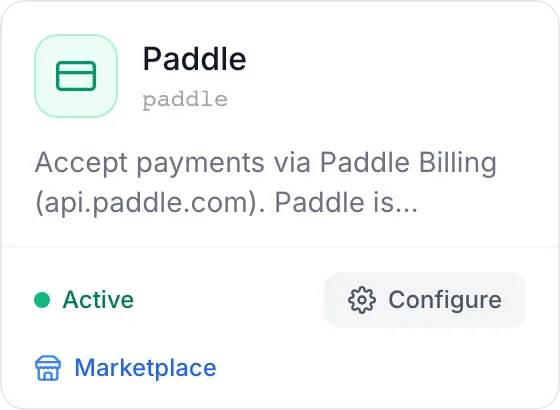
FluxBilling confirms with Plugin "Paddle" installed and ready to use. The plugin is switched on straight away and appears under Settings → Integrations → Plugins, marked Active. Paddle also appears under Settings → Financial → Payment Gateways. Customers do not see it at checkout until you have entered an API key.
Step 3: Configure and connect
- Open Settings → Integrations → Plugins and click Configure on the Paddle card.
- On the Settings tab, fill in the fields below. To test first, tick Sandbox Mode and use your sandbox key.
- Click Connect Paddle. FluxBilling saves the form, checks the key with Paddle and registers the webhook in your Paddle account for you.
- Click Save Configuration.
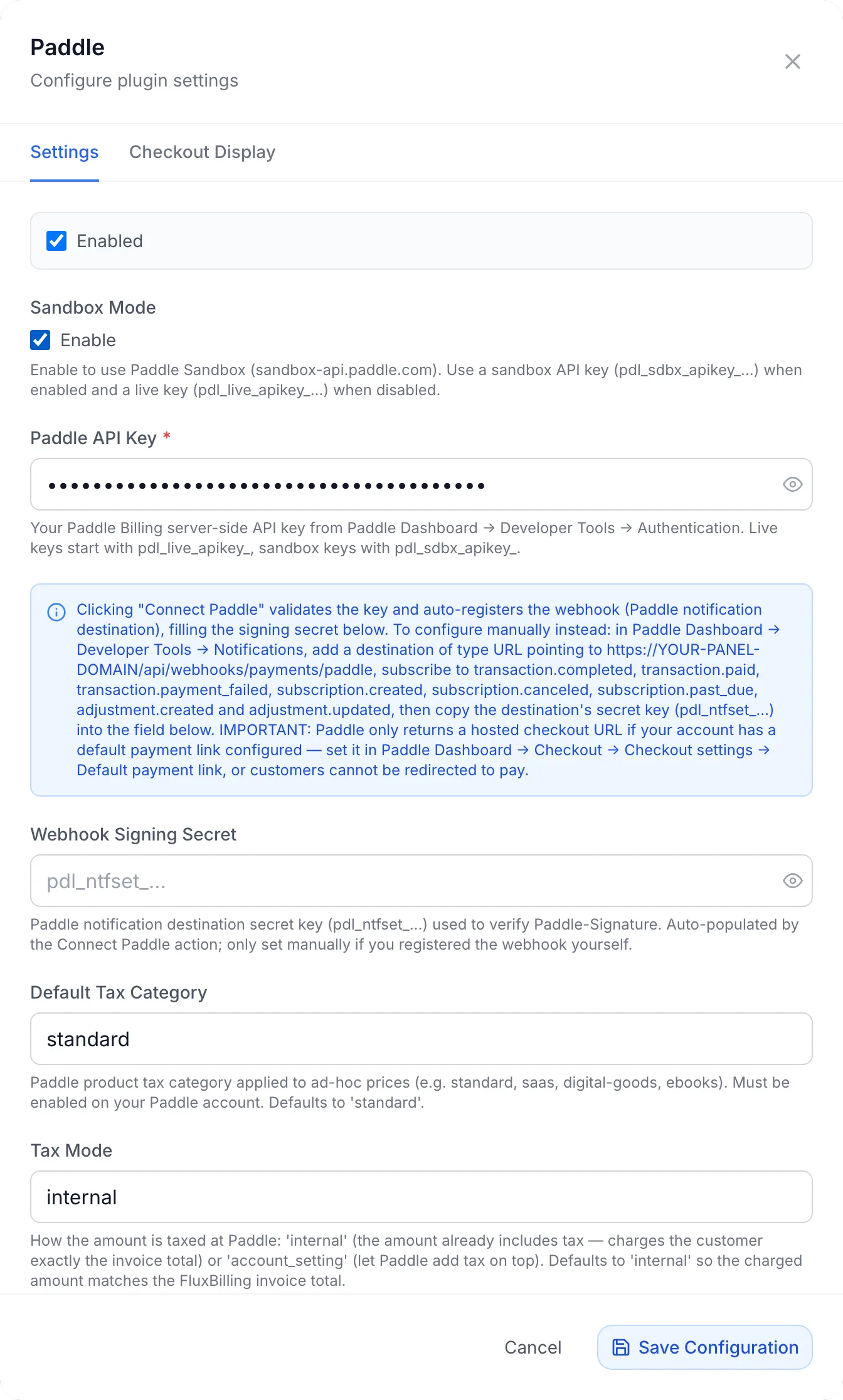
| Field | What it does |
|---|---|
| Enabled | Offers Paddle to customers. It is the same switch as on the Payment Gateways tab. |
| Sandbox Mode (optional) | When ticked, every request goes to Paddle's sandbox and you need a sandbox key. Untick it for live payments with a live key. |
| Paddle API Key (required) | The API key from step 1. It is stored encrypted. |
| Webhook Setup | Information only: how the webhook is set up automatically and how to do it by hand (see below). |
| Webhook Signing Secret (optional) | The secret key of the Paddle notification destination, starting with pdl_ntfset_. FluxBilling uses it to check that each notification really comes from Paddle. Connect Paddle fills it in for you; enter it yourself only if you created the notification destination by hand. |
| Default Tax Category (optional) | The Paddle tax category given to each item, for example standard, saas or website-hosting. The category must be enabled on your Paddle account. When empty, the plugin sends standard. |
| Tax Mode (optional) | internal treats the invoice total as including tax, so the customer pays exactly the FluxBilling invoice total. account_setting lets Paddle apply the tax setting of your Paddle account, which can add tax on top. When empty, the plugin sends internal. |
Paddle's tax categories are listed in Paddle's Create a transaction reference. Keep Tax Mode on internal unless you have a reason not to: renewals are matched to their FluxBilling invoices by amount, and with internal the amount Paddle charges is the invoice total.
What Connect Paddle does
The button runs two steps against Paddle, using the API key and the sandbox setting you entered:
- It checks the key. If Paddle refuses it, the dialog shows Paddle's error, or Invalid Paddle API key. A sandbox key works only with Sandbox Mode ticked, a live key only without it.
- It creates a notification destination named FluxBilling in your Paddle account. It points to your panel's webhook address and is subscribed to the events in the table below. FluxBilling stores its secret key in Webhook Signing Secret.
When it succeeds, the dialog shows a green Connected badge with the mode, the webhook it registered and the time it was last verified, and the button becomes Reconnect Paddle. Running it again with a webhook and secret already on file only checks the key and does not create a second destination.
Setting up the webhook by hand
Use this only if you do not want FluxBilling to create the destination for you, or if it could not.
- Copy the address shown under Webhook configuration required in the Configure dialog. It is your panel's address for Paddle notifications.
- In Paddle, open Paddle → Events → Notifications (older dashboards: Developer tools → Notifications) and add a new destination of type URL with that address.
- Subscribe it to the events in the table below and save.
- Copy the destination's secret key (
pdl_ntfset_...) into Webhook Signing Secret and click Save Configuration.
Paddle's Notification destinations page shows these screens. Paddle allows up to 10 active destinations per account.
| Event | What FluxBilling does |
|---|---|
transaction.completed, transaction.paid | Marks the payment completed and the invoice paid. For a recurring service, links the Paddle subscription to the service, and records later renewals. |
transaction.payment_failed | Marks the payment failed. On a renewal of a Paddle subscription, also suspends the service. |
subscription.created | Received; no change is needed. |
subscription.past_due | Suspends the service. |
subscription.canceled | Schedules the service for cancellation at the end of its paid period. |
adjustment.created, adjustment.updated | Records approved refunds and chargebacks. |
Every notification must carry a valid Paddle signature made with the signing secret, and must not be older than five minutes. Notifications that fail the check are refused.
Step 4: Check how Paddle appears at checkout
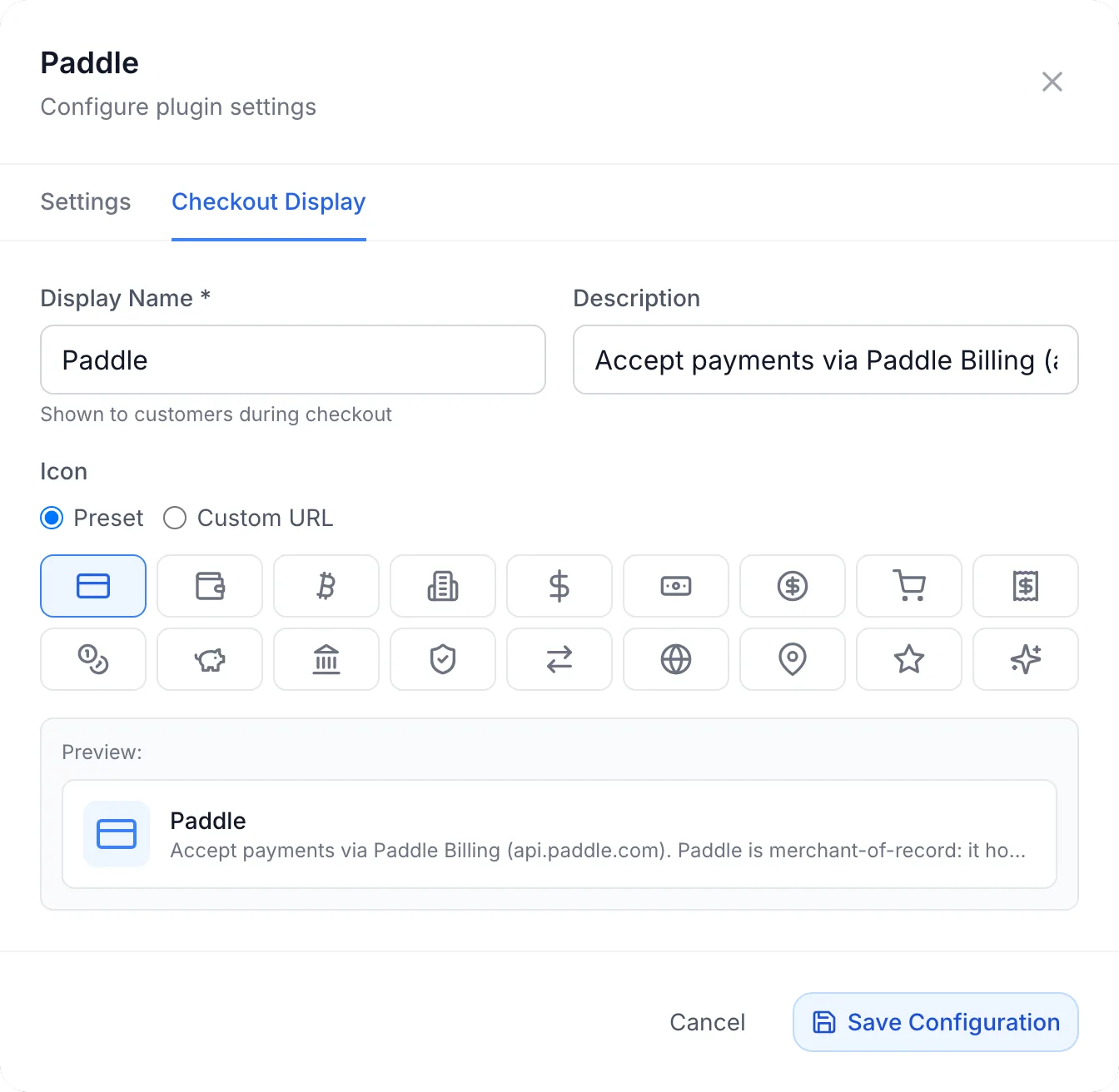
Open the Checkout Display tab in the Configure dialog to set what customers see: Display Name (shown to customers during checkout), an optional Description, and the Icon (a preset or your own image URL). A preview shows the result; while Sandbox Mode is on, it carries a Test label.
The Settings → Financial → Payment Gateways tab lists Paddle with an on/off switch. Switching it off hides Paddle from checkout without changing its settings.
You do not attach Paddle to products or categories. Once it is enabled and has an API key, it is offered on every invoice and order checkout, alongside your other gateways.
Test it in sandbox
- Configure the plugin with Sandbox Mode ticked and a sandbox key, and click Connect Paddle.
- In the client area, open an unpaid invoice as a test customer, choose Paddle and pay.
- On Paddle's checkout, use one of Paddle's test cards, for example
4242 4242 4242 4242with any name and a future expiry date. The checkout shows a Test Mode watermark. - Within a few seconds the invoice in FluxBilling should be Paid. If it stays unpaid, check the webhook (see Troubleshooting).
When you are ready, set the default payment link in your live Paddle account, create a live API key, untick Sandbox Mode, enter the live key and click Connect Paddle again. The live account needs its own notification destination, which Connect Paddle creates.
What customers see
- At checkout, Paddle is listed under Payment Method with the display name and icon you set. When the customer clicks to pay, FluxBilling creates a Paddle transaction for the amount due and sends the customer to your payment page, where Paddle's checkout opens. Paddle shows the price, the tax and the payment methods it offers in the customer's country.
- After paying, Paddle sends its own receipt, because Paddle is the seller of record. FluxBilling marks the invoice paid as soon as Paddle's notification arrives, and starts setting up the service the usual way for a new order.
- Saved payment methods. Paddle cannot be stored as a saved payment method in FluxBilling, and it is not used for automatic charges by FluxBilling. Recurring services renew through the Paddle subscription instead.
- Subscription emails about renewals, failed payments and how to update the card come from Paddle. Their payment-method links open your default payment link.
Payments, subscriptions and refunds
One-time payments
An invoice that is not tied to a recurring service, for example an hourly service or a credit top-up, is paid as a single Paddle transaction. Paddle does not charge it again.
Recurring services
When the customer pays an invoice for a service billed monthly, quarterly, semi-annually or annually, the plugin asks Paddle for a recurring price with the same interval. Paddle then creates a subscription and charges the next periods itself. In FluxBilling:
- The service is linked to the Paddle subscription after the first payment. From then on FluxBilling does not charge it automatically, and its own overdue rules do not suspend or terminate it; Paddle's notifications decide instead.
- FluxBilling still issues the renewal invoice for each period. When Paddle charges the renewal, FluxBilling marks the matching renewal invoice paid and moves the service's next due date on. A service that was suspended is unsuspended. The customer does not need to pay these renewal invoices themselves.
- If a renewal payment fails or the subscription goes past due, FluxBilling suspends the service. Paddle keeps retrying the payment on its own schedule and emails the customer.
- If the subscription is cancelled in Paddle, FluxBilling schedules the service for cancellation on its next due date, so the customer keeps what they paid for.
- If you terminate the service in FluxBilling, FluxBilling cancels the Paddle subscription immediately so the customer is not charged again.
- The billing cycle of a service renewed by Paddle cannot be changed in FluxBilling. The attempt is refused with Renewals of this service are managed by the payment gateway subscription. Customers also cannot move such a VPS to another location themselves; they are asked to contact support.
Refunds
Refund a Paddle payment from the invoice: open the invoice in the admin panel, click Refund, choose Via Gateway, and enter an amount or leave it empty for a full refund. A partial refund is taken from the invoice's line in Paddle.
Paddle reviews most refunds on live accounts before any money moves (sandbox approves them automatically within about 10 minutes). FluxBilling therefore records the refund only when Paddle approves it: until then the payment stays completed, and the approval arrives as a notification. If Paddle rejects the refund, the payment is left as it was and no money is returned. Refunds you make in the Paddle dashboard are recorded the same way when Paddle approves them.
Chargebacks
When Paddle reports a chargeback, FluxBilling marks the payment as disputed.
Troubleshooting
| Message or symptom | What to do |
|---|---|
| Invalid Paddle API key, or a Paddle error saying the request is forbidden, when you click Connect Paddle | Check that you pasted the whole key, that it is not revoked or expired, and that it has the permissions listed in step 1. A sandbox key only works with Sandbox Mode on, a live key only with it off. |
| Last connection attempt failed in the Configure dialog | The last Connect Paddle run failed; the reason is shown underneath. Fix it and click the button again. |
| The customer sees Paddle created the transaction but returned no checkout URL. Set a default payment link in Paddle Dashboard > Checkout > Checkout settings (or pass a checkout URL), then try again. | Your Paddle account has no default payment link. Set it as described in step 1, in the account (sandbox or live) that matches Sandbox Mode. |
| Failed to create Paddle transaction, or another error from Paddle at checkout | Paddle refused the transaction. Common causes are a tax category that is not enabled on your Paddle account, a currency Paddle does not support, or a key without transaction.write. Paddle's own message is shown when it gives one. |
| The customer lands on your payment page but no checkout opens | The page does not load or initialise Paddle.js, or the client-side token belongs to the other environment. Fix the page as described in Paddle's default payment link guide. |
| The customer paid, but the invoice stays unpaid | Paddle's notification did not reach FluxBilling or failed the signature check. In the Configure dialog, check the webhook status under Webhook configuration required. In Paddle, check the destination's delivery logs, that it points to the address shown in FluxBilling, and that Webhook Signing Secret matches its secret key. |
| Paddle is not offered at checkout | Check that Paddle is switched on under Settings → Financial → Payment Gateways and that the API key is saved. |
| Minimum payment amount is 1 EUR (or another currency) | Paddle payments start at 1 unit of the charge currency. Ask the customer to pay a small amount another way, for example from account credit. |
| Paddle did not approve this refund adjustment (adjustment status: rejected). No funds were returned to the customer. | Paddle rejected the refund. Check the adjustment in your Paddle dashboard or ask Paddle support. |
| Failed to create refund adjustment, or another error from Paddle when refunding | Paddle refused the refund request, for example because the key lacks adjustment.write or the amount is larger than what is left to refund. |
| A Paddle renewal was charged but no FluxBilling invoice was marked paid | FluxBilling could not find an open renewal invoice for that service. Check the service's invoices and record the payment by hand if needed. Keeping Tax Mode on internal makes the amounts match. |
Limits
- Customers pay on Paddle's checkout, opened on a page of your own website. FluxBilling does not host that page.
- Paddle cannot be saved as a payment method and is not used for FluxBilling's automatic charges or automatic top-ups.
- Billing cycle changes are not possible for services that Paddle renews.
- Invoices in US dollars, euros or your system's base currency are charged in their own currency. An invoice in any other currency is converted and charged in your base currency.
- The plugin works with Paddle Billing only, not Paddle Classic.
- Each FluxBilling panel connects to one Paddle account at a time (the sandbox or the live one, depending on Sandbox Mode).
Paddle is a trademark of Paddle.com Market Limited. FluxBilling is not affiliated with Paddle.com Market Limited.