
Customer Projects
Let customers split one account into projects such as Production and Staging, confine API keys to one project and keep a single invoice.
Customer projects let a customer split one account into separate groups of services, such as Production and Staging, or one group per end-customer. Each project has its own services, orders, custom server images and SSH keys. An API key can be confined to one project, so a script that runs against staging cannot see or delete a production server. Billing does not change: invoices, proformas, credit and VAT stay at the account, and the customer still receives one consolidated invoice.
This article is for admins and staff. It covers the feature toggle, the Projects tab on a client's page, project-bound API keys and what changes for the customer. The customer's side is covered in the client panel guide to projects.
When to use projects
- Separate environments. A customer runs production and staging on the same account and automates both through the customer REST API. With one bound API key per environment, each script only sees its own servers. A clean-up routine in staging cannot mistake a production server for an orphan and delete it.
- One project per end-customer. An agency or managed-service customer keeps each of their own clients' servers apart, while paying you one invoice.
- Plain grouping in the panel. A customer who never uses the API can still group servers and switch between projects in the client panel.
A project is not a billing boundary and not a permission system for team members. To give a colleague limited access, use team members.
Turn the feature on or off
- Open Settings → General.
- In the Feature Toggles card, find Customer projects.
- Switch it on or off, then click Save Settings.
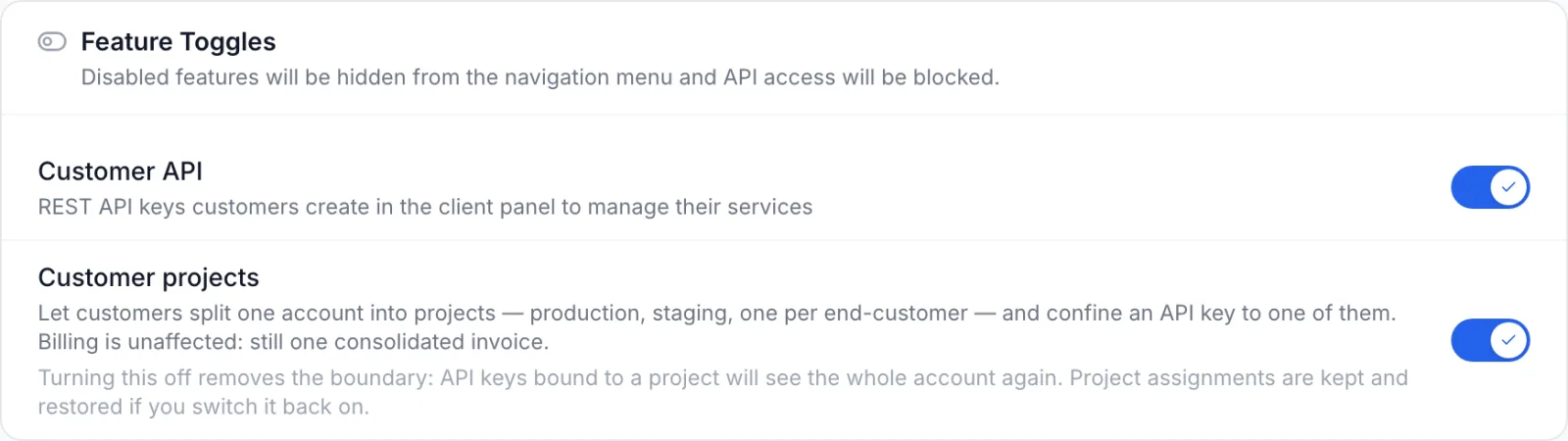
Customer projects is independent of Customer API. With projects on and the Customer API off, customers can still group their services in the client panel. Project-bound keys need both switches on.
While the feature is on:
- Client pages in the admin panel have a Projects tab.
- Customers see Projects under Settings → Organisation in the client panel (the Profile Settings page), a project switcher in the header once they have a second project, and a Project choice when they create an API key.
- The customer API answers the projects endpoints and honours project scoping.
What happens when you switch it off
Turning the feature off removes the boundary between projects, and the switch warns about this while it is on. In detail:
- The Projects tab, the customer's Projects page and the header switcher disappear.
- API keys bound to a project see the whole account again. A staging key can then list and act on production servers. Check with customers who rely on bound keys before you switch the feature off.
- Customers can no longer bind a new key to a project.
- Project assignments are kept. When you switch the feature back on, every service is back in its project and every bound key is confined again.
The default project
Every customer has one project called Default, with the handle default. It is created automatically the first time it is needed, for example when you or the customer open the projects list. It holds everything that has not been moved to another project, so all existing services, orders, images and SSH keys start out in Default and nothing is hidden when the feature is turned on.
- The default project cannot be deleted.
- Its handle cannot be changed. Its name can.
- New services ordered by you from the admin panel land in Default. Move them afterwards if they belong somewhere else.
Manage a client's projects
Staff can create, rename and delete a client's projects and move the client's services between them. This is useful when a customer asks you to "put these three servers in staging".
- Open Clients, then open the client.
- Open the Projects tab.
Viewing the tab needs the View Clients permission. Creating, renaming, deleting and moving need Edit Clients. See staff and permissions.
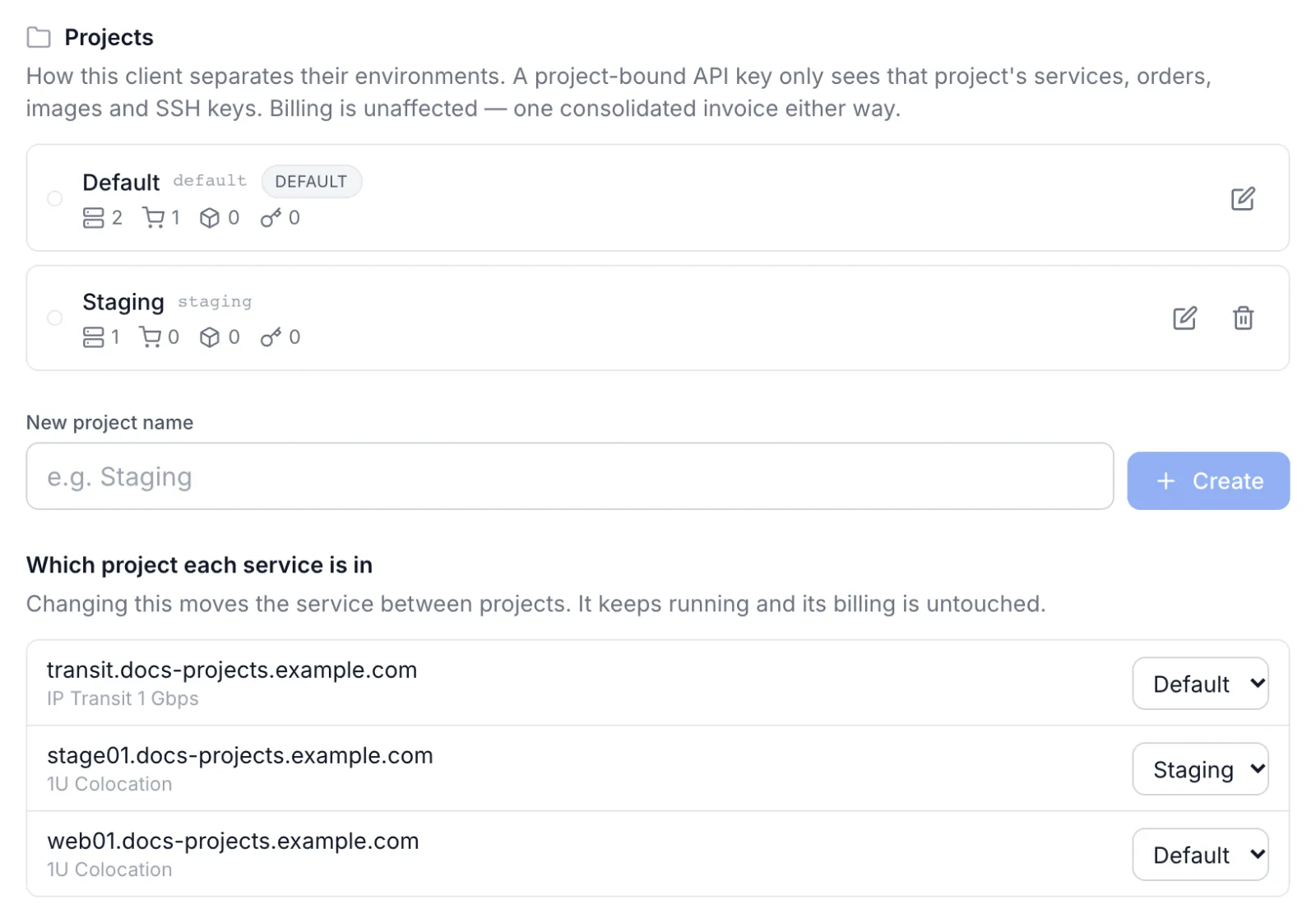
Each project row shows:
- The project's colour dot, its name and its handle (the short name used in API calls). The default project has a default badge.
- Four counts, from left to right: services, orders, custom images and SSH keys in the project. The counts for Default include everything not yet moved anywhere.
- A pencil button to rename the project, and a bin button to delete it. The default project has no bin button.
Create a project
- Type the name in New project name, for example Staging. Up to 80 characters.
- Click Create. You see Project created.
The handle is made from the name: lowercase letters, digits and hyphens, so Prod EU becomes prod-eu. If the customer already has a project with that handle, a number is added (staging-2). The customer can set their own handle from the client panel. A customer can have up to 50 projects, Default included.
Rename a project
Click the pencil, edit the name and press Enter or the check mark. Escape or the cross cancels. Renaming here changes the name only. The handle stays the same, so scripts that use it keep working.
Move services between projects
Once the client has at least two projects and one service, the tab shows Which project each service is in: one row per service, with its hostname and product name, and a project selector.
- Pick the new project in the service's selector.
- The move happens at once. You see Service moved, and the counts update.
Moving a service changes which project sees it, nothing else. The service keeps running, its billing is not touched and no email is sent. Orders, custom images and SSH keys cannot be moved from this tab. The customer can move services from their own Projects page, and all four kinds can be moved through the API.
Delete a project
- Click the bin button on the project.
- Confirm in the dialog.
- An empty project: the dialog asks Delete this project? Any API key bound to it stops working.
- A project that still holds something: the dialog says how many resources it holds and that they will be moved to the default project first. Its services, orders, images and SSH keys move to Default, and then the project is deleted.
Deleting a project never cancels, deletes or suspends what it holds. Any API key bound to the deleted project stops working for good. It is not widened to the whole account. The customer has to create a new key.
Project-bound API keys
Customers create API keys in the client panel under Settings → Security → API Keys. Once they have at least two projects, the Create API key dialog (opened with New key) has a step Confine it to one project with a Project selector. The choice Whole account (no project restriction) creates an ordinary key.
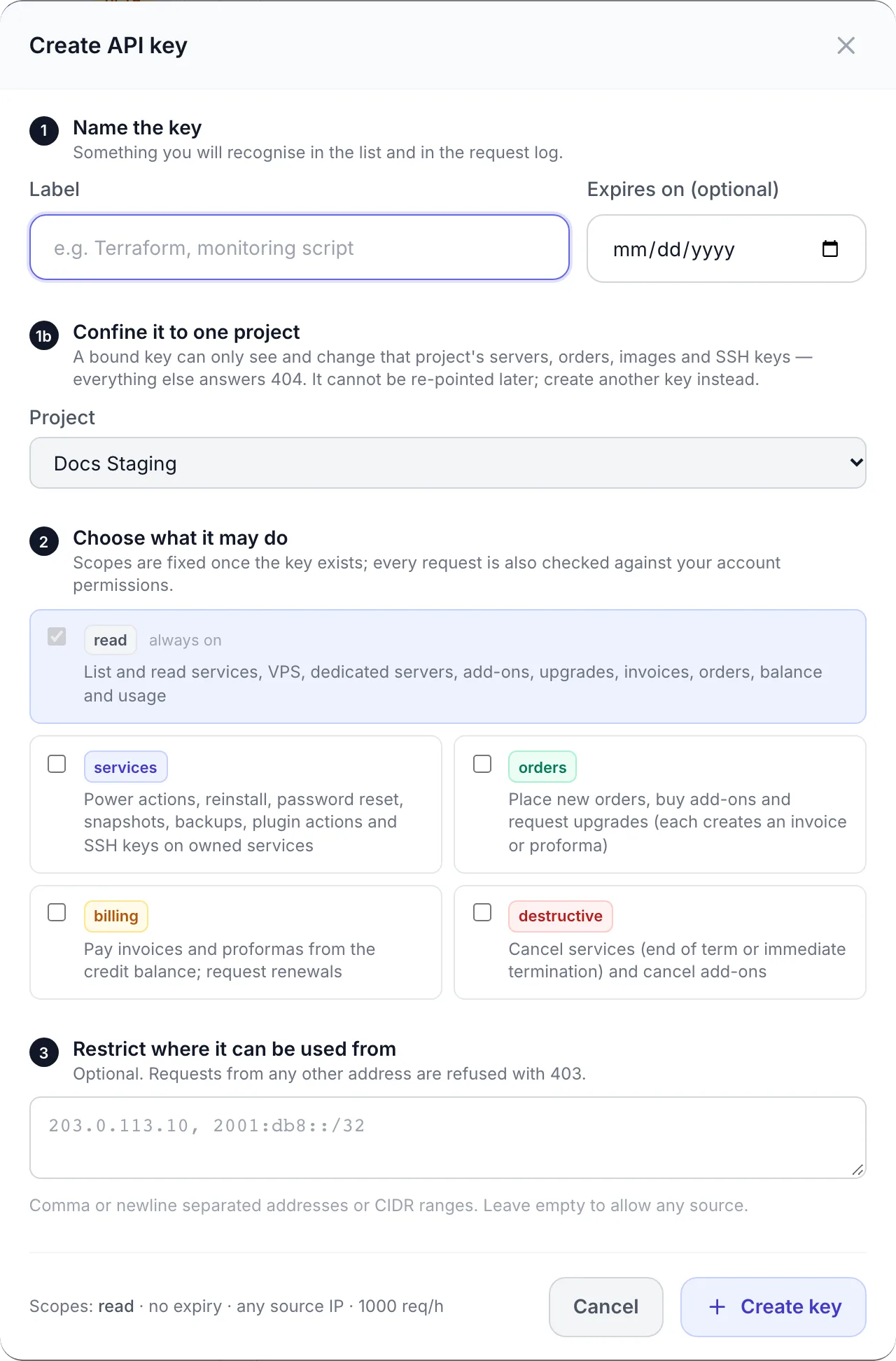
A key bound to a project:
- Sees and changes only that project's services, orders, custom images and SSH keys. Anything in another project answers "not found", as if it did not exist.
- Cannot be moved to another project later. The customer creates a new key for the other project and revokes the old one.
- Cannot create, rename, delete or move projects, and cannot move services between projects.
- Places new orders, images and SSH keys in its own project.
Keys that are not bound see the whole account, as before. They can narrow a single request to one project by sending the header X-Project-Id with the project's handle or ID, or the query parameter ?project=. The API guide in the client panel (Usage guide on the API Keys page) describes the project endpoints.
On a client's API Keys tab you can see and revoke the client's keys. Binding is chosen by the customer when they create the key.
What the customer sees
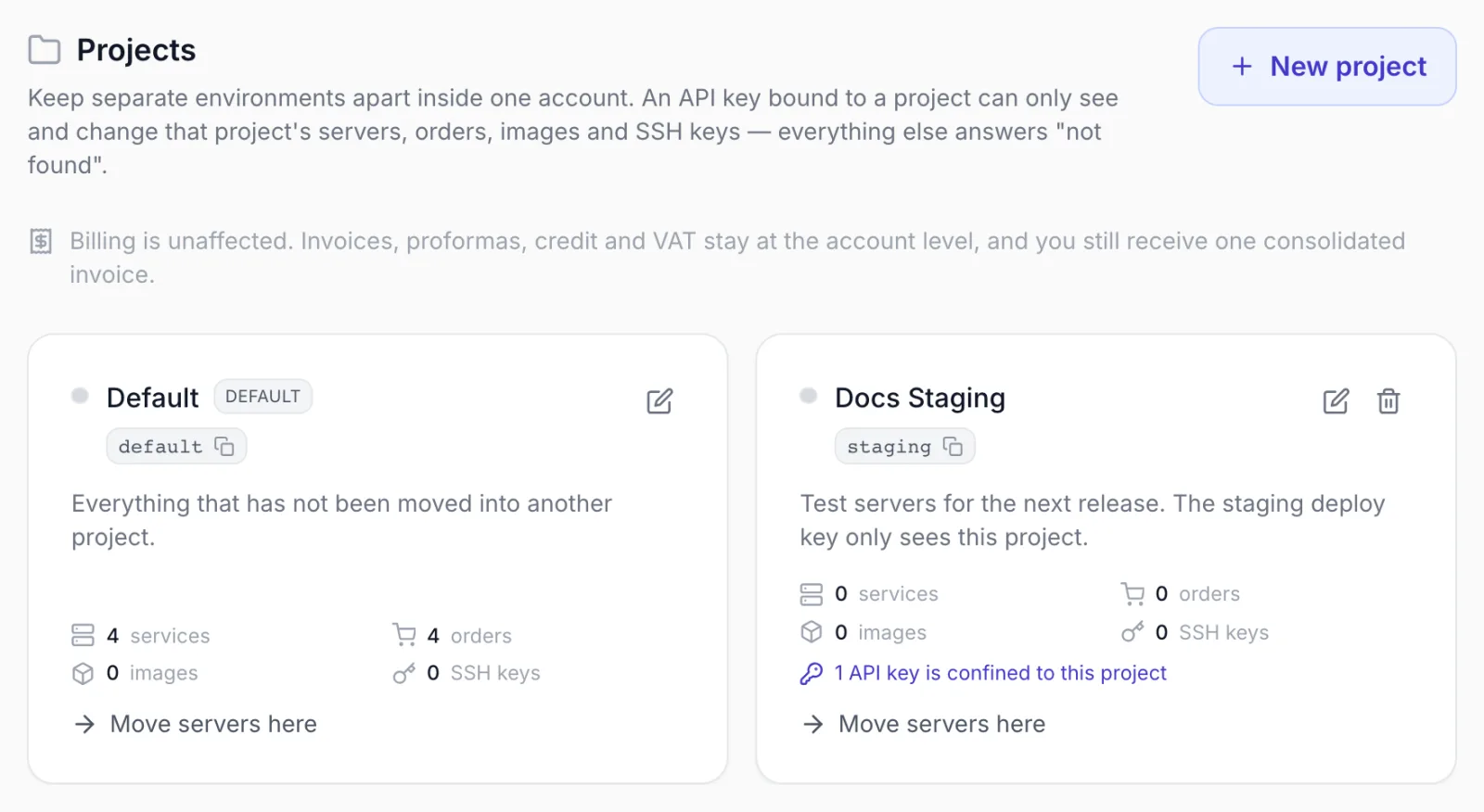
- Projects page. Under Settings → Organisation → Projects in the client panel, the customer creates projects with a Name, an optional Handle, a Description (optional) and a Colour, moves servers with Move servers here, copies a project's handle, and sees how many API keys are confined to each project.
- Project switcher. Once the customer has a second project, the client panel header shows a switcher. All projects shows everything. Picking a project limits the panel to that project's services, and new orders placed while a project is selected land in that project.
- Invoices stay the same. Invoices, proformas and credit are not split by project.
The customer-side steps are in the client panel guide to projects.
Limits and edge cases
- Staff are never limited by projects. The admin panel always shows all of a client's services, orders and invoices, whatever project they are in.
- Teams. When a client has team members, projects created for the account are shared by all of its members, in the same way the account's services are.
- What is in a project: services, orders, custom server images and SSH keys. Invoices, proformas, credit and the product catalogue are account-wide.
- Names repeat across projects. Two projects can each hold a custom image with the same name, and the same SSH key can be added to more than one project.
- Up to 50 projects per customer. Project names are up to 80 characters, handles up to 40.
Troubleshooting
| Message | Cause and fix |
|---|---|
| At most 50 projects may exist; delete one first. | The customer already has 50 projects. Delete an unused one. |
| A project with the slug "…" already exists | The handle is taken by another of the customer's projects. Choose a different handle. |
| This project still holds 1 service. Move them to another project first, or pass reassignTo with a project id. (the numbers vary) | Returned by the customer API when a project that still holds something is deleted without saying where its contents go. Move the resources first, or delete it from the panel, which moves them to Default. |
| The default project cannot be deleted | Default always exists. Rename it if the name does not fit. |
| This API key is bound to project "…" and cannot act on another project. | A bound key sent X-Project-Id or a projectId for a different project. Use the key for that project, or an unbound key. |
| This API key is bound to project "…" and cannot manage projects. Use a key with no project binding, or the panel. | Creating, renaming, deleting and moving need an unbound key or the panel. |
| This API key is bound to a project that no longer exists or is no longer yours. | The project the key was bound to is no longer one of this customer's projects, for example after a change to the customer's team account. The customer creates a new key. |
| Invalid API key | The key is not recognised: it was copied wrongly, or the project it was bound to was deleted (bound keys are removed together with their project). The customer creates a new key. |
| No project matches "…". | The handle or ID in X-Project-Id or ?project= does not match any of the customer's projects. Check the spelling of the handle. |
| A key's project cannot be changed. Create a new key for the other project and revoke this one. | Bindings are permanent by design. |
| Projects are not enabled on this platform. | A customer tried to bind a key while Customer projects is off. |
A bound key that suddenly sees servers from other projects usually means Customer projects was switched off in Settings → General. Switch it back on to restore the boundary.