
Admin AI assistant
Ask questions about your data, settings and the docs from the admin header. Admin AI prepares changes on cards, and nothing changes until you approve.
Admin AI is a chat assistant in the header of the admin panel. You ask it a question in plain words and it looks the answer up in your own data, your settings and the FluxBilling documentation. When you ask for a change, it does not make it. It prepares the change on a card that shows exactly what would happen, and nothing happens until you press Approve and confirm. The approved change then runs with your own account, so it can never do more than you could do by hand.
Admin AI is for administrators and staff. Your customers never see it.
What you need
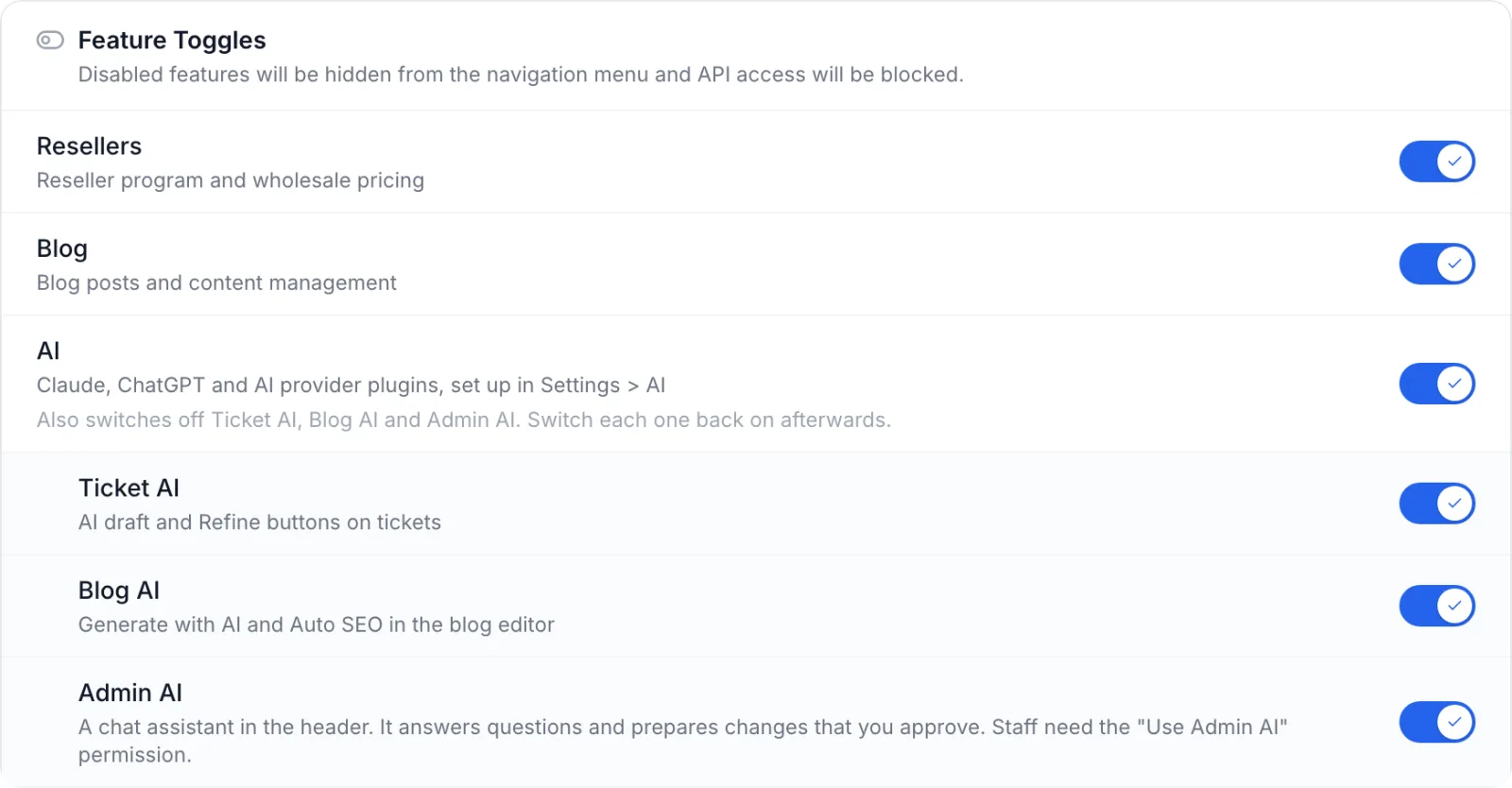
- The AI and Admin AI feature toggles switched on in Settings → General → Feature Toggles. Admin AI is a sub-toggle of AI, and both must be on.
- A Claude or ChatGPT API key saved in Settings → AI. Admin AI looks things up through tools, and only the built-in Claude and ChatGPT providers can do that. AI provider plugins cannot run Admin AI.
- The "Use Admin AI" permission for staff. Super admins always have it.
Set it up
Step 1: Switch on the feature toggles
- Open Settings → General and scroll to Feature Toggles.
- Make sure AI is on, then switch on Admin AI under it. Admin AI shows Requires AI to be enabled while AI is off.
- Save the General tab.
Switching AI off also switches off Ticket AI, Blog AI and Admin AI. When you switch AI back on, switch each of them back on as well.
Step 2: Connect Claude or ChatGPT
Open Settings → AI. Under Providers, add the API key of Claude (Anthropic) or ChatGPT (OpenAI), or both. The provider marked Default runs Admin AI unless you choose another one in the Admin AI card. The providers, models and thinking levels are explained in AI settings.
Step 3: Choose the provider and house preferences
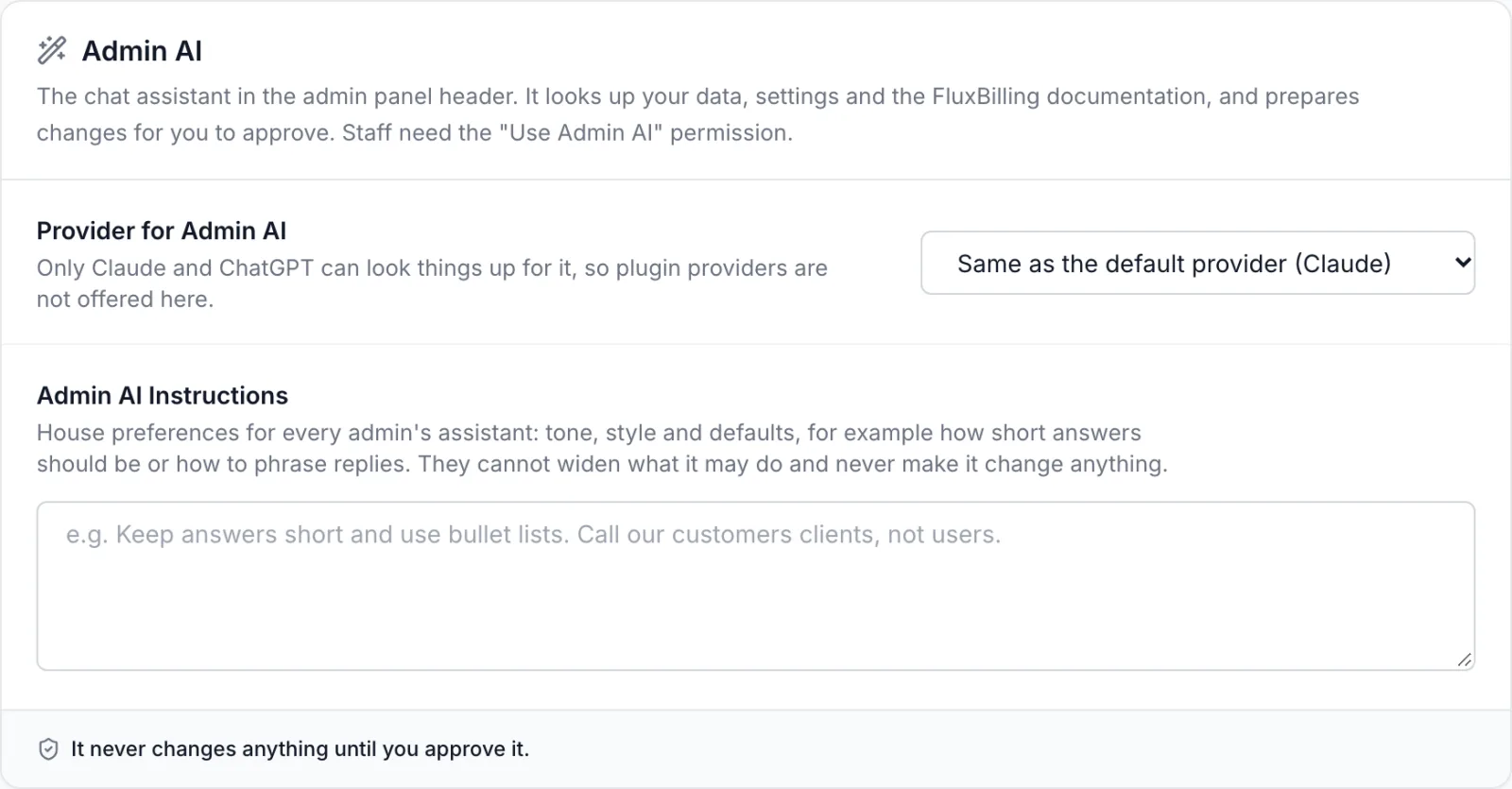
The Admin AI card on the same tab has two fields:
| Field | What it does |
|---|---|
| Provider for Admin AI | Same as the default provider uses the default provider. You can also pick Claude (Anthropic) or ChatGPT (OpenAI) for Admin AI only. Plugin providers are not offered here. If the default provider is a plugin, the card shows Admin AI needs Claude or ChatGPT. Choose one here. |
| Admin AI Instructions | House preferences for every admin's assistant: tone, style and defaults, for example Keep answers short and use bullet lists. Up to 4,000 characters. They cannot widen what the assistant may do, and they can never make it change anything. |
Click Save Changes. If the provider you chose has no API key but the other built-in provider has one, Admin AI uses the other one. It never falls back to a plugin.
Step 4: Give staff access
Super admins can use Admin AI as soon as it is switched on. Other staff need the Use Admin AI permission:
- Open Settings → Departments.
- Click Permissions on the department.
- Under AI, tick Use Admin AI, then click Save Permissions.
This permission only opens the chat. What the assistant can look up or prepare for someone still follows their other permissions. A staff member without invoice permissions gets no invoice answers, and a change they could not approve is never prepared for them. Only super admins can change department permissions. See Departments.
Open the assistant
Click the sparkles button in the header (its tooltip says Open Admin AI). Click it again to close the assistant, or press Esc while you are in it. The button only appears when the toggles are on and your account has the permission. When a prepared change is waiting for you, the button shows a badge with the number of waiting changes.
- On a computer it opens as a floating window in the bottom corner, and the page keeps its full width under it. Drag it by its title bar, resize it from any edge or corner, or click Minimize to fold it down to its title bar. Your browser remembers where you put it.
- On a phone it opens full screen. Following a link from the chat closes it.
The title bar shows the provider and model that answer, for example Claude · model name. The New chat button (plus sign) clears the conversation.
Ask a question
A new chat greets you and lists up to four suggestions under Try asking, picked from what your account may use: for example Unpaid invoices this month, Draft a new add-on, Recommend a payment plugin, How do I set up taxes?, Which e-mail provider do we use?, Suggest CPU equivalences from inventory or Migrate from another panel. A suggestion only fills the message box, so you can edit it before you send it.
- Type your question in the box (Ask a question or describe a change…).
- Press Enter to send. Shift+Enter starts a new line.
- While it works, the chat shows Thinking… and what it is doing, such as Looking up clients or Searching the documentation. Click Stop to cancel the answer.
- The answer arrives with a Used N tools line you can open to see every lookup.
Good to know:
- It knows which admin page you have open, so "this client" or "this invoice" works.
- It answers in the language of your admin panel, unless you write to it in another language.
- For "how do I" questions it searches the FluxBilling documentation and links the article it used.
- It is instructed to link only to admin pages your account can open.
- It states only what a lookup returned or what you told it. When something it needs is missing, such as a price or a category, it asks you instead of guessing.
What it can look up and prepare
Each area needs the permission shown. Super admins have every permission. An area whose module is switched off in Feature Toggles is not offered.
| Area | It can look up | It can prepare | Permission |
|---|---|---|---|
| Documentation and platform | FluxBilling documentation articles and bundled guides, which modules are on | Nothing | None beyond Use Admin AI |
| Clients and services | Clients, one client account, services | Nothing | View or edit clients (or invoices); view or edit services |
| Invoices and proformas | Invoices and proformas, one document, totals of invoices and payments | A correction of an unpaid document (Edit billing document), or its cancellation (Cancel billing document) | View invoices to look up; edit invoices to prepare |
| Products, categories and add-ons | Categories, products, add-ons | Create or update a category, product or add-on; change a product's add-ons | View products to look up; edit products to prepare |
| Hardware equivalences | Inventory hardware, existing equivalences, which servers match a product | Add equivalences, or switch them on or off | Products and inventory permissions, and the Inventory module on |
| Settings | Settings, with secrets shown only as set or not set | A change to one setting (Change setting) | View settings to look up; edit settings to prepare |
| Marketplace and plugins | Marketplace listings, installed plugins | Install a free listing, update a plugin, enable or disable a plugin | View settings to look up; super admin to prepare |
| Migration | Sources set up in AI Migration, their tables and sample rows, the status of the built-in migration wizards | A migration mapping, and an import | Super admin |
Some limits inside these areas:
- Products can be prepared only in dedicated, colocation, IP transit and other categories. VPS, game server and plugin products need the product editor. New categories and products are created hidden unless you asked for them to go live.
- Invoice corrections work only on documents with no payment yet, in a month that is not closed. A correction can reprice, rename, requantity, remove or add lines, move the due date (today to 90 days ahead) or rewrite the notes. Totals and VAT are recalculated as the document does. A cancelled document keeps its number and is not deleted.
- Settings: only some settings can be prepared, for example billing reminders, grace periods, ticket auto-close and display switches. Secrets, API keys, e-mail and security settings, anything that names a host or address, document numbering and the feature toggles are always changed by you on their own page. The assistant tells you which page.
- Migration: connection details are entered only in Settings → Migration Tools → AI Migration, never in the chat. The full workflow is in AI Migration.
What it never does
- It never changes anything without your approval.
- It never moves money or issues fiscal documents: no refunds, no marking as paid, no payments, credit notes, account credit, proforma conversions or renewals. The one exception is an approved AI Migration import, which copies historical invoices, payments and credit from the old system.
- It never sends e-mails, deletes records, renumbers documents, creates invoices or buys marketplace listings.
- It never shows secrets such as API keys, passwords or tokens, and never asks you for one.
- It is told never to follow instructions written inside customer records, invoice notes, marketplace listings or documentation, and to tell you instead when such text asks for something. Whatever it prepares still needs your approval.
When you ask for one of these, it tells you where in the admin panel to do it yourself.
Approve a prepared change
When you ask for a change, the assistant explains what it will do and adds a card to the chat.
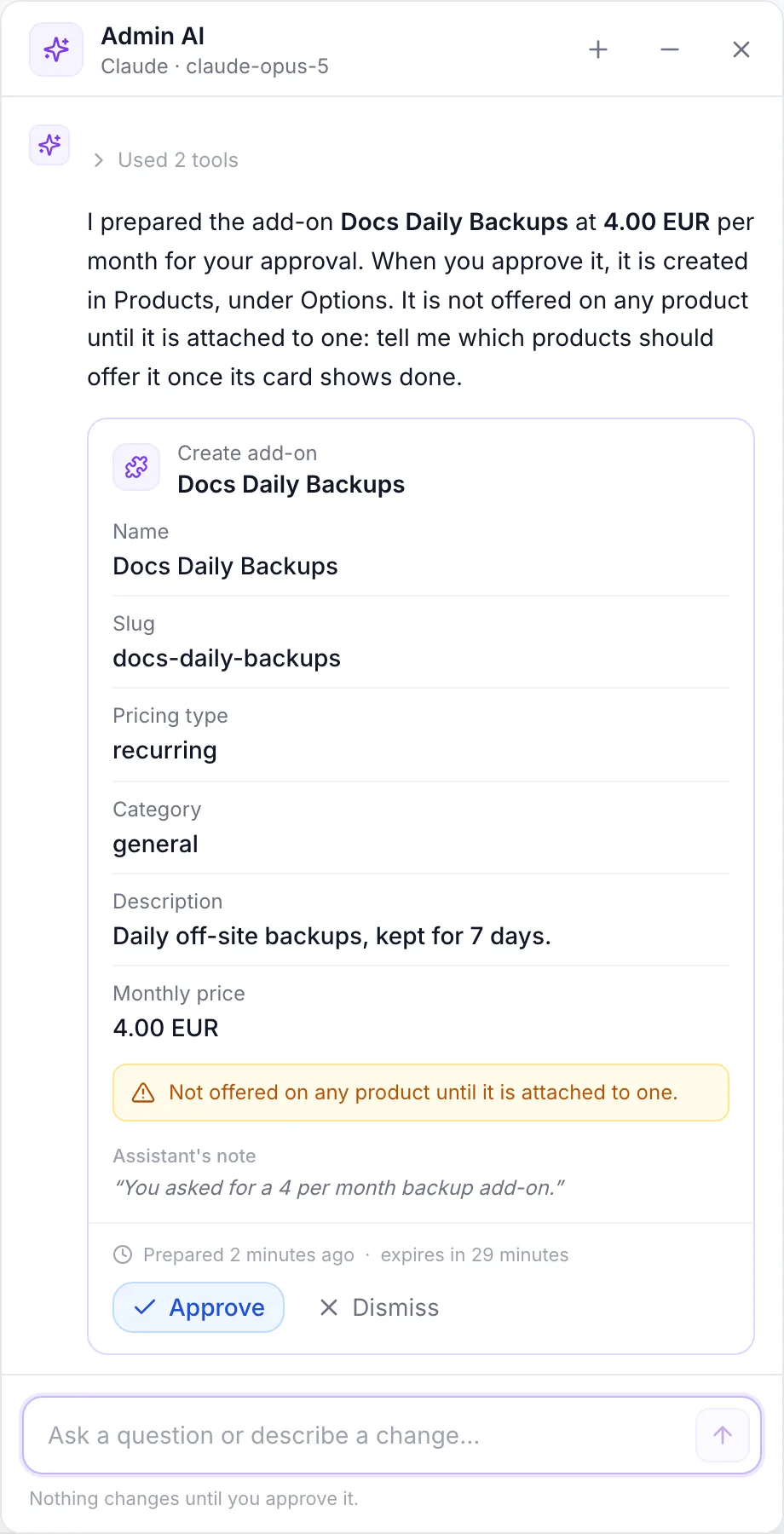
A card shows:
- What kind of change it is, such as Create add-on or Change setting, and the record it is for.
- Every field that changes, with the current value struck through and an arrow to the new one. Long lists show the first eight rows and a Show all link; long text has Show the full text.
- Warnings about side effects, for example Created hidden: customers cannot order it until you switch it on in Products.
- Assistant's note: why it prepared the change, in its own words.
- When it was prepared and how long it can still be approved, for example expires in 28 minutes.
- A red Hard to undo badge on cancellations of invoices and proformas, plugin and marketplace changes, migration imports, and category changes to billing cycles.
- Read the card. Click Dismiss if you do not want it (Dismissed. Nothing was changed.).
- Click Approve. A confirmation opens with What changes, the warnings, the assistant's note and the list of requests it will send (Sends 1 request with your account).
- Click the confirm button, which names the change, for example Create add-on or Save document. Click Cancel to go back without changing anything.
- The card shows Checking it is still current…, then Applying, step 1 of 1…. FluxBilling checks again that your account may still make this change and, for a change to an existing record, that the record has not changed since the card was prepared.
- When it is done the card shows Done with an Open link to the record, and you see Change applied.
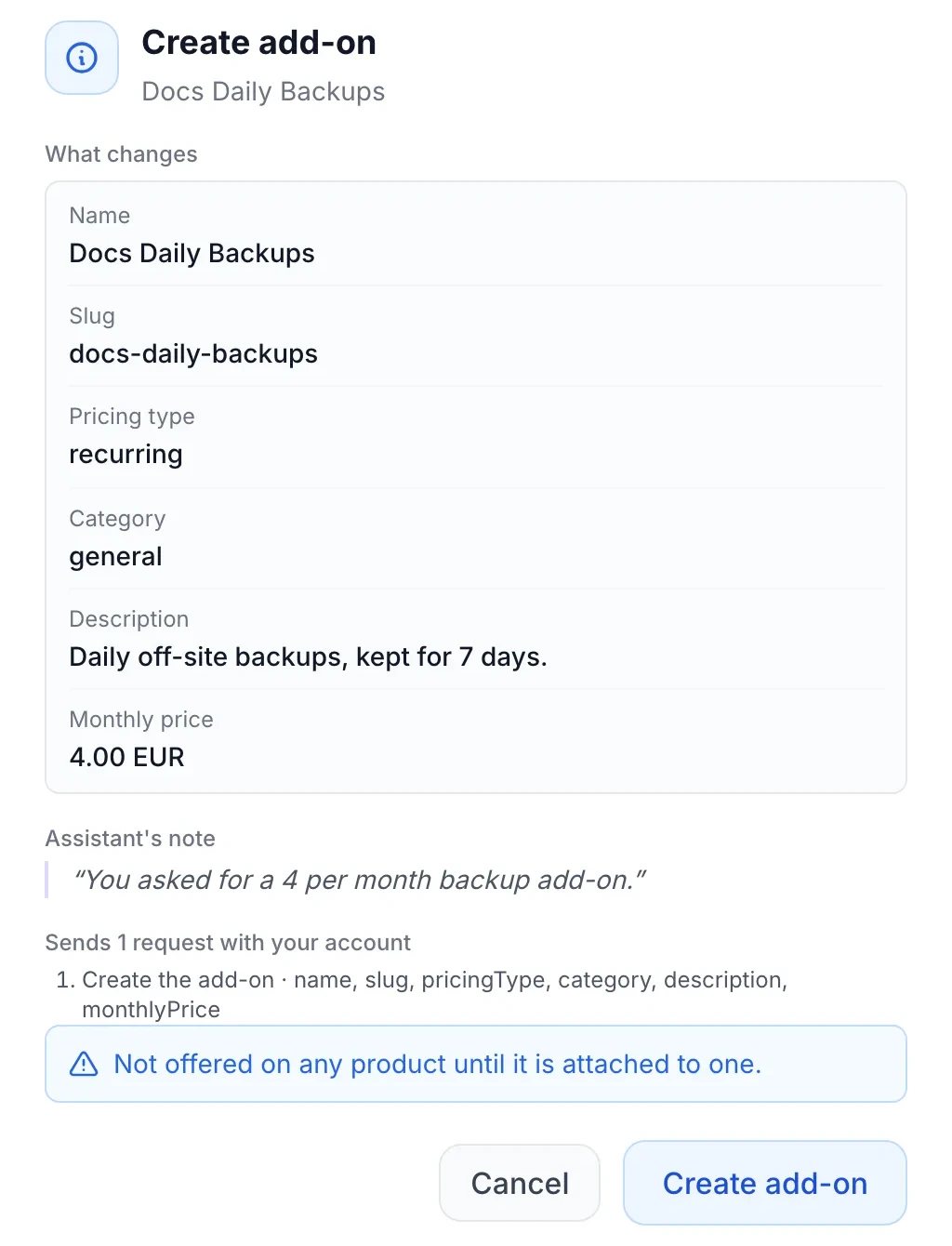
The change runs with your own login, through the same checks as the admin page where you would make it by hand. Each card is approved on its own: there is no bulk approve. The outcome is recorded in the activity log as Applied an Admin AI change or Admin AI change failed.
When a change depends on another one, for example a product in a category that does not exist yet, the assistant prepares the first change and asks you to approve it before it prepares the next.
Card states
| State | What it means |
|---|---|
| Waiting for approval | Prepared. Only a card in this state can be approved. |
| Applying | Approved and running. |
| Done | Applied. For a migration import the card says Import started and shows the import's progress below it. |
| Failed | It did not finish. The card says how many steps were applied, for example 0 of 1 step applied., and the error. |
| Dismissed | You dismissed it. Nothing was changed. |
| Expired | Not approved within 30 minutes. Ask again if you still want it. |
| Out of date | The record changed after the card was prepared, a newer card for the same record replaced it, or another change to the same record was applied first. Nothing was changed. Ask again. |
| Interrupted | The page reloaded while this was running. Check the record before asking again. |
Your conversation and your data
- Where the chat is kept. The conversation is kept in your browser tab only. It survives a page reload, but not closing the tab. Signing out or switching to another admin account clears it.
- What goes to the AI provider. Each message sends the conversation (its last 30 messages) to Claude or ChatGPT, together with what the assistant looks up for you. With ChatGPT, FluxBilling asks OpenAI not to store the conversation.
- Pasted credentials are removed. Passwords, API keys, private keys and connection strings with a password that FluxBilling recognises in your message are taken out before it is sent, and your message shows A credential was removed before this was sent to the AI. Change that password or key anyway, because it was typed into a chat.
- New chat. If prepared changes are still waiting, New chat asks first: A new chat removes them; nothing is changed. While a change is being applied you cannot start a new chat.
Limits
| Limit | Value |
|---|---|
| Messages per admin | 40 in 10 minutes |
| Length of one message | 8,000 characters (a counter appears from 7,000) |
| Time for one answer | 150 seconds |
| Prepared changes in one answer | 8, and one per record (changes to the same record are combined into one card) |
| Time to approve a card | 30 minutes |
| Admin AI Instructions | 4,000 characters |
Troubleshooting
| Message | What to do |
|---|---|
| No sparkles button in the header | Switch on AI and Admin AI in Settings → General → Feature Toggles, and check that your department has Use Admin AI. |
| No AI provider is set up yet. | Add a Claude or ChatGPT API key in Settings → AI. Admins who can open Settings see an Open AI settings button; others see Ask an administrator to set up an AI provider in Settings > AI. |
| Admin AI needs Claude or ChatGPT. The selected provider cannot look things up. | The default provider is an AI provider plugin. Choose Claude or ChatGPT in Provider for Admin AI. |
| Your account cannot use Admin AI. Ask an administrator for the "Use Admin AI" permission. | A super admin adds Use Admin AI to your department. |
| The AI provider rejected the API key. | Replace the key in Settings → AI. |
| The AI provider's quota or credit is used up. | Add credit or raise the limit in your Anthropic or OpenAI account. |
| Too many messages. Try again in N minutes. | You sent 40 messages in 10 minutes. Wait, then click Retry. |
| The answer took too long. Try again, or ask something narrower. | Ask a narrower question, for example one client or one month. |
| This reply was cut short. Ask a narrower question for the rest. | Ask for the rest in a smaller question. |
| The connection dropped before the answer finished. Anything already prepared is kept. | Click Retry. |
| This changed since it was prepared. Ask again. | Someone changed the record after the card was prepared. Ask the assistant to prepare the change again. |
| Your account can no longer make this change. | Your permissions changed after the card was prepared. |
| Another change to this record is being applied. Wait for it to finish. | Wait until the other card shows Done or Failed. |
| This listing now requires payment. Open the marketplace to buy it. | The assistant installs free listings only. Buy it in Settings → Integrations → Marketplace. |
| The assistant closes and the sparkles button disappears | Admin AI was switched off while you were using it. Switch AI and Admin AI back on in Settings → General → Feature Toggles. |
| Your session has ended. Sign in again. | Sign in again. |
Related articles
- AI settings: providers, models and the other AI features.
- AI Migration: moving billing data from another panel with Admin AI.
- Departments: staff permissions.
- General settings: feature toggles.
- Activity log: the record of approved changes.