
Billing Terms and Delivery Before Payment
Set up services as soon as they are ordered, and give resellers their own payment terms, billing day and delivery rule.
FluxBilling can set up a service as soon as it is ordered and let the customer pay the invoice afterwards. You choose this per product, for everyone who orders it. For your resellers you can go further: give a reseller its own payment terms (for example 30 days or 1 month), a fixed day of the month on which all its services renew, and a delivery rule that overrides the products. This article explains both levels, what the customer sees at checkout, how the first invoice is calculated and when an unpaid invoice leads to a suspension.
Two levels of control
| Level | Where | Applies to | What you can set |
|---|---|---|---|
| Product | Products → edit a product → Delivery tab → When to deliver | Everyone who orders the product | Deliver After payment or When ordered, before payment, and how many days the invoice is due after the order |
| Reseller | Resellers → open a reseller → Overview tab → Billing terms | That reseller's own orders and renewals, while the reseller is active | A delivery override, payment terms, a billing day, and how wholesale orders are charged |
Ordinary customers always bill by the platform default plus each product's delivery setting. Account-level terms are part of the reseller program: the Resellers page and the Billing terms section only appear when the Resellers feature is switched on under Settings → General → Feature Toggles and Enable Reseller Program is on under Settings → Reseller Program. Changing products needs access to Products; editing a reseller's billing terms needs the permission to edit clients.
Deliver a product before payment
- Open Products and edit the product.
- Go to the Delivery tab and find the When to deliver card.
- Choose one of the two options:
- After payment: provisioning starts once the order's invoice is paid. This is how every product works until you change it.
- When ordered, before payment: provisioning starts as soon as the order is placed in the client area or by staff.
- With When ordered, before payment selected, fill in Invoice due after in days: a whole number from 0 to 120. 0 makes the invoice due on the order day; an empty field counts as 0. A reseller's own payment terms take precedence over this number.
- Save the product.
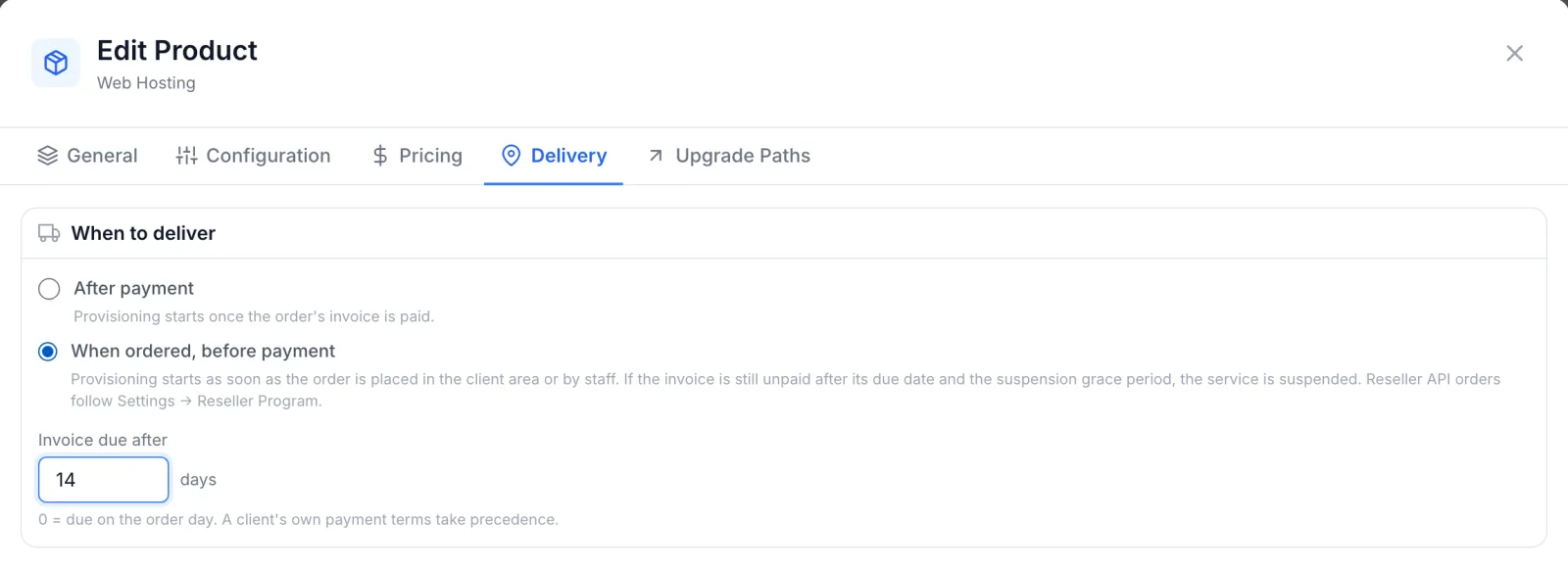
The setting applies to new orders only. Services that already exist are not changed.
What the customer sees at checkout
When an order contains something that is set up before payment, the checkout in the client area says so:
- Each such item is marked Set up right after you order, before payment.
- Below the order lines the customer reads Your order is set up as soon as you place it. You can pay the invoice afterwards. When only some items qualify, the note reads Items marked "Set up right after you order" are delivered before payment; the rest once the invoice is paid.
- The due date is shown as Invoice due followed by the date.
- The payment section offers a choice: Pay later — invoice due (with the date), described as Place the order now and pay the invoice from Invoices by its due date., or Pay now. Pay later is pre-selected. The customer can still pay straight away.
With Pay later, nothing is charged. The customer sees Order placed. Your invoice is due with the date, and the order confirmation page repeats that the invoice can be paid any time from Invoices. The services are already being set up.
For a reseller with a billing day, each line also shows First invoice: with the amount and the periods it covers, and the checkout explains that the services renew on that day of the month so the first invoice covers the days up to then.
Orders placed by staff
On Orders → New Order, after you pick the client and the products, a blue panel above Billing Exempt lists what will happen:
- Delivered before payment (or This client has their own billing terms when the client is an active reseller with terms) as the heading.
- Set up as soon as the order is placed, before payment: followed by the product names.
- For a reseller: the billing day and payment terms, for example Orders delivered before payment are due 30 days after the order.
- The first invoice can therefore differ from the total shown here. when a billing day or long payment terms change the first invoice.
- Services are delivered only after payment, whatever the product says. when the reseller is set to Always after payment.
The order totals on this page are always one billing cycle at full price. The panel is only a notice; the terms are applied when the order is placed. If you switch on Billing Exempt, the panel disappears: an exempt order is provisioned at once with no invoice, so delivery timing and payment terms do not apply. See New order for the rest of the form.
Give a reseller its own billing terms
- Open Resellers and click the reseller.
- On the Overview tab, scroll to Billing terms and click Edit.
- Set the fields described below. Leave a field at its first option, or empty, to use the platform default.
- Click Save. You see Billing terms saved.
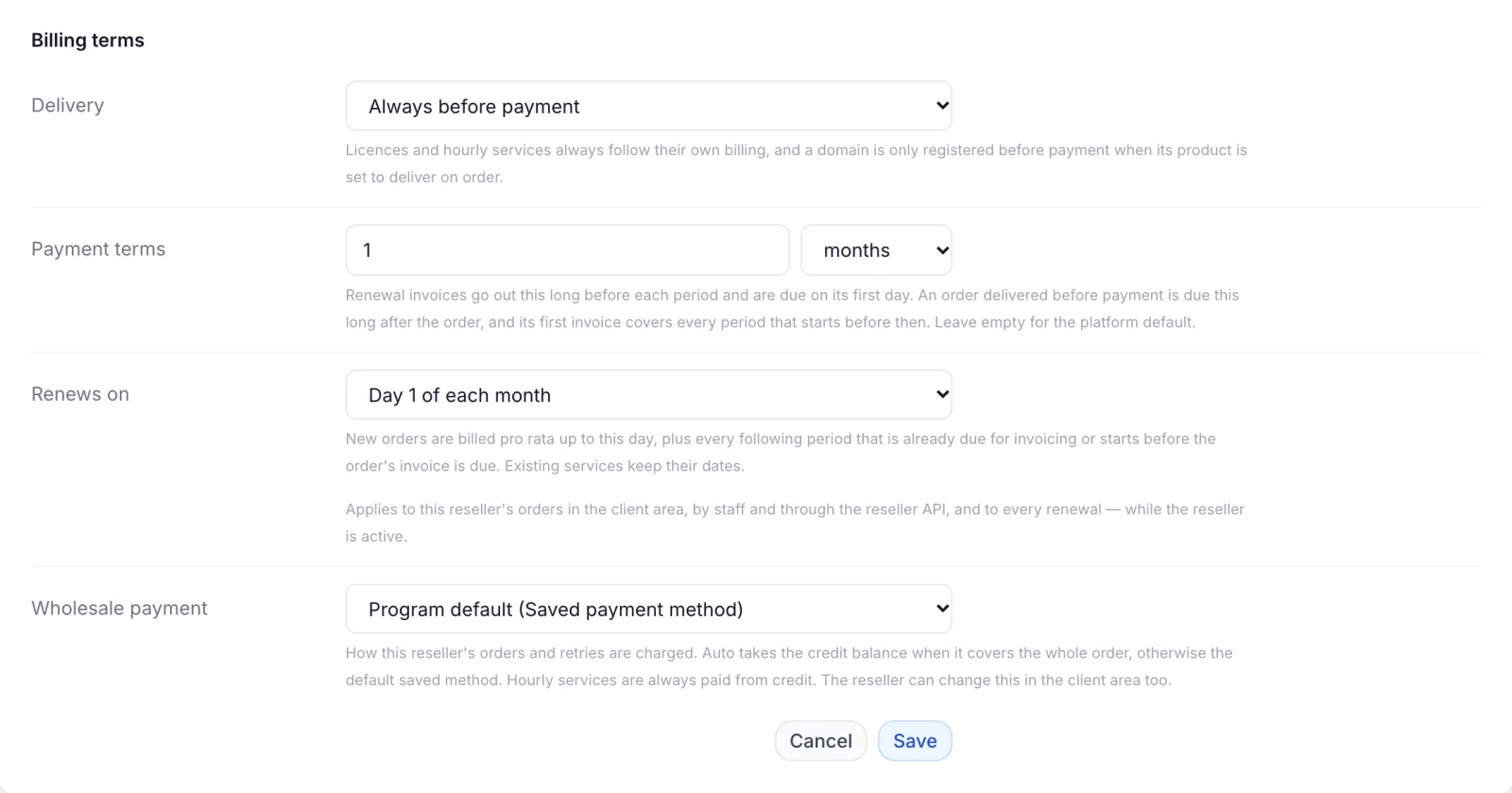
| Field | Options | What it does |
|---|---|---|
| Delivery | As set on each product, Always before payment, Always after payment | Overrides the products' When to deliver for this reseller. Always after payment keeps a risky account on pay-first even for products that deliver on order. |
| Payment terms | A number plus days (0 to 120) or months (1 to 4); empty = Platform default | Renewal invoices go out this long before each period and are due on its first day. An order delivered before payment is due this long after the order. |
| Renews on | Each service's order date, or Day 1 of each month to Day 28 of each month | Every new service billed by cycle renews on that day. The first invoice is pro rata up to it. |
| Wholesale payment | Program default (with the program's mode in brackets), Credit balance, Saved payment method, Auto: credit, then saved method | How the reseller's orders and payment retries are charged. Auto takes the credit balance when it covers the whole order, otherwise the default saved method. Hourly services are always paid from credit. The reseller can change this in the client area too. |
The terms apply to the reseller's orders in the client area, by staff and through the reseller API, and to every renewal, from the next order and the next renewal run onwards. A new billing day does not move the dates of services the reseller already has.
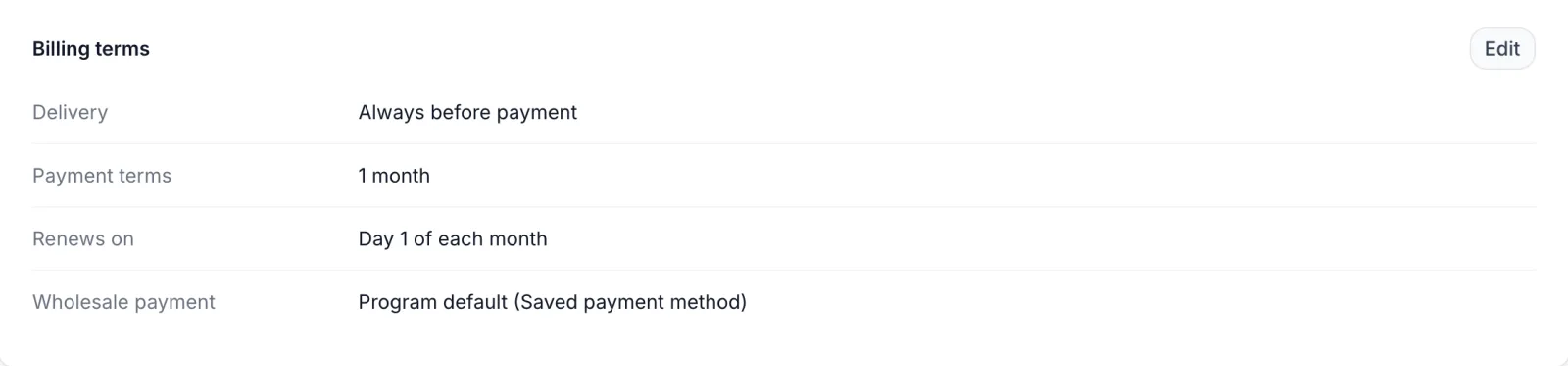
Out of edit mode the section lists the four values as they apply. Every change is recorded in the activity log as Changed reseller billing terms.
Resellers that are not active
Billing terms only count while the reseller is active. For a pending or suspended reseller the section shows Not applied while this reseller is not active. The account then bills by the platform default. One setting is the exception: Always after payment only ever restricts, so it keeps applying at any status, and the warning adds "Always after payment" still applies.
How the first invoice is calculated
Payment terms
Payment terms change the due date only when something on the order is delivered before payment. An order that is set up only after payment keeps the usual short due date, because nothing is running yet.
When the invoice is due later than one billing period, it also covers every period that starts before the due date. Otherwise the first renewal would fall due before the order's own invoice. Example: a reseller on 60-day terms with delivery Always before payment orders a monthly service on 15 October. The invoice is due on 14 December and covers 15 October to 15 November and 15 November to 15 December. The customer checkout explains this with Your invoice is due more than one billing period from now, so it also covers the periods that start before then.
Billing day
With Renews on set, a new order is billed pro rata from the order day up to the next billing day, plus every following full period that is already due for invoicing or starts before the order's invoice is due. Example: billing day 1, payment terms 1 month, delivery Always before payment, monthly service ordered on 15 October. The first invoice covers 15 October to 1 November (17 days pro rata) and 1 November to 1 December, and is due on 15 November. The renewal for December is issued on 1 November, one month before its period, and is due on 1 December.
An order placed on the billing day itself is billed as one whole cycle. Days go up to 28 so that every month has the billing day.
Renewals
For a reseller with payment terms, renewal invoices are issued that long before the service's due date instead of the platform-wide Renewal Invoice days, and stay due on the first day of the period they pay for. Without payment terms, renewals follow Settings → Billing → Service Lifecycle → Renewal Invoice. See Billing settings.
When an unpaid order invoice suspends the service
A service delivered before payment is suspended when its order's invoice is still unpaid after the invoice's own due date plus the Suspension Grace days set under Settings → Billing → Service Lifecycle. A paid invoice for the order stops this. From there the normal lifecycle applies: Termination Grace counts from the suspension.
Services that a staff member activated by hand before payment are not treated this way; they keep the usual lifecycle.
Reseller API orders
Orders placed through the reseller API use the same terms. Without its own delivery override or payment terms, a reseller that orders a product set to When ordered, before payment is first charged the program's usual way (credit balance or saved payment method, from Settings → Reseller Program → Payment Mode or the reseller's own Wholesale payment). Only when that charge is refused (no credit, no saved method, or a declined card) is the service delivered anyway and invoiced. When the program pays by Invoice (Net Terms), such an order is delivered and invoiced straight away. Either way, a reseller without payment terms of its own is never given fewer days to pay than the program's Invoice Due Days. A reseller with its own terms is invoiced on those terms. See Reseller program and Reseller API.
Limits
- Hourly services are never delivered "before payment" in this sense: they are set up at order time and charged from the credit balance anyway.
- Domains are registered before payment only when the domain product itself is set to When ordered, before payment. A reseller's Always before payment does not reach domains, because registering one costs you money at the registry.
- Billing Exempt staff orders take no terms at all.
- Payment terms: 0 to 120 days or 1 to 4 months. Product invoice due days: 0 to 120. Billing day: 1 to 28.
- Changes apply from now on. Existing services keep their renewal dates.
Troubleshooting
| Message | Where | What to do |
|---|---|---|
| Invoice due days must be a whole number from 0 to 120. | Product, Delivery tab | Enter a whole number of days between 0 and 120. |
| Enter a whole number, or leave empty for the platform default. | Reseller Payment terms | Remove decimals, letters or spaces, or clear the field. |
| Between 0 and 120 days. / Between 1 and 4 months. | Reseller Payment terms | Bring the number into range, or switch the unit. |
| Could not save the billing terms | Reseller Billing terms | The save failed; try again. If a more specific message is shown, it names the field. |
| Not applied while this reseller is not active. | Reseller Billing terms | Approve or reactivate the reseller for the terms to count. |
- The customer was not offered Pay later. Pay later appears only when at least one item is set up before payment, and only for a signed-in customer. Check the product's When to deliver, and for a reseller whether Delivery is set to Always after payment.
- The first invoice is higher than one month. The account has a billing day, or payment terms longer than one cycle, so the invoice also covers the periods that start before it is due. See How the first invoice is calculated.
- A reseller's terms are ignored. The reseller is not active, or the order was placed as Billing Exempt.
- The New Order total differs from the invoice. The page totals one cycle at full price; the invoice follows the terms.