
Changing Your VPS IP Address or Location
Give your VPS new IPv4 addresses or move it to another location from the client area: steps, free changes, what it costs and what to do when it fails.
You can give your VPS new IPv4 addresses, or move it to another location, yourself from the client area. Both actions are on the page of the VPS. Your hosting provider decides whether they are offered, how many IP changes a month are free and what a further change costs. Before you confirm, the dialog always tells you what the change costs.
This guide is for customers. If you are a hosting provider and want to switch these actions on or set their prices, see Customer IP changes and location moves.
Before you start
- Your provider has to offer it. Change IP and Move only appear when your provider has switched them on. If you do not see them, ask your provider.
- It works on a VPS only. Other services, such as dedicated servers, game servers or web hosting, do not have these actions.
- The service must not be suspended. Neither action appears on a suspended service, and Move appears only on an active one. An IP change also needs an active service to start.
- Team members need the right permission. If you use the client area as a member of someone else's account, you need View Services to open the dialogs and Manage Services to start a change. See Team members.
- Plan for the new address. Both actions can give your VPS new IP addresses. Your server is then reachable only on the new ones, so be ready to update your DNS records and firewall rules.
Where to find it
Open My Services in the sidebar and click your VPS. On its page:
- Change IP sits next to the heading of the address list, IP Address or IP Addresses. It appears only when the VPS has at least one IPv4 address.
- Move sits in the Location field.
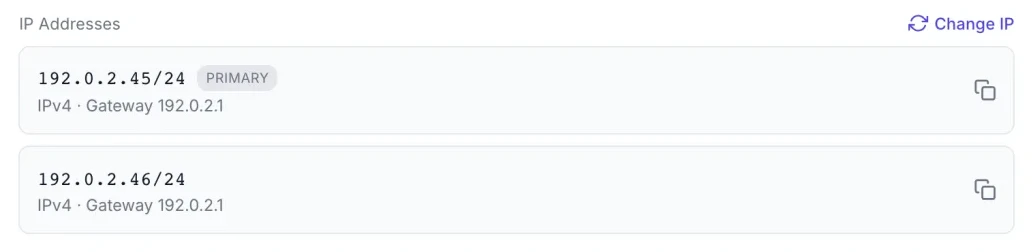
Change your IP addresses
- On the VPS page, click Change IP. The Change IP addresses dialog opens.
- Choose what to change:
- If the VPS has several IPv4 addresses, pick All N IPv4 addresses to replace every one of them, or Only this address and select the address from the list.
- If the VPS has one IPv4 address, the dialog shows it as Current address. That is the address that will be replaced.
- Read the warning and the cost line under it (see What an IP change costs).
- Click Change IP. For a paid change the button reads Pay <price> and change.
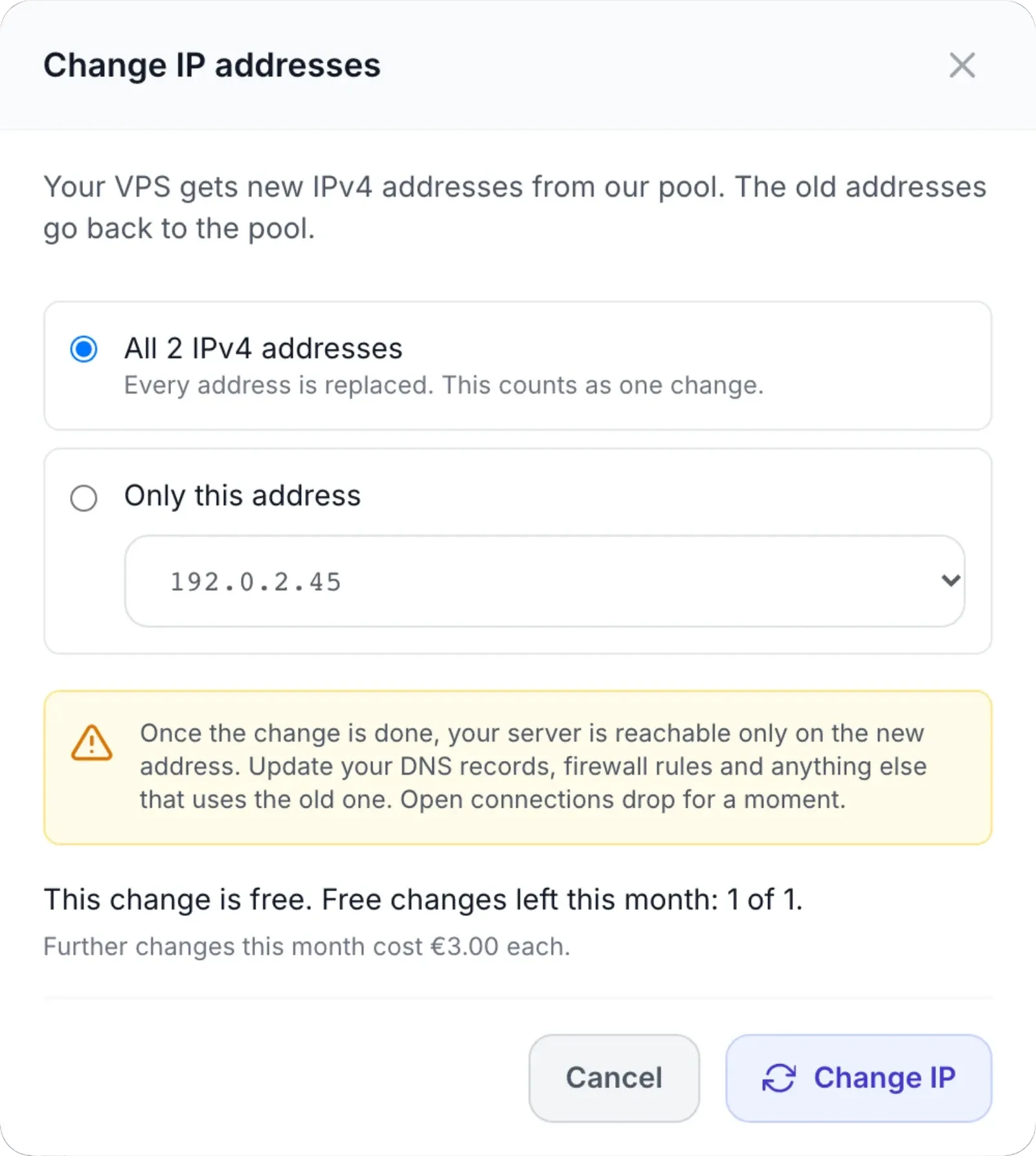
| Option | What it does |
|---|---|
| All N IPv4 addresses | Every IPv4 address of the VPS is replaced. This counts as one change. |
| Only this address | Only the address you select in the list is replaced. The others stay as they are. |
| Current address | Shown instead of the two options when the VPS has a single IPv4 address. |
You cannot choose the new address. It is taken from your provider's free addresses that your VPS can use. The old addresses go back to your provider's pool. You cannot choose to keep or reclaim them. IPv6 addresses are never changed.
Your server moves to the new address. Once the change is done, your server is reachable only on the new address. Update your DNS records, firewall rules and anything else that uses the old one. Open connections drop for a moment.
While the change runs
The dialog lists each old address with its new one, and a tick or a cross when that address is done. It takes about a minute per address. You can close the dialog: the change carries on, and you can open it again to follow it.
When it is done, the dialog reads Done. Your VPS now uses its new addresses. The network settings inside your server are updated automatically, so you do not have to edit them. The new addresses appear in the address list on the VPS page.
What an IP change costs
One change is one change, whatever you replace: changing all addresses costs the same as changing one. Your provider gives each VPS a number of free changes per calendar month and may sell further ones. The dialog shows one of these lines before you confirm:
| You read | What it means |
|---|---|
| This change is free. Free changes left this month: <left> of <total>. | The change starts as soon as you confirm. If your provider sells extra changes, a second line says Further changes this month cost <price> each. |
| Your last IP change did not finish, so this one is free. | Your last change failed. This one takes its place at no cost and does not use a free change (see When an IP change fails). |
| You have used this month's free changes. This change costs <price> and starts as soon as it is paid. | A paid change. The button reads Pay <price> and change. |
| This change costs <price> and starts as soon as it is paid. | Your provider includes no free changes, so every change is paid. |
| You have used this month's free IP changes. New free changes are available on the 1st of next month. | Your provider sells no extra changes. The button stays disabled until the 1st. |
Free changes are counted per VPS. They reset on the 1st of each month. Changes your provider makes for you do not use your free changes.
Paying for an IP change
- Click Pay <price> and change. An invoice or a proforma for the change is created, with VAT if it applies to you, and you are taken straight to it. A message says Pay <number> to start the IP change.
- Pay it the way you pay any invoice. See Invoices and payments.
- The change starts by itself as soon as the payment is received. Nothing changes on your VPS before that.
Until it is paid, the dialog says An IP change is waiting for payment of <number>. It starts as soon as it is paid. and offers Pay now. The document is due 7 days after it is created. If the document is cancelled, contact your provider's support.
When an IP change fails
If something goes wrong, the dialog reads The IP change did not finish. Addresses that could not be changed stay as they were. A cross marks each address that was not changed, and a red line under the list gives the reason, for example There is no free address this VPS can move to right now. When some addresses were changed and others were not, the line starts with how many were changed, for example 1 of 2 addresses changed.
You can try again at no cost. Your next change within 30 days is free and takes the place of the failed one, up to three attempts in all, without using a free change or creating another invoice. If all three attempts fail, the change no longer counts against your free changes for the month. If it keeps failing, contact your provider's support.
Move your VPS to another location
- On the VPS page, click Move in the Location field. The Move to another location dialog opens and shows where the VPS is now, next to Now in.
- Under Choose the new location, pick a location. Each one shows its flag, the new price per billing period and the difference from what you pay now.
- Read the summary that appears under the list. It says what is due now and what you pay from your next renewal.
- If the location is marked Gets new IP addresses, read the warning and tick I understand that my VPS gets new IP addresses. The move cannot start without it.
- Click Move VPS. When something is due now, the button reads Pay <amount> and move.
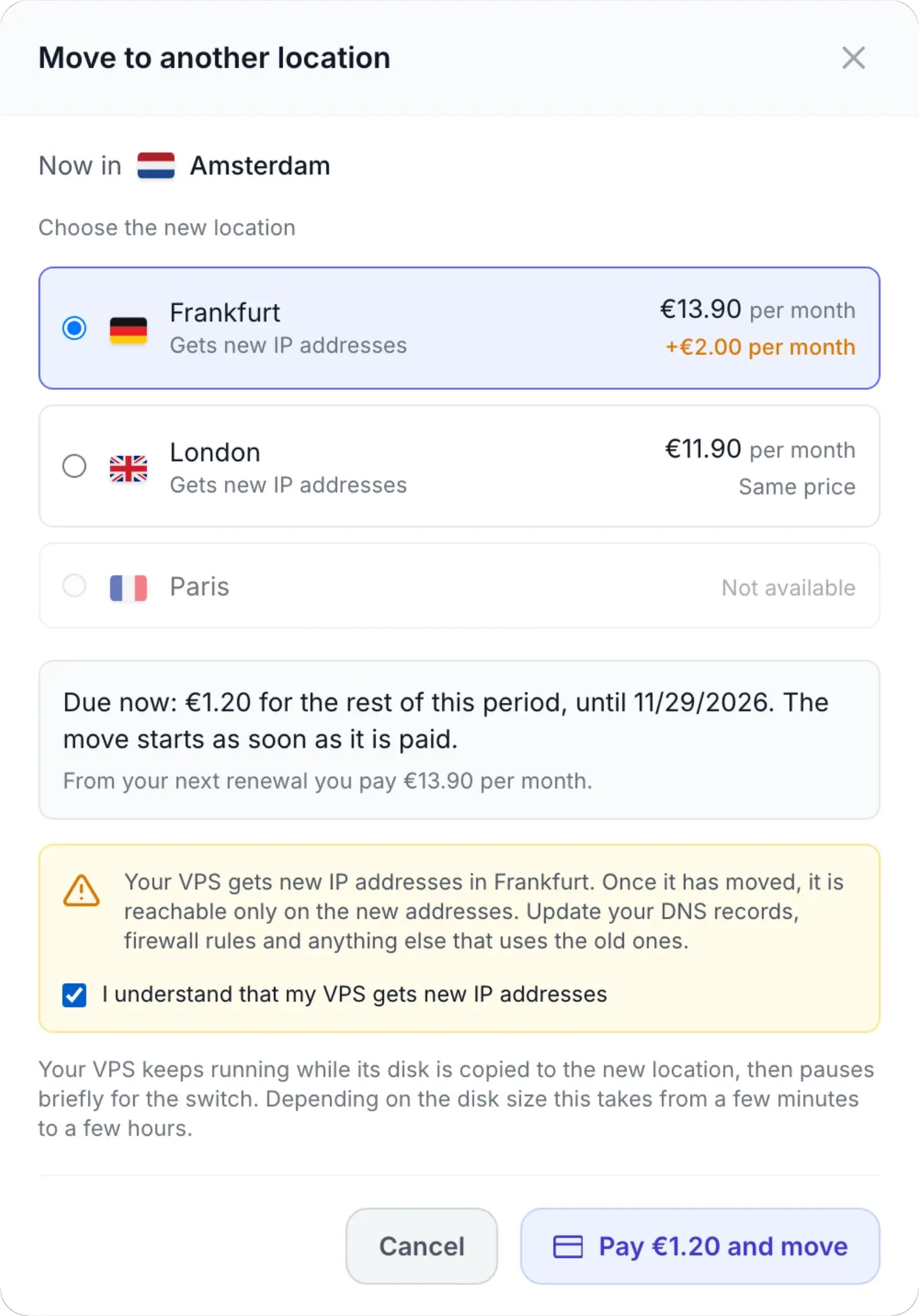
| Shown | Meaning |
|---|---|
| Price, for example €12.90 per month | What your VPS costs per billing period in that location. |
| Same price | That location costs the same as your current one. |
| A plus amount, for example +€2.00 per month | That location costs more. The difference is billed for the rest of the period you have paid, and your renewal price goes up. |
| A minus amount | That location costs less. Your renewal price goes down. Nothing is refunded for the period you have already paid. |
| Gets new IP addresses | Your VPS cannot keep its current addresses there and gets new ones. |
| Not available | That location cannot take your VPS right now, for example because it is full. You cannot pick it. |
Only locations where your plan is sold are listed. If there are none, the dialog reads Your plan is not sold in any other location right now.
What a move costs
The summary under the list shows one of these:
| New location | You read |
|---|---|
| Costs more | Due now: <amount> for the rest of this period, until <date>. The move starts as soon as it is paid. (with the VAT amount when VAT applies), then From your next renewal you pay <price>. |
| Costs less | Nothing to pay. From your next renewal you pay <new price> instead of <old price>. and The part of this period you have already paid is not refunded. |
| Same price | Nothing to pay. Your price stays the same. |
| Hourly-billed VPS | Nothing to pay now. Once your VPS has moved, it is billed <price>. The new hourly rate applies from the move. |
The amount due now is the price difference for the days left until your next due date. Your location and your price change only when the VPS has actually arrived in the new location. If an unpaid renewal invoice is open while the move is in progress, it is held until the move is done and then updated to the new price. If the move fails, you keep paying the price of the location where your VPS still runs.
Paying for a move
When something is due, clicking Pay <amount> and move creates an invoice or a proforma and takes you to it, with the message Pay <number> to start the move to <location>. You also get a notification, Location change waiting for payment. The move starts by itself once the document is paid.
Until then, the dialog reads The move to <location> is waiting for payment of <number>. It starts as soon as it is paid. and offers two buttons:
- Pay now opens the document.
- Cancel move cancels the move and its unpaid document. You can then choose another location or keep the VPS where it is.
While the move runs
Your VPS keeps running while its disk is copied to the new location, then pauses briefly for the switch. Depending on the disk size, this takes from a few minutes to a few hours. The dialog reads Moving your VPS to <location>…. You can close it: the move continues.
When the VPS has arrived, you get a notification, VPS moved, and the dialog reads Done. Your VPS now runs in <location>. If it got new IP addresses, they are listed on the VPS page.
If the move does not complete, your VPS keeps running where it was and your provider's team is told. You get the notification Location change did not complete. For a few days afterwards, the dialog shows The last move to <location> did not complete. Our team has been notified. above the location list.
When the dialog shows no locations
Instead of the list, the dialog may give a reason why the VPS cannot be moved now:
| Message | What to do |
|---|---|
| Your VPS can be moved once the service is active. | Wait until the service is active, for example after paying its invoice. |
| Your renewals are handled by a payment subscription. Contact support to move this VPS. | Your VPS renews through a subscription with a payment provider. Ask your provider's support to move it. |
| Your VPS is being moved right now. | Wait for the running move to finish. |
| Another change to this service is in progress. Try again once it is finished. | An upgrade or another change of the service is still open, for example waiting for payment. Finish or cancel it first. |
| This VPS cannot be moved from here. Contact support. | Ask your provider's support to move it. |
| There is no VPS on this service to move. | Contact your provider's support. |
Troubleshooting
| Message | What to do |
|---|---|
| IP changes are not available for this VPS. Contact support if you need a new address. | Your provider does not offer self-service IP changes for this VPS. Open a support ticket. |
| Moving this VPS to another location is not available. Contact support if you need it moved. | Your provider does not offer self-service moves for this VPS. Open a support ticket. |
| The IP addresses can be changed once the service is active | The service is not active yet. Try again once it is. |
| This VPS has no IPv4 address to change. | The VPS has only IPv6 addresses, or none. IPv6 addresses cannot be changed here. |
| Service is suspended or Your account is suspended. You can only view your account information. | Neither action works while the service or your account is suspended. Contact your provider's support. |
| <Location> is not taking new servers right now. Choose another location. | The location filled up after you opened the dialog. The list reloads; pick another location or try later. |
| Your VPS gets new IP addresses in <location>. Confirm the IP change to move it. | Tick I understand that my VPS gets new IP addresses and click Move VPS again. |
| A move of this VPS is already in progress | A move is already waiting for payment or running. Close and reopen the dialog to see it. |
| The move to <location> could not start. Try again later or contact support. | Nothing was billed for it. Try again later, or contact support. |
| Pricing is not available right now. Please contact support. | The price of a paid IP change could not be worked out in your currency. Contact support. |
| Too many IP change requests. Please wait. or Too many location change requests. Please wait. | You clicked many times in a short while. Wait a minute and try once. |
| Insufficient permissions | As a team member you need the Manage Services permission. Ask the account owner. |
Related
- Managing your services: the rest of the VPS page.
- Invoices and payments: paying the document for a paid change or move.
- Team members: the permissions a team member needs.
- Customer IP changes and location moves: the provider's side, settings and prices.