
Worldpay payment gateway
Set up the free Worldpay plugin: Access Worldpay credentials, webhook notifications, test payments, refunds and what customers see at checkout.
The Worldpay plugin lets your customers pay FluxBilling invoices by card on Worldpay's hosted payment page, using your Access Worldpay merchant account. The customer picks WorldPay at checkout, FluxBilling sends them to a Worldpay payment page for the amount due, and the invoice is marked paid once FluxBilling has confirmed the payment with Worldpay. Card details are entered on Worldpay's page, never in FluxBilling. The plugin is free and is listed in the plugin marketplace of every FluxBilling panel.
This guide covers plugin version 2.7. It walks through the setup in the order you do it, then explains how payments are confirmed, how refunds work and what to check when something does not work.
Who supports this integration. The plugin is built and maintained by FluxBilling. If something does not work, contact FluxBilling support at contact@fluxbilling.app or through fluxbilling.app/contact. Questions about your Worldpay account, its credentials, fees or settlements go to Worldpay.
What you need before you start
- An Access Worldpay merchant account with Hosted Payment Pages. The plugin uses Worldpay's Hosted Payment Pages to take the payment and Worldpay's Payment Queries API to check it. It does not work with Worldpay's older gateways.
- Access Worldpay API credentials: a username and password for Basic authentication. Worldpay issues one set for its Try (test) environment and a separate set for Live.
- Your merchant entity reference.
- A public HTTPS address for your FluxBilling panel with a certificate from a trusted certificate authority, so Worldpay can send payment notifications to it.
Step 1: Get your Access Worldpay credentials
- Ask your Worldpay Implementation Manager for your Access Worldpay API username and password. Worldpay's own guides say to get them from your Implementation Manager, for example Card Payments: Get started. Ask for both the Try and the Live set.
- Note your merchant entity reference. Worldpay's Hosted Payment Pages integration guide says you find it in your Worldpay Dashboard under Developer Tools.
- Make sure Hosted Payment Pages and the Payment Queries API are available on your account. FluxBilling uses Payment Queries to look up every payment and refund (Payment Queries).
One username and password works for all Access Worldpay APIs, with a separate set for Try and for Live. Worldpay explains this under API principles.
Step 2: Install the plugin
- In the FluxBilling admin panel, open Settings (the gear icon in the top bar).
- Under Integrations, open Marketplace. Stay on the Browse tab and search for Worldpay.
- Open the WorldPay card and click Get for Free.
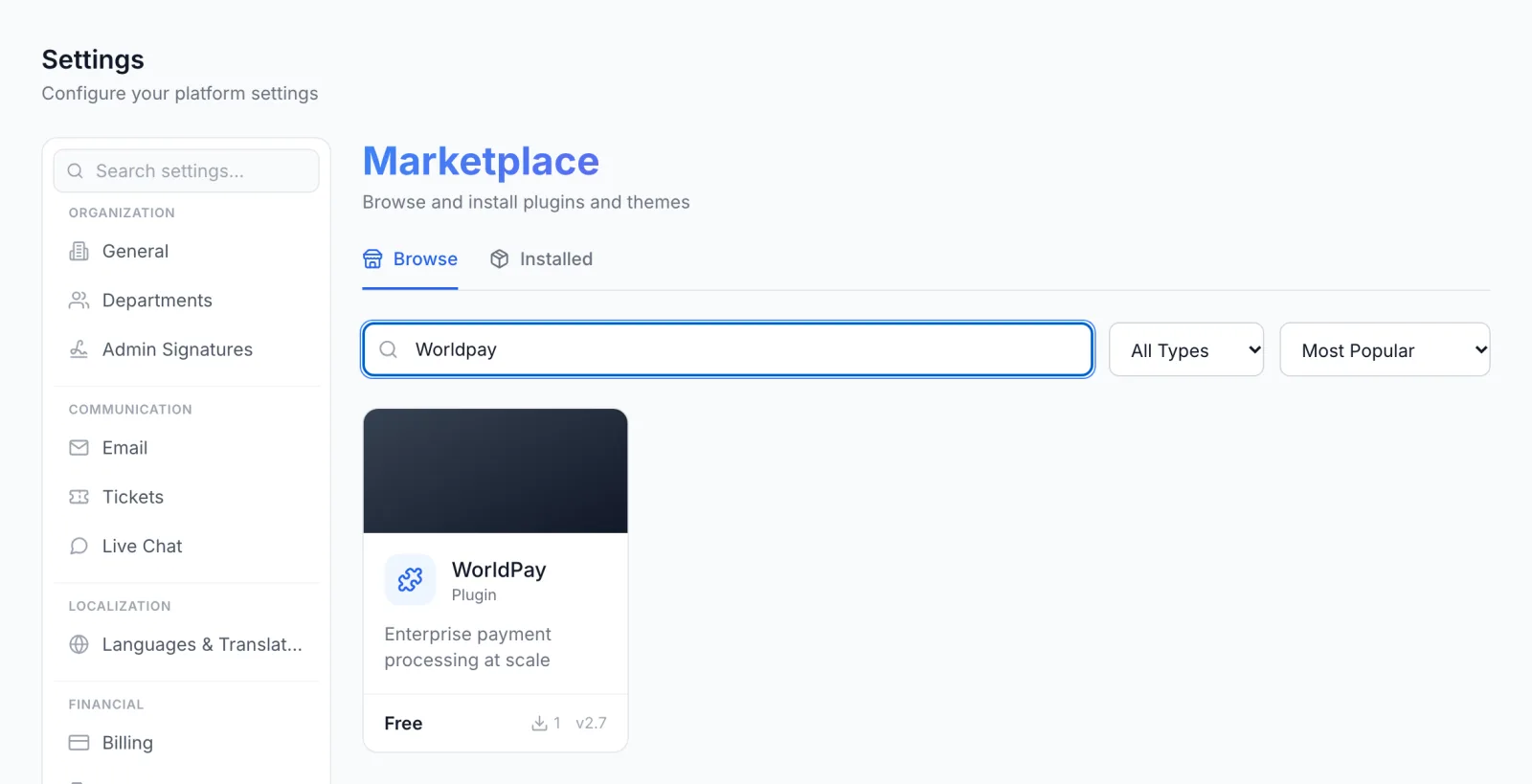
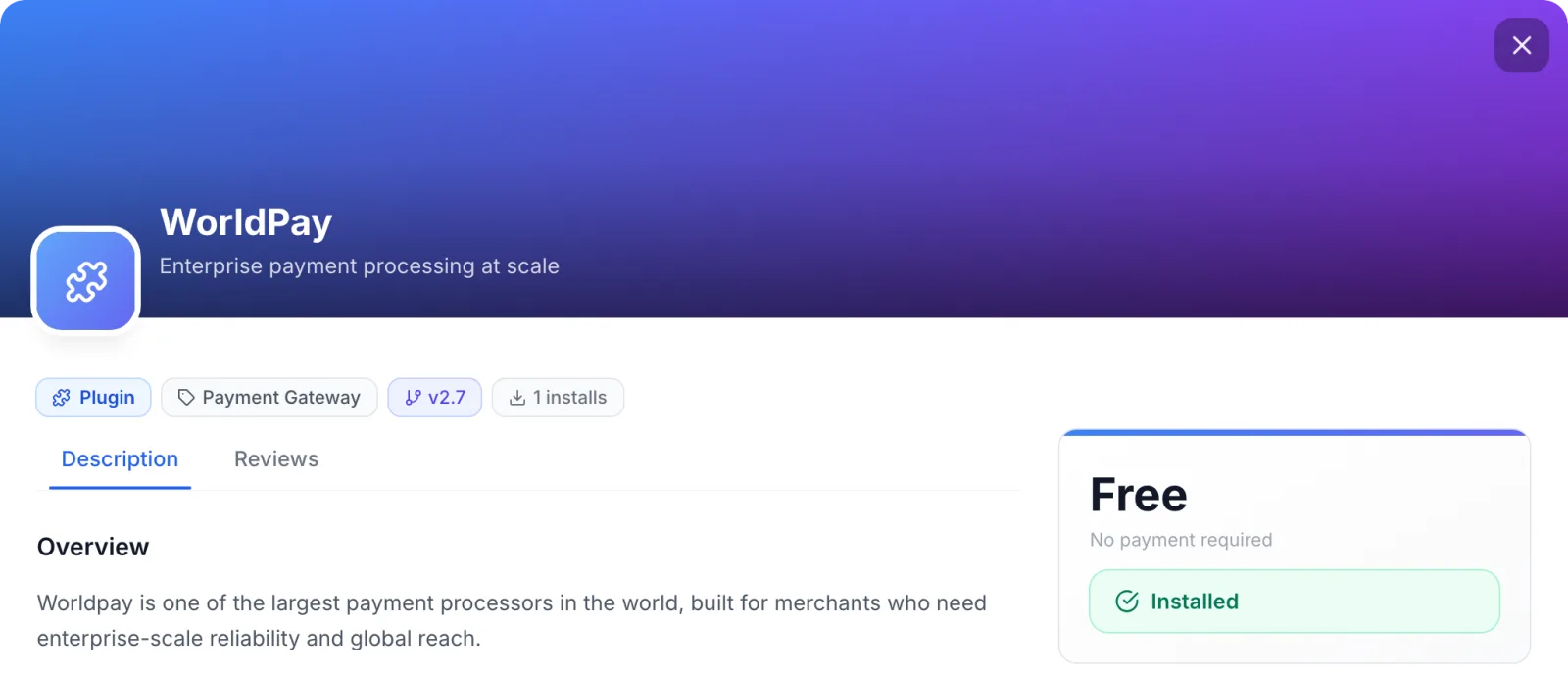
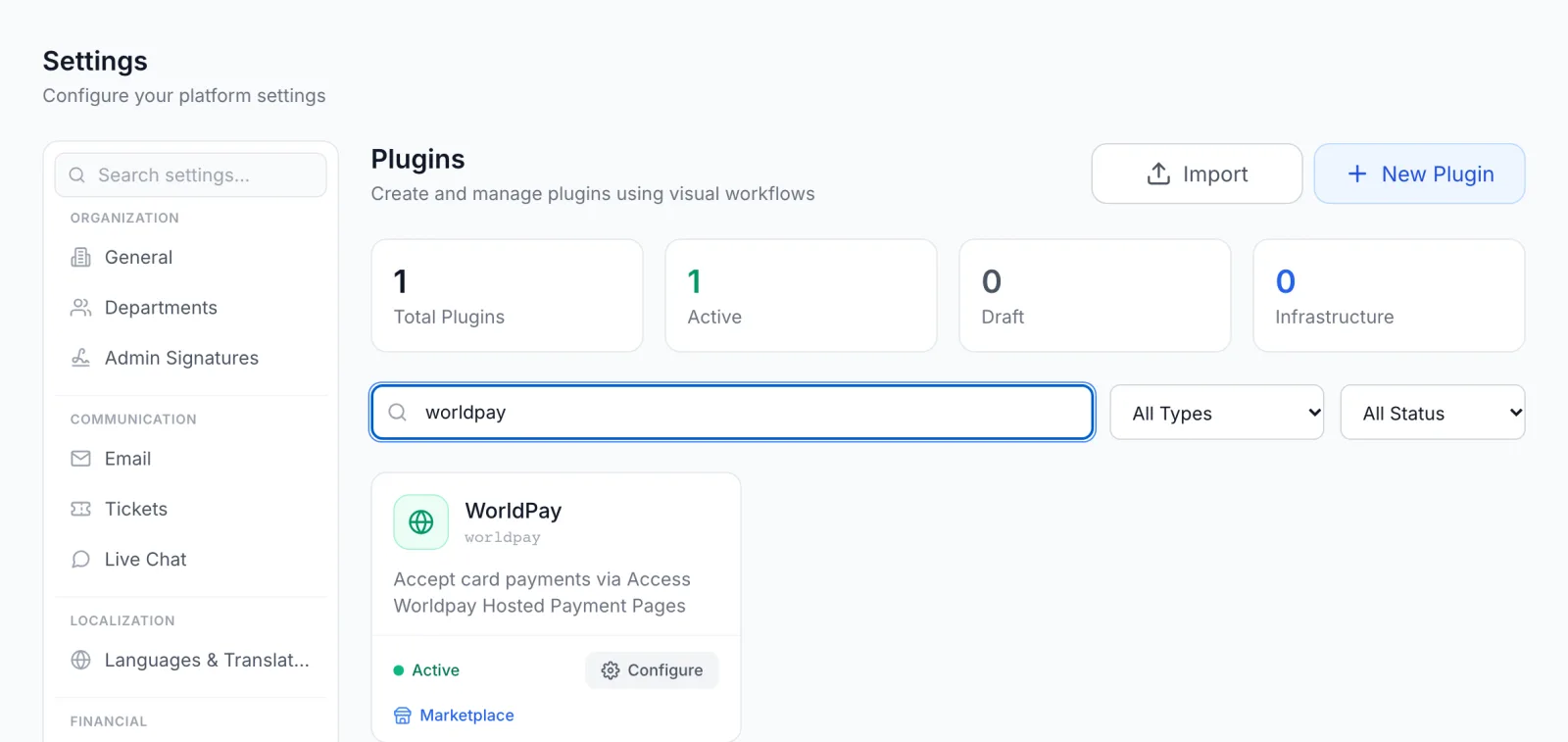
FluxBilling confirms with Plugin "WorldPay" installed and ready to use. The plugin is switched on straight away and appears under Settings → Integrations → Plugins as WorldPay, marked Active. Customers do not see it at checkout yet: a gateway appears there only once its required settings are filled in.
Step 3: Enter your credentials
- Open Settings → Integrations → Plugins.
- On the WorldPay card, click Configure.
- On the Settings tab, fill in the fields below and click Save Configuration.
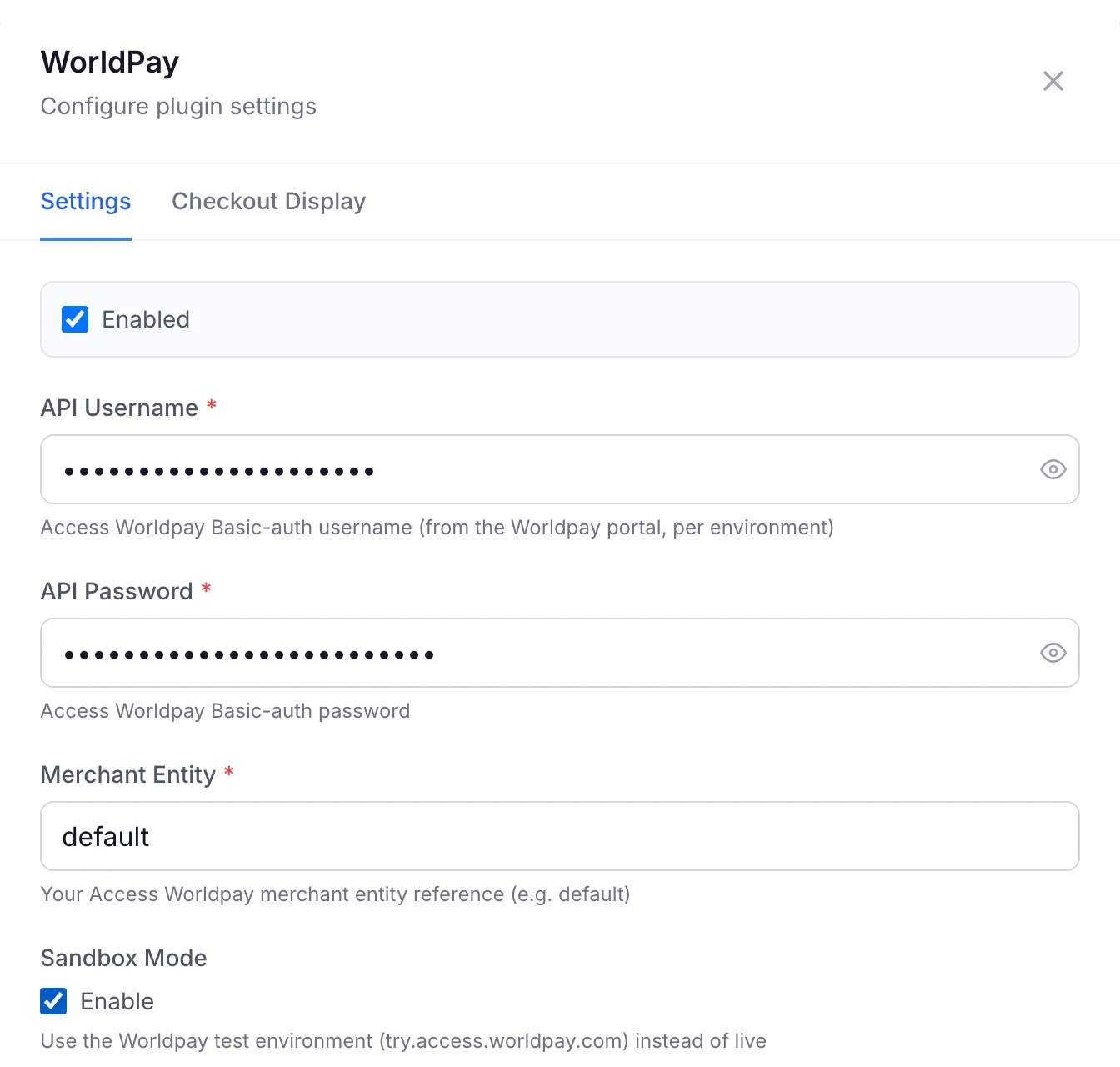
| Field | What to enter |
|---|---|
| Enabled | Offers WorldPay at checkout while it is ticked. Untick it to hide the gateway from customers without removing your settings. |
| API Username (required) | Your Access Worldpay API username. Use the Try username while Sandbox Mode is ticked and the Live username when it is not. |
| API Password (required) | The API password that belongs to that username. |
| Merchant Entity (required) | Your merchant entity reference from step 1. FluxBilling sends it with every payment. |
| Sandbox Mode | Tick Enable to send everything to Worldpay's Try environment (try.access.worldpay.com) for testing. Leave it unticked to take real payments on access.worldpay.com. |
The username and password are stored encrypted. FluxBilling shows Configuration saved successfully when the settings are saved. If a required field is empty, it saves the form but shows Saved, but the plugin is not configured until these are fixed: followed by the field, for example Merchant Entity is required, and the gateway stays hidden from customers until you fix it.
The dialog has no connection test button. The first real check is the test payment in step 6.
Step 4: Ask Worldpay to send payment notifications
Worldpay tells FluxBilling about payments through event notifications (webhooks). Access Worldpay has no self-service page for them: your Worldpay Implementation Manager adds the address and switches the events on (Worldpay: Events webhook).
- In the WorldPay Configure dialog, find the box Webhook configuration required and click Copy URL. The address is built from your panel's own domain.
- Send it to your Worldpay Implementation Manager and ask for payment event notifications to that URL, for the Try and the Live environment. The Webhook Setup note in the dialog lists the events the plugin handles:
authorized,sentForSettlement,settled,settlementFailed,refused,cancelled,expired,refunded,sentForRefund,refundFailedandchargedBack. - If your panel sits behind a firewall, allow Worldpay's webhook IP addresses on port 443. Worldpay publishes the list on its Events page.
You do not need a shared secret. FluxBilling treats a notification only as a prompt: before it marks anything as paid or refunded, it looks the payment up at Worldpay with your own API credentials and acts on what Worldpay reports there.
Once notifications arrive, the status under the URL changes from No deliveries received yet to Receiving deliveries. If they arrive but cannot be processed, it shows Deliveries failing.
Step 5: Choose how WorldPay looks at checkout
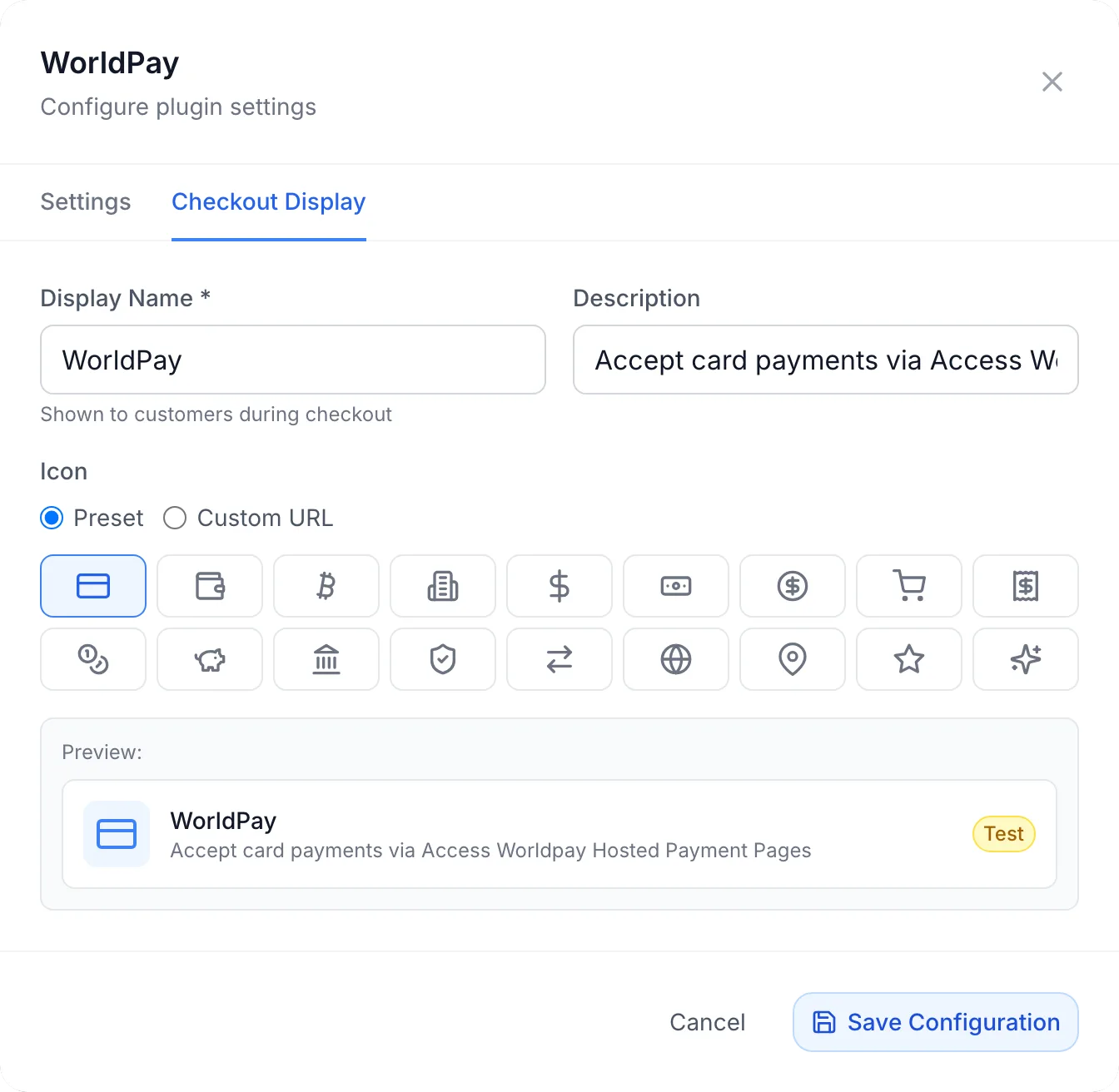
Switch to the Checkout Display tab of the same dialog:
- Display Name (required): the name customers see in the list of payment methods. It starts as WorldPay.
- Description: the line under the name.
- Icon: a Preset icon, or a Custom URL to your own PNG, SVG or JPG (64×64 px recommended).
The Preview shows the result. While Sandbox Mode is on, the preview carries a Test label. Click Save Configuration when you are done.
The gateway is also listed under Settings → Financial → Payment Gateways, with an Enabled badge and a toggle that switches the plugin on or off.

Step 6: Make a test payment, then go live
- With Sandbox Mode ticked and your Try credentials saved, log in to the client area as a test customer and pay an unpaid invoice with WorldPay.
- On Worldpay's page, use one of Worldpay's test cards. Worldpay lists them, and the cardholder names that force an outcome, in Testing Hosted Payment Pages.
- Check in FluxBilling that the invoice turns Paid (see How a payment is confirmed).
- To go live, open Configure again, enter your Live API Username and API Password, untick Sandbox Mode and save. Make sure Worldpay sends Live notifications to the same URL.
What your customers see
On the checkout page of an invoice, WorldPay appears under Payment Method with the name and description you set. If the customer has account credit, the Use Credit Balance option is shown above it. If you show Terms of Service links, the customer ticks the agreement box first; then they click Checkout.
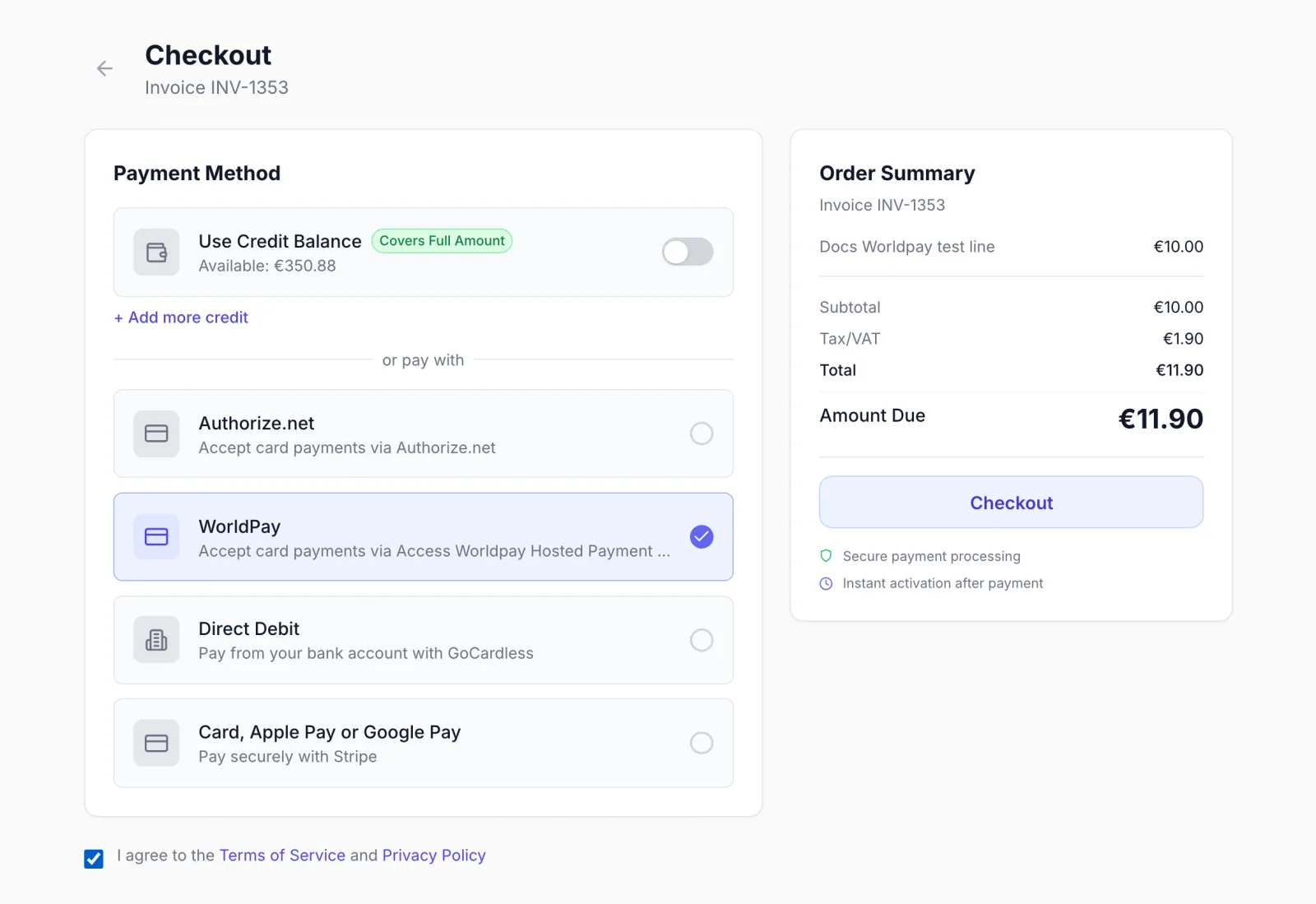
FluxBilling then sends the customer to Worldpay's hosted payment page for the amount due. On the card statement, the payment is described by your Company Name setting, cut to 24 characters, which is Worldpay's limit. When the customer finishes, Worldpay sends them back to the Billing page of the client area. If they cancel, or the payment fails, they come back to the client area, the invoice stays unpaid, and they can pay it again with WorldPay or another method.
The checkout shows no Save this payment method for future purchases box for WorldPay, because the plugin does not store cards (see Limits). The plugin sends no emails of its own; FluxBilling's usual payment and invoice emails apply.
How a payment is confirmed
A payment starts as pending when the customer is sent to Worldpay. FluxBilling marks the invoice paid only after Worldpay reports the payment as settled or sent for settlement, and only when the amount and currency match what was due. That confirmation comes from two places:
- Worldpay's notification. When Worldpay notifies FluxBilling that a payment was sent for settlement or settled, FluxBilling looks it up at Worldpay and, if Worldpay confirms it, marks the invoice paid straight away. Otherwise the automatic check below does the work. Worldpay notes that a new payment can take up to a minute to appear in its Payment Queries API.
- The automatic check. Every 30 minutes, FluxBilling asks Worldpay about payments that have been pending for more than half an hour. Paid ones are credited. If Worldpay reports a payment as authorised but not yet settled, FluxBilling asks Worldpay to settle it first and then marks the invoice paid. So even without notifications an invoice paid by WorldPay is marked paid, usually within an hour.
Worldpay settles Hosted Payment Pages payments automatically unless your account is set up otherwise, so most payments arrive already sent for settlement. A pending payment that is still not paid two hours after the customer left for Worldpay is closed as failed, and the invoice stays unpaid so the customer can pay again.
Each attempt is sent to Worldpay with its own transaction reference, which is also the transaction ID FluxBilling shows on the payment. Use it to find the payment in your Worldpay Dashboard. A second attempt on the same invoice gets a new reference, so retries never reuse one Worldpay has already seen.
When Worldpay reports a declined or refused payment, the payment is marked failed and the invoice stays unpaid. When Worldpay reports a chargeback, FluxBilling marks the payment as disputed.
Refunds
You refund a WorldPay payment from the invoice in the admin panel:
- Open the paid invoice and click Refund.
- Under Refund Method, choose Via Gateway. The dialog shows Refunding via Worldpay.
- Leave Amount empty to refund the whole payment, add a Reason if you like, and click Confirm Refund.
FluxBilling finds the payment at Worldpay, asks Worldpay to refund it, and shows Refund processed via gateway. Manual marks the invoice refunded without contacting Worldpay, for money you returned some other way. To balance adds the amount to the customer's account credit instead of returning it to the card. See Invoice details for these options in general.
Troubleshooting
| What you see | What to do |
|---|---|
| WorldPay does not appear at checkout | Check that API Username, API Password and Merchant Entity are all filled in and saved, that Enabled is ticked, and that the plugin is switched on under Settings → Financial → Payment Gateways. |
| Saved, but the plugin is not configured until these are fixed: followed by a field | Fill in the field named, for example API Username is required, and save again. |
| The customer gets an error instead of the Worldpay page | The customer sees Worldpay's own error message, or Payment creation failed when Worldpay gave none. Check that the username, password and entity belong to the environment selected by Sandbox Mode: Try credentials do not work on Live, or the other way round. |
| The customer paid but the invoice is still unpaid | Wait for the automatic check, which settles paid WorldPay payments within about an hour. If it happens every time, ask your Implementation Manager to confirm that notifications go to the URL from step 4, and check the status under that URL in the Configure dialog. |
| Deliveries failing under the webhook URL | Worldpay reaches FluxBilling but the notifications cannot be processed. Contact FluxBilling support with the time of a failing delivery. |
| Refund failed - payment not found or not refundable | Worldpay did not return a refundable payment for that transaction reference, for example because it has not settled yet or was already refunded. Check the payment in your Worldpay Dashboard. When Worldpay returns its own reason, that message is shown instead. |
Limits
- Customers pay each invoice themselves through the Worldpay payment page. The plugin does not store cards, so there is no automatic charging of renewals and no Save this payment method option for WorldPay.
- Card details stay on Worldpay's hosted page. There is no card form embedded in FluxBilling's checkout.
- Worldpay notifications must be set up by your Worldpay Implementation Manager. The plugin cannot register them for you.
- The dialog has no connection test. A test payment in the Try environment is the way to check your credentials.
- Settlement reports, fees and payouts stay in your Worldpay Dashboard. FluxBilling records each payment and refund, not Worldpay's settlement batches.
- Each FluxBilling panel connects to one Worldpay merchant entity at a time.
Worldpay is a trademark of its respective owner. FluxBilling is not affiliated with Worldpay.