
Blesta Migration
Import clients, packages, services, invoices, payments and credit from a Blesta database with the five-step Blesta Migration wizard.
Blesta Migration copies your customers and billing history from a Blesta installation into FluxBilling. It reads the Blesta MySQL database directly, with an optional SSH tunnel, and imports clients, packages, services, invoices, payments and unapplied account credit. A five-step wizard guides you through it. Your Blesta installation is never changed, so you can import, check the result and run the import again before you move any customer.
Who can use it
Go to Settings → Migration Tools → Blesta Migration in the admin panel. The menu entry needs no feature toggle, and every staff member who can open Settings sees it.
Only a super administrator can run the import. The wizard holds your Blesta database password, and the SSH password if you use a tunnel, and it connects from your FluxBilling server to your Blesta server. For other staff the connection test fails and nothing can be imported. See Staff and Permissions for how super administrator rights are granted.
Moving from WHMCS or EasyDCIM instead? Those have their own tools in the same menu: WHMCS Migration and EasyDCIM Migration.
What is imported and what is not
| Blesta data | Becomes in FluxBilling |
|---|---|
| Clients (from each client's primary contact) | Client accounts with name, company, email, phone, address and preferred currency |
| Package groups | Product categories (only standard groups that contain packages) |
| Packages | Products, with monthly, quarterly, semi-annual and annual prices and the setup fee |
| Services | Services with their status, billing cycle, recurring amount, next due date, hostname and IP address |
| Invoices | Paid invoices become invoices; the other states become proformas by default |
| Transactions | Payments, linked to the invoices they paid |
| Unapplied credit | The client's credit balance (set when the client is created), plus one credit history entry per Blesta transaction when Credits is ticked |
The import does not bring across staff accounts, contacts other than the primary contact, support tickets, saved cards, coupons or configurable option definitions. Blesta encrypts saved cards and hashes client passwords with its own system key, so neither can be carried over.
Client passwords. Every imported client gets a random password. Before signing in for the first time, the client sets a new one with Forgot password? on the login page. The import sends no emails, so tell your customers about the move yourself.
Before you start
- Back up FluxBilling. The import writes real records, and a cancelled run keeps what it already wrote. See Security Settings for backups.
- Set your document prefixes. An imported document number is your prefix followed by the Blesta number, for example
INV-1001. If the Blesta number already starts with your prefix, the prefix is not added twice. Set the invoice and proforma prefixes in Billing Settings first, because imported numbers do not change later. - Set up your payment gateways. The wizard can only map Blesta payment methods to gateways that already exist. See Payment Gateways.
- Enable your provisioning plugins. Each Blesta module (Proxmox, cPanel and so on) can be mapped to an enabled provisioning plugin. Products whose module you do not map are imported without a plugin. See Managing Plugins.
- Prepare database access. Create a MySQL user that can read the Blesta database. Read access (
SELECT) is enough: the import only reads, and it opens every connection as read-only. Your FluxBilling server must reach the MySQL port, or an SSH server that can.
Step 1: Connection
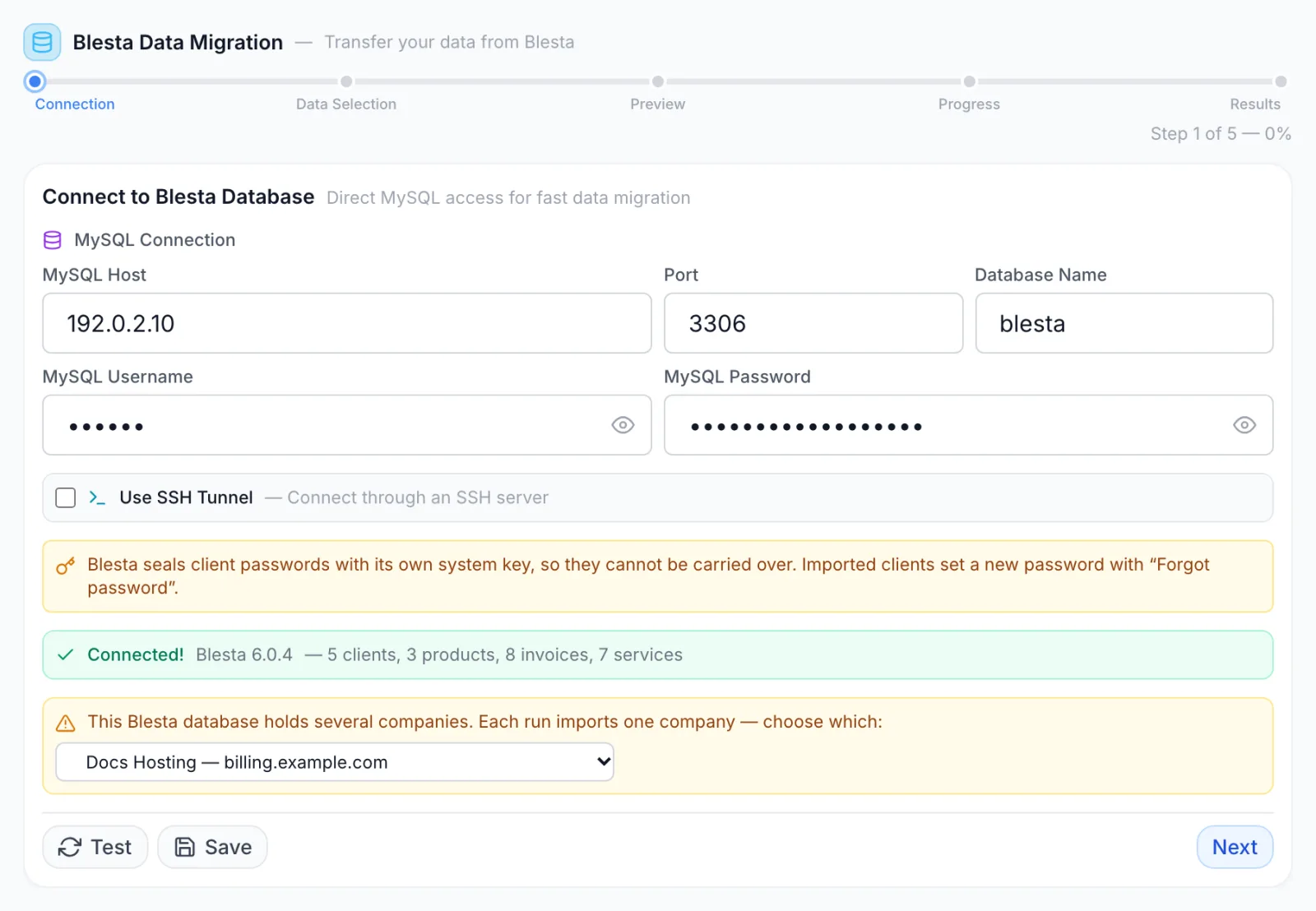
- Under MySQL Connection, enter the MySQL Host, Port (the field starts at 3306), Database Name, MySQL Username and MySQL Password. The eye icon shows the username or password you typed.
- If the database cannot be reached directly, tick Use SSH Tunnel and enter the SSH Host, Port (starts at 22), Username and SSH Password. The MySQL host is then reached from the SSH server, so enter it as that server sees it. If MySQL runs on the SSH server itself, that is its loopback address.
- Click Test. When the test succeeds, a green banner shows Connected!, the Blesta version and the number of clients, products, invoices and services.
- If the database holds several Blesta companies, an amber box asks you to choose one (see Several Blesta companies). Pick the company from Choose a company…. The counts are tested again for that company.
- Click Next. If you skipped Test, Next runs the test first and only moves on when it succeeds.
Test and Next stay disabled until the host, username, password and database name are filled in. Save needs only the host.
Save stores the connection, so it fills in automatically the next time you open the tab. Passwords are stored encrypted and are never sent back to your browser. The form shows a placeholder value instead, and FluxBilling uses the stored password when you test or import. Saving is optional: the import uses whatever is in the form.
Step 2: Data Selection
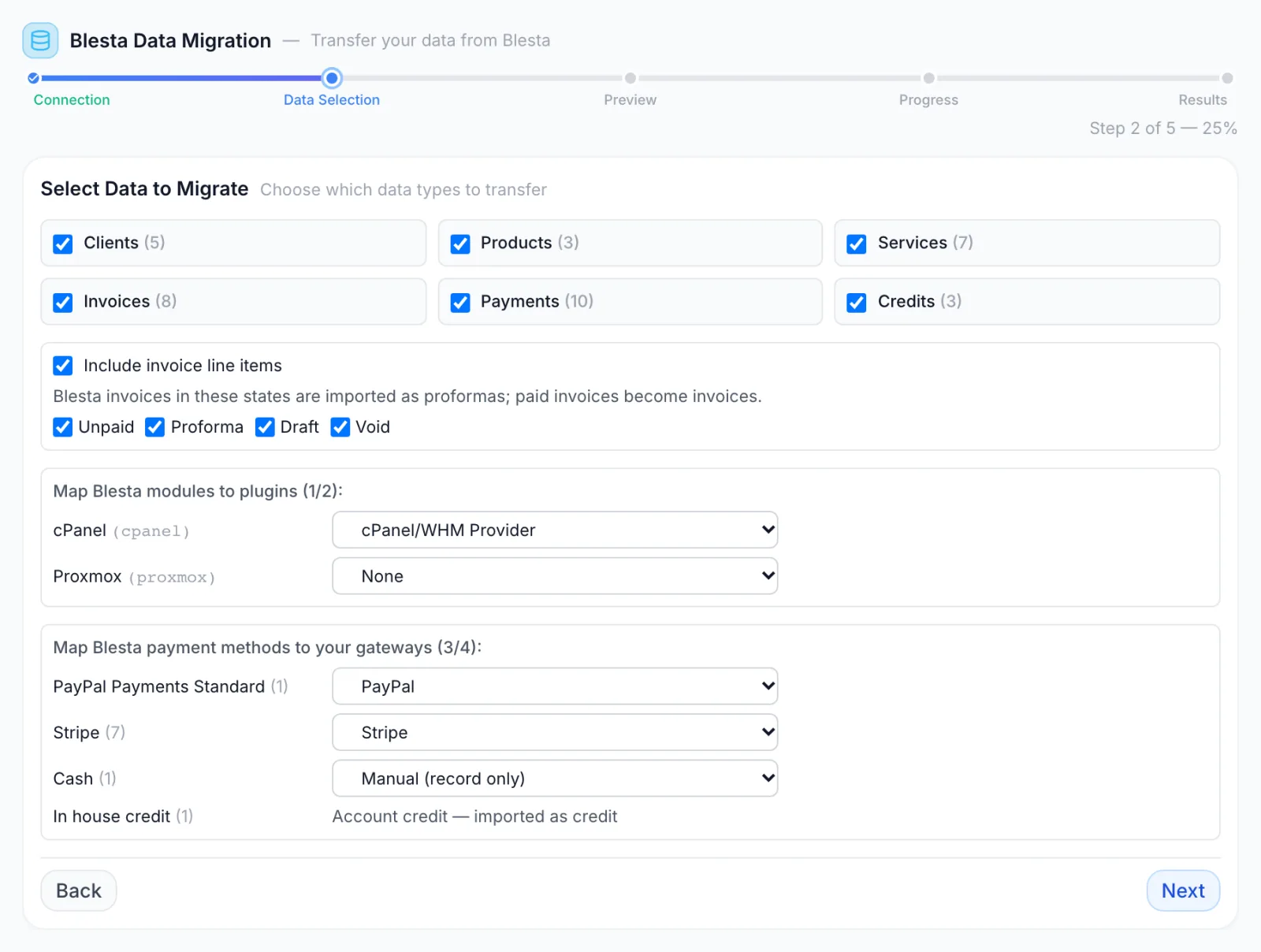
All six data types are ticked at first, each with its record count in brackets. Untick what you do not want. Some types build on others, and the wizard warns you, for example Requires: Clients, Products, when you keep a type but untick what it needs. The needed records can also come from an earlier run.
| Data type | Needs | Count shown |
|---|---|---|
| Clients | Nothing | Blesta clients |
| Products | Nothing | Blesta packages |
| Services | Clients, Products | Blesta services |
| Invoices | Clients | Blesta invoices in every state |
| Payments | Clients, Invoices | Blesta transactions |
| Credits | Clients | Blesta clients holding unapplied credit |
Next is disabled when nothing is ticked.
Invoice options
These options appear while Invoices is ticked.
- Include invoice line items copies each invoice's lines. Untick it to import the totals only.
- Unpaid, Proforma, Draft and Void: Blesta invoices in the ticked states are imported as proformas, and paid invoices always become invoices. All four are ticked at first, because in FluxBilling the invoice is the document issued on payment (see Proforma Details). If you untick a state, invoices in that state are imported as invoices: unpaid, proforma and draft ones as unpaid, void ones as cancelled.
Map Blesta modules to plugins
While Products is ticked, the wizard lists each Blesta module your packages use, with a drop-down of your enabled provisioning plugins. Choose a plugin, or leave None. A mapped module gives its products that plugin. A new category gets the plugin that most of its packages map to. When a service's Blesta module fields hold a server ID, it is stored with the service for the mapped plugin. If you have no provisioning plugins enabled, the wizard says so; set them up first if you want the links.
Map Blesta payment methods to your gateways
While Payments is ticked, the wizard lists each Blesta gateway and manual payment type that has transactions, with the number of transactions in brackets. Where a Blesta gateway matches one of your gateways, it is preselected, for example Blesta's Stripe gateway to your Stripe gateway. Change any choice, or pick Manual (record only) to record the payments without a gateway. Blesta's in-house credit is not mapped. It shows Account credit — imported as credit, because it was credit spent, not money received.
If reading the modules and payment methods fails, the wizard shows Failed to discover gateways: with the reason and a Retry button.
Step 3: Preview
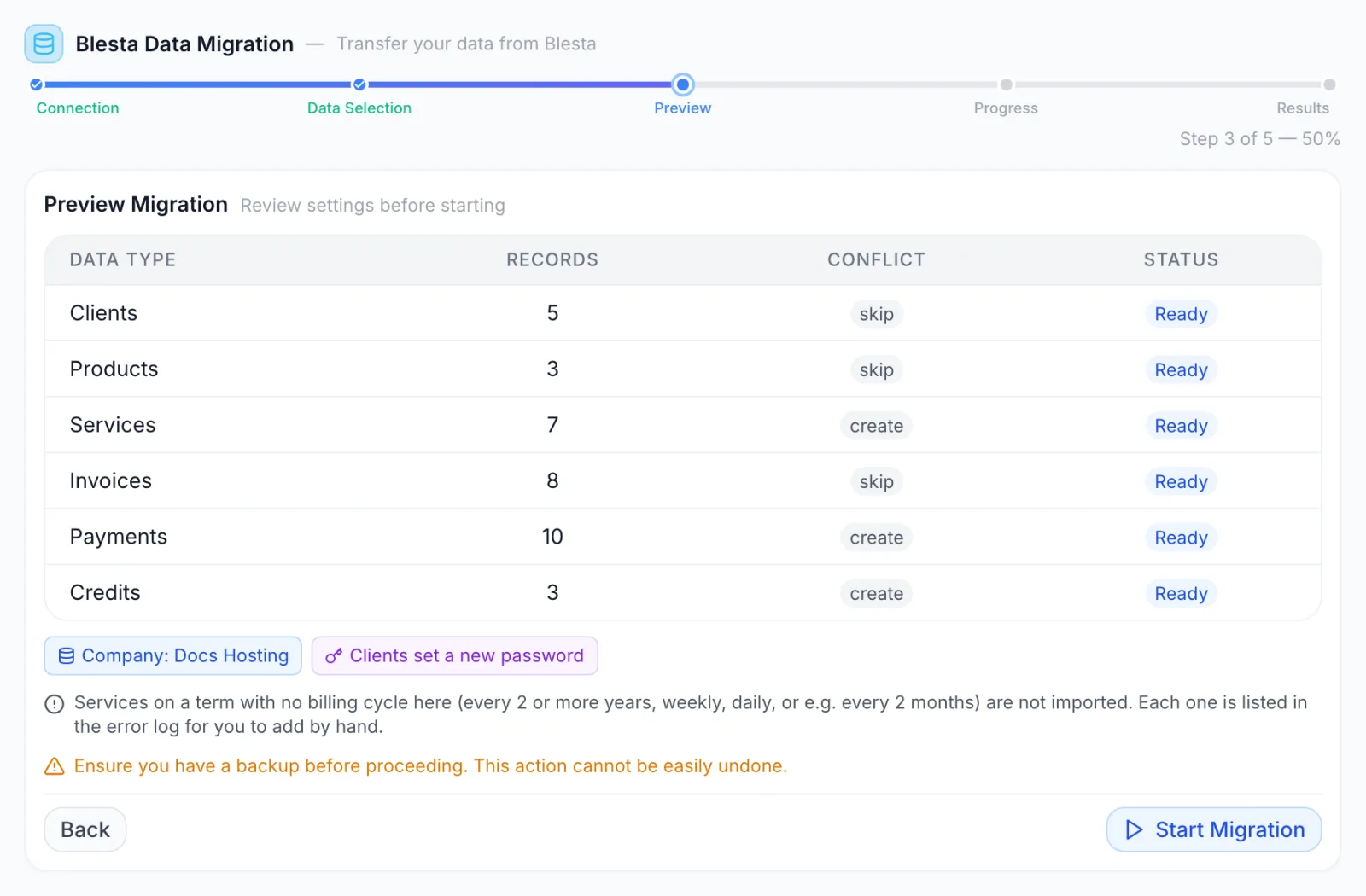
The preview lists each data type you chose with its record count and its Conflict rule, which you cannot change:
- skip for Clients, Products and Invoices. A record that already exists in FluxBilling is left as it is and linked to the Blesta record, so later steps attach to it.
- create for Services, Payments and Credits. They are created unless an earlier run already imported them.
Below the table, badges show the chosen company (when there are several) and Clients set a new password. If you import services, a note explains that services on a billing term FluxBilling does not have are not imported (see Limits and edge cases). Click Start Migration to begin, or Back to change your choices.
Step 4: Progress
The Progress step shows a bar per data type plus an overall bar and the current action, such as Importing clients.... The import runs in this order: clients, product categories, products, services, invoices, payments, credit. After the services are in, each imported client is set to active if it has an active service.
Use Cancel to stop. The wizard asks you to confirm, because the import stops after the current batch and keeps every record imported so far; nothing is rolled back. There is no pause. The step moves on to Results by itself when the import finishes, fails or is cancelled.
Step 5: Results
The Results step shows Migration Completed, Migration Failed or Migration Cancelled, then a table with Created, Updated, Skipped, Failed and Total for each data type. Below it, Errors lists the first 50 problems, one line per record, such as [SERVICE] 6: Billed every 2 years .... The number is the Blesta record ID.
- Report downloads a JSON file with the run's settings, counts and the full error list.
- New Migration takes you back to the Connection step.
The importer remembers every Blesta record it has imported. Running the import again over the same database creates only what is new and skips everything already brought across, so you can fix problems in Blesta and run it again. The Updated column stays at zero: the Blesta import never overwrites a record.
Limits and edge cases
Clients
- A client's identity comes from its primary contact. A client whose primary contact has no email address is not imported (
No primary contact email address). - A client whose email already belongs to a FluxBilling account is not created again. The Blesta client is linked to that account, and the account's profile and balance are left as they are. When Credits is ticked, its credit history may gain the Blesta credit entries plus one balancing adjustment, so the balance itself does not change.
- When two Blesta clients share one email address, the first is imported and the second is skipped (
Duplicate email (same as Blesta client N)). - Clients Blesta marked as fraud are imported as suspended.
Products
- A package whose name matches an existing product is not created again; the existing product is used. A package group that matches an existing category by name is used the same way.
- Prices are taken in your base currency. A package with no price in that currency is imported with the prices of another currency, unconverted, and the error log says
No EUR pricing — USD prices copied as-is, review them(with your currencies). Check those products after the import. - Only monthly, 3-month, 6-month, 12-month and 1-year prices are carried over. Inactive packages become inactive products.
Services
- FluxBilling bills monthly, quarterly, semi-annually or annually. A Blesta service on any other term (2 or 3 years, 2 months, weekly, daily) is not imported, so it is never billed at the wrong interval. Each one is listed in the errors with its term and amount, for example
Billed every 2 years (180.00 EUR) — there is no such billing cycle here (monthly, quarterly, semi-annually, annually). Not imported: add it by hand. - A one-time service is imported with no recurring amount and no next due date, so it is never invoiced again.
- The recurring amount is the service's override price if staff set one, otherwise the renewal price, times the quantity, plus each configurable option's renewal price.
- A service with no renewal date in Blesta gets a next due date 30 days after the import.
- The service name is its hostname from the Blesta module fields, or Service # and the Blesta service number. Encrypted module fields, such as stored server passwords, are not read.
- Statuses: active, suspended and cancelled carry over. Pending and in-review services become pending.
Invoices and payments
- An invoice whose number already exists in FluxBilling is skipped and linked, never changed. Issued invoices are fiscal documents.
- When Blesta numbers are plain numbers, your next invoice and proforma numbers are moved past the highest imported number, so new documents do not collide with old ones.
- Totals are copied as Blesta stored them, rounded to the cent. When the lines do not add up to the subtotal, for example because a tax was included in the prices, the difference is added as its own line: Tax included in the prices above or Rounding to the Blesta subtotal. A line with a fractional quantity, such as 1.5 hours, becomes one line for its total.
- Each approved transaction becomes one payment per invoice it paid. Refunded or returned transactions become refunded payments that are not linked to an invoice, as in Blesta. Pending, declined, void and failed transactions are not imported.
Credit
- The part of an approved transaction that Blesta never applied to an invoice is the client's credit. The Clients step sets it as each new client's credit balance, whether or not Credits is ticked. Credits adds one entry in the client's credit history per transaction, so unticking it does not remove the balance. See Credit Balance.
- A FluxBilling balance has one currency. If a client holds Blesta credit in several currencies, only the client's preferred currency (or the largest one) is imported, and the rest is reported, for example
3.00 USD credit not imported — the balance is held in EUR.
Several Blesta companies
One Blesta installation can run several companies, each with its own clients, packages and invoice numbering. A FluxBilling panel is one company, so each run imports one Blesta company, and every count, mapping and record in the wizard belongs to that company.
Once a panel holds clients from one Blesta company, it refuses to import another company from the same database. Invoice numbers restart in each Blesta company, so a second company's invoices would be mistaken for the first company's. The run stops before anything is written, with this message: This install already holds clients imported from another Blesta company (...). One install is one company: import #2 Example Brand into its own install. Nothing was imported. Import each further company into its own FluxBilling panel.
Troubleshooting
| Message | What to check |
|---|---|
MySQL access denied. Check your database username and password. | The MySQL username or password is wrong, or the user may not connect from your FluxBilling server's address. |
Access denied for user '...'@'...' to database '...' | The user has no rights on that database, or the database name is wrong. |
Database not found. Check the database name. | The Database Name does not exist on that server. |
This database does not contain a Blesta installation. | You are connected to a different database. Point it at the database Blesta uses. |
This does not look like a Blesta 3.0+ database ... | The database is from a Blesta version older than 3.0. Upgrade Blesta first. |
Connection refused. Check that the server is running and the host/port are correct. | Nothing answers on that host and port. Check the port, and that MySQL accepts outside connections. If it does not, use the SSH tunnel. |
Connection timed out. Check that the host is reachable. | A firewall is probably dropping the connection. Allow your FluxBilling server's IP address, or use the SSH tunnel. |
Host not found. Check the hostname or IP address. | The host name does not resolve. Check for typos. |
SSH tunnel requires username and either password or private key | Use SSH Tunnel is ticked with an SSH host but no username or password. Fill in both. |
| Connection failed with no detail | Your account is not a super administrator, or the request did not reach the server. |
| Symptom | Cause and fix |
|---|---|
| A service is missing | Look for its Blesta ID in Errors. It was on a billing term FluxBilling does not have, or its client or package was not imported (Client N not found, Package N not found). Add it by hand, or import the missing client or package and run again. |
Invoices show Client N not found | Their client was not imported, for example because it has no primary email address. Fix the client in Blesta and run the import again. |
| Payments are recorded as manual | The payment method was left on Manual (record only), or no gateway matched. Set up the gateway and map it before the next run. Payments already imported are not changed. |
| A customer cannot sign in | Imported clients have no usable password. Ask them to use Forgot password? on the login page. |
| A product has odd prices | Look for prices copied as-is in Errors. The package had no price in your base currency. Edit the product's prices (see Products). |
Blesta is a trademark of its respective owner. FluxBilling is not affiliated with the owner of Blesta.