
VirtFusion setup guide
Connect FluxBilling to VirtFusion: API token, plugin settings, products from packages, the IPv4 add-on, what customers can do, lifecycle and troubleshooting.
The VirtFusion plugin connects FluxBilling to the API of your VirtFusion control server, so you can sell VirtFusion packages as FluxBilling products. FluxBilling takes the order, sends the invoice and collects the payment. When the invoice is paid, the plugin creates the customer's VirtFusion user if needed, creates the server in the hypervisor group the customer chose and asks VirtFusion to build it. The customer then manages the server from the FluxBilling client area. The plugin is free and is listed in the plugin marketplace of every FluxBilling panel. Your VirtFusion installation and licence stay as they are.
This guide covers plugin version 1.2.2, which needs FluxBilling 0.0.1572 or newer. It walks through the setup in the order you do it, then explains what happens to a server over its life and what to check when something does not work.
Who supports this integration. The plugin is built and maintained by FluxBilling. If something does not work, contact FluxBilling support at contact@fluxbilling.app or through fluxbilling.app/contact. Questions about VirtFusion itself, its licence or its hypervisors go to VirtFusion support.
What you need before you start
- A working VirtFusion control server reachable over HTTPS, for example
https://vf.example.com. VirtFusion offers a 30-day evaluation on virtfusion.com if you want to try the setup first. - At least one enabled package in VirtFusion. The package sets the CPU cores, memory, disk and traffic of the server. Only enabled packages are offered in FluxBilling.
- At least one enabled hypervisor group with hypervisors and free IPv4 addresses in its IP blocks. In FluxBilling, each hypervisor group is a location your customers can choose. VirtFusion picks the hypervisor inside the group.
- The OS templates you want to sell, made available to the package in VirtFusion.
- For the one-click login to VirtFusion (the Console and Control Panel buttons): VirtFusion's login tokens need a commercial VirtFusion licence, and they work for regular VirtFusion users only, not for administrator accounts. The plugin creates regular users for your customers.
- Network access from your FluxBilling panel to the VirtFusion control server over HTTPS.
Step 1: Create an API token in VirtFusion
The plugin sends a VirtFusion admin API token with every request. We recommend a separate token for FluxBilling, so you can restrict it and replace it without touching anything else.
- Sign in to VirtFusion as an administrator and open System → API. Click Create Token.
- Enter a Name, for example FluxBilling.
- Access is optional. If you enter the public IP address your FluxBilling panel connects from, VirtFusion accepts the token only from that address. Leave it empty if you are not sure which address that is, or ask FluxBilling support.
- Choose the permissions (see below), then click Create and copy the token. Keep it somewhere safe until step 3.
VirtFusion describes the token screen in its billing integration guide and the token rules in the API reference. Some versions of the VirtFusion documentation call the same screen Configuration → API.
VirtFusion tokens are allowed every operation except a short list of sensitive ones, which you tick one by one. The plugin needs these seven: Create Server, Build Server, Change Server Package, Delete Server, Reset Server Password, Create User and Authenticate User. Without one of them, VirtFusion refuses the matching action.
| VirtFusion operation | Used for |
|---|---|
| Retrieve packages, Retrieve hypervisor groups, Retrieve operating system templates that are available for a package | Filling the package, location and operating system lists in the product editor and on the order form |
| Retrieve a user (by external relation ID), Create a user | Finding the customer's VirtFusion user, or creating it |
| Create a server, Build a server | Creating the server and installing its operating system |
| Retrieve a server, Retrieve a server's traffic statistics | Status, addresses, plan, network and usage on the service page |
| Boot, Shutdown, Restart, Power off a server | Start, Stop, Restart and Force Stop |
| Suspend, Unsuspend, Delete a server | The billing lifecycle |
| Retrieve OS templates available to a server, Build a server | Reinstall |
| Reset a server password | Reset Password |
| Change a server package | Upgrades and downgrades |
| Generate a set of login tokens, for the user and for one server | The Control Panel and Console buttons |
| Backup Manager: list backups, back up a server, restore a server | The Backups card |
| Retrieve a server's queue | Recent activity |
| Set reverse DNS for an IPv4 or IPv6 address, rebuild a reverse DNS zone | Reverse DNS |
| Retrieve users by email, update a user | Linking an existing user (only with that setting on, see step 3) |
| Test connection | The connection test |
Step 2: Install the plugin
- In the FluxBilling admin panel, open Settings (the gear icon in the top bar).
- Under Integrations, open Marketplace. Stay on the Browse tab.
- Open the VirtFusion card and click Get for Free.
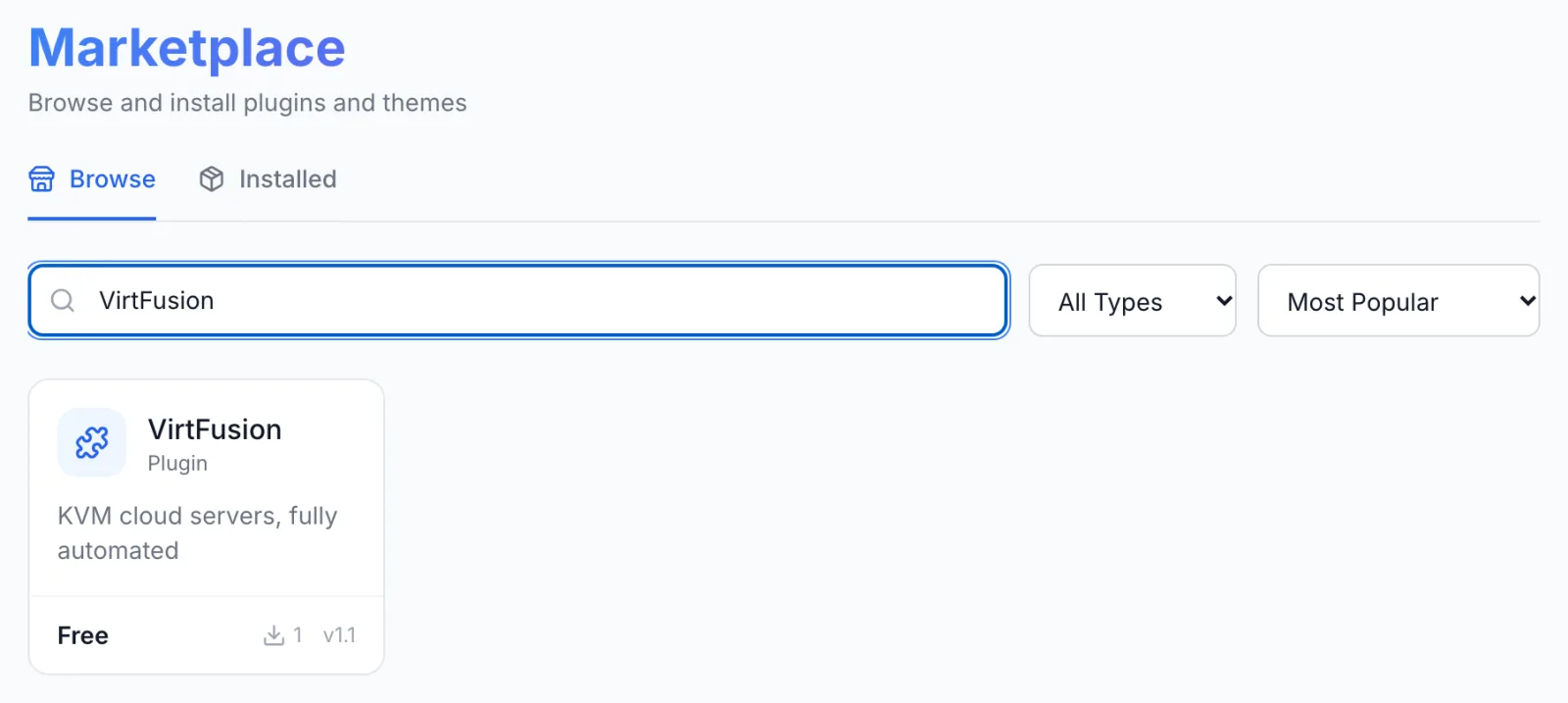
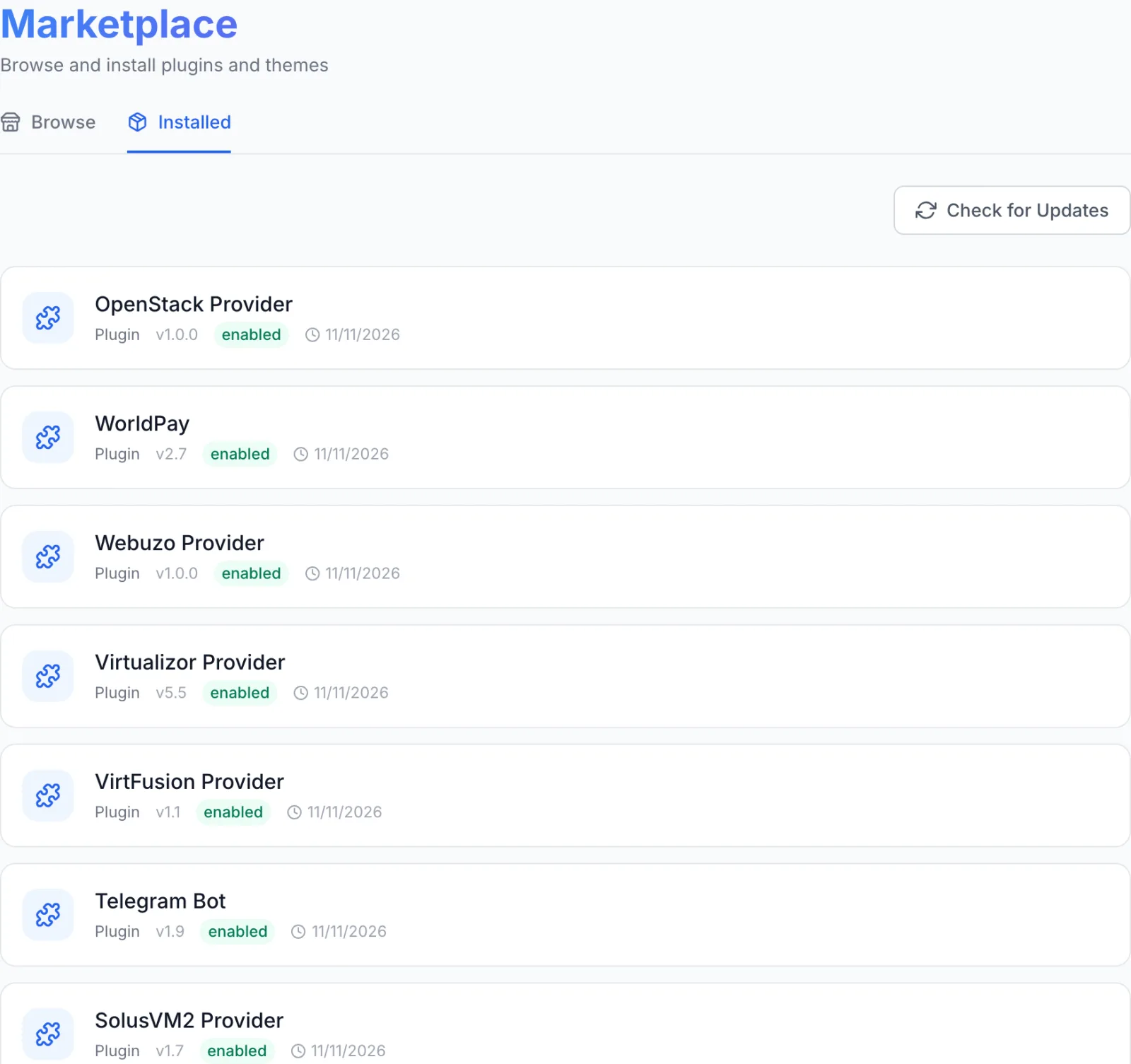
FluxBilling confirms with Plugin "VirtFusion" installed and ready to use. The plugin is switched on straight away. It is listed on the Installed tab of the marketplace and appears under Settings → Integrations → Plugins as VirtFusion Provider, marked Active.
Step 3: Connect it to VirtFusion
- Open Settings → Integrations → Plugins.
- On the VirtFusion Provider card, click Configure.
- Fill in the fields below and click Save Configuration.
| Field | What to enter |
|---|---|
| VirtFusion Panel URL (required) | The address of your VirtFusion control server over https, without the API path and without a trailing slash. For example https://vf.example.com. A port is allowed, for example https://vf.example.com:8443. A self-signed certificate is accepted. |
| API Token (required) | The token from step 1. It is stored encrypted. |
| Customer Link (External Relation ID) | How each FluxBilling customer is linked to a VirtFusion user. Customer ID (VirtFusion 6.1+) uses the FluxBilling customer ID. Numeric (legacy, pre-6.1) turns that ID into a number for older VirtFusion versions; two customers can end up with the same number, so in this mode the plugin refuses a VirtFusion user whose email address does not match the customer. Choose once, before the first server is built, and do not change it afterwards: users created under one mode are not found under the other. |
| Link an existing VirtFusion user with the same email | For a customer's first order when VirtFusion already has an unlinked user with the same email address, for example one created by WHMCS. Off: the order fails and the error explains how to link the user by hand. On: the plugin links that user (never an administrator) and builds on it; needs VirtFusion 7.1 or newer. Turn it on only if client email addresses are verified: anyone signing up with that address would get the existing VirtFusion account. |
| Let VirtFusion Email Customers | On: VirtFusion also sends its own emails (new user details, build complete, password reset). Off: only FluxBilling emails the customer. Leave it off if you want customers to get only FluxBilling's welcome email. |
| Termination Grace (minutes) | How long VirtFusion waits before it actually deletes a server that FluxBilling terminated. 0 deletes it straight away. During the wait you can cancel the deletion inside VirtFusion. VirtFusion accepts up to 43,799 minutes, about 30 days. |
FluxBilling shows Configuration saved successfully when the settings are saved. If a required field is missing or the URL is not valid, it saves the form but tells you the plugin is not configured until you fix the field it names.
Test the connection. In Settings → Integrations → Plugins, click VirtFusion Provider, open the Connections tab and click Test connection on the VirtFusion API row. The plugin runs VirtFusion's connection test with your token: you see Connected to VirtFusion, or Test failed: with VirtFusion's reason, for example Provider returned HTTP 401 for a wrong token.
Test the customer link first. Before you sell, place one order on a test product with the Customer Link mode you chose, and check in VirtFusion that the user and server were created. The mode cannot be changed safely once customers have servers.
Step 4: Create a category for your VirtFusion products
In FluxBilling, the category decides how its products are delivered. Every product in the category is built by the plugin you choose here.
- Open Products, switch to the Categories tab and click Add Category.
- When FluxBilling asks What does this category sell?, choose Plugins. Do not choose VPS: that type is FluxBilling's own KVM module, not VirtFusion.
- Enter a Name. The URL slug fills in by itself.
- Under How paid orders are fulfilled, click VirtFusion Provider.
- Under Availability, choose Live to show the category on the order page, or Unlisted while you test.
- Click Create Category.
Step 5: Create a product for each VirtFusion package
- On the Products tab, click Add Product and choose the category from step 4.
- On General, enter the product name and description your customers will see.
- On Configuration, fill in the VirtFusion fields described below.
- On Pricing, set the price. Prices, billing cycles, taxes and add-ons all live in FluxBilling. Only the package, locations and operating systems come from VirtFusion.
- Click Create Product.
| Field | What it does |
|---|---|
| Package (required) | The VirtFusion package this product builds. The list shows each enabled package with its vCPU, RAM, disk and traffic. CPU, memory, disk and traffic of the server come from the package. |
| Available Locations (required) | The enabled VirtFusion hypervisor groups customers can order in. VirtFusion places the server on a hypervisor inside the chosen group. |
| Available OS Images (required) | The OS templates customers can choose at checkout. The list shows the templates VirtFusion makes available for the selected package; templates past their end of life are marked [EOL]. |
| Hostname Template | Optional. When set, FluxBilling generates the hostname and the customer is not asked for one. {{id}} is replaced by the service number, so vps-{{id}}.example.com becomes for example vps-1042.example.com. Leave it empty to let customers enter a hostname. |
| Assign IPv6 | On: VirtFusion attaches an IPv6 range when it builds the server. The hypervisor group needs an IPv6 block for this. |
| Swap | The swap space the build creates, from 256 MB to 8 GB, or None. |
The tab also shows the switches Allow OS Selection and Allow Location Selection. With this plugin the order form always asks the customer for the location and the operating system, whatever these switches are set to.
The Pricing tab also lists your locations under Location Pricing, so you can charge extra for a location, and shows the add-on the plugin understands (see the next step).
Step 6 (optional): Sell more IPv4 addresses
Each server gets one IPv4 address. To let customers order more, create one add-on and attach it to your VirtFusion products.
- Open Products, switch to the Options tab and click Add Option.
- Enter an Option Name such as IPv4 addresses and pick a Category. Any category works for this add-on; Network (Subnets, IPs) is the natural fit.
- Under Slug, choose additional_ips — VirtFusion Provider. This is the name the plugin reads. A different slug is not seen by the plugin.
- Leave Spec Service on None (billing only).
- Choose a Pricing Type, then switch on Configurable Options.
- Add one choice per address count. The Value is the total number of IPv4 addresses on the server, so
1means the main address only and3means two extra addresses.ipv4-3is read the same as3. Give each choice its label and price. - If you chose the Network (Subnets, IPs) category, leave IPAM Allocation on each choice set to Not set. VirtFusion assigns these addresses from its own IP blocks.
- Click Create.
- Open each VirtFusion product, go to Pricing and use Attach under Plugin expects these options:, or select the add-on in the list. It then shows as attached.
- Without the add-on, or with a value that is not a positive number, the server gets one IPv4 address.
- The plugin does not cap the number. Offer only counts your hypervisor groups can supply: if VirtFusion cannot assign that many addresses, it refuses the server and the build stops with VirtFusion's message.
The add-on takes effect when the server is built. The plugin does not add or remove addresses on an existing server, so customers cannot change, add or cancel the add-on after the build: the service page shows the current choice and asks them to open a ticket. You can still change it from the admin panel. FluxBilling then bills the new choice and adds a pending task under Automations as a reminder; add or remove the addresses for that server in VirtFusion yourself.
Step 7: Place a test order
Place an order for each product before you sell it, for example from a test client account. The order form asks for the location, the operating system and, unless the product has a hostname template, a hostname.
Hostnames may contain letters, numbers, hyphens and dots, up to 253 characters, and each part between the dots must start and end with a letter or number. Otherwise the customer sees Hostname must be a valid hostname (e.g. server1.example.com) — no spaces, @, or special characters. The order form does not ask for a root password: VirtFusion generates it during the build, and FluxBilling sends it with the welcome email.
What happens when the invoice is paid
With Auto Provisioning switched on (see Billing lifecycle), FluxBilling starts the build as soon as the invoice is paid:
- The VirtFusion user. The plugin looks up the VirtFusion user linked to this customer (see Customer Link). If there is none, it creates one with the customer's name and email address. If VirtFusion already has an unlinked user with that email address, the build stops, unless Link an existing VirtFusion user with the same email is on (see step 3). One VirtFusion user serves all of a customer's servers.
- The server. It asks VirtFusion to create a server from the product's package in the hypervisor group the customer chose, with the number of IPv4 addresses from the add-on.
- The build. It asks VirtFusion to build the server with the chosen operating system and hostname, the product's swap size and, if switched on, an IPv6 range. If VirtFusion refuses the build, the plugin deletes the server it has just created, so no half-built server is left behind.
- Hand-over. FluxBilling saves the VirtFusion server ID, the main IP address and the root password VirtFusion generated, and marks the service Active. With the default email templates, the customer gets an email that the server is ready, with its IP address and root password. For templates of type Windows the user name is Administrator, otherwise root.
VirtFusion installs the operating system in the background. Until it has finished, the service page shows the server as pending. If the template uses SSH keys and VirtFusion returns no password, no password is stored.
What your customers can do
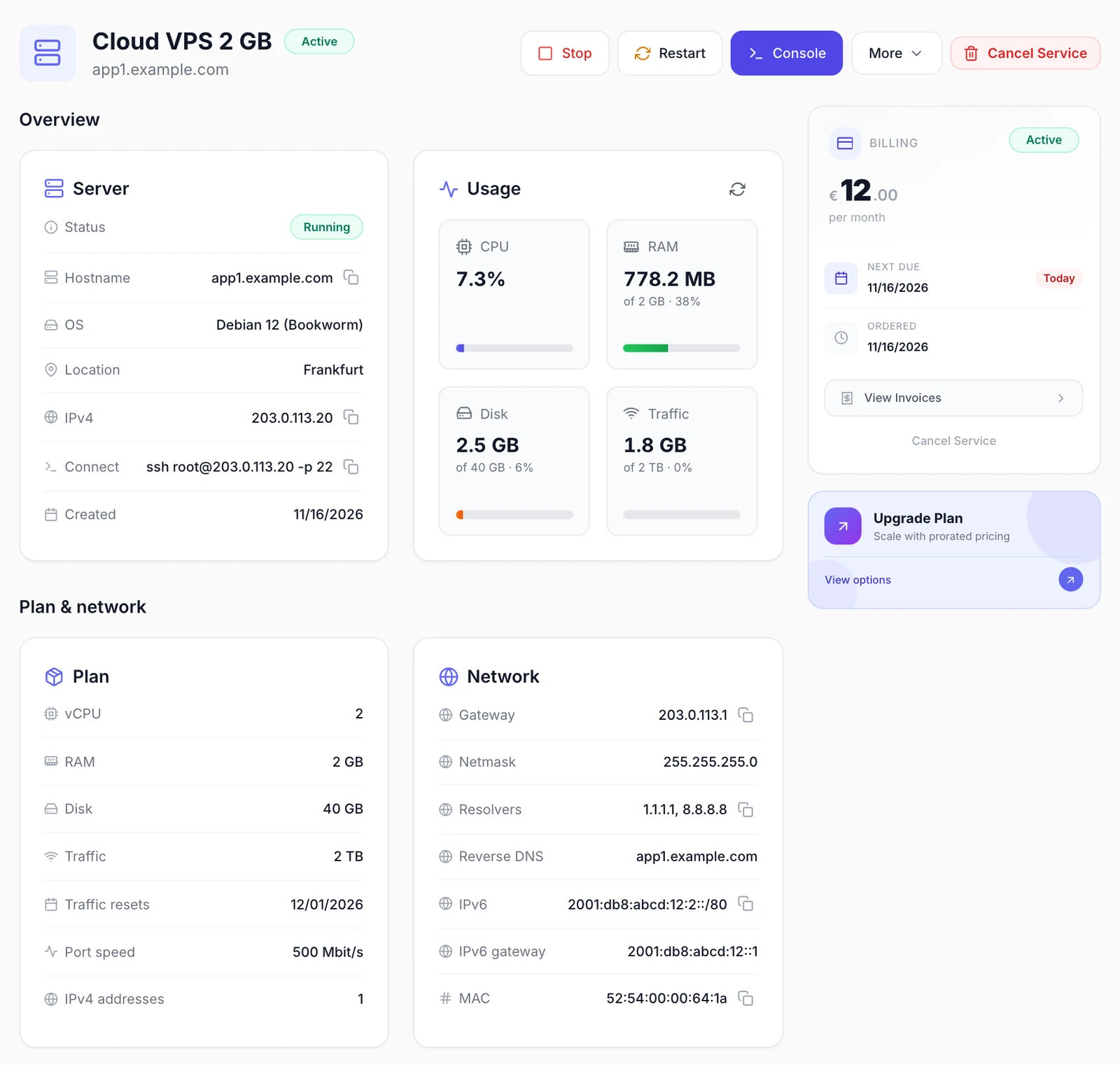
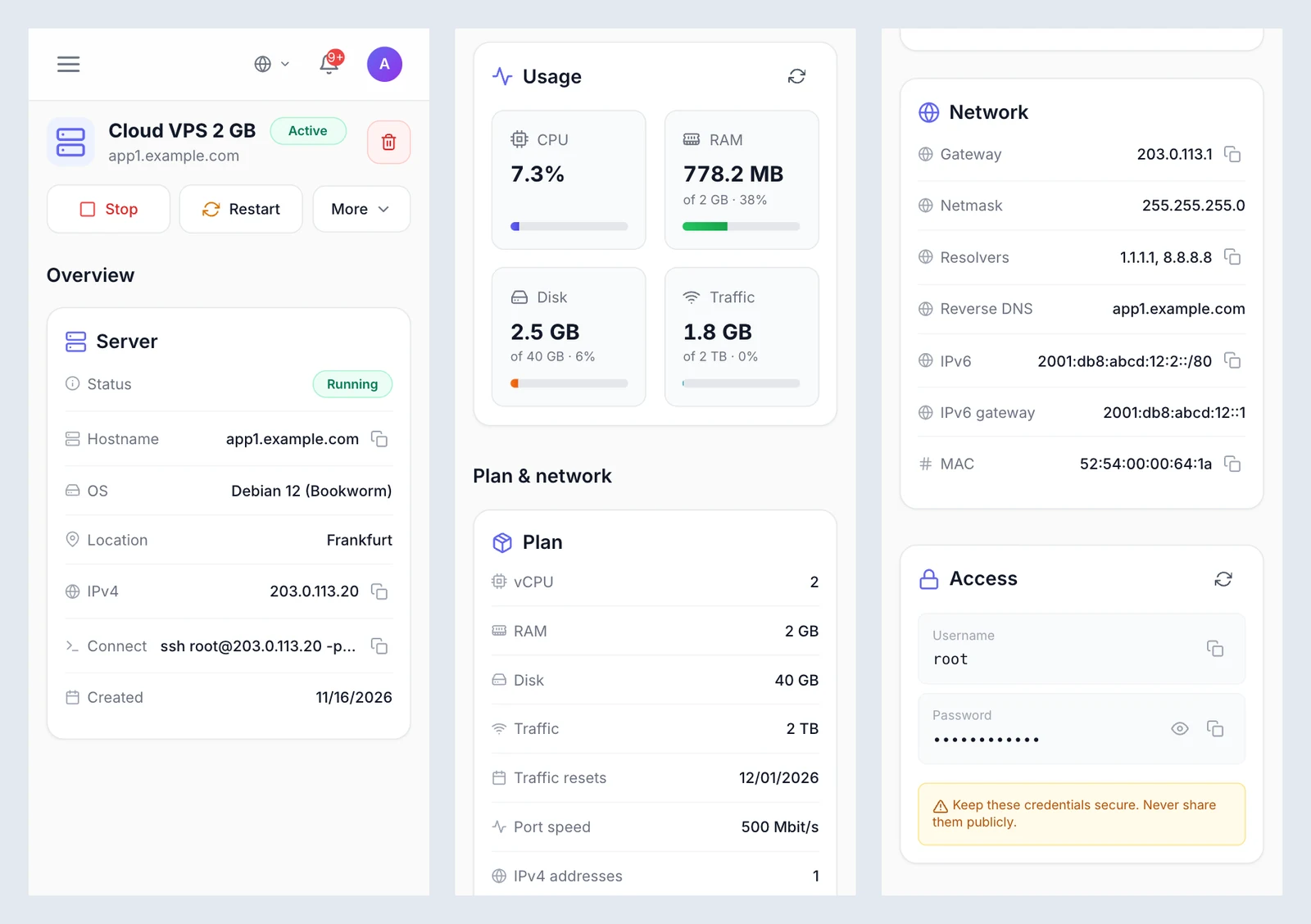
In the client area, the customer opens the service. The server actions sit in the page header (the first ones as buttons, the rest under More). The page itself has the sections Overview, Plan & network, Access, Backups and Recent activity, all filled from VirtFusion. A figure VirtFusion does not report shows as a dash, not as zero.
| Card | What it shows |
|---|---|
| Server | Status, Hostname, OS, Location (the hypervisor group), IPv4, Connect (the SSH command, for example ssh root@203.0.113.10 -p 22, or the RDP address for Windows) and Created. |
| Usage | Tiles refreshed every 30 seconds: CPU in percent, RAM in use of the package's memory, Disk used of the disk size and Traffic used in the current period of the package's allowance (no limit without one). Disk use comes from the guest agent inside the server; without it the tile shows a dash. |
| Plan | vCPU, RAM, Disk, Traffic (the allowance, or No limit), Traffic resets (when the current traffic period ends), Port speed (or No limit) and the number of IPv4 addresses. |
| Network | Gateway, Netmask, Resolvers, Reverse DNS of the main address (or Not set), and, when present, Extra IPv4, IPv6 ranges, IPv6 gateway and MAC. |
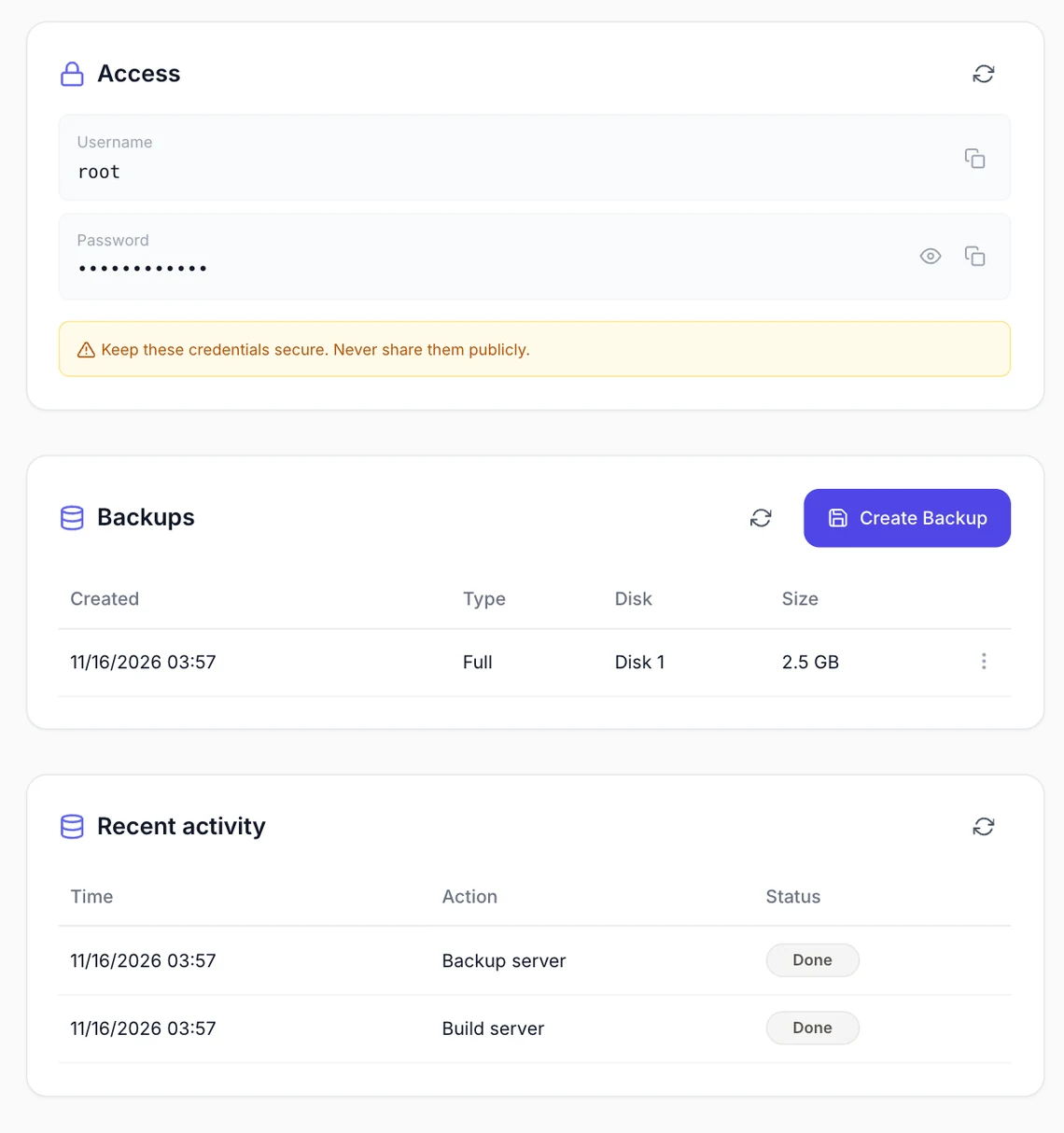
| Access | Username and a masked Password. See Access card. |
| Backups | The server's backups from VirtFusion's Backup Manager: Created, Type (Full, Incremental, Differential or Copy), Disk, Size; a Create Backup button and Restore in each row's menu. If VirtFusion offers no backups for the server, the list stays empty. |
| Recent activity | The last ten entries of the server's VirtFusion queue: Time, Action, Status (Queued, Running, Done or Failed). |
| Action | What it does |
|---|---|
| Start, Stop, Restart | Power actions in VirtFusion. Start shows while the server is stopped, Stop and Restart while it runs and ask for confirmation. Stop asks the operating system to shut down. |
| Force Stop | Cuts the power without shutting the operating system down. The dialog warns that unsaved data may be lost. |
| Console | Opens this server in the VirtFusion control panel in a new tab, already signed in, on a login link that is valid for 60 seconds. |
| Control Panel | Opens the customer's VirtFusion control panel the same way. For both buttons, the plugin first checks that the server belongs to the VirtFusion user linked to this customer. |
| Reinstall | Erases the server and installs the chosen operating system. VirtFusion generates a new root password, which FluxBilling shows once in a dialog and stores for the Access card. |
| Reset Password | Asks VirtFusion for a new password for root, or Administrator on Windows. It is shown once, stored for the Access card, and applied by a queued task on the server. |
| Reverse DNS | Sets the PTR record of an IP address of this server (its IPv4 addresses and IPv6 ranges) to the Hostname; an empty hostname clears it. When VirtFusion asks for it, the plugin rebuilds the reverse DNS zone. |
Restore asks for confirmation and overwrites the disk with that backup; everything written since is lost. A backup runs while the server stays online. If VirtFusion refuses an action, its own message is shown. The reinstall dialog lists the templates VirtFusion makes available to that server, which can be more than the ones on the product. While a service is suspended, the actions and cards are hidden and the customer sees a Service Suspended notice with the reason.
Access card
The eye button (Show) fetches the stored login password, Copy copies it: the password VirtFusion generated at the build, or the newer one from a reinstall or reset. Customers can show it only while the service is active and their account is not suspended; a team member also needs the Manage Services permission. Every reveal is recorded in the activity log, without the password.
What your staff see
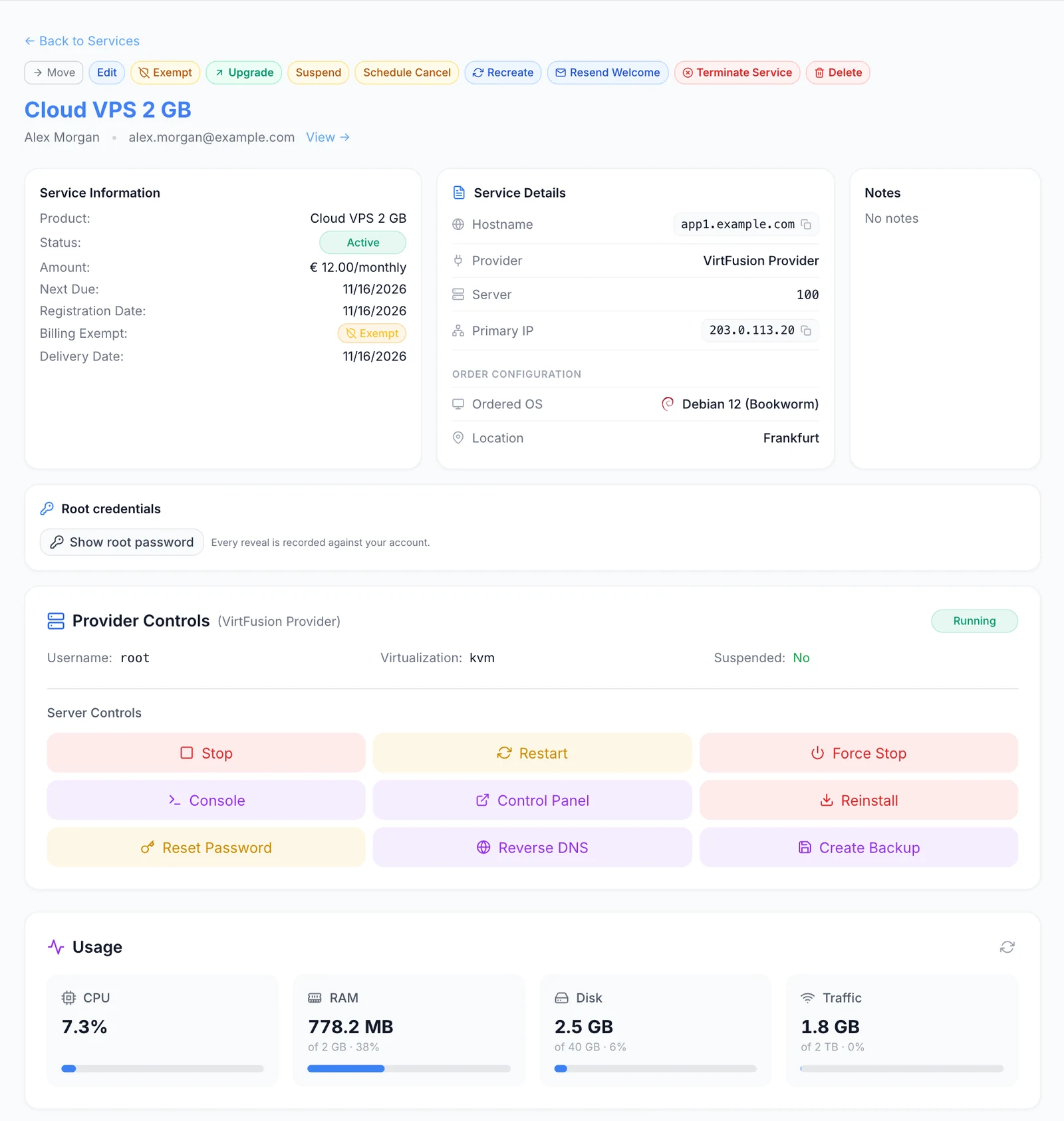
In the admin panel, the service page shows Root credentials with Show root password (each reveal is recorded against the staff member's account; staff need permission to edit services). Provider Controls shows the live status, Username, Virtualization and Suspended, and under Server Controls the customer's actions plus Create Backup. Console and Control Panel sign staff in as the customer's VirtFusion user.
Below follow Usage, Plan, Network, Backups and Recent activity, with Restore as a button in each backup row. The staff Plan card adds the server's UUID, the Hypervisor (name and address) and the Panel user (VirtFusion user number and email address). The order configuration (Ordered OS, Location, IPv4 add-on) is under Service Details.
Billing lifecycle
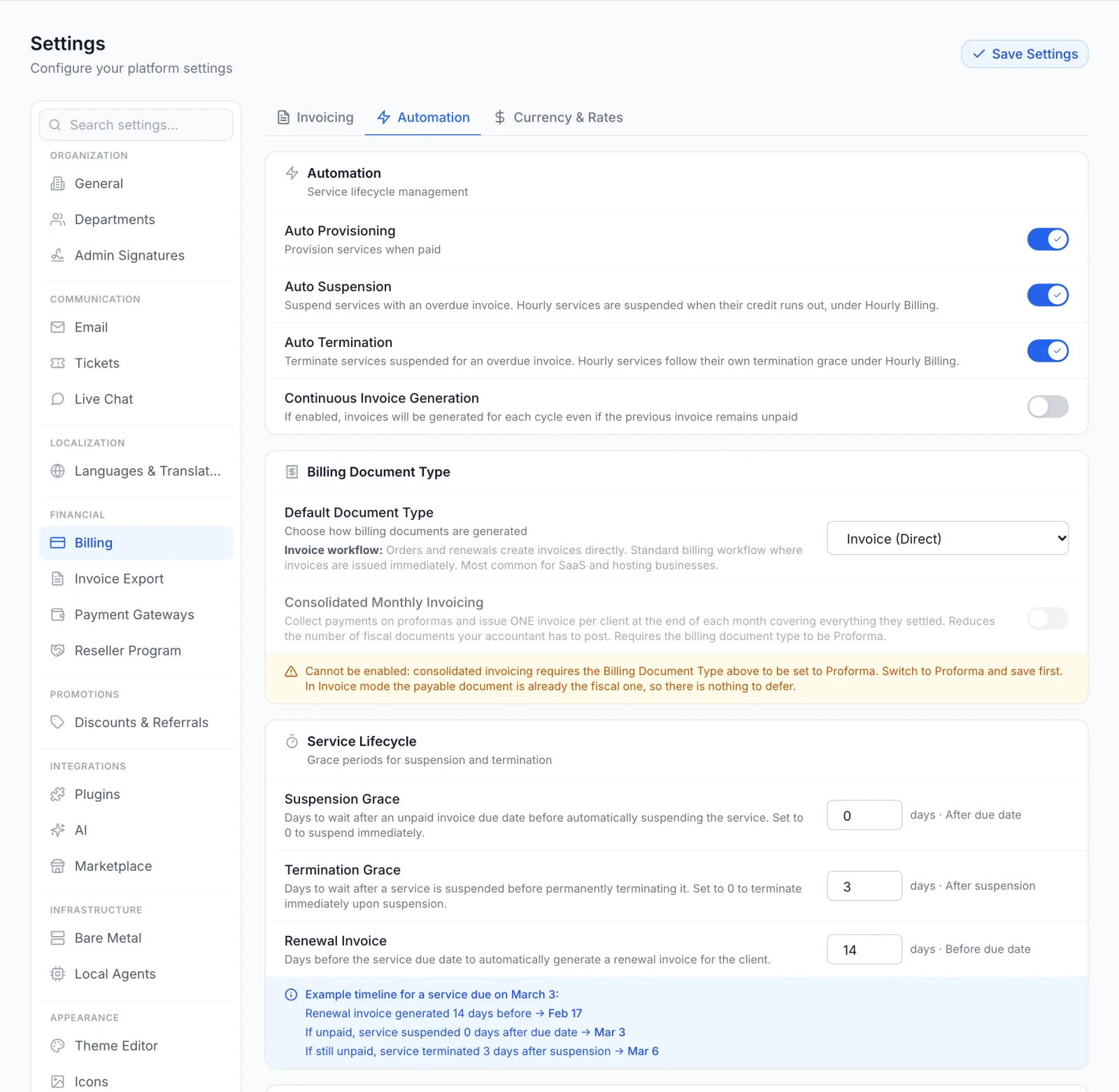
The invoice drives the server. The rules are set under Settings → Billing → Automation:
- Auto Provisioning: builds the server when the first invoice is paid. When it is off, the paid service waits as Pending until staff provision it.
- Auto Suspension with Suspension Grace: an invoice still unpaid that many days after its due date suspends the server in VirtFusion.
- Paying the overdue invoice unsuspends the server automatically, once no earlier renewal invoice for that service is still unpaid. A suspension for abuse is not lifted by a payment.
- Auto Termination with Termination Grace: a server still suspended for non-payment that many days later is terminated.
Terminating a service deletes the server in VirtFusion. This happens when auto termination runs, when a customer's cancellation takes effect, or when staff terminate the service. VirtFusion waits the plugin's Termination Grace (minutes) before it deletes the server; after that it cannot be undone. A server that no longer exists in VirtFusion counts as terminated. The customer's VirtFusion user is kept.
Plan changes
Customers can only move between products you link on the product's Upgrade Paths tab. When an upgrade or downgrade between two VirtFusion products is paid, the plugin moves the server to the new product's VirtFusion package. CPU, memory, primary disk size, disk speed limits, traffic allowance and network speeds follow the new package; the backup plan is left as it is. Some changes only take effect after the server restarts. If VirtFusion refuses, the upgrade is marked as failed and the service keeps its current product. Try an upgrade on a test server before you offer upgrades to customers, especially a downgrade to a smaller disk.
Updating the plugin
Open Settings → Integrations → Marketplace, switch to Installed and click Check for Updates. When a new version is available, click Update to v…. Your connection settings and products are kept.
Troubleshooting
When a build fails, the service stays Pending. The error appears in the Automations menu in the top bar of the admin panel, as a failed provisioning entry for the service, with the reason in red and a retry button.
FluxBilling tries a failed build again by itself, up to two more times over the next minutes. After that, open the service and click Retry Provisioning. A retry finds the VirtFusion user created by the first attempt instead of creating a second one. A build started this way does not email the customer, so use Resend Welcome on the service page once it has worked.
Most messages come straight from VirtFusion: the plugin shows VirtFusion's own error text, or Provider returned HTTP followed by the status code when VirtFusion sends no text. A 401 means the token is wrong or expired, a 403 that the token lacks a permission from step 1, a 423 that the server has tasks queued or is suspended.
| Message or symptom | What to check |
|---|---|
| Test failed: Provider returned HTTP 401, or the Package list in the product editor stays empty | FluxBilling cannot read from VirtFusion, or VirtFusion has no enabled package. Check the panel URL, the token and its Access restriction, and any firewall in between. If the editor says Plugin not configured, a required setting is missing. |
| No enabled package found on the provider — create a package first | Enable or create a package in VirtFusion. |
| A VirtFusion user with the email … already exists but is not linked to this customer, so no server was created. | Link that user as the rest of the message describes and retry, or turn on Link an existing VirtFusion user with the same email if the account surely belongs to this customer. |
| Failed to create the VirtFusion user, or VirtFusion's message from creating the user | VirtFusion would not create the customer's user, for example because the token lacks Create User. Fix the cause in VirtFusion, then retry. |
| The derived customer id already belongs to another panel user (…) — numeric Customer Link mode collision; fix the user in the panel or switch the plugin to Customer ID mode | Only in Numeric (legacy, pre-6.1) mode: the number derived for this customer is already used by a VirtFusion user with a different email address. Correct that user's external relation ID in VirtFusion, then retry. |
| VirtFusion refused to allocate the server, or VirtFusion's message from creating the server | The server could not be created in the chosen hypervisor group, for example no hypervisor with enough resources or not enough free IPv4 addresses for the order. Add capacity or addresses in VirtFusion, then retry. |
| VirtFusion refused to build the server, or VirtFusion's message from the build | VirtFusion would not install the operating system, for example because the template is not available to the package. The plugin has already deleted the server it created. Fix the cause, then retry. |
| The provider did not issue a login token (administrator accounts cannot use token login) | The Console and Control Panel buttons need a regular VirtFusion user, the Authenticate User permission and a VirtFusion licence that includes login tokens. |
| This server is not owned by the panel user linked to this service — login refused | The server was moved to another VirtFusion user. Move it back in VirtFusion, or contact FluxBilling support to relink the service. |
| VirtFusion accepted the reset but returned no password | Check the server's queue in VirtFusion, then try the reset again. |
| This IP address is not assigned to this server, Enter a hostname such as mail.example.com, or leave it empty to clear the record | The Reverse DNS dialog got an address of another server, or a hostname that is not a full domain name. |
| The target product has no VirtFusion package configured | The product the customer upgrades to has no Package set on its Configuration tab. |
Limits
- Backups use VirtFusion's Backup Manager. Snapshots are not offered through the plugin.
- Recent activity shows the last ten entries of the server's queue.
- The IPv4 add-on is applied only when the server is built. Customers cannot change it afterwards; when you change it in the admin panel, the price changes and you add or remove the addresses in VirtFusion yourself.
- IPv4 and IPv6 addresses come from VirtFusion's IP blocks. FluxBilling's own IP address management is not involved.
- Disk use inside the server is shown only when VirtFusion gets it from the guest agent; otherwise the Disk tile shows a dash.
- Each FluxBilling panel connects to one VirtFusion control server.
- FluxBilling does not rely on callbacks or webhooks from VirtFusion: each action is judged on VirtFusion's direct answer. You do not need to set up anything for callbacks.
VirtFusion is a trademark of VirtFusion Ltd. FluxBilling is not affiliated with VirtFusion Ltd.