
Code node, Sub-flows and Platform Event flows
Run sandboxed scripts in a flow, share steps between flows with Sub-flows and the Call Flow node, and run any plugin's flow on platform events.
Three flow-builder features let a plugin do more with fewer nodes: the Code node runs a short script, the Call Flow node runs another flow of the same plugin, and the Platform Event flow type runs a flow when something happens in your panel. Use the Code node when a chain of Transform and Condition nodes gets long. Use a Sub-flow for steps that several flows share, such as getting an auth token or turning a provider status into one of yours. Use a Platform Event flow when a plugin of any type should react to an invoice being paid, a service being activated or a ticket being opened.
This guide is for staff who build or edit plugins. It assumes you know how the canvas works; if not, start with Building Flows. Your customers do not see any of this. They only see what your flows do.
Where to find them
Open Settings → Integrations → Plugins, open the plugin, and choose the Flows tab. No feature toggle is needed.
- Code is in the Data group of the node palette, and Call Flow is in the Flow Control group. Drag either one onto the canvas.
- Sub-flow and Platform Event are flow types. You pick one under Flow Type when you click Create Flow.
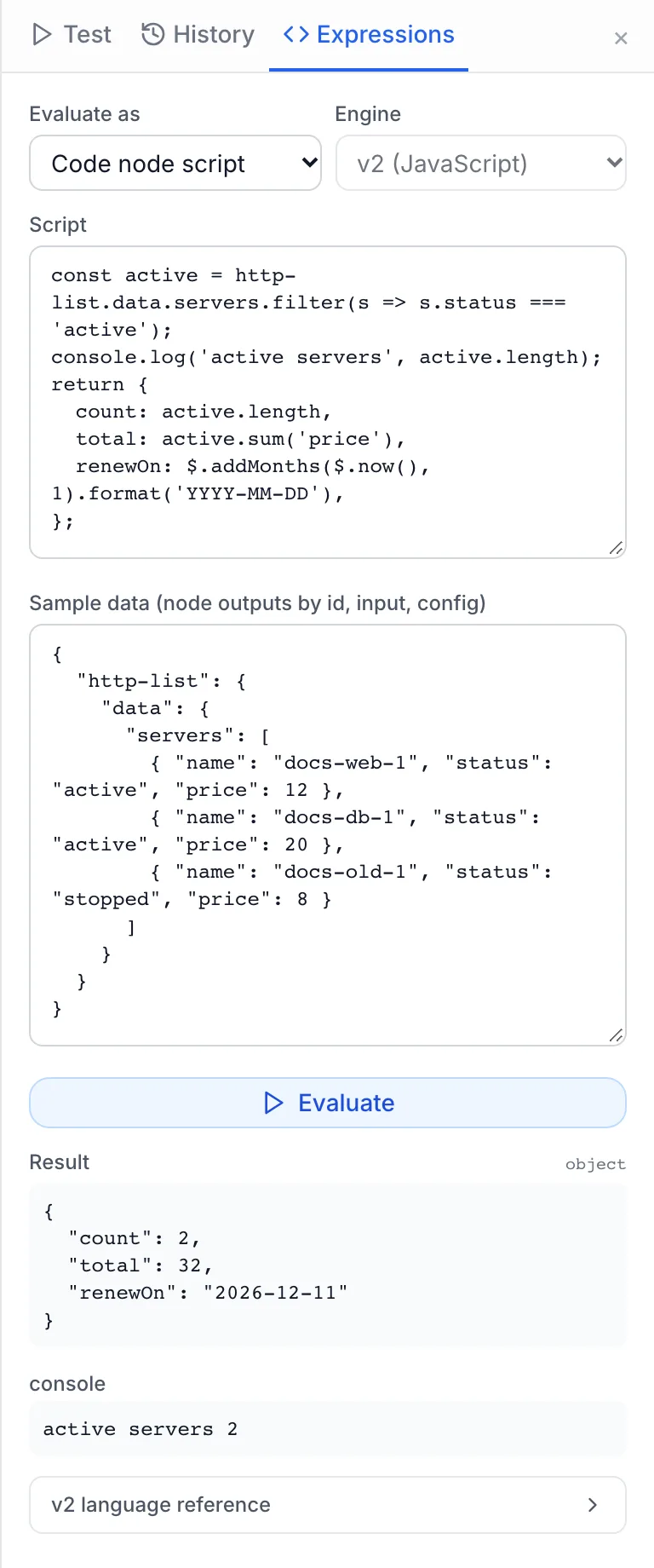
- The Expressions button in the builder header opens a tester where you can run a Code node script against sample data before you save.
Run history (History in the builder) is shown to super admins only. Other staff can build and test flows but cannot see past runs.
The Code node
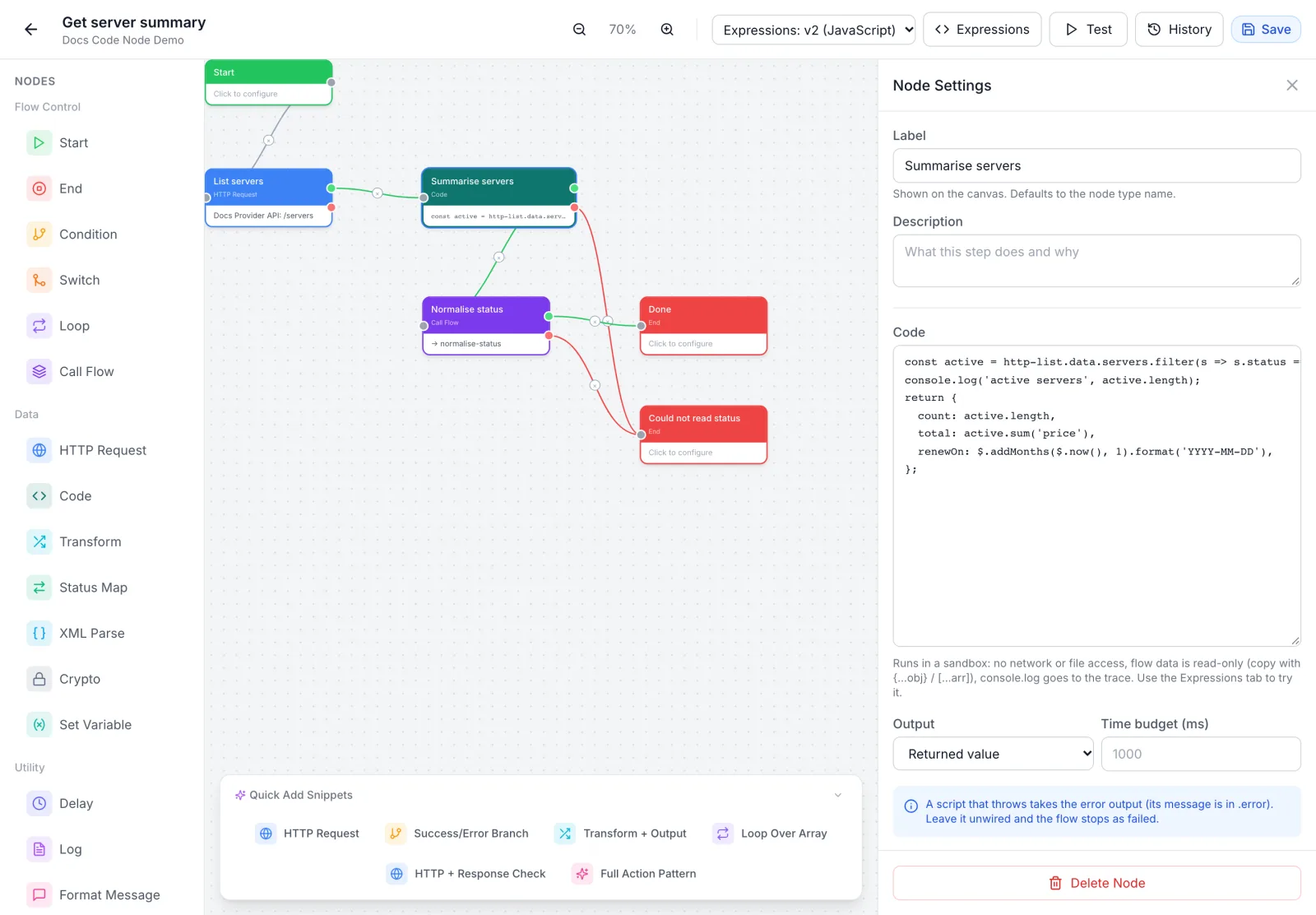
A Code node runs a short script and uses the value the script returns as its output. Scripts are written in a safe subset of JavaScript. They cannot reach the network or the file system, and they cannot change the data they read. To call an API, use an HTTP Request node before or after the Code node.
The Code node always uses the v2 (JavaScript) language, whatever the Expressions setting in the builder header says. That setting only changes how {{ }} fields in other nodes are read. See Expressions v2 for the full language.
Fields
| Field | What it does |
|---|---|
| Code | The script. Its return value becomes the node's output. If the script returns nothing, the node passes its input on unchanged. The builder will not save a flow while a Code node is empty. |
| Output | Returned value: the output is exactly what the script returns. Merge into input: when the script returns an object, its keys are added on top of the node's input, so you only return the fields you add or change. If it returns anything other than an object, that value is the output. |
| Time budget (ms) | How long the script may run, from 10 to 5,000 ms. Leave it empty for 1,000 ms. A value above 5,000 is treated as 5,000. |
Below the fields, Error handling & retry works as on other nodes. See Flow error handling and retry.
What a script can read
| Name | What it holds |
|---|---|
input | The output of the node before this one. |
config | The plugin's settings, as entered on its configuration page. |
Node IDs, such as http-get | The output of any node that has already run, by its ID. Write a hyphenated ID with no spaces around the hyphens (http-get.data). The same output is also available with underscores (http_get.data) and under nodes (nodes['http-get']). |
| Flow input fields | Each field of the data the flow started with, by name. In a Platform Event flow these are event, timestamp, source and data. |
variables | Values set by Set Variable nodes. They can also be read by name directly. |
$flow | Facts about the run, including $flow.flowSlug, $flow.flowType and $flow.nodeId. |
$ helpers and globals | Date, number, text, hashing and encoding helpers such as $.now(), $.addMonths(), $.uuid(), $.sha256() and $.formatCurrency(), plus Math, JSON, Object, Array, Date, Map, Set and RegExp. Arrays have extra methods such as sum(), groupBy(), unique() and pluck(). The full list is under v2 language reference in the Expressions tester. |
console.log() | Writes a line to the run trace. console.warn() and console.error() work too. |
An example
This script follows an HTTP Request node with the ID http-list. It keeps the active servers, totals their price and works out the next renewal date:
const active = http-list.data.servers.filter(s => s.status === 'active');
console.log('active servers', active.length);
return {
  count: active.length,
  total: active.sum('price'),
  renewOn: $.addMonths($.now(), 1).format('YYYY-MM-DD'),
};
A later node reads the result as {{code-node-id.total}}, using the Code node's own ID.
What the language supports
Scripts can use const, let and var, if, for, for…of, for…in, while, do…while, switch, try/catch/finally, throw, functions and arrow functions, destructuring, spread, template literals, optional chaining (?.) and ??.
They cannot use classes, async/await, generators, labels, this, delete or bitwise operators. There is no fetch, require or process. Using a name that does not exist gives undefined and a warning, not an error.
Data that comes from the flow is read-only. To change it, make a copy first:
const order = { ...input.order };   // copy, then change the copy
order.total = order.qty * order.price;
return order;
Every variable must be declared. total = 5 without let or const is an error.
When a script fails
The Code node has two outputs, success and error. A script that throws, breaks a rule or runs out of budget takes the error output. The output there is the node's input plus error (the message) and _error: true. Leave error unwired and the run stops as failed, with the script's message as the flow's error. To fail on purpose, throw new Error('Plan not found').
Limits
- Time: the Time budget (ms) you set, 1,000 ms if empty, never more than 5,000 ms.
- Steps: 5,000,000 evaluation steps per run of the node, so an endless loop stops quickly.
- Size: one text value can hold up to 5,000,000 characters and one array up to 1,000,000 items. Functions can nest up to 128 calls deep.
- Console: the trace keeps the first 50 lines a script writes, each cut at 2,000 characters. Values of secret settings, such as API keys, tokens and passwords, are replaced with
[REDACTED], soconsole.log(config.api_key)does not show the key.
Try a script before you save
- In the builder header, click Expressions.
- Set Evaluate as to Code node script.
- Paste the script into Script.
- In Sample data (node outputs by id, input, config), enter a JSON object with the names your script reads, for example
{"input": {...}, "http-list": {"data": {...}}, "config": {...}}. - Click Evaluate. The Result box shows the returned value and its type, and the console box shows the lines the script logged. A syntax error is shown with its line and column.
The tester runs nothing against your providers and saves nothing. It allows up to 2,000 ms per run.
Sub-flows and the Call Flow node
A Call Flow node runs another flow of the same plugin and carries on with that flow's output. Put shared steps in one helper flow and call it from every flow that needs them. When you change the helper, every caller uses the new version.
Step 1: Create the helper flow
- On the Flows tab, click Create Flow.
- Enter a Name. The flow's slug is made from the name: lowercase, with hyphens for spaces and other characters. Get auth token becomes
get-auth-token. - Under Flow Type, choose Sub-flow, then create the flow.
- Build it like any other flow. The Start node receives the input the caller sends. The End node's output is what the caller gets back.
- Save the flow.
A Sub-flow has no trigger of its own: no schedule, no event, no button. The platform finds some flows by slug, such as provision or get-status, so give helpers a slug of your own. See Capabilities & Flow Contracts for the names the platform uses. Any flow type can be called, but Sub-flow keeps a helper from being run by anything else.
Step 2: Call it
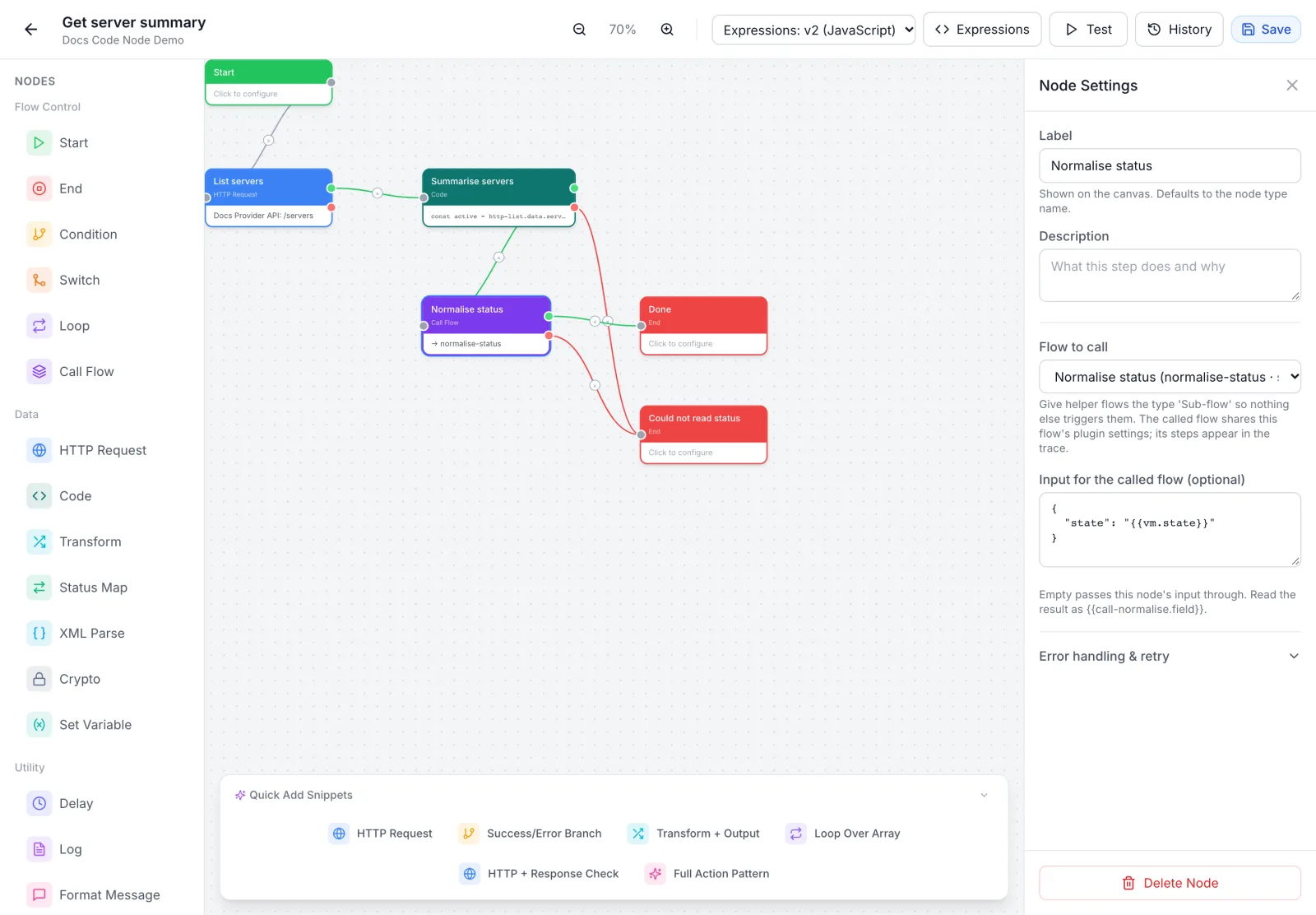
- Open the flow that needs the helper and drag a Call Flow node onto the canvas.
- In Flow to call, pick the helper. The list shows every other saved flow of the plugin as Name (slug · type). The flow you are editing is not in the list.
- Optional: in Input for the called flow (optional), enter a JSON object. Values can use
{{ }}placeholders, for example{"serverId": "{{serviceData.serverId}}", "region": "{{config.region}}"}. Leave it empty to pass this node's input on as it is. If the text is not a valid JSON object, the field shows Invalid JSON and the last valid value is kept. - Wire the success output to the next step, and the error output if you want to handle failures yourself.
- Read the helper's result in later nodes as
{{call-node-id.field}}. The hint under the input field shows the exact reference for that node.
The node on the canvas shows → slug once a flow is chosen, or choose a flow until then. The builder will not save a Call Flow node with no flow chosen.
How a called flow runs
- Same run. The called flow runs inside the caller's run, with the same plugin settings (
config). Its HTTP Request nodes use the plugin's connections as usual. It is not logged as a separate run. - Saved version. The called flow runs as it was last saved. Save the helper before you test the flow that calls it.
- Trace. The helper's steps appear in the caller's trace, named call-node›helper-node, so you can see which step inside the helper failed.
- Timeout. The helper keeps its own Timeout (ms), but never runs past the time the caller has left, with a floor of 1 second.
- Retries. The helper's Retry the whole flow on failure (exponential backoff) setting is not used when it is called. The caller's own settings apply. To retry only the call, use Retry before giving up on the Call Flow node, and make sure the helper is safe to run twice.
- Helpers can call helpers, up to 5 levels deep.
- Node limit. A single flow stops after 1,000 node runs. A flow and all the helpers it calls share a limit of 5,000 node runs, so a Loop over a Call Flow node cannot run without end.
When the call fails
If the helper fails, the Call Flow node takes its error output, with error set to the helper's message. Leave error unwired and the caller fails with the same message.
Platform Event flows
A Platform Event flow runs when an event happens in your panel, such as an invoice being paid or a ticket being opened. It works in a plugin of any type. Use it to sync a paid invoice to your accounting system, tell a provider that a service was suspended, or post a new ticket to your own tool.
Set one up
- On the Flows tab, click Create Flow, enter a Name, choose Platform Event under Flow Type, and create the flow.
- Click the gear beside the flow to open Flow Settings.
- Under Run this flow when, tick the events that should start the flow. Each event shows the data fields it carries.
- Save. With no event ticked, the dialog says Choose at least one event and does not save. A new Platform Event flow has no events, so it does not run until you choose some.
- Build the flow on the canvas.
What the flow receives
The flow's input is { event, timestamp, source, data }. event is the event name, such as invoice.paid, and data holds the fields listed for that event. In a {{ }} field you write {{event}} or {{data.invoiceId}}; in a Code node you write event or data.invoiceId.
| Event | When it fires | Fields in data |
|---|---|---|
order.created | New order placed | orderId, userId, products, total, currency |
order.paid | Order payment confirmed | orderId, userId, paymentMethod, transactionId |
order.cancelled | Order was cancelled | orderId, userId, reason |
service.provisioning | Service provisioning started | serviceId, userId, productType |
service.activated | Service is now active | serviceId, userId, serverIp |
service.provisioning_failed | Service provisioning failed | serviceId, serviceNumber, userId, orderId, serviceName, productName, hostname, provider, stage, error |
service.suspend | Service suspended | serviceId, userId, reason |
service.unsuspend | Service unsuspended | serviceId, userId |
service.terminate | Service terminated | serviceId, userId, reason |
service.renewed | Service renewed | serviceId, userId, newDueDate |
service.upgrade.requested | Service upgrade requested | upgradeId, serviceId, userId, fromProductId, toProductId, fromProductName, toProductName, totalAmount, currency, invoiceId, invoiceNumber, proformaId, proformaNumber |
service.upgrade.completed | Service upgrade completed | upgradeId, serviceId, userId, fromProductId, toProductId, fromProductName, toProductName |
service.upgrade.failed | Service upgrade failed | upgradeId, serviceId, userId, fromProductName, toProductName, error |
payment.processing | Payment being processed | paymentId, invoiceId, amount, currency |
payment.completed | Payment completed | paymentId, invoiceId, amount, transactionId |
payment.failed | Payment failed | paymentId, invoiceId, invoiceNumber, proformaId, proformaNumber, userId, error |
payment.refunded | Payment refunded | paymentId, invoiceId, amount, reason |
invoice.created | New invoice generated | invoiceId, userId, total, dueDate |
invoice.paid | Invoice marked as paid | invoiceId, userId, paidAmount |
invoice.overdue | Invoice is overdue | invoiceId, userId, daysOverdue |
user.registered | New user registered | userId, email |
user.verified | User email verified | userId, email |
ticket.created | New support ticket | ticketId, userId, subject, priority |
ticket.replied | Ticket reply added | ticketId, userId, isStaffReply |
ticket.closed | Ticket closed | ticketId, userId |
chat.replied | Guest replied in a live chat | ticketId, clientName |
reseller.applied | Client applied to the reseller programme | resellerId, userId, clientName, email, companyName, taxId, notes, autoApproved |
monitoring.alert | Monitoring alert raised | alertId, deviceId, deviceName, deviceIp, alertType, severity, message |
monitoring.alert.resolved | Monitoring alert resolved | alertId, deviceId, deviceName, deviceIp, alertType, message, duration |
How event flows run
- Both must be on: the plugin must be enabled and the flow's Enabled box ticked.
- In the background. The flow starts after the event and does not hold up the action that caused it. A paid invoice stays paid even if your flow fails.
- 60 runs a minute per flow. Events beyond that in the same minute do not start the flow. They are not queued for later.
- History. Each run is logged with the trigger Event, and the event name is shown as the trigger reference.
- Retries. Retry the whole flow on failure (exponential backoff) and Max Retries in Flow Settings apply as they do for other flows.
In a Notification Integration plugin, keep using Notification flows and the per-event toggles described in Notification Plugins. Notification flows run only in that plugin type. Any other plugin uses a Platform Event flow.
In a plugin package
If you write or edit a package file by hand, these features look like this. The event list can also use "invoice.*" (every event that starts with invoice.) or "*" (every event):
{
  "flows": [
    { "name": "Normalise status", "slug": "normalise-status", "flowType": "subflow",
      "canvas": { "nodes": [
        { "id": "start", "type": "start", "data": {} },
        { "id": "map-status", "type": "code", "data": {
          "code": "const map = { running: 'active', stopped: 'suspended' };\nreturn { status: map[input.state] ?? 'unknown' };" } },
        { "id": "end", "type": "end", "data": {} } ], "edges": [ ... ] } },
    { "name": "On invoice paid", "slug": "on-invoice-paid", "flowType": "event",
      "triggerConfig": { "events": ["invoice.paid"] },
      "canvas": { "nodes": [
        { "id": "call-normalise", "type": "callFlow",
          "data": { "flow": "normalise-status", "input": { "state": "{{data.state}}" } } } ], ... } }
  ]
}
When you import the package, the check step blocks it if:
- a Call Flow node names a flow that is not in the package (No flow with slug "…" in this package.);
- a flow calls itself, or flows call each other in a circle (Call Flow cycle: a → b → a. Sub-flows nest at most 5 deep, so this always fails.);
- the flow to call is a
{{ }}placeholder. It must be a fixed slug; - an event flow has no events, or names an event that does not exist ("…" is not a platform event plugins receive, so this never fires.).
If you change the events of an imported flow in Flow Settings, a later update of the package keeps your list. See Packaging, importing and updating.
Troubleshooting
| Message | Cause and fix |
|---|---|
| Cannot modify data that came from the flow (input, config or a node output) — make a copy first, e.g. {...obj} or [...arr] | The script changed input or another node's output. Copy it with { ...x } or [ ...x ] and change the copy. |
| 'input' is read-only flow data — declare a local copy instead (const input2 = …) | The script assigned a new value to a flow name. Use a new variable. |
| 'x' is not declared — use let or const | A variable was used without being declared. |
| 'class' is not supported in plugin scripts (or 'async') | The script uses a feature the language leaves out. Use plain functions and objects. |
| 'fetch' is not a function | Scripts cannot make network calls. Put an HTTP Request node before the Code node and read its output. |
| Expression exceeded its time budget (… ms) or Expression exceeded its step budget (5000000 steps) | The script ran too long, often because a loop never ends. Fix the loop, or raise Time budget (ms) up to 5,000. |
| <node label>: the Code node has no code | Shown in the builder's red banner. Add a script or delete the node. |
| <node label>: choose the flow to call | Shown in the builder's red banner. Pick a flow in Flow to call. |
| … calls this same flow — runs stop after 5 levels | A warning when a flow calls itself. Such a run always fails. Move the shared steps into a separate Sub-flow. |
| Sub-flow 'name' was not found in this plugin | The called flow was deleted, or its slug is different. Pick the flow again in Flow to call. |
| Sub-flow nesting is limited to 5 levels | Helpers call each other more than 5 deep, usually in a circle. Break the circle. |
| Flow and its sub-flows exceeded 5000 node executions | A Loop runs a Call Flow node too many times. Handle the items in one call, or split the work. |
| Choose at least one event | Flow Settings of a Platform Event flow was saved with no event ticked. |
| An event flow never runs | Check that the plugin is enabled, the flow is enabled, the right event is ticked, and the event actually happened. With a super admin account, check History for runs with the trigger Event. A flow that fires more than 60 times a minute skips the extra events. |
Related articles
- Building Flows: the canvas, flow types, Flow Settings and testing.
- Node Reference: every other node.
- Expressions v2 and Variables & Expressions: the
{{ }}syntax. - Flow error handling and retry: per-node error outputs and retries.
- Capabilities & Flow Contracts: the flow slugs the platform runs by itself.