
Peer Connections: Resell Another FluxBilling Platform
Let approved resellers connect to another FluxBilling platform with its rsk_ API key, browse its catalogue, place orders and manage the services.
Peer Connections let an approved reseller on your platform buy from another FluxBilling platform from inside their own Reseller area. The reseller adds the other platform's address and the reseller API key that platform issued to them. They can then browse that supplier's catalogue, place orders, follow the orders, and run power and management actions on the services, all without leaving your client panel.
The orders are placed on the supplier's platform and billed to the reseller's account there. Nothing is copied into your product catalogue, and you do not invoice anything for these orders. If you, the operator, want to resell another platform's products to all of your customers, use Upstream Connections instead.
Who can use it
- Active resellers only. The page is in the Reseller section of the client panel sidebar. A customer who is not a reseller does not see it. A reseller whose account is suspended or terminated gets only the dashboard and the programme page, and every peer request is refused with “Active reseller account required”. An applicant who is still pending has no Reseller section yet.
- The Resellers feature must be on under Settings → General in the admin panel. Without it the whole Reseller section is hidden.
- The Peer connections toggle must be on. See the next section.
- An account on the supplier's platform. The reseller needs an approved reseller account on the other FluxBilling platform, an API key from it, and its signing secret. See What the reseller needs from the supplier.
Switch the feature on or off (operator)
- In the admin panel, open Settings and choose Reseller Program.
- In the API Settings card, use the Peer connections switch.
- Click Save Settings.
When the switch is off, resellers still see the Peer Connections link, but the page shows the notice Peer connections are disabled with the text “This feature is currently not enabled on this platform. Please contact support.” Existing connections stay in the list and can still be renamed or deleted, but anything that contacts the supplier (testing, browsing products, ordering, managing services) is refused with “Peer connections are disabled on this platform”. New connections cannot be added. Switching it back on makes them usable again.
The rest of the Reseller Program settings are described in Reseller Program settings.
What the reseller needs from the supplier
The supplier is another FluxBilling platform where the reseller has an active reseller account. In their Reseller area there, under API Access, the reseller collects three things:
- The platform URL: the address of the supplier's client panel, for example
https://billing.example.com. - An API key starting with
rsk_, created under API keys with Create key. The key is shown only once. - The signing secret from the Webhooks card (Signing secret). The supplier refuses every order and service action that is not signed with it.
The scopes of the key decide what works from the Peer Connections page:
| What the reseller does | Scope needed |
|---|---|
| Connect, test, browse products, list services, refresh an order, view stats and backups | Read |
| Place an order, retry a failed payment | Orders |
| Power actions, open the console, create a backup | Services |
| Reinstall the OS, reset the root password | Destructive |
A key without the scope for an action gets “API key is missing the required scope: orders” (or the scope in question). Creating keys and the other API settings are covered in The Reseller Area and Reseller API.
Add a connection
- In the client panel, open Reseller → Peer Connections.
- Click Add Your First Connection (or Add Connection at the top right once a connection exists).
- Fill in the form and click Connect.
FluxBilling contacts the supplier with the key before it saves anything. If the supplier answers, the connection is saved with the status Active and the toast “Peer connection created” appears. If not, nothing is saved and the reason is shown (see Troubleshooting).
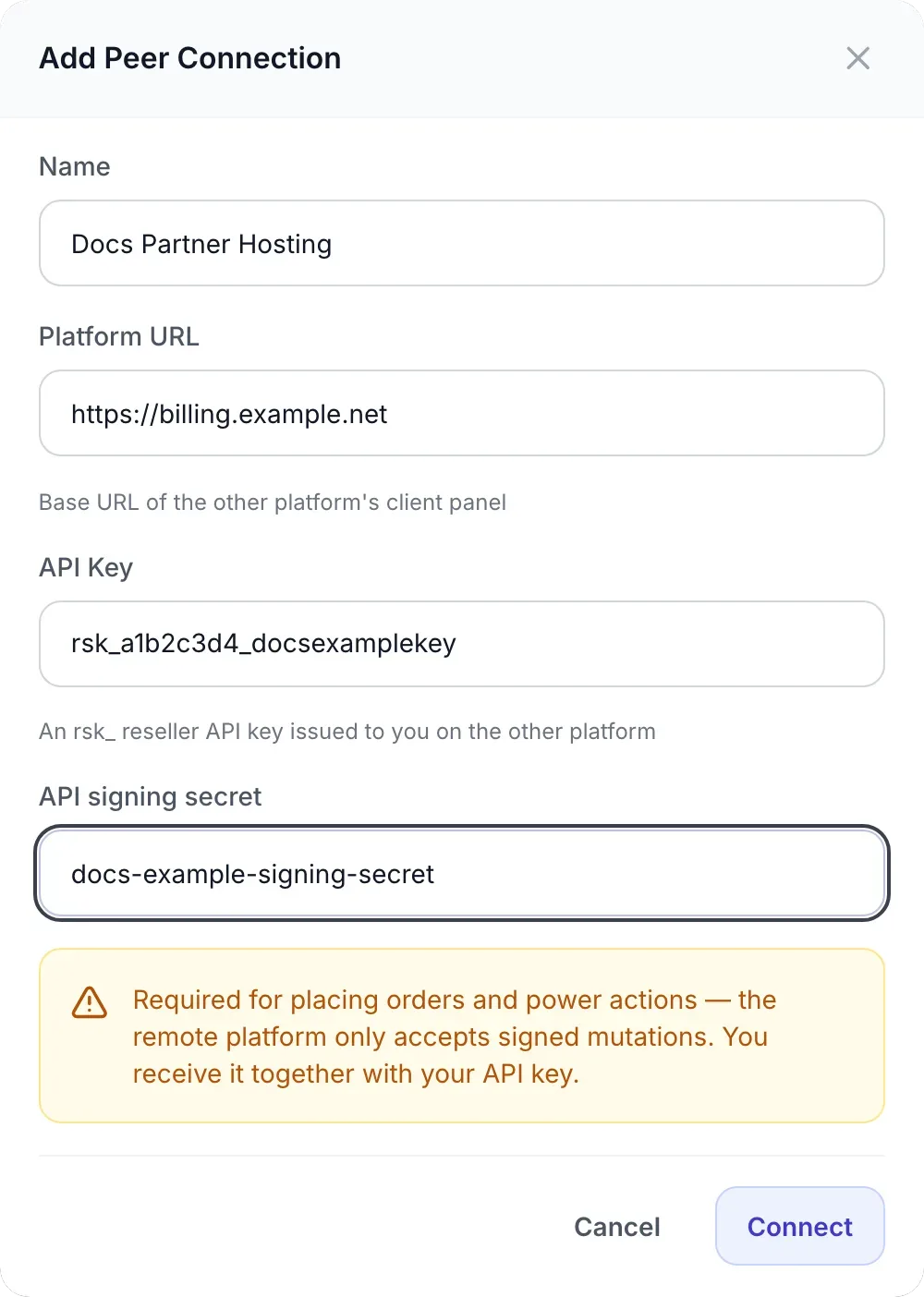
| Field | What to enter |
|---|---|
| Name | Required. Your own label for the supplier, up to 255 characters. You can change it later. |
| Platform URL | Required. “Base URL of the other platform's client panel”, starting with https:// or http://. A trailing slash or a pasted API path at the end is removed. The address must be public: local and private network addresses are refused. It cannot be changed later. |
| API Key | Required. The rsk_ reseller key issued to you on the other platform. It is stored encrypted and never shown again; the list shows only its first characters. It cannot be changed later. |
| API signing secret | Required, at least 16 characters. The signing secret from the supplier's API Access page. It signs your orders and service actions, and it checks the status updates the supplier sends you. |
A reseller can have up to 10 peer connections.
The connection list
Each connection is one row with these columns: Name (with the start of the key under it), Host (the platform URL), Status, Created and Actions.
- Status is Active or Error. It turns to Error whenever a request to the supplier fails, and the supplier's error message is shown under it. The next request that succeeds sets it back to Active.
- Test connection (lightning icon) asks the supplier for its product list. On success you see “Connection OK — 3 products available” with the real count.
- Edit (pencil icon) opens Edit Peer Connection. You can change the Name and replace the API signing secret; leave the secret empty to keep the current one. To change the URL or the key, delete the connection and add it again.
- Delete (bin icon) asks “Are you sure you want to delete this peer connection?”. Deleting removes the connection and the order history this page kept for it. It does not cancel anything on the supplier's platform: services you bought there keep running and keep being billed by the supplier.
Click a row to open the connection. A panel opens under the list with the supplier's name, status and URL and three tabs: Products, Orders and Services.
Receive live status updates
The Orders tab updates itself when the supplier sends status notifications. To set this up:
- Open Edit on the connection and copy the Inbound Webhook URL with the copy button.
- On the supplier's platform, open API Access, paste it as the Endpoint URL in the Webhooks card and click Save URL.
The supplier signs each notification with the same signing secret you entered on the connection, so the two must match. Notifications with a wrong signature, or sent more than 10 minutes before they arrive, are refused. A notification delivered twice is counted once.
These events change the order status on the Orders tab:
| Event from the supplier | Status shown |
|---|---|
order.paid | Paid |
order.invoiced | Invoiced |
order.payment_failed | Payment Failed |
service.provisioned, service.unsuspended | Provisioned |
service.provisioning_failed | provisioning failed |
service.suspended | Suspended |
service.terminated | Terminated |
The name of the last event received is shown in small text under the status. Without the webhook, use Refresh status on an order to ask the supplier directly. The event format is described in Webhooks.
Products: browse and order
The Products tab lists what the supplier offers to your reseller account, with Product (the name and its category or description) and Price. The price is the supplier's monthly wholesale price for you, in the supplier's own currency. If the supplier offers nothing, you see “No products available”.
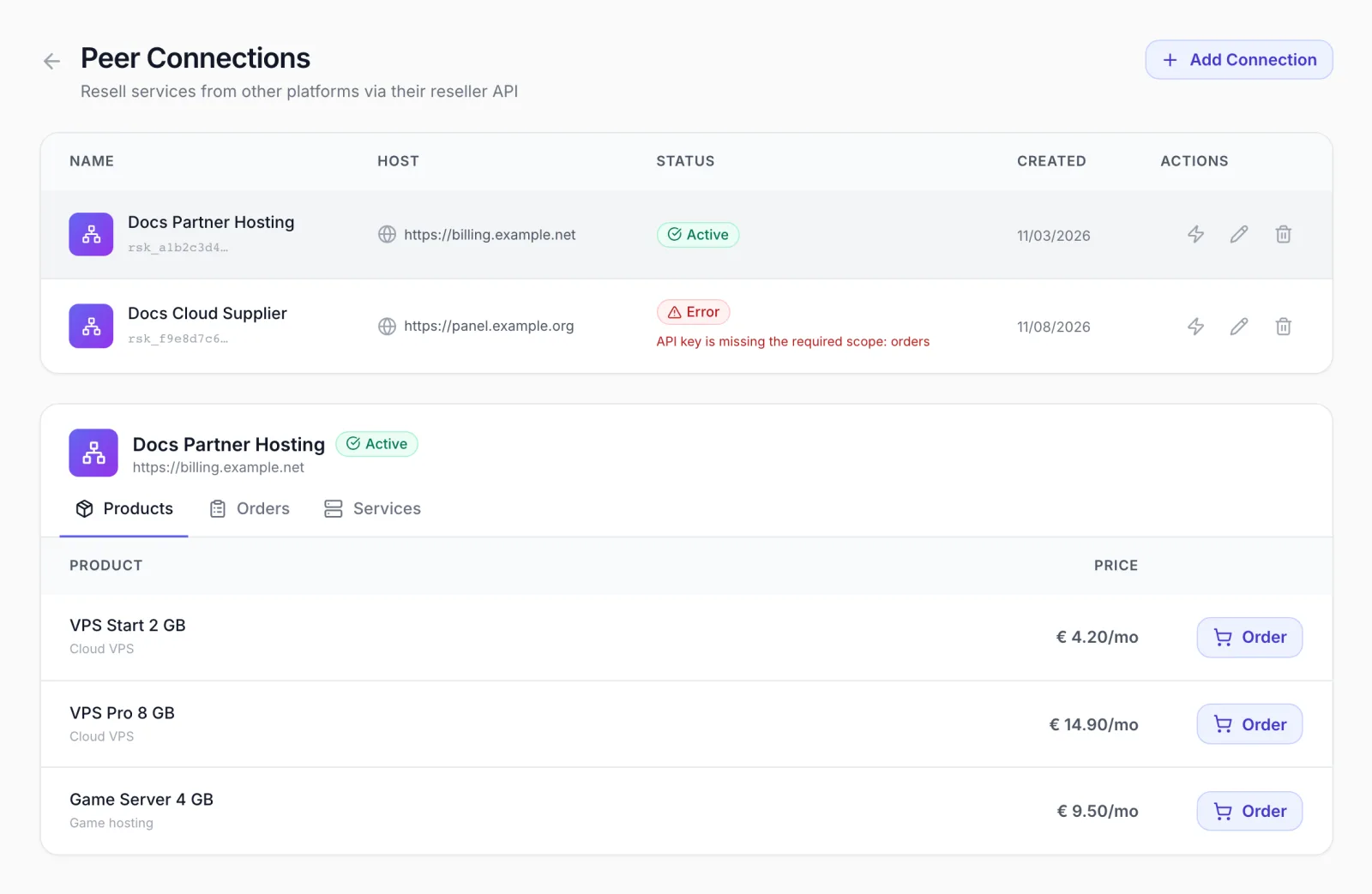
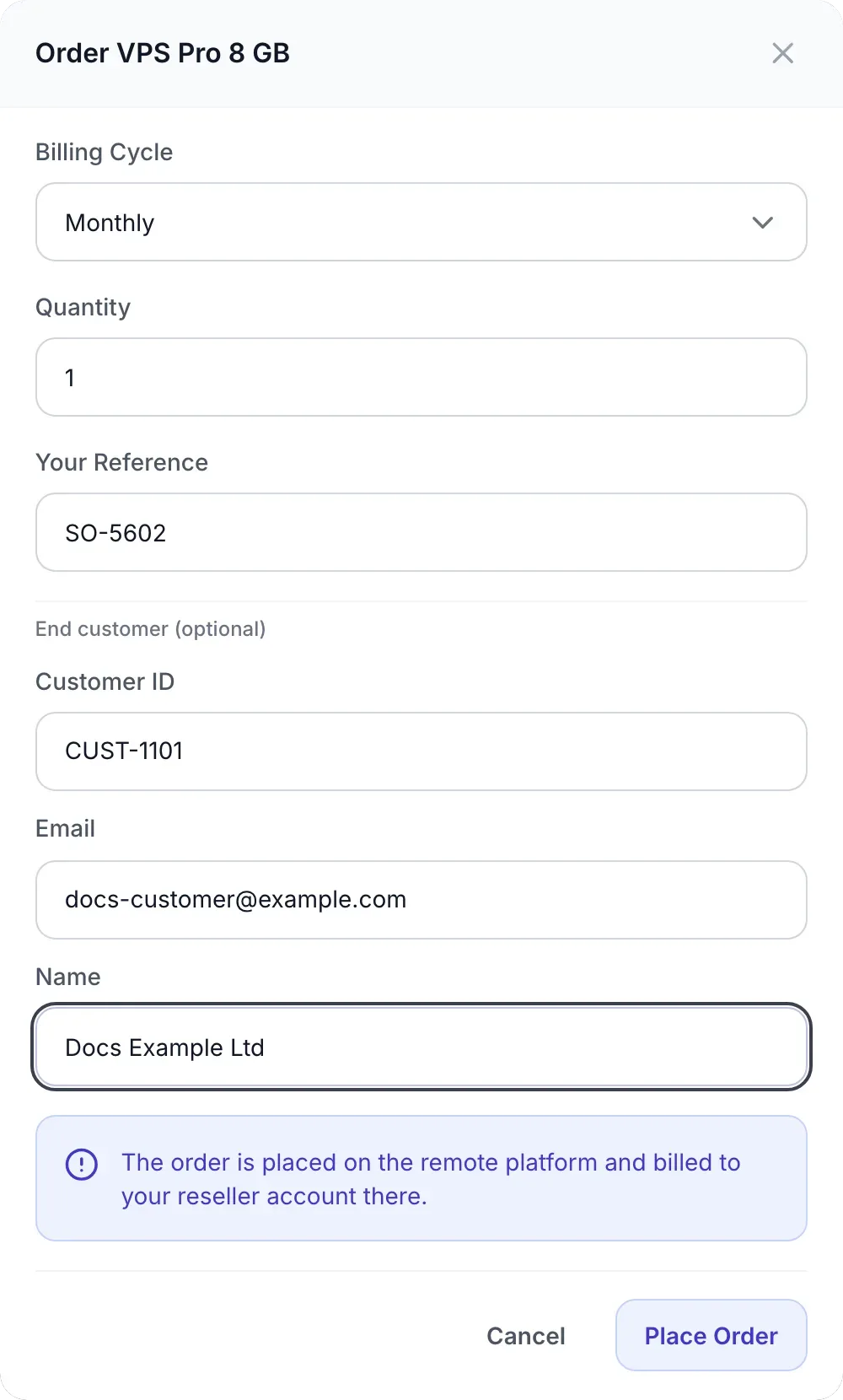
Click Order on a product to open Order <product>:
| Field | What it does |
|---|---|
| Billing Cycle | How often the supplier bills you for the service, for example Monthly, Quarterly or Annually. |
| Quantity | How many services to order, 1 to 50 in this form. Each one becomes a separate service. |
| Your Reference | Optional, up to 100 characters. Your own order number. The supplier uses it to recognise a repeated request: if an order with the same reference already exists there, it returns that order instead of charging you again. When you leave it empty, FluxBilling sends a unique reference for you. |
| Customer ID, Email, Name | Under End customer (optional). Who you are buying for, in your own records. Customer ID can be up to 100 characters. The supplier stores these with the order; the ID is shown in the Customer column of the Services tab. |
The note in the form says it plainly: “The order is placed on the remote platform and billed to your reseller account there.” The supplier charges it according to the payment mode set for your account on its platform. Click Place Order. The result is one of these:
- Paid: “Order created and paid. Service will be provisioned.”
- Invoiced: the supplier raised an invoice or proforma instead of charging, and the message gives its number and due date.
- Payment failed: the order exists on the supplier's side but the charge did not go through. Fix the payment method there, then use Retry payment on the Orders tab.
After a successful order the panel switches to the Orders tab, where the new order is listed.
Charged but not created. If the supplier took the payment but could not create the service, you see “Peer charged the order but could not create the service (order …). Do not re-order; contact the peer quoting that order.” The order is still listed on the Orders tab. Contact the supplier with that order number rather than ordering again.
Orders tab
The Orders tab lists the orders placed on this supplier from this page, newest first, with Order (product name and the supplier's order number), Billing Cycle (with “× 2” and so on for quantities above one), Wholesale (amount and currency), Status, Your Reference and Created. Orders placed on the supplier in any other way, for example through its API from your own systems, are not in this list. They do appear on the Services tab.
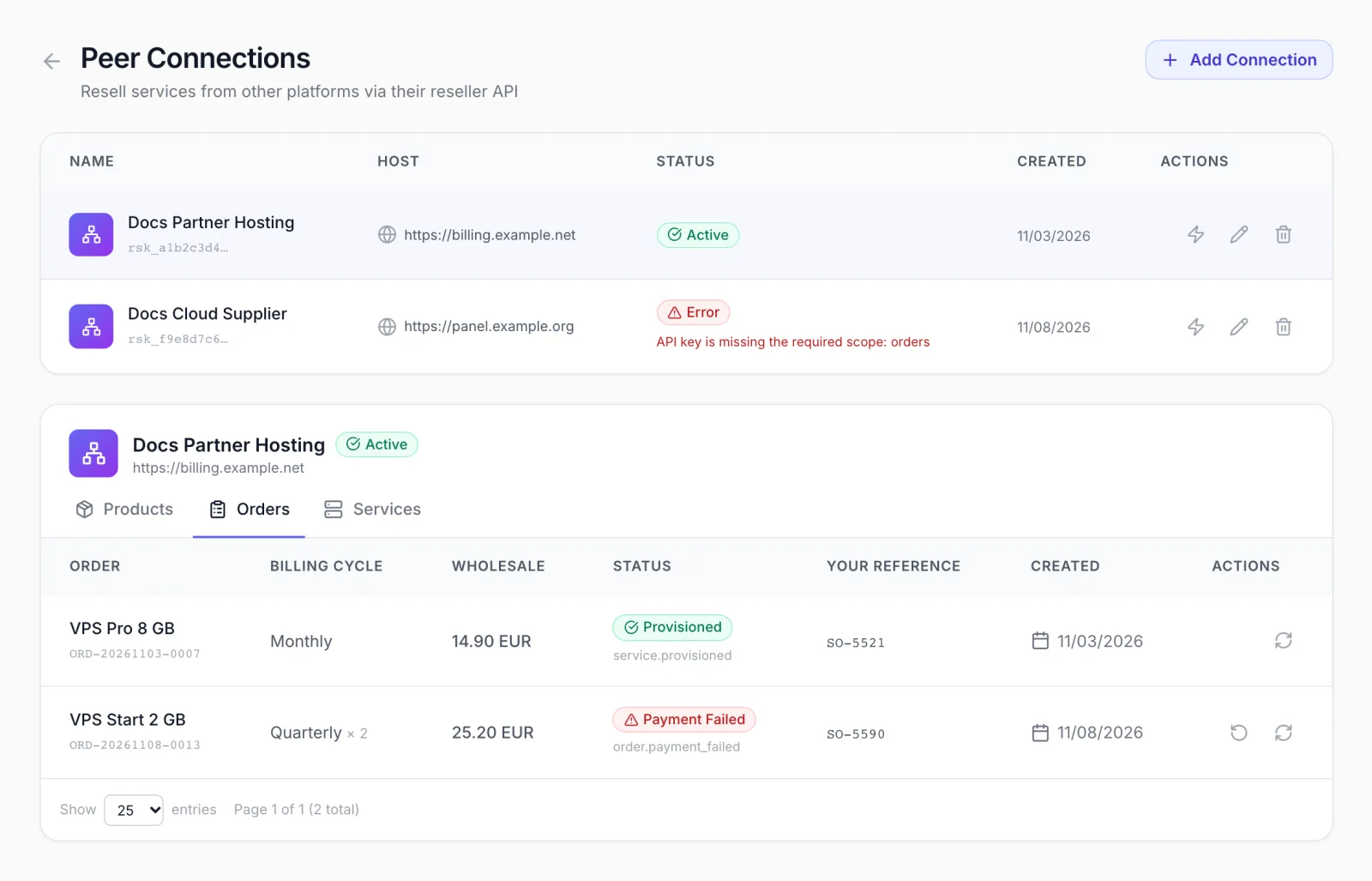
The Actions column has:
- Retry payment (only on orders with Payment Failed). It asks “Retry the payment for this order on the remote platform? Your stored payment method there will be charged.” and then sends the retry.
- Refresh status. It fetches the order from the supplier and shows what the supplier returned in a Remote Order <number> window.
Services tab
The Services tab lists every service your reseller account holds on the supplier's platform, with Service (hostname and product), Customer (the customer ID you sent), IP Address, Status, Wholesale (price per billing cycle) and Next Due. Use the Status chips (All Statuses, Active, Pending, Provisioning, Suspended, Terminated) to filter.
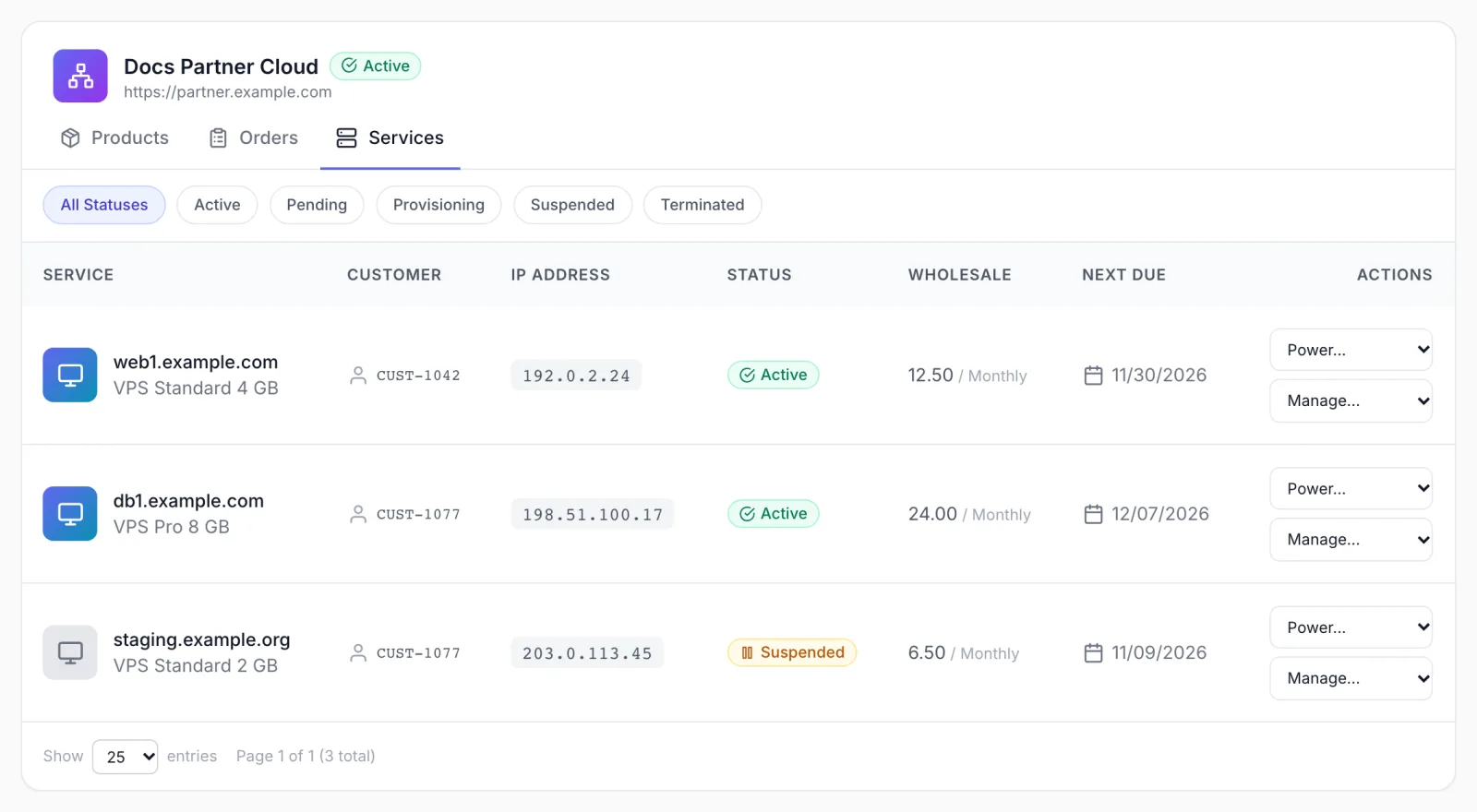
Each row has two menus in the Actions column. Everything runs on the supplier's platform, and what a service supports depends on the supplier's product.
| Menu item | What happens |
|---|---|
| Power... → Start, Stop, Restart, Shutdown | Sends the command; you see for example “Restart command sent”. The menu is available only while the service is Active or Suspended. |
| Manage... → Stats | Shows what the supplier reports for the service in a Stats window, or “No stats returned by the remote platform”. |
| Manage... → Console | Opens the console link the supplier returns in a new browser tab. If it returns none, you see “The remote platform did not return a console URL”. |
| Manage... → Reinstall | Asks for an OS Template (the name the supplier uses, for example ubuntu-22.04) and an optional Root Password (optional) of at least 8 characters. Click Reinstall and confirm in the dialog that follows, because “Reinstalling wipes all data on this service. This cannot be undone.” |
| Manage... → Reset Password | Sets a New Password for root, minimum 8 characters, after a confirmation. |
| Manage... → Backups | Lists the service's backups and lets you start a new one with an optional Backup name (optional) and Create backup. |
Suspending, terminating, changing the package and the other service functions of the Reseller API are not on this page. Use the supplier's own panel or its API for those.
What your end customers see
Nothing. A peer connection lives only in the reseller's Reseller area. The services are not added to your platform's products, orders or invoices, and your customers are not told about them. As the operator you do not see the reseller's peer connections in the admin panel either. Reinstall requests made from this page are recorded in your activity log under the reseller's name.
Troubleshooting
| Message | Cause and fix |
|---|---|
| API key must be a reseller key (rsk_...) | The key does not start with rsk_. Create a reseller API key on the supplier's API Access page; other API keys do not work here. |
| Could not connect to peer platform: … | The test call before saving failed. The text after the colon is the reason, for example a wrong URL, a revoked key, or “Private IP addresses not allowed”. Check the Platform URL is the supplier's public client panel address. |
| Maximum of 10 peer connections reached | Delete a connection you no longer use. |
| API key is missing the required scope: … | Create a key with that scope on the supplier's side (see the scope table above), then delete and re-add the connection with the new key. |
| Invalid signature | The signing secret on the connection does not match the supplier's. Copy the current Signing secret from the supplier and paste it with Edit. If the secret was rotated on the supplier, update it here too. |
| Peer connections are disabled on this platform | The operator turned off Peer connections. Ask your provider. |
| Active reseller account required | Your reseller account on this platform is not active. |
| Order created but payment failed… | The supplier could not charge your account there. Fix the payment method on the supplier's side, then use Retry payment. |
| Status Error on a connection | The last request to the supplier failed; the reason is under the status. Click Test connection once the cause is fixed. |