
AI Drafts and Prepared Actions in Tickets
Let AI draft a researched ticket reply and prepare upgrades, refunds, cycle changes, invoice corrections and credit that you approve.
AI draft researches a ticket and writes the next reply for you. When the customer asks for a billing change, such as an upgrade, a refund, a billing cycle change or a corrected invoice, the draft can also prepare that change as a card for you to approve. Nothing is sent and nothing on the account changes until a staff member acts. You review the reply before you send it, and you approve or dismiss each prepared change yourself.
This article covers the whole flow: what you need before the buttons appear, how a draft is researched, how to read a Prepared for your approval card, what happens when you approve it, and what to do when something fails. For the rest of the ticket screen, see Ticket details. For the provider and key setup, see AI settings.
Before you start
- Two feature toggles. Go to Settings → General and find the Feature Toggles card. Both AI and Ticket AI (“AI draft and Refine buttons on tickets”) must be on. Ticket AI needs AI, so switching AI off hides the ticket buttons too. See Modules and feature toggles.
- An AI provider. Add a Claude or ChatGPT (OpenAI) API key under Settings → AI, or enable an AI provider plugin. Only Claude and ChatGPT can prepare billing changes. A plugin provider can still write drafts, but it gets no account tools, so its drafts never come with cards.
- Staff permissions. These are set per department (see Staff and permissions):
- Reply to Tickets to use AI draft and Refine.
- View Clients for the draft to read the customer's account. Without it the draft cannot quote prices for their services or prepare changes (it can still quote from your product catalog).
- Edit Services to approve plan, option, billing cycle and location changes, and Edit Invoices to approve refunds, invoice and proforma corrections or cancellations, and account credit. Cancelling a document raised for a plan or billing change needs Edit Services, and a downgrade with the credit box ticked needs both. An approval runs with your own permissions.
- A customer account on the ticket. Changes are only prepared for a ticket opened by a customer account. A guest ticket from an unverified sender gets a draft, but no account data and no cards.
Draft a reply with AI
- Open the ticket from Tickets.
- Optional: type instructions in the reply box first, for example “offer quarterly billing” or “refund the duplicate payment”. The button's tooltip says it: “Text you already typed is used as your instructions.”
- Optional: if more than one AI provider is set up, pick one in the drop-down next to the button. Default AI uses the provider chosen in Settings → AI. Your choice is remembered in this browser.
- Click AI draft. The button reads Researching... while it works. A researched draft can take a while on a long ticket.
- The draft replaces the text in the reply box, and a toast says “AI draft inserted — review before sending”. Read and edit it like your own text.
- Optional: click Refine to improve grammar, tone and clarity of whatever is in the box. Refine rewrites; it does no research and prepares no changes.
- Approve or dismiss any cards under Prepared for your approval (below), then click Send Reply.
The same AI draft and Refine buttons sit above the composer of a live chat.
What the AI used
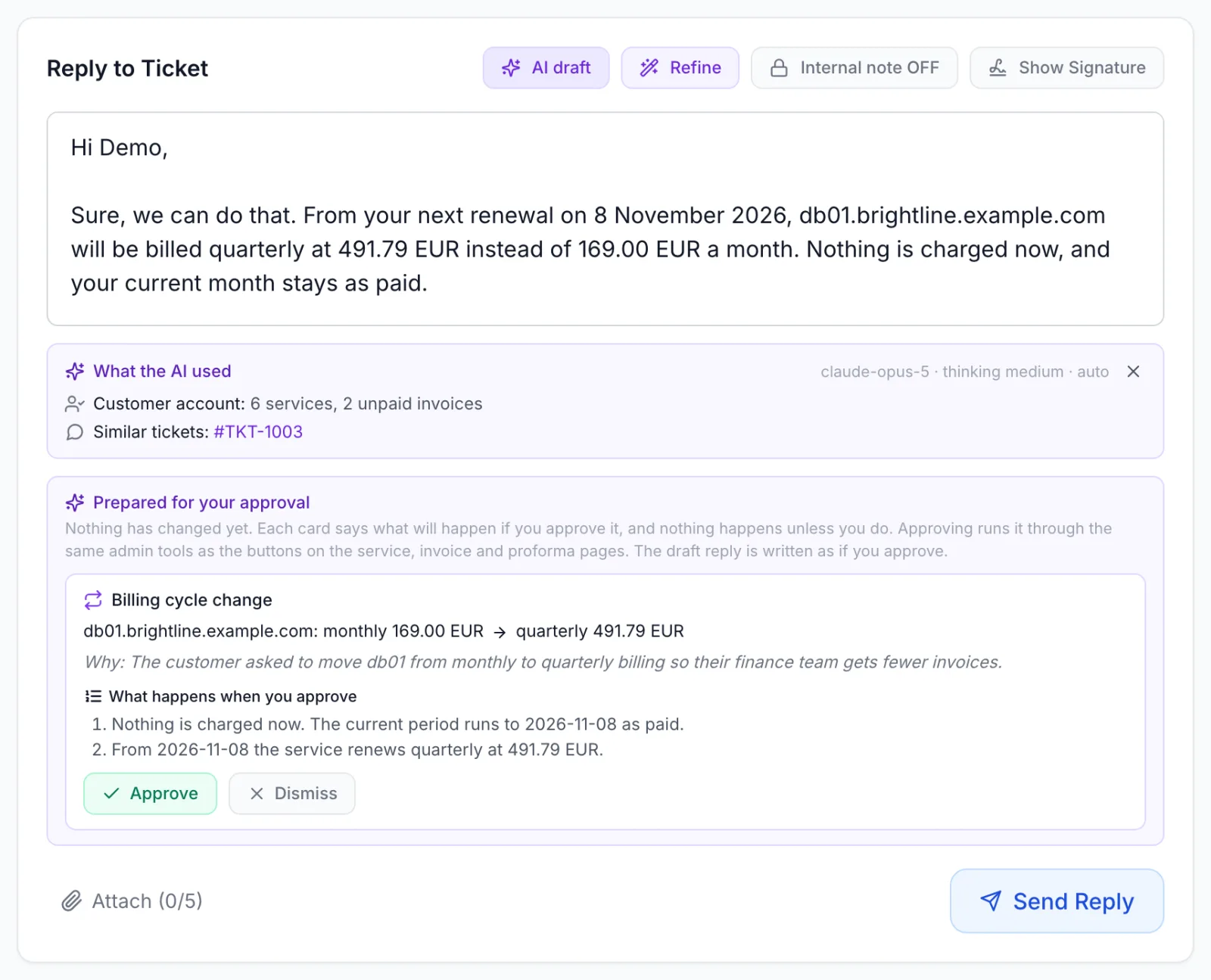
After a draft, a What the AI used panel lists the sources behind it, so you can check the reply against them. The top right shows the model and the thinking level it ran at, with auto when Automatic picked them. Hover over it to see why, for example “Chosen automatically for a standard ticket”. Click the × to hide the panel. It also closes when you send the reply.
| Row | What it shows |
|---|---|
| Customer account | How many services and unpaid invoices the customer has, and their reseller tier or status if they are a reseller. When the account was not used, it says why: “not used, guest ticket from an unverified sender”, “not used, it needs the clients.view permission”, “no customer account on this ticket” or “could not be loaded”. |
| Similar tickets | Links to the past tickets it read, or “none found”. |
| Help articles | Matching help articles, when it found any. |
| Web | The sites it found through web search. Instead of sites it can say “turned off in Settings > AI”, “not supported by this AI provider” or “not available for this API key or model”. |
| Invoices and proformas | Links to the billing documents it looked at. |
| Checked the product catalog | Shown when it looked up your products. |
| Reseller program terms | Shown when it read the terms of your reseller program. |
If the panel ends with “The draft may be cut off. Check the end before sending.”, read the last lines of the draft carefully.
Prepared for your approval
When the customer clearly asked for a change on their own account, or your instructions in the reply box told the AI to make one, the draft also prepares that change. It quotes the exact price first, with the same pricing the service, invoice and proforma pages use. The change appears as a card under Prepared for your approval. The panel says what that means: “Nothing has changed yet. Each card says what will happen if you approve it, and nothing happens unless you do.”
The draft reply is written as if you approve. If you dismiss a card, edit the reply so it no longer promises that change.
| Card title | What approving does | Approve button |
|---|---|---|
| Upgrade order | Creates the upgrade order. If something is due, it bills the prorated difference on a new invoice or proforma and the service moves to the new plan once that is paid. If nothing is due, it moves right away. Only plans the customer could order as an upgrade in the client area are offered. | Green |
| Downgrade | Moves the service to a cheaper plan as soon as you approve, or, if the card shows an amount due, once that is paid. The lower price starts at the next renewal. Options the new plan does not offer are removed. The unused part of the period is only credited if you tick the box on the card. | Red |
| Option change | Adds, changes or removes options. A prorated difference is billed on a new document and the options change once it is paid. If nothing is due, they change right away. | Green |
| Billing cycle change | Changes between monthly, quarterly, every 6 months and yearly from the next renewal. Nothing is charged now. | Green |
| Move off hourly billing | Bills the first period of the new cycle on a new document. The service stays hourly until it is paid. | Green |
| Move to hourly billing | Switches to hourly billing at once. The unused days of the paid period go to the customer's balance, and every hour is then charged from the balance. | Red |
| Move to another location | Live-migrates a VPS to another location, keeping or replacing its IP addresses as the card says. A dearer location bills the price difference first and the move starts once it is paid. | Red |
| Refund to the original payment method / Refund to the account balance | Refunds one named payment of a paid invoice or proforma, through the gateway or to the customer's balance. | Red |
| Invoice correction / Proforma correction | Changes, adds or removes lines on an unpaid document, or moves its due date. The total and VAT are recalculated. | Green |
| Cancel invoice / Cancel proforma | Cancels an unpaid document. A document raised for a plan or billing change is cancelled together with that change. | Red |
| Account credit | Adds an amount to the customer's balance. | Green |
A red Approve button marks a change that is hard or impossible to take back.
Reading a card
- The first lines show the service or document and the change, for example the old and new plan with “New price … (now …)”, or the old and new billing cycle with their prices. Invoice and proforma numbers are links that open the document in a new tab.
- Due now, when something is billed: the amount with its VAT breakdown and how it was prorated, for example “prorated for 12 of 30 days”.
- Why: the AI's reason, based on what the customer asked.
- What happens when you approve: a numbered list of every step, in order, in plain words. This is exactly what approving runs.
- A checkbox on some cards for an optional extra step. A downgrade offers “Also credit the unused part of this period (…) to the customer's balance”. A move to a cheaper location offers to credit the cheaper rest of the period when the move lands. The AI never ticks these for you.
- Warnings in amber, for what you should know before approving (see the table below).
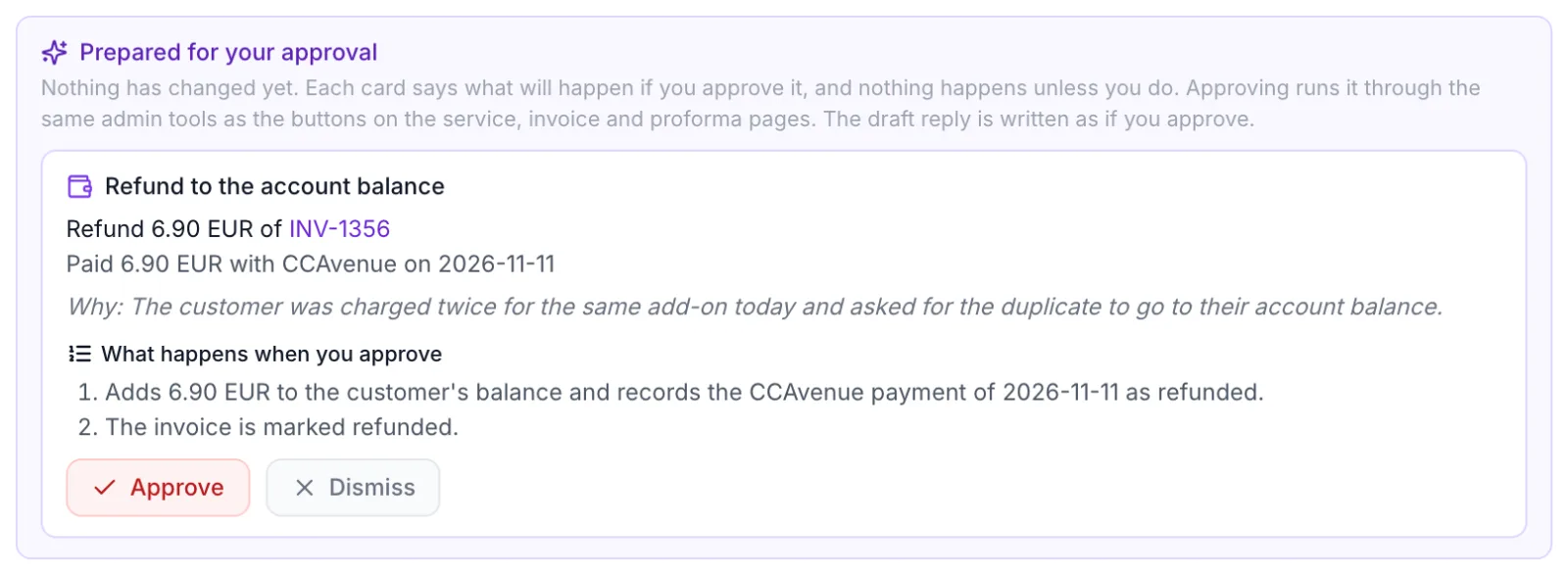
Approve a card
- Read the numbered steps and any warnings. Tick an optional box if you want that extra step.
- Click Approve. A dialog titled Approve this action? asks the question for this change, for example “Bill db01.brightline.example.com quarterly from its next renewal?”, and repeats the steps. For a refund it adds “A refund cannot be undone.”
- Click Approve in the dialog. The button on the card reads Working... while the steps run.
- The card shows Done and what happened, and a toast says “Done”.
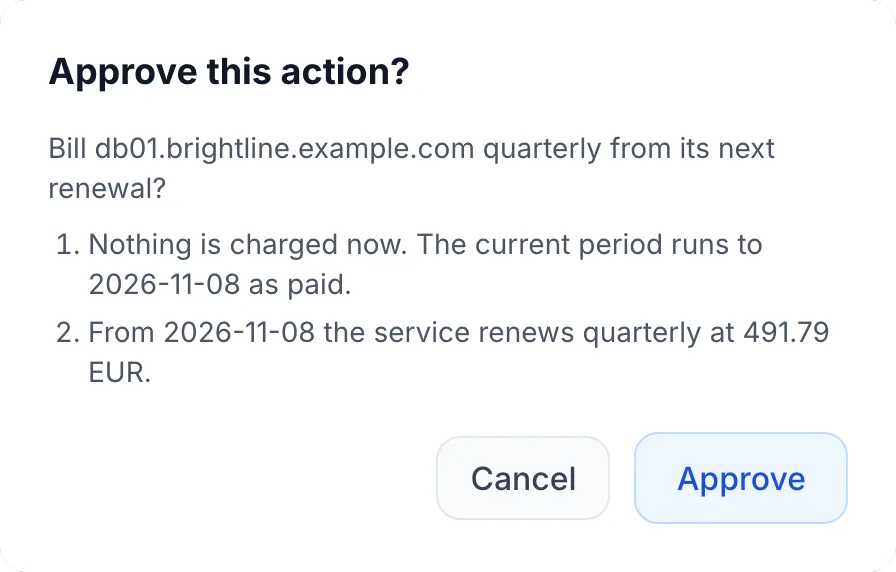
Approving uses the same admin tools as the buttons on the service, invoice and proforma pages, with the same checks, documents, e-mails and activity log. The result line tells you what came out of it:
- “Invoice created:” or “Proforma created:” with a link to the new document and its total.
- “Applied, nothing was due.”
- “Created. It waits for an admin to complete it under Upgrades.” See Upgrades and downgrades.
- “Billing cycle changed. From … it renews ….”
- “Migration to … started. The new location and price are billed once it lands.”
- “Now billed hourly. … added to the balance.”
- “Refunded.”, or “Refund requested. The gateway confirms it later.”
- “Corrected. New total ….”, “Cancelled.” or “Credit added to the balance.”
The reason recorded with a refund or a credit includes the ticket number, so you can trace it back later.
Dismiss a card
Click Dismiss. The card greys out and shows Dismissed. Nothing is changed.
Warnings on a card
| Warning | What to do |
|---|---|
| “Some gateways confirm a refund later. Until then it shows as requested.” | Check the payment gateway later if the refund stays requested. |
| “A refund of this payment was already requested at the gateway on … and has not settled yet. Check the gateway before approving another one.” | Check the gateway first, to avoid refunding twice. |
| “Top-ups carry VAT here, so only the amount before VAT is credited.” | The balance gets the net amount. Tell the customer if the draft does not. |
| “The balance is held in another currency. The amount is converted at today's rate.” | Expect a converted amount on the balance. |
| “… stays active until …, but the period this paid for counts as unpaid.” / “… is past its due date (…). Once this is refunded the overdue check can suspend it.” | Decide whether the service should keep running after the refund. |
| “Resources already delivered (for example disk space on a VPS) are not shrunk on a running server. If the smaller plan cannot be applied, the change fails and nothing moves.” | Shown on every downgrade. Check the server can run on the smaller plan. |
| “The customer's balance is kept in another currency, so the unused part cannot be credited from here.” | Add the credit by hand if you want to give it. |
| “The service is on a price of its own. The new cycle uses the plan's standard price.” (also for options) | Approve only if the customer should lose the special price. |
| “The VPS gets new IP addresses there: … stop working after the move. The customer must update DNS.” | Make sure the reply tells the customer. |
| “The balance covers only about … hours. When it runs out the service is suspended until it is topped up.” | Shown when the balance covers less than 72 hours of hourly billing. |
| “… is a renewal. Without it the next period of … is unpaid and the overdue check can suspend it after ….” | Shown when you cancel a renewal invoice or proforma. |
| “The unused part of what is removed is not refunded or credited.” | Shown on an option change that removes options when nothing is due. Credit the customer separately if you want to. |
New drafts, reloads and sending
- A new AI draft replaces the cards still waiting and any you dismissed. Cards that are Done, failed or interrupted stay, so you keep the record.
- The cards live in your browser tab. Reloading the page keeps them. Other staff on the ticket do not see them, and they are gone when you close the tab.
- Sending with cards still waiting. Because the reply is written as if you approve, Send Reply asks first: “1 prepared action is not approved yet, and the reply is written as if it were. Send anyway?” Cancel, approve or dismiss the card, edit the reply, then send. Internal notes skip this question.
What the customer sees
The customer never sees the cards or the research panel. They see the reply you send, and the results of what you approved, in the same way as when you make the change by hand. For example, a new invoice or proforma appears in their client area and is e-mailed to them, a refund to the balance shows on their balance, and a changed billing cycle shows on the service.
Limits
- Up to 6 cards per draft. One card per decision: a later proposal for the same service plan, options, billing cycle, location, document or account credit replaces the earlier one.
- Prices on a card are quoted when the draft is written. Approving makes the change as the service or invoice page would at that moment, so a card left waiting for days can bill a different prorated amount, or be refused.
- Upgrade targets are the plans the customer could order as an upgrade in the client area. Downgrade targets are active plans linked to the service's plan by an enabled upgrade path, in either direction, that cost less than the service pays now. Moving a service to any other plan is for you to do by hand.
- No new upgrade or option change can be prepared while another upgrade of the service is still in progress.
- Only a VPS can move to another location.
- Only paid documents can be refunded, one payment at a time. For a document paid twice, the duplicate payment is refunded and the document stays paid. A refund to the original method needs a gateway that can refund. A refund to the balance takes back the whole proforma; for part of it, refund to the original method.
- Only unpaid documents can be corrected or cancelled: not ones paid in part, not ones in a closed month (refund those instead, see Closed months and storno invoices), and not ones on hold for an upgrade in progress. Lines cannot be negative, a correction cannot leave a document empty or at zero, and a new due date can be at most 90 days away.
- The AI is told to prepare account credit only when your instructions in the reply box ask for it, or when your Ticket AI Instructions in Settings → AI allow compensation.
- The AI is told to prepare a refund only for a clear billing error, such as a double charge, a charge after cancelling or a wrong amount, or when the customer asks for one and your instructions allow it. These are guidance for the AI, not hard limits: check every card before you approve it.
- If the customer is a team member whose role cannot manage services and billing, nothing is prepared. Only the account owner or a member with those rights can ask for a change.
Troubleshooting
- No AI draft button. The AI or Ticket AI feature toggle is off.
- “Claude API key not configured. Add it in Settings > AI, or enable an AI provider plugin.” No usable provider is set up. Add a key under Settings → AI. The same message names ChatGPT (OpenAI) when that is the chosen provider.
- “AI request failed” or “The AI returned an empty draft. Try again.” The provider did not answer in time or returned nothing. Try again, or pick another provider in the drop-down.
- “You do not have access to this ticket”. Your department cannot see this ticket's department.
- A draft with no cards, although the customer asked for a change. Check the Customer account row of What the AI used: a guest ticket, a missing View Clients permission or a plugin provider all mean no cards. Otherwise the change may not be possible, for example an unpaid invoice blocks a billing cycle change until it is collected or cancelled. The draft then explains what can be done instead. You can type an instruction and click AI draft again, or make the change by hand.
- “Not done: Insufficient permissions”. You lack Edit Services or Edit Invoices for that change. Ask a colleague who has it, or an administrator.
- “Not done: …” with another message. The service, invoice or proforma page refused the change, and the message is its reason. Nothing after the failed step ran.
- “The steps above went through. Finish the rest by hand.” A change with several steps stopped part way. The green lines above it ran; do the rest on the service or document page.
- “The page was closed while this ran. Check the service or document before doing it again.” The tab was reloaded or closed during an approval, so the result is unknown. The card is not offered again. Open the service or document and check before you repeat anything.
Claude is a trademark of Anthropic. ChatGPT is a trademark of OpenAI. FluxBilling is not affiliated with Anthropic or OpenAI.