
Looking Glass
Give visitors a branded public page to run ping, traceroute and MTR from your locations, run by your VPS and game nodes. Embed it or use its API.
Looking Glass gives your visitors a public page where they can run ping, traceroute and MTR from your locations to any public IP address or hostname. Customers and prospects use it to check latency and routing to your data centres before they buy, and your support team uses it to answer "is it the network?" tickets. The tests run on the VPS and game nodes you already have in each location. Visitors see a city, never a node.
The page carries your company name and logo. You can link to it, frame it on your own website, or build your own form on its public API.
What you need
- Three feature toggles on. Looking Glass sits under VPS Clusters, which sits under Locations, in Settings → General → Feature Toggles. Turn on Locations, then VPS Clusters, then Looking Glass, and click Save Settings. Looking Glass is off until you switch it on. Turning off VPS Clusters or Locations also turns it off. See Modules & Feature Toggles.
- At least one VPS node or game node with a location. Only nodes that are assigned to an active location can serve tests. See VPS nodes, Game nodes and Locations.
- An agent on that node running version 1.37.113 or newer, online. Agents update themselves, so an older node starts serving on its own after its next update.
- Staff permission. View VPS Clusters lets a staff member open the page and run tests. Edit VPS Clusters is needed to change the settings, hide or show a location, and use Prepare nodes. See Staff and permissions.
Where to find it
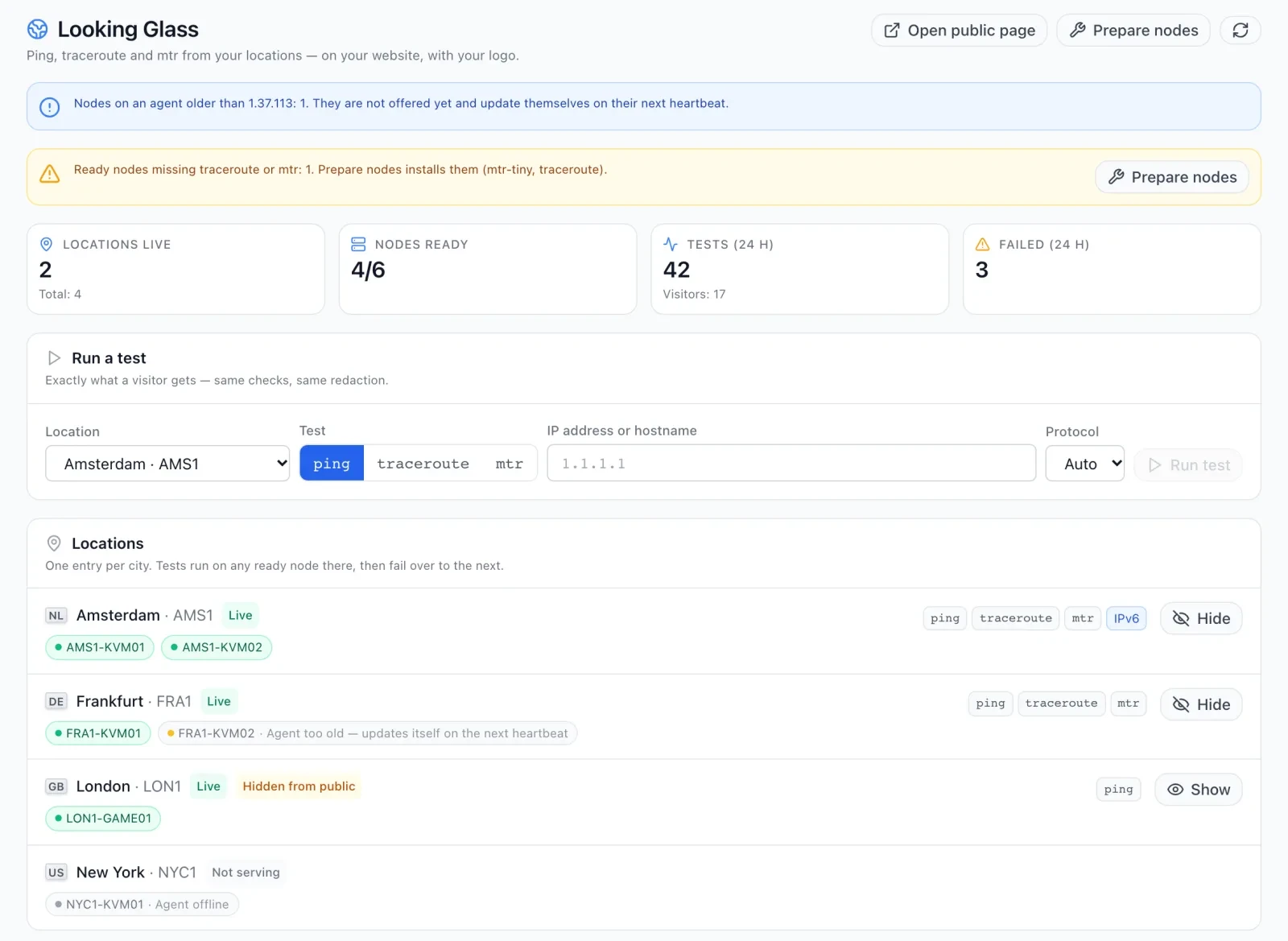
In the admin panel, open VPS → Looking Glass. The tab appears in the VPS tab strip only while the Looking Glass toggle is on.
The top of the page has three buttons:
- Open public page opens the page your visitors see, in a new tab.
- Prepare nodes (Edit VPS Clusters only) asks every online node to install traceroute and MTR if they are missing. See Prepare nodes.
- The refresh button reloads the page data.
Step 1: Check that your locations are live
Four tiles at the top tell you whether Looking Glass is working:
| Tile | What it counts |
|---|---|
| Locations live | Locations that can run tests and are not hidden from the public page. Total under it counts every location that has a node. |
| Nodes ready | Ready nodes out of all your VPS and game nodes that have a location. |
| Tests (24 h) | Tests run in the last 24 hours, by visitors, staff and linked panels. Visitors under it counts the different IP addresses that ran them. |
| Failed (24 h) | Tests in the last 24 hours that did not finish with a result. |
The Locations card lists one entry per city. Each entry shows the flag, the location name and data centre, the tests it offers, and an IPv6 chip when at least one of its nodes has a public IPv6 address. A green Live badge means visitors can test from it. Not serving means none of its nodes is ready. Hidden from public means you hid it.
Under each location, every node appears as a small chip. A green chip is a ready node. A grey chip shows why the node is not used:
| Message on the node chip | What it means and what to do |
|---|---|
| Node is not active | The node is in maintenance, provisioning or unreachable status. Only active and frozen nodes serve tests. |
| Agent too old — updates itself on the next heartbeat | The agent is older than 1.37.113. Wait for it to update; a banner at the top of the page counts these nodes. |
| Agent has not reported looking-glass support yet | The agent is new enough but has not yet told the panel which tools it has. This clears on its own once the agent reports in. |
| Agent offline | The agent is not connected. See Local agents. |
A location offers every test that at least one of its ready nodes can run. A test starts on one ready node in that city. If that node is offline, busy or cannot run the test, Looking Glass tries the next ready node in the same city.
One entry per city. Locations are grouped by country and city (or by the location code when a location has no city). Two locations in the same city show as one entry on the public page, and tests can run on the nodes of either.
Prepare nodes
Ping is installed on almost every server, but traceroute and MTR often are not. When a ready node is missing either one, a yellow banner says Ready nodes missing traceroute or mtr with a count, and the location shows only the tests its nodes have.
Click Prepare nodes in the banner or at the top of the page. Every online node with a recent enough agent checks its tools and starts installing what is missing in the background (the traceroute and mtr packages; mtr-tiny on Debian and Ubuntu). A message reports Nodes checked and how many nodes are installing tools. The page refreshes after two seconds; give the install a minute, then refresh again. A node retries a failed install of the same tool at most once every 30 minutes.
Step 2: Run a test yourself

The Run a test card runs the same test a visitor would, with the same checks and the same cleaning of the output.
- Choose a Location. Only live locations are listed. Hidden locations are listed too, so you can still test from them.
- Choose the Test: ping, traceroute or mtr. Only the tests that location offers are shown.
- Enter an IP address or hostname.
- Choose the Protocol: Auto, IPv4, or IPv6 (shown only when the location has IPv6). With Auto, a hostname is tested over IPv4 when it has an IPv4 address, otherwise over IPv6.
- Click Run test. Ping takes a few seconds; traceroute and MTR can take up to about 45 seconds.
The result shows the test and target (with the resolved address when you entered a hostname), the location, how long it took, and the raw output.
Staff tests skip reCAPTCHA and the per-visitor hourly and per-minute limits. Every other rule on this page still applies, including the per-target limit.
What each test does
| Test | What runs on the node | Time limit |
|---|---|---|
| Ping | 5 echo requests, 2 seconds to wait for each reply. The public page turns the result into Packet loss, Min, Average and Max tiles above the output. | 20 seconds |
| Traceroute | Up to 30 hops, 2 probes per hop, 2 seconds to wait for each probe. | 45 seconds |
| MTR | A report of 10 cycles, showing the loss and latency at each hop. | 45 seconds |
All three tests print numbers only: the node does not look up hop names. The node's own name is replaced with node. Before the output is shown, every private or internal address in it is replaced with [private], and hop names are removed. Output is capped at 64 KB. When a test hits its time limit, the visitor sees what was collected so far, with the note The test hit its time limit; the output above is what was collected.
Step 3: Put it in front of your visitors
The Public page & API card gives you three ways to publish Looking Glass.
Link to the public page
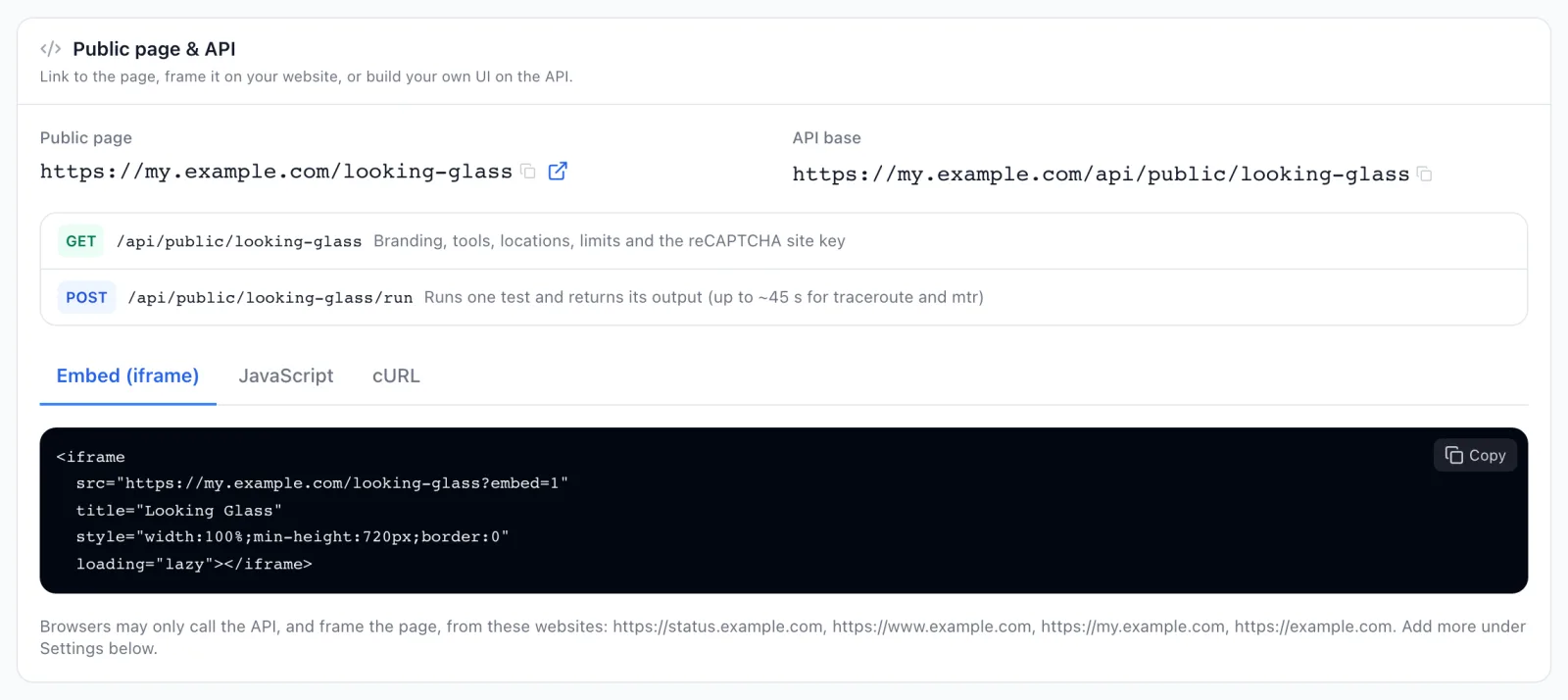
Public page shows the page address, with a copy button and a link to open it. It is your client panel address followed by /looking-glass, for example https://my.example.com/looking-glass. Visitors do not need an account. If you serve your client panel on your own domain, the page uses that domain too; see Custom domains for your panels.
Frame it on your website
Open the Embed (iframe) tab, click Copy, and paste the code into a page of your website. The code adds ?embed=1 to the page address. In embed mode the page drops its own header, title and footer and uses a transparent background, so it blends into your page.
A browser shows the frame only on websites you allow. These are always allowed:
- Your website, as set in Button URL under Settings → General → Navigation, both with and without
www.. - Your client panel's own address.
Add any other site under Extra websites allowed to embed in the settings below. The note under the code examples lists every website that is currently allowed.
Build your own form on the API
API base shows the public API address of your Looking Glass. It needs no API key. The JavaScript and cURL tabs show working examples with your own address filled in.
- GET on the API base returns your company name and logo, the tests offered, the locations, the limits, the visitor's own IP address, and the reCAPTCHA site key when reCAPTCHA is required. Each location has an
id,name,city,country_code,datacenter,toolsandipv6. - POST on the API base followed by
/runruns one test. Send JSON withlocation(a locationid),tool(ping,tracerouteormtr),target, and optionallyfamily(auto,ipv4oripv6) andrecaptcha_token. The answer carries the plain-textoutput, the resolvedip,duration_msandtimed_out. Allow up to about 45 seconds for traceroute and MTR.
Browsers may call the API only from the websites that are allowed to embed the page. A call from any other website gets This website is not allowed to use the looking glass. Calls from a server or the command line (with no browser origin) are accepted, and the per-visitor limits still apply to them. When reCAPTCHA is required, your own form must load reCAPTCHA v3 with the site key from the GET answer and send a token for the action looking_glass.
What your visitors see
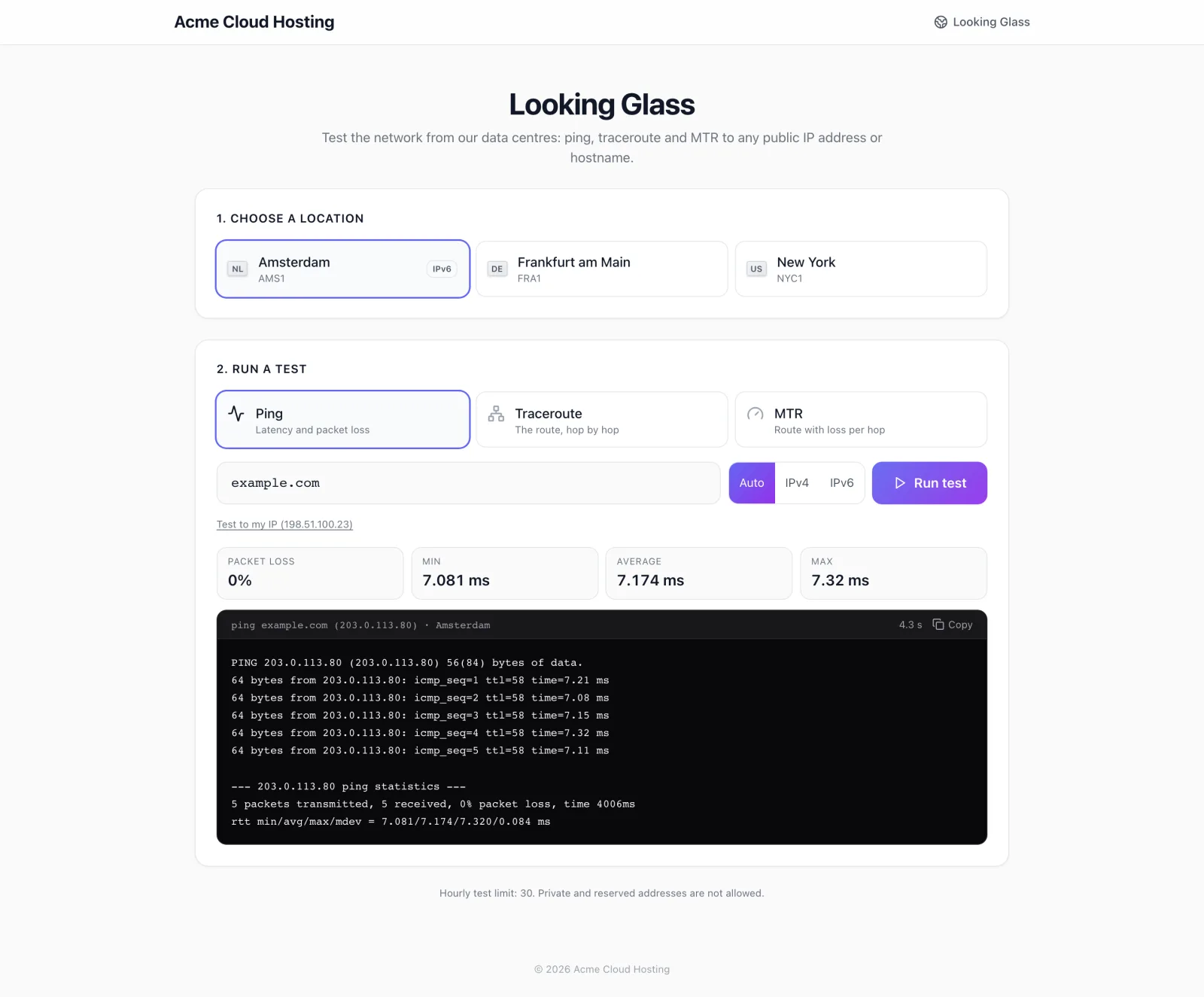
The public page shows your logo and company name in the header, the title Looking Glass, and the line Test the network from our data centres: ping, traceroute and MTR to any public IP address or hostname. The browser tab reads Looking Glass · followed by your company name. If Hide platform header on login page is on in Settings → Custom Code, the header is hidden here as well.
- Under 1. Choose a location, the visitor picks a city. Each card shows the flag, the city and the data centre, and an IPv6 tag when the location has IPv6.
- Under 2. Run a test, they pick Ping (Latency and packet loss), Traceroute (The route, hop by hop) or MTR (Route with loss per hop).
- They type an address in the IP address or hostname box, or click Test to my IP to fill in their own address. This is the quickest way for a customer to show you the route back to their connection.
- For a location with IPv6, an Auto / IPv4 / IPv6 switch appears next to the box.
- They click Run test. While it runs, the page says Sending 5 pings… or Tracing the route — this can take up to 45 seconds…
The result has a Copy button, so a customer can paste it straight into a support ticket. Under the form, the page states the hourly limit: Hourly test limit: 30. Private and reserved addresses are not allowed. (with your own number). When reCAPTCHA is required, the reCAPTCHA notice is shown too.
When no location can run tests, visitors see No locations are available right now. When Looking Glass is switched off, they see The looking glass is not available.
Step 4: Adjust the settings
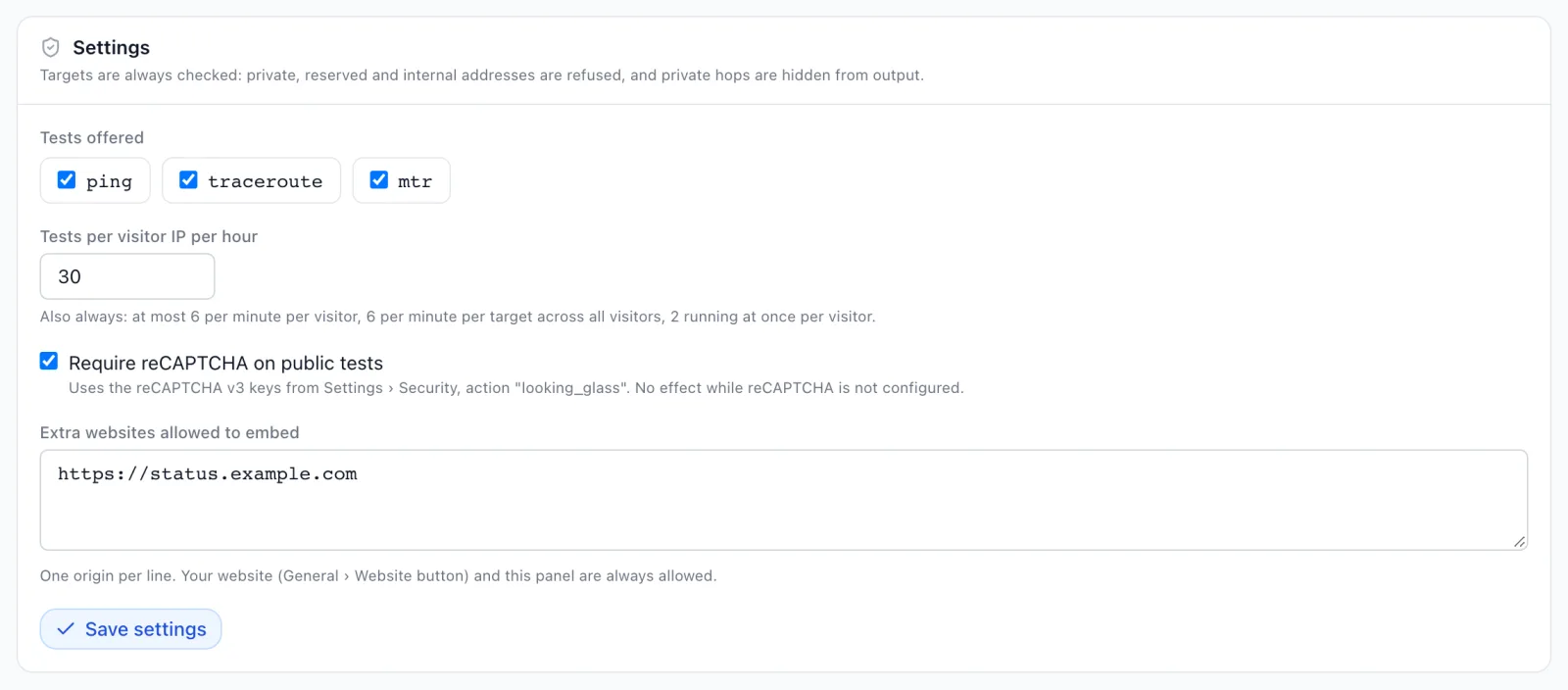
The Settings card applies to the public page, the public API and staff tests. Change the fields, then click Save settings. Staff without Edit VPS Clusters see the fields greyed out and no save button.
| Field | What it does |
|---|---|
| Tests offered | Tick ping, traceroute and mtr to offer them. At least one must stay ticked. An unticked test disappears from the public page and the API, and cannot be run by staff either. |
| Tests per visitor IP per hour | How many tests one visitor may run in an hour, from 1 to 1000. The public page shows this number. The other limits listed under it always apply and cannot be changed. |
| Require reCAPTCHA on public tests | Checks every public test with reCAPTCHA v3, using the keys from Settings → Security. It has no effect while reCAPTCHA is not configured there. See Security settings. |
| Extra websites allowed to embed | One website origin per line, such as https://www.example.com, up to 20. Only https addresses are accepted. A path after the domain is ignored. Your website and your client panel are always allowed and do not need to be listed. |
Hide a location from the public page
In the Locations card, click Hide next to a live location. It takes effect at once, without Save settings. The location gets the Hidden from public badge and disappears from the public page and the API; click Show to bring it back. Staff can still test from a hidden location in Run a test. A location you hide is also hidden from the Looking Glass of every panel linked to yours.
Locations from linked panels
If you use VPS nodes or game nodes that another panel shares with you through Panel Links, that panel's locations appear on your Looking Glass too. Tests from them run on the other panel's nodes. A city you both have shows as one entry, and your own nodes are tried first.
This works only when the other panel has Looking Glass switched on. The Linked panels card lists each such panel with its number of Locations, or Looking glass not enabled on that panel. Linked locations show a blue via chip with the panel's name in the Locations card.
The other way round: when you share nodes with another panel and have Looking Glass on, that panel's visitors can test from the locations of the nodes you share with it. Those tests appear in your Recent tests with the source peer. One linked panel can run up to 600 tests an hour and 3 at a time on your nodes.
Recent tests
The Recent tests card lists the last 50 tests: Time, Source (public for the page and API, admin for staff, peer for a linked panel), Location, Test with its target, Requested by (the visitor's IP address) and Result (ok, refused or failed, with the duration). Use it to spot abuse. Each test is kept for 30 days and then deleted automatically.
What may be tested, and the limits
These rules protect your network and other people's. They always apply and are not settings.
- Targets must be public. A target is an IP address or a hostname. Private, reserved, loopback and other non-routable addresses are refused. For IPv6, only global unicast addresses are accepted. A hostname must resolve only to public addresses, and names ending in internal suffixes such as
.local,.internalor.lanare refused. The management addresses of your own nodes are refused too. - Per visitor: the hourly number you set, at most 6 tests a minute, and at most 2 tests running at once. Visitors on IPv6 are counted per /64 network for the minute and running limits, and per /56 network for the hourly limit, so a visitor cannot get around the limits by changing address.
- Per target: at most 6 tests a minute against the same address, from all visitors together.
- Per node and per panel: a node runs at most 3 tests at once, and your panel at most 12.
Troubleshooting
| Message | Cause and fix |
|---|---|
| No location can run tests yet | Shown in Run a test when no location is live. Check the node chips in the Locations card for the reason. |
| No VPS or game nodes with a location yet | None of your nodes is assigned to an active location. Give your nodes a location. |
| No locations are available right now. | The public page has nothing to offer: no location is live, all live locations are hidden, or none of them has a test that is ticked in Tests offered. |
| The looking glass is not available. | The public page is open but Looking Glass, VPS Clusters or Locations is switched off. |
| Enter an IP address or a hostname / Enter an IP address or a public hostname | The target is empty, too long, contains characters an address cannot have, or is a name with an internal suffix. |
| That address is private, reserved or not routable on the internet | The target is not a public address, is written in an unusual form (such as a single number), or is one of your own nodes. |
| That hostname does not resolve to a public address | The name does not exist, or at least one of its addresses is private. |
| That hostname has no IPv6 address / That hostname has no IPv4 address | The protocol chosen does not match the addresses the name has. Choose Auto. |
| This location has no IPv6 connectivity — try an IPv4 address | None of the location's ready nodes has a public IPv6 address. |
| That test is not offered here / That test is not available from this location | The test is unticked in Tests offered, or no ready node in that location has the tool. Use Prepare nodes. |
| Choose a location / That location is not available right now | No location was sent, the location is hidden, or it stopped serving since the page loaded. Reload the page. |
| Too many tests in a minute — wait a moment | The visitor ran 6 tests in the last minute. |
| You can run 30 tests per hour — try again later | The visitor reached your hourly limit (the number is yours). |
| Wait for your running test to finish | The visitor already has 2 tests running. |
| That target was tested many times in the last minute — try again shortly | Visitors together ran 6 tests against that address in the last minute. |
| The looking glass is busy right now — try again in a few seconds / Every node in this location is busy — try again in a few seconds | Your panel, or every node in that city, is already running as many tests as it allows. |
| No node in this location could run the test right now — try again shortly | Every ready node in the city failed or did not answer in time. Check that the agents are online. |
| That target was refused by the node | The node (or a linked panel) refused the target after its own check. |
| reCAPTCHA verification required / reCAPTCHA verification failed — reload and try again | reCAPTCHA is required and the request had no valid token. On your own form, send a fresh token with each test. |
| This website is not allowed to use the looking glass | A browser called the API from a website that is not allowed. Add it under Extra websites allowed to embed. |
| The looking glass is temporarily unavailable | The limits could not be checked, so no test runs. Try again shortly. |
| Keep at least one tool enabled | You tried to save the settings with every test unticked. |
| Hourly limit must be between 1 and 1000 | The hourly number is out of range. |
| "…" is not an https website origin (https://example.com) | A line under Extra websites allowed to embed is not an https address. |
| At most 20 embed origins | You listed more than 20 websites. |
If the frame stays blank on your website, the site is not in the allowed list. Check the list under the code examples, and make sure the site uses https.
Related
VPS overview · VPS nodes · Game nodes · Locations · Panel Links · Security settings · Modules & Feature Toggles