
Server Images: Capture a VPS and Reuse It
Capture a configured VPS into an image, manage your images under Settings, and order new servers that start from the same setup.
A server image is a copy of one of your VPS servers that you can build new servers from. Set up a VPS the way you want it, capture it once, and every new VPS you order from that image starts with the same software and settings instead of a fresh operating system. Images belong to your account, not to one server: you keep them, and pay for their storage, until you delete them, even after the server they came from is gone.
This page is written for customers using the client area. If you run a FluxBilling panel and want to offer images to your customers, see Stored VPS Images for the switches, the price and the admin view.
Before you start
- Your provider has to offer it. Capturing is available only when your provider has switched it on, and only for VPS products that allow it. If the Server images card is not on your VPS page, the feature is not offered for that server.
- VPS servers only. Images are taken from VPS servers that your provider runs on its own platform. They are not available for dedicated servers, game servers or other services.
- Team members need permission to manage services to capture or delete an image. Permission to view services is enough to see the list. See Team Members.
- Storage may be charged. If your provider charges for images, the price is shown in the capture dialog and next to each image before you pay anything. See What it costs.
Capture a server
- Set the server up the way you want every copy to start: install your software, apply updates and change the settings you need.
- Remove anything you do not want on every future server, such as private SSH keys, passwords saved in files, logs and shell history. The image is a copy of the whole disk.
- Open My Services and click the VPS.
- In the Server images card, click Capture this server.
- Enter a Name and, if you like, a Description (optional).
- Click Capture. The message Capture started. It keeps running while we work. confirms it.
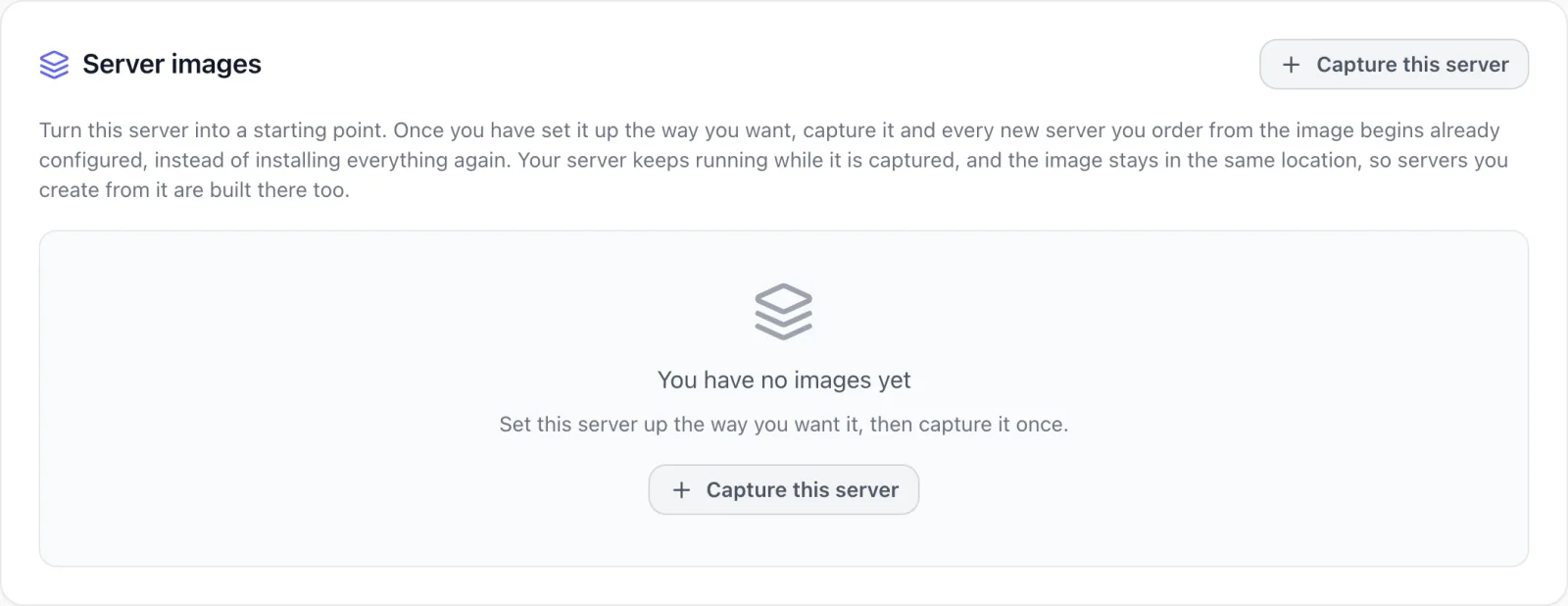
The server is not restarted and keeps running while it is captured. A capture takes a few minutes, and larger disks take longer. While it runs, the card shows Building your image… and refreshes on its own. You can leave the page; the capture continues.
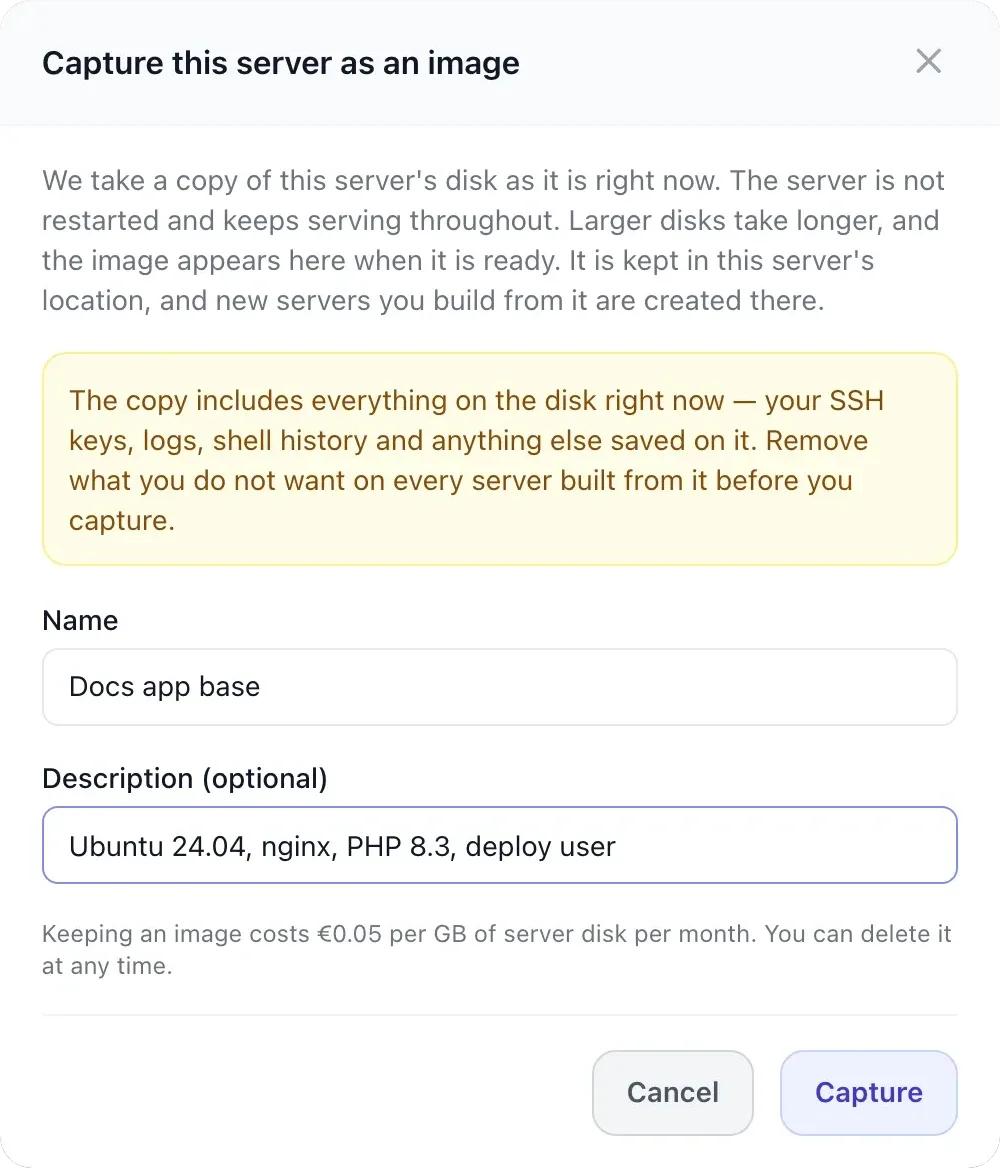
| Field | What to enter |
|---|---|
| Name | Required, up to 120 characters. It must be different from the names of your other images in the same project. This is the name you pick when you order a new server. |
| Description (optional) | A note for yourself, up to 2,000 characters, for example what is installed. It is shown under the name in the image list. |
The line under the fields gives the price: either Keeping an image costs … per GB of server disk per month. You can delete it at any time. or Keeping an image is not charged on this platform.
Where the image is stored. An image stays in the location of the server you captured it from. Every server you build from it is created in that same location.
See and delete your images
All your images are listed in one place: Settings → Server images (in the Organisation group of the settings menu). The Manage images link in the VPS card opens the same page. The tab appears when your provider offers capturing or when your account already holds an image, so an image you captured earlier stays reachable even if the feature is later switched off.
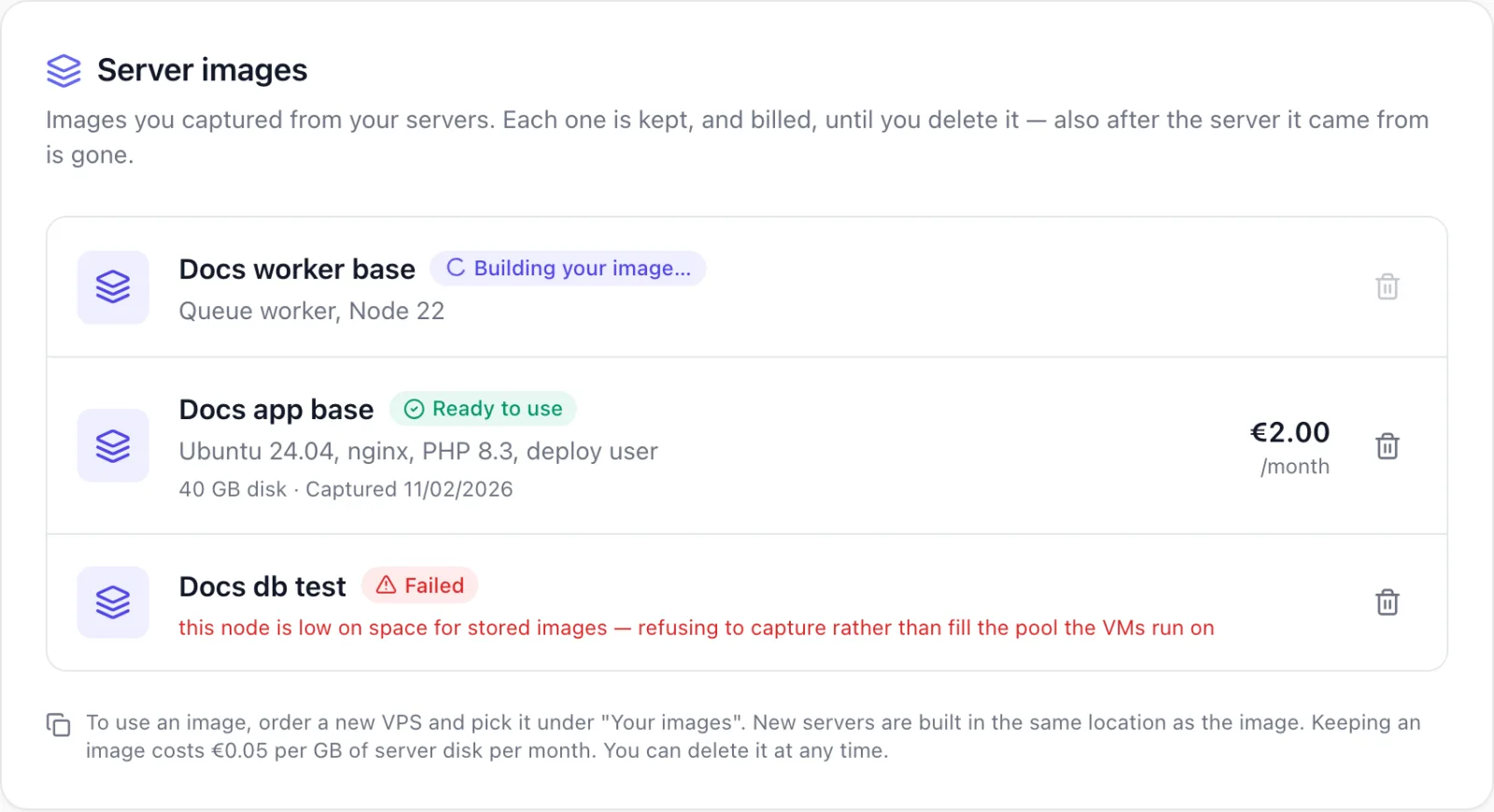
Each row shows the image name, its status, the description, and, once the image is ready, the disk size it was captured from and the capture date (for example 40 GB disk · Captured …). If storage is charged, the monthly price of that image is on the right.
| Status | Meaning |
|---|---|
| Building your image… | The capture is still running. The image cannot be ordered or deleted yet (the bin icon is greyed out), and it is not charged. |
| Ready to use | The image can be used for new servers. Storage charges, if any, run from this point. |
| Failed | The capture did not complete. The reason is shown under the name. A failed image cannot be used and is not charged; delete it and capture again. |
To delete an image, click the bin icon on its row and confirm with Delete. The image is removed and stops being charged. Servers you already built from it are not affected.
If your account uses projects, the list shows the images of the project selected in the header. An image belongs to the same project as the server it was captured from. See Server Projects.
Build a new server from an image
You use an image by ordering a new VPS with it. You cannot install an image on a server you already have from this card.
- Start a new VPS order as usual (see Placing an Order).
- Under Operating System, pick your image in the Your images row. Each image is listed with its location. Picking it replaces the operating system choice; picking an operating system again clears the image.
- Under Location, the image's location is selected for you and cannot be changed while the image is chosen.
- Choose a plan whose disk is at least as large as the image's disk, and finish the order.
Only images that are Ready to use appear in the order form. The order summary lists your choice as Your image instead of Operating System.
What it costs
Your provider decides whether images are charged and at what price. When they are:
- The price is per GB of the server disk the image was captured from, per month. An image of a 40 GB VPS is charged as 40 GB, however small the stored copy is.
- Charging starts when the image becomes Ready to use and is counted by the day. A month counts as 30 days, so an image kept for ten days costs a third of the monthly price.
- Images that are still building or that failed are never charged.
- When you delete an image, the days not yet charged are billed straight away, and nothing after that.
- The charge is collected the same way your provider collects other usage: taken from your account credit, or on one invoice (or proforma) per calendar month, following your provider's normal billing. The line reads Image storage — <image name> (<size> GB disk, <days> days).
Images are not tied to a server, so cancelling or terminating the server you captured does not delete its images. Delete the ones you no longer need under Settings → Server images.
Limits
- Number of images. Your provider sets how many images one account may keep. Images that are building or ready count toward it; failed ones do not.
- Server state. A VPS can be captured only while it is running or stopped.
- Disk size. A new server needs a disk at least as large as the disk the image was captured from.
- One location. Images are not copied between locations. To have the same setup in another location, set up a server there and capture that one.
- Suspended accounts can still see their images but cannot capture or delete them until the account is active again.
Troubleshooting
| Message | What it means |
|---|---|
Give the image a name | The Name field is empty. |
You already have an image named "…" | Pick a different name. |
You can store N images. Delete one before capturing another. | You have reached the image limit. Delete an image you no longer need under Settings → Server images. |
This VPS is … — capture it when it is running or stopped. | The server is busy, for example still being built. Wait until it is running or stopped. |
"…" does not offer server images. | Your provider does not offer images for this product. |
Capturing a VPS into an image is not enabled on this platform. | Your provider has switched capturing off. Images you already have can still be used and deleted. |
Image "…" needs a N GB disk and "…" provides N GB. Order a plan with a disk at least that large. | The plan you picked is too small for the image. Choose a plan with a larger disk. |
| The order says the image can only be deployed where it is stored and that location cannot take the server right now | The location that holds the image is full for this plan. Try a smaller plan, contact your provider, or capture a server in another location. |
Image "…" is no longer tied to a live node and cannot be deployed. Capture it again. | The hardware that stored the image has been retired. Delete the image and capture a running server again. |
Your account is suspended. You can only view your account information. | Capturing and deleting need an active account. Pay the open invoice or contact your provider. |
The bin icon is greyed out while an image shows Building your image…. If an image stays in that state for several hours, it is marked Failed when the capture times out. Delete it then and capture again, or open a ticket (see Getting Support).
Related
- Managing Your Services: the other controls on your VPS page.
- Placing an Order: the order steps.
- Server Projects: grouping servers and images by project.
- Stored VPS Images: for providers, how to switch images on and price them.