
AI Migration
Move clients, products, services, invoices and payments from any other billing system: connect its database or upload exports, then approve in Admin AI.
AI Migration moves clients, products, services, invoices and payments into FluxBilling from a billing system that has no migration wizard of its own. You connect the old system's database, or upload its exports as CSV or JSON files. Admin AI reads the table structure and proposes how the old tables map onto FluxBilling records. You approve the mapping, run a preview that writes nothing, and then approve the import. Nothing is imported until you approve it.
Use it for HostBill, ClientExec, Paymenter, Upmind exports, the billing side of Virtualizor, an in-house system, or any other panel whose data you can read. Coming from WHMCS, Blesta or EasyDCIM? Use that system's own wizard instead: it carries over more than a mapped import. See WHMCS Migration, Blesta Migration and EasyDCIM Migration. SolusVM and Virtualizor servers move with VPS Panel Migration; their billing data can come from AI Migration.
What you need
- A super admin account. Other staff do not see the tab, whatever their permissions, because a source holds another system's database password or SSH key.
- The AI and Admin AI feature toggles switched on in Settings → General → Feature Toggles. Admin AI is a sub-toggle of AI, and both must be on. See Modules & Feature Toggles.
- Admin AI set up with a Claude or ChatGPT API key in Settings → AI. Admin AI proposes the mapping and the import, so the workflow cannot finish without it. Setup is in Admin AI assistant.
- Read access to the old data: a read-only database login (MySQL, MariaDB or PostgreSQL) that FluxBilling can reach directly or through an SSH tunnel, or CSV or JSON exports of the old system's tables.
- The currencies of the old system added in FluxBilling. An import that needs a currency you do not have is blocked until you add it. See Billing settings.
Where to find it
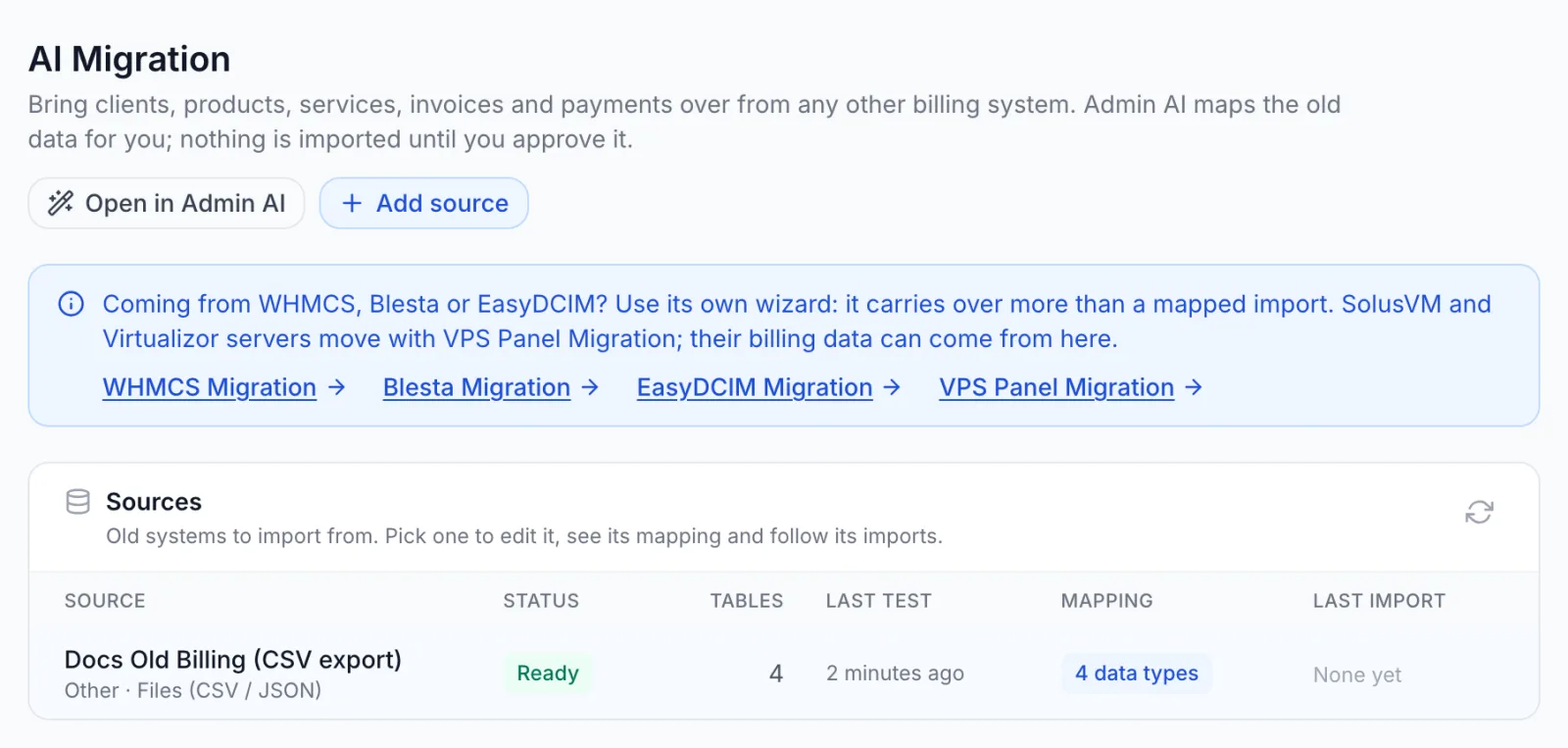
Open Settings → Migration Tools → AI Migration. The header has two buttons:
- Open in Admin AI opens the Admin AI chat with a request already typed, for example Help me migrate data from another billing panel. Nothing is sent until you send it.
- Add source opens the form for a new source.
Below the header, a note links to the dedicated wizards. Under it, the Sources card lists the old systems you have added. Click a source to edit it, see its mapping and follow its imports. With no sources yet, the card shows the four steps of the workflow.
| Column | What it shows |
|---|---|
| Source | The name you gave the source, its platform and its kind. |
| Status | Not tested (never read, or its connection or files changed since the last test), Ready (the table structure was read), or Importing (an import job runs). A warning icon appears when the connection is not encrypted or its certificate is not verified. |
| Tables | How many tables the last test found. |
| Last test | When the source was last tested, or Never. |
| Mapping | How many data types the saved mapping covers, or Not mapped. |
| Last import | The status of the latest import and when it finished, or None yet. |
How it works
- Connect the old system. Add a read-only database login, or upload CSV or JSON exports. Testing the source reads its table structure.
- Let Admin AI map it. Admin AI reads the structure and a few masked rows, then proposes which columns become clients, products, services, invoices and payments. You approve the mapping in the chat.
- Preview. A dry run counts what would be created, skipped or rejected and lists what to check first. Nothing is written.
- Approve the import. Admin AI shows the numbers on a card. The import starts only when you approve it. Running it again skips what is already imported.
Credentials are typed only into the form on this tab. They are stored encrypted and are never sent to the AI. The old system is only ever read.
Step 1: Add a source
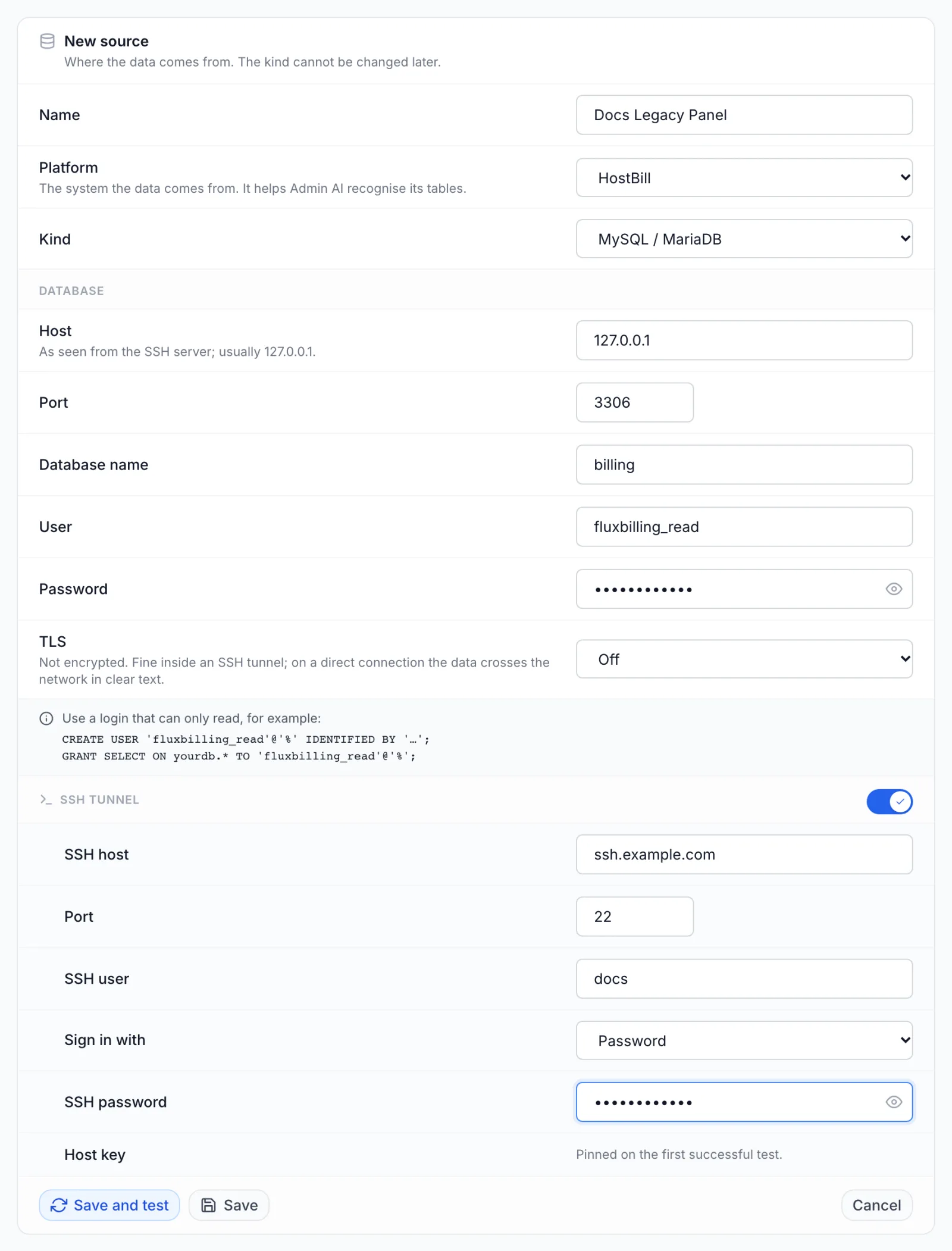
Click Add source. The New source form asks where the data comes from.
| Field | What to enter |
|---|---|
| Name | Your name for the source, up to 120 characters, for example Old billing panel. Required. |
| Platform | The system the data comes from: HostBill, ClientExec, Paymenter, Upmind (export), Virtualizor billing, WHMCS, Blesta, Custom system or Other. It helps Admin AI recognise the tables. When you pick WHMCS or Blesta, the form points you to that system's own wizard. |
| Kind | MySQL / MariaDB, PostgreSQL or Files (CSV / JSON). The kind is fixed once the source is created. To switch, add a new source. |
A database source
For MySQL / MariaDB and PostgreSQL, the Database section asks how to reach the old database.
| Field | What to enter |
|---|---|
| Host | The database server's host name or IP address. Required. Through an SSH tunnel, enter the host as the SSH server sees it: usually the loopback address, when the database runs on the SSH server itself. |
| Port | 1 to 65535. Choosing the kind fills in 3306 for MySQL / MariaDB or 5432 for PostgreSQL. |
| Database name | The database that holds the billing data. Required. System databases are refused. |
| Schema | PostgreSQL only: the schema that holds the tables. The form starts with public. |
| User | The database login. Required. |
| Password | The login's password. After saving, the field stays empty and shows Saved. Leave empty to keep it. Click the eye icon to see what you type. |
| TLS | Verify certificate: encrypted, and the certificate must be valid for the host name. Encrypt, don't verify: encrypted, any certificate accepted. Off: not encrypted. Off is fine inside an SSH tunnel; on a direct connection the data crosses the network in clear text. The form selects Verify certificate for a direct connection and Off when you switch the tunnel on. |
Use a login that can only read. The form shows an example for the kind you picked. For MySQL or MariaDB:
CREATE USER 'fluxbilling_read'@'%' IDENTIFIED BY '…';
GRANT SELECT ON yourdb.* TO 'fluxbilling_read'@'%';
For PostgreSQL:
CREATE USER fluxbilling_read PASSWORD '…';
GRANT pg_read_all_data TO fluxbilling_read;
FluxBilling opens every connection as a read-only session with a time limit on each query. If the database server does not accept that, the connection is not used.
Connect through an SSH tunnel
Use a tunnel when the database only listens on its own server or on a private network. A direct connection to a loopback or link-local address is always refused, and one to a private network address normally is, so a tunnel is the way to reach such a database. Switch on Connect through an SSH tunnel and fill in:
| Field | What to enter |
|---|---|
| SSH host | The server to connect to over SSH. Required. |
| Port | The SSH port. The form starts with 22. |
| SSH user | The SSH login. Required. |
| Sign in with | Password or Private key. |
| SSH password | With Password: the SSH password. |
| Private key and Key passphrase | With Private key: paste the key in OpenSSH or PEM format, and its passphrase if it has one. A saved passphrase can be removed with Remove the saved passphrase. |
| Host key | Filled in by FluxBilling. The SSH server's key fingerprint is pinned on the first successful test. Compare it with ssh-keygen -lf on the server. |
Test the connection
Click Save and test (or Test connection when nothing changed). FluxBilling saves the source, connects, and reads the table structure. This can take a while on a large database. A successful test says Connection works. The table structure was read. and how many tables it found. The source then shows Ready.
Save stores the source without testing it. Testing again later reads the current structure; do it after you change the old database.
0 tables found? The test reached the server but found no tables. This usually means a mistyped database or schema name.
A files source
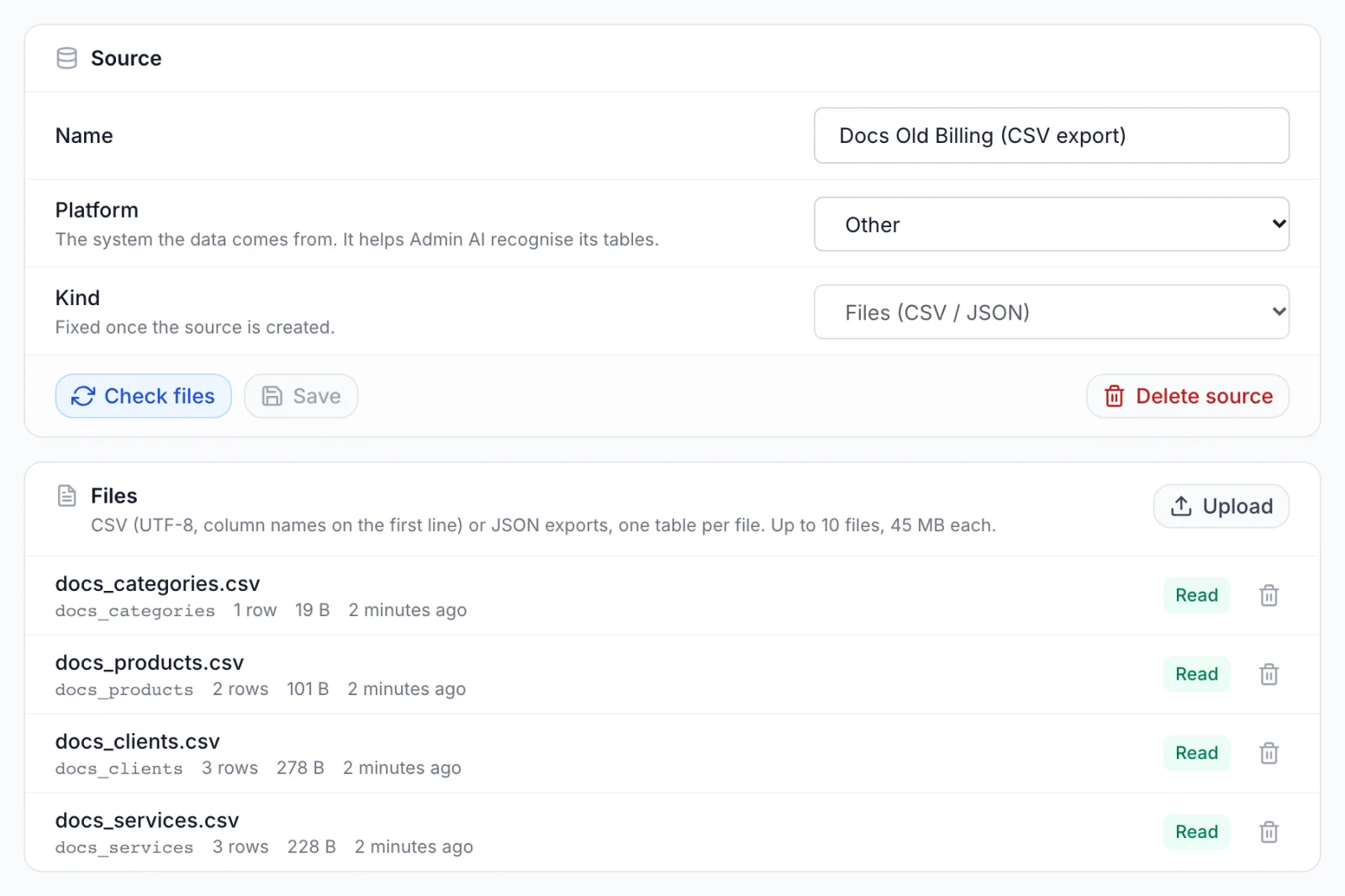
Choose Files (CSV / JSON) when you cannot open the old database to FluxBilling. Save the source, then use the Files card under the form:
- Export each table of the old system as its own file: clients, products, services, invoices, invoice lines and payments. Save spreadsheets as CSV first.
- Click Upload and pick one or more files. Each file is read while it uploads and is listed with its table name, row count, size and a Read or Error badge.
- Click Save and check (or Check files). A successful check says Files read. The table structure was saved.
File rules:
- CSV: UTF-8, with the column names on the first line. Commas, semicolons and tabs are recognised as separators. One table per file; the table is named after the file.
- JSON: an array of flat objects (one table), or an object whose values are such arrays (one table per key).
- Up to 10 files per source and 45 MB per file. Split a bigger export.
- After the rows are read, FluxBilling keeps them for this source and deletes the uploaded file itself. Values that look like credentials are not kept.
Adding or deleting a file sets the source back to Not tested. The card then says The files changed since the last check. Check the files again so Admin AI sees the current tables. Deleting a file removes its rows from the source; records already imported from it stay.
Step 2: Let Admin AI map the tables
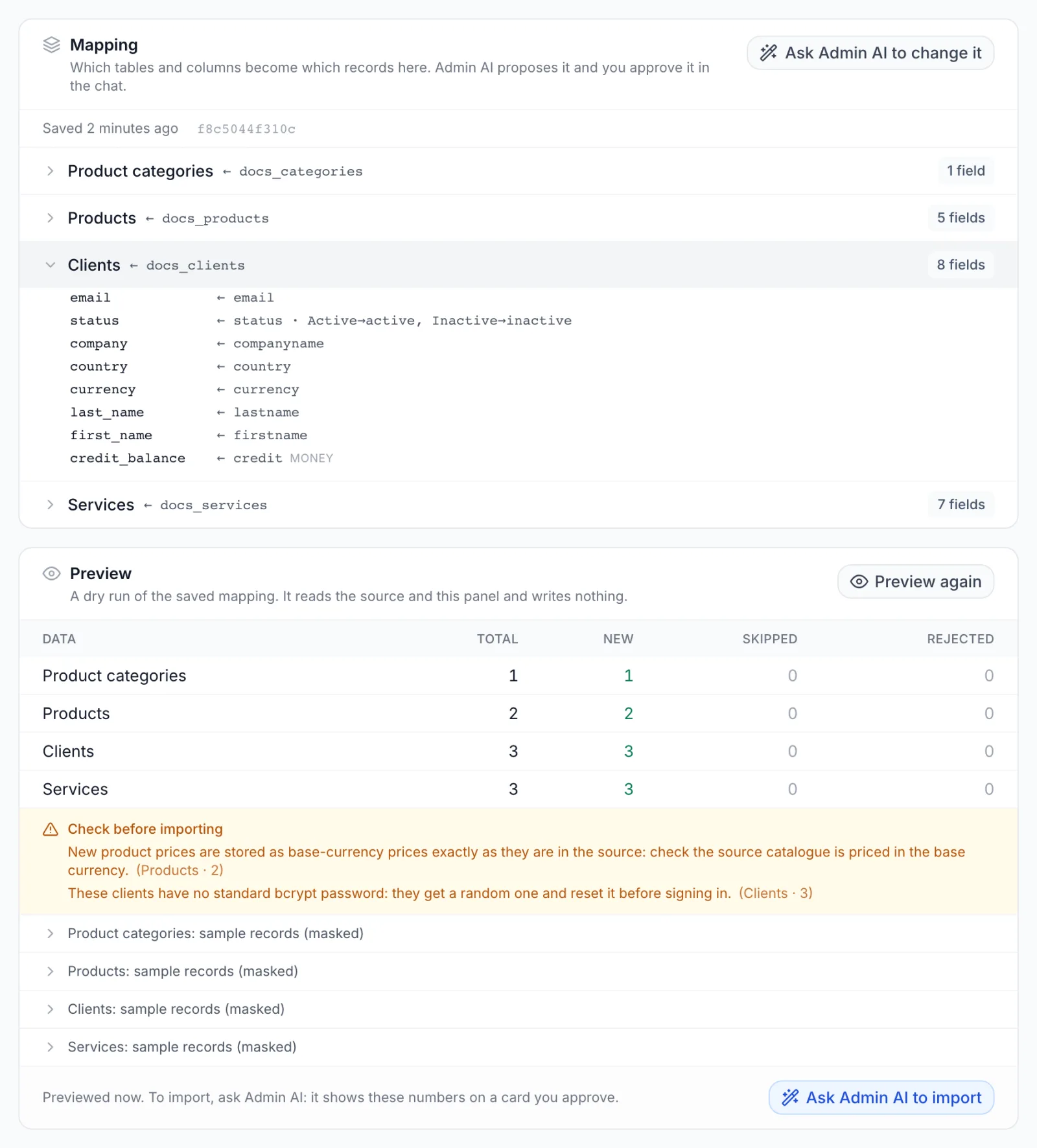
The Mapping card shows which tables and columns become which records in FluxBilling. You cannot edit it here: Admin AI proposes it and you approve it in the chat.
- On the Mapping card, click Ask Admin AI to map it. The chat opens with Help me migrate data from my source "<name>" typed in. Send it, and add anything Admin AI should know, for example which status means a cancelled service in the old system.
- Admin AI reads the table structure, up to 5 masked sample rows at a time and the distinct values of columns such as status, billing cycle and currency. It may ask you questions.
- It prepares a Save migration mapping card. Check it and click Approve. Approving replaces any mapping saved for the source.
The saved mapping appears on the card, one row per data type: Product categories, Products, Clients, Services, Invoices (with Invoice lines) and Payments. Click a row to see the source table, its filters and where each field comes from. To change it, click Ask Admin AI to change it.
If you test the source again and its tables changed, the card can say The mapping no longer matches the source's tables. Ask Admin AI to fix it.
What Admin AI never sees
- The host, user, password, database name, SSH details or file locations of a source. It works only with the source's id.
- Tables that hold sessions, password resets, API keys and tokens, two-factor data, stored cards and payment methods, gateway configuration, settings, raw gateway or API logs and sent e-mail. They are listed by name, but their rows are never shown to Admin AI or imported.
- Passwords, password hashes, card numbers, keys and tokens in any column. They come back as
[redacted]. E-mail addresses, names, phone numbers and addresses are partly hidden, and long text is shortened.
Step 3: Preview the import
When a mapping is saved, click Preview on the Preview card. The dry run reads the old system and your panel and writes nothing. It takes up to a minute; on a very large source it can stop early and say the counts cover only the rows read so far.
For each data type, the preview shows Total, New, Skipped and Rejected.
- Above the table, The import cannot start yet lists blockers. Fix them first: the import button stays disabled.
- Below the table, Check before importing lists warnings, with a count and a few examples each.
- <Data type>: sample records (masked) shows up to three records as they would be created.
The preview runs the same checks the import does, so its counts are the import's counts, give or take what changed in between. Run it again with Preview again after a change.
Step 4: Approve the import
- When the preview looks right, click Ask Admin AI to import. The chat opens with Prepare the import from my source "<name>".
- Admin AI runs a fresh preview. If it has blockers, you get no card. Otherwise it prepares an Import from another panel card with the numbers, marked Hard to undo.
- Click Approve. The import starts as a background job and its progress shows on the card. You can close the chat; the job keeps running.
You can import some data types only, for example clients first. A data type needs the ones it depends on, selected in the same import or imported earlier from the same source: products need product categories, services need clients and products, invoices need clients, and payments need invoices. Data is always imported in the order categories, products, clients, services, invoices, payments.
The import can leave clients inactive. Ask Admin AI for that when you prepare it; the job's details then say Imported clients were left inactive.
Follow and stop an import
The Imports card lists the source's import jobs, newest first, with the data types, status, a progress bar and the Created, Skipped and Failed counts. A running job refreshes every few seconds. Click a job to see the counts per data type, the licence and integrity results, and the last errors with the record's id in the old system.
| Status | Meaning |
|---|---|
| Queued | Approved and waiting to start. |
| Running | Importing. The line under it says what it is doing now, for example Now: Clients, Now: Activating clients or Now: Billing integrity check. |
| Stopping… | You clicked Stop; the job finishes its current batch first. |
| Completed | Everything selected was imported or skipped. |
| Completed with errors | Finished, but some records were not imported. Open the job to see why. |
| Stopped | Stopped by an admin. What was imported stays. |
| Failed | The job could not finish, or a blocker stopped it before anything was written. |
| No progress | No progress for 10 minutes. The job is marked failed on the next refresh. |
| Interrupted | The server stopped while the job ran. What was imported stays; running the import again skips it and continues. |
To stop a job, click Stop and confirm. The job stops after the batch it is working on. Records already imported stay; nothing is undone.
What the import does
- Runs again safely. Every imported record is remembered with its id in the old system. Running the import again skips what is already imported and adds the rest.
- Reuses what already exists. A client whose e-mail address already exists in FluxBilling is not created again and nothing of theirs changes; the imported services, invoices and payments attach to them. A product category with the same slug and a product with the same name are reused the same way.
- Sends nothing. No welcome or invoice e-mails, no provisioning, no automatic charges. Imported invoices count as already reminded, so no reminder e-mails go out for them.
- Keeps invoice numbers. Invoices keep their old numbers. The invoice number counter moves forward so new invoices follow the imported numbers.
- Carries passwords over when it can. Clients with a standard bcrypt password hash in the old system sign in with their old password. Everyone else gets a random password and must reset it before signing in.
- Activates clients that have an active service, up to your licence's client limit. New clients start inactive, and those that own an active imported service are then activated. The job's details show Clients activated and how many were left inactive by the licence limit.
- Checks the books. After the import, the billing integrity check runs on the imported invoices, and the job's details show how many problems it found.
What your customers see
Imported clients can sign in to the client area with their old password (when it is a standard bcrypt hash) or after a password reset. Terminated clients cannot sign in. They see their imported services, invoices and payments. An imported opening credit appears in their credit history as Opening credit carried over from your previous billing system. Imported invoices carry the note Carried over from the previous billing system (ref. …) with the old record's id, and so do imported payments. These texts never name the old platform or your source name.
Limits
- Six data types: product categories, products, clients, services, invoices with their lines, and payments. Anything else stays behind, for example tickets, domains, add-ons and configurable options.
- Service billing cycles: hourly, monthly, quarterly, semi-annually and annually. Other cycles are rejected unless the mapping sends them to one of these; a warning then says so.
- Product prices in FluxBilling are base-currency figures. Products priced in another currency are not imported, nor are the services on them.
- Only a positive credit balance is imported. A negative balance is reported; the client is imported without it.
- Invoices whose number is already used in FluxBilling are skipped with their payments. Invoices dated in a closed books month are skipped too.
- One import at a time per source. While it runs, the source cannot be edited, tested or deleted.
- An import cannot be undone. Stopping it keeps what was imported.
- A source whose data was already imported cannot be deleted.
Warnings to read before you import
The preview and the import card show these when they apply. The most important ones:
| Warning (start of the message) | What to do |
|---|---|
| These source clients have the e-mail of a client that already exists here | Expected when the client is already in FluxBilling: their imported services, invoices and payments attach to the existing client. Credit from the old system is not imported for them. |
| Several source clients share an e-mail address | The first one is imported and the others are merged into it. Clean up the old data first if they are different people. |
| These active services are past their next due date | The daily suspension run may suspend them. Correct the due dates in the old system, or be ready to unsuspend. |
| The next daily billing run issues and e-mails a renewal invoice for these services | Their imported unpaid invoices are not linked to the service. Check them before the next billing run. |
| These active recurring services have no next due date | They never renew. Map a due date column, or set the date on those services after the import. |
| Imported active hourly services start billing from credit at import time | Make sure those clients have the credit they need. See Hourly billing. |
| The lines of these invoices do not add up to their subtotal | An Imported adjustment line makes up the difference. If the adjustment equals the tax, the old lines are probably gross amounts: ask Admin AI to check the line amount mapping. |
| These dates could be day/month or month/day | Tell Admin AI which order the old system uses, so it sets the date order on the field. |
| The connection to the source database is not encrypted / The source database's TLS certificate is not verified | Use an SSH tunnel or Verify certificate if the connection crosses a public network. |
Troubleshooting
- The source host is refused: it is a private network address, or Local and private network addresses are refused. Reach such a database through an SSH tunnel to its server.
- A direct connection to a loopback or link-local address is always refused, and one to a private network address normally is. Switch on Connect through an SSH tunnel to the database's server and enter the database host as that server sees it, usually its loopback address.
- Could not connect to the source database: …
- The host, port, user or password is wrong, or a firewall blocks FluxBilling. The text after the colon is the database server's own reason.
- The source database did not accept a read-only session with a statement time limit, so it is not used
- FluxBilling only uses connections it can make read-only. Check the database version and the login's rights, or export the tables as files instead.
- A MySQL system database cannot be a migration source (or A PostgreSQL system schema …)
- Pick the database or schema that holds the billing data, not a system one.
- The SSH server presented a different host key than the pinned one.
- The form shows the Pinned and the Presented fingerprints. Click Trust new key and test only if you know the server was reinstalled or its key was changed. Otherwise someone may be intercepting the connection.
- Re-enter the password: the connection details changed
- A saved password is kept only while the host, port, user, database, schema, TLS and tunnel settings stay the same. Type the password again when you change any of them. The same applies to the SSH password or key when you change the SSH host, port or user.
- File too large: split the export (max 45 MB)
- Split the table into several files of up to 45 MB.
- Save the file as UTF-8, or The first line must be a header row with the column names
- Export the file again as UTF-8 with the header (column names) turned on.
- A source holds at most 10 files
- Delete a file you no longer need, or combine tables into one JSON file with one key per table.
- These currencies do not exist here
- The import is blocked. Add the currencies in Settings → Billing, or ask Admin AI to map another currency.
- Importing would make more clients active than the licence allows
- The import is blocked. Upgrade the licence first; see License. Leaving clients inactive does not avoid it: clients that own an active service are activated within 5 hours anyway and then count against the licence.
- The licence could not be checked right now; try again in a few minutes.
- Run the preview again in a few minutes.
- The source or its mapping changed since this import was prepared: preview it again
- Someone tested the source, changed its files or saved a new mapping after the card was prepared. Ask Admin AI to prepare the import again.
- An import is already running for this source, or A job is running for this source
- Wait for the running job to finish, or stop it on the Imports card.
- This source has imported records and cannot be deleted
- The source keeps track of what was imported from it, so it stays.
- The billing integrity check (since …) could not run. Run it from Billing before relying on this import.
- The import finished but the check did not. Run the billing integrity check yourself before you rely on the imported invoices.
Related articles
- Admin AI assistant: setting up the chat and approving prepared changes.
- AI settings: AI providers and API keys.
- WHMCS Migration, Blesta Migration, EasyDCIM Migration and VPS Panel Migration: the dedicated wizards.
- Billing settings: currencies and invoicing.