
Invoice Language and Document Texts
Print invoices, proformas and storno invoices in English, French or the client's language, with your own seller details and footer.
The Invoice language & texts card decides which language your invoices, proformas and storno invoices are printed in, and adds your own text to them: seller details under your address, and a footer at the bottom of the page. Use it when you sell to French-speaking customers, or when the law in your country asks for extra mentions on each invoice, such as your legal form, share capital, VAT status or late-payment terms.
Whatever you choose is saved into each document at the moment it is issued. Changing the card later affects documents issued after you save, and documents you refresh with Update Details.
Where to find it
Open Settings, then Billing under Financial, and stay on the Invoicing tab. The Invoice language & texts card sits between Company Address and Tax Settings.
No feature toggle is involved. Changes are kept only when you click Save Settings, and only admin accounts can save Settings. FluxBilling confirms with Settings saved successfully!
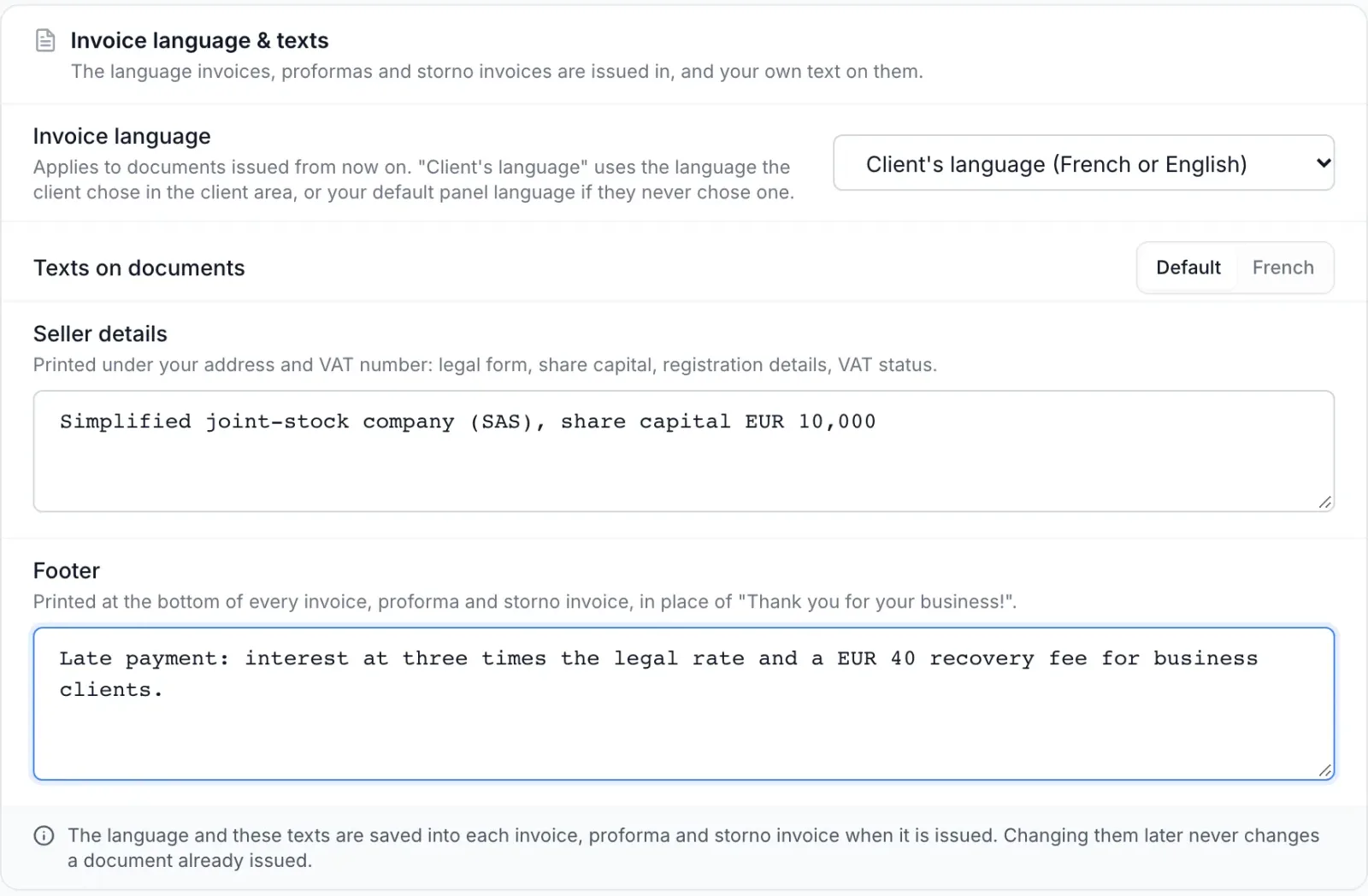
Choose the invoice language
The Invoice language list has three options.
| Option | Documents are printed in |
|---|---|
| English | English, for every client. |
| French | French, for every client. |
| Client's language (French or English) | French for clients who use the client area in French, English for everyone else. |
With Client's language (French or English), FluxBilling picks the language for each new document like this:
- The language the client chose with the language switcher in the client area.
- If the client never chose one, your default panel language, set under Settings → Languages & Translations → Default Language.
- If that language is neither French nor English, English.
So a client who uses the client area in German gets English documents. Clients can only pick languages you have enabled, so turn French on under Languages & Translations if you want French-speaking clients to be able to choose it.
Add seller details and a footer
Under Texts on documents there are two fields. Line breaks are kept as you type them, and each field holds up to 2,000 characters.
| Field | Where it prints | Typical content |
|---|---|---|
| Seller details | In the top-left block, under your address, VAT number and trade register number. | Legal form, share capital, registration details, VAT status. |
| Footer | Centred in small type at the bottom of the last page, in place of Thank you for your business! | Payment terms, late-payment interest, recovery fees, bank details. |
Leave a field empty to print nothing extra. With an empty footer, documents end with the thank-you line in the document's language (Merci de votre confiance ! on French documents).
A long footer takes room from the bottom of the page. The items and totals stop above it, and continue on a new page when they do not fit.
A French version of each text
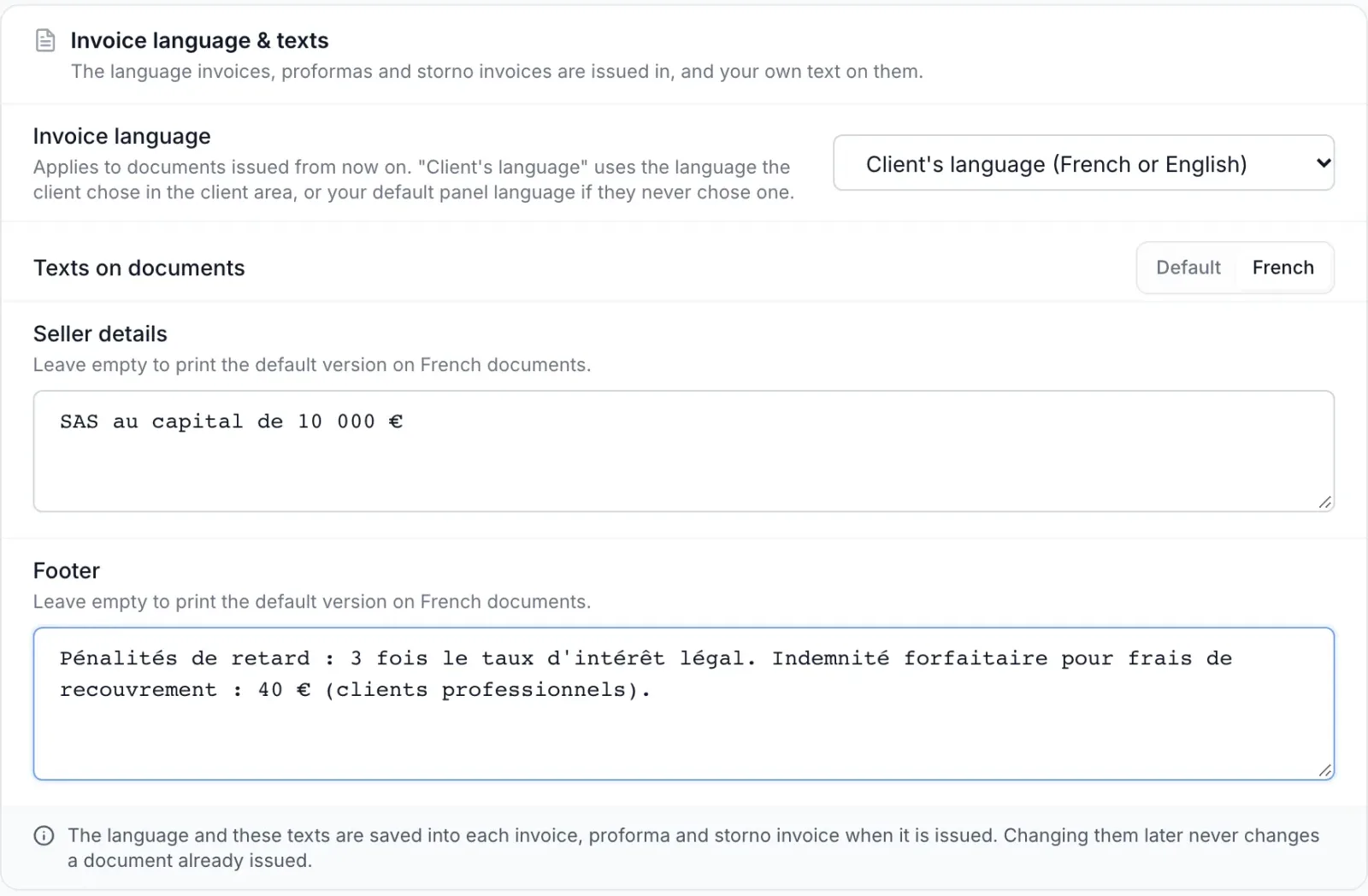
The Default / French switch above the fields lets you write a separate French version of both texts.
- Default is printed on English documents, and on French documents when the French version is empty.
- French is printed on French documents only. While a French field is empty, it shows your default text in grey (or a French example if the default is empty too), and the hint reads Leave empty to print the default version on French documents.
Write the French version when your legal mentions must appear in French, for example SAS au capital de 10 000 € or the French wording of your late-payment terms.
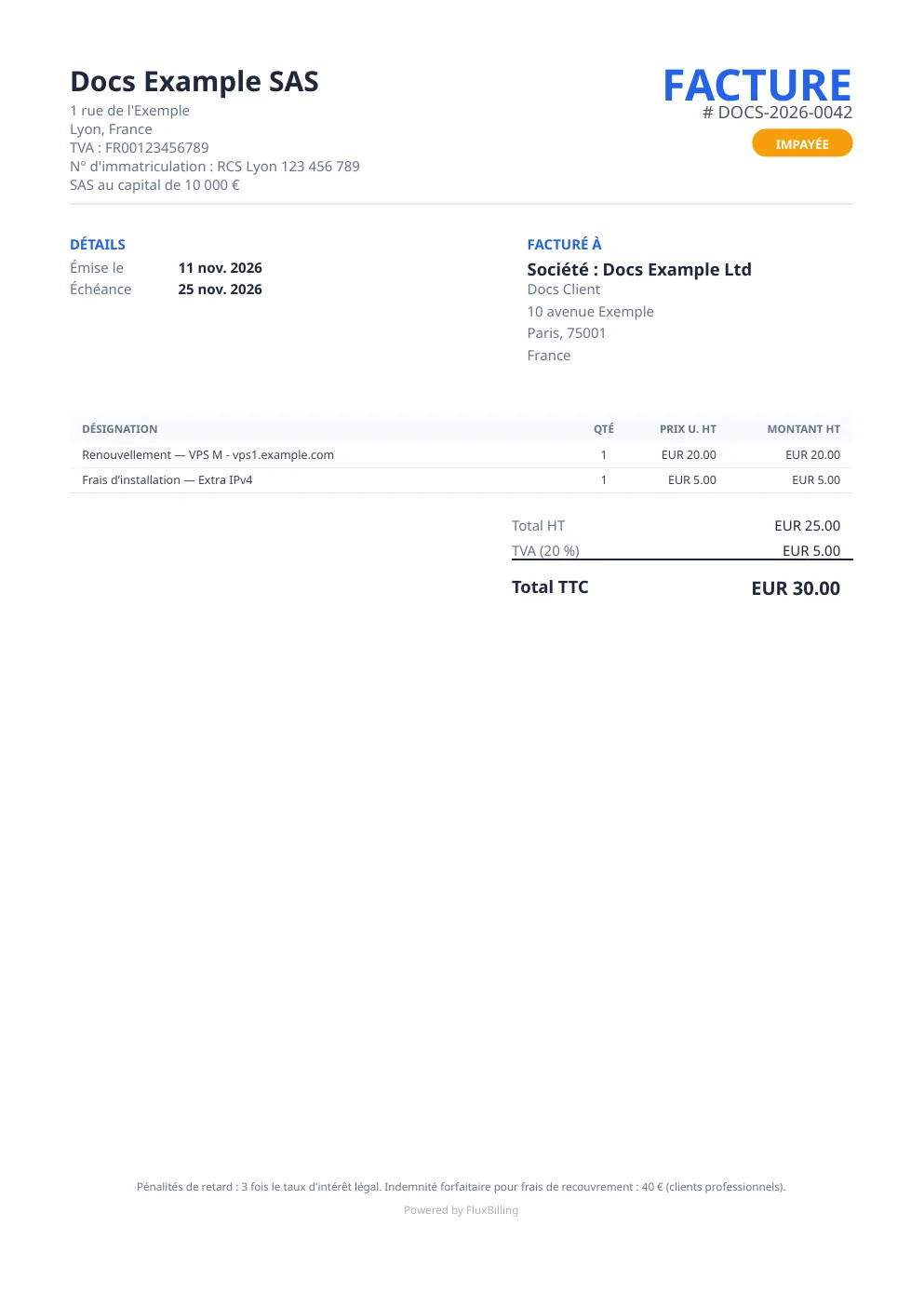
What changes on a French document
A document issued in French prints the words FluxBilling writes in French. Your own words stay exactly as you typed them.
- Titles and labels: FACTURE, PROFORMA and FACTURE D'AVOIR for a storno invoice; DÉTAILS, FACTURÉ À, Émise le, Échéance, Payée le.
- Item table and totals: DÉSIGNATION, QTÉ, PRIX U. HT, MONTANT HT, Total HT, TVA (20 %), Total TTC, Reste à payer.
- Status badge and payment history, for example PAYÉE, IMPAYÉE, EN ATTENTE.
- Dates in French format, such as 11 nov. 2026, country names in French, and page numbers as Page 1 sur 2.
- The reverse-charge mention for EU business customers starts with Autoliquidation and cites Article 196 of Council Directive 2006/112/EC in French. See VAT and tax.
- Lines FluxBilling writes itself: renewals, setup fees and plan changes, for example Renouvellement — VPS M, Frais d’installation — Extra IPv4, and the prorated-days note on an upgrade.
Product names, option names, and descriptions and notes your staff type on a document are not translated. Amounts keep the same format as on English documents.
When the language and texts are fixed
The language, the seller details and the footer are saved into each document when it is issued, together with your company details. After that:
- Editing the card does not change issued documents by itself. Old invoices keep the language and texts they were issued with, every time you or your client download them.
- To bring one document up to date, open the invoice or proforma and click Update Details on the Bill To card. This replaces the saved language, seller details, footer, company and customer details with the current ones.
- A client who switches language later does not change their earlier documents either. Only documents issued after the switch follow the new language.
- An invoice issued from a proforma keeps the language and texts saved on the proforma.
- A storno invoice uses the language of the invoice it reverses, with the seller details and footer in force on the day the storno is issued. See Closed months and storno invoices.
- Documents issued before your panel had this card stay in English and keep the thank-you line unless you refresh them with Update Details.
The setting applies to documents for new orders, automatic renewals, hourly billing and consolidated invoices, to documents you create by hand, and to invoices issued from a proforma and storno invoices as described above. The bulk PDF export prints each document in its own language.
What your customer sees
The language and texts appear on the PDF of the document, which your customer downloads from the client area (see Invoices and payments) and you download from the invoice or proforma page (see Invoice details and Proforma details). Nothing else in the client area changes: it keeps following the language the client chose.
Troubleshooting
- I changed the footer but an invoice still shows the old one. The invoice was issued before you saved. New documents pick up the change; to update that invoice, click Update Details on its Bill To card.
- A French document shows my English text. The French version of that field is empty, so the default prints. Switch to French and fill it in. Documents issued before that keep the English text.
- A client's invoice is in English although the setting is Client's language. The client uses the client area in a language other than French, or never chose a language and your default panel language is not French. It can also be an invoice issued from a proforma that was created before the change and not updated since.
- My change did not stick. Click Save Settings before you leave the page. If saving fails, FluxBilling shows Failed to save settings with the reason.
- The text is cut off while typing. Each field stops at 2,000 characters.
The address, VAT number and trade register number printed above the seller details are set in the Company Address and Tax Settings cards. See Billing settings.