
Skrill payment gateway
Set up the Skrill plugin: Skrill API/MQI password and Secret Word, settings, connection test, checkout, 1-Tap saved wallets, refunds and troubleshooting.
The Skrill plugin adds Skrill as a payment method at checkout. Your customers choose Skrill, pay on Skrill's own payment page with their Skrill wallet or another method Skrill offers them, and come back to FluxBilling. Skrill then reports the result, and FluxBilling marks the invoice paid. Refunds are sent to Skrill from the admin panel. The plugin is free and is listed in the plugin marketplace of every FluxBilling panel.
This guide covers plugin version 2.9. It walks through the setup in the order you do it, then explains what happens to a payment over its life and what to check when something does not work.
Who supports this integration. The plugin is built and maintained by FluxBilling. If something does not work, contact FluxBilling support at contact@fluxbilling.app or through fluxbilling.app/contact. Questions about your Skrill account, its fees, verification or payouts go to Skrill Merchant Services.
What you need before you start
- A Skrill business (merchant) account that can accept Quick Checkout payments. You sign in to it in the Skrill Business Portal.
- The API/MQI enabled, with an API/MQI password. FluxBilling uses it to test the connection, check payment status, send refunds and charge saved Skrill wallets.
- A Secret Word set in Skrill. FluxBilling uses it to check that every payment notification really comes from Skrill.
- Refunds activated on the Skrill account, if you want to refund from FluxBilling. Skrill activates this feature on request.
- A FluxBilling panel that Skrill can reach at its normal public
https://address. Skrill sends the payment result there.
Step 1: Prepare your Skrill account
All of this is done in the Skrill Business Portal, under Settings → Developer Settings. If you do not see that section, Skrill asks you to contact Skrill Merchant Services.
- Set an API/MQI password and save it. Skrill requires a password that is separate from the one you sign in with. Keep the plain password: you paste it into FluxBilling as it is.
- Enter the IP address your FluxBilling panel connects from in the allowed addresses for the API/MQI, then activate the API/MQI. Skrill refuses requests from any other address. If the plugin's settings dialog in FluxBilling shows an Outbound API IP, that is the address to enter. If it does not, ask FluxBilling support which address your panel uses.
- Set a Secret Word and save it. Skrill requires at least 8 characters with an uppercase letter, a lowercase letter and a number.
- Note the email address of your Skrill merchant account. FluxBilling uses it to identify the account that receives the money.
Skrill documents these screens in its developer guides: API/MQI password and Secret Word, Quick Checkout and Refunds.
Set your Skrill account currency to match your store. Skrill credits payments to your Skrill account in its own currency. A partial refund is counted in your Skrill account currency, not in the currency of the invoice. If the two currencies differ, a partial refund of 10.00 refunds 10.00 in your Skrill account currency. Full refunds are not affected.
Step 2: Install the plugin
- In the FluxBilling admin panel, open Settings (the gear icon in the top bar).
- Under Integrations, open Marketplace. Stay on the Browse tab.
- Search for Skrill, open the Skrill card and click Get for Free.
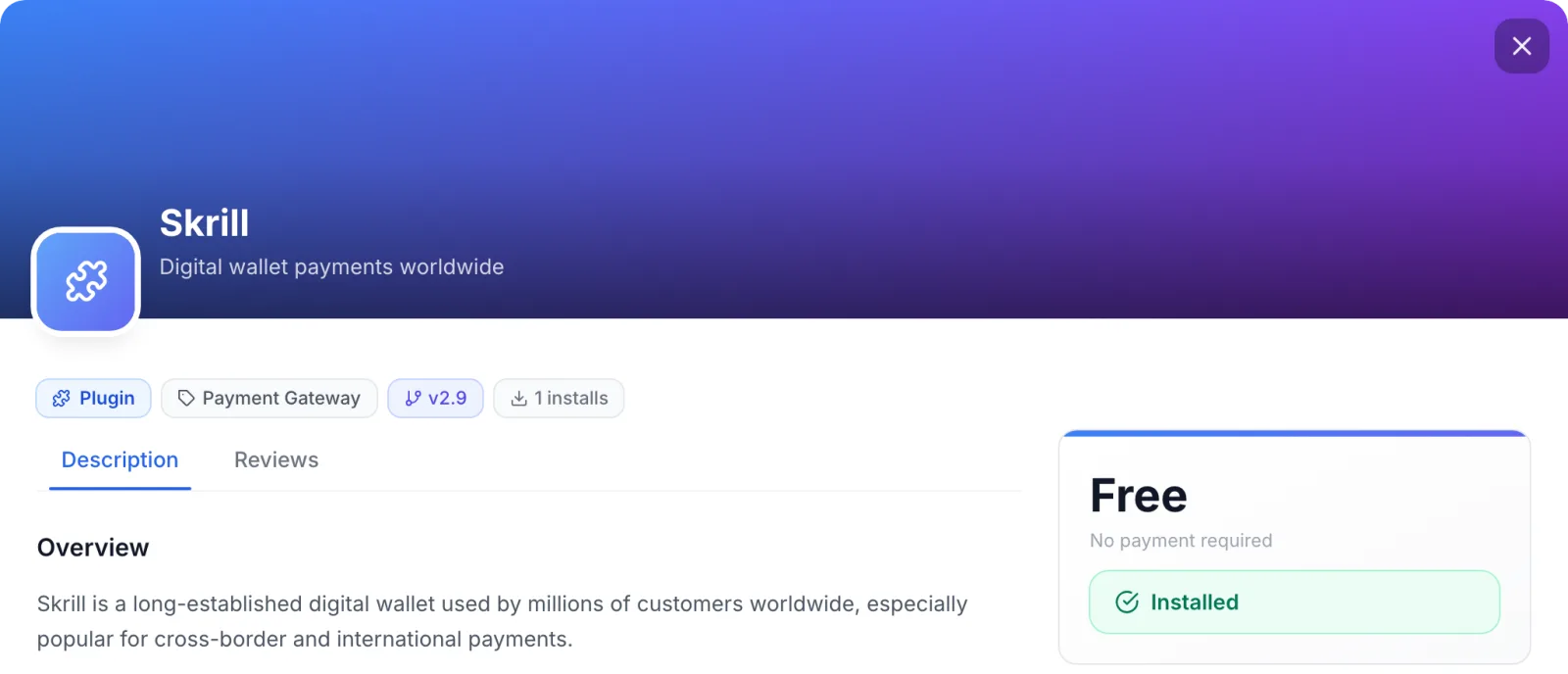
FluxBilling confirms with Plugin "Skrill" installed and ready to use. The plugin is switched on straight away and appears under Settings → Integrations → Plugins as Skrill. Customers do not see Skrill at checkout until you have entered your settings in the next step.
Step 3: Enter your Skrill settings
- Open Settings → Integrations → Plugins.
- On the Skrill card, click Configure.
- On the Settings tab, make sure Enabled is ticked and fill in the fields below.
- Click Test Connection, then Save Configuration.
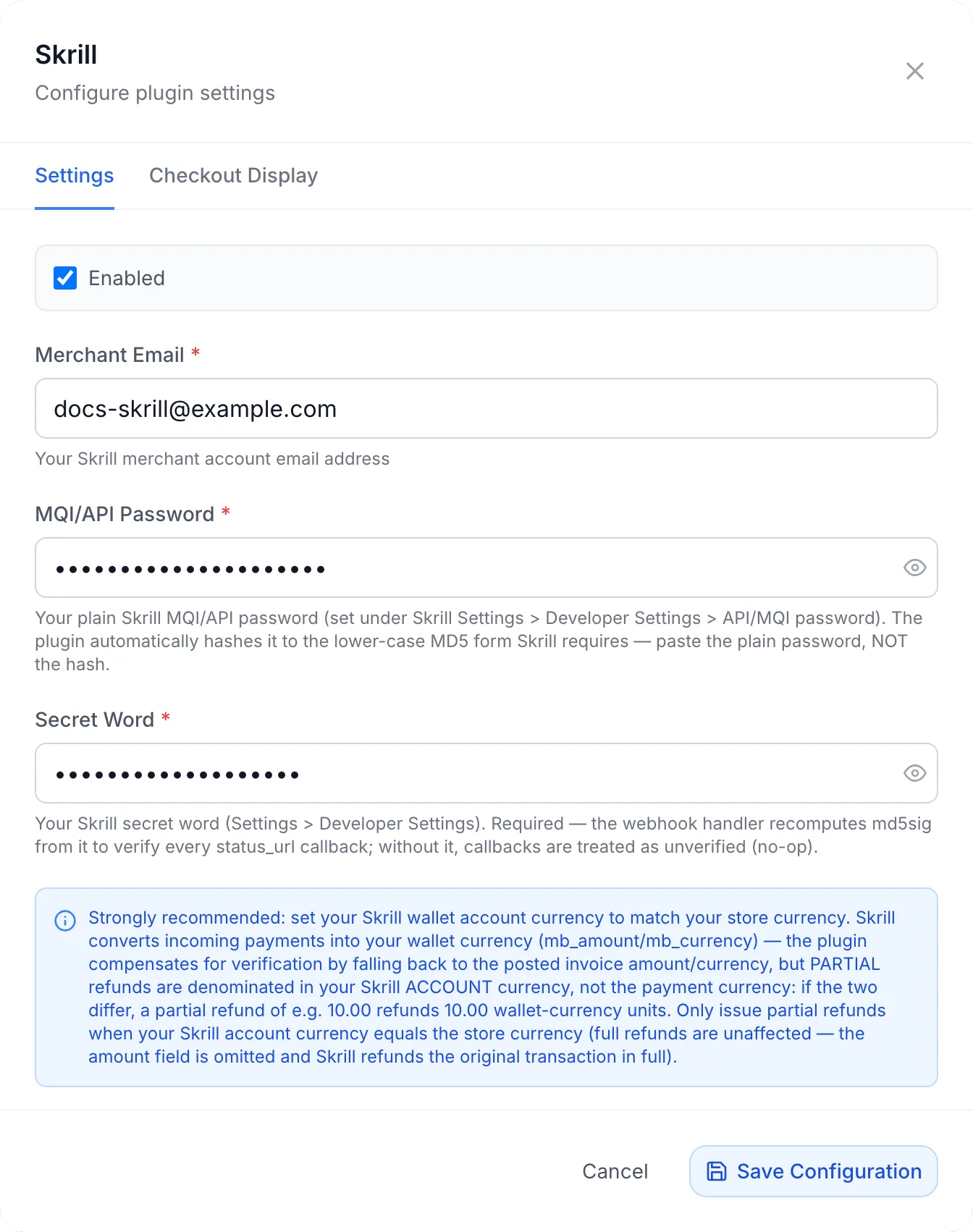
| Field | What to enter |
|---|---|
| Enabled | Ticked: Skrill is offered at checkout once the required fields are filled. Untick it to hide Skrill from customers without removing your settings. |
| Merchant Email (required) | The email address of your Skrill merchant account. Payments are made out to this account. |
| MQI/API Password (required) | The plain API/MQI password from step 1. Paste the password itself, not an MD5 hash of it: the plugin converts it to the form Skrill expects. |
| Secret Word (required) | The Secret Word from step 1. Every payment notification from Skrill is checked against it. If it does not match, FluxBilling ignores the notification and the invoice is not marked paid. |
| Account Currency & Refunds | A note, not a field. It repeats the currency advice from step 1. |
The password and Secret Word are stored encrypted. FluxBilling shows Configuration saved successfully when the settings are saved. If a required field is empty, it saves the form but tells you the plugin is not configured until you fill in the field it names.
Testing the connection
Test Connection saves the form first, then asks Skrill for your account balance with the merchant email and API/MQI password. When Skrill accepts them, the box shows Connected to Skrill MQI successfully with the time of the last check. When Skrill refuses them, it shows Skrill MQI rejected the request: followed by Skrill's own answer. See Troubleshooting.
The test does not check the Secret Word. A wrong Secret Word only shows up when a paid invoice stays unpaid, so copy it carefully.
The webhook box
The dialog also shows a box titled Webhook configuration required with your panel's notification address. You do not need to enter this address anywhere in Skrill: FluxBilling sends it to Skrill with every payment. The box is still useful as a check. Once payments come in, its status changes from No deliveries received yet to Receiving deliveries.
Checkout Display
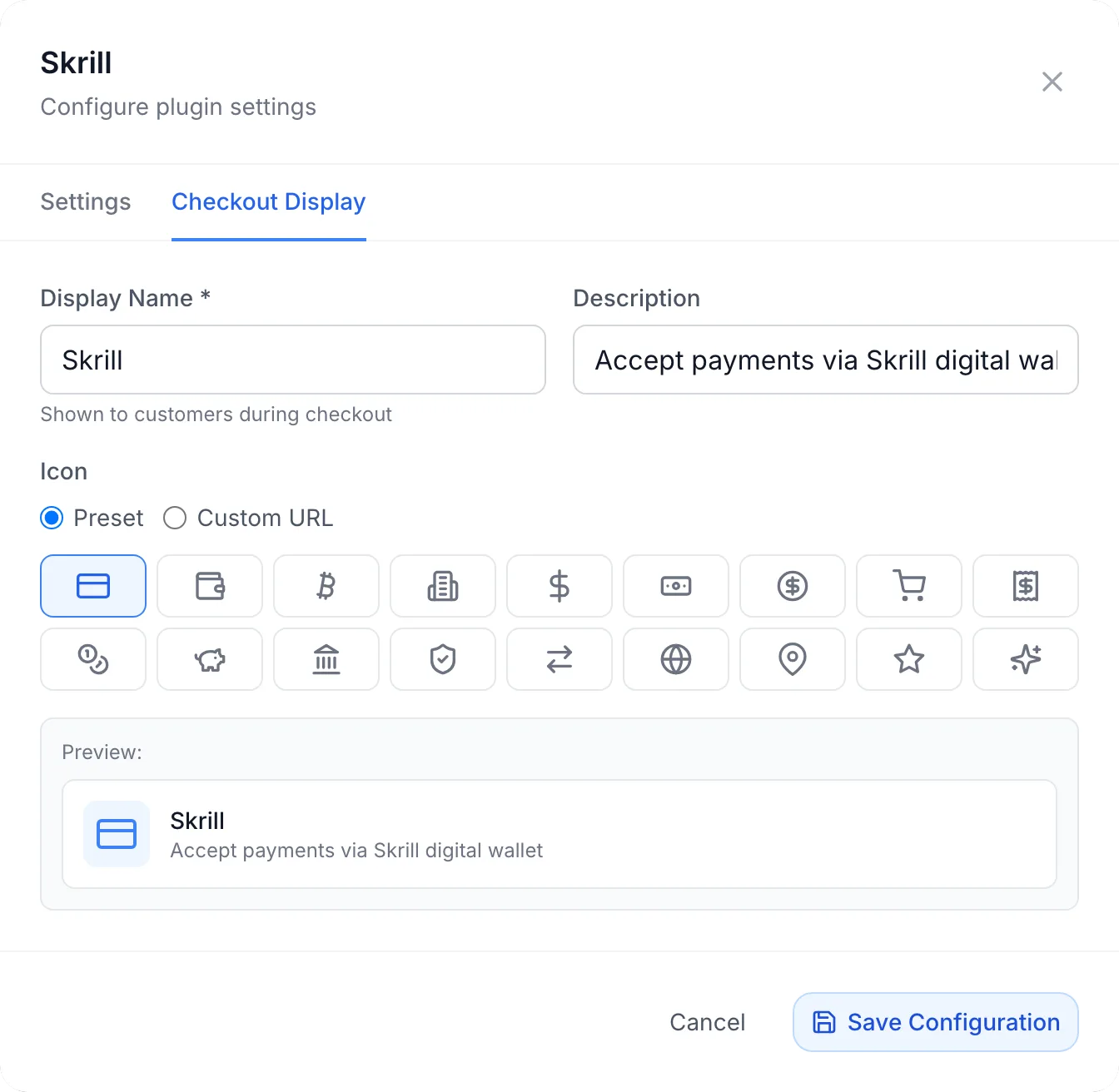
The Checkout Display tab sets how Skrill appears to customers: the Display Name * (required, Shown to customers during checkout), an optional Description, and an Icon from the presets or from a Custom URL. The Preview shows the result. Click Save Configuration to keep your changes.
Step 4: Check that Skrill is switched on
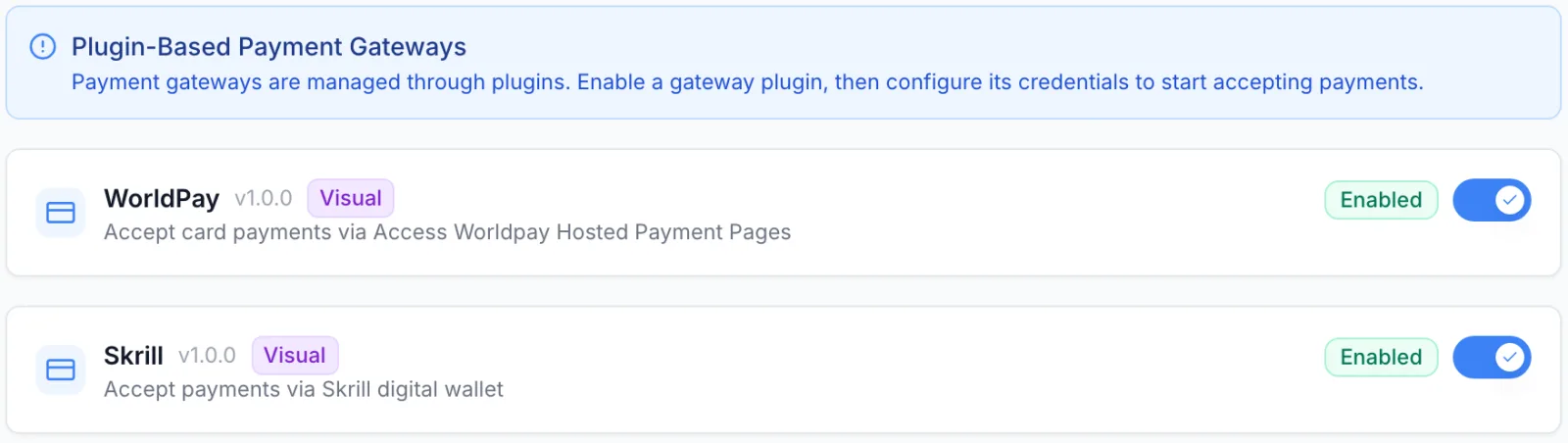
Open Settings → Financial → Payment Gateways. Every installed payment plugin has a card here. The Enabled badge and the switch on the Skrill card show whether the plugin is switched on; the switch turns the whole plugin on or off. The badge does not prove that customers see Skrill: they see it only when the plugin is on, Enabled is ticked in Configure and the three required fields are filled.
Skrill is offered wherever customers choose a payment method. There is nothing to attach to products or categories.
Step 5: Make a test payment
The plugin has no sandbox mode: it always talks to your live Skrill account. Skrill can turn a personal Skrill account into a test merchant account on request; test accounts work in the live environment with virtual funds. See Merchant Test Account in Skrill's guide. Otherwise, pay a small invoice from a test client account and refund it afterwards.
What customers see
At checkout
On the checkout page, Skrill is listed under Payment Method with the name, description and icon you chose. The customer selects it, accepts the terms and clicks Checkout.
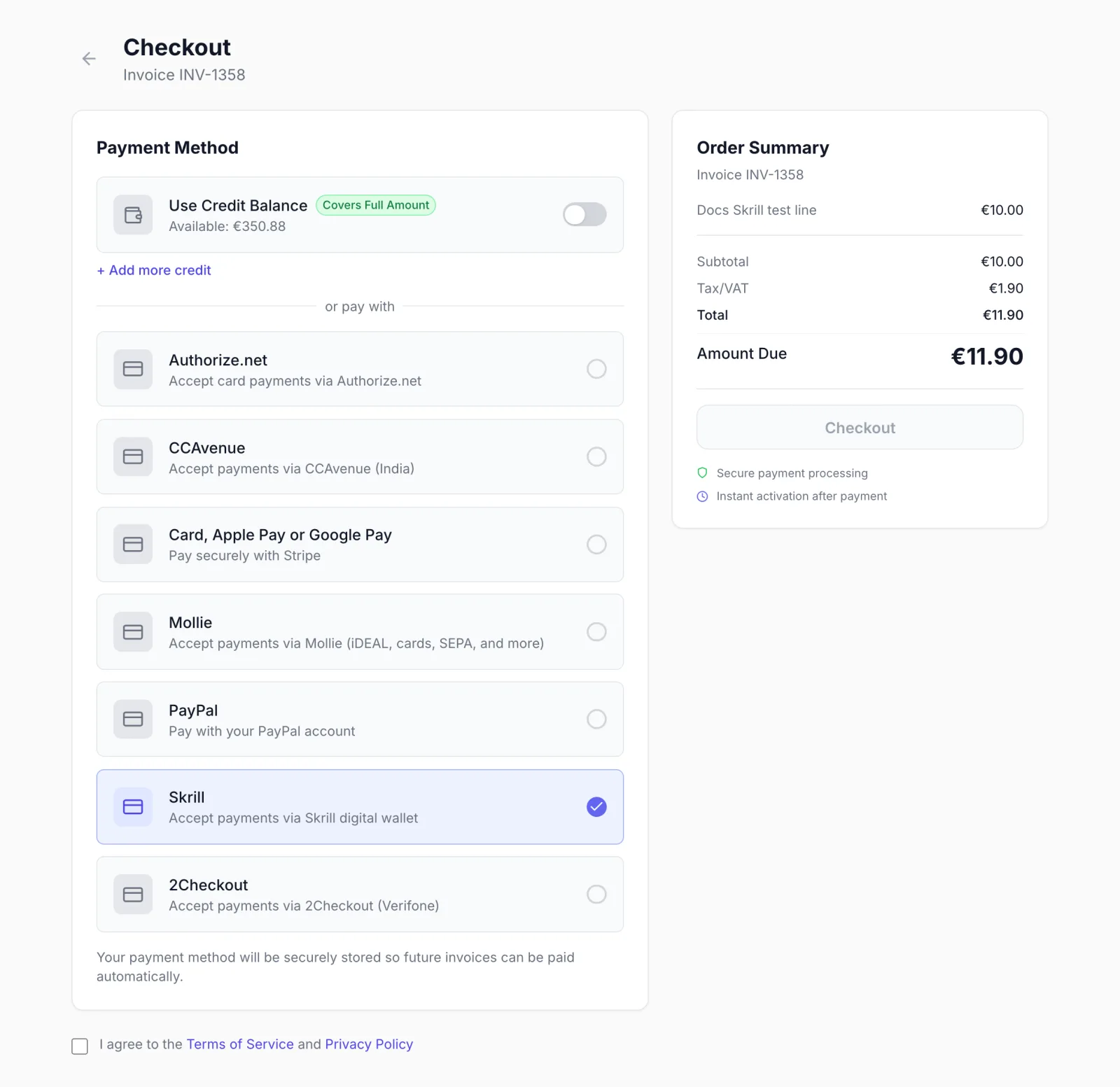
FluxBilling then sends the customer to Skrill's payment page. The page shows the amount and Payment for followed by the invoice number. The customer pays there, and Skrill sends them back to FluxBilling. If they cancel, they come back to FluxBilling without paying, and the invoice stays open.
When the customer comes back, FluxBilling asks Skrill for the status of the payment. Separately, Skrill sends a payment notification to your panel. Whichever arrives first marks the invoice paid, and the order then continues as with any other payment method.
Currencies and amounts
- Invoices in euros or US dollars are charged in their own currency. An invoice in any other currency is converted to your base currency before it is sent to Skrill.
- The smallest amount Skrill can be used for is 1 in the charged currency.
- Skrill credits the money to your Skrill account in that account's currency. FluxBilling checks the payment against the amount and currency it asked for.
Saving Skrill for automatic payments (1-Tap)
At checkout, customers can tick Save this payment method for future purchases. When Require saving the payment method is switched on under Settings → Billing, there is no tick-box; customers see Your payment method will be securely stored so future invoices can be paid automatically. instead.
In both cases FluxBilling asks Skrill to set up Skrill 1-Tap with this payment, with the amount of this payment as the maximum for later charges. If the customer agrees on Skrill's page and Skrill confirms it, the customer gets a saved method named Skrill wallet (1-Tap), which becomes their default. When automatic payments are on for the customer, FluxBilling can charge it for later invoices without the customer visiting Skrill. Skrill emails the customer after each 1-Tap payment.
- Skrill 1-Tap needs the API/MQI enabled on your Skrill account (step 1).
- A later charge cannot be more than the maximum set with the first payment. A renewal above that amount is declined by Skrill, and the invoice stays open for the customer to pay.
- Customers cannot add a Skrill wallet from their saved payment methods page. It can only be saved while paying.
What happens to a payment
| Skrill reports | What FluxBilling does |
|---|---|
| Processed | Marks the payment completed and the invoice paid. For an order, the service is then set up as usual. |
| Pending (for example a bank transfer the customer still has to make) | Keeps the payment pending and the invoice unpaid until Skrill reports it processed. Skrill cancels pending payments after 14 days; FluxBilling stops waiting for one after 15 days. |
| Cancelled or failed | Marks the payment failed. The invoice stays unpaid and the customer can pay again. |
| Chargeback | Marks the payment disputed and puts the invoice on hold. Account credit that came from the payment is taken back. |
A notification whose signature does not match your Secret Word, or that carries a status FluxBilling does not know, changes nothing.
Refunds
- Open the paid invoice in the admin panel and click Refund.
- Under Refund Method, choose Via Gateway.
- Leave Amount empty for a full refund, or enter a smaller amount for a partial refund. Read the currency note in step 1 before you refund part of a payment.
- Enter a Reason if you want, and confirm.
FluxBilling sends the refund to Skrill and shows Refund processed via gateway. When Skrill processes it, FluxBilling records the refund on the payment and invoice. Skrill sends the money back to the customer's Skrill account, card or bank account, depending on how they paid, and emails them about it.
Skrill can also accept a refund as pending and carry it out later. FluxBilling shows the same Refund processed via gateway message, but does not record the refund. If the payment and invoice do not show as refunded afterwards, check the refund in your Skrill account before you try again, so the customer is not refunded twice.
Troubleshooting
| Message or symptom | What to check |
|---|---|
| Skrill MQI rejected the request: 401 Cannot log in… | Skrill did not accept the merchant email and API/MQI password. Check both, and paste the plain password, not a hash. Check that the API/MQI is activated in Skrill and that your panel's IP address is in its allowed list. |
| Skrill MQI rejected the request: check your merchant email and MQI password (must be the plain API/MQI password, not the MD5 hash) | Skrill gave no usable answer. Check the same points as above, and that your panel can reach Skrill. |
| Skrill MQI rejected the request: followed by another message from Skrill | Skrill's own error. Fix the cause it names in your Skrill account, then test again. |
| Skrill is not offered at checkout | Enabled is not ticked, the plugin is switched off under Payment Gateways, or a required field is empty. Open Configure and check all three fields. |
| Minimum payment amount is 1 EUR (or another currency) | The amount to pay is below Skrill's minimum. The customer has to use another payment method or account credit. |
| Failed to create Skrill checkout session, or a message from Skrill, when the customer clicks Checkout | Skrill refused to open the payment page. Check the Merchant Email and that the account can accept Quick Checkout payments. |
| The customer paid, but the invoice stays unpaid | Check the Secret Word: notifications that do not match it are ignored. Check that your panel's public address is reachable from the internet. The webhook box in Configure shows whether notifications arrive. If Skrill reported the payment as pending, the invoice is marked paid only once Skrill processes it. |
| Failed to prepare Skrill refund or Skrill refund was not processed, or a message from Skrill | Skrill refused the refund. Make sure refunds are activated on your Skrill account, and that your balance covers the refund. When Skrill names a reason, it is shown instead of these messages. |
| An automatic payment with a saved Skrill wallet is declined | Skrill refused the charge, for example because the customer's balance is too low or the customer cancelled 1-Tap. The invoice stays open for the customer to pay at checkout. |
Limits
- No sandbox mode. Use a Skrill test merchant account or small live payments.
- Partial refunds are counted in your Skrill account currency.
- Refunds that Skrill accepts as pending are not recorded in FluxBilling.
- Customers cannot add a Skrill wallet outside checkout, and a saved Skrill wallet cannot be charged more than the maximum agreed with its first payment.
- Invoices in currencies other than euros and US dollars are converted to your base currency before payment.
- Customers always pay on Skrill's own page; there is no payment form inside FluxBilling.
Updating the plugin
Open Settings → Integrations → Marketplace, switch to Installed and click Check for Updates. When a new version is available, click Update to v…. Your settings are kept.
Skrill is a trademark of Skrill Limited. FluxBilling is not affiliated with Skrill Limited.