
Analytics Plugins
How analytics plugins work: event mapping, settings the platform reads, the Configuration tab and test, the client-area tag and consent, limits and fixes.
An analytics plugin sends your billing events, such as payments, refunds and sign-ups, to an analytics service from FluxBilling's server, at the moment they happen. Unlike other plugin types, it has no flows to build. The plugin declares which events it tracks and which settings it needs. FluxBilling builds each event, sends it, and can load the matching browser tag in your client area.
This article is for anyone who installs, configures or writes an analytics plugin. To set up the ready-made Google Analytics 4 plugin step by step, read Google Analytics 4 revenue tracking. This article explains how the plugin type works underneath, so you can read, adjust or write a package of your own.
How analytics plugins differ from other plugins
- Configuration only. An analytics plugin has no flows, connections, forms or webhooks. Its package lists
"flows": []. - FluxBilling does the sending. When a tracked event fires, FluxBilling looks up the invoice or order behind it, builds the analytics event and sends it with the delivery protocol the plugin's settings select.
- Two tabs in the editor. The plugin editor shows only Overview and Configuration.
- Google Analytics 4 is the destination. The two delivery protocols available to analytics plugins, and the one browser tag the client area can load, all belong to Google Analytics 4. A package for another analytics service has no protocol to send with.
sender_mode value | Protocol | Credentials it reads |
|---|---|---|
measurement_protocol | Google Analytics 4 Measurement Protocol. Used when sender_mode is not set. | The Measurement ID of a GA4 web data stream and its Measurement Protocol API secret (api_secret). use_eu_region sends through Google's EU endpoint. |
data_manager | Google's Data Manager API | The numeric GA4 property ID, the Measurement ID, oauth_mode, then either a service-account key (sa_json) or an OAuth client ID with oauth_client_secret and oauth_refresh_token. use_validate_only turns every send into a dry run. |
FluxBilling finds these settings by their keys, so a package of your own must use the same keys as the Google Analytics 4 plugin. There they are labelled Measurement ID, Measurement Protocol API Secret, Use EU endpoint, Delivery protocol, GA4 Property ID (numeric), OAuth mode, Service account JSON key, OAuth Client ID, OAuth Client Secret, OAuth Refresh Token and Validate-only (dry run). Getting these credentials from Google is covered in Google Analytics 4 revenue tracking.
Where to find analytics plugins
Open Settings, then Plugins under the Integrations group. Choose Analytics in the All Types dropdown to list only analytics plugins. Reaching Settings requires the View Settings permission; see Managing Installed Plugins for the page itself, statuses and the card menu.
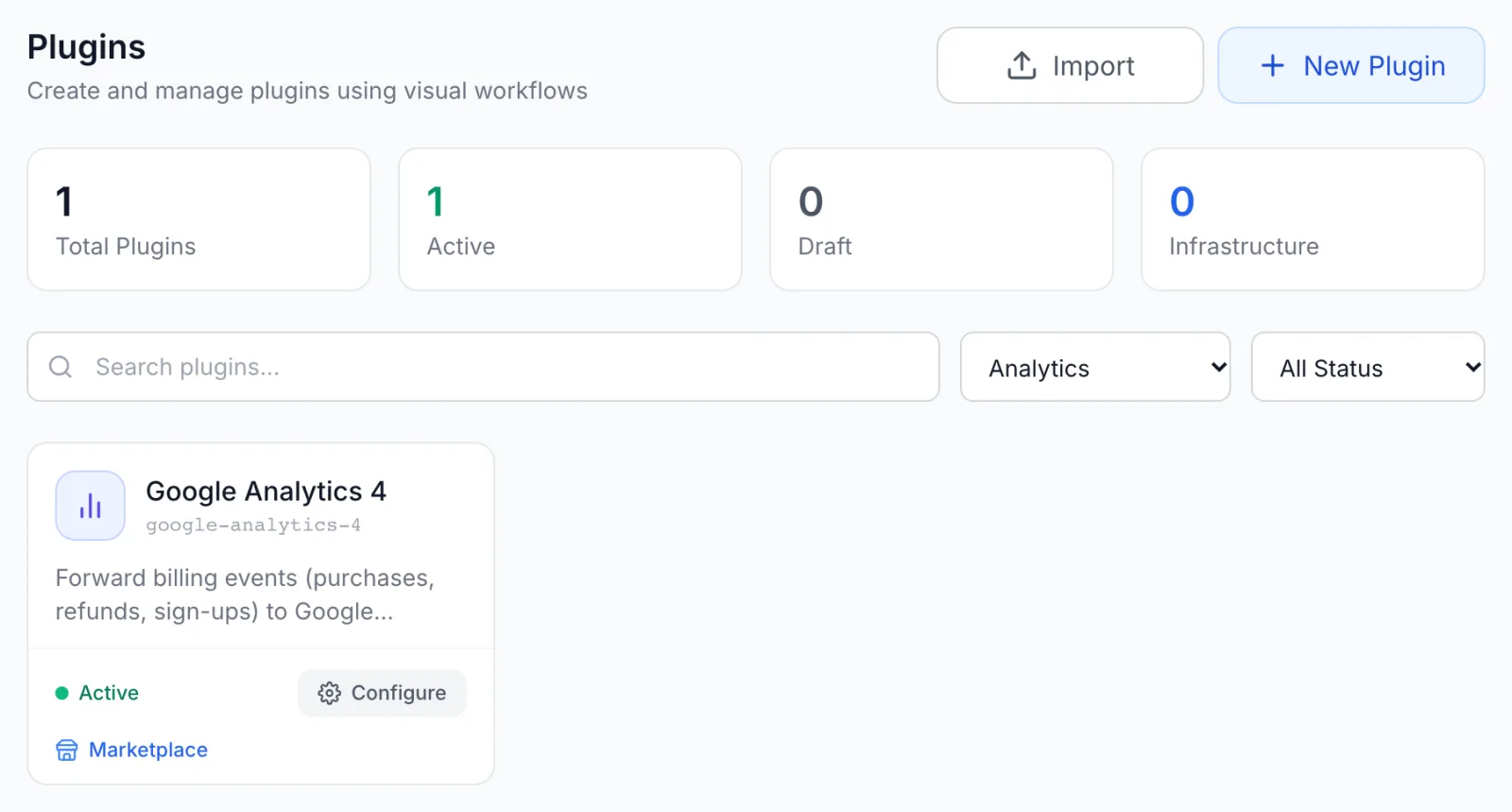
There are three ways to add an analytics plugin:
- From the marketplace. Settings → Integrations → Marketplace lists the free Google Analytics 4 plugin. This is the quickest route. See Installing from the Catalogue.
- By importing a package. Click Import on the Plugins page and choose a package file. The plugin arrives as Draft. See Packaging, Importing & Updating. This is how you install an analytics plugin you wrote yourself.
- With the New Plugin wizard. Analytics is one of the types in the creation wizard, described as Forward billing events to an analytics platform. The wizard skips the capabilities step for this type. It does not add the event list or the settings an analytics plugin needs, so write a package instead.
The plugin editor
Click an analytics plugin's card, or choose Edit in its card menu, to open the editor.
Overview
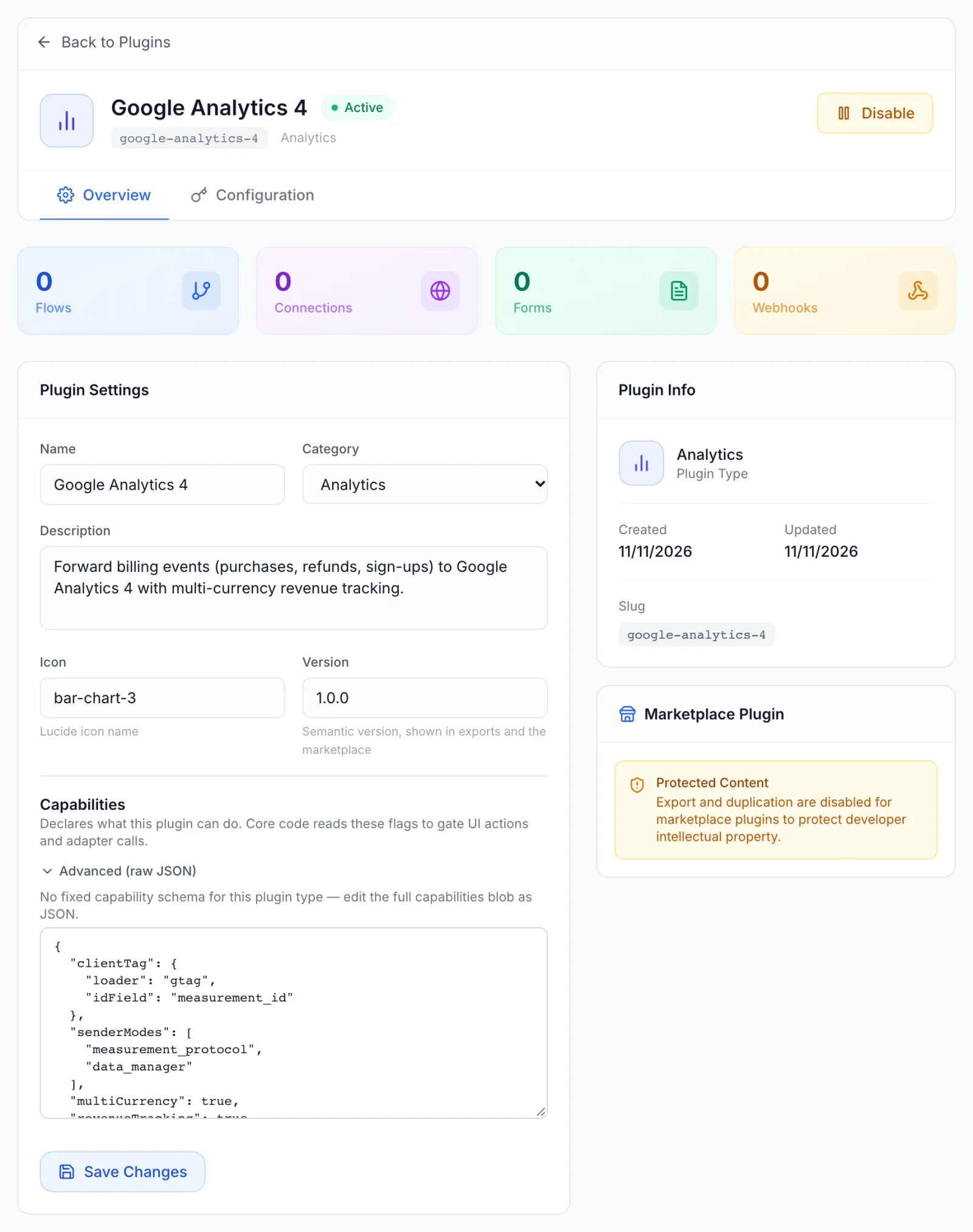
Plugin Settings holds the Name, Category (Analytics), Description, Icon and Version. Below them, the Capabilities section has no checkboxes for this type. Click Advanced (raw JSON) to see and edit the plugin's whole capabilities object, including its event list. Click Save Changes to store it. If the text is not a valid JSON object, saving stops with Capabilities JSON: … and the reason.
Configuration
The Configuration tab is where the plugin's settings are filled in. It draws a form from the plugin's settings definition:
- Fields are grouped under the headings and descriptions the package gives its groups. Fields without a group are shown without a heading.
- An asterisk marks a required field. The form saves even when a required field is empty, but the plugin then cannot send (see Troubleshooting).
- Secret fields are hidden as dots. The eye button next to one shows the value.
- A field with a condition appears only when that condition holds, for example the Data Manager fields only after Data Manager API (advanced) is chosen as the protocol.
- A field's default value applies until you save a different one. If you save a field empty, FluxBilling uses its default when sending.
Two buttons sit at the bottom:
- Save Configuration stores the values. A green Configuration saved message confirms it.
- Test connection first saves the values in the form, then sends a sample event to the protocol's validation service. Nothing is recorded in your analytics property. See Testing a plugin.
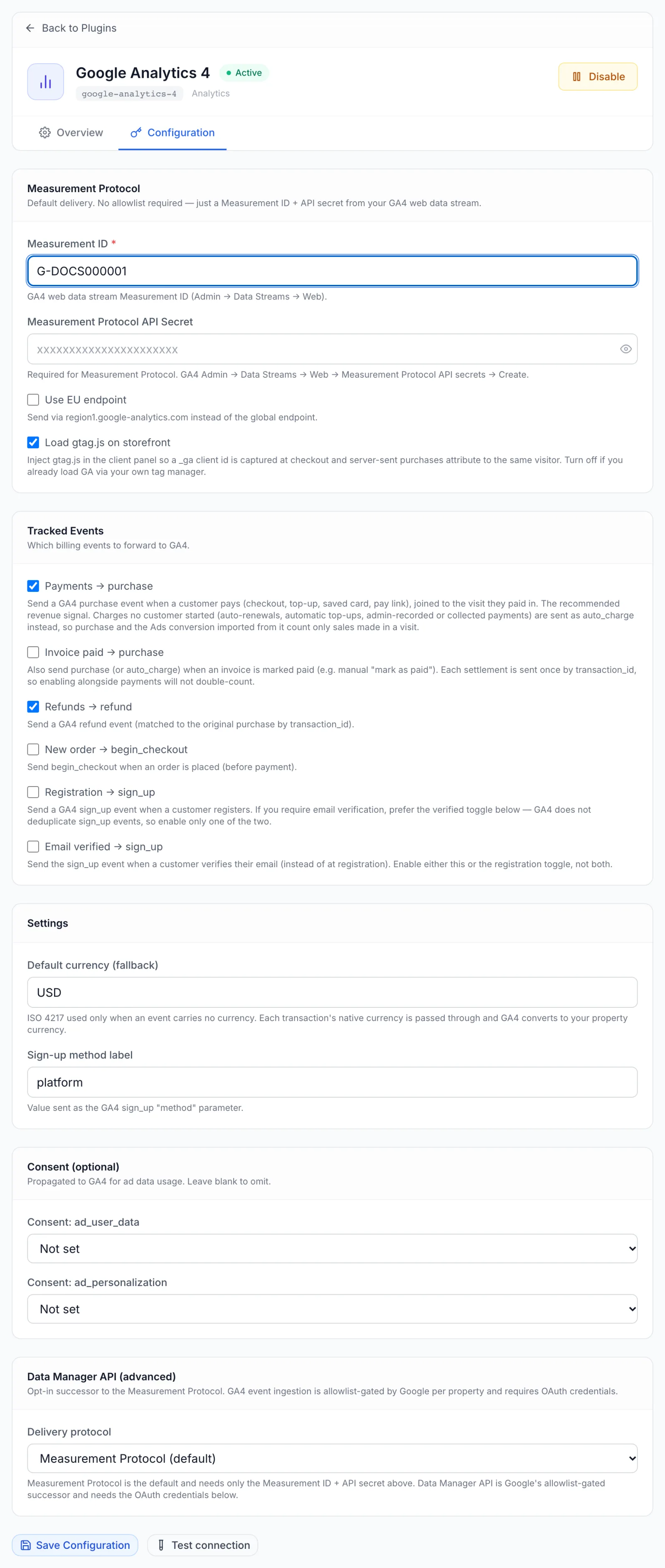
The Configure button on the plugin's card opens the same values in a dialog. That dialog has no test button; the test is only on the Configuration tab.
Writing an analytics package
An analytics package is an ordinary plugin package (see Packaging, Importing & Updating) with "type": "analytics", empty flows, forms, connections and webhooks, a capabilities object that declares the events, and a configSchema with the settings.
The capabilities of a plugin that sends completed payments, refunds and verified sign-ups through the Measurement Protocol, without a browser tag, look like this:
"capabilities": {
  "senderModes": ["measurement_protocol"],
  "eventDefinitions": {
    "payment.completed": { "event": "purchase", "kind": "transaction", "unattendedEvent": "auto_charge" },
    "payment.refunded": { "event": "refund", "kind": "transaction" },
    "user.verified": { "event": "sign_up", "kind": "identity" }
  }
}
Its configSchema holds the credential fields of the chosen protocol, one toggle per tracked event, and any of the settings described below. The event toggles and settings part looks like this:
"configSchema": {
  "fieldGroups": [
    { "name": "events", "label": "Tracked events" },
    { "name": "settings", "label": "Settings" }
  ],
  "fields": [
    { "key": "enable_payment_completed", "type": "toggle", "group": "events", "default": true, "label": "Payments → purchase" },
    { "key": "enable_payment_refunded", "type": "toggle", "group": "events", "default": true, "label": "Refunds → refund" },
    { "key": "enable_user_verified", "type": "toggle", "group": "events", "default": false, "label": "Email verified → sign_up" },
    { "key": "default_currency", "type": "text", "group": "settings", "default": "USD", "label": "Fallback currency", "description": "Used only when an event carries no currency." },
    { "key": "signup_method", "type": "text", "group": "settings", "default": "email", "label": "Sign-up method label" }
  ]
}
When you import a package of type analytics without eventDefinitions, the import check warns: Analytics plugins forward only the events listed in capabilities.eventDefinitions. Such a plugin sends nothing.
Capabilities
| Key | What it does |
|---|---|
eventDefinitions | Required in practice. Maps each platform event the plugin tracks to the analytics event it sends. Platform events not listed here are ignored by the plugin. |
clientTag | Optional. loader set to gtag lets the client area load the Google tag; idField names the setting that holds the tag ID, which for the Google tag is the Measurement ID field. gtag is the only loader available. Leave clientTag out for a plugin that only sends from the server. |
senderModes | Lists the delivery protocols the plugin supports, as information. The protocol actually used is the sender_mode setting. |
| Key | What it does |
|---|---|
event | The analytics event name to send, for example purchase, refund, begin_checkout or sign_up. An entry without it is not tracked. |
kind | transaction (the default) sends money: transaction ID, value, currency and items. identity sends no money, only a method parameter taken from the signup_method setting, or platform when that is empty. |
unattendedEvent | Optional. A second event name for payments no customer started in their browser: automatic renewals, automatic top-ups, payments an admin collects or records, and invoices marked paid by hand. The GA4 plugin uses auto_charge here, so that purchase counts only sales made during a visit. |
Platform events to map
Each tracked event also needs a toggle in the settings, named enable_ plus the event name with dots replaced by underscores. payment.completed needs enable_payment_completed. The event is sent only while its toggle is on.
| Platform event | Toggle key | Fires when | Value and transaction ID |
|---|---|---|---|
payment.completed | enable_payment_completed | A payment is completed | The amount paid; the invoice number (the proforma number when a proforma was paid) |
invoice.paid | enable_invoice_paid | An invoice is paid, including when an admin marks it paid by hand | The invoice total in the invoice currency; the invoice number (the proforma number when a proforma was paid) |
payment.refunded | enable_payment_refunded | A payment is refunded, fully or partly | The refunded amount; the invoice number, so it matches the purchase |
order.created | enable_order_created | A new order is placed, before payment | The order total; the order number |
user.registered | enable_user_registered | A customer registers | None (map it as identity) |
user.verified | enable_user_verified | A customer verifies their email | None (map it as identity) |
You can map other platform events too; the list is in Notification Plugins. Only events that carry an amount send a value.
For transaction events, FluxBilling adds the invoice lines (or, for an order, the ordered products with their billing cycle) as items, the currency of the transaction, and a purchase_type of new_order, upgrade, top_up, renewal or other. Every event carries the customer's account ID as the user ID and, where known, the visitor's analytics IDs from the visit in which the payment was started. Google Analytics 4 revenue tracking describes these fields as they appear in GA4.
Settings the platform reads
Besides the toggles and the credentials in the protocol table above, FluxBilling reads these setting keys when your schema defines them. Use exactly these keys.
| Key | What it does |
|---|---|
sender_mode | Picks the delivery protocol: measurement_protocol or data_manager. Without it, the Measurement Protocol is used. |
default_currency | ISO 4217 code used only when an event carries no currency. Without it, USD is used. |
signup_method | The method sent with identity events. |
consent_ad_user_data, consent_ad_personalization | GRANTED or DENIED, sent with every event as Google's consent signals. An empty value leaves them out. |
client_side_tagging | Set to off to stop the client area loading the browser tag, for example when you load Google Analytics through your own tag manager. Without this field, the tag loads whenever clientTag is declared and its ID is filled in. |
Field types the Configuration tab draws are text, secret, select (with options of value and label) and toggle. Any other type is shown as a text box. For conditions, showIf accepts a field key (show when that field is on) or key=value (show when that field equals the value). For the general rules of settings, see Configuration Settings.
When an event is sent
For each platform event, every analytics plugin that meets all of these conditions sends it:
- The plugin is Active. Draft and disabled plugins send nothing and load no tag.
- The event's
enable_toggle is on. - The event has an entry in
eventDefinitions. - The plugin has not already sent 60 of this event within the current minute. Further events of that kind in the same minute are dropped.
Sending happens in the background, so a slow or failing analytics service never holds up a payment, an order or a sign-up. A failed event is not retried.
Some events are deliberately not sent twice or at all:
- One sale, two events. One payment usually raises both
payment.completedandinvoice.paid. When both are mapped to the same analytics event, the second one with the same transaction ID is dropped if the first was delivered within the past 10 minutes. If the first failed, the second is sent instead. Repeats of the same platform event, such as two partial refunds of one invoice, are all sent. - Payments from account credit. An invoice paid from account credit is not sent as a transaction. The money was counted when the customer topped up.
The browser tag and what customers see
A plugin that declares clientTag can load the Google tag in your client area, so that a payment sent later from the server is joined to the visit in which the customer started it. The client area loads one tag at most: that of the oldest Active analytics plugin that declares clientTag, has its tag ID filled in and does not have client_side_tagging off.
Before the tag loads, the client area asks each visitor for permission with a banner: We use analytics cookies to understand how visitors use this site. They are set only if you accept., with the buttons Decline and Accept. The choice is remembered in that browser. After Decline, the tag never loads for that visitor, and their events are still sent from the server, but without the visitor's analytics IDs. With no plugin tag in use, customers see no banner, and checkout, invoices and emails look the same with or without an analytics plugin.
Testing a plugin
Open the plugin's Configuration tab and click Test connection. FluxBilling saves the form, then sends one sample event to the validation service of the selected protocol: the Measurement Protocol's validation server, or a Data Manager API request marked as validate-only. Nothing is recorded in your property.
The sample is the first transaction event in your eventDefinitions, with transaction ID TEST-0001, a value of 9.99 in the default_currency (or USD) and one item called Test Item. The result appears above the buttons:
- Validation passed — sender reachable. The validation service accepted the sample.
- Validation failed, followed by the reason or the list of messages from the validation service. A Request ID: line appears when the service returns one.
Google's Measurement Protocol validation server checks the shape of the event, not the Measurement ID or the API secret. After a passed test, make a small real payment in your client area and watch for the event in the GA4 Realtime report.
Limits
- Events go to Google Analytics 4 only, through the Measurement Protocol or the Data Manager API.
- The only browser tag the client area can load is the Google tag, and only one analytics plugin's tag is loaded at a time.
- An analytics plugin's settings definition comes from its package. The editor has no tab to add settings fields to an analytics plugin.
- At most 60 events of one kind per plugin per minute are sent. Failed events are not retried.
Troubleshooting
| Message or symptom | What to check |
|---|---|
| This plugin has no configuration schema. | The plugin has no settings definition, typically because it was created with the wizard. Import a package with a configSchema. |
| Measurement Protocol: … is required | The Measurement ID or the API secret named in the message is empty, or the plugin's settings do not use the key FluxBilling reads for it. |
| Unknown analytics sender mode "…" — no sender registered for it | sender_mode holds a value other than measurement_protocol or data_manager. Fix the option values in your schema. |
| Data Manager API: … messages | A Data Manager credential is missing, invalid or was refused when FluxBilling asked Google for an access token. When a setting is missing, the message names it; see Google Analytics 4 revenue tracking. |
| HTTP …: … | Google rejected the Data Manager API request. The message shows the HTTP status and Google's reason. |
| Test request failed or Save failed | The request did not reach FluxBilling or was refused. Reload the page and try again. |
| Capabilities JSON: … | The text under Advanced (raw JSON) is not a valid JSON object. Fix it before Save Changes. |
| Test passes, but no events arrive | Check that the plugin is Active, that the event's toggle is on and that the event is in eventDefinitions. Check the Measurement ID and API secret against your GA4 data stream; the test does not check them. |
| The consent banner does not appear | The visitor already made a choice in that browser, the plugin is not Active, its tag ID is empty, client_side_tagging is off, or the plugin declares no clientTag. |
| Fewer purchases than payments | Payments no customer started are sent under unattendedEvent when the plugin declares one, and payments from account credit are not sent. |
| Every sign-up counted twice | Both user.registered and user.verified are mapped and switched on. Keep one. |
Google Analytics is a trademark of Google LLC. FluxBilling is not affiliated with Google LLC.