
Google Analytics 4 revenue tracking
Send FluxBilling payments, refunds, orders and sign-ups to Google Analytics 4: setup, every setting, purchase vs auto_charge, consent and troubleshooting.
The Google Analytics 4 plugin sends your billing events to a Google Analytics 4 property, so payments, refunds, new orders and sign-ups appear in GA4 next to the rest of your traffic and marketing data. The events are sent from FluxBilling's server when the billing event happens, for example when a payment gateway confirms a payment minutes after the customer left your site. Optionally, the plugin also loads the Google tag in your client area, so a server-sent purchase is joined to the visit the customer paid in. The plugin is free and is listed in the plugin marketplace of every FluxBilling panel.
This guide covers plugin version 1.3. It walks through the setup in the order you do it, then explains which event is sent when and what to check when nothing shows up in GA4.
Who supports this integration. The plugin is built and maintained by FluxBilling. If something does not work, contact FluxBilling support at contact@fluxbilling.app or through fluxbilling.app/contact. Questions about Google Analytics itself, your property or its reports go to Google.
What you need before you start
- A Google Analytics 4 property with a Web data stream for the site your customers order on. See Google's Set up Analytics for a website.
- The stream's Measurement ID. In Google Analytics, click Admin, then under Data collection and modification click Data streams, select your Web stream and copy the Measurement ID from the stream details. It starts with
G-. It is not the same as the Stream ID. - A Measurement Protocol API secret for the same stream. On the stream's page, click Measurement Protocol API secrets, then Create, enter a nickname and click Create. Copy the secret value. Google documents both steps in Send Measurement Protocol events. Keep the secret private: anyone who has it can send data to your property.
That is all the default setup needs. The second delivery method, Google's Data Manager API, needs a Google Cloud project and a service account or OAuth client as well; see Data Manager API (advanced).
Step 1: Install the plugin
- In the FluxBilling admin panel, open Settings (the gear icon in the top bar).
- Under Integrations, open Marketplace. Stay on the Browse tab.
- Open the Google Analytics 4 card and click Get for Free.
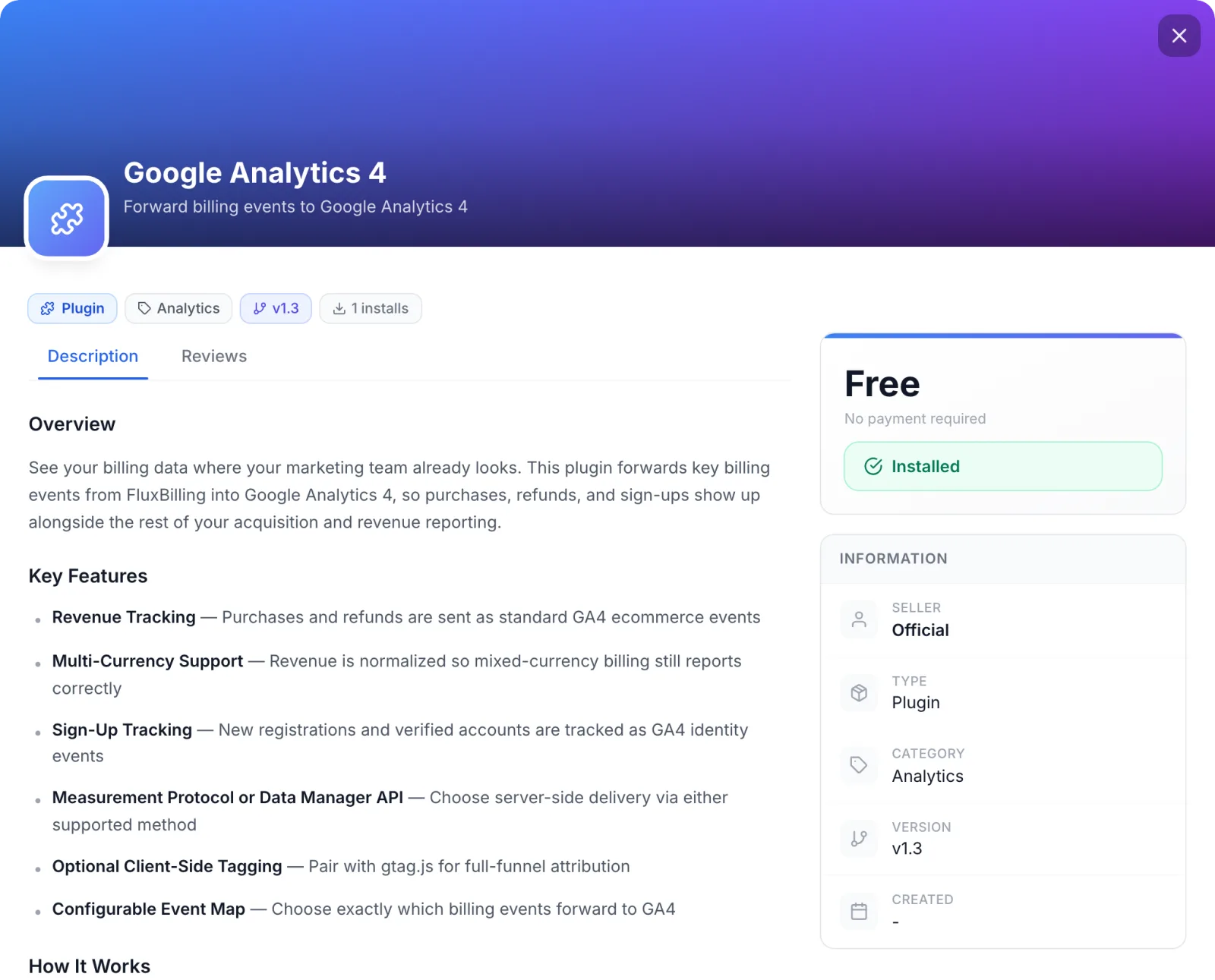
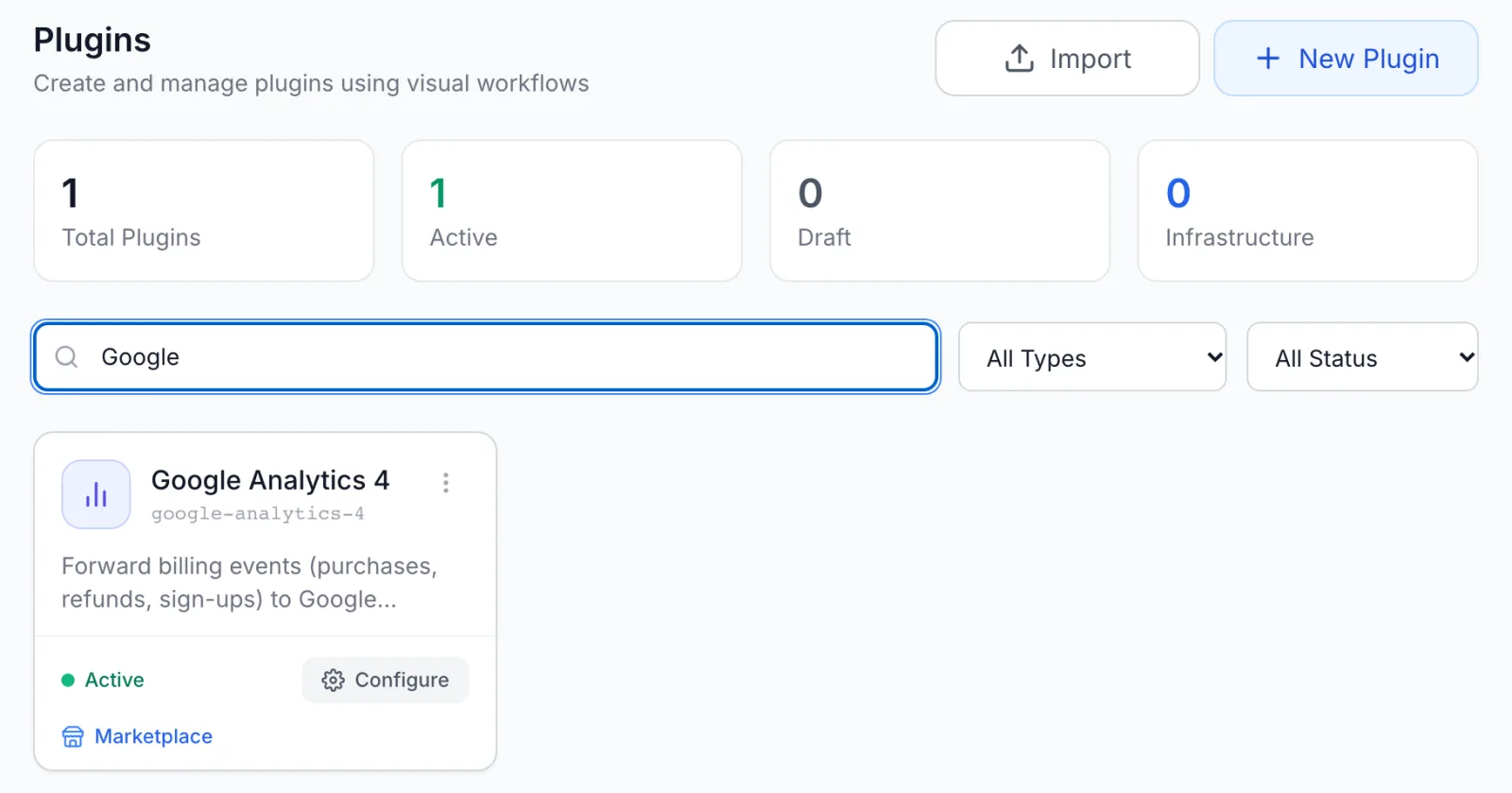
FluxBilling confirms with Plugin "Google Analytics 4" installed and ready to use. The plugin is switched on straight away and appears under Settings → Integrations → Plugins as Google Analytics 4, marked Active. It sends nothing until you enter your Measurement ID and API secret in step 2.
Step 2: Enter your Measurement ID and API secret
- Open Settings → Integrations → Plugins.
- On the Google Analytics 4 card, click Configure.
- Enter the Measurement ID and the Measurement Protocol API Secret, choose the events you want (see the tables below) and click Save Configuration.
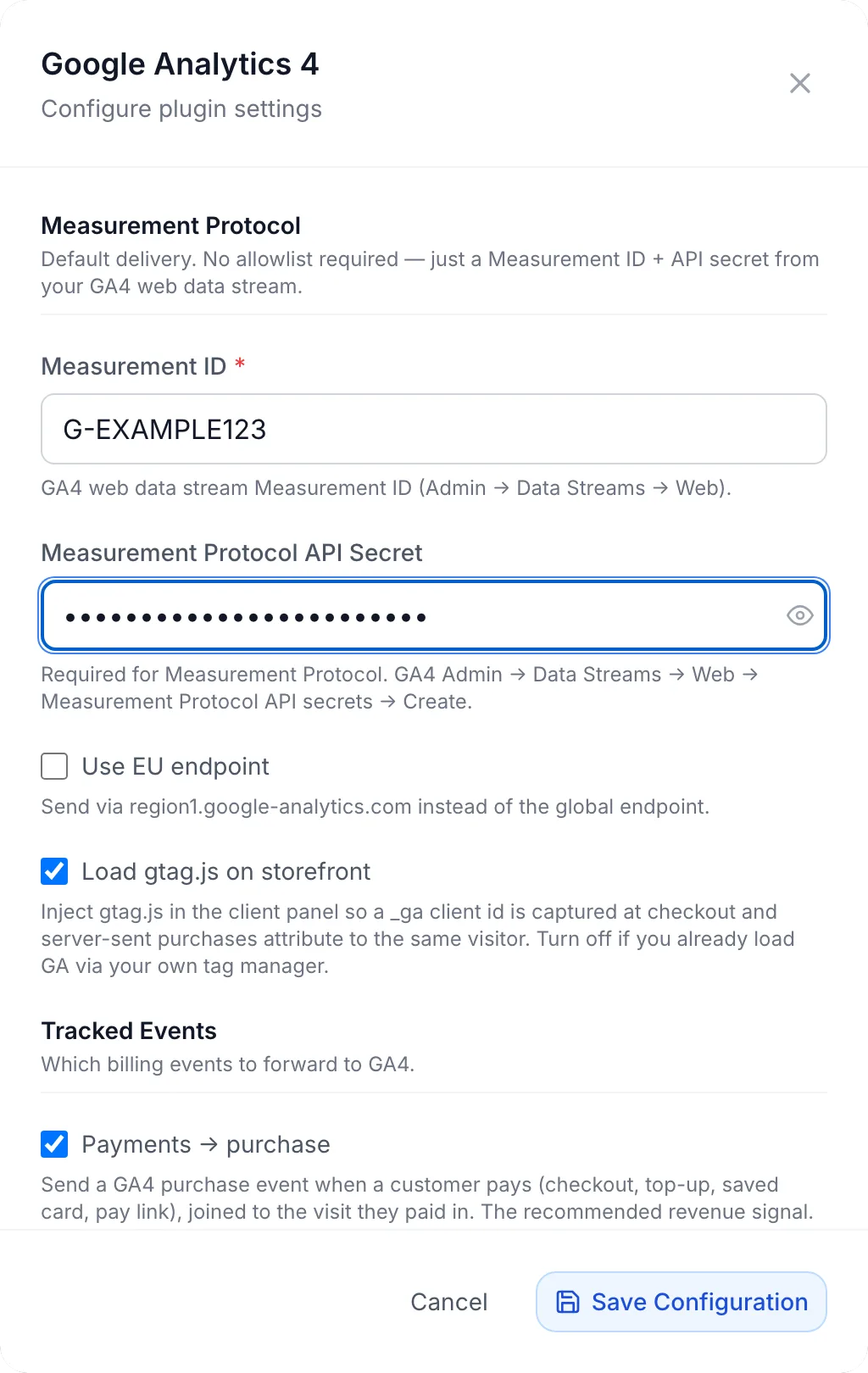
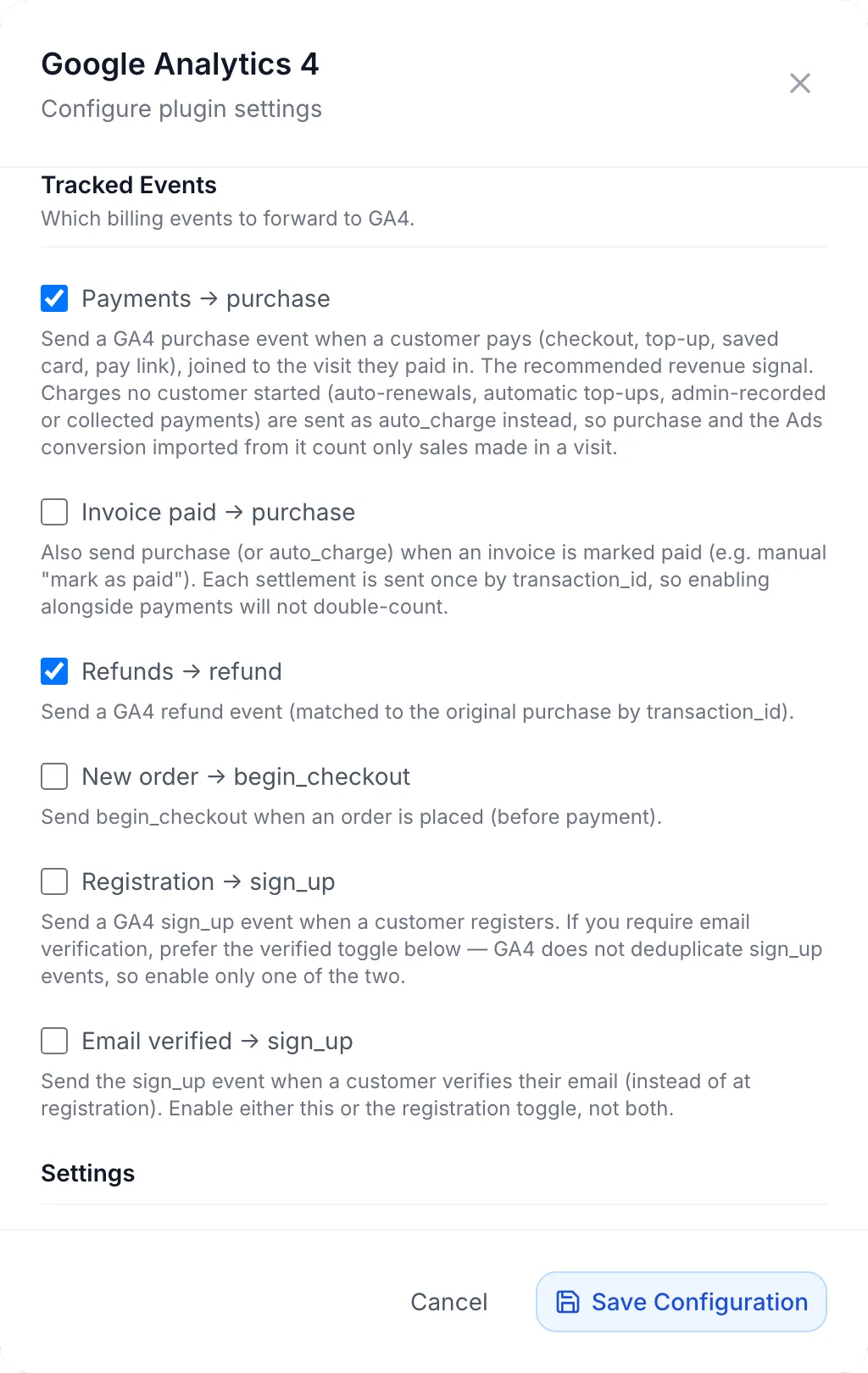
The settings are grouped in five sections. The API secret and the other secret fields are stored encrypted.
| Field | What it does |
|---|---|
| Measurement ID (required) | The G- ID of your GA4 Web data stream. Events are sent to this stream, and the Google tag in the client area uses it. |
| Measurement Protocol API Secret | The API secret you created for the stream. Required for the default delivery method. Without it, no event is sent. |
| Use EU endpoint | Sends events to region1.google-analytics.com instead of Google's global address, which Google offers for collecting data in the EU. Off as shipped. |
| Load gtag.js on storefront | Loads the Google tag in your client area so GA4 can recognise the visitor and their session, and joins server-sent payments to that visit. On as shipped. Turn it off if you already load Google Analytics yourself, for example through Google Tag Manager. See What your customers see. |
| Toggle | GA4 event | Sent when | As shipped |
|---|---|---|---|
| Payments → purchase | purchase, or auto_charge | A payment settles an invoice: checkout, a credit top-up, a payment with a saved card or a payment link. This is the recommended revenue signal. Charges no customer started (automatic renewals, automatic top-ups, payments an admin records or collects, invoices marked paid by hand) are sent as auto_charge instead. | On |
| Invoice paid → purchase | purchase, or auto_charge | An invoice is marked paid. Each settlement is sent once per transaction ID, so turning this on next to Payments does not count a sale twice. | Off |
| Refunds → refund | refund | A payment is refunded, fully or partly. The refund carries the same transaction ID as the original purchase, so GA4 can match the two. | On |
| New order → begin_checkout | begin_checkout | An order is placed, before it is paid. | Off |
| Registration → sign_up | sign_up | A customer creates an account. | Off |
| Email verified → sign_up | sign_up | A customer verifies their email address. Use this instead of Registration if you require email verification. GA4 does not remove duplicate sign_up events, so turn on only one of the two. | Off |
| Field | What it does |
|---|---|
| Default currency (fallback) | A three-letter ISO 4217 code, used only when an event carries no currency. Normally each payment is sent in its own currency and GA4 converts it to your property's currency. |
| Sign-up method label | The value sent as the method parameter of sign_up. |
| Consent: ad_user_data | Not set, Granted or Denied. Sent with every event as GA4's ad_user_data consent signal. Not set leaves it out. |
| Consent: ad_personalization | The same for GA4's ad_personalization signal. |
The fifth section, Data Manager API (advanced), chooses the Delivery protocol. Leave it on Measurement Protocol (default) unless you have a reason to change it; see Data Manager API (advanced).
Step 3: Test the connection
The Configure dialog has no test button. The test is in the plugin editor:
- On the Google Analytics 4 card, open the ⋮ menu and choose Edit.
- Open the Configuration tab. It shows the same fields as the Configure dialog.
- Click Test connection. The values in the form are saved first, then FluxBilling sends a sample
purchaseof 9.99 in your fallback currency to Google's validation server. Nothing is recorded in your property.
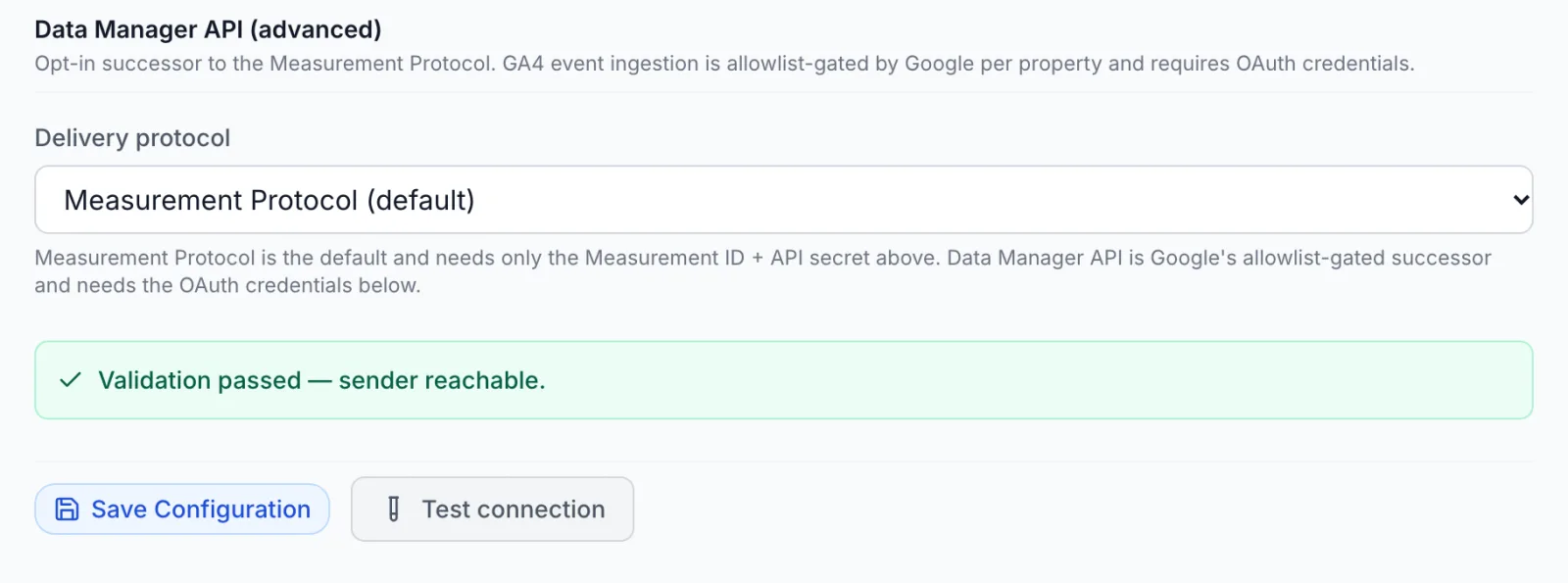
A good result reads Validation passed — sender reachable. A problem reads Validation failed with the reason below it. Google's validation server checks the shape of the event; it does not check the Measurement ID or the API secret. So after a passed test, confirm the real thing: make a small test payment in your client area and look for the purchase event in the GA4 Realtime report. Events from FluxBilling are sent so that they show there.
What is sent with each event
Every payment, refund and order event carries:
- Transaction ID: the invoice number, or the order number for
begin_checkout. GA4 uses it to match a refund to its purchase. - Value and currency: the amount paid, refunded or ordered, in the currency of the transaction.
- Items: the invoice lines (description, unit price, quantity), or for
begin_checkoutthe ordered products with their billing cycle. When a document has no lines, the whole transaction is sent as one item. - purchase_type:
new_order,upgrade,top_up,renewalorother, so you can separate new sales from money existing customers pay. Register it as a custom dimension in GA4 if you want to report on it. - The visitor: the GA4 client ID and session ID captured when the customer started the payment, and the client-area page they paid from (with record IDs in the address replaced by
:id). When no browser visit is known, for example for a renewal, a stable ID for the customer is sent instead, so their events still belong to one user. - User ID: the customer's FluxBilling account ID, as the GA4 user ID.
- Consent: the two consent values, when you set them.
sign_up carries only the method label, the user ID and the consent values.
Purchase or auto_charge
A sale counts as a purchase only when a customer made the payment in their own browser: at checkout, when topping up credit, when paying an invoice with a saved card, or through a payment link. Everything else that brings in money is sent as auto_charge: automatic renewal charges, automatic top-ups, payments an admin collects or records, and invoices marked paid by hand. This keeps purchase, and any Google Ads conversion you import from it, to sales that happened in a visit. If you want all revenue in one figure, mark auto_charge as a key event in GA4 as well, or add the two together in your reports.
Paying an invoice from account credit is not sent as a sale. That money was already counted when the customer topped up.
What your customers see
With Load gtag.js on storefront on and a Measurement ID saved, your client area asks each visitor for permission before the Google tag loads. The banner reads We use analytics cookies to understand how visitors use this site. They are set only if you accept. with the buttons Decline and Accept. The choice is remembered in that browser.
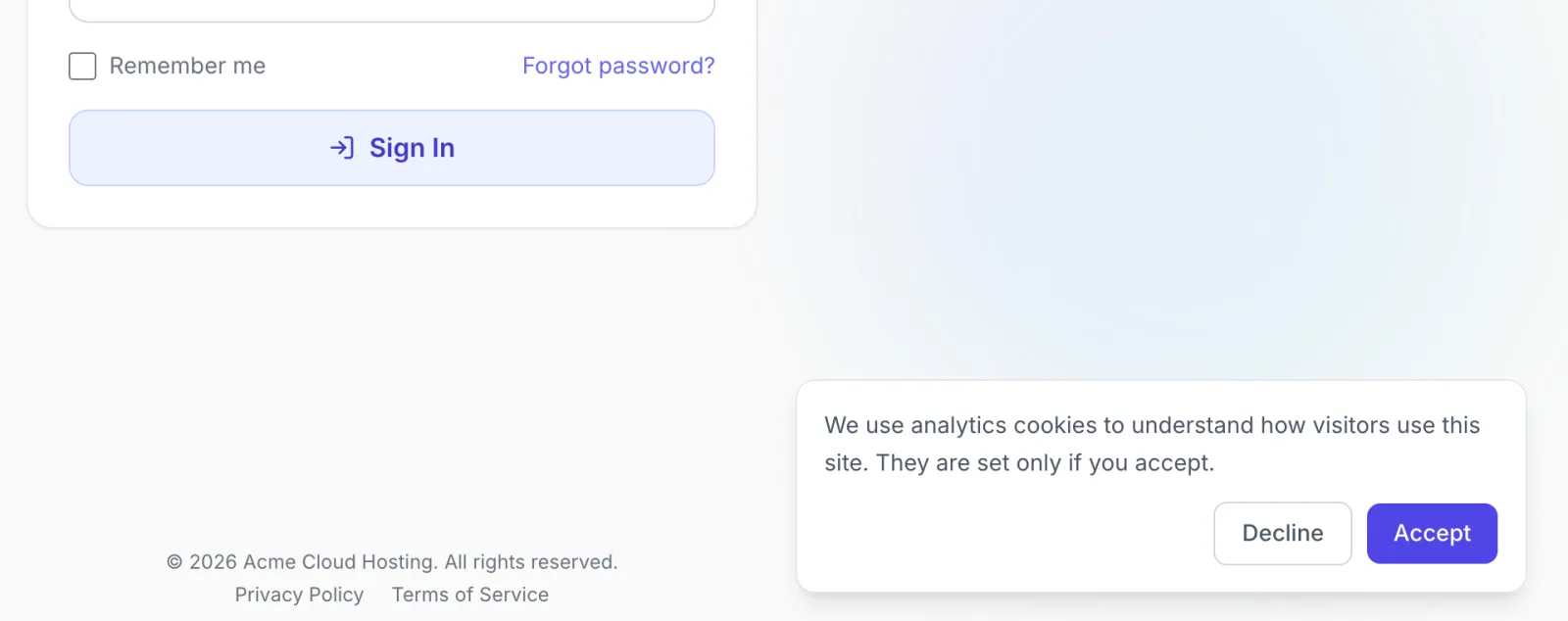
- Accept loads the Google tag from Google. GA4 then records the visit as usual, and the visitor's GA4 ID is stored with their order and with each payment they start, so the server-sent purchase is joined to that visit. Ad-click IDs from the landing address (for example
gclid) are kept for the Google tag too. - Decline keeps the Google tag out. Billing events are still sent from the server, under a stable ID for the customer instead of the visitor's GA4 ID, so they are not tied to a visit or a traffic source.
When the toggle is off, or no Measurement ID is saved, the client area shows no banner and loads no Google tag. Checkout, invoices and emails look the same with or without the plugin.
Data Manager API (advanced)
Google offers the Data Manager API as the newer way to send events to GA4 from a server. The Measurement Protocol keeps working, and it is all most setups need. Choose the Data Manager API only if you already work with it. The plugin's own hint says GA4 event ingestion through it must be enabled by Google for your property; check Google's documentation for the current access rules.
When you set Delivery protocol to Data Manager API (advanced), these fields appear:
| Field | What to enter |
|---|---|
| GA4 Property ID (numeric) | The numeric ID of the property, shown in GA4 under Admin → Property details, not the G- Measurement ID. The Measurement ID field above is still needed too. |
| OAuth mode | Service account (recommended) or OAuth client + refresh token. |
| Service account JSON key | For service-account mode: the full JSON key file of a Google Cloud service account. Add the service account's email address as a user of your GA4 property; Google requires the Editor or Administrator role. |
| OAuth Client ID, OAuth Client Secret, OAuth Refresh Token | For refresh-token mode only: an OAuth client from your Google Cloud project and a refresh token for a Google account with Editor or Administrator access to the property, granted the scope https://www.googleapis.com/auth/datamanager. |
| Validate-only (dry run) | Sends every event as a dry run: Google checks it but records nothing. Useful while you confirm access and permissions. Turn it off to start recording. |
Enable the Data Manager API in the Google Cloud project first; Google describes the steps in Set up API access. Test connection then sends the sample event as a dry run, which also shows sign-in and permission errors. The Use EU endpoint toggle applies to the Measurement Protocol only.
Updating the plugin
Open Settings → Integrations → Marketplace, switch to Installed and click Check for Updates. When a new version is available, click Update to v…. To stop sending events for a while, choose Disable in the ⋮ menu of the plugin card; the client area then also stops loading the Google tag.
Troubleshooting
Events are sent in the background, so a failed delivery never holds up a payment or an order. To check delivery, use Test connection and the GA4 Realtime report.
| Message or symptom | What to check |
|---|---|
| Measurement Protocol: measurement_id is required | The Measurement ID field is empty. Enter the G- ID of your Web stream. |
| Measurement Protocol: api_secret is required | The Measurement Protocol API Secret is empty. Create one on the stream in GA4 and paste it. |
| Validation failed with a list of messages | Google's validation server rejected the sample event. The messages are Google's and name the field. Check, for example, that Default currency (fallback) is a valid ISO 4217 code such as USD. |
| The test passes, but no events appear in GA4 | The validation server does not check the Measurement ID or the API secret. Compare both with the values on the stream's page, and check that the secret belongs to the same stream. Check that the toggle for the event is on and that the plugin is Active. Events from a payment made with account credit are not sent by design. |
| Purchases arrive, but with source (not set) or channel Unassigned | The payment was not joined to a visit: the visitor declined the cookie banner, Load gtag.js on storefront is off, or the charge was one no customer started (those are sent as auto_charge). If you load GA yourself through your own tag, use the same Measurement ID in the plugin. |
| Fewer purchases than payments in FluxBilling | Charges no customer started are sent as auto_charge, not purchase. See Purchase or auto_charge. |
| Every sign-up is counted twice | Registration → sign_up and Email verified → sign_up are both on. Keep one. |
| Data Manager API: ga4_property_id is required | Enter the numeric GA4 Property ID (numeric). |
| Data Manager API: measurement_id (productDestinationId) is required | The Data Manager API also needs the Measurement ID in the first section. |
| Data Manager API: sa_json is not valid JSON or Data Manager API: service-account JSON missing client_email/private_key | Paste the complete service-account key file, from the opening to the closing brace. |
| Data Manager API: SA token exchange failed (…) or Data Manager API: refresh token exchange failed (…) | Google refused the credentials. The text in brackets is Google's reason. Check that the key or token is current and that the Data Manager API is enabled in the project. |
| Data Manager API: refresh_token mode requires oauth_client_id, oauth_client_secret, oauth_refresh_token | In OAuth client + refresh token mode, fill in all three OAuth fields. |
| HTTP 403: … | Google denied access: the account has no Editor or Administrator role on the property, or the property is not allowed to send events through the Data Manager API. Switch back to the Measurement Protocol, or resolve the access with Google. |
Limits
- The plugin sends the six billing events above. It does not send service events (suspensions, cancellations, upgrades as their own event) or ticket events, and it does not change the events you can choose.
- Events are sent once, when they happen. There is no back-fill of past payments, and no retry if Google could not be reached at that moment.
- Up to 60 events of one kind are sent per minute. Above that, the rest in that minute are skipped.
- The plugin reads nothing back from Google Analytics. Reports stay in GA4; FluxBilling's own reports do not use GA4 data.
- It does not send customers' email addresses, names or other contact details to Google.
- The cookie banner covers only the Google tag that the plugin loads. If you load other tags yourself, their consent is up to you.
- One property per panel. When several analytics plugins are active, the client area loads the tag of the first one that has one.
Google Analytics is a trademark of Google LLC. FluxBilling is not affiliated with Google.