
Closed Months and Storno Invoices
Freeze a month's invoices once your accountant has them. Later refunds and lost chargebacks become storno invoices and after-close changes.
Closed months let you freeze a month's invoices and proformas once you have sent them to your accountant. After that, nothing automatic rewrites them. A refund or a lost chargeback that reaches a closed invoice is answered with a new storno invoice dated today, and the After-close changes list collects everything that touched earlier months, ready to send with the next month's invoices.
This page is for the admins and staff who run billing and hand documents to an accountant. It explains how to close a month, what the lock stops and what still works, how storno invoices are made and what your customer sees, and how to read the after-close report.
Where to find it
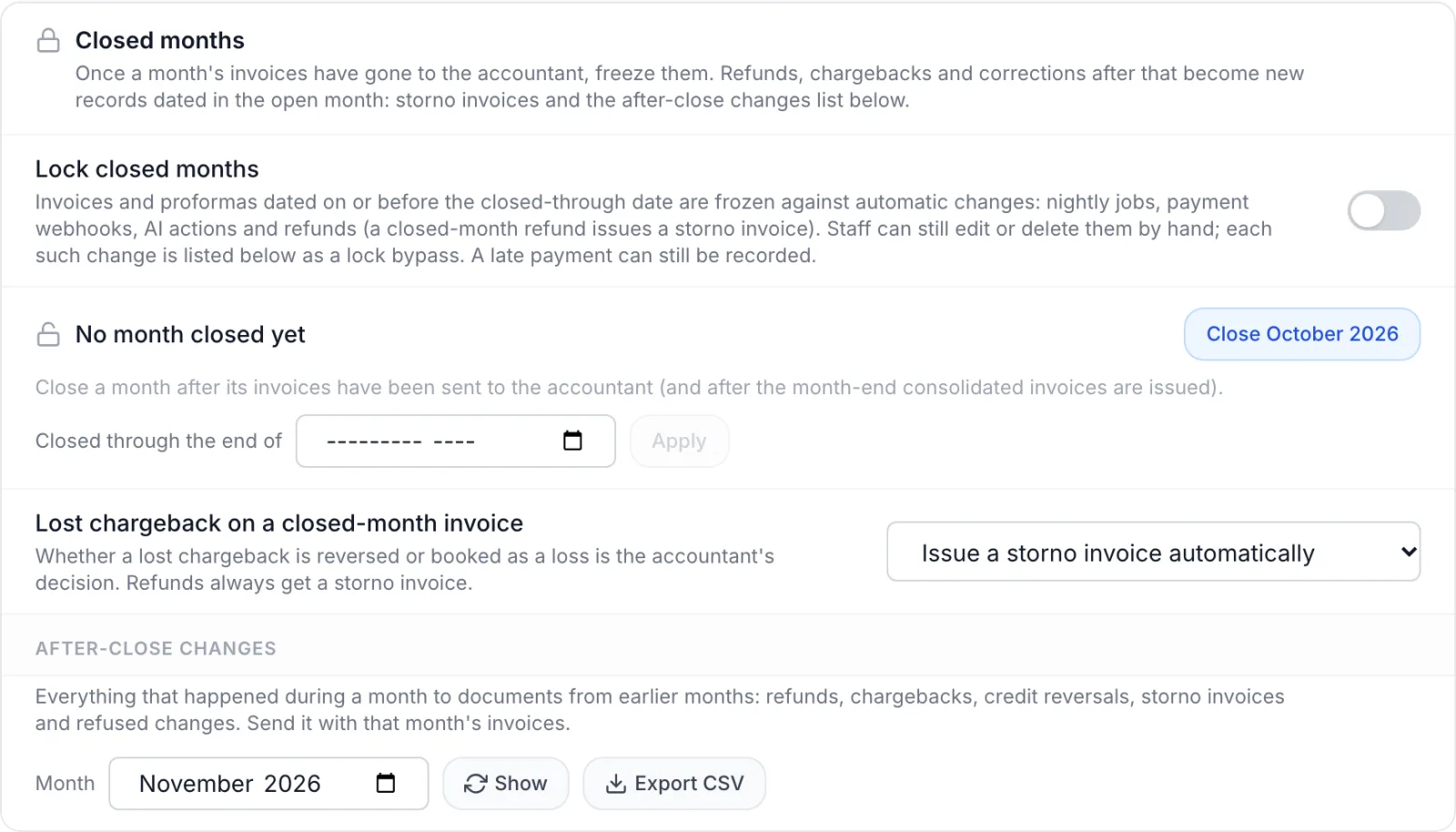
Open Settings, then Billing under Financial, and stay on the Invoicing tab. The Closed months card is in the right-hand column, below the Document Numbering card.
Who can use it:
- Switching the lock and closing or re-opening a month needs permission to edit settings.
- Showing or exporting the after-close changes needs permission to view invoices. Issue storno needs permission to edit invoices.
Roles and permissions are set under Staff and permissions. No feature toggle is involved: the card is part of the Billing settings.
These controls save at once. The Lock closed months switch, Close <month> and Apply take effect as soon as you click them and show Closed months updated. You do not need the page's Save button for them. The Lost chargeback on a closed-month invoice setting is the exception: it is saved with the page's Save button, like the rest of the Billing settings.
How it works in one minute
- The card keeps a closed-through date: the last day of the most recent month you closed. Every invoice and proforma dated on or before that day belongs to a closed month.
- The Lock closed months switch decides whether that date is enforced. With the switch off, the date is kept but nothing is frozen, and the card says The lock is off, so this date is not enforced.
- With the switch on, nightly jobs, payment webhooks, AI actions and refunds can no longer change a closed document. What happens later becomes a new record dated in the open month: a storno invoice, or a row in the after-close changes list.
- Staff can still edit or delete a closed document by hand. Each such change is listed in the after-close changes as Lock bypassed, so the accountant can see it.
Close a month
Close a month after its invoices have gone to the accountant, and after the month-end consolidated invoices have been issued (see Consolidated invoicing).
- Open Settings → Billing and scroll to Closed months.
- Click the button on the right of the status line. It names the next month you can close, for example Close October 2026.
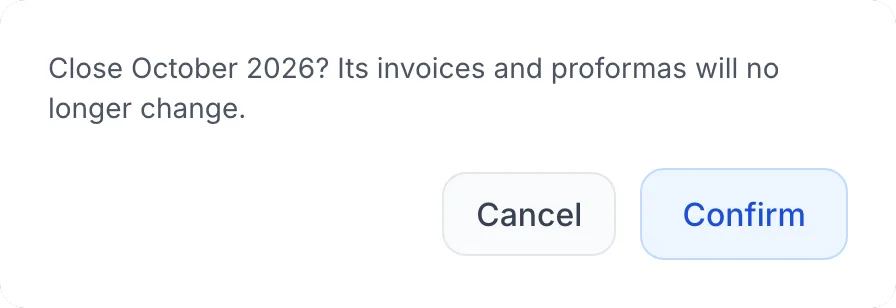
- Confirm. The dialog reads Close October 2026? Its invoices and proformas will no longer change.
- The status line changes to Books closed through Oct 31, 2026 (the date follows your panel language).
- If the lock is not on yet, switch on Lock closed months. Until you do, the date is recorded but not enforced.
Rules for the button:
- It closes one month at a time, always the month right after the last closed one. The first time, it offers the month before the current one.
- A month can only be closed after it has ended. When the next month has not ended yet, the button reads Next month not ended yet and is disabled.
- If some proformas settled in that month are still waiting for their month-end consolidated invoice, FluxBilling asks first: Some proformas settled in this month are still waiting for their month-end consolidated invoice. If you close the month now, that invoice will be dated in the open month. Close anyway? Cancel, wait for the month-end run, then close the month.
Set the date directly or re-open a month
Use Closed through the end of to pick a month, then click Apply. The picker only offers months that have already ended. This is the way to close several months at once, for example when you start using the lock with a backlog already at the accountant.
Picking a month earlier than the current closed-through date re-opens the months after it. FluxBilling asks first: Moving the date back re-opens months the accountant already has. Continue? Only re-open a month when your accountant agrees, because documents in it can change again.
Closing, re-opening and switching the lock are recorded in the activity log with who did it (see Activity log).
What the lock stops, and what still works
With Lock closed months on, these rules apply to every invoice and proforma dated on or before the closed-through date.
| Action | What happens |
|---|---|
| Nightly billing jobs (for example cancelling unpaid documents of ended services) | Closed documents are left out. They keep their status. |
| Payment gateway notifications about a dispute or chargeback | The document keeps its status and notes. The event is listed in the after-close changes instead. A lost chargeback can produce a storno invoice (see below). |
| Refund of a paid invoice (through the gateway, manual, or to the balance) | The invoice stays as it was sent. A storno invoice dated today reverses the refunded part. |
| Refund of a paid proforma through the gateway or manual | The proforma keeps its status. The refund is listed in the after-close changes. No storno is issued for a proforma. |
| Refund of a paid proforma to the balance | Refused, because it would turn the proforma into a different document. |
| Changes made by AI actions | Refused. Staff refund the invoice instead, which issues a storno. |
| Changing your base currency, or converting a client's documents to another currency | Closed documents keep the figures and currency they were sent with. |
| A late payment on an unpaid closed document | Allowed. The document is marked paid; its lines, amounts and notes stay as they were sent. |
| Editing, cancelling, marking paid or deleting by hand in the admin panel | Allowed. Each change is listed as Lock bypassed in the after-close changes. |
With the switch off, none of this applies and documents behave as they always do.
Storno invoices
A storno invoice is a correction document for an invoice in a closed month. The original invoice never changes; the storno reverses all or part of it in the open month.
What a storno looks like
- It is an ordinary invoice, numbered from your invoice series (the same prefix and counter as your other invoices) and dated the day it is issued.
- It is already marked paid. It creates no payment, sends no payment request and is never chased by reminders.
- Its amounts are negative. A storno for the whole invoice repeats every line with the quantity negated, each line starting with Storno <invoice number>:. A storno for part of an invoice is a single line, Storno <invoice number> followed by the reason.
- The buyer and the VAT treatment come from the original invoice. VAT is only split out when the original invoice charged VAT.
- Its notes read Storno of invoice <number> dated <date>, plus the reason. The PDF is titled STORNO INVOICE and shows a Storno of line with the original invoice number and date.
- The reason on a refund storno is the one you typed in the refund dialog. Without one it names the payment, for example Refund of payment <gateway reference> or Partial refund of a payment from the account balance.
When a storno is issued
- Refund of a closed invoice. Click Refund on the invoice as usual (see Invoice details). FluxBilling confirms with Storno issued: <number>. Each refund gets its own storno, so a payment refunded in two steps gets two. A refund that does not reduce what the invoice is paid for, such as returning a double charge while another payment still covers it, gets no storno.
- Lost chargeback on a closed invoice, depending on the setting below. The storno covers the disputed amount, one per payment.
- Issue storno in the after-close changes, for a lost chargeback that was left for staff to decide, or a refund that has none yet.
A refund in an open month never creates a storno. If the invoice stays paid, the refund appears as a negative refund line on the invoice itself; a full refund marks the invoice refunded.
If the refunded payment was a balance top-up, the credit it granted is taken back for the refunded part. That shows as Credit reversed in the after-close changes.
Lost chargebacks: automatic or staff decision
Lost chargeback on a closed-month invoice on the card decides what happens when a chargeback on a closed invoice is lost:
- Issue a storno invoice automatically: a storno for the disputed amount is issued as soon as the gateway reports the loss.
- Staff decide (listed below): no storno is issued. The chargeback appears in the after-close changes with an Issue storno button, so your accountant can choose between reversing the sale and booking it as a loss.
Refunds always get a storno invoice, whatever this setting says. If a lost chargeback is won after all, FluxBilling issues a new paid invoice dated that day that cancels the storno out. Its line reads Reversal of storno <storno number> for invoice <invoice number> followed by the reason. The original invoice and the storno stay as they were.
Stornos in the admin panel
- On the original invoice, each storno is listed in the activity timeline as Storno <number> with its amount and an Open link. A storno that was later cancelled out shows reversed by <number>.
- On the storno itself, Storno of links back to the original invoice. A storno has no Edit Invoice, Refund or Delete button: it is corrected by another document, never changed.
- Deleting the original invoice deletes its stornos and their reversals too. The confirmation names them: The storno documents that reverse it are deleted with it: <numbers>.
What your customer sees
A storno belongs to the same client as the original invoice. It appears in the client's billing list in the client panel like any other invoice, with a negative total and status paid, and its PDF can be downloaded there (see Invoices and payments). FluxBilling does not email it when it is issued.
After-close changes
The After-close changes section lists everything that happened during a month to documents from earlier months: refunds, chargebacks, credit reversals, storno invoices and refused changes. It also lists every hand edit of a closed document (Lock bypassed) and every refused change. Send it to your accountant with that month's invoices.
- Pick the Month. It starts on the current month.
- Click Show to list it on the page, or Export CSV to download it as after-close-changes-<YYYY-MM>.csv.
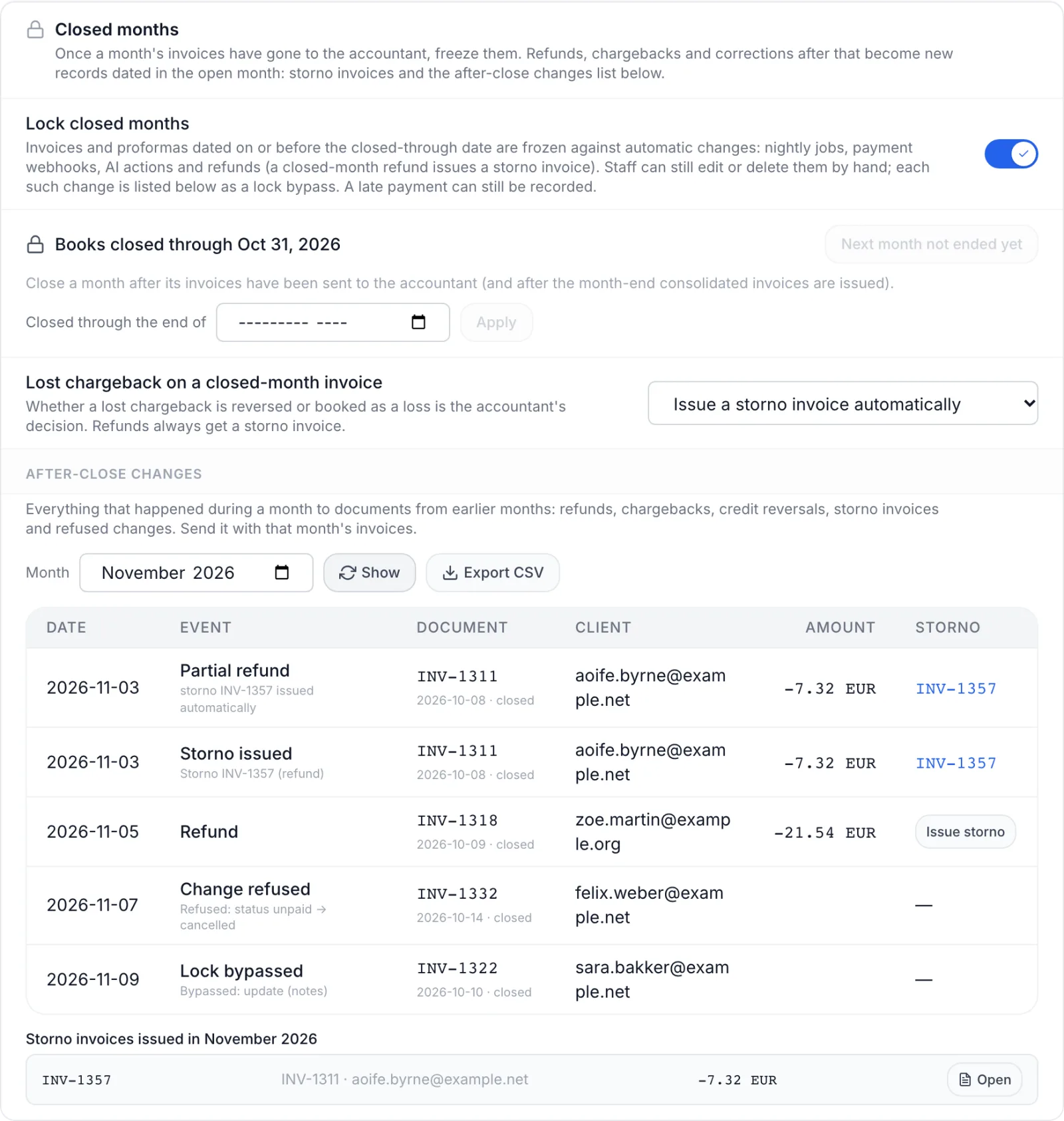
| Column | What it shows |
|---|---|
| Date | The day the event happened |
| Event | What happened (see the next table), with a short detail line below |
| Document | The invoice or proforma number, its date, and closed when it is in a closed month |
| Client | The client's email address |
| Amount | The amount and currency; money returned is negative |
| Storno | The storno invoice that answered the event, as a link, or an Issue storno button when one is still due |
| Event | Meaning |
|---|---|
| Refund / Partial refund | Money returned on an earlier month's document |
| Chargeback opened / Chargeback lost / Chargeback won | A dispute reported by the payment gateway, and its outcome |
| Credit reversed / Credit restored | Account balance taken back after a refunded or disputed top-up, or given back |
| Storno issued / Storno reversed | A storno invoice issued against an earlier invoice, or cancelled out after a won dispute |
| Change refused | An automatic change to a closed document that the lock stopped |
| Lock bypassed | A closed document changed or deleted by hand; the detail line names what changed and who did it |
Below the table, Storno invoices issued in <month> lists each storno of that month with the invoice it reverses, the client and the amount. Open takes you to the storno. When there were none, it reads No storno invoices this month. When nothing touched earlier months, the table is replaced by Nothing touched earlier months' documents in <month>.
Refunds and chargebacks on earlier-month documents also appear when no event was recorded at the time, for example from before you switched the lock on. Those rows say Recorded from the payment row (no event was logged at the time), and their date is approximate. A refund or lost chargeback on a closed invoice without a storno gets an Issue storno button.
Issue a storno from the list
- Click Issue storno on the row. It appears only on invoice rows that still need one.
- Confirm Issue a storno invoice of <amount> against <invoice>?
- FluxBilling shows Storno <number> issued and reloads the list, with the new number in the Storno column.
The button issues at most one storno per payment: clicking it again, or in a second tab, returns the storno that already exists for that payment.
Troubleshooting
- The close button is greyed out and says Next month not ended yet. The month after the last closed one is still running. Close it after its last day.
- A month can only be closed after it has ended. The month you tried to close has not ended yet.
- There is no ended month left to close. Every ended month is already closed.
- You closed a month but refunds still change the invoice. Check that Lock closed months is on. With it off, the card shows The lock is off, so this date is not enforced.
- A refund to the balance on a proforma is refused with a message that starts <number> is dated <date>, in a closed month (books closed through <date>). Proformas in a closed month cannot be refunded to the balance. Use a gateway or manual refund; it is listed in the after-close changes.
- <invoice> is itself a storno document and cannot be reversed. A storno cannot get a storno of its own.
- Invoice <number> is cancelled and cannot be reversed (or another status). Cancelled and converted invoices were never owed, so there is nothing to reverse.
- Nothing left to reverse on this invoice. Earlier stornos already reverse the full invoice total.
- A month-end consolidated invoice is dated in the next month. The month was closed before the consolidation run. Close months only after the month-end consolidated invoices are issued.
Related pages
- Invoice details: refunds, the activity timeline and the invoice PDF
- Consolidated invoicing: month-end invoices for paid proformas
- Billing automation: the nightly jobs the lock keeps away from closed months
- Invoice export: sending a month's documents to your accountant