
Server Projects
Group your servers into projects such as Production and Staging, switch the client panel between them and give each project its own API key.
Projects let you split one account into separate groups of servers, such as Production and Staging, or one group per client you look after. Each project holds its own services, orders, custom server images and SSH keys. You can switch the client panel to one project at a time, and you can give each project its own API key so a script for staging can never see or touch a production server. Billing does not change: you still receive one invoice for the whole account.
This guide is for customers using the client panel. Your hosting provider's side of the feature is described in Customer projects.
Before you start
- Your provider has to offer projects. If you do not see Projects in your settings menu, the feature is switched off for your provider's platform. Ask them if you need it.
- Team members can open the Projects page, but creating, editing or deleting a project and moving servers needs the Manage Services permission. The account owner always has it. See Team members.
- Project-bound API keys also need API keys to be available on your account (Settings → Security → API Keys). Grouping servers in the panel works without them.
Where to find it
- Open Settings in the client panel.
- Under Organisation, click Projects.
Once you have a second project, the panel header also shows a project switcher. Its Manage projects link at the bottom brings you back to this page.
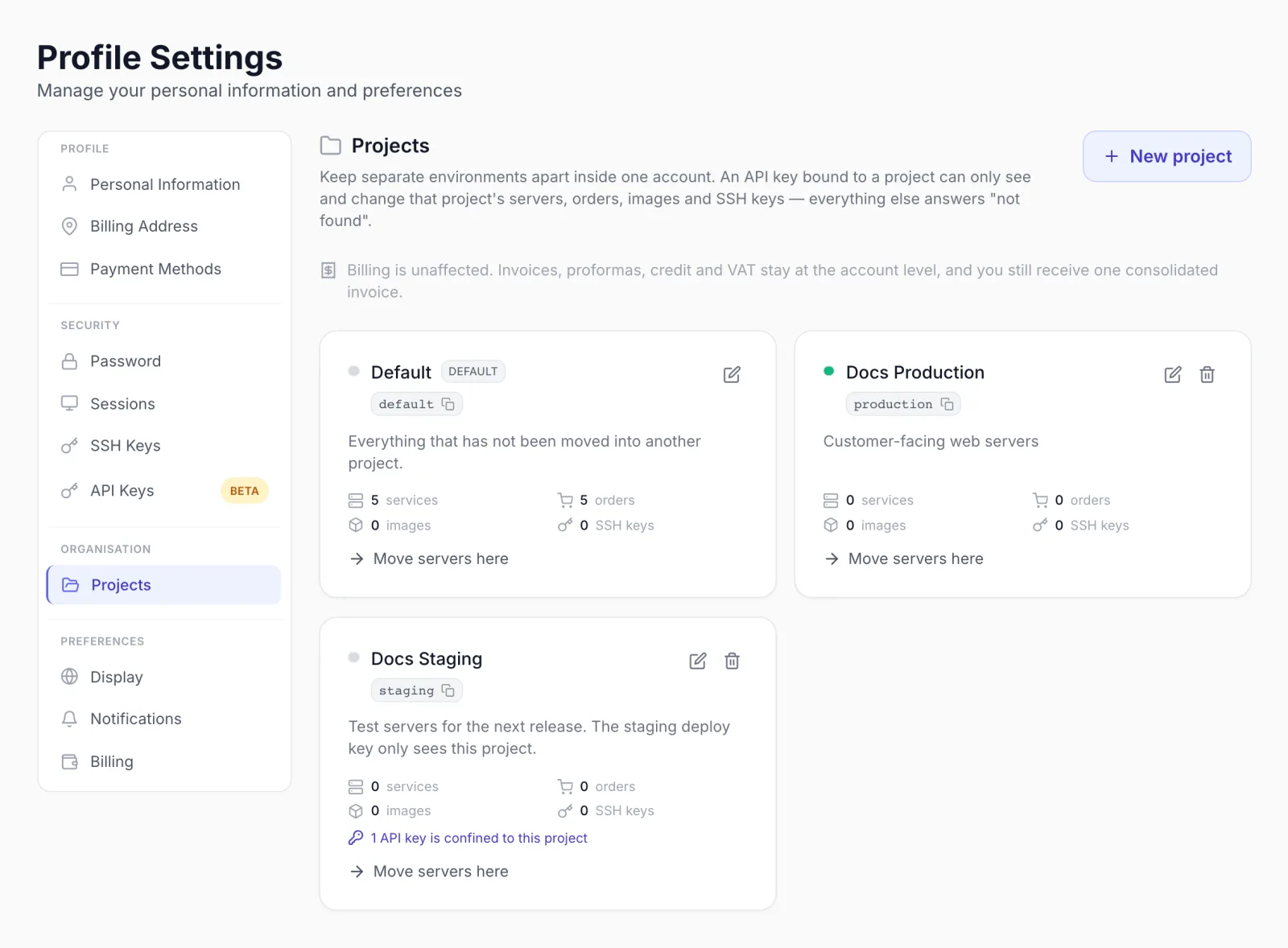
The Default project
Every account has a project called Default, marked with a default badge. It is created automatically, at the latest the first time you open the page. Everything you have not moved anywhere else lives in Default, so when you start using projects nothing disappears: all your existing servers, orders, images and SSH keys are in Default until you move them.
- Default cannot be deleted. Its card has no delete button.
- It comes with the description Everything that has not been moved into another project. You can rename it and change its description and colour. Its handle,
default, cannot be changed.
While Default is your only project, the page shows a card One project so far with an Add a project button. After that, use New project at the top of the page.
Create a project
- Click New project (or Add a project if you only have Default).
- Fill in the dialog (fields below).
- Click Create project. You see Project created, and the new project appears on the page and in the header switcher straight away.
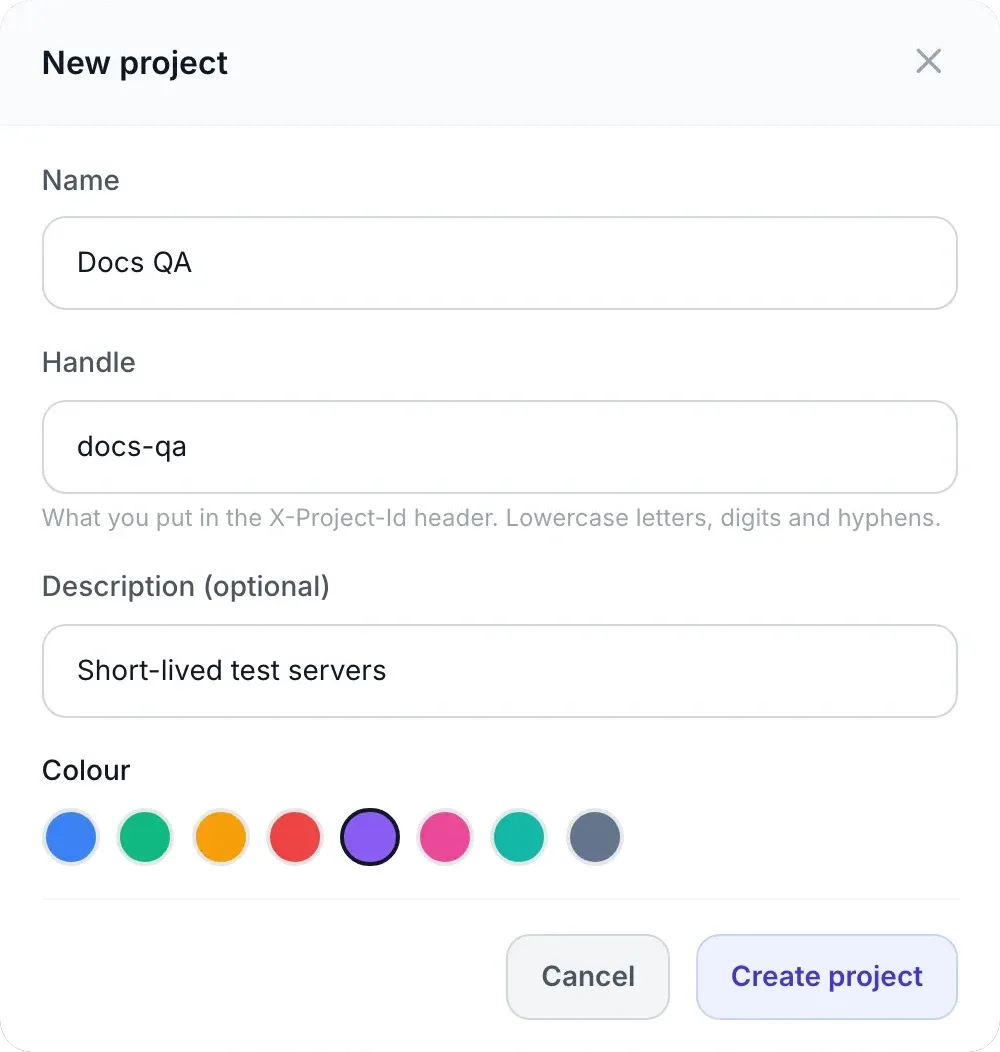
| Field | What it does |
|---|---|
| Name | Required, up to 80 characters, for example Production or Staging. Shown on the card and in the switcher. If you leave it empty you see Give the project a name. |
| Handle | The short name you use in API calls. Up to 40 characters of lowercase letters, digits and hyphens, not starting or ending with a hyphen. It is filled in from the name (Prod EU becomes prod-eu) until you edit it yourself. Each of your projects needs a different handle. |
| Description (optional) | A note shown on the project card. |
| Colour | One of eight colours. It is the dot shown next to the project on its card and in the header switcher. |
You can have up to 50 projects, Default included.
What a project card shows
- The colour dot, the name and, for Default, the default badge.
- The handle in a small box. Click it to copy the handle, for example to paste it into a script's configuration.
- The description, if you gave one.
- How many services, orders, images and SSH keys the project holds.
- When API keys are confined to the project, a line such as 1 API key is confined to this project. Keys that work on the whole account are not counted here.
- A pencil button to edit the project and, on every project except Default, a bin button to delete it.
- The Move servers here link.
Move servers into a project
- On the card of the project you want to fill, click Move servers here.
- The dialog Move into "…" lists every service on your account, from all projects, with its hostname and product name. Services that you already moved into this project are greyed out and marked already here. In the dialog for Default, servers you never moved anywhere are still listed as movable; moving them there changes nothing.
- Tick the services you want to move.
- Click Move 1 service (the number follows your selection). You see Moved into "…".
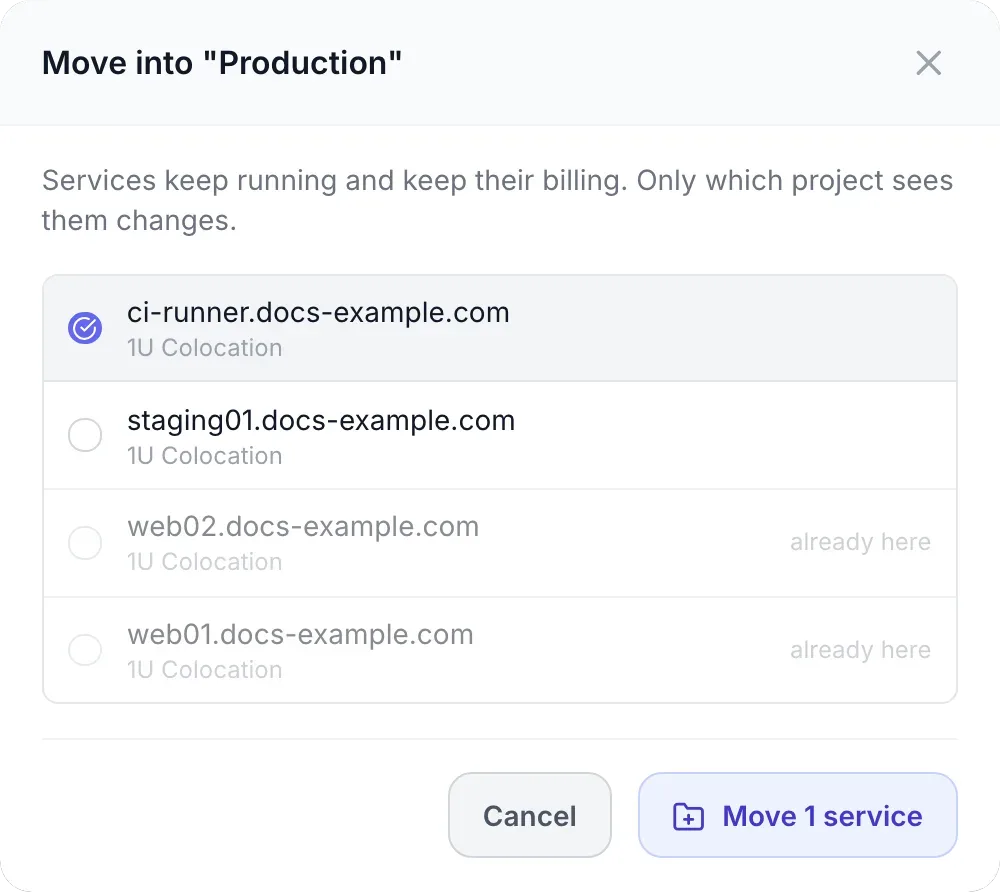
Moving a service only changes which project sees it. The server keeps running, nothing is restarted and its billing stays exactly as it was. To move a service back, open Move servers here on the project it should go to, for example Default.
In the client panel you move services. Orders, custom images and SSH keys stay in the project they were created in. They can be moved through the customer REST API.
Switch the panel to one project
As soon as you have two projects, a switcher appears in the panel header, next to the language selector. It shows All projects or the name of the project you are looking at.
- Click the switcher.
- Pick a project. Each one shows how many services it holds. Pick All projects to see everything again.
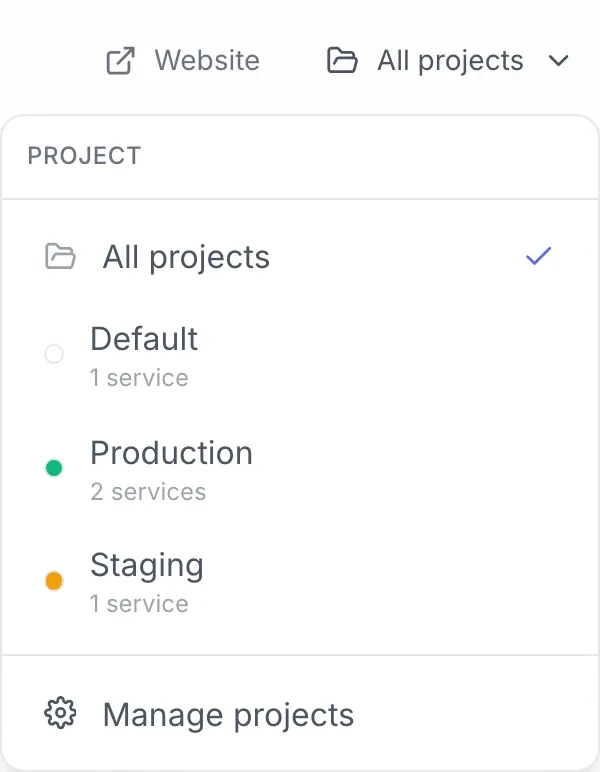
While a project is selected:
- Your services, orders, server images and SSH keys show only what is in that project. A server from another project is not found, even from a saved link.
- New things land in that project. An order you place, an SSH key you add and a server image you capture while a project is selected belong to it. A captured image goes into the project of the server it was taken from.
- Invoices, payments and account credit are not filtered. They always cover the whole account.
The panel remembers your choice in this browser. If the selected project is deleted, the panel goes back to All projects by itself.
Give each project its own API key
A key that is confined to one project can only see and change that project's servers, orders, images and SSH keys. Everything else answers "not found", as if it did not exist. This is what keeps an automation script for staging away from production.
- Open Settings → Security → API Keys and click New key.
- In the Create API key dialog, step Confine it to one project, pick the project in Project. This step only appears once you have at least two projects.
- Finish the other steps as usual and create the key.
Whole account (no project restriction) creates an ordinary key that sees everything. In the key list, a confined key carries a chip with its project's name.
- A key's project cannot be changed later. Create a new key for the other project and revoke the old one.
- A confined key cannot create, rename, delete or move projects. Do that in the panel or with an unconfined key.
- New orders, images and SSH keys created with a confined key go into its project.
- An unconfined key can still work on one project for a single request with the header
X-Project-Idset to the project's handle. The REST API article has the details.
Edit a project
- Click the pencil on the project card.
- Change the Name, Handle, Description (optional) or Colour. The handle of Default is locked.
- Click Save. You see Project updated.
Changing a handle breaks scripts that use it. Anything that sends the old handle in
X-Project-Idstops matching. Keys confined to the project keep working, because they are tied to the project itself, not to its handle.
Delete a project
- Click the bin button on the project card.
- Read the dialog Delete "…"? and click Delete. You see Project deleted.
- An empty project: the dialog says This project is empty. Any API key bound to it will stop working.
- A project that still holds something: everything in it is moved to Default first. Nothing is cancelled or deleted.
API keys confined to a deleted project stop working for good. They are not widened to the whole account. Create a new key if you still need one.
Good to know
- One invoice. Invoices, proformas, credit and VAT stay at account level. Projects never split your bill.
- Teams share projects. Projects created in a team account are shared by the whole team. Projects you created before you had team members stay visible only to you. Projects are not a way to limit what a colleague can see. Use team member permissions for that.
- Your provider's staff always see all of your services, whatever project they are in. They can also move services between your projects if you ask them to.
- Same names in different projects. Two projects can each hold a custom image with the same name, and the same SSH key can be added to more than one project.
- If your provider switches projects off, the Projects page and the switcher disappear and confined API keys see the whole account. Your projects are kept, and everything is back in place if the feature is switched on again.
Troubleshooting
| Message or symptom | Cause and fix |
|---|---|
| No Projects entry in Settings | Your provider has not switched the feature on. Contact them. |
| No switcher in the header | The switcher only appears once you have a second project. Create one under Settings → Organisation → Projects. |
| A server seems to be missing | The switcher is set to a project the server is not in. Pick All projects, or the server's project. |
| Give the project a name | The Name field is empty. |
| A project with the slug "…" already exists or Another project already uses that slug | Another of your projects has that handle. Choose a different one. |
| At most 50 projects may exist; delete one first. | You have reached the limit. Delete a project you no longer use. |
| Insufficient permissions | You are a team member without the Manage Services permission. Ask the account owner. |
| Your account is suspended. You can only view your account information. | Projects cannot be changed while the account is suspended. Contact your provider. |
| 1 service could not be moved | A selected service no longer belongs to your account, for example because it was removed in the meantime. Reopen the dialog and try again. |
| This API key is bound to project "…" and cannot act on another project. | A confined key asked for a different project. Use the key for that project, or an unconfined key. |
| This API key is bound to a project that no longer exists or is no longer yours. | The key's project is no longer reachable from your account, for example after a team change. Create a new key for an existing project. |
| Invalid API key after deleting a project | Keys confined to a project are removed together with it. Create a new key. |