
eNom domain registrar
Sell domains with eNom: connect your reseller account, create one product per extension, add the website search box, and handle renewals and transfers.
The eNom plugin connects FluxBilling to your eNom reseller account, so you can sell domain names as FluxBilling products. Customers search for a name in the client panel or in a search box on your own website, pay the invoice, and the plugin registers the domain at eNom in the customer's name. Renewals, nameservers, glue records, the registrant contact, the registrar lock, WHOIS privacy and EPP codes are then handled from FluxBilling. The plugin is free and is listed in the plugin marketplace of every FluxBilling panel.
This guide covers plugin version 1.3.0. It walks through the setup in the order you do it, then explains what happens to a domain over its life and what to check when something does not work.
Who supports this integration. The plugin is built and maintained by FluxBilling. If something does not work, contact FluxBilling support at contact@fluxbilling.app or through fluxbilling.app/contact. Questions about your eNom account, its balance, pricing or a registry decision go to eNom support.
What you need before you start
- FluxBilling 0.0.1572 or newer. Plugin version 1.3.0 needs it.
- An eNom reseller account. Every registration, renewal, transfer and ID Protect purchase is charged to this account at your eNom price, so keep a balance or payment method on it.
- Your eNom login ID and an API token (recommended) or the account password.
- The IP address your FluxBilling panel connects from, added to the API allow list in eNom. eNom refuses API calls from any other address. If you are not sure which address that is, ask FluxBilling support.
- Complete customer profiles. The registration is filed in the customer's name, so FluxBilling only accepts a domain order when the profile has a first and last name, street address, city, country, postal code (where the country uses one) and a phone number it can read with its country code.
Step 1: Prepare your eNom account
- Create an API token. Sign in to your eNom account and open the API token manager. Enter a name for the token, for example FluxBilling, and choose Generate new API token. A token can be revoked on its own later, without changing your account password.
- Allow your panel's IP address. Open the Resellers menu, choose Manage, then API. Enter the IP address and click Add. eNom expects a static address.
eNom documents both screens in Managing your API access and Connecting to the Enom API: IP Allowlisting & Authentication.
Test first, if you like. eNom runs a separate test environment at
resellertest.enom.com. In your eNom account, open API test environment setup, set up the test account, reset its balance and add your IP address there too. It is a separate account with its own credentials, and test registrations are not real domains. In FluxBilling, the only difference is the eNom API Host setting (step 3).
Step 2: Install the plugin
- In the FluxBilling admin panel, open Settings (the gear icon in the top bar).
- Under Integrations, open Marketplace. Stay on the Browse tab.
- Open the eNom Domain Registrar card and click Get for Free.
FluxBilling confirms with Plugin "eNom Domain Registrar" installed and ready to use. The plugin is switched on straight away and appears under Settings → Integrations → Plugins as eNom Domain Registrar, marked Active.
Step 3: Connect it to eNom
- Open Settings → Integrations → Plugins.
- On the eNom Domain Registrar card, click Configure.
- Fill in the fields below and click Save Configuration.
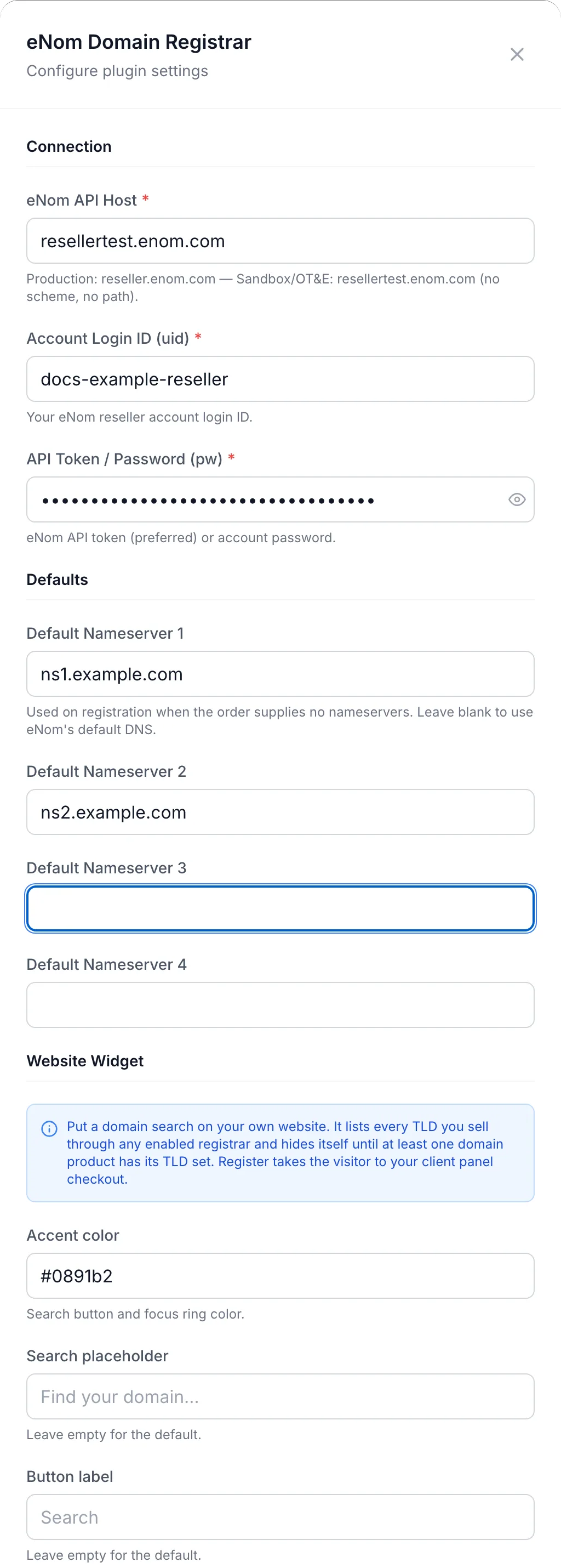
| Field | Required | What to enter |
|---|---|---|
| Connection | ||
| eNom API Host | Yes | The host name only, with no https:// and no path. reseller.enom.com for your live account (the field is prefilled with it), or resellertest.enom.com for eNom's test environment. |
| Account Login ID (uid) | Yes | The login ID of your eNom reseller account. |
| API Token / Password (pw) | Yes | The API token from step 1. Your account password also works, but a token is the better choice. Use the credentials of the eNom account that matches the API host you entered. |
| Defaults | ||
| Default Nameserver 1 to Default Nameserver 4 | No | The nameservers new registrations get, for example ns1.example.com. When Default Nameserver 1 is empty, new domains use eNom's own DNS. Customers can change the nameservers after registration. |
| Website Widget (see Domain search on your website) | ||
| Accent color | No | Colour of the widget's search button and focus ring, for example #0891b2 (prefilled). |
| Search placeholder | No | Text in the empty search box. Leave it empty for the default, Find your domain… |
| Button label | No | Text on the search button. Leave it empty for the default, Search. |
| Embed code | Read only | The code to paste into your website, with a copy button. |
The token is stored encrypted. FluxBilling shows Configuration saved successfully when the settings are saved.
To check the connection after saving, click the eNom Domain Registrar card under Settings → Integrations → Plugins, open the Connections tab and click Test connection (the test-tube icon) on the eNom API row. The test signs in to eNom with your login ID and token and reads your account balance, so a wrong token, the wrong environment or a missing IP address fails it. Success shows Connected to eNom as … with your login ID and, when eNom sends it, your available balance; a failure shows Test failed: with the reason (see Troubleshooting).
Step 4: Create a category for your domains
In FluxBilling, the category decides how its products are delivered. Every product in the category is registered by the plugin you choose here.
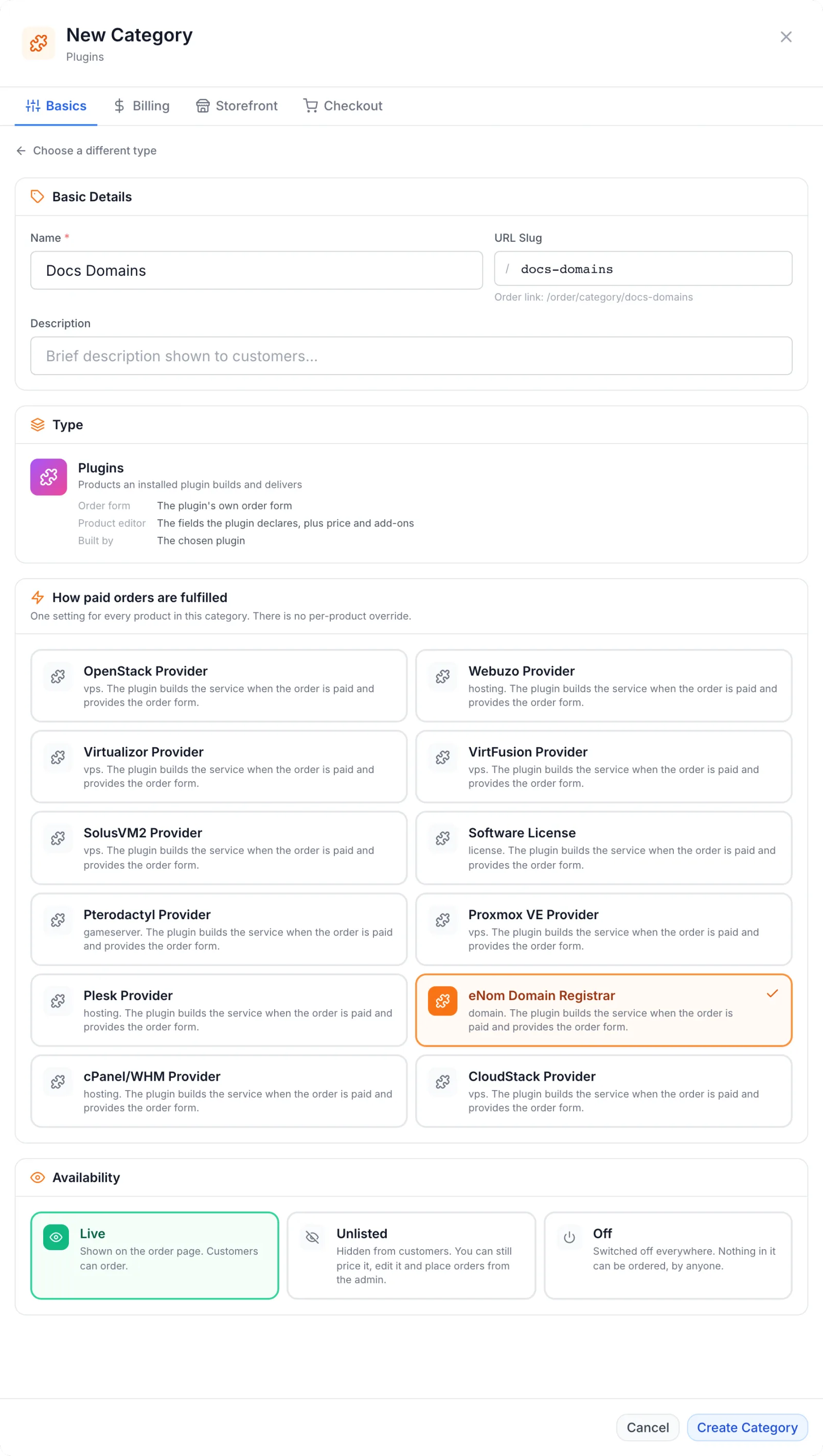
- Open Products, switch to the Categories tab and click Add Category.
- When FluxBilling asks What does this category sell?, choose Plugins.
- Enter a Name, for example Domains.
- Under How paid orders are fulfilled, click eNom Domain Registrar.
- Under Availability, choose Live. Domain extensions are offered on the domain search as soon as a product meets the conditions in step 5, whatever the category's availability. To keep an extension hidden while you test, leave its product inactive or without an annual price.
- On the Billing tab, make sure Annually is switched on. Domains are only sold by the year.
- Click Create Category.
Step 5: Create one product per extension
Each domain extension you sell is its own product: one for .com, one for .net, and so on. The product's annual price is the price per year of registration.
- On the Products tab, click Add Product and choose the category from step 4.
- On General, enter the product name, for example .com domain.
- On Configuration, enter the TLD: the extension without the leading dot, for example
com,netorco.uk. The field is required. - On Pricing, set the annual price. A product without an annual price is not offered in the domain search.
- Click Create Product.
The extension is offered as soon as the product is active, its category's plugin is enabled and it has a TLD and an annual price. The list of offered extensions can take up to a minute to update after a change.
One extension per product. A customer can only order a name on that product's extension. Someone who tries to order
example.neton the.comproduct is refused, so a name is always billed at the price you set for its own extension.
Step 6: Place a test order
Customers order domains from the Domain Names page of the client panel. It is linked from the order page (a Domain Names card appears there once at least one extension is offered) and from your domain category.
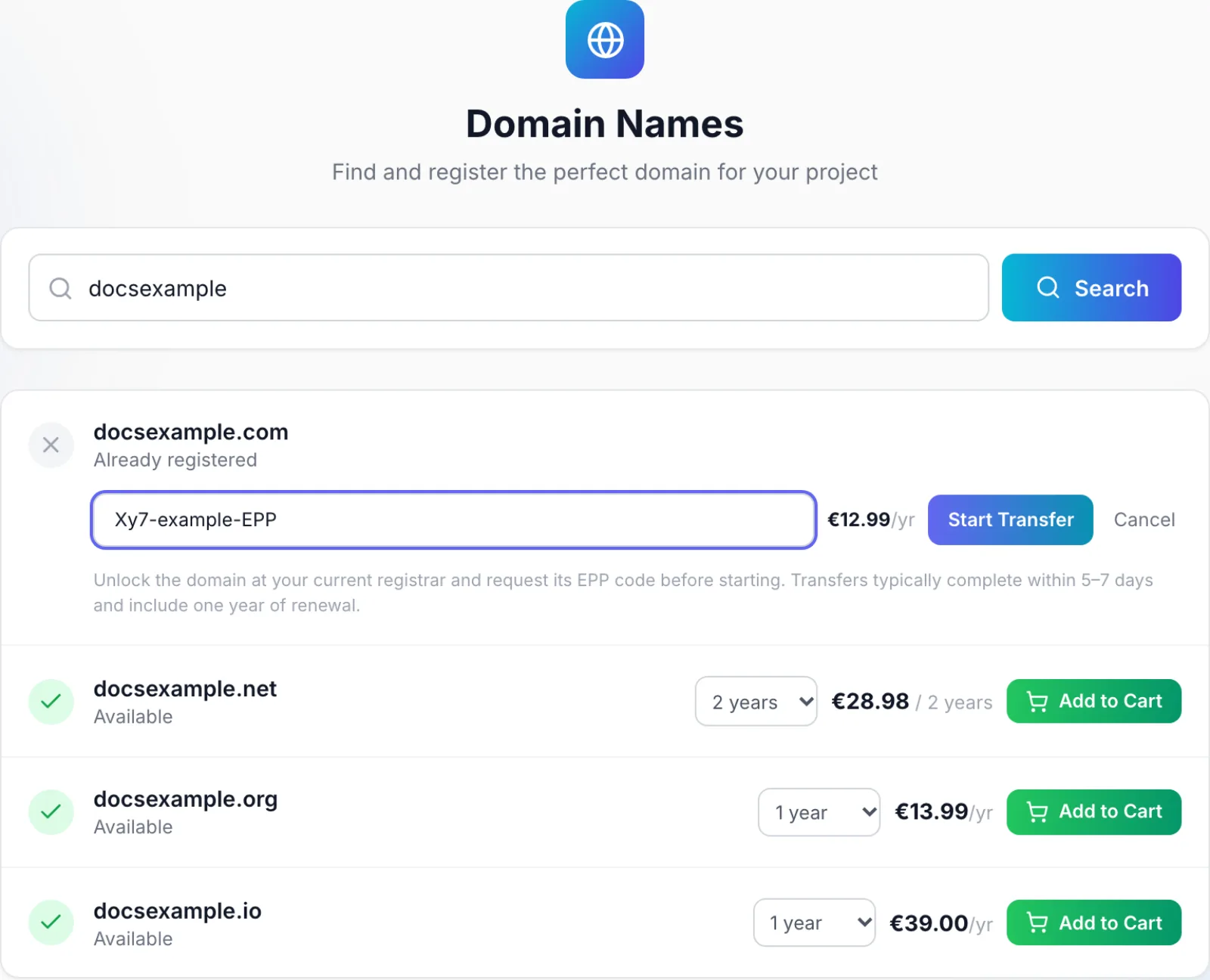
- A name without an extension, such as
example, is checked against every extension you offer, up to ten per search. - A full name, such as
example.com, is checked against that extension only. A leadingwww.is ignored. - Each row shows Available, Already registered or Could not check — try again.
- For an available name, the customer chooses the Registration period: 1, 2, 3, 5 or 10 years. The price shown is the annual price times the years. Add to Cart puts the name in the cart as Domain Registration — example.com.
- For a registered name, Transfer In opens a field for the EPP / authorization code from your current registrar. Start Transfer adds a one-year transfer to the cart. The page reminds the customer to unlock the domain at the current registrar first.
Availability checks are limited to 30 per minute for each visitor's IP address. After that, the search answers Too many availability checks — try again shortly.
Staff can also register a domain for a customer from the admin panel. The same rules apply: a name on the product's extension, annual billing and a complete customer profile.
What happens when the invoice is paid
With Auto Provisioning switched on (see Billing lifecycle), FluxBilling starts as soon as the invoice is paid:
- A new registration is purchased at eNom for the years the customer paid for. The registrant, administrative, technical and billing contacts are all filled from the customer's profile, with the company name as the organisation when the profile has one. The nameservers are your default nameservers, or eNom's DNS when Default Nameserver 1 is empty. Auto-renew at eNom is left off: renewals are driven by FluxBilling invoices.
- A transfer is submitted to eNom with the customer's EPP code, using eNom's electronic (auto-verification) process, keeping the domain's current WHOIS contacts. FluxBilling notes that completion depends on the losing registrar, typically up to 5–7 days.
The service is then marked Active. If eNom refuses the order, the service is marked as failed with eNom's own message, and staff are told through any notification plugin you use. Fix the cause, then use Retry deployment on the service.
What your customers can do
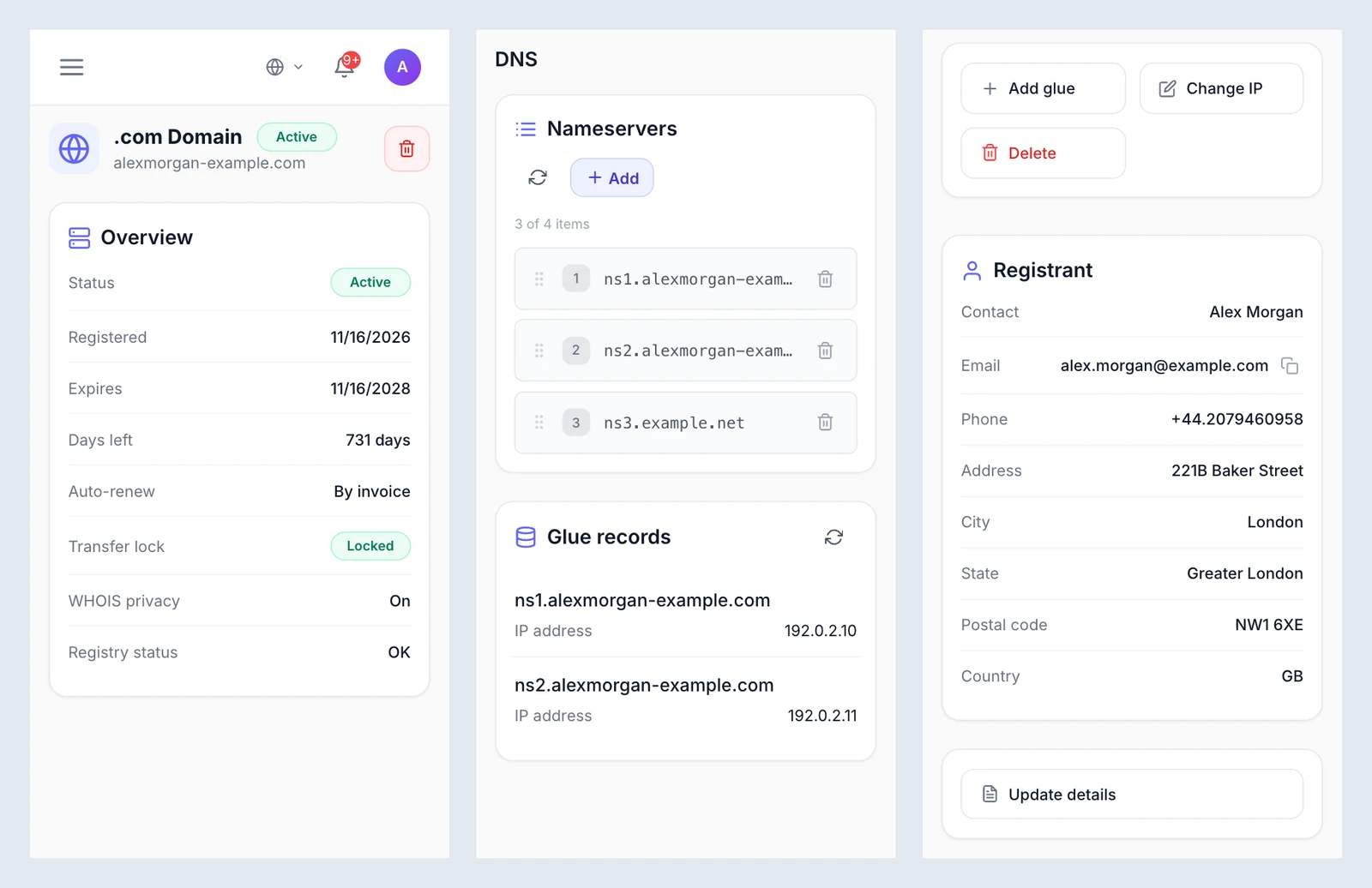
The customer's service page for a domain has four parts:
- Overview: Status, Registered (the registry's registration date), Expires, Days left, Auto-renew (By invoice, or On at eNom when eNom's own auto-renew is on), Transfer lock (Locked or Unlocked), WHOIS privacy (On, Off, Not purchased or Not offered for the extension) and Registry status (OK, or a registry state such as Transfer pending or Redemption period). A row eNom does not answer for is left out.
- DNS: Nameservers and Glue records side by side. The customer can add, remove and reorder up to four nameservers, then click Save to send them to eNom. When none are set, the card says the registrar defaults are in use.
- Registrant: the registrant contact at eNom, with an Update details button.
- Security & transfer: Lock or Unlock (whichever applies), Privacy on or Privacy off, and EPP code.
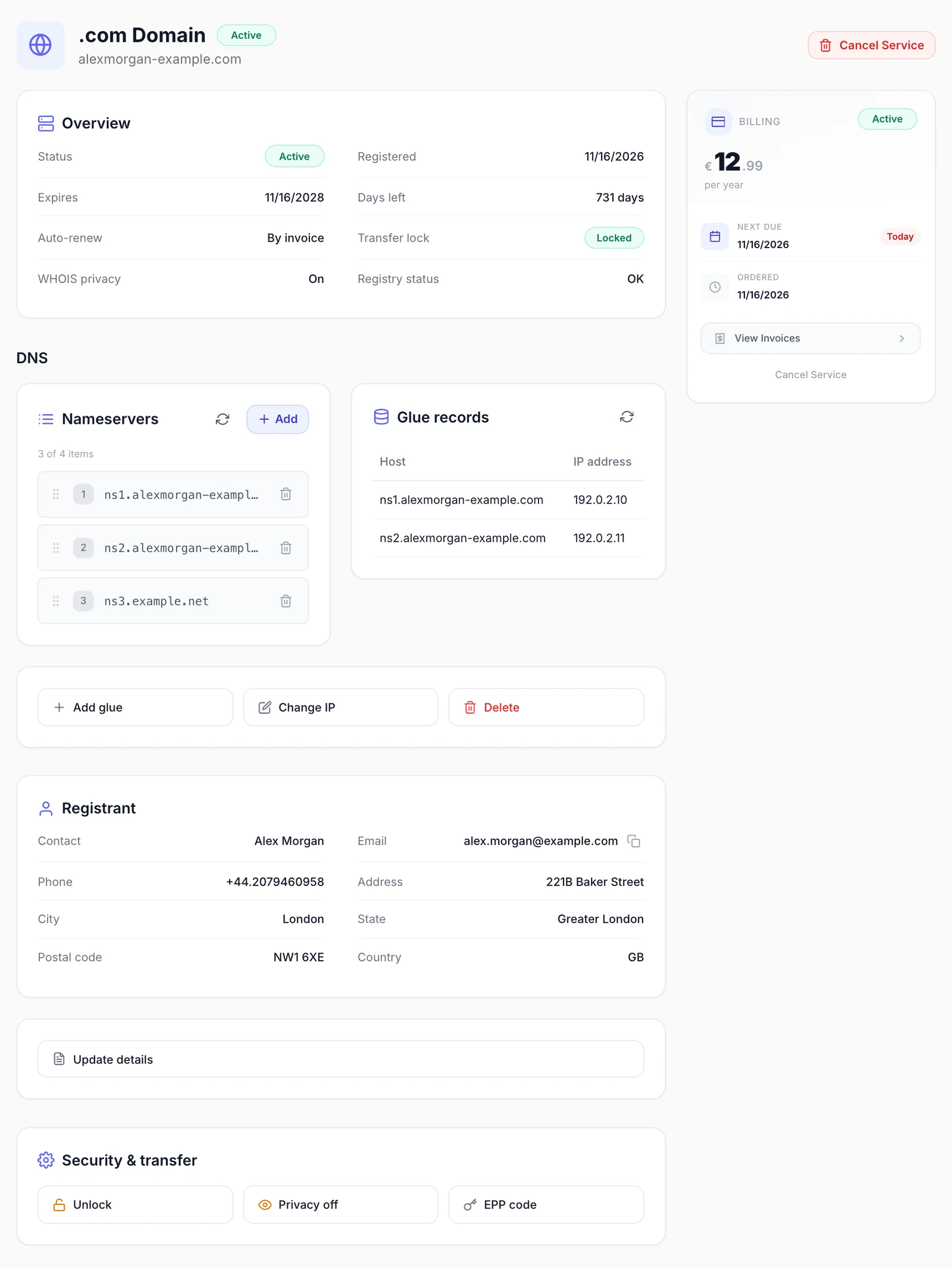
Glue records are for customers who run their own nameservers on the domain, such as ns1.example.com. Add glue asks for the Hostname and its IP address (IPv4 or IPv6), Change IP points a record at a new address, and Delete removes it. The host must be under the domain, and eNom refuses a deletion while any domain still uses the host as a nameserver. eNom accepts these changes only with the transfer lock off, so FluxBilling lifts the lock for the change and switches it back on straight after.
Update details opens a form with the registrant's name, organisation, address, country code (such as US), phone (written as +1.5555551234) and email. The customer fills in only what changes; everything else keeps its value at eNom. A new name, organisation or email may need the registrant's confirmation by email and can lock transfers for 60 days, as the form says.
- Lock switches the registrar transfer lock on against unauthorised transfers. Unlock switches it off; the confirmation warns to do this only before a transfer.
- Privacy on and Privacy off switch the domain's ID Protect. They appear when the domain has ID Protect and never buy it. Privacy off publishes the registrant's name, address, phone and email in public WHOIS, which some transfers need.
- EPP code asks eNom to generate the transfer authorisation code, sync it with the registry and email it to the registrant email address on file. The code is not shown in the panel.
While a domain is suspended, the cards are replaced by the Service Suspended notice, and changes such as unlocking or requesting the EPP code are refused until the invoice is paid, so an unpaid domain cannot be moved away.
What your staff see
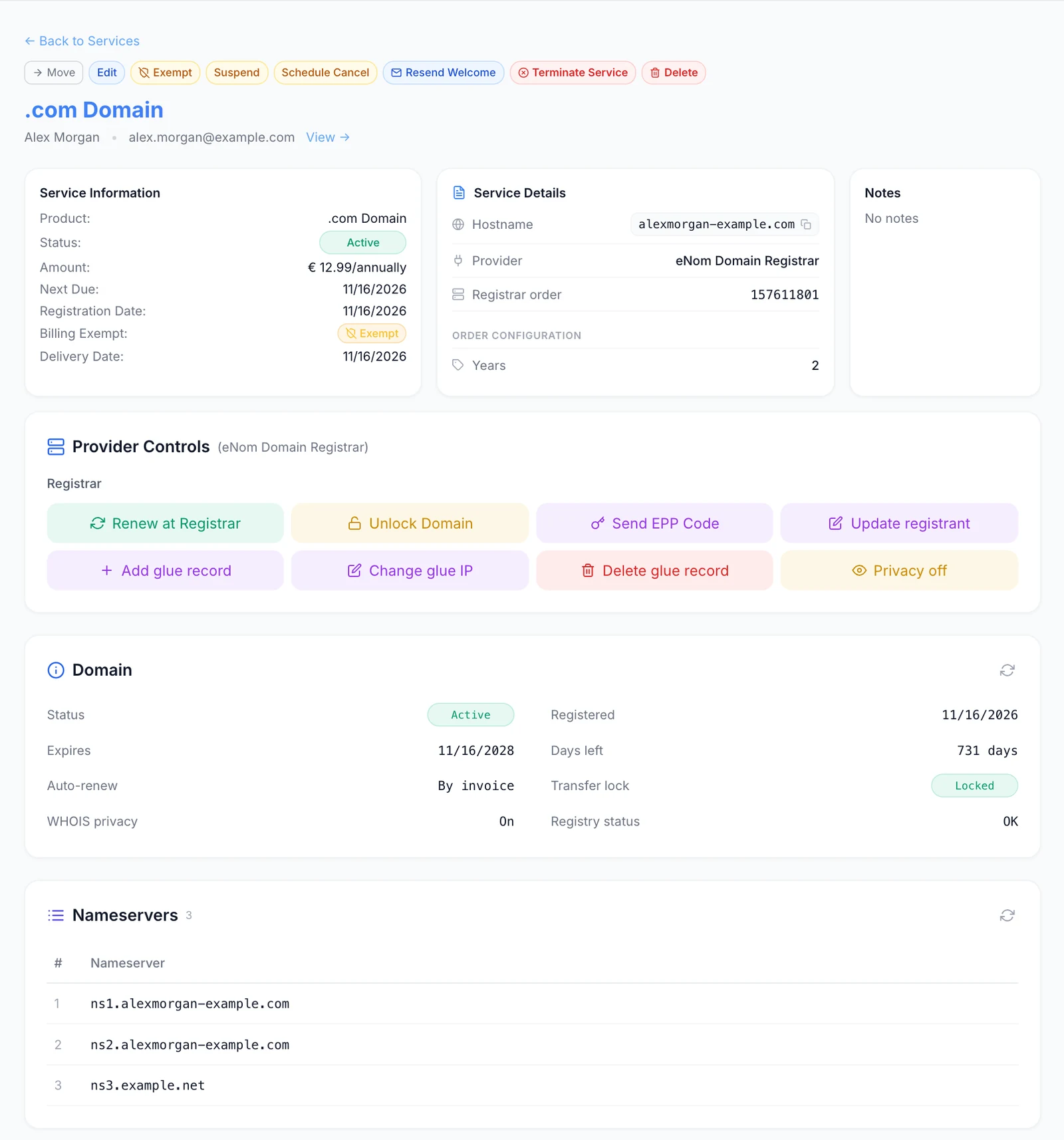
On the service page in the admin panel, the plugin shows a Domain card with the same rows as the customer's Overview, the current Nameservers (read only: customers change them from their panel), the Registrant contact and the Glue records. The Provider Controls card holds the Registrar actions:
| Action | What it does |
|---|---|
| Renew at Registrar | Extends the registration at eNom by the number of Years you enter and charges your eNom account. It does not invoice the customer, and it moves the due date only when due dates follow the registry (see Billing lifecycle). Use it to retry a renewal that failed. |
| Lock Domain / Unlock Domain | Switches the registrar transfer lock on or off. Only the one that applies is shown. |
| Send EPP Code | eNom emails the transfer authorisation code to the registrant email address on file. |
| Buy WHOIS privacy | Shown when the domain has no ID Protect. Buys it for the number of Years you enter (1 to 10), charged to your eNom account, and switches it on. A domain that already has it is only switched on, with no charge. FluxBilling does not bill the customer: add a charge yourself if you sell privacy. |
| Privacy on / Privacy off, Update registrant, Add glue record, Change glue IP, Delete glue record | The same changes the customer can make. |
Renew at Registrar and Buy WHOIS privacy cost you money at eNom, so they are available to staff only and never appear in the client panel.
Billing lifecycle
The invoice drives the domain. The rules are set under Settings → Billing → Automation (see Billing automation):
- Registration: Auto Provisioning registers the domain when the first invoice is paid. When it is off, the paid service waits as Pending until staff provision it. A multi-year first term is billed on the first invoice (annual price times the years), and the next due date moves forward by the same number of years.
- Renewal: each later invoice is for one year. When it is paid, FluxBilling renews the domain at eNom for one year, exactly once per invoice. If eNom refuses, or the plugin is switched off, the payment still counts, the failure is logged on the service and staff are notified; renew it with Renew at Registrar. A domain billed on any cycle other than annually is never renewed automatically: staff are told to renew it by hand and bill it annually.
- Suspension: when Auto Suspension suspends an overdue domain, the plugin switches the registrar transfer lock on. The domain keeps resolving.
- Unsuspension: paying the overdue invoice lifts the suspension in FluxBilling. The transfer lock stays on; the customer can unlock the domain from the client panel when they need to.
- Termination: terminating the service switches auto-renew off at eNom, so the domain lapses at its expiry date. FluxBilling does not delete the registration at eNom and does not ask eNom for a refund.
- Due date: when Sync domain due dates with the registry is switched on (same page), the service's next due date follows the expiry date eNom reports whenever FluxBilling reads it. When it is off, renewals keep their own billing dates.
Domain search on your website
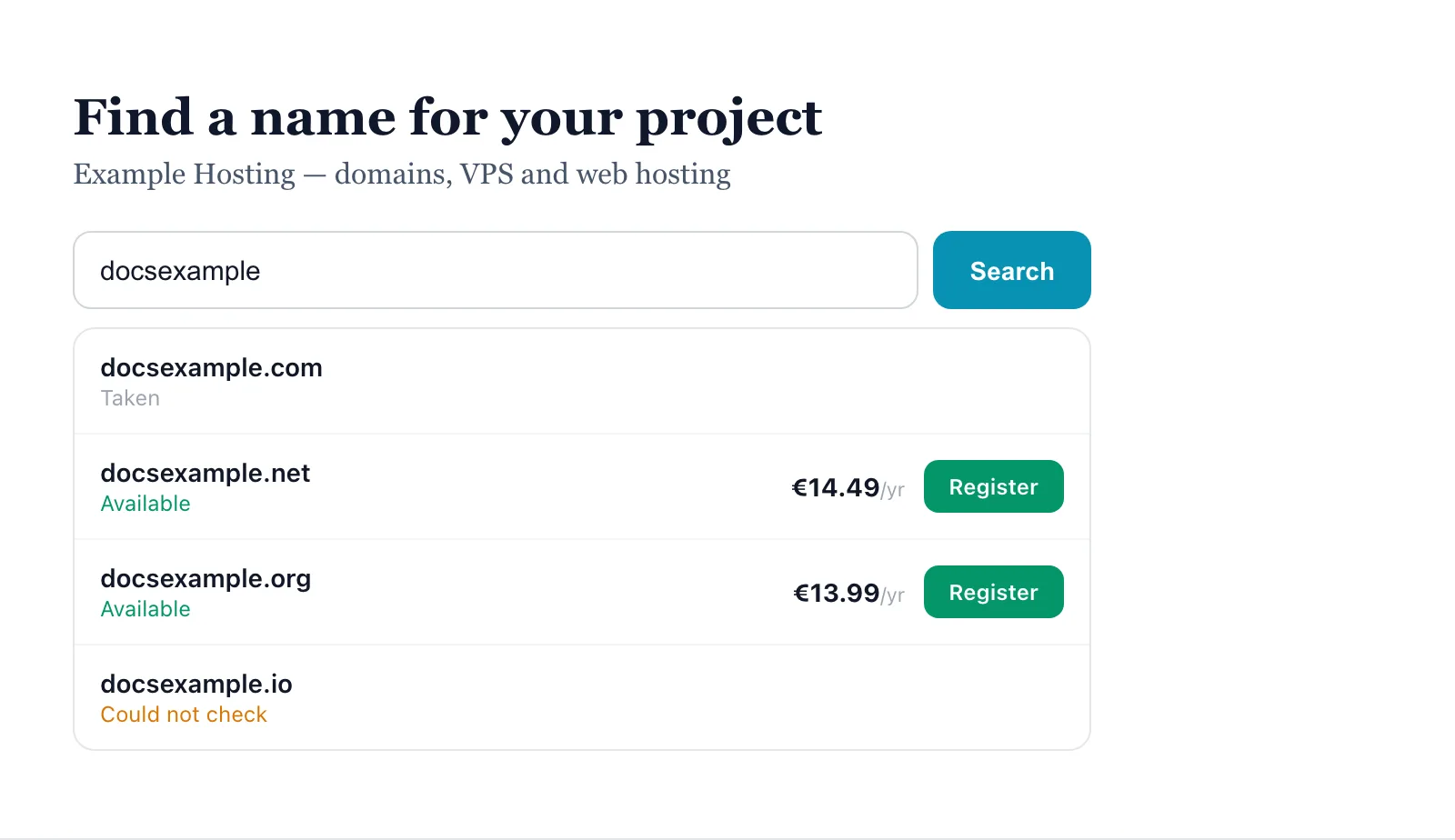
The plugin also includes a domain search box for your own website. A visitor types a name, presses the button, and sees each of your extensions with Available, Taken or Could not check. Available names show your annual price in your base currency and a Register button. Register opens the client panel's Domain Names page with the name already filled in and checked, where the visitor picks the period and checks out.
- Open Settings → Integrations → Plugins and click Configure on eNom Domain Registrar.
- Under Website Widget, set the Accent color, Search placeholder and Button label if you want to change them. The Embed code below updates as you type.
- Copy the Embed code with its copy button and click Save Configuration.
- Paste the code into the page of your website where the search should appear. It renders inside its own
<div>and adapts to the width around it.
The code looks like this, with your panel's own address in it:
<!-- Domain Search -->
<div id="fb-domain-search"></div>
<script src="https://billing.example.com/…" data-accent="#0891b2" async></script>- The colours and texts are part of the pasted code. When you change them later, copy the embed code again and replace it on your website.
- It lists every extension you sell, through any enabled registrar plugin, and hides itself until at least one domain product has its TLD set. If you see nothing, check step 5.
- It works only while the plugin is enabled. When you disable eNom Domain Registrar, the widget's script is no longer served.
- The widget draws itself in an isolated box, so your site's styles do not change it.
- The client panel's limits apply: up to ten extensions per search and 30 checks per minute per visitor (Too many checks — please wait a minute.). Other errors show their text, or Something went wrong — please try again.
Updating the plugin
Open Settings → Integrations → Marketplace, switch to Installed and click Check for Updates. When a new version is listed, click Update to v…. Version 1.3.0 needs FluxBilling 0.0.1572 or newer.
Troubleshooting
When eNom refuses a request, FluxBilling shows eNom's own error text. If eNom sends none, the message is eNom request failed. In the admin panel, failed actions read Action failed: followed by that text.
| What you see | What to check |
|---|---|
| Test connection shows Test failed: eNom refused the login: …, or every extension shows Could not check — try again | FluxBilling cannot use your eNom account. Check the eNom API Host (host name only, live or test), the login ID and the token, and that the token belongs to the same environment. Then check that your panel's IP address is on eNom's API allow list. eNom's IP error names the address it saw: add that one. |
| No domain extensions are currently offered. | No active product in a category fulfilled by eNom Domain Registrar has both a TLD and an annual price, or the plugin is disabled (steps 4 and 5). It also appears for a full name on an extension you do not sell. |
| Complete your profile before ordering "…" — the registration is filed in your name and needs: … | The customer's profile is missing the fields listed (for a staff order: Complete the customer's profile). The phone must include the country code, or the profile must have a country set. |
| "example.net" cannot be ordered as "…" — this product registers .com names | The name is on a different extension from the product. Order it on the product for its own extension. |
| Domain registrations are billed annually | A domain was ordered on another billing cycle. Order it annually, and keep Annually enabled on the category. |
| Domain registration period must be between 1 and 10 years or Domain transfers are processed as a 1-year term | The order asked for an unsupported period. Transfers are always one year. |
| An EPP / authorization code is required to transfer "…" | Enter the code from the current registrar. |
| The registration failed after payment | Read eNom's message on the service: often a low eNom balance, an extension your account cannot sell, or registry rules. Fix the cause, then click Retry deployment. |
| A transfer stays pending | The losing registrar has to release the domain. Make sure it is unlocked there and the EPP code is current. Transfers typically take up to 5–7 days. |
| A paid renewal did not extend the domain | Staff are notified with eNom's error. Fix the cause (often the eNom balance), then use Renew at Registrar with 1 year. |
| The customer did not get the EPP code | eNom sends it to the registrant email on the Registrant card. If that address is out of date, correct it with Update details first. |
| Country must be a two-letter code (e.g. US, GB, DE). or Phone must look like +CountryCode.Number, e.g. +1.5555551234. | Shown by Update details. Correct the field as the message says. |
| … is not registered as a nameserver at eNom. | Shown by Change IP. Add the host with Add glue first. |
| The transfer lock could not be switched back on: lock the domain again. | A glue change lifted the lock and eNom did not switch it back on. Click Lock. |
| This domain has no WHOIS privacy (ID Protect) subscription. Ask us to add it. | Staff can buy ID Protect with Buy WHOIS privacy. |
Limits
- DNS records are not managed through the plugin. Customers can set nameservers and glue records only.
- The contacts come from the customer's profile at registration; later profile changes are not sent to eNom. Only the registrant contact can be changed from FluxBilling.
- eNom cannot list every host under a domain. The Glue records card shows the hosts added from FluxBilling, the nameservers under the domain that it uses, and
ns1tons4under the domain. A glue record with another name, made elsewhere, is not listed but can still be changed or deleted by its hostname. - Customers cannot buy WHOIS privacy at checkout. Staff can buy ID Protect for a domain, and it is not billed to the customer. Once a domain has it, customers can switch it on and off themselves.
- Switching a domain back to eNom's own nameservers is done in your eNom account.
- Renewals run one year per paid invoice. Transfers are one year.
- Prices come from your FluxBilling products, one price per extension. eNom premium prices are not read.
- Terminating a service does not delete the domain at eNom: the domain lapses at expiry.
- Each FluxBilling panel connects to one eNom account.
- eNom does not need to call FluxBilling back. There are no webhooks to set up.
Enom is a trademark of Tucows Inc. or its subsidiaries. FluxBilling is not affiliated with Tucows or Enom.