
VPS Preorders
Keep selling a full VPS location: customers order with an estimated delivery date, and FluxBilling builds the server as soon as a node has room.
Preorders let you keep selling a VPS location that is full. When no node in a location has room for a plan, or every node there has stopped taking new servers, the order form normally shows that location as sold out and checkout refuses it. With preorders switched on for that location, the customer can still order. They see an estimated delivery date before they pay, the paid order waits until there is room, and FluxBilling builds the server automatically as soon as a node can take it. The first billing period starts on the day the server is delivered.
Use preorders when you know capacity is on the way, for example a new node is being racked or more IPv4 addresses are on order, and you can say roughly how long it will take.
Before you start
- The VPS Clusters feature toggle must be on in Settings → General → Feature Toggles (it needs Locations on too). See Modules & Feature Toggles. Preorders work with VPS plans built on your own nodes through FluxBilling's VPS module. They do not apply to VPS products sold through a provisioning plugin such as Virtualizor or Proxmox VE. See VPS Overview.
- Permissions. Staff need View VPS Clusters to open the page and Edit VPS Clusters to save changes. Deliver now also needs Edit Services, because it starts the build of a billed service. See Staff & Permissions.
- At least one VPS location. A location appears on the page once a node with an online agent is placed in it, or a partner panel shares one with you.
Where to find it
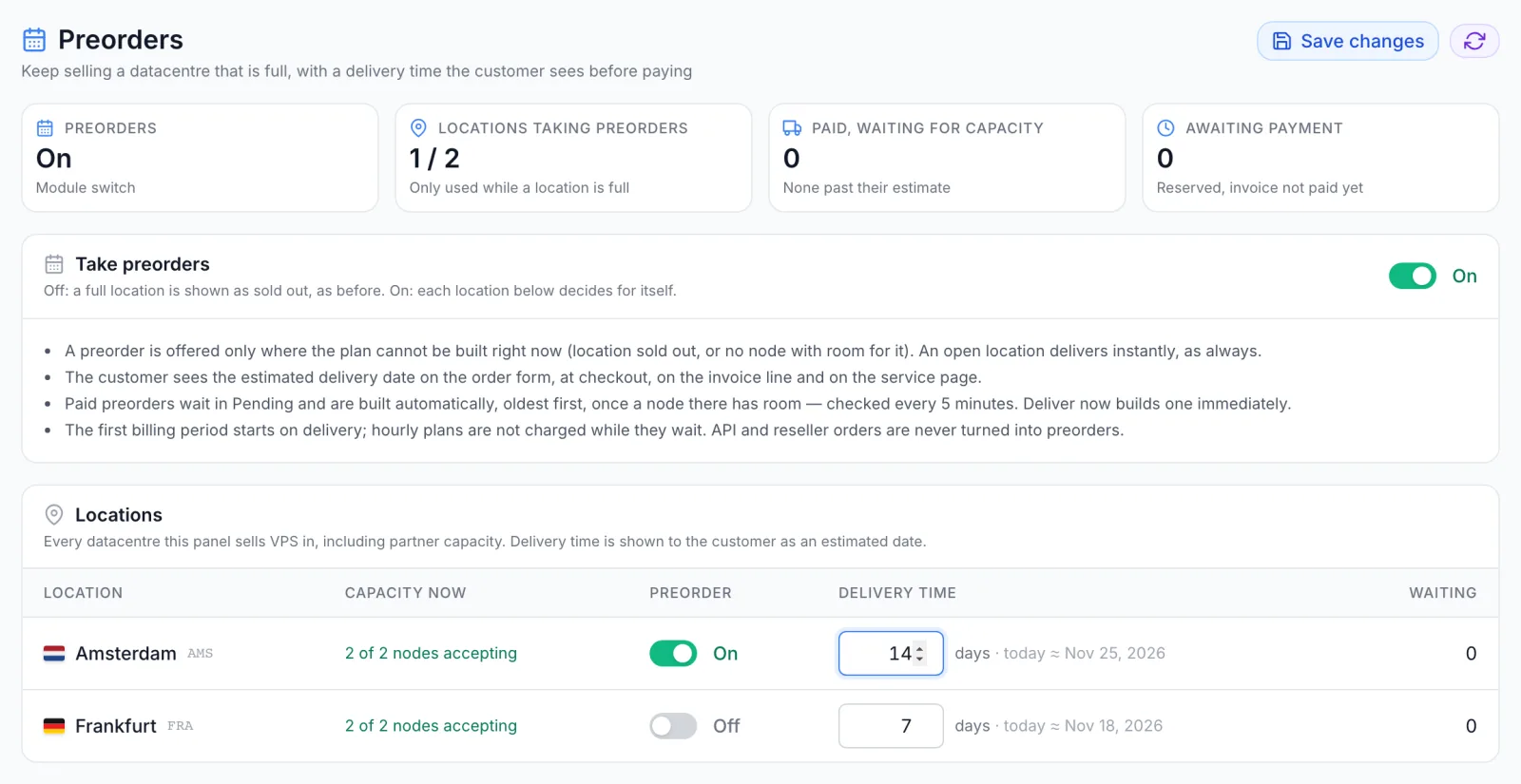
In the admin panel, open VPS → Preorders. The page has three parts, top to bottom: the Take preorders switch, the Locations table, and the queue of Preorders waiting for delivery. Nothing is saved until you click Save changes at the top right. The button stays disabled until you change something.
Four tiles above the cards sum up the current state:
| Tile | What it shows |
|---|---|
| Preorders | On or Off: the state of the Take preorders switch. |
| Locations taking preorders | How many locations have their own Preorder switch on, out of all listed locations. |
| Paid, waiting for capacity | Paid preorders that have not been built yet. The line below counts the ones that are past their estimate, and the tile's icon turns red when there are any. |
| Awaiting payment | Preorders whose invoice has not been paid yet. |
Switch preorders on
- Open VPS → Preorders.
- Turn on the switch in the Take preorders card. While it is off, a full location is shown to customers as sold out, whatever the location rows say.
- In the Locations table, turn on Preorder for each location that may take preorders.
- Enter the Delivery time for each of those locations, in days.
- Click Save changes. The confirmation reads Preorder settings saved.
Switching a location on does not turn it into a preorder location straight away. A preorder is offered only where the plan cannot be built right now. If the location has room for the plan, the customer orders it normally and the server is delivered at once.
The Locations table
The table lists every location this panel sells VPS in, including locations a partner panel shares with you, which carry a Partner badge. A location you configured earlier stays in the list even when none of its nodes is online, so you can still change its setting.
| Column | What it means |
|---|---|
| Location | The location's flag, name and code. |
| Capacity now | {open} of {total} nodes accepting when at least one node takes new servers; Sold out (all nodes closed) when every node there has stopped taking new servers; No online node when no node in the location is online. This column shows whether nodes are open, not whether a particular plan fits. A location with open nodes can still be full for a large plan. |
| Preorder | The location's own switch. It only has an effect while Take preorders is on. |
| Delivery time | A whole number of days from 1 to 365. Next to the field, today ≈ {date} shows the date a customer ordering today would be given. A location you have never saved shows 7 in the field. |
| Waiting | How many preorders for this location are in the queue. |
The delivery time is an estimate that you promise. FluxBilling does not deliver on that date by itself: it builds the server when a node has room, which can be earlier or later. The date a customer was given is fixed when they order. Changing the delivery time later only affects new orders.
What your customers see
On the order form
On the VPS order form, a location that takes preorders and cannot build the selected plan moves into a separate box titled Sold out — preorder now, with the line No capacity right now — order now and it is delivered as soon as capacity is available. Its chip reads Preorder · ~{days} days. Locations that can build the plan now stay above the box and are chosen first.
When the customer picks a preorder location, the form shows Preorder — estimated delivery {date} and explains that the server is deployed automatically as soon as capacity is available. It adds Your billing period starts on the day the server is delivered., or Hourly charges start when the server is delivered. for an hourly plan. The order button changes to Preorder — continue to checkout.
A plan that cannot be built in any location, but can be preordered in at least one, keeps a Preorder badge on its card instead of Out of stock and can still be selected. See Product availability for the other badges.
In the cart, on the invoice and by email
- The cart line lists Delivery: Preorder — estimated {date}.
- The invoice line for the server adds Preorder, service period starts on delivery (estimated {date}).
- The default Order Created and Order Processing email templates include a Preorder note with the location and the estimated delivery date, and Order Created adds an Estimated delivery row. If an order holds several preorders, the email gives the latest date. If you edit these templates, the variables are
isPreorder,preorderEtaandpreorderLocation. See Email templates.
On the service page
Until the server is built, the customer's service page shows a banner, Preorder — estimated delivery {date}. Before payment it says the server is reserved as a preorder and will be deployed once the invoice is paid and capacity is available. After payment it says the location has no capacity for the plan yet, and that the login details follow by email once the server is deployed.
If you set a Delivery Date on the service in the admin panel (the Edit mode of the service page), the banner shows that date instead of the original estimate. Use this to keep the customer informed when delivery will be later than promised.
How a preorder is delivered
- Order. The customer orders in a preorder location. The service is created with the estimated delivery date and appears in the queue as Awaiting payment.
- Payment. When the invoice is paid, FluxBilling tries to build the server as it does for any VPS. If the location now has room, the server is built straight away.
- Waiting. If there is still no room, the service stays Pending instead of failing, and its stage becomes Waiting for capacity. It is not counted as a failed build.
- Delivery. Every 5 minutes FluxBilling checks the waiting preorders, oldest first. When a node in the location has room, it builds the oldest waiting preorder that fits. A preorder whose plan is still too large is skipped, so a smaller plan ordered later can be delivered first. It starts one build per location per check.
The queue only builds preorders that FluxBilling is holding for capacity. If no build was ever started for a paid preorder, it stays at Paid and is not picked up by the 5-minute check. Build it with Deliver now.
Billing while it waits
- Monthly, yearly and other recurring cycles: the customer pays the first invoice as usual. When the server is delivered, the next due date moves forward by the number of days the preorder was held waiting for capacity, so a month paid is a full month of server. A preorder that stayed at Paid and was never held is not adjusted.
- Hourly plans: nothing is charged while the preorder waits. The first hour is not taken at checkout, and hourly charges start once the server is active. See Hourly billing.
The waiting queue
Preorders waiting for delivery lists every preorder that has not been delivered and is still live, oldest first. That is the order in which they are checked when capacity returns; a preorder whose plan still does not fit is passed over for a smaller one behind it. Cancelled and terminated services leave the queue.
| Column | What it shows |
|---|---|
| Service | Hostname or name, linked to the service page, with the product and billing cycle below. After a failed build, the reason appears here in red. |
| Client | The client's name and email, linked to the client profile. |
| Location | The location code the preorder is for. |
| Ordered | When the order was placed. |
| Estimated delivery | The date the customer was given. It turns red with past the estimate once that day has passed, unless the invoice is still unpaid. |
| Stage | See the next table. |
| Stage | Meaning |
|---|---|
| Awaiting payment | Ordered, invoice not paid yet. |
| Paid | Paid, and no build has been tried yet. |
| Waiting for capacity | Paid, and FluxBilling is holding it until a node has room. It is built automatically. |
| Building | The server is being created. |
| Build failed | A build was tried and failed. The reason is shown under the service name. |
On the admin service page, a service sold as a preorder has a Preorder: row. While it waits it reads Waiting · {location} and links to VPS → Preorders; after delivery it reads Delivered {date}.
Preorders from linked panels
If another panel sells VPS on your nodes through a panel link, its preorders for your locations appear in the same queue, in order of sale, with that panel's name as a badge. These rows are read-only here: the panel that took the order handles delivery and billing, so they have Open on panel instead of Deliver now. A linked panel's rows are shown while the link is active and the panel has reported its queue in the last 30 minutes. See Panel Links.
Deliver a preorder now
Use Deliver now when you know a node is ready before the capacity figures show it, or to retry a failed build. The button appears on rows at Paid, Waiting for capacity or Build failed.
- Click Deliver now on the row.
- The dialog Build this preorder now? explains that the build starts in the preorder's location right away, and that if no node there has room, the build fails and the service shows the reason.
- Optionally tick Also use drained nodes. This lets this one server be built on a node of yours in that location that is closed to new servers. The node's capacity limits still apply.
- Click Deliver now. The confirmation reads Build started for {name}.
A build started this way is not held back for capacity. If it fails, the row moves to Build failed with the reason, and you can try again once the problem is fixed.
Limits and rules
- Only shortages. A preorder is taken only when the location is sold out or has no node with enough RAM, disk, CPU or IPv4 addresses for the plan. A product set to Force out of stock, or a disabled plan, cannot be preordered.
- The customer chooses it. An order becomes a preorder only when the customer picks a preorder location on the order form. Orders you create in the admin panel are never preorders.
- Customer REST API. An API order for a full location is refused unless the request explicitly asks for a preorder. The refusal says when the location takes preorders, and the product and availability responses carry the offer with its delivery days and estimated date. See Customer REST API.
- Delivery time must be a whole number of days from 1 to 365.
- Turning preorders off stops new preorders. Preorders already sold stay in the queue and are still delivered when capacity returns.
Troubleshooting
- Delivery time must be a whole number of days between 1 and 365. A location row has an empty, decimal or out-of-range value; the field is outlined in red. Fix it and save again. Nothing is saved while any row is invalid.
- Customers do not see a preorder option. Check that Take preorders and the location's Preorder switch are both on and saved. The option only appears while the location cannot build the selected plan; if it has room, the customer simply orders normally. Check also that the product is not set to Force out of stock.
- A paid preorder is not being built. If its stage is Waiting for capacity, no node in the location has room for the plan yet: add capacity, or reopen a drained node with Accept new VPS in VPS → Clusters, or use Deliver now. If its stage is Paid, it is not being held for capacity and will not be built automatically; use Deliver now.
- Only a paid preorder that has not been delivered yet can be built now. The service is unpaid, already delivered, building, or no longer a live sale. Refresh the page.
- Build failed. Read the reason under the service name. A missing IPv4 address or a full node are common causes. See Provisioning and delivery.
- The estimate has passed. The estimated delivery date turns red and shows past the estimate. Set a new Delivery Date on the service so the customer's banner shows the new date, and consider telling the customer.