
Product Availability: Automatic, Force In Stock, Force Out of Stock
Control whether a product can be ordered right now: automatic VPS capacity checks, forcing a plan in or out of stock, and what customers and the API see.
Every product has an Availability setting that controls whether customers can order it right now. Leave it on Automatic and FluxBilling decides for you. For built-in VPS products that means a live capacity check against your nodes. Switch it to Force out of stock to hold a product back without hiding or deleting it. On VPS products you can also choose Force in stock, which keeps a plan on sale when the capacity check says no.
This page explains the three modes, what your customers see in each one, and how the same answer reaches the order form, checkout and the APIs.
Where to find it
- Click Products in the admin sidebar.
- On the Products tab, click Edit on a product. For a new product, click Add Product and choose a category.
- On the General section of the editor, find the Availability card (subtitle Whether this product can be ordered right now). It sits in the right-hand column, under the Status card.
- Pick a mode and click Update Product. The change applies straight away.
No feature toggle is needed. The setting exists on every product type. The live capacity check only runs for products in a category that uses the built-in VPS module (VPS (built in) provisioning), which needs the VPS module switched on. See Products for the rest of the editor.
The three modes
| Mode | Built-in VPS products | All other products |
|---|---|---|
| Automatic | On sale while at least one node can actually build the plan: enough free vCPU, RAM, disk and IP addresses, within your overcommit and sell limits. | On sale while the product is Active. |
| Force in stock | Always on sale, even when no node reports capacity for it. A location that is sold out stays closed (see below). | Not offered, because it would change nothing at checkout. A product that already has it saved still shows the option, so you can move it back to Automatic. |
| Force out of stock | Never on sale. Orders are refused at checkout and through the APIs, whatever the capacity. | Never on sale. Orders are refused at checkout and through the APIs. |
A new product starts on Automatic.
When to use each mode
- Automatic is right for most products. For VPS plans it stops you from taking payment for a server no node has room for.
- Force out of stock holds a product back while it stays listed and keeps its settings: a node is being rebuilt, an upstream supplier has run out, or a launch is not open yet.
- Force in stock (VPS only) is for when you know more than the check does. For example, new capacity goes live today, or you will deliver the plan by hand.
Force in stock does not create capacity. If no node can take the server when the order is provisioned, the build waits or fails like any other provisioning problem. Use it only when you are sure the server can be delivered.
Availability and the Active switch
The Active switch in the Status card (Orderable in the storefront) comes first. A product that is switched off cannot be ordered, whatever its availability mode. In that case the editor says Not orderable — the product is switched off under the Availability options.
Use Active to take a product off sale for good. Use Force out of stock for a temporary hold. A VPS plan that is held back still appears on the order form with an Out of stock badge, so customers who follow a link to it can see why they cannot order it.
The live readout
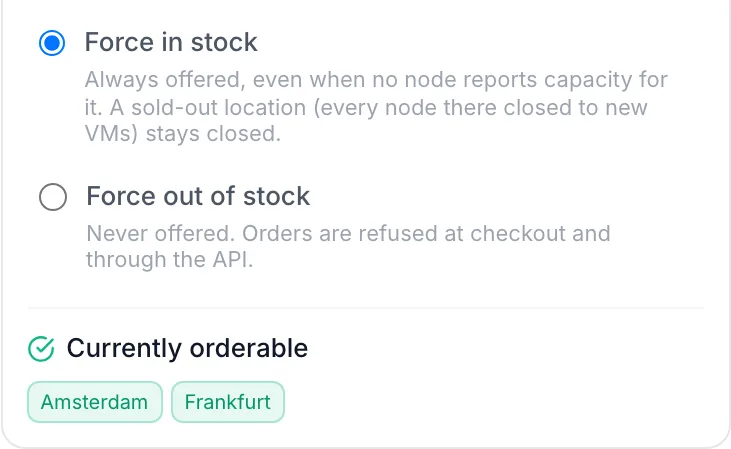
When you edit a saved product, a line under the radio buttons shows the current result, based on the saved mode:
- Currently orderable, with a green check.
- Not orderable right now, with a warning icon and the reason underneath.
- Not orderable — the product is switched off, when Active is off.
For a VPS product, a chip for each location follows the readout: green where the plan can be built, amber where it cannot. Hover an amber chip to see the reason. A location where every node has stopped taking new servers is marked sold out. Because the readout is for admins, the reason for a VPS shortfall names the node and the limit it hit, for example a RAM or disk limit. Customers never see that detail.
A new product shows no readout until you save it. If you pick a different mode, the readout catches up after you click Update Product.
How Automatic works for VPS products
For a built-in VPS product, Automatic runs the same checks that placement runs when the server is built. It does this without creating an order. It takes the plan's vCPU, RAM, first disk and IP addresses and tests them against every node the plan can use. It applies the same overcommit ratios, host reserves, sell limits, free-disk floor and IPv4 rules. A location is open while at least one node there can take the server.
The product is not orderable when:
- No node has room in any location the plan sells in. The customer sees a short reason, depending on what ran out first, for example:
- No node in this location has enough free memory for this plan right now.
- No node in this location has enough free CPU for this plan right now.
- No node in this location has enough free disk for this plan right now.
- No node in this location has a free IP address for this plan right now.
- No node in this location can run this plan right now.
- The nodes in this location are not accepting new servers right now.
- No node in this location has capacity for this plan right now.
- Every location is sold out: every node the plan can use has been drained with Drain (stop new VPS) in VPS → Clusters. See Clusters.
- The plan behind the product is disabled in VPS → Plans. See VPS Plans.
The check runs fresh each time, so the answer changes as soon as servers are created or removed, or nodes are added or drained.
When an order adds extra IPv4 addresses, checkout counts those addresses as well. A location with two free addresses refuses an order for ten.
If FluxBilling cannot measure capacity, for example because no node data could be read, the product stays orderable. A failed check never takes your catalogue offline.
Sold-out locations and Force in stock
Force in stock overrides the capacity numbers. It does not override a drain. A location where every node has stopped taking new servers stays closed even when the product is forced in stock, because no server could be placed there. To reopen the location, choose Accept new VPS on at least one of its nodes.
Preorders
If you sell preorders in a location, a VPS plan that has no room there can still be ordered as a preorder, with a delivery estimate. The order form shows such a plan with a Preorder badge instead of Out of stock. Preorders apply to capacity shortages and sold-out locations only. A product set to Force out of stock cannot be preordered. See VPS preorders.
What your customers see
VPS order form
On the built-in VPS order form, a plan that cannot be ordered stays on the page. It is dimmed and cannot be clicked, so a customer who followed a link to that plan can see why it is not available. The card carries a badge:
- Out of stock: no capacity, or the product is set to Force out of stock.
- Sold out: every location the plan sells in has been drained.
- Preorder: no room now, but a location takes preorders.
Hovering the card shows the reason, for example This product is not available to order right now. If a customer lands on an unavailable plan, the form shows the reason and the order button stays disabled. When a single location is full or sold out, the form explains that next to the location picker, for example Sold out: no new servers can be ordered in this location right now.
Other order pages
Order pages for other product types do not show a stock badge. A product that is not orderable is refused when the customer places the order, with this message:
"<product name>" is not available to order right now. Please try again later or contact support.To keep a non-VPS product off the order pages completely, switch off Active as well.
Checkout and API refusals
The same check runs when an order is placed from the client panel, through the customer REST API or through the reseller API. That way a held-back or full product cannot be bought through a saved link or a script either. These are the messages the customer or integration receives:
| Situation | Message |
|---|---|
| Product set to Force out of stock | "<product>" is not available to order right now. Please try again later or contact support. |
| Chosen location sold out (client panel and customer REST API) | "<product>" is sold out in <location>. Available locations: <list>. The list of open locations is left out when none is open. |
| Chosen location sold out (reseller API) | "<product>" is sold out in '<location>'. Please choose another datacentre. |
| Sold out everywhere, no location chosen | "<product>" is sold out right now. Please try again later or contact support. |
| No VPS capacity | "<product>" cannot be provisioned right now in '<location>'. <reason> Please choose another datacentre or try again later. Without a chosen location, the in '<location>' part is left out. |
| Too many extra IPv4 addresses ordered | "<product>" cannot be provisioned right now in '<location>': this location cannot supply the <n> IPv4 addresses ordered. Please choose fewer addresses or another datacentre. Without a chosen location: "<product>" cannot be provisioned right now: no datacentre can supply the <n> IPv4 addresses ordered. Please choose fewer addresses or try again later. |
The reason in these messages is a short customer-safe sentence, like the examples above. Node names and figures stay in the admin panel.
Orders you create yourself in Orders → New Order skip this check. Staff can still place an order by hand for a product that is held back or full. See New Order.
Checking availability through the API
Integrations can read availability without placing an order:
- Customer REST API: the
GET /products/{id}/availabilitycall. Add?location=to ask about one location. It answers withavailable(true or false), acodeand a customer-safereason. Without?location=, it also lists one row per location, each with its ownavailable,codeandreason. The answer is a normal 200 response even when the product is unavailable, so it is safe to poll. See Customer REST API. - Reseller API: the product list and product details show whether each product is in stock. Orders are refused in the same way as at checkout. See Reseller API.
| Code | Meaning |
|---|---|
available | Can be ordered now. |
forced_available | Set to Force in stock. |
forced_unavailable | Set to Force out of stock. |
no_capacity | VPS: no node in the location(s) has room for the plan. |
sold_out | VPS: every node the plan can use in the location (or everywhere) has stopped taking new servers. |
plan_disabled | VPS: the plan behind the product is disabled. |
no_location | The product needs a location and none can deliver it. |
location_unavailable | The product is not sold in the location you asked about. |
unknown | Capacity could not be measured. Treat it as orderable: it never refuses an order. |
A location row can carry a finer code that says what ran short there: ram_capacity, vcpu_capacity, storage_capacity, ip_capacity, machine_type, drained or capacity, as well as available, sold_out and unknown.
Troubleshooting
- A VPS plan shows Out of stock but the nodes look half empty. Open the product and read the reason under Not orderable right now. It names the node and the limit it hit. Common causes: the disk pool the plan uses is full, the plan's targeting only reaches full nodes, a sell limit or overcommit ratio has been reached, or the nodes have no free IPv4 addresses. Raise the limit or add capacity. If you know the server can be delivered, use Force in stock.
- Force in stock is set but a location is still closed. Every node in that location has been drained. Choose Accept new VPS on one of them.
- Force in stock is not in the list. It is offered only for built-in VPS products. For other products, Automatic already keeps the product on sale while it is active.
- The readout did not change after I picked a mode. It reflects the saved product. Click Update Product, then open the product again.
- A product set to Force out of stock still appears on its order page. Only the VPS order form marks unavailable plans. Other order pages refuse the order at checkout. Switch off Active to remove the product from the storefront.
- A customer could not order, but staff could. That is expected. Orders created in the admin panel skip the availability check.