
Slack notifications
Post FluxBilling orders, payments, invoices, tickets and service events to a Slack channel through an incoming webhook, with a template per event.
The Slack plugin posts a message to a Slack channel when something happens in FluxBilling: a new order, a paid invoice, a failed payment, a new support ticket, a suspended service and more. You choose which events post, and you can rewrite the message for each one. Messages go through a Slack incoming webhook, so you do not need a bot token. The plugin is free and is listed in the plugin marketplace of every FluxBilling panel.
This guide covers plugin version 1.7. It is for your staff only: your customers never see these messages. For the general mechanism behind all notification plugins, see Notification plugins.
Who supports this integration. The plugin is built and maintained by FluxBilling. If something does not work, contact FluxBilling support at contact@fluxbilling.app or through fluxbilling.app/contact. Questions about Slack itself, your workspace or its app permissions go to Slack support.
What you need before you start
- A Slack workspace where you are allowed to add apps.
- A channel for the alerts, for example #billing. To post into a private channel, you must be a member of it when you create the webhook.
- Permission to install apps. If your workspace owners have turned on app approval, your request to install the app goes to them first. See Slack's help article Manage app approval for your workspace.
- Outbound internet access from your FluxBilling panel to
hooks.slack.comover HTTPS.
Step 1: Create an incoming webhook in Slack
An incoming webhook is a secret address that posts into one channel. Slack describes the steps in Sending messages using incoming webhooks. In short:
- Open your Slack apps and create a new app from scratch. Give it a name your team will recognise, for example FluxBilling, and pick your workspace. You can also reuse an app you already have.
- In the app's settings, open Incoming Webhooks and switch Activate Incoming Webhooks on.
- Click Add New Webhook to Workspace, choose the channel the messages should go to, and click Authorize.
- Copy the new address from Webhook URLs for Your Workspace. It looks like
https://hooks.slack.com/services/T00000000/B00000000/XXXXXXXXXXXXXXXXXXXXXXXX.
The messages appear under the app's name and icon. To change them, edit the app's display information in Slack.
Keep the address secret. Anyone who has the webhook URL can post into your channel. Slack looks for leaked webhook URLs and revokes them. If one leaks, remove the webhook in Slack, create a new one, and paste the new address into FluxBilling.
Step 2: Install the plugin
- In the admin panel, go to Settings → Integrations → Marketplace and stay on the Browse tab.
- Search for Slack and open Slack Notifications.
- Click Get for Free. When it finishes, you see "Plugin "Slack Notifications" installed and ready to use", and the listing shows Installed.
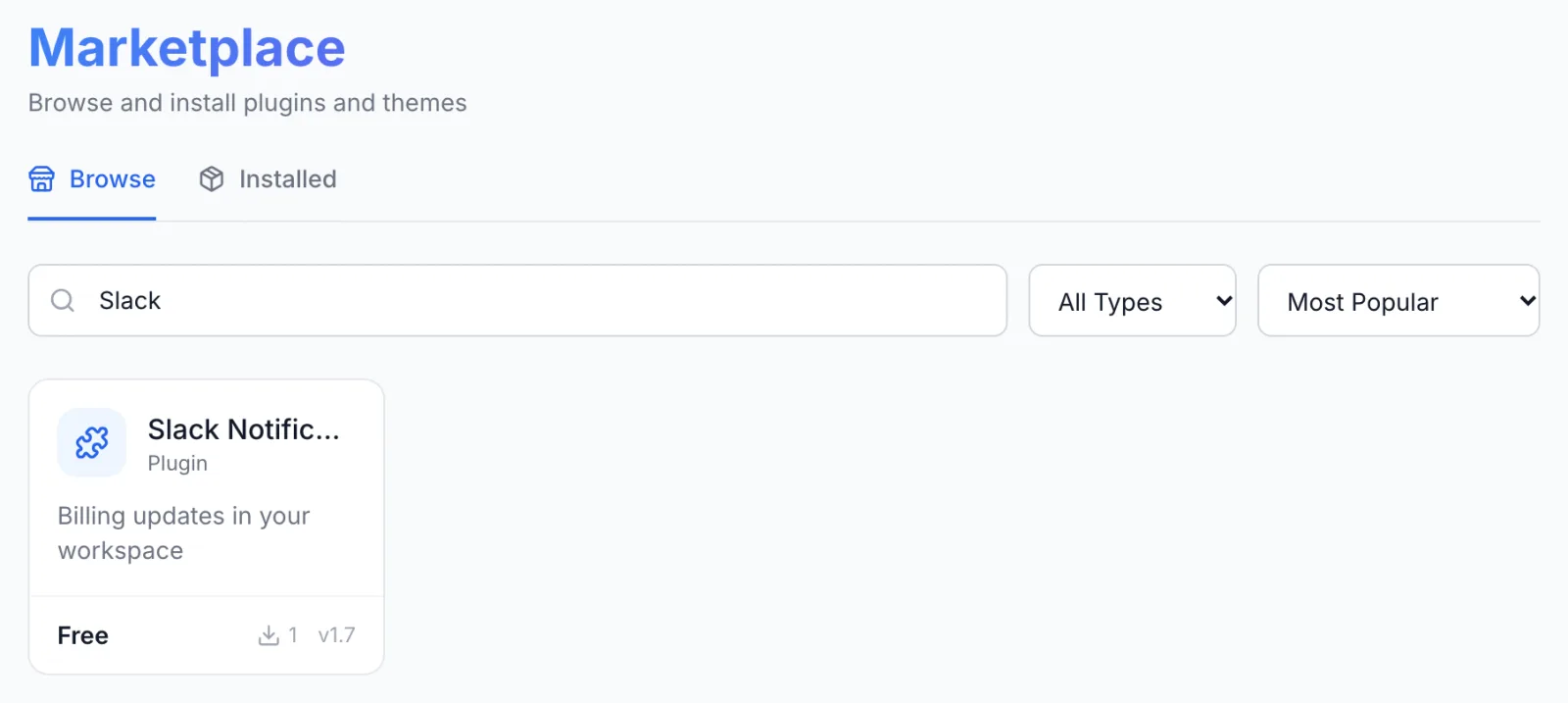
The plugin is switched on as soon as it is installed. It sends nothing yet: every event starts switched off, and there is no webhook address. The plugin appears as Slack under Settings → Integrations → Plugins, with a Marketplace badge.
Step 3: Paste the webhook URL and choose the events
- Go to Settings → Integrations → Plugins and click Configure on the Slack card. The dialog is titled Slack, with Notification Settings at the top.
- Under Connection Settings, paste the address from Step 1 into Webhook URL. The eye button shows or hides it.
- Open the event groups you need (Orders, Tickets, Payments, Invoices, Users, Services) and switch on each event that should post to Slack. Each group header shows how many of its events are on, for example 2 / 3 enabled.
- When you switch an event on, its Message Template box opens with a ready-made message. Keep it or edit it (see Message templates).
- Click Save Configuration. The button stays greyed out until you change something. On success you see "Configuration saved".
From now on, each event you switched on posts to the channel of your webhook.
Step 4: Send a test notification
- In the same dialog, click Send Test Notification.
- Pick an Event. The Sample Payload (JSON) box fills with example data for that event. Notification Flow is already set to Send Notification.
- Click Send. A green Test notification sent box means Slack accepted the message. Check the channel.
The test uses your saved settings: the saved webhook URL and the saved template for the event you picked. Save first, then test. If the sample payload lacks a field your template uses, the placeholder is posted as literal text, for example {{data.priority}}. Add the field to the sample payload to see it filled in.
Settings
All settings are in the Configure dialog of the Slack plugin. Only Connection Settings is open at first. Click a group to open it.
| Setting | Required | What it does |
|---|---|---|
| Webhook URL | Yes | The Slack incoming webhook address from Step 1 ("Slack Incoming Webhook URL from your Slack app"). It decides the workspace and the channel. It is stored as a secret. |
Every event has a switch and its own Message Template. All switches start off.
| Group | Switch | Posts when |
|---|---|---|
| Orders | New Order | A new order is placed. |
| Orders | Order Paid | An order payment is confirmed. |
| Orders | Order Cancelled | An order is cancelled. |
| Tickets | New Ticket | A new support ticket is opened. |
| Tickets | Ticket Reply | A customer replies to a ticket (in the client panel, as a guest, or by email). Staff replies do not post. |
| Tickets | Ticket Closed | A ticket is closed. |
| Tickets | Live Chat Reply | A visitor sends a message in a live chat. Only while live chat is turned on (see Live chat). |
| Payments | Payment Completed | A payment succeeds. |
| Payments | Payment Failed | A payment fails. |
| Payments | Payment Refunded | A payment is refunded. |
| Invoices | Invoice Created | A new invoice is generated. |
| Invoices | Invoice Paid | An invoice is marked as paid. |
| Invoices | Invoice Overdue | An invoice becomes overdue. |
| Users | New User | A new user signs up. |
| Users | User Verified | A user verifies their email address. |
| Services | Service Provisioning | A service starts being set up. |
| Services | Service Activated | A service becomes active. |
| Services | Deployment Failed | Setting up a service fails. The message includes the stage and the error. |
| Services | Service Suspended | A service is suspended. |
| Services | Service Unsuspended | A service is unsuspended. |
| Services | Service Terminated | A service is terminated. |
| Services | Service Renewed | A service is renewed. |
| Services | Upgrade Requested | A plan upgrade is requested and waits to be paid. |
| Services | Upgrade Completed | A plan upgrade has been applied to the service. |
| Services | Upgrade Failed | A paid plan upgrade fails to apply. |
Message templates
Each template is the text of the Slack message. It is written in Slack's own formatting, mrkdwn:
*text*for bold.<address|label>for a link with its own label. The ready-made templates link order, invoice, ticket, client and service numbers this way, straight into your admin panel.- New lines in the box are kept in the message.
Placeholders in double curly braces are filled in when the event happens:
{{data.field}}inserts a field of the event, for example{{data.orderNumber}}or{{data.subject}}. Under most templates, the field names are listed as small buttons. Click one to add it to the end of the template.{{helpers.adminUrl}}is the address of your admin panel. The adminUrl button adds it.{{helpers.formatCurrency(data.total, data.currency)}}formats an amount with its currency, and{{helpers.formatDate(data.dueDate)}}formats a date.- Simple logic works inside the braces: a fallback such as
{{data.reason || 'Not specified'}}, a choice such as{{data.isStaffReply ? 'staff' : 'a customer'}}, and joining text with+.
The ready-made Order Cancelled template, for example, posts the order number as a link to the order, the title Order Cancelled in bold, and the reason, or "Not specified" if there is none. A shorter template of your own could be:
:tada: New order *#{{data.orderNumber}}*: {{helpers.formatCurrency(data.total, data.currency)}}What your team sees in Slack
Each event you switched on becomes one message in the webhook's channel, posted under your Slack app's name. A new ticket with the ready-made template reads like this (the ticket number and the client name are links into your admin panel):
#T-1042 — New Ticket

A new support ticket has been opened.

Department: Technical
Client: Jane Doe
Priority: High
Subject: Cannot SSH to server
Payment Completed and Payment Failed messages show the amount and the payment gateway, and link to the invoice, or to the proforma when there is no invoice yet. Service messages end with a View Service link.
Your customers see nothing from this plugin. It adds nothing to checkout, invoices, the client panel or customer emails.
Delivery, retries and the delivery log
- When it posts. Messages are sent in the background as the event happens. A slow or failed post to Slack never holds up the order, payment or ticket that caused it.
- Delivery log. The bottom of the Configure dialog shows the Delivery Log: one row per message with Event, Flow, Status, Attempt, Last Attempt, Next Retry and Error. Filter by All, Pending, Sent, Failed or Retrying. Click a row to see the Event Payload and Slack's Response. Slack answers
okwhen it accepts a message. - Retries. When Slack rejects a message or cannot be reached, the row turns Retrying and the message is tried again, up to three attempts in all: about five minutes after the first, then about fifteen minutes after that. After the third failed attempt the row stays Failed. Retries use your current template and webhook URL, so fixing the address before the next retry lets the message through.
- Turning it off. Switch an event off and save to stop that event. To pause the whole plugin, open the menu on the Slack card under Settings → Integrations → Plugins and click Disable. A disabled plugin sends nothing and does not retry, and events that happen while it is disabled are not sent later.
- Moving to another channel. Create a new webhook for that channel in Slack, paste the new address into Webhook URL and save.
- Updates. New plugin versions appear under Settings → Integrations → Marketplace → Installed → Check for Updates (see Plugin catalogue).
Troubleshooting
| What you see | What it means and what to do |
|---|---|
| "Missing required configuration: Webhook URL. Set these in the plugin config and save before testing." | The test found no saved webhook address. Paste it into Webhook URL, click Save Configuration, then test again. |
| Nothing arrives in Slack and the Delivery Log stays empty | No switched-on event has happened yet, the event is switched off, or the plugin is disabled. Check the switch for that event and the Active status on the plugin card. Live Chat Reply also needs live chat turned on. |
Test result Failed, or Delivery Log rows Failed / Retrying with Slack's response no_service or no_active_hooks | The webhook was removed or disabled in Slack, or the address is incomplete. Create a new webhook and paste the full address. |
Response invalid_token | Slack no longer accepts the webhook, for example after it was revoked. Create a new webhook. |
Response channel_not_found or channel_is_archived | The webhook's channel was deleted or archived. Create a webhook for a channel that exists. |
Response action_prohibited or posting_to_general_channel_denied | A Slack admin restricts posting to that channel. Ask them to allow the app, or use another channel. |
Response no_text | The message was empty. Check that the event's Message Template produces text. |
Response invalid_payload | Slack could not read the message. Check the template for unbalanced < and > characters. In mrkdwn, a literal <, > or & must be written as <, > or &. |
| "Access to internal URLs is not allowed" | The webhook address points to a private network address. Use the https://hooks.slack.com/services/… address Slack gives you. |
A link shows as plain text, for example [Invoice](https://…) | Slack does not use Markdown-style links. Write links as <address|label>. |
The message shows {{data.…}} text | The event did not include that field. Use a field from the buttons under the template, or add a fallback such as {{data.reason || 'Not specified'}}. |
Slack lists all webhook error codes on Sending messages using incoming webhooks.
Limits
- One channel per plugin. A Slack webhook always posts to the channel chosen when it was created, and the plugin holds one webhook address. Every event you switch on goes to that channel.
- No threads. Every event is a new message in the channel. Related events are not grouped into a thread.
- Text messages. The plugin posts the template as a mrkdwn text message. It does not build Block Kit layouts, buttons or colour bars.
- One-way. The plugin only posts. You cannot reply to a ticket or act on an order from Slack, and messages are not edited or deleted later.
- Rate limit. Each event type posts at most 60 messages a minute. Further events of the same type in that minute are skipped and not logged.
- Staff only. Nothing from this plugin reaches your customers.
- Monitoring alerts have no switch in this plugin.
Slack is a trademark of Slack Technologies, LLC. FluxBilling is not affiliated with Slack Technologies, LLC.