
VPS abuse protection
Detect outbound scans, floods, password guessing and spam from customer VPS, limit outbound mail and traffic per node, and suspend abusers.
Abuse protection watches what your customers' VPS send out to the internet, and stops the worst of it before it harms other networks or gets your IP ranges blacklisted. It finds port scans, web sweeps, password guessing, floods and mail spam, lists them in the Abuse menu on the VPS dashboard, and can suspend a server that keeps attacking. On the nodes it can also cap outbound mail, connections and packets, and throttle one VPS's flood to one victim while the rest of that VPS's traffic keeps flowing.
This article covers VPS that FluxBilling runs on its own KVM nodes (the VPS module). It looks only at traffic leaving your customers' VPS. Attacks coming in from the internet are a job for your upstream provider and firewalls: see DDoS protection.
What you need
- The VPS Clusters feature. Switch it on under Settings → General → Feature Toggles. It needs the Locations feature too.
- Staff permissions. View VPS Clusters lets a staff member open the Abuse menu. Dismissing an alert, the per-VPS switches and the VPS → Settings page need Edit VPS Clusters. Suspending from the Abuse menu also needs Edit Services, because it suspends the customer's service. Permissions are set per department: see Departments.
- Nodes that sample traffic. Every node runs the checks on its own. A node that cannot shows up as Not sampling in the Abuse menu: it needs an up-to-date node agent and the
tcpdumptool installed. See Troubleshooting.
How it works
Every 5 minutes, each node takes a 15-second capture of the connections its VPS open. It reads packet headers only, never their contents, and counts how many hosts each VPS contacts, on which ports, and how many of them answer. Packet counters show floods that get nothing back. FluxBilling compares these figures with fixed patterns of abuse and opens an alert for each pattern it finds.
There are two halves, and you can use either one without the other:
- Detection opens alerts, rings the notification bell and, if you allow it, suspends a server that keeps attacking. It never drops traffic.
- Prevention runs on the nodes. Outbound limits cap mail and connection rates for every VPS. Block attack traffic throttles one VPS's flood to one host. Both have a Monitor mode that only counts what would be dropped, so you can check the figures before you switch to Enforce.
What is detected
Each alert is warning or critical, and a VPS has at most one live alert of each kind. The names below are the ones the Abuse menu shows.
| Kind | What it looks like | When it is raised |
|---|---|---|
| Port scan | Many different hosts on one port, most of them not answering | Critical from 100 new hosts a second on any port, or from 20 a second when under 25% answer. On login and database ports, critical from 20 hosts a second, or from 5 a second when under 30% answer. A slow scan (8 or more hosts on a login or database port in one capture, almost none answering) is a warning. Hosts that are mostly the same as five minutes earlier are a list being redialled, not a scan. |
| Web sweep | A constant stream of new web servers on ports 80, 443, 8080 or 8443 that do answer, like a web-shell prober | Critical from 50 new sites a second, when they are new sites each time |
| Brute force | The same few servers contacted again and again on a login or database port | From 10 connections a second, at least 30% answered and at least 5 per host, to 5 or more hosts. FTP, SSH, telnet, RDP, VNC, port 2222 and port 8291 count even with one host. Critical from 30 a second. |
| SYN flood | Connection attempts aimed at a few hosts that do not answer | Under 10% answered. Critical from 2,000 a second, or from 200 a second with at least 20 a second per host. A warning from 50 a second at 20 hosts or fewer. |
| Outbound flood | Packets going out with almost nothing coming back | Critical from 10,000 packets a second with at least 50 times more going out than coming back. A warning from 3,000 a second at 100 times. |
| Mail spam | Connections to many different mail servers | On port 25, a warning from 20 mail servers in one capture, critical from 60 or from 20 connections a second. On ports 465 and 587, a warning from 20 servers, critical from 60. |
The login and database ports are 21, 22, 23, 445, 1433, 1521, 2222, 2375, 3306, 3389, 5432, 5900, 5985, 6379, 8291, 9200 and 27017. Brute force counts all of them except 445, 2375 and 9200, which only count towards port scans. Mail retrieval (110, 143, 993, 995) is never treated as password guessing, because mail apps and VPN users poll the same mail servers all day.
An alert closes by itself as resolved after 30 minutes with no new finding. A new alert, a muted alert that comes back, and an alert that turns critical each ring the admin notification bell with a title such as Abuse: Port scan from vps-example.
The Abuse menu
Open VPS → Overview. The Abuse button sits in the page header, next to the IPv4 menu. It reads clear when nothing is open, 1 open (or the number of open alerts) when something is, and not sampling when no node is sending figures. It turns red when any open alert is critical.
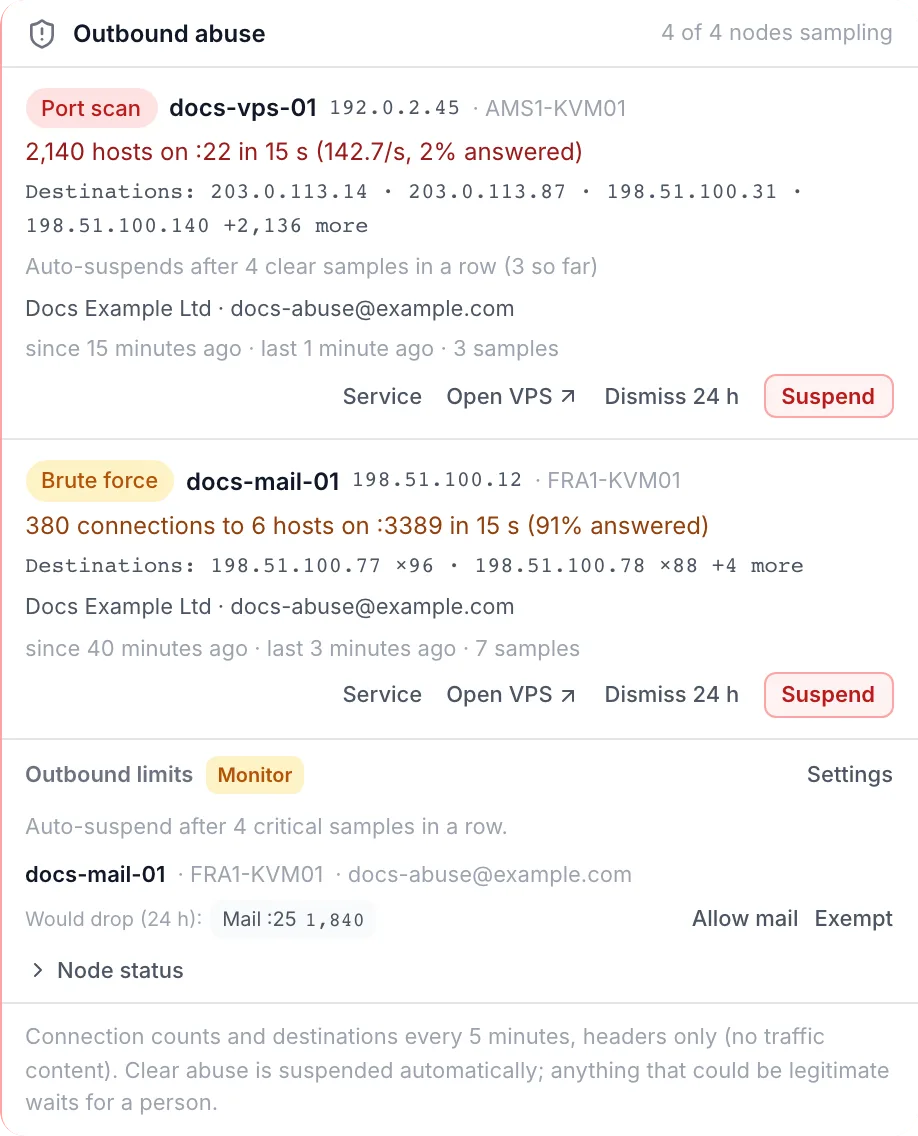
Click it to open the Outbound abuse panel. The header shows how many nodes are sampling, for example 3 of 4 nodes sampling. Below it, in this order:
- Open alerts, critical first. With none, the panel says Nothing found in the latest samples.
- Attacks being throttled (or Attacks that would be throttled (monitor)): the floods the nodes are holding back. See Block attack traffic.
- Outbound limits: the current mode, whether automatic suspension is on, and the VPS that went over a limit. See Outbound limits in the menu.
- Muted: alerts someone dismissed.
- Resolved in the last 24 h.
- A footer that lists any node that is not sampling.
Reading an alert
Each alert shows the kind, the VPS name (a link to the VPS), its IP address and node, then the measured figures in one line, for example 2,140 hosts on :22 in 15 s (142.7/s, 2% answered). Under that you see:
- Destinations: a sample of the hosts it contacted, with +N more for the rest.
- What automatic suspension will do, for example Auto-suspends after 4 clear samples in a row (2 so far). All the possible lines are listed in Automatic suspension.
- The owner: the client's name and email, Peer VM · <panel> for a VPS another panel sold on your node through a panel link, or No service. A suspended VPS adds Auto-suspended, Service suspended or Held on this node.
- Not auto-suspended: could be legitimate, check before suspending on a critical alert whose pattern could also be ordinary traffic, such as a VPN server with many users.
- When it started and was last seen, and how many samples it has.
| Action | What it does |
|---|---|
| Service | Opens the customer's service page. Shown only when the VPS belongs to a service. |
| Open VPS | Opens the VPS page. |
| Dismiss 24 h | Mutes alerts of this kind for this VPS for 24 hours, for example for a penetration test the customer told you about. The VPS also stops being suspended automatically, because a person has now judged it. |
| Suspend | Suspends the VPS for abuse. Hidden once the VPS is suspended or held. |
Suspending a VPS for abuse
- In the Abuse menu, click Suspend on the alert.
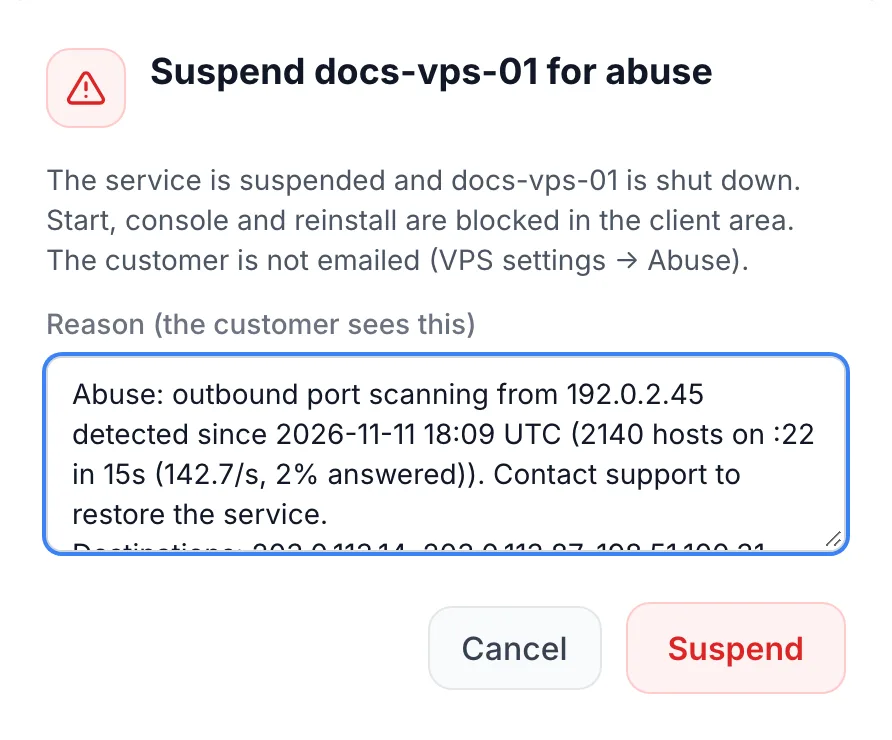
- The dialog Suspend <VPS name> for abuse opens. Its message says exactly what will happen to this VPS (see the table below).
- Check Reason (the customer sees this). It is filled in for you: the kind of abuse, the IP address, the measured figure and the time it started, the main destinations, and a traffic log of the latest captures and of what the outbound limits counted. Edit it if you need to. It is required and can be up to 2,000 characters.
- Click Suspend. The message <VPS name> suspended confirms it.
| The VPS belongs to | What happens |
|---|---|
| A service on your panel | The service is suspended with this reason and the VPS is shut down. Start, console and reinstall are blocked in the client area. The customer is emailed the abuse report only when Email the customer the abuse report is on; the dialog says which applies. The normal "service suspended" email is not sent. |
| Another panel, through a panel link | The VPS is shut down and held on your node. The other panel suspends its own service with the same reason on its next sync, within minutes, and emails its customer under its own settings. It cannot start the VPS while your hold stands, but when its staff unsuspend their service, that lifts an automatic suspension (see Lifting an abuse suspension). |
| No service | The VPS is shut down and held on your node with this reason. |
If the service was already suspended for another reason, such as an unpaid invoice, the reason is replaced with the abuse reason, so paying the invoice does not bring the VPS back.
Lifting an abuse suspension
Paying an invoice, adding credit, a reseller's unsuspend and automations all leave an abuse suspension in place. To lift it:
- A VPS with a service: open the service and click Unsuspend (see Services). This also clears the hold on the VPS and starts it again.
- A VPS with no service, or one held for another panel: open the VPS, go to its Settings tab and use Lift suspension on the Suspension card.
A VPS another panel sold on your node through a panel link is the one exception. When that panel's staff unsuspend their service, an automatic abuse suspension on your node is lifted too. A suspension your staff made by hand stays until you lift it, and the other panel's unsuspend is refused.
After staff lift a suspension, the VPS gets one hour before it can be suspended automatically again. The alert line then reads Unsuspended less than an hour ago: no automatic suspension yet.
Automatic suspension
With Suspend persistent abusers automatically on, FluxBilling suspends a VPS exactly as the Suspend button would, with the automatic reason. The bell then shows Auto-suspended: <VPS name>. It acts only on alerts that are clearly abuse. Anything that could be ordinary traffic waits for a person.
- Port scans and SYN floods suspend after the number of critical samples in a row set in Critical samples in a row before suspending. A wide sweep (1,000 or more new hosts a second, under 5% answered), or an attack that makes up at least a quarter of everything the VPS sends, is suspended after 2.
- Web sweeps suspend after one hour of new sites (12 samples in a row), or after the setting's count if that is higher.
- Outbound floods suspend after 2 samples only when they are aimed (at least 80% of the packets go to 3 hosts or fewer) and Also suspend aimed one-way floods is on.
- Brute force and mail spam are never suspended automatically. A deployment or monitoring tool can look like password guessing, and port 25 can be closed by the outbound limits instead.
A VPS is never suspended automatically when:
- it carried VPN or proxy traffic in the last hour (at least 10 Mbit/s each way, roughly as much in as out), unless the attack is one of the 2-sample cases above;
- it carried VPN or proxy traffic in the last 24 hours and its flood is already being throttled on the node;
- it is exempt from the outbound limits;
- a person already dismissed an alert on it, or suspended it by hand;
- staff lifted its suspension less than an hour ago.
The alert says which case applies:
| Line | Meaning |
|---|---|
| Auto-suspends after N clear samples in a row (M so far) | The normal count is running. |
| Auto-suspends at the next sample if it continues: the attack is N% of everything this VM sends | The 2-sample case for an attack that is most of the VPS's traffic. |
| Auto-suspends at the next sample if it continues: a wide sweep | The 2-sample case for a wide sweep. |
| Aimed flood: auto-suspends at the next sample if it continues | An aimed one-way flood, with flood suspension on. |
| Aimed flood: would be auto-suspended, but that is switched off in VPS › Settings | The same flood with flood suspension off. After it ends, the resolved alert reads Would have been auto-suspended (aimed floods are switched off). |
| Carried VPN or proxy traffic in the last hour: a person decides, no automatic suspension | The VPN or proxy rule. |
| Carried VPN or proxy traffic in the last 24 hours and the attack is throttled at the node: no automatic suspension, a person decides | The flood is already held back on the node. |
| Exempt in its outbound limits: no automatic suspension | The VPS is exempt. |
| A person already cleared this VM: no automatic suspension | Someone dismissed an alert on it or suspended it by hand. |
| Unsuspended less than an hour ago: no automatic suspension yet | The one-hour grace after a lift. |
| Automatic suspension is switched off | The setting is off. |
Settings
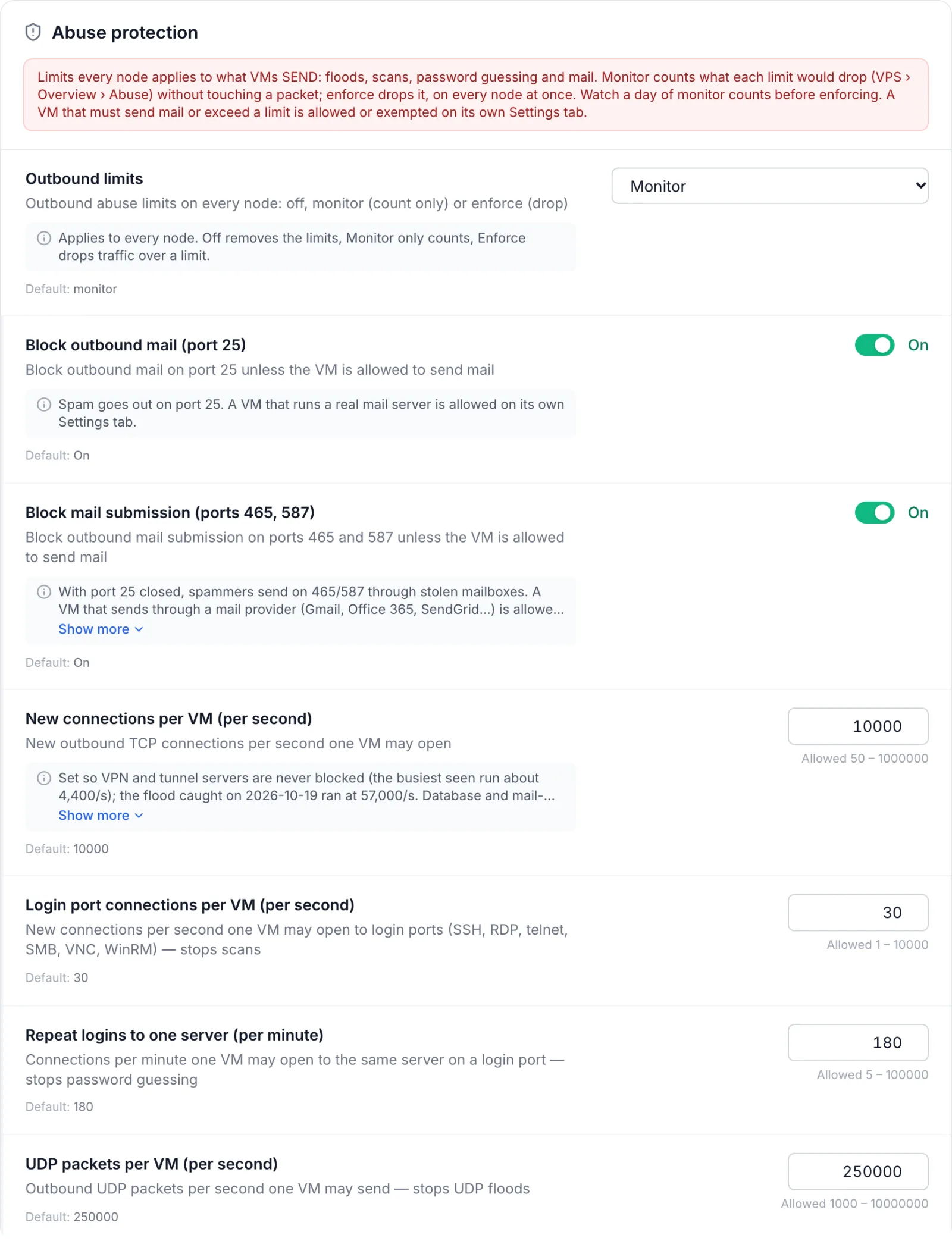
All settings are in the Abuse protection group on VPS → Settings, and they apply to every node at once. There is no per-node override. Change the values, then save the page. Each row shows its built-in value, and you can reset a changed row to it.
| Setting | What it does |
|---|---|
| Outbound limits | Off removes the limits, Monitor only counts what each limit would drop, Enforce drops traffic over a limit. |
| Block outbound mail (port 25) | Blocks outbound mail on port 25 for every VPS that is not allowed to send mail. |
| Block mail submission (ports 465, 587) | Also blocks ports 465 and 587, which spammers use with stolen mailboxes once port 25 is closed. |
| New connections per VM (per second) | New outbound TCP connections one VPS may open per second. 50 to 1,000,000. Set it high enough for busy VPN and tunnel servers. |
| Login port connections per VM (per second) | New connections per second to login ports (SSH, RDP, telnet, SMB, VNC, WinRM). Stops scans. 1 to 10,000. |
| Repeat logins to one server (per minute) | Connections per minute to the same server on a login port. Stops password guessing. 5 to 100,000. |
| UDP packets per VM (per second) | Outbound UDP packets one VPS may send per second. Stops UDP floods. 1,000 to 10,000,000. |
| Suspend persistent abusers automatically | Turns automatic suspension on or off. |
| Critical samples in a row before suspending | How many 5-minute samples in a row an alert must stay clearly critical before the normal automatic suspension. 2 to 12. |
| Block attack traffic | Off, Monitor or Enforce for attack throttling. Works only while Outbound limits is not Off. |
| Also drop one-way floods | When attack throttling enforces, also throttles one-way floods, not only SYN floods. While off, one-way floods are only counted. |
| Also suspend aimed one-way floods | Lets automatic suspension act on one-way floods aimed at 3 hosts or fewer. |
| Email the customer the abuse report | Sends the customer the VPS Suspended for Abuse email on every abuse suspension, automatic or by hand. Off sends nothing. |
Outbound limits
The limits run on each node, in front of every VPS on it. In Monitor mode they only count the packets that would be dropped. In Enforce mode they drop them. Each limit counts per VPS:
- Connections: new TCP connections over New connections per VM (per second).
- Scan: new connections to login ports over Login port connections per VM (per second). The login ports are 21, 22, 23, 445, 2222, 3389, 5900, 5985 and 8291.
- Password guessing: connections to one server on a login port over Repeat logins to one server (per minute).
- UDP: UDP packets over UDP packets per VM (per second).
- Mail :25 and Mail :465/:587: outbound mail while the mail blocks are on.
Database ports and mail retrieval ports are never rate-limited. Busy VPN servers and applications use them heavily for ordinary work, so abuse there is left to detection and automatic suspension.
Outbound limits in the menu
The Outbound limits section of the Abuse menu shows the mode, a Settings link to VPS → Settings, and either Auto-suspend after N critical samples in a row. or Automatic suspension is off. It then lists up to 50 VPS that went over a limit, most recent first, with a count per limit under Dropped (24 h): or Would drop (24 h):. Only packets counted under the current limits are shown. If you changed the limits less than 24 hours ago, the label says when, for example Would drop (limits set 3 hours ago):. With nothing to show, it reads No VM went over a limit in the last 24 h.
Each listed VPS has quick switches: Allow mail when it hit the port 25 block, Allow 465/587 when it hit the submission block, and Exempt (or Remove exemption). Node status expands to show each node's state: Running: Monitor, Running: Enforce, Not applied: <error>, or a note that the node has not reported yet.
Allowing mail or exempting one VPS
Open the VPS from VPS → All VPS and go to its Settings tab. The Outbound limits card has three switches. Each one saves as soon as you click it, and Outbound limits updated confirms it.
- Allow sending mail (ports 25, 465, 587): for a VPS that runs a real mail server. It opens all three mail ports, and the next switch is then shown ticked and locked.
- Allow sending through a mail provider (ports 465, 587): for a site or app that sends through Gmail, Office 365, SendGrid and the like, or a VPN whose users send mail. Port 25 stays blocked.
- Exempt from all outbound limits: skips the flood, scan, password-guessing and mail limits for this VPS. Abuse detection still watches it, but it is never suspended automatically.
Block attack traffic
Attack throttling holds back one VPS's flood to one host instead of suspending the whole server. The VPS, all its other traffic and a small allowance to that host keep flowing, so users behind a VPN on that VPS are not cut off.
- SYN flood: when a VPS sends 100 or more new connections a second to one host and port, and 2% or fewer are answered, the node holds it to 20 new connections a second to that host and drops the rest.
- One-way flood: when a VPS sends 10,000 or more packets a second to one host and 1% or fewer come back, the node holds it to 1,000 packets a second. This drops packets only with Also drop one-way floods on, because some legitimate streams are one-way too (a video push to an ingest server, NetFlow or syslog export).
- A block lasts until 15 minutes after the flow last went over, and one hour at most. It is then judged again.
- When a capture missed packets, nothing is throttled. The Abuse menu says so: Attack checks skipped on the last sample of <nodes>: the capture missed packets, and nothing is throttled on doubtful data.
In the Abuse menu each block shows the VPS, its IP and node, and a line such as SYN flood to 198.51.100.20:443: 950/s, 0% answered · dropped so far: 41,200. In Monitor mode it reads would have dropped instead. Live blocks show blocking since, and blocks that ended in the last 24 hours show ended. A new block rings the bell with Attack throttled: <VPS name>, or Attack would be throttled in Monitor mode.
What the customer sees
A VPS suspended for abuse shows Service Suspended on its service page in the client area, with the line Reason: followed by the reason you gave. Start, console and reinstall are blocked, and the customer cannot bring the service back by paying an invoice.
With Email the customer the abuse report on, the customer also gets the VPS Suspended for Abuse email. It lists the server, IP address, activity, start time, measured figure and reason, includes the traffic log, explains common causes (a compromised password, outdated software, malware), says that only connection counts are recorded, never the content of the traffic, and asks the customer to contact support. Edit its wording under Settings → Email like any other template: see Email templates.
The outbound limits themselves are not shown in the client area. A customer whose mail does not leave the server usually opens a ticket: check the Outbound limits section of the Abuse menu and allow mail on that VPS if it is legitimate.
Recommended rollout
- Set Outbound limits and Block attack traffic to Monitor, and save.
- Watch the Abuse menu for at least a day. For each VPS that would be dropped, decide whether it is legitimate. Allow mail or exempt the ones you trust.
- Switch Outbound limits to Enforce, then Block attack traffic.
- Check a week of one-way flood counts before you turn on Also drop one-way floods or Also suspend aimed one-way floods.
- Read the VPS Suspended for Abuse template, then turn on Email the customer the abuse report.
Troubleshooting
| You see | What it means and what to do |
|---|---|
| Not sampling: <nodes>. or the button reads not sampling | No figures from that node for 15 minutes, or its last capture failed. Make sure the node agent is up to date and tcpdump is installed on the node, and that the node is online. |
| Not applied: <error> under Node status | The node could not apply the outbound limits. The error comes from the node. Fix it there, and the node retries on its own. |
| Node not reported yet under Node status | The node has not confirmed the limits yet. Its agent is likely too old to run them; update it. |
| This service is suspended for abuse; only the provider's staff can lift it | Something other than a staff member tried to unsuspend the service, such as a payment, a reseller or an automation. Lift it by hand as described in Lifting an abuse suspension. |
| Reason must be 2,000 characters or fewer | Shorten the reason in the Suspend dialog. |
| Abuse alert not found or not open | The alert resolved or was dismissed while the menu was open. Close the menu and open it again. |
| Could not suspend, Could not dismiss the alert or Could not change the outbound limits | The action failed. Check that you have the permissions listed in What you need, then try again. |
| A VPN or proxy customer keeps alerting | Check the destinations and the answered share. If the traffic is legitimate, click Dismiss 24 h, or exempt the VPS from the outbound limits. Neither stops detection. |
| A customer's mail server cannot send | Port 25 (and 465/587) are blocked for that VPS. Use Allow sending mail (ports 25, 465, 587) on its Settings tab. |
Limits
- Only outbound traffic from VPS on FluxBilling's own nodes is watched. Inbound attacks and servers sold through other provisioning plugins are not covered.
- Detection works from samples: a 15-second capture every 5 minutes. Abuse that happens only between captures can go unseen.
- Nothing reads the contents of traffic. Mail spam is judged by how many mail servers a VPS contacts, not by what it sends.
- The mode and the limits are the same for every node.
- The menu shows up to 100 alerts and 100 attack blocks, and Outbound limits lists up to 50 VPS.