
Plugin Webhook Endpoints and Delivery Log
Give a plugin its own inbound webhook addresses: verification types, handler flows, the answers callers get, and the delivery log for troubleshooting.
A webhook endpoint is an address on your panel that an outside service can call when something happens on its side: a payment settles, a server finishes building, a domain transfer completes. Each endpoint belongs to one plugin. When a request arrives, the panel checks that it really came from the service, runs the plugin flow you picked, answers the caller, and writes the request to the endpoint's delivery log.
This article covers the Webhooks tab of the plugin editor for every plugin type that has it: how to add an endpoint, what each verification type checks, what the caller gets back, and how to read the log when deliveries fail. To build the flow that handles the request, see Building Flows. The payment-specific part (how a gateway's webhook settles an invoice) is in Capabilities and Flow Contracts.
Where to find it
Open Settings from the top header, choose Plugins under Integrations, open a plugin, and select the Webhooks tab. No feature toggle is involved. The plugin pages are part of the admin panel, so any staff member who can open Settings can manage them. Customers never see webhook endpoints.
The tab is there for infrastructure, payment gateway, automation, authentication, AI provider, email transport and custom plugins. Notification plugins have Notifications and Subscriptions tabs instead, and analytics plugins have only Overview and Configuration, so neither type has a Webhooks tab.
The tab is headed Webhook Endpoints, with the line “Receive events from external services”. If the plugin has no endpoints yet, you see No webhook endpoints and an Add Endpoint button.
Before you start: the handler flow
An endpoint runs one flow, and only flows of type Webhook Handler (“Handle incoming webhook requests”) can be picked. Create that flow first on the Flows tab. If the plugin has no such flow, the endpoint dialog warns: “No webhook handler flows found. Create one first.” You can still save an endpoint without a flow, but it then accepts and verifies requests without doing anything with them. The exception is a payment gateway plugin, where an endpoint without a flow is handled as the gateway's payment webhook (see Payment gateway plugins).
Inside the flow, the incoming request is available as webhook:
| Variable | Contents |
|---|---|
{{webhook.body}} | The request body, parsed. JSON and form-encoded bodies both arrive as fields, for example {{webhook.body.event}}. |
{{webhook.headers}} | The request headers, with lowercase names, for example {{webhook.headers['x-event-type']}}. |
{{webhook.query}} | The query string parameters of the address the caller used. |
{{webhook.method}} | The HTTP method of the request. |
The plugin's configuration values are also available as {{config.*}}, just as in any other flow.
Add an endpoint
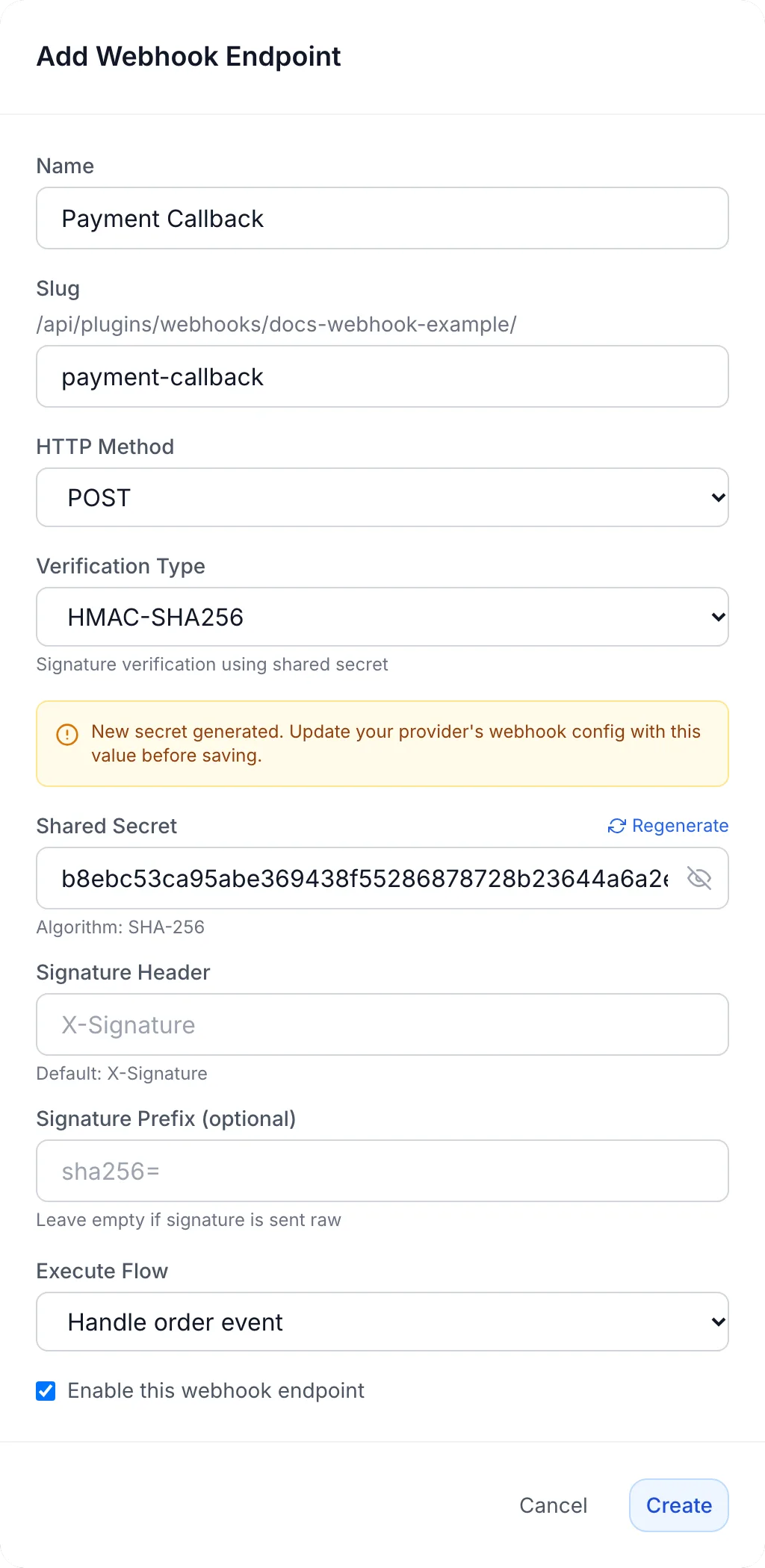
- On the Webhooks tab, click Add Endpoint. The Add Webhook Endpoint dialog opens.
- Type a Name, for example “Payment Callback”. While you type, the Slug fills itself in: lowercase, with every run of other characters turned into a hyphen (“Payment Callback” becomes
payment-callback). You can overwrite it. - Choose the HTTP Method the service will use.
- Choose a Verification Type and fill in the fields it adds (see the next section).
- Under Execute Flow, pick your Webhook Handler flow.
- Click Create. The message “Webhook endpoint created” confirms it. A new endpoint always starts enabled.
- On the new endpoint card, click the copy icon (Copy URL) and paste the address into the outside service's webhook settings.
Create stays greyed out until both Name and Slug are filled.
The endpoint address
Every endpoint address is built from three parts: your panel's address, the plugin's slug, and the endpoint's slug. The dialog shows the fixed prefix next to the Slug box, or above it when the dialog is too narrow, and each card shows the path under the endpoint name. The plugin's slug is on the plugin's Overview tab. Two endpoints in the same plugin cannot share a slug, but different plugins can each have, say, a callback endpoint.
Copy URL builds the address from the panel address in your browser's address bar. If you manage plugins from a different address than the one outside services reach, check that the copied address starts with your public panel address before you paste it anywhere.
The slug is fixed once created. The slug box is still shown when you edit an endpoint, but changes to it are not saved. To give an endpoint a new address, create a new endpoint and delete the old one after the service has switched over.
Endpoint fields
| Field | What it does |
|---|---|
| Name | Required. The label on the endpoint card and in the log heading. |
| Slug | Required. The last part of the endpoint address. It must be unique within the plugin. |
| HTTP Method | The method the service calls with: POST, GET, PUT or PATCH. It is shown on the endpoint card and in each log entry. |
| Verification Type | How the panel checks that a request is genuine. The line under the list describes the type you picked. |
| Execute Flow | The Webhook Handler flow to run for each verified request. Select flow... means no flow. |
| Enable this webhook endpoint | Takes effect when you edit an endpoint. When it is off, the address answers as if it did not exist (see What the caller gets back). A new endpoint is always created enabled: to have it off, create it and then click its Enabled badge. |
Verification types
Verification runs before the flow. A request that fails it never reaches your flow. It is answered with an error and logged as failed. Choose the type the outside service documents for its webhooks. None is described in the list as “No verification (not recommended)”: anyone who learns the address could then trigger your flow.
| Type | Fields | What is checked |
|---|---|---|
| None | None | Nothing. Every request is accepted. |
| HMAC-SHA256 | Shared Secret, Signature Header (Default: X-Signature), Signature Prefix (optional) | The header must hold the hex HMAC-SHA256 of the request body, signed with the shared secret. If you set a prefix such as sha256=, the header may carry it or not. Leave the prefix empty if the signature is sent raw. |
| HMAC-SHA1 | Same as HMAC-SHA256 | The same check with SHA-1, for older services (“legacy”). |
| HMAC Body Field | Set by the plugin package | A signature carried inside the request body. Used by payment gateway packages (see below). |
| HMAC Header (raw body) | Set by the plugin package | A header signature over the exact bytes received. Used by payment gateway packages (see below). |
| Timestamped HMAC v1 (Stripe-compatible) | Secret Config Field, Signature Header, Pair Separator, Signed-Payload Join, Timestamp Key, Signature Key, Tolerance (seconds) | A header of the form t=<timestamp>,v1=<signature>. The signature must be the HMAC-SHA256 of the timestamp, the join character and the exact request body, and the timestamp must be recent. |
| Bearer Token | Expected Token | The Authorization header must be Bearer <token> with exactly this token. |
| Query Token | Expected Token, Query Parameter Name (Default: token) | The address must carry the token as a query parameter, for example ?token=.... Add it to the address you paste into the service. |
Secrets and the Regenerate button
This applies to the Shared Secret of HMAC-SHA256 and HMAC-SHA1 and the Expected Token of the token types. The secret and token fields are hidden while you type. Use the eye icon to show them. Next to the field label, Regenerate (“Generate a new random secret”) fills in a random 64-character hex value and shows it. A yellow notice then reminds you: “New secret generated. Update your provider's webhook config with this value before saving.” Nothing changes until you click Update or Create. Copy the new value to the service first, or deliveries signed with the old secret will start failing.
Stored secrets are never sent back to the browser in full. When you edit an endpoint, the secret field shows a masked value. Leave it as it is to keep the stored secret, or type a new one to replace it. If you change the Verification Type, all type-specific fields are cleared, so enter the secret again.
HMAC-SHA256 and HMAC-SHA1 in practice
The panel computes the signature over the JSON body in compact form, with no spaces or line breaks between fields. This matches services that sign the compact JSON they send. If a service sends pretty-printed JSON and signs those exact bytes, its signatures will not match. Use a token type for that service, or check the signature yourself in the flow with a Crypto node (see Node Reference).
Timestamped HMAC v1
This type does not store its secret on the endpoint. Secret Config Field names a field on the plugin's Config tab that holds the signing secret (default webhook_secret), and the value is entered wherever that plugin's configuration is filled in. If that field is empty, every delivery fails verification.
The remaining fields describe the shape of the signature header. The defaults match Stripe:
| Field | Default | Paddle example |
|---|---|---|
| Signature Header | stripe-signature | paddle-signature |
| Pair Separator | , | ; |
| Timestamp Key | t | ts |
| Signature Key | v1 | h1 |
| Signed-Payload Join | . | : |
| Tolerance (seconds) | 300 | Your choice |
Tolerance (seconds) is the oldest a signature may be. A timestamp more than that many seconds away from the panel's clock, in either direction, is rejected, which blocks replayed requests. Set it to 0 to turn off the age check. If the header carries several signatures under the same key, which some services do while you roll over to a new secret, the request passes when any one of them matches.
HMAC Body Field and HMAC Header (raw body)
These two types are used by payment gateway packages from the Marketplace, which ship their webhook endpoint with these settings already in place. The signing secret is not taken from the endpoint: it is read from a field on the plugin's Config tab (the webhook secret or API key the package asks for). Leave the settings of these endpoints as the package installed them.
Do not change the type of these endpoints. Choosing another Verification Type in the endpoint dialog clears the settings the package installed, and selecting HMAC Header or HMAC Body Field again does not bring them back.
On a plugin that is not a payment gateway, an endpoint set to either type rejects every request with “Webhook verification failed”. Use HMAC-SHA256, Timestamped HMAC v1 or a token type there instead.
What the caller gets back
The outside service only sees the HTTP status and body of the answer. Most services retry a delivery that does not get a 2xx answer.
| Situation | Status | Body |
|---|---|---|
| No endpoint with that plugin and endpoint slug, the endpoint is disabled, or the plugin is not Active | 404 | {"success":false,"error":"Webhook not found"} |
| Verification failed | 401 | {"success":false,"error":"Webhook verification failed"} |
| Verified, and no flow is selected or the selected flow is switched off (not on payment gateway plugins, see below) | 200 | {"success":true} |
| The flow finished | The End node's Status Code (for webhooks), or 200 | The flow's output |
| The flow failed | The End node's status code if the flow reached one, otherwise 500 (or 503 when an outside request the flow depends on could not be made) | Only a body the flow shaped itself, otherwise {"success":false} |
| Unexpected error | 500 | {"success":false,"error":"Internal server error"} |
To answer with a specific status, set Status Code (for webhooks) on the flow's End node. Its output then becomes the response body. Some services expect a fixed reply, such as a plain acknowledgement, and the End node is where you shape it. A failed flow answers with an error status on purpose, so the service tries again later instead of treating the event as handled.
Request bodies of up to 10 MB are accepted, as JSON or form-encoded data.
Payment gateway plugins
For a payment gateway plugin, the endpoint that runs the gateway's webhook flow (usually handle-webhook), and any endpoint with no flow selected, does not just run a flow. It hands the delivery to the platform's payment processing, which verifies the signature, finds the payment, and settles the invoice once. The caller gets 200 on success, and 400 with the reason when processing fails. If no payment gateway is set up for the plugin, the answer is 400 with Unknown gateway; if the gateway is switched off, it is 400 with Gateway is disabled. Both are logged as failed deliveries. Setting up a gateway is covered in Payment Gateways.
On this payment endpoint only None, HMAC Body Field, HMAC Header (raw body) and Timestamped HMAC v1 (Stripe-compatible) are accepted. Keep the type the package installed. HMAC-SHA256, HMAC-SHA1, Bearer Token and Query Token are rejected there, so every delivery would be refused with 400. Other endpoints on a gateway plugin, bound to other flows, behave like those of any other plugin and can use any type.
Manage endpoints
Each card shows the endpoint name, its method, its address path, the verification type, the flow it runs, and an Enabled or Disabled badge. The icons on the right are Copy URL, View Logs, Edit and Delete.
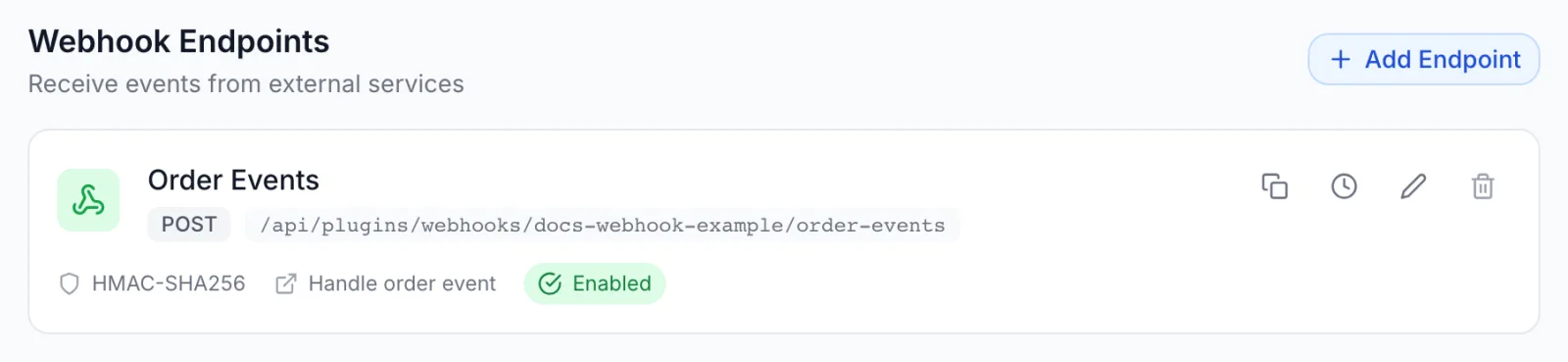
- Switch on or off: click the Enabled / Disabled badge. It changes at once (“Webhook enabled” / “Webhook disabled”). A disabled endpoint answers 404, so the outside service treats it as a failed delivery and, if it retries, may deliver again once you switch the endpoint back on.
- Edit: opens Edit Webhook Endpoint with the same fields. Click Update to save (“Webhook updated”).
- Delete: asks “Delete this webhook endpoint?”. Deleting removes the endpoint and its delivery log. The address stops working at once and answers 404.
Deleting the flow an endpoint runs does not delete the endpoint. The endpoint keeps verifying and answering 200, but runs nothing until you pick another flow. On a payment gateway plugin, an endpoint left without a flow is handled as the gateway's payment webhook instead. Disabling the whole plugin makes all its endpoints answer 404.
The delivery log
Click View Logs (the clock icon) on a card. The log opens in place of the list, headed <name> - Logs with the endpoint slug beneath. Use the arrow (Back) to return to the list.
- The filter at the top shows All requests, Successful or Failed. Refresh reloads the list.
- The log shows the 50 most recent requests, newest first. The footer reads, for example, “Showing 12 of 50 requests” when a filter hides some of them.
- Entries are kept for 30 days.
- Endpoints you add here log every request that reaches them, whether it passes verification or not. A provider calling with the wrong secret therefore shows up as a run of failed entries rather than silence.
Each row shows a green tick or red cross, the request method, the status code that was returned (or ERROR), the event type when one is known, the caller's IP address, how long the request took, and the date and time. Click a row to expand it:
| Section | Contents |
|---|---|
| Settlement | Payment gateway deliveries only: Gateway:, Verification: (for example verified or rejected), Payment lookup:, Transaction: and Correlation:. When the payment lookup did not find the payment, its outcome also appears as a yellow badge on the row. |
| Request Headers | The headers the caller sent. Credential-bearing headers, such as Authorization, cookies and signature headers, are stored as [REDACTED]. |
| Request Body | The body received, cut off after the first 10,000 characters. |
| Response | The stored response body. It reads null when none was stored, or No response body when it is empty. |
| Error | The error text, when there was one, for example Webhook verification failed or the message of the flow node that failed. |
| Flow Execution: | The ID of the flow run this request started. Look it up in the flow's History to see each node's input and output. Execution history is available to super admins. |
A payment gateway plugin's log also lists deliveries that arrived at the gateway's own webhook address, with the Settlement details filled in. Those deliveries are listed on one of the plugin's endpoints.
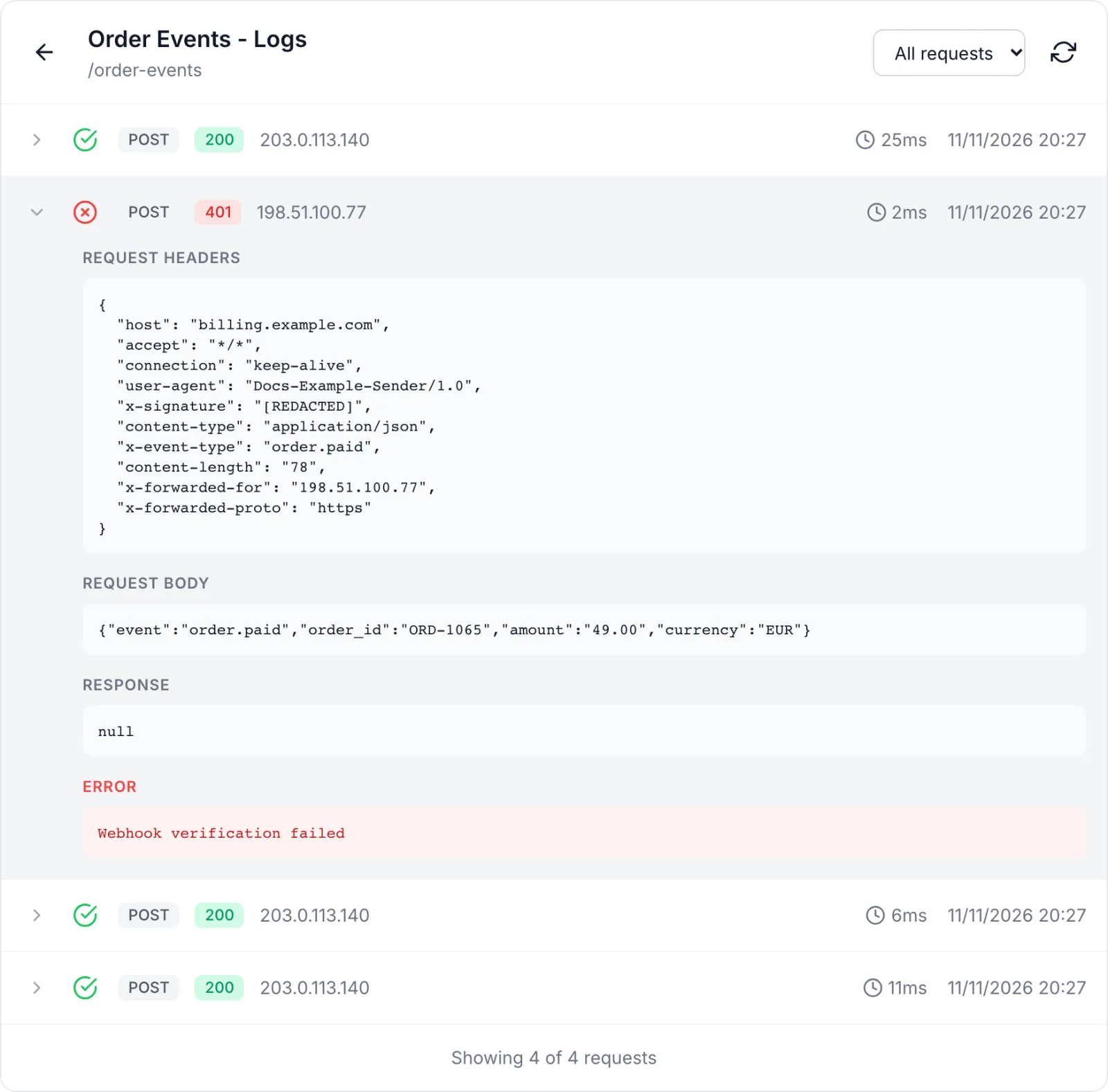
[REDACTED] and the error reads Webhook verification failed.Troubleshooting
- The service reports 404 and nothing appears in the log. The request did not match an enabled endpoint. Check that the address is exactly the copied one, that the endpoint shows Enabled, and that the plugin's status is Active. Requests that answer 404 are not logged, because no endpoint matched them.
- “Webhook verification failed” (401). The signature or token did not match. Compare the secret with the one in the service's dashboard, and if you clicked Regenerate, make sure the service has the new value. For HMAC-SHA256 and HMAC-SHA1, check the header name and prefix against what the service sends. The header is visible in the log entry, but its value is redacted. For Timestamped HMAC v1, check that the plugin's config field named in Secret Config Field holds the secret, and that the panel's clock is within Tolerance (seconds) of the sender's. For HMAC Body Field or HMAC Header on a plugin that is not a payment gateway, switch to a supported type.
- The service gets 200 but nothing happens. Check Execute Flow on the card. With no flow, or with the flow switched off, the endpoint answers 200 without doing anything (payment gateway plugins excepted).
- The service gets 500 or 503. The flow failed. Expand the log entry: Error holds the failing node's message, and the Flow Execution: ID leads to the run in the flow's History. Fix the flow. The service's own retry will deliver the event again.
- 400 “Unknown gateway” or “Gateway is disabled” on a payment gateway plugin. No payment gateway is set up for the plugin, or it is switched off. Finish setting up the gateway in Payment Gateways, or switch it on.
- 400 on every delivery to a payment gateway's endpoint. Check its Verification Type: HMAC-SHA256, HMAC-SHA1 and the token types are rejected on the payment endpoint. Check that the secret on the plugin's Config tab matches the one in the provider's dashboard. If the type of an HMAC Header or HMAC Body Field endpoint was changed, the package's settings cannot be restored from the endpoint dialog. The log entry's Error shows the reason.
- “Request failed” when you click Create. The most common cause is a slug that another endpoint of the same plugin already uses. Pick a different slug.
- “No webhook handler flows found. Create one first.” Add a flow of type Webhook Handler on the Flows tab, then edit the endpoint and pick it.
Related articles
- Building Flows: flow types, the canvas and execution history.
- Node Reference: the End node's status code and the Crypto node.
- Capabilities and Flow Contracts: what a payment gateway's webhook flow must return.
- Configuration Settings: the Config tab that holds a Timestamped HMAC secret.
- Webhooks: the separate, outbound webhooks your panel sends to reseller partners.