
Stored VPS Images: Customer Captures, Pricing and Cleanup
Let customers capture a VPS into a reusable image, price the storage per GB, see what each node holds and delete or reclaim image files.
Stored images are copies of customer servers that your customers capture themselves and reuse to build new servers. A customer sets up one VPS the way they want it, captures it, and every new server they order from that image starts already configured. Each image is a file on the node that holds the VPS it was taken from, so it uses your disk space. This page explains how to switch the feature on, price it, see what your nodes are holding under VPS → Images, and remove images you no longer want to store.
This feature applies to VPS servers built by the FluxBilling VPS module. The customer's side of it (capturing a server and ordering from an image) is covered in Server images.
What you need
- The VPS module switched on in Settings → the features list.
- The View VPS Clusters permission to open the page, and Edit VPS Clusters to change the settings, delete an image or start a reclaim.
- Capture as image switched on under VPS → Settings (see below). Until then, customers cannot capture anything.
Switch it on and set the price
Open VPS → Settings. The first group, What customers may do, has three rows for images. They apply to every VPS on this panel.
| Row | What it does |
|---|---|
| Capture as image | Lets a customer capture a VPS they have set up into a reusable image and deploy new servers from it. While it is off, every capture is refused, from the client area and from the API. Images that already exist are kept and can still be deleted. |
| Image storage, per GB/month | The monthly price per GB, in your base currency. Each customer is charged in their own currency, converted at your stored exchange rate. The price applies to the server disk the image was captured from, not to the compressed file. 0 stores images without charging for them. |
| Images per customer | How many captured images one customer may keep, from 1 to 100. Once a customer holds that many, a new capture is refused. Failed captures do not count toward the limit. |
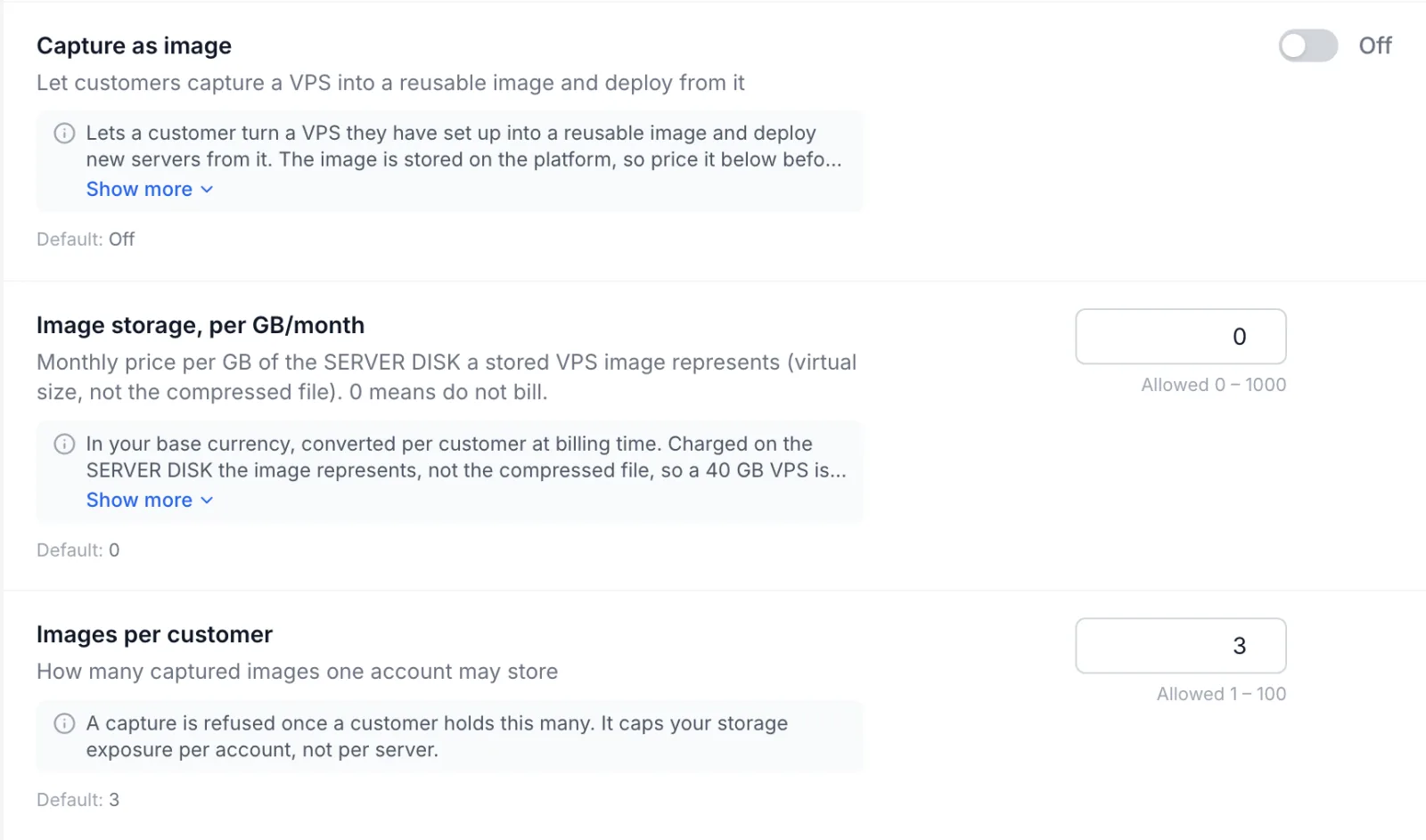
Set the price before you switch capture on, then save the changes.
Per product. Each VPS product also has a Server images switch in its Client controls card. Both must allow it: a product with Server images off refuses captures even while Capture as image is on. See Product client controls.
Capture is not offered on a VPS that runs on hardware borrowed from a linked panel unless the owner of that hardware has granted full management, or on a VPS whose node is frozen.
What the customer sees
When images are allowed, the customer's VPS page has a Server images card with a Capture this server button. The customer enters a Name (up to 120 characters, unique among their images) and an optional description. The capture dialog warns them that the copy includes everything on the disk, such as SSH keys, logs and shell history. The VPS keeps running while it is captured.
The customer manages their images under Settings → Server images in the client area, even after the server they captured is gone. To use an image, they order a new VPS and pick it under Your images instead of an operating system. Full details: Server images.
The Stored Images page
Open VPS in the admin panel and select Images in the tab strip, right after Panel Links. The page lists every image stored on your nodes: images your own customers captured, and images that a linked panel captured on your hardware for its own customers.
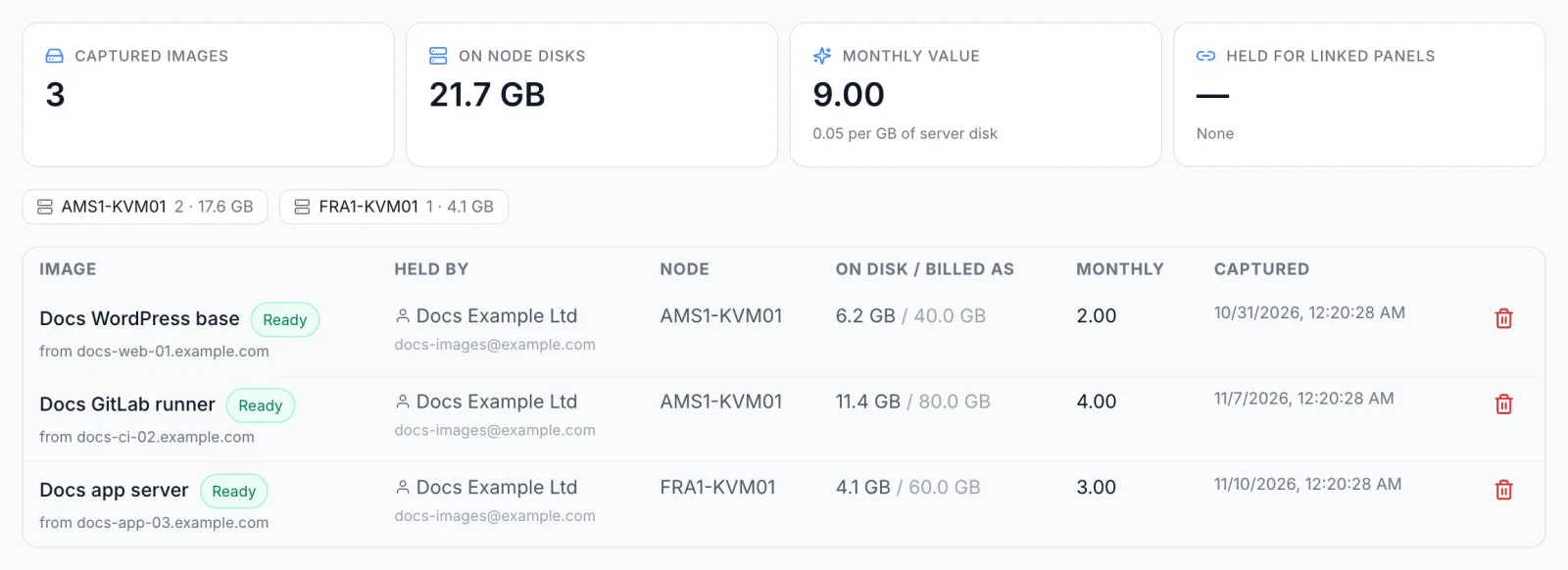
Summary tiles
| Tile | Shows |
|---|---|
| Captured images | How many captured images exist, in every status. |
| On node disks | The space the image files actually take on your nodes. |
| Monthly value | What all captured images are worth per month at the current price, in your base currency. Underneath it shows the price (… per GB of server disk), or Not priced — storage is free when the price is 0. |
| Held for linked panels | Space used by images that linked panels hold on your hardware. Underneath, it shows their count and monthly value invoiced to the account on the link or, if any are on a link with no billing account, the count and monthly value of those uninvoiced images. It reads None when there are none (see Images held for linked panels). |
Below the tiles, one chip per node shows how many images it holds and how much space they take. Click a node name to open that node.
Image table
| Column | Shows |
|---|---|
| Image | The name the customer gave it, a status badge (Ready, Capturing or Failed), the server it was taken from (from …) and, for a failed capture, the reason. An image the customer registered from their own download address through the API is tagged customer-hosted URL; it is not counted in the totals and is never charged for. |
| Held by | The customer's name and email, or the linked panel's name. For a linked panel it also shows invoiced to … or no billing account on this link — not invoiced. |
| Node | The node that stores the file. If that node has been removed, the row says node gone — undeployable. |
| On disk / billed as | The size of the file, then the size of the server disk it was captured from. The second figure is the one that is charged. |
| Monthly | What this image is worth per month at the current price. It is shown in amber when nobody is invoiced for it. |
| Captured | When the capture was started. |
Use the refresh button next to Reclaim orphans to reload the list.
How storage is charged
Charging starts when an image becomes Ready, not when the capture is started. Images that are still capturing, or that failed, are never charged. A daily task adds up what each image owes, prorated by the day: a month counts as 30 days, so an image kept for ten days costs a third of the monthly price.
The amount is the price per GB times the size of the server disk the image was taken from. A 40 GB VPS captured into a 6 GB file is charged as 40 GB.
Which document the customer gets follows your billing settings in Settings → Billing:
- Monthly Summary Invoices on: the charge is taken from the customer's credit as it accrues, like an hourly service, and appears on the monthly summary. A customer without enough credit is not suspended; the charge waits for credit. If the credit has not covered it for more than a month, it is invoiced as below instead.
- Otherwise, one invoice per customer and currency for each calendar month, raised after the month ends. If Default Document Type is Proforma First, a proforma is raised instead.
Each line reads Image storage — <image name> (<size> GB disk, <days> days), so the customer can see what they are paying for. Amounts below one cent are carried over to the next run rather than dropped. A customer whose currency has no exchange rate is skipped until a rate exists.
When an image is deleted, by the customer or by you, the days it has not yet been charged for are billed straight away. The customer pays only for the days the image existed.
Images held for linked panels
A linked panel that builds servers on your hardware can let its customers capture images too. Those images are stored on your nodes, but their owners are the other panel's customers, not yours. To charge for them, choose one of your own clients to invoice:
- Open VPS → Panel Links.
- On the link's card, click Set billing account (or Billing account if one is already set).
- Enter the Client email of a client of this panel and save.
From then on, that panel's image storage is invoiced to that client, in the document type your billing settings produce, with held for <panel name> in each line. Stop invoicing removes the billing account. Without one, the storage is still counted and shown on the Images page, but nobody is invoiced; settle it with the other panel yourself.
Delete an image
You can delete any image, whoever holds it. This frees the space on the node.
- On the image's row, click the bin icon (Delete this image).
- Read the confirmation and click Delete this image.
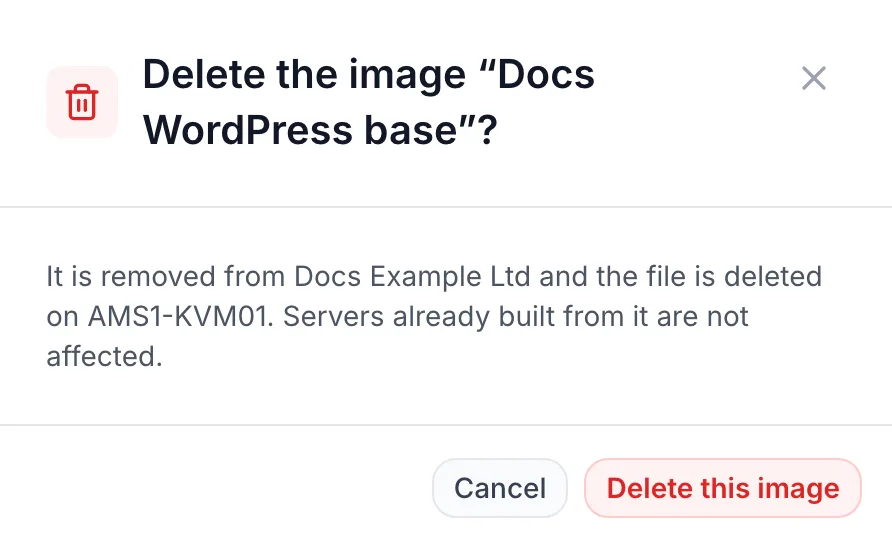
The image disappears from the customer's list, the node is told to delete the file, and any unbilled days are charged. Servers already built from the image keep running. The success message reads Image removed — the node was told to delete the file.
You can also delete an image that is still capturing. The dialog then warns: This image is still being captured. Deleting it now abandons the job that is writing it. Customers cannot delete an image while its capture is still running.
Tell the customer first. Deleting cannot be undone, and the customer cannot order new servers from the image afterwards.
Reclaim orphaned files
An image file can stay on a node after its record is gone, for example when the node was offline at the moment an image was deleted. FluxBilling sweeps each node automatically at most once a day and deletes image files it has no record of. Files of images that are capturing or failed are kept.
To run a sweep now, click Reclaim orphans at the top of the page. The button asks one node now and names it in the message: Reclaim queued on <node> — it drops image files this panel has no record of. If no node can be swept, it reads No node to sweep right now. The automatic daily sweep still covers every node.
Limits
- An image stays on one node. It is never copied to another node, so every server ordered from it is built on the node that holds it, in that location. If that node has no room for the plan the customer orders, the order is refused.
- The plan's disk must be large enough. A server can only be built from an image onto a plan whose disk is at least the size of the disk the image was captured from.
- The VPS must be running or stopped to be captured. A server in any other state, for example one that is still being built or is being deleted, cannot be captured.
- If the node is removed, its images cannot be deployed any more. The customer has to capture the server again on a node that exists.
- Images per customer are capped by Images per customer. An account can register an image from its own download address through the API only while it holds fewer than 25 images in total; such images are not charged for.
Troubleshooting
These are the messages customers (or you, through the API) see, and what they mean.
| Message | Cause and fix |
|---|---|
| Capturing a VPS into an image is not enabled on this platform. | Capture as image is off in VPS settings. Switch it on if you want to offer images. |
| "<product>" does not offer server images. | The product's Server images client control is off. |
| You can store <n> images. Delete one before capturing another. | The customer has reached Images per customer. They delete an image, or you raise the limit. |
| You already have an image named "<name>" | Image names are unique per customer. Use another name. |
| This VPS is <status> — capture it when it is running or stopped. | The server is not running or stopped. Wait until it is. |
| This VPS has no domain on its node yet — capture it once it has been built. | The server has not been built on its node yet. Try again when the build has finished. |
| This image is still being captured. Wait for it to finish, then delete it. | A customer tried to delete an image whose capture is still running. You can delete it from the Images page if it must go now. |
| Image "<name>" is still being captured. Order it once it is ready. | The customer ordered from an image that is not ready yet. |
| Image "<name>" needs a <n> GB disk and "<product>" provides <n> GB. Order a plan with a disk at least that large. | The chosen plan's disk is smaller than the captured server's disk. |
| Image "<name>" is stored on <node>, and a captured image can only be deployed on the node that stores it — which cannot take this server right now: … | The node holding the image is full for this plan. Free capacity on that node, or the customer orders a smaller plan or captures the image again on a node with room. |
| Image "<name>" is no longer tied to a live node and cannot be deployed. Capture it again. | The node that held the image was removed. |
| Image "<name>" failed to capture and cannot be deployed. | The capture failed. The reason is shown under the image's name on the Images page. The customer deletes the failed image and captures again. |
A capture stays Capturing while the node copies the disk; large disks take longer. If the node never reports back, the capture is marked Failed once its job times out, with the reason shown under the image's name, and the customer can then delete it.
If the price you see on invoices looks ten times too high, check that you priced per GB of server disk: a captured server is charged on its full disk size, not on the much smaller file.