
Webuzo hosting accounts
Sell Webuzo hosting and reseller accounts: API key, plugin settings, products, one-click logins, mail, database, domain, SSL, PHP and FTP management, plan changes and error messages.
The Webuzo plugin connects FluxBilling to the API of your Webuzo server, so you can sell Webuzo hosting and reseller accounts as FluxBilling products. FluxBilling takes the order, sends the invoice and collects the payment. When the invoice is paid, the plugin creates the account in Webuzo on the product's plan. In the FluxBilling client area the customer opens Webuzo with a one-time login link and manages mail, databases, domains, SSL, PHP and FTP. The plugin is free and is listed in the plugin marketplace of every FluxBilling panel. Your Webuzo installation and licence stay as they are.
This guide covers plugin version 1.1.0, which needs FluxBilling 0.0.1572 or newer. It walks through the setup in the order you do it, then explains what happens to an account over its life and what to check when something does not work.
Who supports this integration. The plugin is built and maintained by FluxBilling. If something does not work, contact FluxBilling support at contact@fluxbilling.app or through fluxbilling.app/contact. Questions about Webuzo itself, its licence or its servers go to Webuzo support.
What you need before you start
- FluxBilling 0.0.1572 or newer.
- Webuzo 4, the multi-user edition, on the server you want to sell from. The older single-user Webuzo 2 and 3 are not supported; Test Connection tells you when the server runs one of them.
- At least one hosting plan in Webuzo (Plans → Add Plan). The plan sets the disk, bandwidth, mailboxes, databases and features of the account. Webuzo explains plans on its List Plans page.
- For reseller products: optionally a reseller privileges plan (Resellers → Reseller Privileges Plans), see Webuzo's Reseller Privilege Plan guide.
- For dedicated IP addresses: free IPv4 addresses on the server that are not marked as shared and not locked (Networking → List IPs, see List IPs).
- Network access from your FluxBilling panel to the Webuzo admin panel port (2005 unless you changed it) and the user panel port (2003). The service page's management features use the user panel port too. Your customers' browsers also need to reach the user panel, because the login links open there. Resellers sign in on the admin panel port.
Step 1: Create an API key in Webuzo
The plugin signs every request with a Webuzo API key and the user that owns it. We recommend a separate key for FluxBilling: you can bind it to your FluxBilling panel's address and revoke it without changing a password.
- In the Webuzo admin panel, open Settings → API Keys and click Add New.
- Under Allow IP Addresses, enter the public IP address your FluxBilling panel connects from. If you leave it empty, the key works from any address. Ask FluxBilling support if you are not sure which address to enter.
- Under Allowed Acts, tick All Acts. The plugin creates, edits, suspends and deletes accounts, reads plans and IP addresses, makes login links and manages the account's mail, databases, domains, SSL, PHP and FTP, so a key limited to a few acts makes some of these fail.
- Save the key and copy it.
Webuzo documents this screen on its API Keys page, and the two ways to sign in to its API (API key, or user name and password) under Admin Authentication.
You can use the root password instead of a key (see Sign in with password below). To sell from a Webuzo reseller's account rather than as root, use that reseller's user name and its key or password.
| Act | Used for |
|---|---|
plans, reseller_plans, ips | Filling the plan, privileges plan and shared IPv4 lists in the product editor, and choosing a dedicated IP |
add_user | Creating the account, and editing it for password and plan changes (Add User) |
users | Reading the account, its status and usage (List Users), suspending, unsuspending and deleting it (Delete User) |
reseller_privileges | Giving a reseller account its privileges plan |
sso | The one-time login links into the customer's Webuzo panel (Single Sign On) |
email_account, add_email_account, email_forward, dbmanage, domainmanage, domainadd, acme, multi_php, ftp, ftp_account, editftp | The management pages of the service page, run as the customer's own account |
Step 2: Install the plugin
- In the FluxBilling admin panel, open Settings (the gear icon in the top bar).
- Under Integrations, open Marketplace. Stay on the Browse tab.
- Open the Webuzo Provider card and click Get for Free.
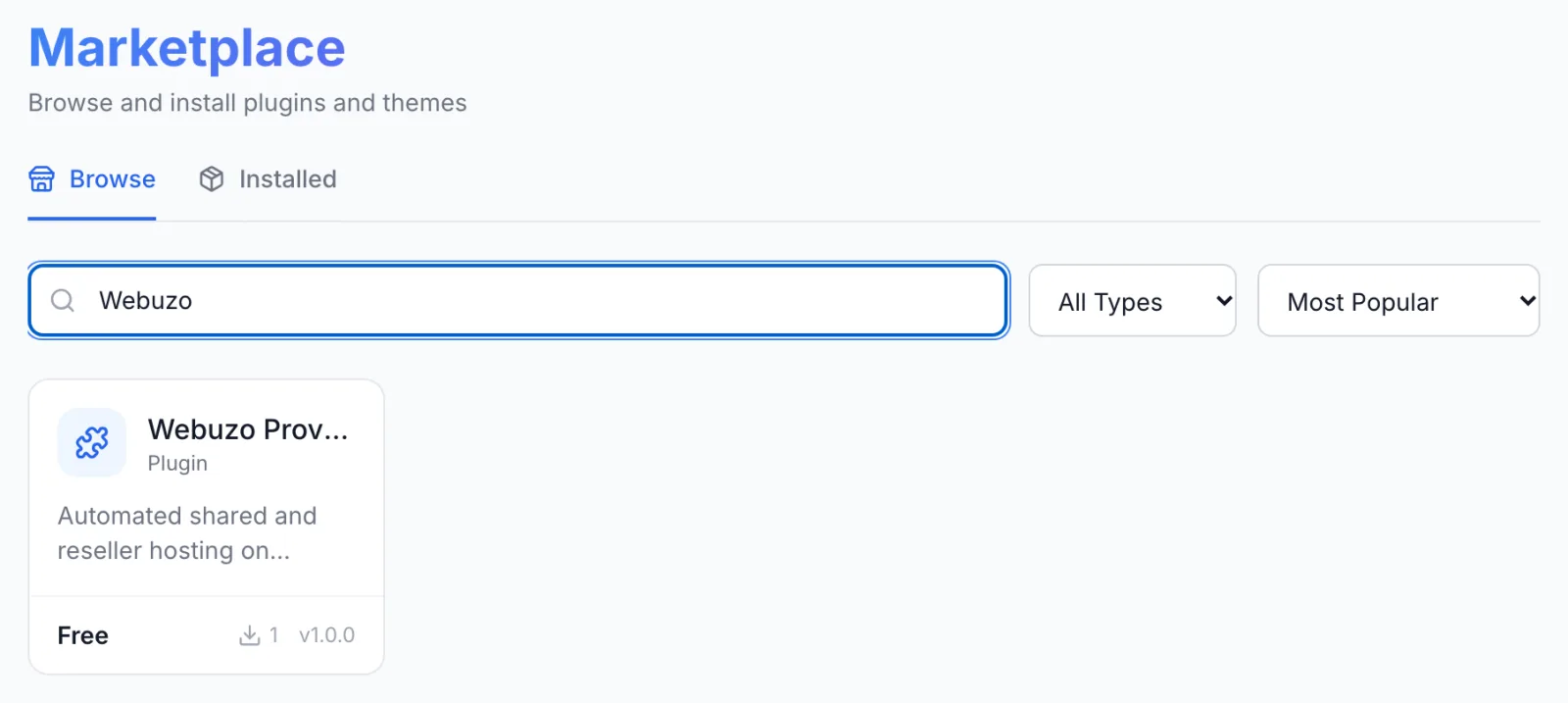
FluxBilling confirms with Plugin "Webuzo Provider" installed and ready to use. The plugin is switched on straight away and appears under Settings → Integrations → Plugins as Webuzo Provider, marked Active.
Step 3: Connect it to Webuzo
- Open Settings → Integrations → Plugins.
- On the Webuzo Provider card, click Configure.
- Fill in the fields below and click Save Configuration.
| Field | What to enter |
|---|---|
| Server Hostname (required) | The host name or IPv4 address of the Webuzo server, without https://, a port or a path, for example webuzo.example.com. Use the host name the panel's certificate is issued for: the reseller panel link and, when Webuzo returns no full link, the login links are built from it. |
| Admin Port (required) | The HTTPS port of the Webuzo admin panel. 2005 unless you added custom ports. |
| User Panel Port (required) | The HTTPS port of the Webuzo user panel. 2003 unless you added custom ports. Login links and the management pages use it. |
| API User (required) | root, or the user name of a Webuzo reseller to sell from that reseller's account. A reseller's requests go through the reseller panel on the user panel port. |
| API Key | The key from step 1. Needed unless you sign in with the password. |
| Sign in with password | Tick Use the API user's password instead of an API key to sign in with a password. The Password field then appears; enter the API user's password there. |
| Public Panel URL | Where customers reach the Webuzo user panel, for example https://webuzo.example.com:2003. Login links are moved onto this address, and the welcome email names it. Leave it empty to use https:// + Server Hostname + User Panel Port. |
| Default Plan | The slug of a Webuzo plan, used when a product has no plan selected. |
| Webuzo welcome email | Tick Let Webuzo email new accounts their details too to have Webuzo send its own welcome email as well. Left unticked, Webuzo is told not to email; FluxBilling's welcome email goes out either way. |
| Delete a reseller's accounts | Ticked (Terminating a reseller also deletes every account it owns): terminating a reseller service deletes the reseller and the accounts it created. Unticked: only the reseller's own account is deleted and the accounts it created stay on the server. |
The API key and password are stored encrypted. FluxBilling shows Configuration saved successfully when the settings are saved. If a required field is missing or a value does not match its format (for example a host name with https://), it saves the form but tells you the plugin is not configured until you fix the field it names.
Test the connection. On Settings → Integrations → Plugins, click the Webuzo Provider card itself, switch to the Connections tab and click the test button (Test connection) next to any connection. The plugin asks Webuzo for its version with your API user and key (or password) and checks that the user panel port answers; the result is the same as the staff Test Connection (see What your staff see). A wrong key or port fails with one of the messages under Troubleshooting.
Step 4: Create a category for your Webuzo products
In FluxBilling, the category decides how its products are delivered. Every product in the category is built by the plugin you choose here.
- Open Products, switch to the Categories tab and click Add Category.
- When FluxBilling asks What does this category sell?, choose Plugins. Do not choose Web hosting: that type is FluxBilling's own web hosting on your own web nodes, not Webuzo.
- Enter a Name. The URL slug fills in by itself.
- Under How paid orders are fulfilled, click Webuzo Provider.
- Under Availability, choose Live to show the category on the order page, or Unlisted while you test.
- Click Create Category.
Step 5: Create a product for each Webuzo plan
- On the Products tab, click Add Product and choose the category from step 4.
- On General, enter the product name and description your customers will see.
- On Configuration, fill in the Webuzo fields described below.
- On Pricing, set the price. Prices, billing cycles, taxes and add-ons all live in FluxBilling. The account's limits come from the Webuzo plan.
- Click Create Product.
| Field | What it does |
|---|---|
| Account Type (required) | Hosting account: one Webuzo account per service. Reseller account: the account is made a Webuzo reseller and can create its own accounts. |
| Plan | The Webuzo plan the account is created on, read live from Webuzo. When empty, the plugin's Default Plan is used. Set it on every product you want to offer upgrades between: a plan change needs the plan on the new product. |
| Reseller Privileges Plan | Shown when Account Type is Reseller account. When empty, the privileges plan attached to the hosting plan is used, otherwise Webuzo's default reseller privileges. |
| IPv4 Address | Shared, or Dedicated (a free non-shared IP per account). |
| Shared IPv4 | Shown unless IPv4 Address is Dedicated: which of the server's shared IPv4 addresses to use. When empty, Webuzo uses its default IP. |
With Dedicated, the plugin picks the first IPv4 address on the server that is not shared, not locked and not used by any account. If there is none, the order stops before anything is created (see Troubleshooting).
Optional: let customers buy a dedicated IP
To offer a dedicated IP as an add-on on a shared product, create an option with the slug the plugin reads.
- Open Products, switch to the Options tab and click Add Option.
- Enter an Option Name such as Dedicated IP.
- Under Slug, choose dedicated_ip — Webuzo Provider. A different slug is not seen by the plugin.
- Leave Spec Service on None (billing only) and set the price.
- If you switch on Configurable Options, the choice whose Value is
yesgives a dedicated IP and a choice with the valuenodoes not. An add-on without choices gives a dedicated IP whenever it is ordered. - Click Create, then attach the option on each product's Pricing tab under Plugin expects these options.
That list also shows domain. You do not need an add-on for it: the order form asks every customer for the domain.
The dedicated IP is chosen when the account is built. The plugin does not move an existing account to another IP, so customers cannot add or cancel the add-on later: the service page asks them to open a ticket. If you change it from the admin panel, FluxBilling bills the new choice and adds a pending task under Automations as a reminder; change the account's IP in Webuzo yourself.
Step 6: Place a test order
Place an order for each product before you sell it, for example from a test client account. The order form asks for one thing besides the billing cycle and add-ons: the Domain Name, The main domain of the hosting account, without www.
The domain must look like example.com. Otherwise the form shows Enter a domain such as example.com — no www., spaces or slashes (internationalised names in their xn-- form). The plugin hosts the domain the customer enters; it does not register it.
What happens when the invoice is paid
With Auto Provisioning switched on (see Billing lifecycle), FluxBilling starts the build as soon as the invoice is paid:
- The username. The plugin takes up to four letters and digits from the first part of the domain (the word test and leading digits are left out) and adds six characters that identify the service.
shop.example.combecomes for exampleshopb3964f. - The IP address. For dedicated-IP products and orders with the dedicated IP add-on, it picks a free dedicated IPv4. For a product with a Shared IPv4 set, it checks that the address belongs to the server.
- The account. It asks Webuzo to create the account with the domain, the username, a password FluxBilling generates (16 characters), the customer's email address and the product's plan. For a reseller product, the account is created as a reseller and then gets its privileges plan.
- Hand-over. FluxBilling saves the username, password and IP address on the service and marks it Active. With the default email templates, the customer gets the Hosting Account Ready email with the domain, the IP address, the control panel address, the username and the password.
A retried build is safe. If an earlier attempt already created the account, the plugin finds it, gives it the new password and carries on, instead of creating a second account. Every hour FluxBilling also reads the account's IP address and main domain back from Webuzo and updates the service.
What your customers can do
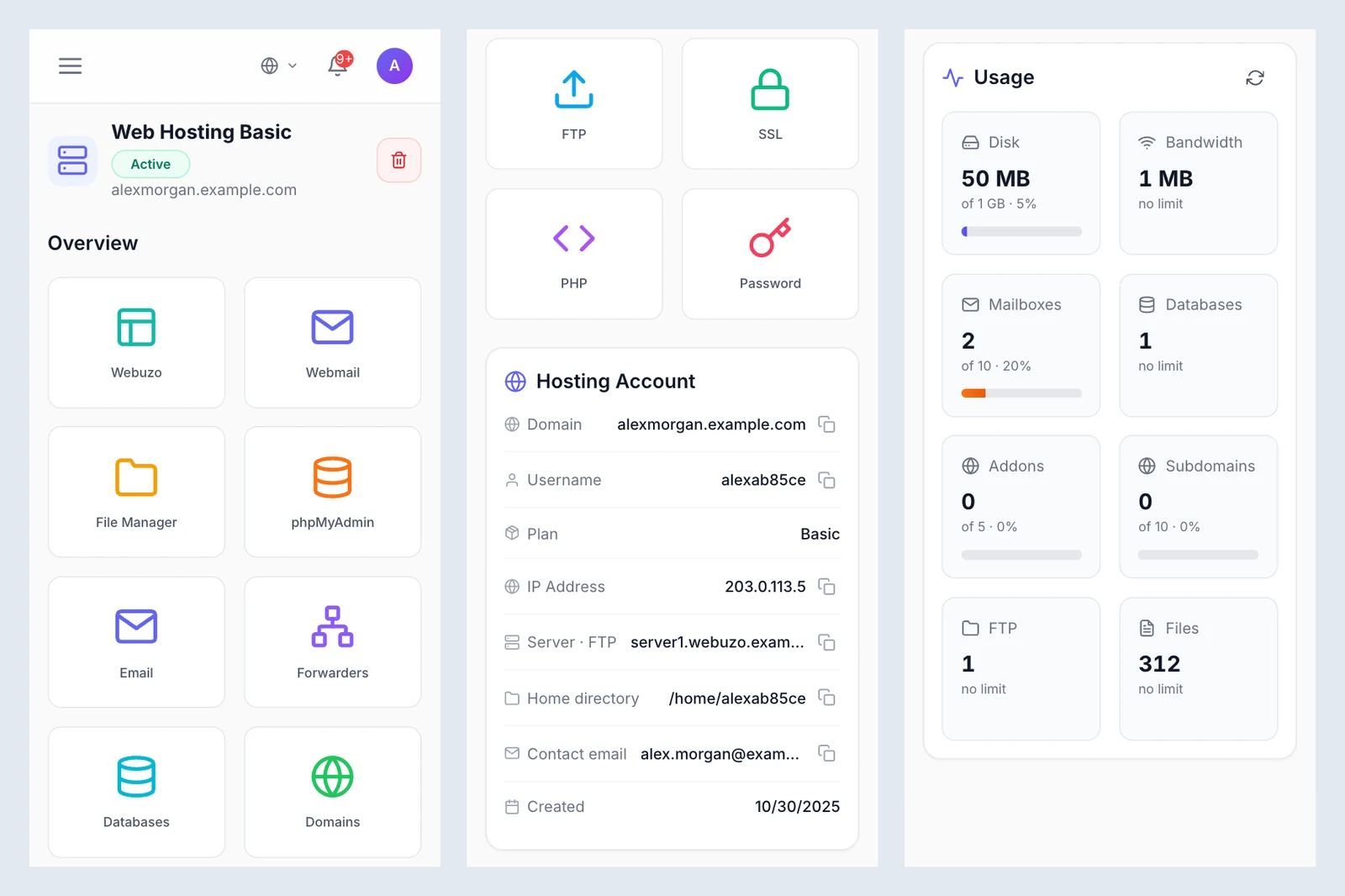
In the client area, the customer opens the service. The Overview starts with a grid of tiles:
- Webuzo, Webmail, File Manager and phpMyAdmin open the customer's Webuzo panel in a new tab through a one-time login link, on that page. No password is typed.
- Email, Forwarders, Databases, Domains, FTP, SSL and PHP open the management pages below. A breadcrumb leads back to Overview.
- Password opens Change Password: "Sets a new password for your Webuzo login, FTP and SSH." The New Password needs at least 8 characters with upper and lower case letters, a digit and a symbol. Webuzo's own password strength setting also applies.
Below the tiles:
- Hosting Account: Domain, Username, Plan, IP Address, IPv6 Address (when there is one), Server · FTP (the panel's host name), Home directory, Contact email and Created, read live from Webuzo, most with a copy button.
- Usage: eight meters against the plan's limits, refreshed every minute: Disk, Bandwidth (this month), Mailboxes, Databases, Addons, Subdomains, FTP and Files.
- Reseller Panel: reseller accounts only. Opens the Webuzo admin panel port on the Public Panel URL host (or the Server Hostname when that is empty), where the reseller signs in with the username and password.
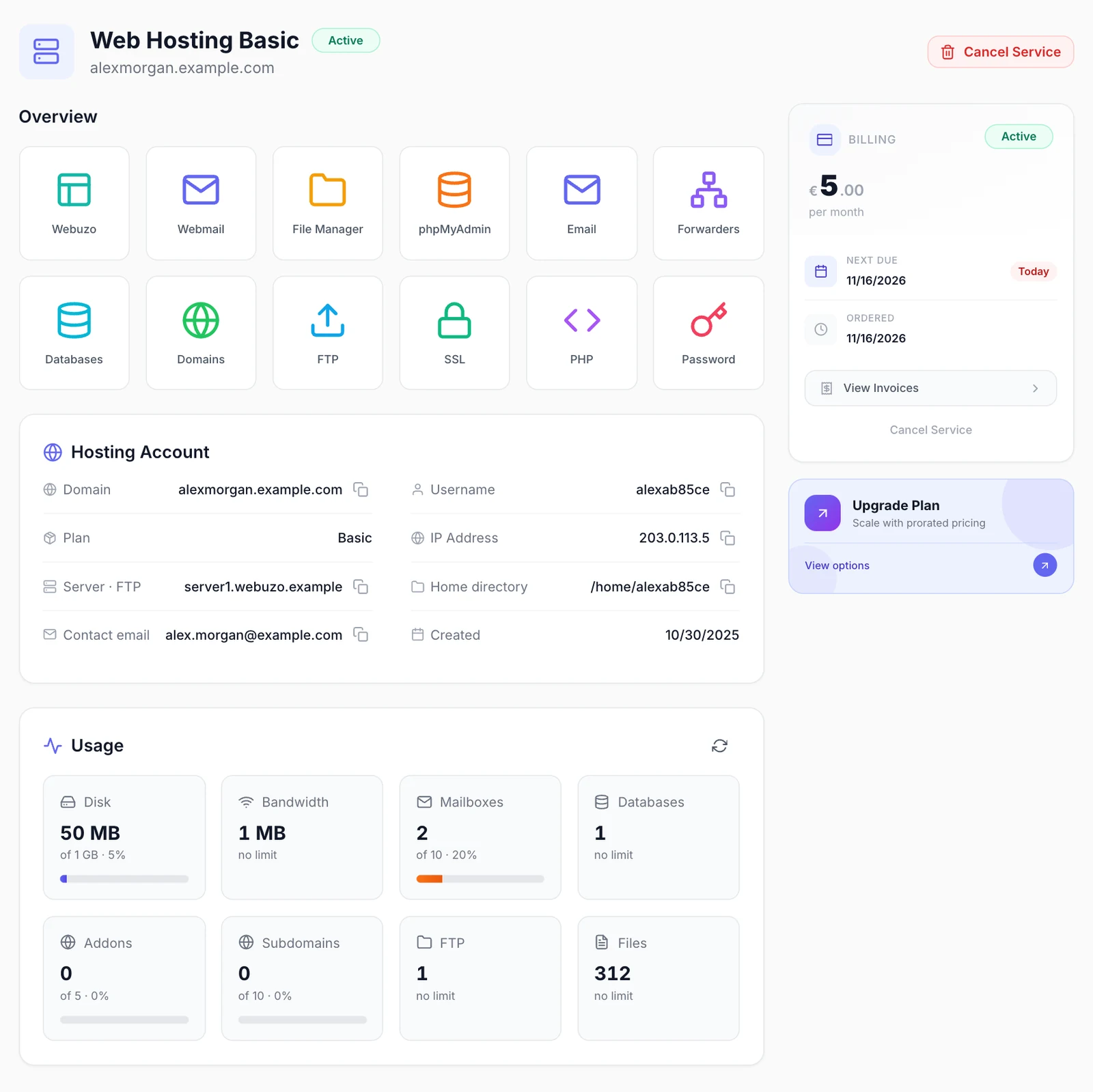
Each management page is one list with its buttons in the header. The row menu holds Delete (Remove for domains), which asks for confirmation. Everything works on the service's own Webuzo account. In New Mailbox, New Forwarder and New FTP Account, an empty Domain means the main domain. Passwords set here follow the same rule as the account password.
| Page | What the customer can do |
|---|---|
| Email Accounts | See each mailbox with used space and quota. New Mailbox (name, domain, password, Quota (MB, 0 = unlimited)), Password, Quota. Deleting a mailbox deletes its mail. |
| Forwarders | See each forwarder and its destination. New Forwarder forwards an Address to one Forward to address. |
| Databases | See databases with size and users. New Database creates a database and a user with all privileges on it. phpMyAdmin opens phpMyAdmin through a login link. |
| Domains | See the main domain, addon domains, subdomains and aliases with their document root. Add Domain: Addon domain (own website), Subdomain (one label such as blog, under the main domain) or Alias (parked). A free SSL certificate is requested for the new domain once it points at the server. Removing a domain keeps its files; the main domain stays. |
| SSL Certificates | See whether each domain's certificate is Installed or None. Issue Certificate requests a free Let's Encrypt certificate for one domain, which must already point at the server. |
| PHP Versions | See each domain's PHP version. Change PHP sets one domain's version from those the server offers. |
| FTP Accounts | See logins with directory, used space and quota. New FTP Account (login, domain, directory, password, quota) and Password. Deleting keeps the files; the main FTP login is the account itself and stays. |
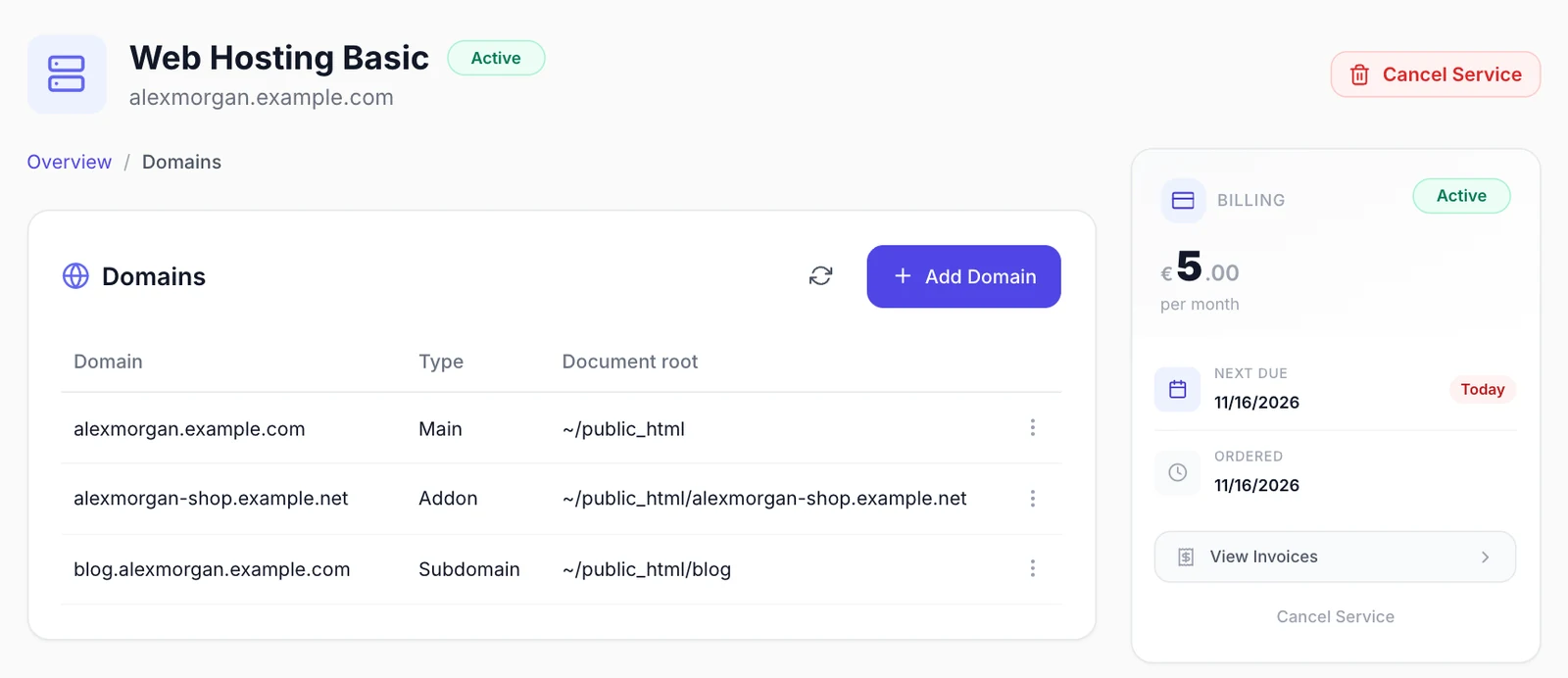
While a service is suspended, these controls and figures are hidden, and the customer sees a Service Suspended notice with the reason.
What your staff see
In the admin panel, the service page shows Account credentials: Show account password reads the stored Webuzo password for staff who may edit services, and Every reveal is recorded against your account. Below it, Provider Controls holds these Account Actions:
- Log in to Webuzo and File Manager: the same one-time login links the customer gets.
- Change Plan: moves the account to another Webuzo plan you pick from the list. As the dialog says, this changes the plan in Webuzo only; billing does not change. Use an upgrade to change what the client pays.
- Change Password: sets a new password for the account's Webuzo login, FTP and SSH.
- Issue SSL: requests a Let's Encrypt certificate for one domain of the account.
- Test Connection: checks the admin port and the Webuzo version, and whether the user panel port answers. A good result reads Connected — Webuzo 4.8.8. Login links and password changes: port 2003 answers. (with your version and port).
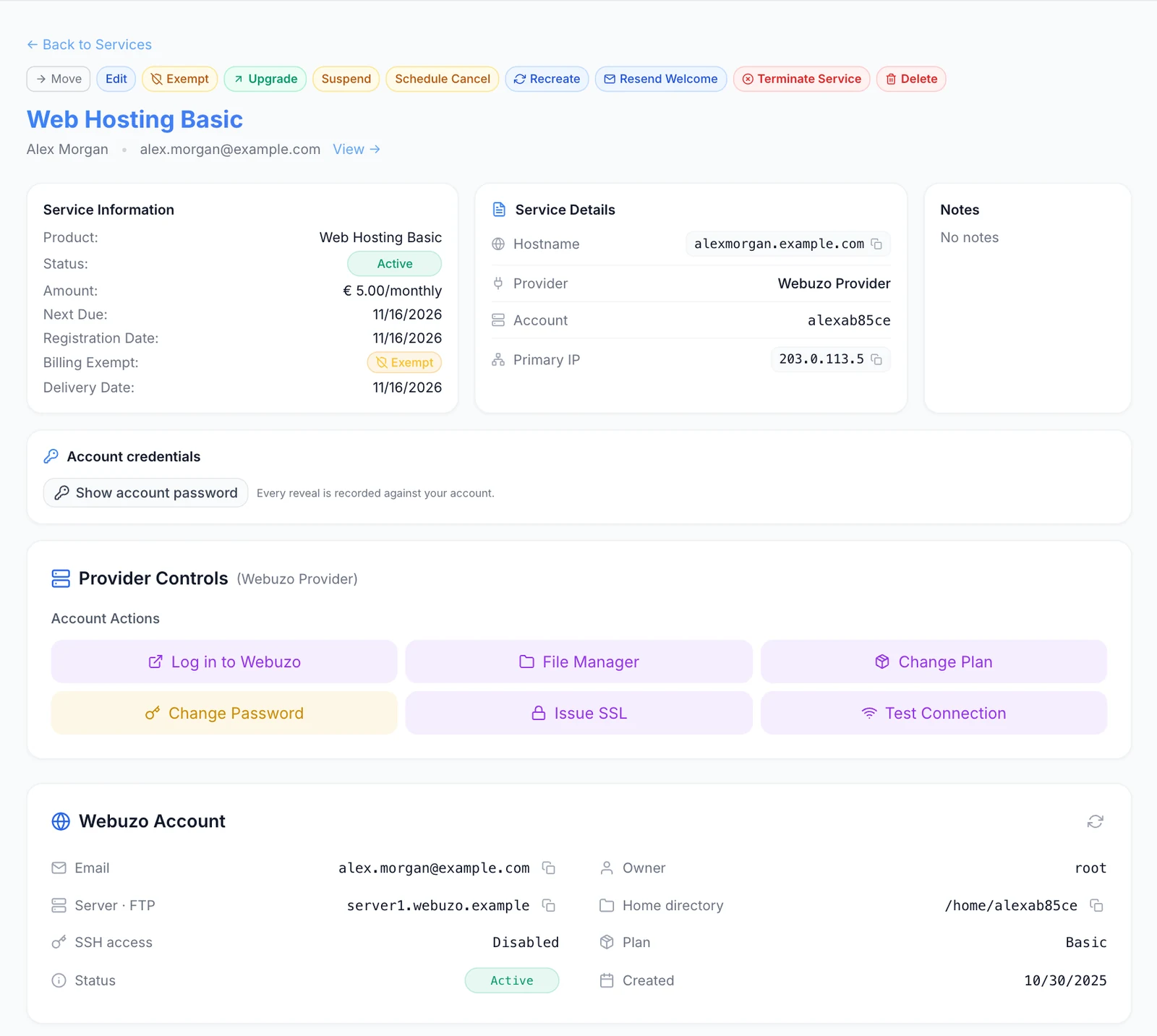
Further down, the Webuzo Account card shows the account's email, owner, IPv6 address, Server · FTP, home directory, SSH access, plan, status and creation date (the values already in Service Details are not repeated), and Usage shows the eight meters, refreshed every 30 seconds. The lists Email Accounts and Databases have a Delete button on each row; Domains (with PHP version and SSL) and FTP Accounts are read-only.
Billing lifecycle
The invoice drives the account. The rules are set under Settings → Billing → Automation:
- Auto Provisioning: creates the account when the first invoice is paid. When it is off, the paid service waits as Pending until staff provision it.
- Auto Suspension with Suspension Grace: an invoice still unpaid that many days after its due date suspends the account in Webuzo, with the suspension reason. An account that is already suspended in Webuzo counts as done.
- Paying the overdue invoice unsuspends the account automatically, once no earlier renewal invoice for that service is still unpaid. A suspension for abuse is not lifted by a payment.
- Auto Termination with Termination Grace: an account still suspended for non-payment that many days later is terminated.
Terminating a service deletes the Webuzo account with its websites, mail and databases. For a reseller, the accounts it created go too while Delete a reseller's accounts is ticked. This happens when auto termination runs, when a customer's cancellation takes effect, or when staff terminate the service. It cannot be undone. Webuzo finishes the deletion in the background. Check the Termination Grace before you go live.
Plan changes
Customers can only move between products you link on the product's Upgrade Paths tab. When an upgrade or downgrade between two Webuzo products is paid, the plugin moves the account to the new product's Webuzo plan. The account keeps its IP address, owner and reseller status. For a reseller product with a Reseller Privileges Plan, the new privileges plan is applied too.
- Link hosting products with hosting products and reseller products with reseller products. A hosting account cannot be turned into a reseller account or back; the customer orders a new service instead.
- The new product needs a Plan of its own; the plugin's Default Plan is not used for plan changes.
- If Webuzo refuses, the upgrade is marked as failed and the service keeps its current product. Try an upgrade on a test account before you offer upgrades to customers.
Updating the plugin
Open Settings → Integrations → Marketplace, switch to Installed and click Check for Updates. When a new version is available, click Update to v…. Your connection settings and products are kept.
Troubleshooting
When a build fails, the service stays Pending. The error appears in the Automations menu in the top bar of the admin panel, as Provision via Webuzo Provider with the reason in red and a retry button. FluxBilling tries a failed build again by itself, up to two more times over the next minutes. After that, fix the cause and click Retry Provisioning on the service. A build started this way does not email the customer, so use Resend Welcome on the service page once it has worked.
| Message or symptom | What to check |
|---|---|
| The Plan list in the product editor stays empty | FluxBilling cannot read from Webuzo. Check the settings from step 3, the key's IP restriction and any firewall between FluxBilling and the Webuzo ports. |
| Webuzo API not reachable: … — check the hostname and that port … is open to this billing server | FluxBilling could not connect. Check Server Hostname, the port, and that your firewall lets your FluxBilling panel reach it. |
| Webuzo answered with a web page instead of the API — check the port, and the API user and key (or password) | Usually a wrong port, or credentials Webuzo does not accept, so it shows its login page. Check Admin Port, User Panel Port, API User and the key or password. |
| Webuzo: … — check the API user and key in the plugin settings | Webuzo refused the credentials. Check the API user, the key and the key's allowed IP addresses. |
| Webuzo: … — the API key must allow this act (Webuzo › Settings › API Keys › All Acts) | The key is limited to some acts. Edit the key in Webuzo and tick All Acts. |
| Webuzo … is the single-user edition; this plugin needs Webuzo 4 or newer | The server runs Webuzo 2 or 3. Upgrade to Webuzo 4. |
| Webuzo listed no plans — create one under Plans › Add Plan | Create a hosting plan in Webuzo. |
| The product has no Webuzo plan selected (product › Provisioning) and the plugin has no default plan | Choose a Plan on the product's Configuration tab, or set Default Plan in the plugin settings. |
| "…" is not a valid domain name for the hosting account or … has non-ASCII letters — Webuzo needs the xn-- (punycode) form of the domain | Correct the domain on the order (internationalised domains in their xn-- form), then retry. |
| The Webuzo username … already belongs to another account (…) | An unrelated account in Webuzo has the username the plugin made. Rename or remove that account in Webuzo, then retry. |
| A message starting with Webuzo: | Webuzo's own answer. Fix the cause in Webuzo, then retry. |
| No free dedicated IPv4 address on the Webuzo server — add one under IP Management, or mark one as not shared | Add an IPv4 address, or unmark one as shared, under Networking → List IPs in Webuzo. Nothing was created; retry afterwards. |
| IPv4 … chosen on the product is not an address of the Webuzo server | The product's Shared IPv4 no longer exists on the server. Choose another one on the product. |
| The reseller account … was created, but its reseller privileges were not applied: … | The account exists but is not fully set up. Check the privileges plan in Webuzo, then retry: the retry reuses the account and applies the privileges again. |
| Could not create a Webuzo login link: … | Webuzo refused the login link, or the user panel port cannot be reached from FluxBilling. Run Test Connection on the service. |
| Login links unavailable: the user panel port … did not answer in the test result | The admin port works but the user panel port does not, so login links and the management pages fail. Check User Panel Port and the firewall. |
| Webuzo has no plan … — use the plan slug, as listed under Plans, or No target plan: the new product has no Webuzo plan selected | A plan change named a plan Webuzo does not have, or the new product has no Plan. Fix the product, then run the upgrade again. |
| A hosting account and a reseller account cannot be switched into each other — order a new service instead | The upgrade path links a hosting product and a reseller product. Remove that path. |
| The Webuzo account … no longer exists | The account was deleted in Webuzo directly. |
| This service has no Webuzo account recorded — provision it first | The service has no Webuzo account yet. Provision it first. |
Limits
- Backups, DNS records and app installs are not managed through the plugin.
- The plugin does not register domains. It creates hosting for the domain the customer enters.
- The reseller panel has no one-click login: resellers sign in with their username and password.
- A hosting account cannot be changed into a reseller account or back.
- The dedicated IP is chosen when the account is built. The plugin does not change the IP of an existing account.
- Each FluxBilling panel connects to one Webuzo server.
- FluxBilling does not rely on callbacks from Webuzo: each action is judged on Webuzo's direct answer. You do not need to set up anything for callbacks.
Webuzo is a trademark of its respective owner. FluxBilling is not affiliated with its owner.