
Customer IP Changes and Location Moves
Let customers change their VPS IPv4 addresses and move a VPS to another location, with a free monthly allowance and billing for the rest.
Customers can change the IPv4 addresses of their own VPS, and move it to another location, from the client area. Both are off until you switch them on. You decide how many IP changes a month are free and what each further change costs. A move to a location that costs more bills the price difference first, and a move to a cheaper one only lowers the renewal price.
This page is for operators who sell VPS with the built-in VPS module. It explains the settings, what the customer sees, how billing works and what to check when a change or a move does not finish. For the customer's own step-by-step guide, see Changing your VPS IP address or location.
What you need
- The VPS feature toggle switched on. Both functions work only on VPS sold through the built-in VPS module, not on VPS delivered by a provider plugin.
- For IP changes: free IPv4 addresses in the ranges the VPS's node can use. See IP address management.
- For location moves: the plan sold in more than one location, and in each of those locations a node that takes new VPS. See Locations and VPS plans.
Switch the functions on
- Open VPS → Settings. The page is called VPS Settings.
- Find the group What customers may do. It is the first group on the page.
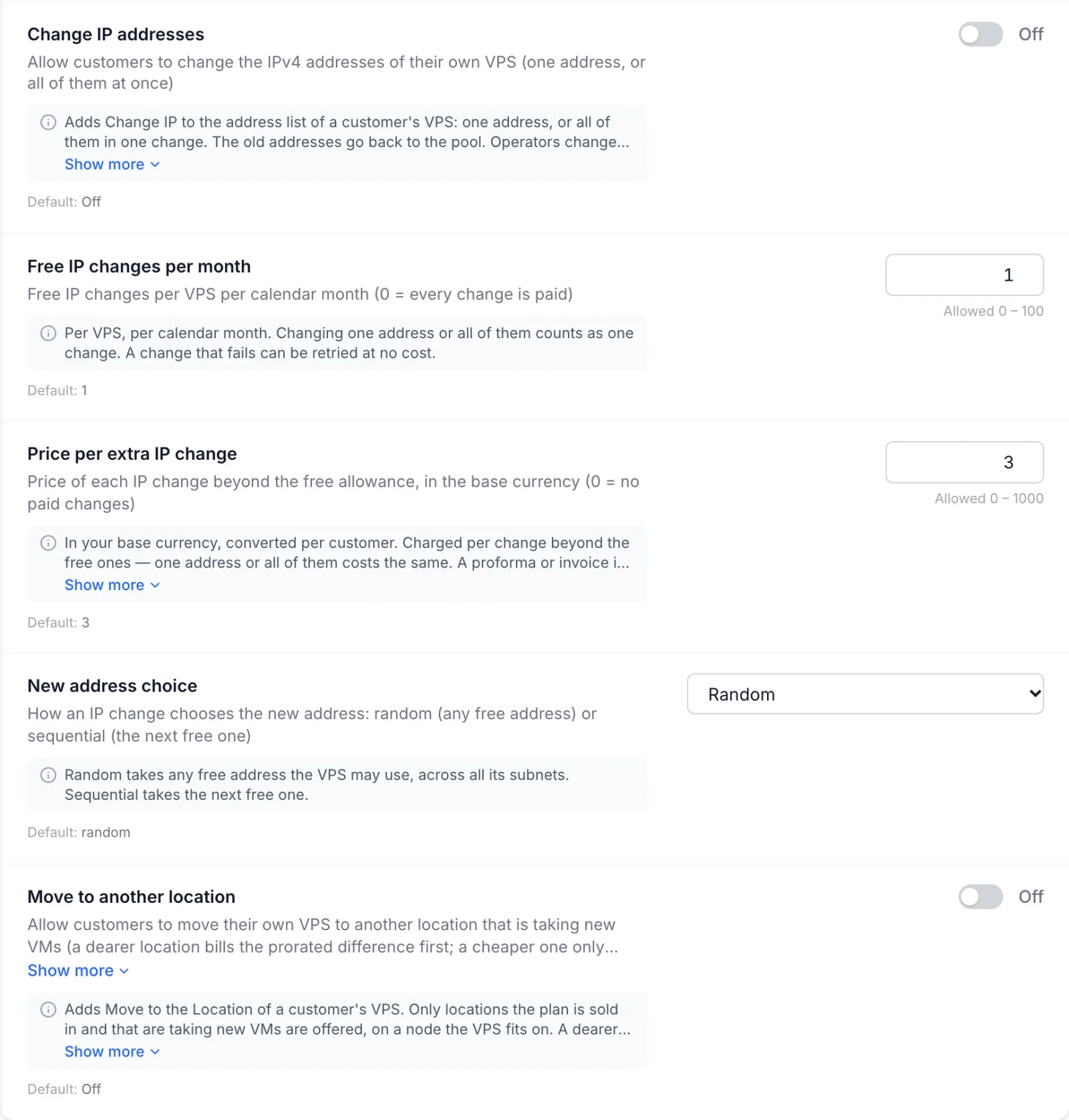
- Turn on Change IP addresses, Move to another location, or both, set the values in the table below and save.
| Setting | What it does |
|---|---|
| Change IP addresses | Adds Change IP to the address list on the customer's VPS page. The customer can replace one address or all of them in one change. The old addresses go back to the pool. |
| Free IP changes per month | How many changes each VPS gets for free per calendar month, from 0 to 100. Replacing one address or all of them counts as one change. Enter 0 to make every change paid. |
| Price per extra IP change | The price of each change after the free ones, in your base currency. It is converted into the customer's currency when the document is raised. It is a flat price per change: one address or all of them cost the same. Enter 0 to offer no paid changes at all, so the customer gets only the free ones. |
| New address choice | Random takes any free address the VPS may use, across all its subnets. Sequential (next free) takes the next free address. |
| Move to another location | Adds Move to the Location field on the customer's VPS page. |
These are customer permissions only. You can always change addresses and migrate a VPS yourself from the admin panel, whatever these settings say.
When the buttons stay hidden. Even with the settings on, the customer sees neither button while the service is suspended, and Move only appears on an active service. Both are also hidden on a VPS whose node is frozen because it is over your licence's node limit, and on a VPS that runs on hardware shared from a linked panel unless that panel has granted full management of it (see Inventory sharing with linked panels). Change IP only appears when the VPS has at least one IPv4 address.
IP changes
What the customer does
- The customer opens the VPS service and clicks Change IP next to the IP Address (or IP Addresses) list.
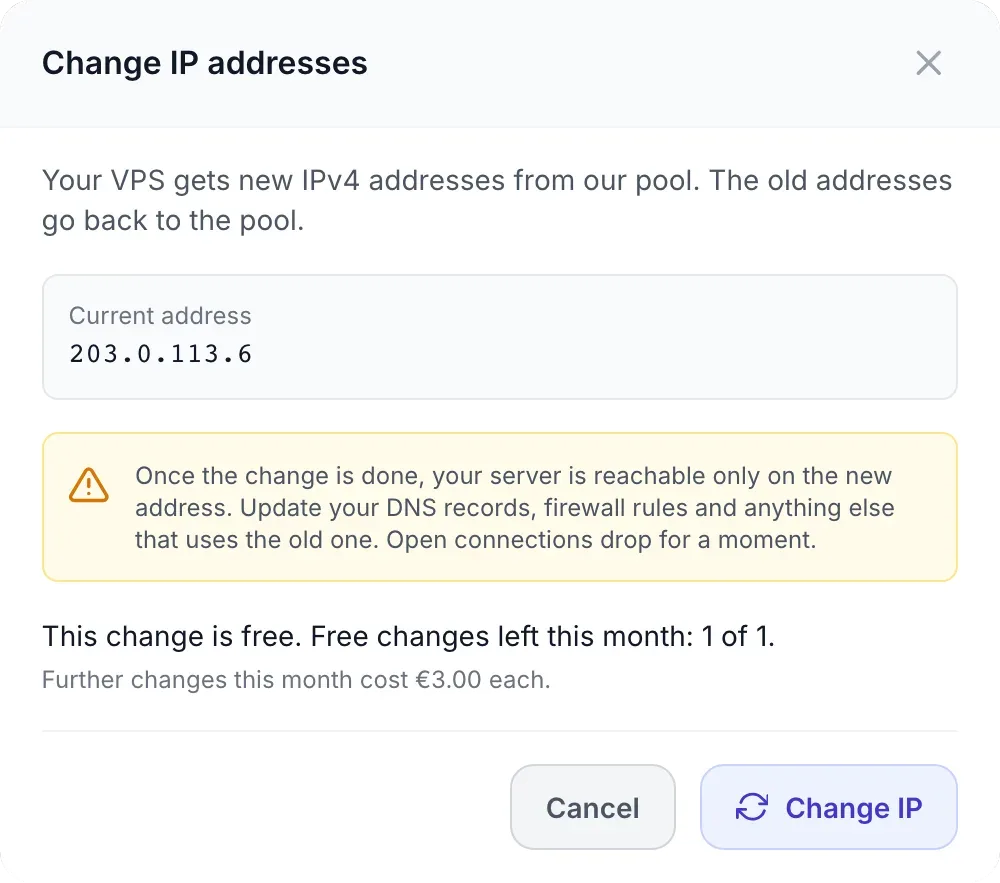
- The Change IP addresses dialog opens. A VPS with several IPv4 addresses offers two choices: All N IPv4 addresses ("Every address is replaced. This counts as one change.") or Only this address with a list to pick the address. A VPS with one address shows it as Current address.
- A warning explains that the server is reachable only on the new address once the change is done, that DNS records and firewall rules need updating, and that open connections drop for a moment.
- The dialog says what this change costs before the customer confirms (see the next section), and the customer clicks Change IP, or Pay <price> and change for a paid change.
While the change runs, the dialog lists each old address with its new one and a tick or cross per address. The customer can close the dialog: the change carries on. When it is done the dialog says Done. Your VPS now uses its new addresses. The network configuration inside the VPS is updated automatically, so the customer does not have to edit it. The dialog estimates about a minute per address.
Only IPv4 addresses are changed. IPv6 addresses stay as they are.
What a change costs
The dialog shows one of these lines before the customer confirms:
| Situation | What the customer reads | What happens |
|---|---|---|
| Free changes left this month | This change is free. Free changes left this month: <left> of <total>. | The change starts at once. If paid changes are on, a second line gives the price of further changes. |
| The last change failed | Your last IP change did not finish, so this one is free. | The failed change is run again at no cost (see When a change fails). |
| Free changes used, price above 0 | You have used this month's free changes. This change costs <price> and starts as soon as it is paid. | An invoice or proforma is raised and the customer is taken to it. |
| No free changes (set to 0), price above 0 | This change costs <price> and starts as soon as it is paid. | An invoice or proforma is raised and the customer is taken to it. |
| Free changes used, price 0 | You have used this month's free IP changes. New free changes are available on the 1st of next month. | The confirm button is disabled. |
The free allowance is counted per VPS and per calendar month, and resets on the 1st. Only the customer's own changes count. Changes you make from the admin panel are always free and never use the customer's allowance.
Paid changes
A paid change raises a billing document for the price, with VAT worked out for the customer as usual. It is an invoice or a proforma depending on Settings → Billing → Billing Document Type (see Billing settings). The line reads IP address change — <hostname> and the document is due in 7 days.
The addresses are not touched until the document is paid. Because an address change cannot be undone, a paid change never starts on credit. When the payment arrives, the change starts by itself. Until then, the customer's dialog says An IP change is waiting for payment of <number>. It starts as soon as it is paid. and offers Pay now.
If the document is cancelled, expires, is voided or refunded before it is paid, the addresses are not changed. To clear the waiting change, click New addresses for all on the VPS's Network tab (see The admin view): the waiting change is then marked Cancelled and yours runs, free of charge.
When the customer's currency differs from your base currency and no exchange rate is available, the change is refused with Pricing is not available right now. Please contact support. rather than billed at a guessed rate.
How new addresses are chosen
Each address is replaced with a free address the VPS is allowed to use, as set by New address choice. With Random, addresses released in the last 24 hours are tried last, so a customer is not handed the address another customer has just given up. If a chosen address turns out to be unusable, the next free one is tried, up to three per address. Each old address goes back to the pool once its replacement is live.
When a change fails
A change that does not finish leaves the addresses that could not be changed as they were. The customer reads The IP change did not finish. Addresses that could not be changed stay as they were. and You can try again at no cost.
The customer's next change within 30 days re-runs the failed one for free, up to three attempts in all. It does not use the allowance or raise another document. Once all three attempts have failed, that change no longer counts against the month's free changes, because the customer never got it.
The admin view: IP change requests
Every change, the customer's and your own, is listed on the VPS itself. Open VPS → All VPS, open the VPS and go to the Network tab. The card IP change requests sits under the Change address card.
- The subtitle shows the customer's allowance, for example Customer: 0 of 1 free changes used this month · extra changes 3.00 (base currency). With the setting off it reads Customer self-service is off (VPS Settings › What customers may do)., and on a VPS that is not sold, This VM is not sold, so there is no customer allowance.
- The table shows the last 25 changes with When, Change (one address or all, and each old → new address), By (Customer or Staff, with the email), Cost (Free, or the amount and the document number) and Status.
- New addresses for all replaces every IPv4 address of the VPS after you confirm Give this VPS new addresses?. It is free, does not count against the customer's allowance and uses the same New address choice. To replace one address with one you choose, use the Change address card above it (see VPS instances).

| Status | Meaning |
|---|---|
| Awaiting payment | A paid change waiting for its invoice or proforma to be paid. |
| Queued | Free or paid, about to start. |
| Running | The addresses are being changed on the node. |
| Done | Every address was changed. |
| Failed | At least one address was not changed. The error under the row says which and why. |
| Cancelled | A paid change that was dropped because its billing document was cancelled, expired, voided or refunded before payment. |
Only one change runs on a VPS at a time. If the customer has a change waiting for payment, your own change is refused with The customer has an IP change waiting for payment on this VPS — it runs when that is paid.
Location moves
What the customer does
- The customer opens the VPS service and clicks Move in the Location field.
- The Move to another location dialog shows where the VPS is now (Now in) and, under Choose the new location, each location it could go to, with its flag, the new price per billing period and the difference (Same price, or a plus or minus amount).
- A location that cannot take the VPS today reads Not available and cannot be picked. A location where the VPS cannot keep its addresses is marked Gets new IP addresses.
- After picking a location, the customer sees what is due now and what the renewal price becomes. If the VPS gets new addresses, a warning appears and the customer must tick I understand that my VPS gets new IP addresses before the move can start.
- The customer clicks Move VPS, or Pay <amount> and move when something is due.
The VPS keeps running while its disk is copied to the new location, then pauses briefly for the switch. Depending on the disk size, the dialog says, this takes from a few minutes to a few hours. The customer can close the dialog while it runs. When it lands the dialog reads Done. Your VPS now runs in <location>., and any new addresses are on the service page.
Which locations are offered
The list never shows nodes, only locations. A location is listed when all of these hold:
- It is active and is not the location the VPS is in now.
- The plan is sold there. A location the plan is not sold in is not listed at all, not even as Not available.
- It has a node of the right kind that is online and within the plan's targeting.
A listed location can be picked only when one of its nodes would take this VPS today: the node accepts new VPS, has room for the VPS at its current size (every disk counted), and passes the same checks as a migration you start yourself, such as compatible storage and CPU and free addresses for the ones the VPS cannot keep. Otherwise it reads Not available. The node is chosen again when the customer confirms, so a node that filled up in the meantime is not used.
If the plan is sold nowhere else, the dialog reads Your plan is not sold in any other location right now.
What a move costs
The new recurring price is the current price plus the difference between the location prices of the two locations for this plan and billing period. Location prices are set on the product, under Location Pricing on its Pricing tab (see Products). The rest of the price stays as it is.
| New location | Due now | When the VPS moves | Renewal price |
|---|---|---|---|
| Dearer | The difference for the rest of the paid period, until the next due date, plus VAT. Raised as an invoice or proforma per Billing Document Type, with a line that starts Move to <location>: location price difference, followed by (prorated, N days) when only part of a period is billed. | Once that document is paid. | Goes up when the VPS has landed. |
| Cheaper | Nothing. Nothing is refunded either. | At once. | Goes down when the VPS has landed. |
| Same price | Nothing. | At once. | Unchanged. |
| Any, on an hourly service | Nothing. | At once. | The new hourly rate applies once the VPS has moved. |
The service's location and price change only when the VPS has actually landed in the new location. If an open renewal invoice exists and the price changes, that invoice is held until the VPS lands and is then re-priced to the new amount, so the customer is not billed the old location's price for time spent in the new one. A move that fails releases it unchanged.
While a dearer move waits for payment, the customer's dialog says The move to <location> is waiting for payment of <number>. and offers Pay now and Cancel move. Cancelling also cancels the unpaid document. For how location moves fit with other plan changes, see Upgrades and downgrades.
When a move cannot start
Instead of the location list, the dialog shows one of these reasons:
| Message | Cause |
|---|---|
| Your VPS can be moved once the service is active. | The service is not active. |
| Your renewals are handled by a payment subscription. Contact support to move this VPS. | The service renews through a payment-provider subscription, so its price cannot be changed from here. |
| There is no VPS on this service to move. | No VPS is linked to the service. |
| This VPS cannot be moved from here. Contact support. | The VPS runs on hardware shared from a linked panel that has not granted full management of it. |
| Your VPS is being moved right now. | A migration of this VPS is already running. |
| Another change to this service is in progress. Try again once it is finished. | An upgrade, downgrade or other change of the service is still open. |
Troubleshooting
| Message | What to do |
|---|---|
| IP changes are not available for this VPS. Contact support if you need a new address. | Change IP addresses is off in VPS Settings, or the VPS is on a frozen node or an unmanaged shared one. |
| There is no free address this VPS can move to right now (in the error of a failed change) | The ranges the VPS's node can use have no free IPv4 address. Add addresses in IP address management, then ask the customer to try again: the retry is free. |
| The IP addresses can be changed once the service is active | The service is pending or otherwise not active yet. |
| Moving this VPS to another location is not available. Contact support if you need it moved. | Move to another location is off in VPS Settings, or the VPS is on a frozen node or an unmanaged shared one. |
| <Location> is not taking new servers right now. Choose another location. | The node that would have taken the VPS filled up or stopped accepting new VPS between opening the dialog and confirming. The dialog reloads the list. |
| The move to <location> did not complete. Your VPS keeps running where it was. | The migration failed. The VPS, its location and its price stay as they were. Check the VPS's jobs (see VPS jobs) before the customer tries again. |