
Pterodactyl game servers
Sell game servers from your Pterodactyl Panel 1.x or 2.0: API keys, plugin setup and connection test, products per egg, add-ons, the customer and staff pages, billing lifecycle and troubleshooting.
The Pterodactyl plugin connects FluxBilling to your Pterodactyl Panel, so you can sell game servers from your own panel and Wings nodes as FluxBilling products. FluxBilling takes the order, sends the invoice and collects the payment. When the invoice is paid, the plugin creates the customer's panel user and the game server in Pterodactyl, and the customer gets the address to join and the SFTP login. From the client area they start, stop and reinstall the server, make backups and change its startup variables. Unpaid invoices suspend the server, and termination deletes it. The plugin is free and is listed in the plugin marketplace of every FluxBilling panel. Your panel, your nodes and your eggs stay as they are.
This guide covers plugin version 1.4.4, which works with Pterodactyl Panel 1.x and 2.0 and needs FluxBilling 0.0.1572 or newer.
Who supports this integration. The plugin is built and maintained by FluxBilling. If something does not work, contact FluxBilling support at contact@fluxbilling.app or through fluxbilling.app/contact. Questions about Pterodactyl itself, Wings or your nodes go to the Pterodactyl community.
What you need before you start
- FluxBilling 0.0.1572 or newer.
- A working Pterodactyl Panel, version 1.x or 2.0, with at least one Wings node online. The plugin talks to the panel's API only; nothing is installed on your nodes.
- At least one location in Pterodactyl whose nodes have free allocations (IP and port pairs). Every product deploys to one location, and the panel picks a node and a free allocation there.
- The eggs you want to sell, imported in the panel. On Panel 1.x eggs belong to nests; on Panel 2.0 they are grouped by tags. Pterodactyl's egg library is at eggs.pterodactyl.io.
- Two API keys, both required: an Application API key and a Client API key of a root administrator (step 1).
- Network access from your FluxBilling panel to your Pterodactyl Panel over HTTP or HTTPS. A private address and a self-signed certificate are accepted.
Step 1: Create the API keys in Pterodactyl
The panel has separate APIs for managing the panel and for working with servers, and each takes its own key. Pterodactyl explains both in its API overview for Panel 1.x and Panel 2.0.
- Application API key. Log in to the panel as an administrator, open Admin → Application API and create a key. Give it read and write access to users, servers, eggs, locations, nodes and allocations. On Panel 1.x, also give it access to nests. We recommend a separate key for FluxBilling, so you can replace it without touching anything else.
- Client API key. While logged in as a root administrator, open Account → API Credentials and create a key. Copy it straight away. It must be a root administrator's key: only such a key reaches your customers' servers, and the connection test in step 3 rejects any other.
On Panel 2.0, a root administrator's Client API key is also accepted by the Application API, so you can enter that key in both fields if you prefer. An Application API key does not work in the Client API Key field.
| Key | Used for |
|---|---|
| Application API key | The nest or tag, egg and location lists in the product editor; finding or creating the customer's panel user and changing its password; creating, suspending, unsuspending, resizing and deleting servers; reading a server's address and its node's SFTP details |
| Client API key | Power, live usage, reinstall, rename, console commands, backups and startup variables on your customers' servers |
Step 2: Install the plugin
- In the FluxBilling admin panel, open Settings (the gear icon in the top bar).
- Under Integrations, open Marketplace. Stay on the Browse tab.
- Open the Pterodactyl Provider card and click Get for Free.
FluxBilling confirms with Plugin "Pterodactyl Provider" installed and ready to use. The plugin is switched on straight away and appears under Settings → Integrations → Plugins as Pterodactyl Provider, marked Active.
Step 3: Connect it to your panel
- Open Settings → Integrations → Plugins.
- On the Pterodactyl Provider card, click Configure.
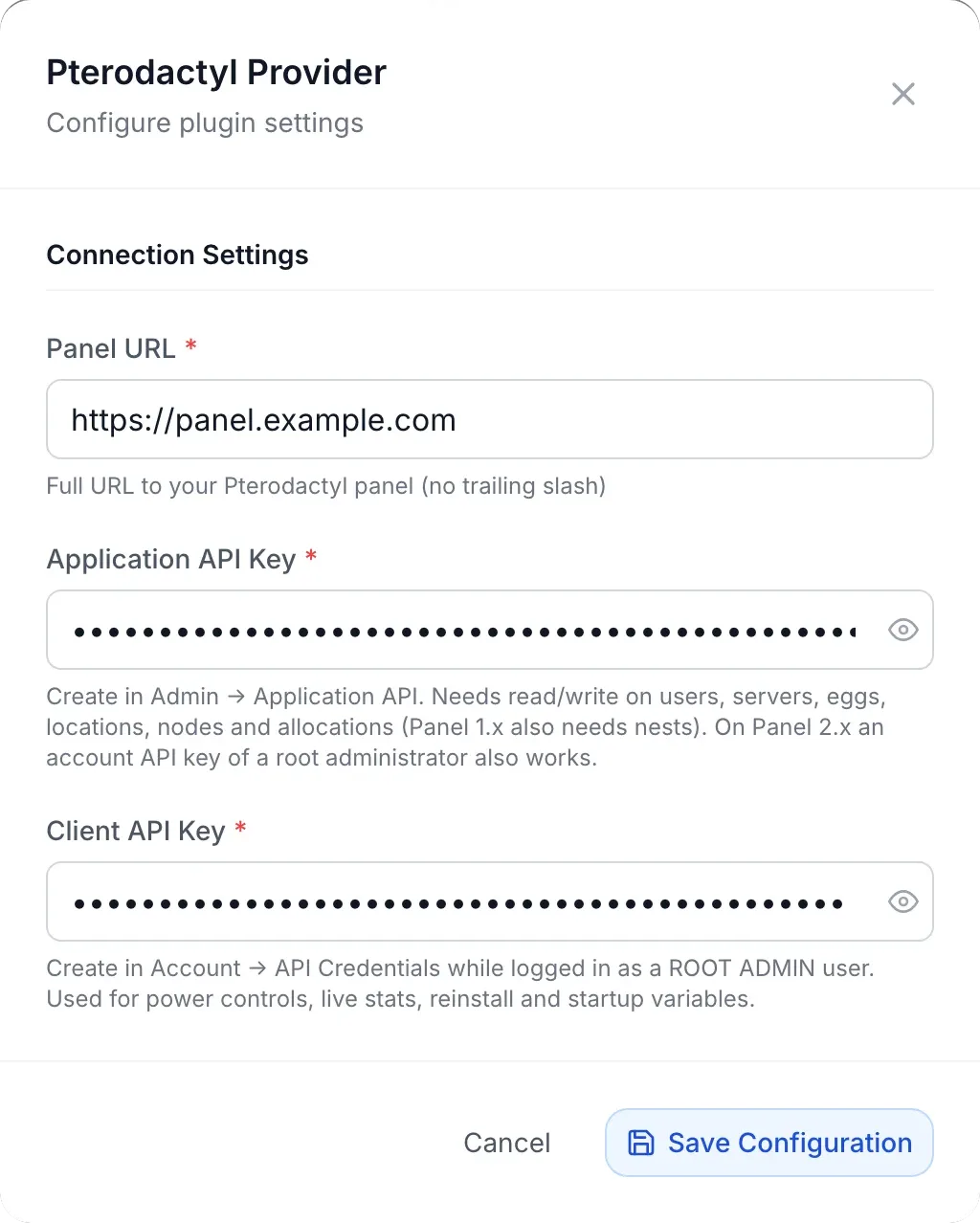
- Fill in the three fields under Connection Settings and click Save Configuration.
| Field | What to enter |
|---|---|
| Panel URL (required) | The full address of your Pterodactyl Panel, without a trailing slash, for example https://panel.example.com. Use the address customers open in their browser: the plugin also builds the customer's link to their server from it. |
| Application API Key (required) | The Application API key from step 1. At least 10 characters. |
| Client API Key (required) | The root administrator's Client API key from step 1. At least 10 characters. |
Both keys are stored encrypted. FluxBilling shows Configuration saved successfully when the settings are saved.
Test the connection. On the same page, click the Pterodactyl Provider card itself (not Configure) and open the Connections tab. Click Test connection on either of the two connections, Pterodactyl Application API or Pterodactyl Client API: both run the plugin's own check. It reads one location with the Application API key, then reads the owner of the Client API key and checks that it is a root administrator. On success the row shows Checked by the plugin's test-connection flow and a message such as Connected: Application API key OK (3 locations), Client API key of admin (root admin). The failure messages are listed under Troubleshooting.
Step 4: Create a category for your game servers
The category decides which plugin builds its products.
- Open Products, switch to the Categories tab and click Add Category.
- When FluxBilling asks What does this category sell?, choose Plugins. Do not choose Game Servers: that type is FluxBilling's own game hosting module, which runs game servers on your own nodes without Pterodactyl.
- Enter a Name. The URL slug fills in by itself.
- Under How paid orders are fulfilled, click Pterodactyl Provider.
- Under Availability, choose Live to show the category on the order page, or Unlisted while you test.
- Click Create Category.
Step 5: Create a product for each game and size
A product is one egg at one size. To sell the same game in three sizes, create three products on the same egg.
- On the Products tab, click Add Product and choose the category from step 4.
- On General, enter the product name and description your customers will see.
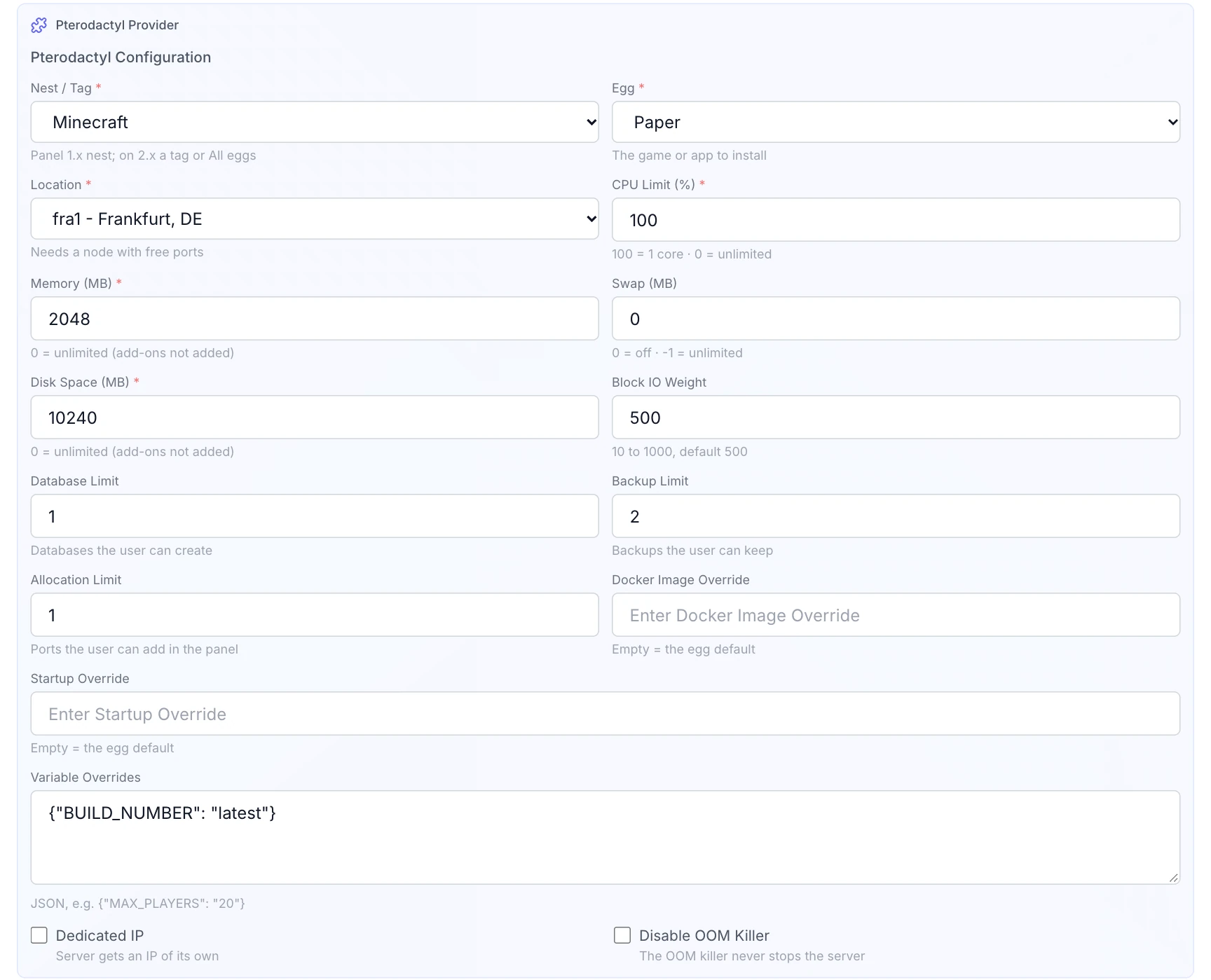
- On Configuration, fill in the Pterodactyl Configuration fields described below.
- On Pricing, set the price and billing cycles.
- Click Create Product.
| Field | What it does |
|---|---|
| Nest / Tag (required) | Panel 1.x: the nest, for example Minecraft. Panel 2.0 has no nests: choose a tag to narrow the egg list, or All eggs. |
| Egg (required) | The game or application the server runs. The list follows the nest or tag you chose. |
| Location (required) | The Pterodactyl location servers are deployed to, shown as short code and name. It needs a node with free ports. |
| CPU Limit (%) (required) | A percentage of one core: 100 is one core, 200 is two, 0 is unlimited. |
| Memory (MB) (required) | RAM in megabytes. 0 is unlimited. |
| Swap (MB) | Swap in megabytes. 0 disables swap, -1 makes it unlimited. |
| Disk Space (MB) (required) | Disk space in megabytes. 0 is unlimited. |
| Block IO Weight | Between 10 and 1000. |
| Database Limit | How many databases the customer may create for the server. |
| Backup Limit | How many backups the customer may keep. |
| Allocation Limit | How many extra ports (allocations) the customer may add to the server in the panel. |
| Dedicated IP | On: the panel deploys the server on an IP address no other server uses. |
| Disable OOM Killer | On: the Linux out-of-memory killer does not stop the server. |
| Docker Image Override | Optional. Leave it empty to use the egg's first Docker image. |
| Startup Override | Optional. Leave it empty to use the egg's startup command. |
| Variable Overrides | Optional. A JSON object of values for the egg's variables, for example {"MAX_PLAYERS": "20"}. Every other variable gets the egg's default value. |
New products start with values in the number fields (for example 100 for CPU and 1024 for memory). Check each one before you save.
Step 6 (optional): Sell extra resources as add-ons
The plugin reads six add-ons and adds their value on top of the product's limits: extra_memory (MB of memory), extra_disk (MB of disk), extra_cpu (percent of CPU), extra_databases, extra_backups and extra_allocations (extra ports). On a product's Pricing tab, FluxBilling lists them under Plugin expects these options: and marks each one attached or not attached.
- Open Products, switch to the Options tab and click Add Option.
- Enter an Option Name such as Extra memory. Under Slug, choose the matching slug, for example
extra_memory. The plugin reads only these names. - Leave Spec Service on None (billing only).
- Choose a Pricing Type. To sell sizes, switch on Configurable Options and add one choice per size; its Value is the amount added, for example
1024for 1 GB of memory. Otherwise the quantity ordered is added. - Click Create, then open each Pterodactyl product, go to Pricing and use Attach under Plugin expects these options:.
Memory, disk and CPU add-ons are not added to a limit of 0, because 0 already means unlimited.
Add-ons take effect when the server is built. Customers cannot change them afterwards; the service page asks them to open a ticket. When you change an add-on in the admin panel, FluxBilling bills the new choice and adds a reminder task under Automations: change the server's limits in Pterodactyl yourself. Add-ons are kept on plan changes (see Plan changes).
Step 7: Place a test order
Place an order for each product before you sell it. While the category is Unlisted, place it from the admin panel: open Orders and click Create Order. The order form asks for a Server Name: Letters, numbers, hyphens, and dots only — no spaces or underscores (e.g. my-game-server). Attached add-ons appear with their prices.
What happens when the invoice is paid
With Auto Provisioning switched on (see Billing lifecycle), FluxBilling starts the build as soon as the invoice is paid:
- The panel user. The plugin looks for the panel user it linked to this customer before. If there is none, it creates one with the customer's email address and name, a short username made from the email address (for example
jsmith_1f665897) and the password FluxBilling generated for the service. If the panel refuses, for example because a user with that email address already exists, the plugin links that user instead and keeps its username and password. - The egg. It reads the egg and its variables. Values under Variable Overrides replace the egg's defaults.
- The server. If the panel already has a server for this service, for example from an earlier attempt whose answer was lost, the plugin takes it over instead of creating a second one. Otherwise it creates the server with the name from the order, the egg, the Docker image, the startup command, the limits plus any add-ons, and the product's location; the panel chooses the node and the allocation. The server starts once its install script has finished.
- Hand-over. The plugin reads the server's main allocation and its node's SFTP address and port, and FluxBilling marks the service Active.
What your customers can do
With the default email templates, the customer gets Your … game server is ready when the server is built. It shows the address to connect to and, under Login details, the link to the server in your Pterodactyl Panel, the SFTP host, port and username and, when the plugin created a new panel user for this order, the generated password. The SFTP username has the form username.server-id, and SFTP takes the panel password.
Customers who already have a panel user. When FluxBilling built a server for the customer before, or a panel user with their email address already existed, the plugin reuses that user and does not change its password, and the email has no password line. Tell returning customers to keep using their existing panel password.
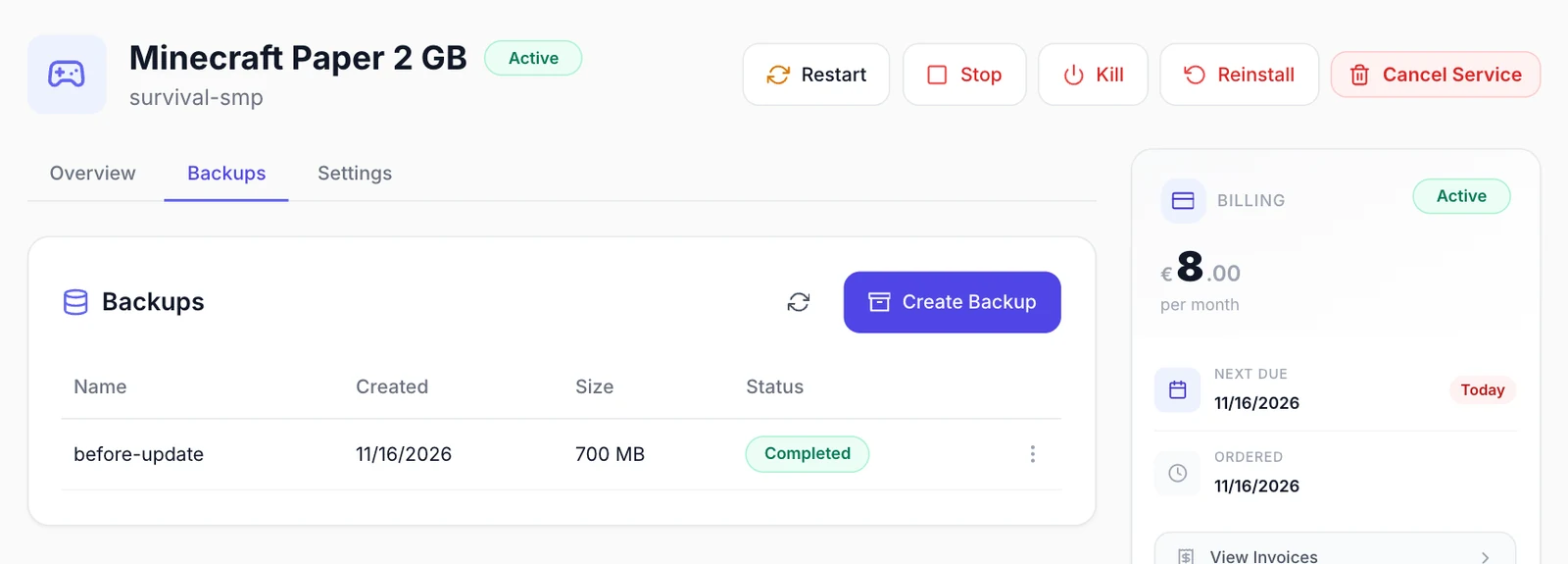
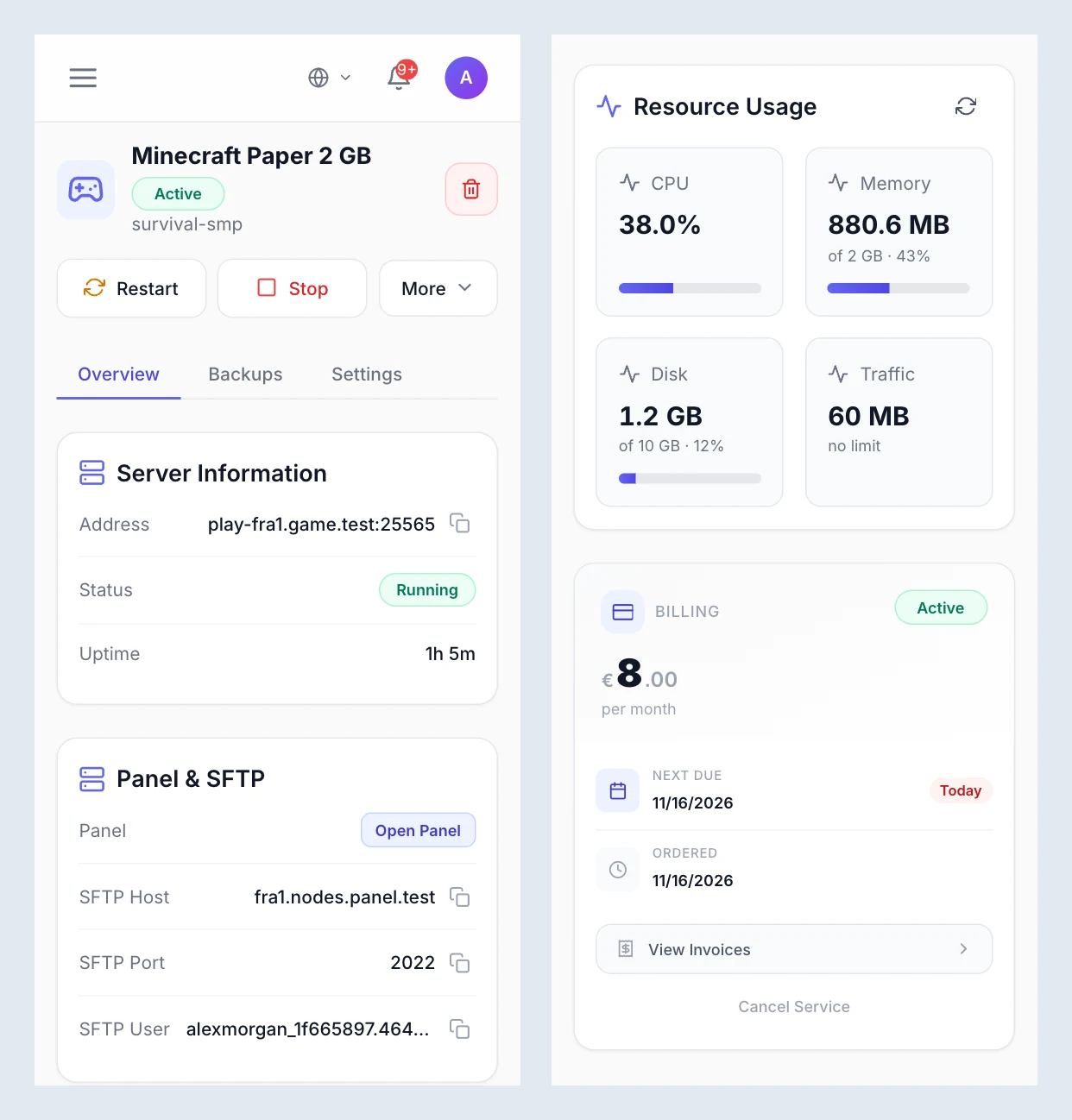
On the service page in the client area, the power buttons sit at the top, and only those that fit the server's state are shown: Start while it is stopped, Restart while it runs, Stop while it runs or starts, Kill while it runs or stops. Reinstall is always there and warns This re-runs the install script. Server files are kept, but configs may be overwritten. Continue? Below are three tabs:
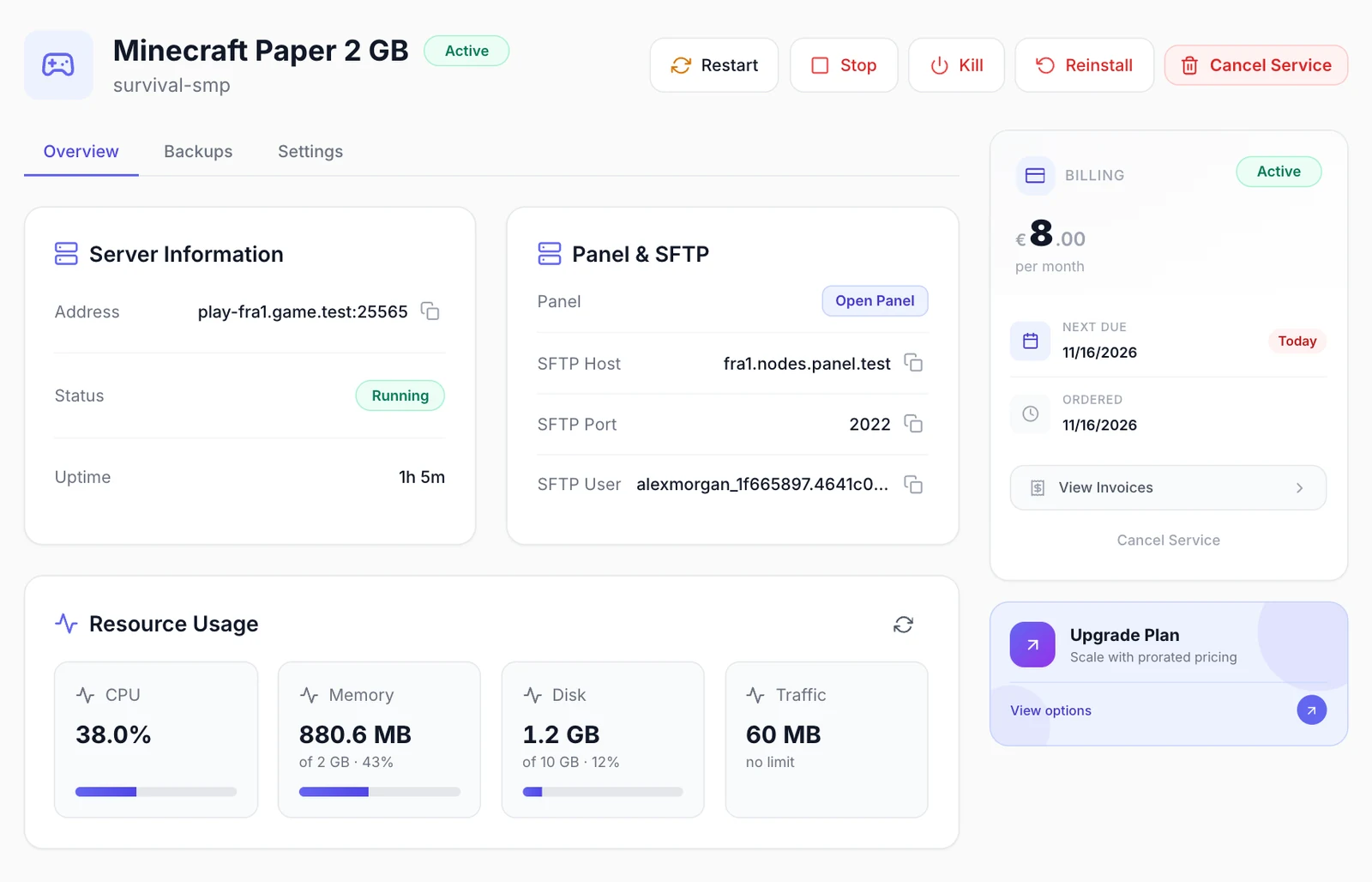
- Overview: Server Information with the Address to join, the Status and the Uptime; Panel & SFTP with Open Panel, which opens the server in your Pterodactyl Panel, and the SFTP Host, SFTP Port and SFTP User to copy; and Resource Usage with CPU, memory, disk and traffic, refreshed every 10 seconds.
- Backups: each backup's Name, Created, Size and Status, with Restore and Delete. Create Backup asks for a Backup Name (optional). Pterodactyl holds the customer to the product's Backup Limit plus any backup add-on, and refuses more with Failed to create backup: and its reason. A restore writes the backup's files over the current ones and restarts the server; files that are not in the backup are kept.
- Settings: Server Configuration lists the startup variables the egg lets users edit, such as a game version, with their descriptions. Save Configuration applies the changes at the next restart. Values the panel refuses are listed after Not saved:.
The page does not show the panel password; for the console and files, customers sign in to your Pterodactyl Panel. A suspended service shows a Service Suspended notice with the reason.
What your staff see
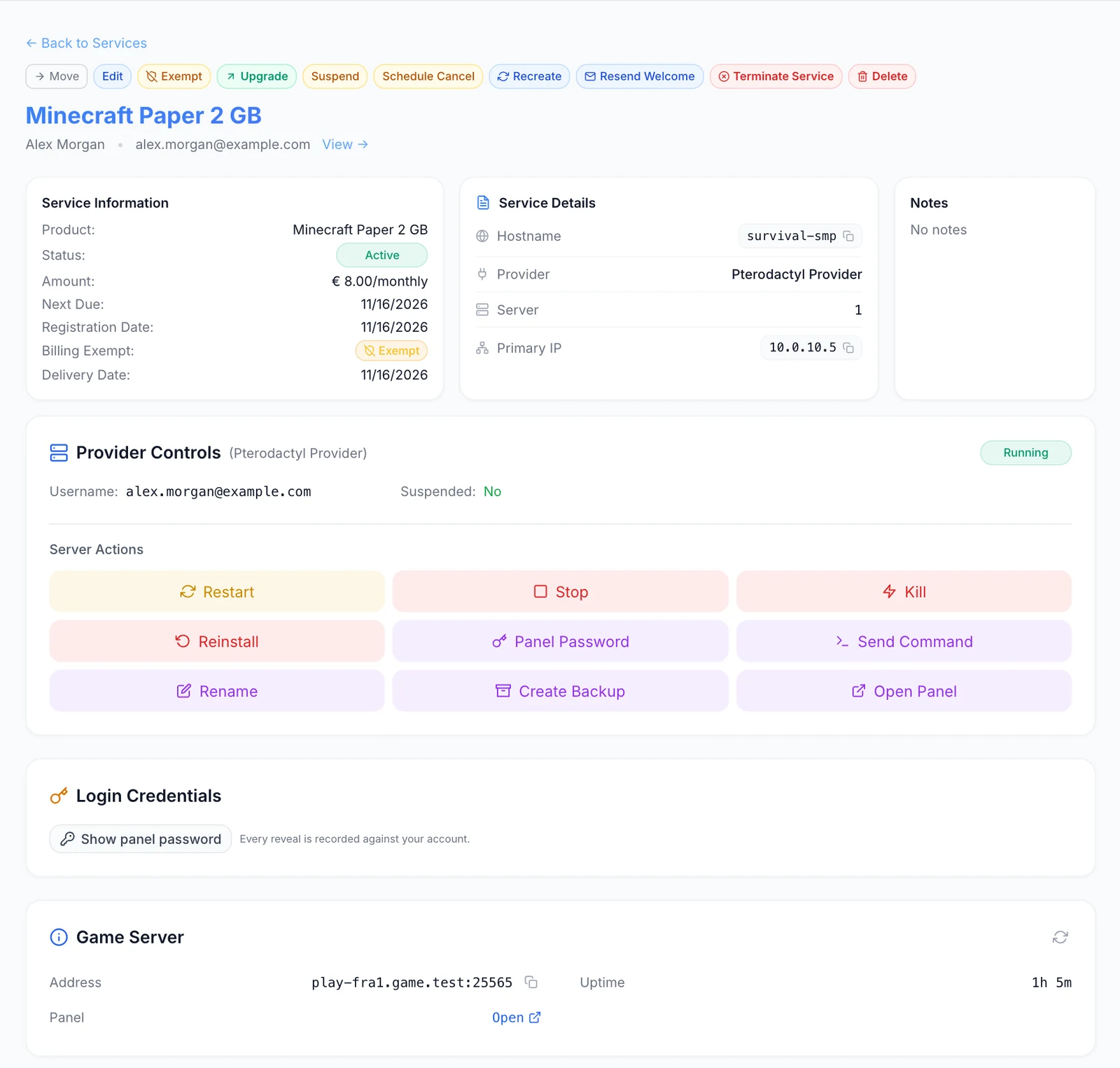
On the service page in the admin panel, the Provider Controls card shows the server's state, the panel login's Username (the customer's email address) and whether it is Suspended, then the Server Actions:
| Button | What it does |
|---|---|
| Start, Restart, Stop, Kill, Reinstall | As on the client page. |
| Panel Password | Sets a new password, at least 8 characters, for the customer's panel user. That one user owns every server FluxBilling built for the customer and signs in to SFTP, so the new password applies to all of them. FluxBilling stores it as this service's panel login. |
| Send Command | Runs one command on the server console. The server must be running. |
| Rename | Sets a new display name in the Pterodactyl Panel. The server name on the FluxBilling service stays. |
| Create Backup | Starts a backup, with an optional name. It counts against the backup limit. |
| Open Panel | Opens the server in your Pterodactyl Panel. |
When a panel password is stored for the service, because the plugin created the panel user or staff used Panel Password, a Login Credentials card follows. Show panel password shows the user and the masked password with a copy button, and hides them again after a minute. It needs the permission to edit services, and every reveal is recorded in the activity log, without the password.
The plugin's cards come next: Game Server (Address, Uptime and an Open link to the panel), Resource Usage, and Internal Details with the server's Identifier, UUID, Node ID and Panel User ID. In Pterodactyl, every server the plugin creates carries the external ID flux_svc_…, and the customer's panel user carries flux_….
Billing lifecycle
The invoice drives the server. The rules are set under Settings → Billing → Automation:
- Auto Provisioning: builds the server when the first invoice is paid. When it is off, the paid service waits as Pending until staff provision it.
- Auto Suspension with Suspension Grace: an invoice still unpaid that many days after its due date suspends the server in Pterodactyl.
- Paying the overdue invoice unsuspends the server automatically, once no earlier renewal invoice for that service is still unpaid. A suspension for abuse is not lifted by a payment.
- Auto Termination with Termination Grace: a server still suspended for non-payment that many days later is terminated.
Terminating a service deletes the server in Pterodactyl, with its files. If the panel refuses the normal delete, the plugin force-deletes it; a server already gone counts as deleted. This happens on auto termination, on a customer's cancellation or when staff terminate the service, and cannot be undone. The customer's panel user is kept. Check the Termination Grace before you go live.
Plan changes
Customers can only move between products you link on the product's Upgrade Paths tab. When an upgrade or downgrade between two Pterodactyl products is paid, the plugin sets the new product's CPU, memory, swap, disk, IO weight and database, backup and allocation limits on the server. Whatever the server had above its old product's limits, such as add-ons, stays on top; a limit of 0 stays unlimited. The egg, location, Docker image and startup command do not change. If the panel refuses, the upgrade is marked as failed and the service keeps its current product.
Updating the plugin
Open Settings → Integrations → Marketplace, switch to Installed and click Check for Updates. When a new version is available, click Update to v…. Your connection settings and products are kept.
Troubleshooting
When a build fails, the service stays Pending and the error appears in the Automations menu in the top bar of the admin panel, as Provision via Pterodactyl Provider. FluxBilling retries by itself up to two more times. After that, fix the cause, open the service and click Retry Provisioning; a retry never creates a second server. A build started this way does not email the customer, so use Resend Welcome once it has worked.
Most messages end with Pterodactyl's own error text, or the HTTP status code.
| Message or symptom | What to check |
|---|---|
| No Pterodactyl Application API answered at … (connection test) | The Panel URL is wrong, or FluxBilling cannot reach the panel through a firewall. |
| The panel rejected the Application API key (…) or … the panel rejected the Client API key (…) (connection test) | The key named is wrong or was deleted. Create a new one (step 1) and enter it under Configure. |
| The Client API key belongs to …, who is not a root admin: … (connection test) | Create the Client API key while logged in as a root administrator. |
| The Nest / Tag, Egg or Location list stays empty, or Could not list nests: … / Could not list eggs: … | Run the connection test, and check the Application API key's permissions (on Panel 1.x it needs nests and eggs). |
| Failed to find or create the panel user for … | The panel would not create the user, and no user with exactly that email address was found. Check that the key may read and write users. |
| Failed to fetch egg … (check the Egg in the product config) | The egg no longer exists in the panel, or the key may not read eggs. Choose the egg again on the product, then retry. |
| Could not build the server request: … | Usually invalid JSON in Variable Overrides. Correct the product, then retry. |
| Failed to create server: … | Most often the location has no free allocation, or no node with room for the limits. Add allocations or nodes in Pterodactyl, then retry. |
| Failed to start server: … and other power, reinstall, backup or rename errors | These use the Client API key: run the connection test. Check that the server still exists in the panel. |
| Failed to send command (server must be running): … | Start the server, then send the command again. |
| Failed to suspend server: …, Failed to unsuspend server: … or Failed to resize server: … | The panel refused the change, or the server was deleted in the panel by hand. For a resize, check that the node has room for the new limits. |
| Failed to delete server: … | Both the normal and the forced delete were refused. Delete the server in Pterodactyl, then terminate the service again. |
Limits
- The plugin works with the Pterodactyl Panel API, versions 1.x and 2.0. It does not install or manage Wings, nodes, locations, allocations or eggs.
- Each product deploys to one location. Customers do not choose a location or a game at checkout; offer separate products for that.
- Plan changes change the server's limits only, and add-ons apply when the server is built.
- The live console runs in the Pterodactyl Panel. From FluxBilling, staff can send single commands.
- Termination deletes the server but not the customer's panel user.
- Each FluxBilling panel connects to one Pterodactyl Panel. FluxBilling does not rely on callbacks from Pterodactyl, so there is nothing to set up for them.
Running game servers without Pterodactyl
If you would rather not run a game panel at all, FluxBilling's own game hosting module runs each customer's server as a container on machines you own. See Game hosting overview. It is a separate module from this free plugin.
Pterodactyl is a trademark of its respective owner. FluxBilling is not affiliated with the Pterodactyl project.