
Cancelling Unpaid Orders and Documents
Automatically cancel new orders nobody paid for, and the unpaid invoices and proformas ended services leave behind, with a preview before anything changes.
Two settings cards clean up billing that nobody is going to pay: Unpaid Orders cancels new orders that were never paid, and Unpaid Documents for Ended Services cancels the invoices and proformas a terminated or cancelled service leaves behind. Both are off until you switch them on, and both have a Preview button that lists exactly what they would cancel before you decide.
Both cards are under Settings → Billing → Automation. They are part of billing, so no feature toggle is needed, and you need an administrator account to open them and run the previews.
What "cancelled" means for a document
A cancelled invoice or proforma keeps its number and stays in your lists and in the customer's billing page, marked Cancelled. It can no longer be paid, it no longer counts as money the customer owes, and any automatic card charge still queued for it is called off. Cancelling never touches money that was already taken: both rules skip every document that has a payment on it (see What both rules always leave alone). Cancelling a document cannot be undone.
Before you switch either rule on
- Change the settings on the card, then click Save Settings. The previews and the clean-up button read the saved settings, not what is typed in the form. The hint next to Preview says so: "Uses saved settings — save this page first".
- Click Preview on the card and read the list. The preview works whether the switch is on or off, so you can check it before you switch the rule on.
- Only then switch the rule on and save again. The first nightly run reaches your whole history, not just new orders and services: everything that matches the rule on that day is cancelled.
Both rules run once a day, as part of the nightly billing run, before automatic payments are attempted. You choose the hour under Settings → General → Automated Tasks Schedule (Scheduled At, in UTC). Billing automation lists everything else that run does.
Unpaid Orders
Use this when customers start orders they never pay for and you do not want those orders, their proformas and their placeholder services sitting in your lists. Once an order is older than the number of days you set and nothing on it has been paid, the nightly run cancels:
- the order itself (its status becomes Cancelled);
- the services on it that were never set up (they were still waiting for payment);
- its unpaid invoices and proformas, including the first-payment proforma.
If the order used a discount code or a referral voucher, that use is handed back, so the customer can redeem it again (see Discounts). The cancellation is written to the activity log as a system action, with the order number and the documents it cancelled.
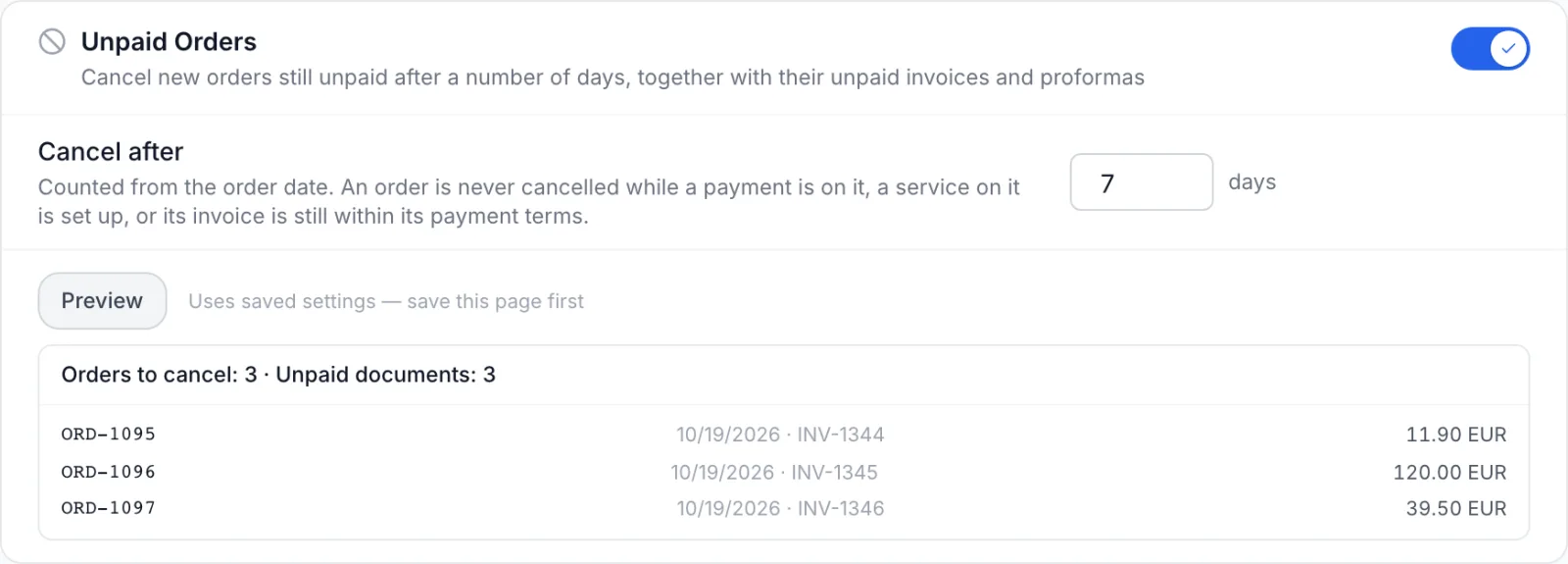
Fields
| Field | What it does |
|---|---|
| Switch on the card header | Turns the nightly rule on or off. Off, nothing is cancelled by this rule; the preview still works. |
| Cancel after (days) | Shown when the switch is on. How many days after the order was placed it is cancelled if still unpaid. Counted from the order date. Accepts 1 to 3650; until you change it, the value is 7. |
| Preview | Lists the orders the next run would cancel, using the saved number of days. |
Reading the preview
The first line reads Orders to cancel: N · Unpaid documents: N. Below it, a Kept: line counts the old unpaid orders the rule found but will not cancel, with the reason for each group. Then comes a list of up to 50 orders: the order number (click it to open the order), the order date, the numbers of the documents that would be cancelled with it, and the order total. If nothing qualifies, the card shows Nothing to cancel.
| Reason shown | Why the order stays |
|---|---|
| service set up | A service on the order was built, is being built, failed to build, or was delivered before payment. That debt belongs to your normal overdue and suspension process. |
| paid | A document on the order is paid, converted to an invoice, refunded or in collections. |
| partly paid or payment in progress | A document is partly paid, on hold, has a completed or disputed payment, or a payment is still being processed. |
| within payment terms | An unpaid document is not yet past its due date. A customer on 30-day terms has not abandoned the order on day 7. |
| closed month | An unpaid document is in a closed month, so it cannot be cancelled (see Closed months and storno invoices). |
| document shared with other orders | An unpaid document also bills something that is not on this order. |
An order is always kept or cancelled whole: if any one of its documents or services gives a reason to keep it, nothing on it is touched.
Orders the rule never looks at
- Upgrade and downgrade orders. Their documents belong to a running service; see Upgrades and downgrades.
- Orders placed by resellers through the reseller API, which have their own payment flow.
- Orders that are already completed or cancelled, or whose payment is no longer pending.
If a payment arrives between the moment the nightly run picks an order and the moment it cancels it, the order is left alone and nothing on it changes.
Separate 30-day clean-up. Whatever this card says, the nightly run also cancels a service that is still waiting for its first payment 30 days after it was created, and its order when nothing else on the order is still running. It waits while the order's invoice or proforma is still within its payment terms. Use the Unpaid Orders card when you want a shorter, fixed window that also covers the order's documents.
What the customer sees
The order's status becomes Cancelled, and its invoice or proforma stays in the customer's billing page marked Cancelled, with no way to pay it. No email is sent for this cancellation. A customer who still wants the service places a new order. To remind customers before that happens, use Abandoned Checkout Recovery, the card just above, which emails a customer once when a checkout was started but not paid.
Unpaid Documents for Ended Services
When a service is terminated or cancelled, it can leave unpaid documents behind: the last renewal, the first-payment proforma from the original order, or a document that billed several services at once. This card cancels those documents, so the customer is not chased for something they no longer have and auto-pay does not charge a card for it. It has two rules, each with its own switch.
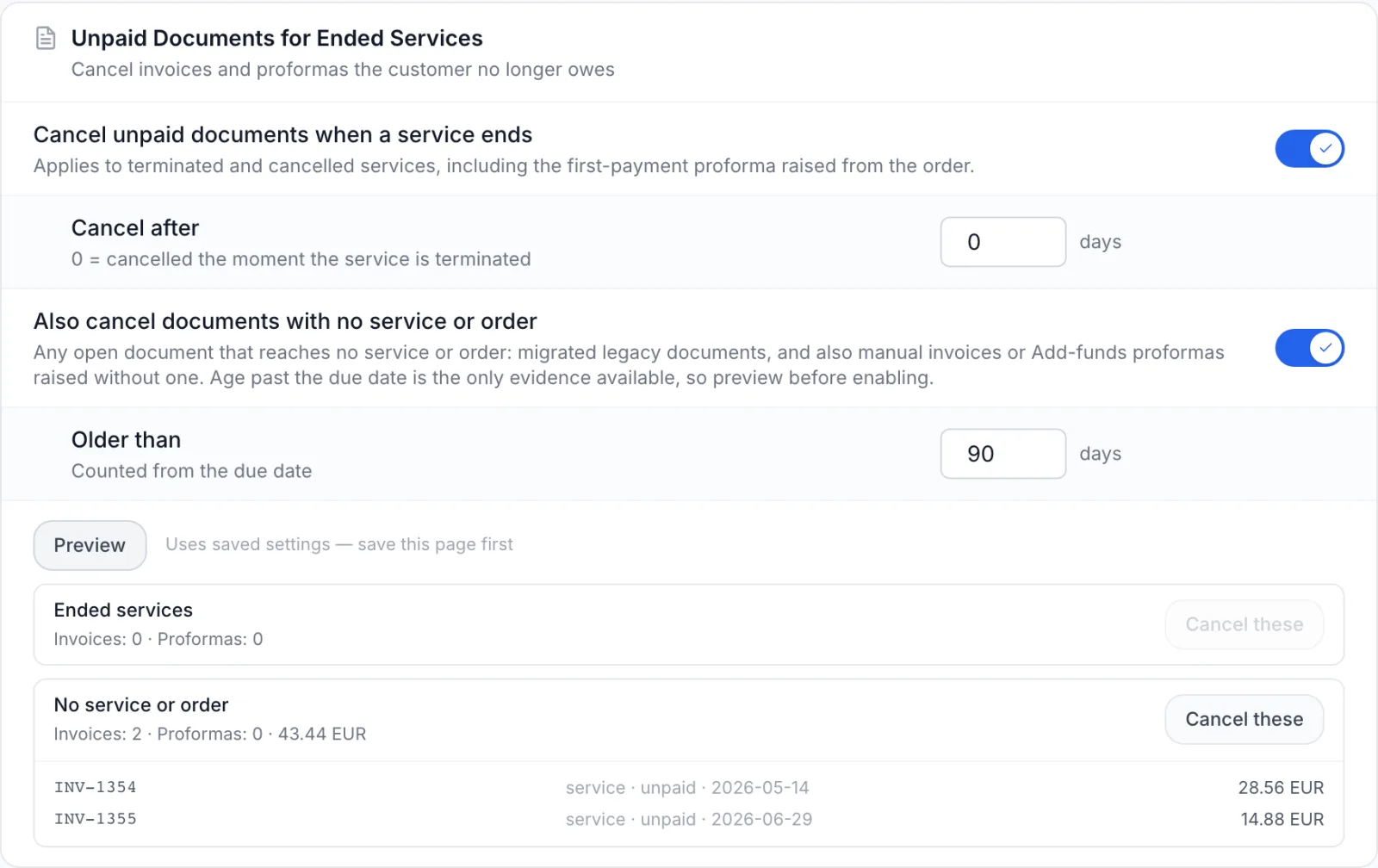
Fields
| Field | What it does |
|---|---|
| Cancel unpaid documents when a service ends | Cancels the open documents of terminated and cancelled services, including the first-payment proforma raised from the order. |
| Cancel after (days) | Shown when the rule above is on. 0 cancels the documents the moment the service is terminated. Any other number keeps them payable for that many more days, then the nightly run cancels them. Until you change it, the value is 0. |
| Also cancel documents with no service or order | Cancels old open documents that are not linked to any service or order (see below). |
| Older than (days) | Shown when the rule above is on. How old such a document must be, counted from its due date. Minimum 1; until you change it, the value is 90. |
| Preview | Shows what each rule would cancel today, using the saved days. Works with the switches on or off. |
Ended services: which documents count
The rule looks at every open invoice and proforma (not paid, converted or already cancelled) that is linked to an ended service in any of these ways:
- the renewal document issued for that service;
- the first-payment document of the order the service came from, but only when every service on that order has ended;
- a document that bills the service as one of its lines, but only when every service on it has ended.
When a document covers several services, the waiting period starts when the last of them ended. A first-payment document is also kept when a service on the order was delivered before it was paid: the customer used that term, so the debt stays.
A grace period gives the customer time to settle a final renewal before it disappears from their panel. With a grace period set, the document stays payable and the nightly run cancels it once the days are up.
With this rule off. Terminating a service still cancels the unpaid documents issued directly for that service, at the moment of termination. Switching the rule on adds the first-payment proforma and multi-service documents, the grace period, and a nightly pass over services that ended in the past.
No service or order: old documents with no link
Some open documents reach no service and no order at all: documents brought over from another billing system, and also manual invoices or Add funds proformas you raised without one. Nothing tells the system whether these are still owed except their age, so this rule is a separate opt-in. It cancels such a document once it is more than Older than days past its due date. Read its preview carefully before you switch it on: a manual invoice a customer genuinely owes is cancelled just the same once it is old enough.
Reading the preview and cleaning up once
The preview shows one box per rule, Ended services and No service or order. Each box has the counts (Invoices: N · Proformas: N), the total per currency (amounts in different currencies are never added together), and up to 25 sample documents with number, type, status, due date and amount. If neither rule finds anything, the card shows Nothing to cancel.
Each box has a Cancel these button. It cancels that box's documents straight away, once, without switching the nightly rule on. Use it to clear an old backlog while you decide about the automation. It uses the saved Cancel after and Older than days.
- Save the days you want and click Preview.
- Check the sample list and the totals.
- Click Cancel these on the box you want to clear.
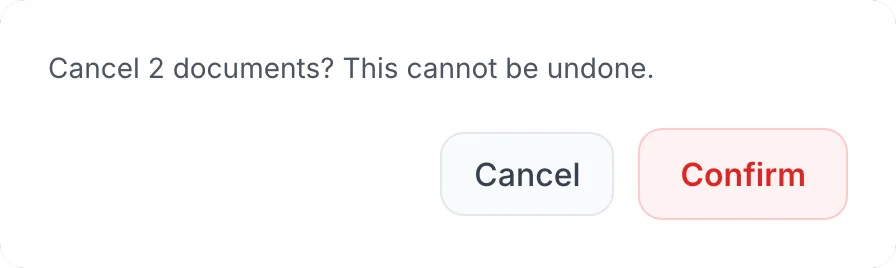
- Confirm the dialog "Cancel N documents? This cannot be undone." The message "N documents cancelled." appears and the preview reloads.
The one-off clean-up is written to the activity log under your name, with how many invoices and proformas each rule cancelled. The button is greyed out when its box has nothing to cancel.
What the customer sees
The cancelled documents stay in the customer's billing page, marked Cancelled, and can no longer be paid. No email is sent.
What both rules always leave alone
- Documents that hold money: a completed or disputed payment on the document (or on its paired invoice or proforma).
- Documents with a payment still being processed, so a payment that lands later is never stranded on a cancelled document.
- Paid, refunded and converted documents. A proforma that already became an invoice is never cancelled.
- Documents in a closed month, when you use closed months.
Troubleshooting
- The preview ignores the days I just typed. The preview uses saved settings. Click Save Settings, then Preview again.
- An old unpaid order is not in the list. Check the Kept: line for the reason. Most often its document is still within payment terms, or a service on it was set up. Upgrade orders and reseller API orders are never included.
- The preview shows orders but nothing was cancelled overnight. The switch on the card header is off, or it was not saved. The preview works with the switch off; the nightly run does not.
- A terminated service's renewal is still unpaid. With a Cancel after grace period set, the document stays payable until the days are up. A document that also bills a service that is still running is kept, because it is still owed.
- Cancel these is greyed out. That box has nothing to cancel with the saved days.
- A document I need was cancelled. Cancelling cannot be undone. Raise a new invoice for the customer from the Invoices page (see Invoices).
Related
- Billing automation: the nightly run, suspensions and terminations.
- Closed months and storno invoices: why closed-month documents are never cancelled.
- Orders and Order details: cancelling a single order by hand.
- Discounts: how a cancelled order hands back a code's use.