
Your FluxBilling licence
The licence page in your FluxBilling account: licence key, panel health, plan usage, admin login, billing and add-ons for your hosted panel.
Your FluxBilling licence has its own page in your FluxBilling account. It shows your licence key, whether your panel is checking in, how much of your plan you use, the login for your panel's first administrator, and the add-ons you can buy. This guide goes through the page card by card.
It is for companies that rent a FluxBilling panel that FluxBilling hosts for them. If you run FluxBilling on your own server, your licence page looks different and this guide does not apply.
Where to find it
- Sign in to your FluxBilling account at my.fluxbilling.app. This is FluxBilling's own client area, where you pay for your licence. It is not your panel.
- In the sidebar, click My Services.
- Click your licence.
The page title is the name of your plan, followed by the service status, for example Active. The licence cards are on the left. Billing and add-ons are in the sidebar on the right.
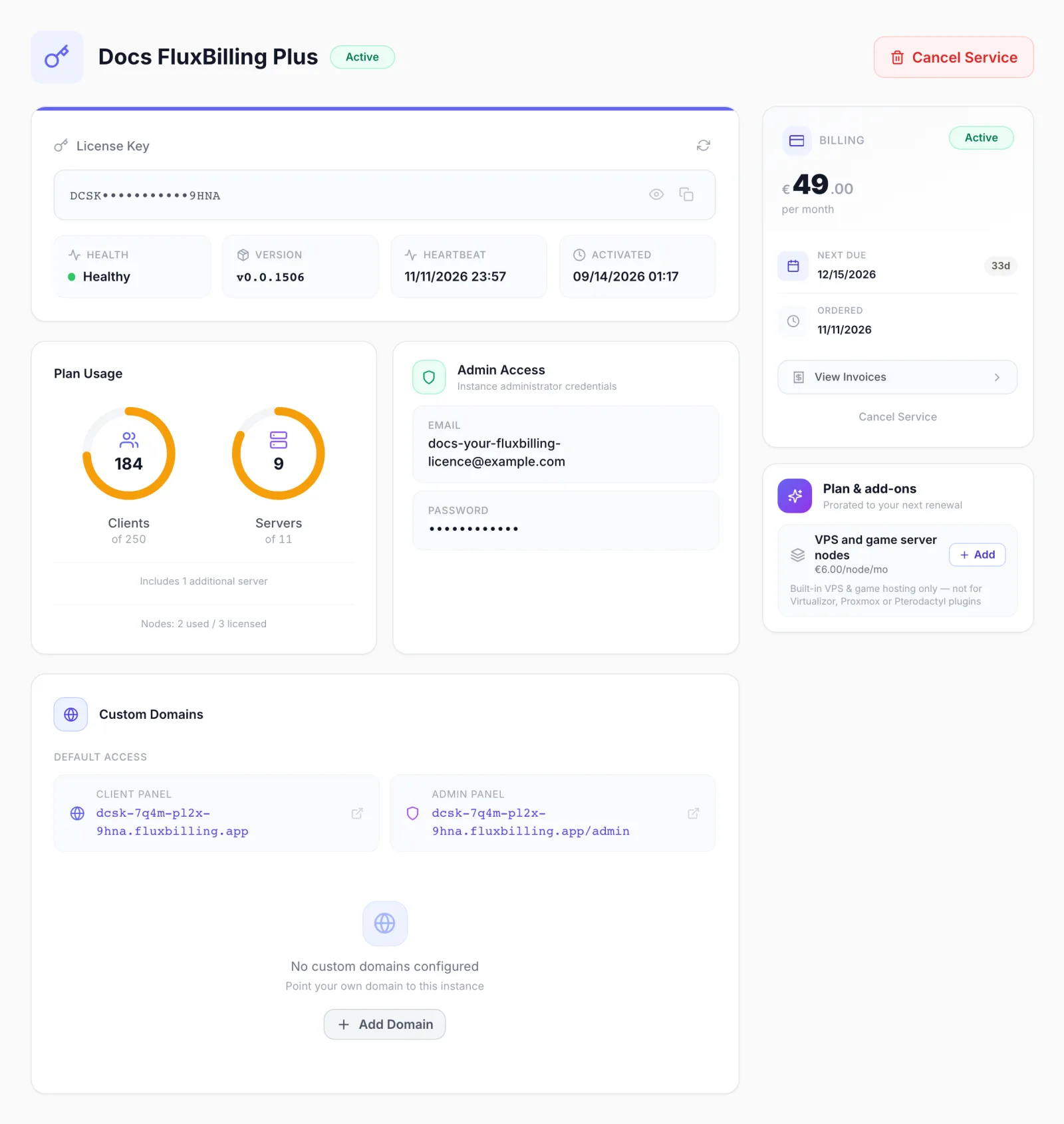
Team members you invited to your FluxBilling account can open this page if they have the View Services permission. See Team members.
View Services shows the admin password. Anyone with that permission can see and copy the password in the Admin Access card. Give it only to people you would trust with your panel.
License Key card
The card at the top shows your licence key, hidden except for the first and last four characters.
- Click the eye icon to show the full key. Click it again to hide it.
- Click the copy icon to copy the key. A License key copied message confirms it.
- Click the refresh icon in the corner to reload the figures on the page.
FluxBilling already activated your hosted panel with this key, so you do not need to enter it anywhere. Keep it private. Your panel's default web address starts with the key, so share that address with care too. To see the licence from inside your panel, open Settings → License there (see License).
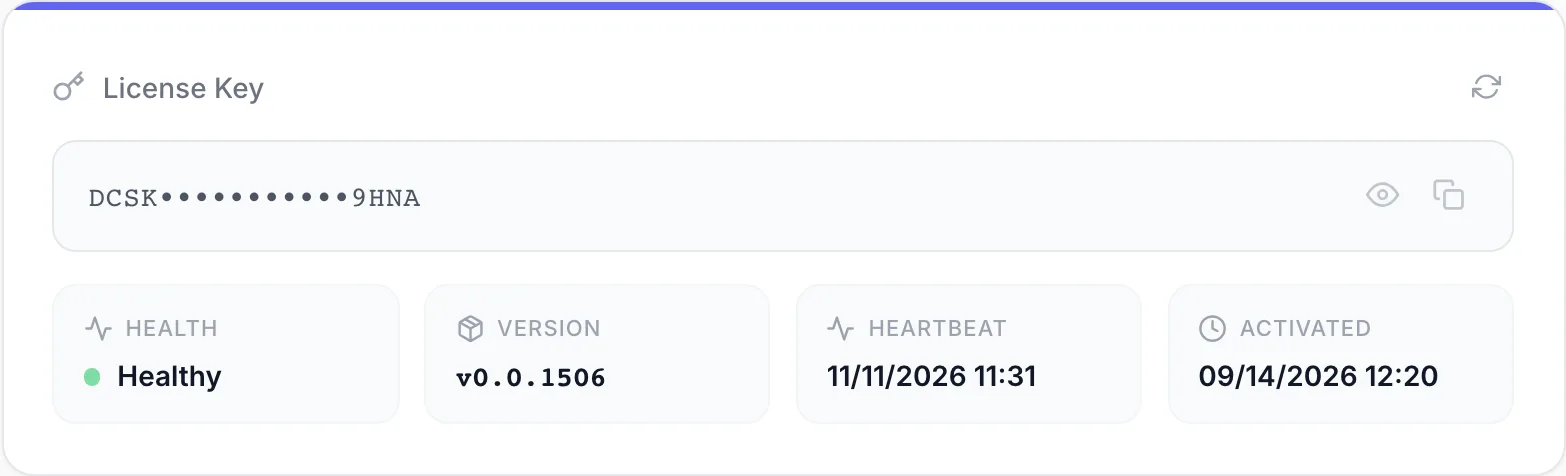
Under the key are four boxes:
| Box | What it shows |
|---|---|
| Health | Whether your panel is sending its regular usage reports to FluxBilling. See the next table. |
| Version | The FluxBilling version your panel last reported, for example v0.0.1506. It shows -- until the panel has reported one. |
| Heartbeat | The date and time your panel last contacted FluxBilling's licence service. It shows -- if it never has. |
| Activated | When your panel was first activated with this key. |
| Value | Meaning |
|---|---|
| Healthy (green dot) | Your panel has sent a usage report in the last 6 hours. Panels send one every hour. |
| Warning | No usage report for more than 6 hours. |
| Critical | No usage report for more than 24 hours. |
| Unknown | The licence is not active, for example while it is suspended, or no status has been recorded yet. |
If Health shows Warning or Critical, first check that your panel opens. If it does and the status stays the same, contact FluxBilling support.
Plan Usage card
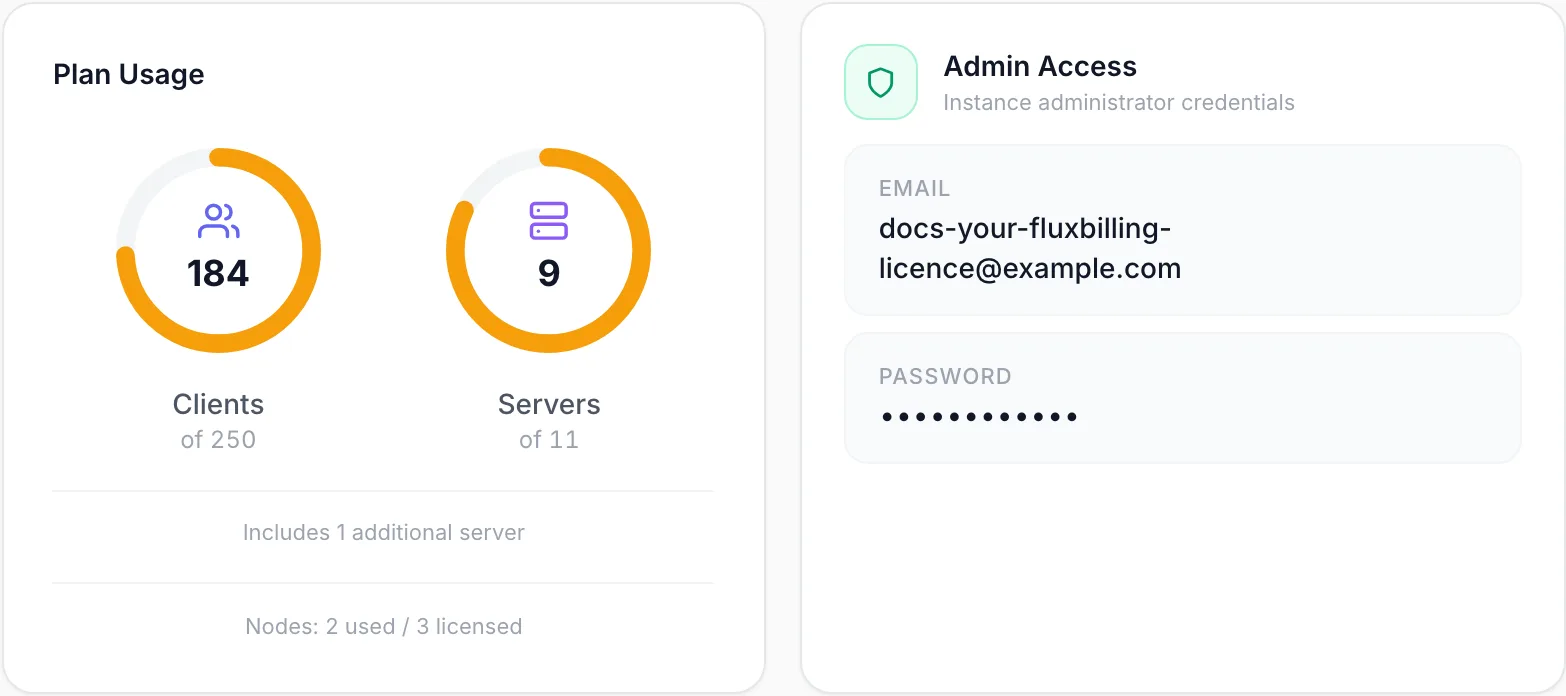
The Plan Usage card has two rings. Each ring shows how much of a plan limit you use.
- Clients: your active clients. This is the same count your panel checks against your client limit. Sub-contacts of a client do not count.
- Servers: the bare metal servers in your panel's inventory, both standalone dedicated servers and blade servers.
Under each number, of N is your limit. For servers, this is your plan's limit plus any extra servers you bought. If your plan has no client limit, the ring shows Unlimited. A ring turns amber above 70% of the limit and red above 90%.
The figures come from the latest usage report your panel sent, so they can be up to about an hour old. They show 0 until your panel sends its first report.
Two more lines can appear at the bottom of the card:
- Includes N additional server: extra servers you bought on top of your plan's limit. These are already counted in of N.
- Nodes: X used / Y licensed: shown only if your licence includes VPS and game server nodes. Licensed is how many you pay for. Used is how many servers your panel last reported running FluxBilling's own VPS or game hosting.
Admin Access card
Admin Access (Instance administrator credentials) shows the login FluxBilling created for your panel's first administrator account.
- Email: the administrator's email address. Point at the row and click the copy icon to copy it.
- Password: hidden. Point at the row to show the eye icon (show or hide) and the copy icon.
Use these to sign in to your panel's admin area for the first time. The address is under Default Access → Admin Panel on the Custom Domains card, or on your own domain once you have set one up.
This card shows the password FluxBilling created. It does not change if you later change the password inside your panel. If you change it, store the new one yourself. If you are locked out, contact FluxBilling support.
The card does not appear if no administrator account was created for your panel. The Password row does not appear if no password is stored.
Custom Domains card
The Custom Domains card shows your panel's default addresses. You can also use it to put your client area and admin panel on your own domain. It has its own guide: Custom domains for your panels.
Billing
The Billing card in the sidebar works the same way as for any other service. It shows the price per billing period, Next Due with the number of days left, and the order date. Below these are View Invoices and Cancel Service. A Cancel Service button also appears at the top of the page. For renewals, invoices and cancellation, see Managing your services and Invoices and payments.
Plan & add-ons
The Plan & add-ons card (Prorated to your next renewal) lists what you can add to your licence. It appears only while the service is active and something is available to buy. Each row shows a price. Rows you already have show an Active badge. The other rows have an Add button.
| Row on the card | Name in the purchase window | What it gives you | Price shown |
|---|---|---|---|
| White-label | White Label | Removes FluxBilling branding from your panels and emails. | per month |
| VPS and game server nodes | VPS and game server nodes | One node for each server that runs FluxBilling's own VPS or game hosting. You do not need nodes for servers you sell through Virtualizor, Proxmox, Pterodactyl or other plugins. | per node per month |
| Extra bare metal | Extra Servers | Raises the Servers limit on the Plan Usage card by the number you buy. | per server per month |
| Monitoring | Monitoring | Turns on the monitoring feature in your panel. See Monitoring. | per month |
Only the add-ons offered for your licence are listed. Each must have a price in your account's currency. VPS and game server nodes are not offered on hourly billing.
Buy an add-on
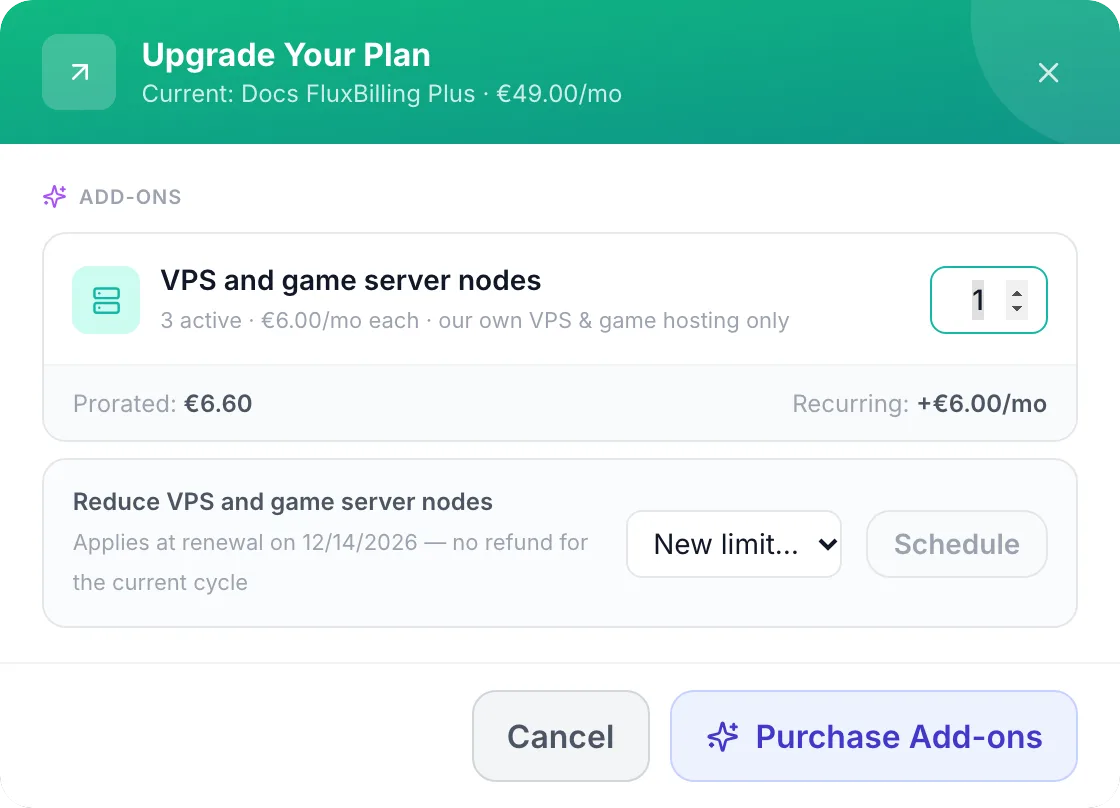
- On the Plan & add-ons card, click Add next to the add-on. The Upgrade Your Plan window opens with that add-on already selected.
- Set what you want. White Label and Monitoring are switches. Extra Servers and VPS and game server nodes take a number: how many to add. The line under the name shows what you have now, for example 3 active.
- Check the summary. Prorated is what you pay now for the rest of the current billing period. Recurring is how much the add-ons add to your price per month, from your next renewal.
- Click Purchase Add-ons. FluxBilling creates an invoice or proforma for the prorated amount and opens it, with the message Add-on purchased! Redirecting to the invoice… (or proforma). Pay it as usual. If nothing is due, the add-on is turned on straight away and Add-on activated successfully! appears.
While a purchase or plan change is waiting for payment, the card shows A change is waiting for payment — finish or cancel it first. Pay or cancel that document before you start another change.
Reduce VPS and game server nodes
If you have at least one node, the purchase window also shows Reduce VPS and game server nodes. Choose a lower number under New limit… and click Schedule. The change takes effect at your next renewal, and the current period is not refunded. The window says so: Applies at renewal on <date> — no refund for the current cycle. Until then, the window shows Node downgrade scheduled: X → Y with a Cancel button, so you can undo it.
Change plan
If you can move to another plan, a Change plan button appears at the bottom of the card. It opens the same window with the plans you can switch to. Add-ons you already have stay on your licence when you change plan.
Troubleshooting
- "No license data available" with a Try again link. The licence details could not be loaded. Click Try again. If the message stays, contact FluxBilling support.
- Clients or Servers show 0, or Version shows --. Your panel has not sent a usage report yet. Reports are sent every hour, so check again later.
- The Plan & add-ons card is missing. The service is not active, it is suspended, or nothing is currently offered for your licence.
- The page says Service Suspended. Pay any overdue invoice or contact FluxBilling support. You cannot buy add-ons while the service is suspended.
- The Admin Access password does not work. It may have been changed inside your panel since it was created. Use your current password, or contact FluxBilling support.